
How to fix WaaSMedicSvc error "Failed to Read Description. Error Code: 2" in Windows?

Prefer to fix it yourself? The manual steps follow.
- 6methods
- 5 minutes for the registry fix, up to 60 minutes if Windows Update also fails
- Intermediate
Applies to Windows 11, Windows 10
6 methods in this guide
When I check Services, WaaSMedicSvc shows the error "Failed to Read Description. Error Code: 2" in its description. It's the same for the WSearch service as well. What does this mean and how do I fix it?
WaaSMedicSvc is the Windows Update Medic Service, and the Error Code: 2 message in its Description column means Services could not find the file that holds its name and description. It is a display problem, not a broken service. Write the text back into the registry (Fix 1) and the message is gone after a restart.
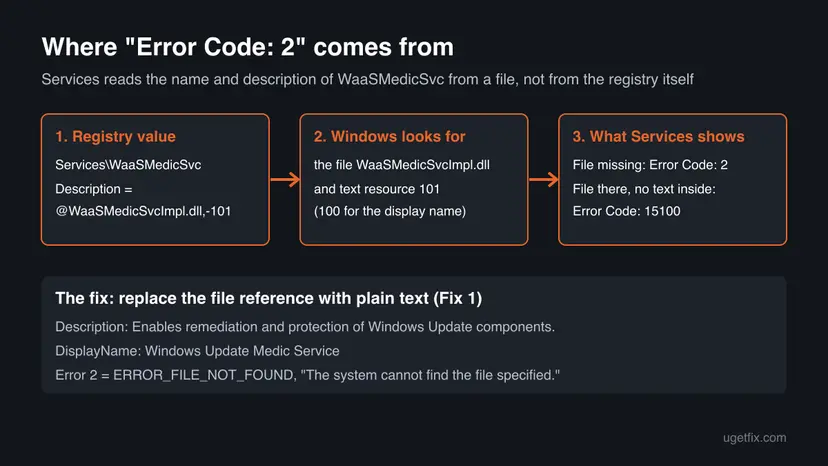
Error code 2 is ERROR_FILE_NOT_FOUND: the registry tells Services to read the WaaSMedicSvc name and description from WaaSMedicSvcImpl.dll, and that file is not there. The service itself is not what the message is about. Back up the registry, then type the description and display name into HKEY_LOCAL_MACHINE\SYSTEM\CurrentControlSet\Services\WaaSMedicSvc yourself (Fix 1) and restart.
| Error | <Failed to Read Description. Error Code: 2 > in the Description column of Services, next to WaaSMedicSvc. |
|---|---|
| Where it appears | The Services console (services.msc). The service is listed by its short name WaaSMedicSvc instead of Windows Update Medic Service. |
| Main cause | The registry values Description and DisplayName point to @WaaSMedicSvcImpl.dll,-101 and -100, and that file is missing. Error 2 is ERROR_FILE_NOT_FOUND. |
| Fastest fix | Type the text into the two registry values yourself (Fix 1). Five minutes and one restart. |
| Also written as | <Failed to Read Description. Error Code: 15100 >, waasmedicsvc error code 2, WaaSMedicSvc failed to read description, "The system cannot find the file specified." |
| Affects | Reported on Windows 11 22H2 in 2023 and still reported by users on later builds. The same message can show on other services, such as WSearch or MDCoreSvc. |
| Microsoft's status | No Microsoft article lists it as a known issue. We could not confirm which update, if any, fixes it for good. |
| Does it break updates? | We found no Microsoft statement that it does. The message is about display text. If updates also fail, treat that as a second problem. |
| Time to fix | 5 minutes for Fix 1. 15 to 60 minutes if you also repair system files or Windows Update. |
Facts checked on 15 October 2026. Steps written for Windows 11 (25H2 and 26H2) and Windows 10 22H2.
What WaaSMedicSvc "Failed to Read Description. Error Code: 2" means
WaaSMedicSvc is the short name of the Windows Update Medic Service. Its job, in its own description text, is that it "Enables remediation and protection of Windows Update components." In other words, it repairs Windows Update settings and services that have been changed or damaged.
Services does not store that name and description as plain text. The registry holds a reference to a text resource inside a file, and Services reads the text from the file each time you open the list. When the file cannot be found, Services prints the Windows error number instead:
What the Description column shows
<Failed to Read Description. Error Code: 2 >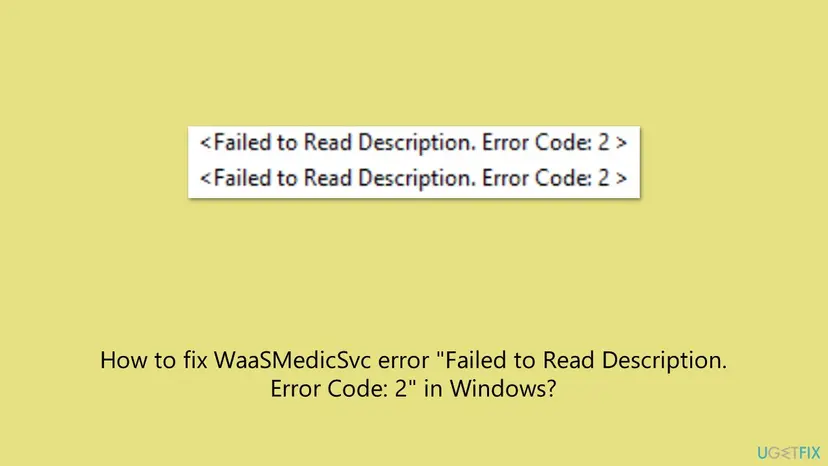
- Error Code: 2 is
ERROR_FILE_NOT_FOUND, which Microsoft's list of system error codes describes as "The system cannot find the file specified." So the file that holds the text is missing. - Error Code: 15100 is the same message one step further: the file is now there, but it does not contain the text the registry asks for. You may see this after a system file repair.
- "error code 2 windows" in general is the same file not found error. It appears in many other places, such as
System error 2 has occurredfrom thenet startcommand, and means a file or service name was not found there too. - The service name instead of the display name. On an affected PC the list shows WaaSMedicSvc in the Name column, because the display name is read from the same missing file.
Why WaaSMedicSvc fails to read its description, most common cause first
Every case ends in the same place: Windows looks for a file and does not find it. What differs is why the file is missing, and that decides which fix to use.
| Cause | How it looks | Fix |
|---|---|---|
The registry still points to WaaSMedicSvcImpl.dll, but this Windows build does not ship that file. Reported on Windows 11 22H2. | Only WaaSMedicSvc is affected. Windows Update works. | Fix 1 |
| Another service's description points to a file that is missing. | WSearch, MDCoreSvc or another service shows the same text. | Fix 2 |
| An update blocker or debloat tool renamed, deleted or locked the WaaSMedic files. | You ran such a tool. Windows Update may also stop working. | Fix 3 |
| An older build of Windows with the mismatch. | Windows Update lists pending updates you have not installed. | Fix 4 |
| Damaged system files. | SFC or DISM reports errors, or other parts of Windows misbehave too. | Fix 5, then Fix 6 |
A common answer, also in the earlier version of this page, is to create StringCacheSettings with the DWORD StringCacheGeneration set to 38b under the MUI key. That resets a cache of translated strings. It cannot create a file that is missing, and at least one user on Microsoft Q&A reported that the message stayed after trying it.
How to fix WaaSMedicSvc "Failed to Read Description. Error Code: 2"
Fix 1 is the one that removes the message for most people. Fix 2 is for the same text on other services. Fix 3 to Fix 6 are for PCs where something else is wrong too, such as Windows Update failing. If Windows Update works, you can also leave the message alone.
| What you see | Start with |
|---|---|
| Only WaaSMedicSvc shows the message, and Windows Update works. | Fix 1 |
| WSearch, MDCoreSvc or another service shows the same message. | Fix 2, then Fix 1 with that service's text |
| You used a tool to block Windows Update or remove Windows parts. | Fix 3 |
| Windows Update has pending updates, or the PC is on Windows 11 22H2. | Fix 4, then Fix 1 |
| Windows Update fails, or SFC reports problems. | Fix 5, then Fix 6 |
Fix 1. Type the description and display name back into the registry
5 minutesRead the warningServices shows the message on WaaSMedicSvc, and you want it gone.
The message appears because the registry points to text inside a file that is missing. If you replace that pointer with the text itself, Services has nothing to look up and shows the text directly. This is the workaround given on Microsoft Q&A and by Winhelponline.
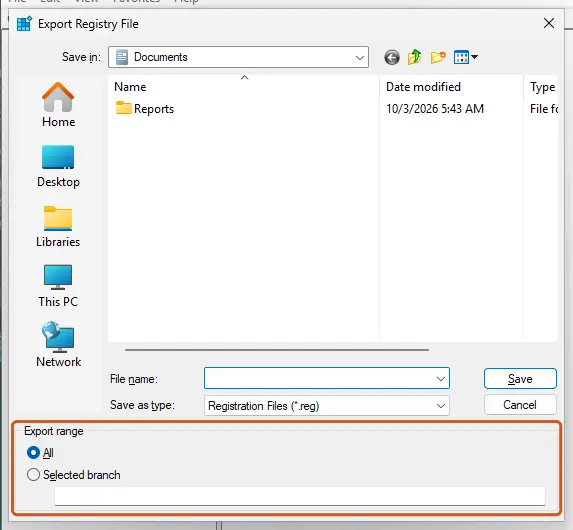
A wrong edit under Services can stop a service from starting. Export the WaaSMedicSvc key before you change it, so you can import it back in one double-click. Step by step: Back up the registry before editing it
- Press Win + R, type
regeditand select OK. Select Yes in User Account Control. - Paste
HKEY_LOCAL_MACHINE\SYSTEM\CurrentControlSet\Services\WaaSMedicSvcinto the address bar and press Enter. - Right-click the WaaSMedicSvc key and select Export to save the backup.
- Double-click Description. Replace
@WaaSMedicSvcImpl.dll,-101withEnables remediation and protection of Windows Update components.and select OK. - Double-click DisplayName. Replace
@WaaSMedicSvcImpl.dll,-100withWindows Update Medic Serviceand select OK. - Close Registry Editor and restart Windows.
- Open Services again and find Windows Update Medic Service in the list.
Check the result in Command Prompt (read only)
reg query "HKLM\SYSTEM\CurrentControlSet\Services\WaaSMedicSvc" /v Description
reg query "HKLM\SYSTEM\CurrentControlSet\Services\WaaSMedicSvc" /v DisplayName
Edit only these two values. Do not change Start, ImagePath or the Parameters subkey: those decide whether and how the service runs.
It worked if: Services lists Windows Update Medic Service with a normal description, and the Error Code: 2 text is gone.
If not: If Registry Editor refuses the change with an access error, we could not confirm a supported way around it. The message is cosmetic, so leave it and check Windows Update with Fix 4. If another service shows the message, use Fix 2.
Fix 2. Find which file another service's description points to
5 minutesNo riskWSearch, MDCoreSvc or any other service shows the same message, as in the question at the top of this page.
Each service has its own Description value and its own file. Reading the value and testing whether the file exists tells you whether you have the same missing file problem, and which text belongs there.
- Open Services (
services.msc), double-click the affected service and note its Service name, for exampleWSearch. - Right-click Start and select Terminal (Admin). On Windows 10, open Windows PowerShell as administrator.
- Run the first command below with your service name. It prints the
DescriptionandDisplayNamevalues. - If a value starts with
@, the part before the comma is the file. Run the second command with that file name. - Run the third command to see which program runs the service. That line is not changed by any fix on this page.
PowerShell: read the values of one service (replace WSearch)
Get-ItemProperty 'HKLM:\SYSTEM\CurrentControlSet\Services\WSearch' | Select-Object DisplayName, DescriptionPowerShell: does the file exist in the system folder?
Test-Path "$env:SystemRoot\System32\WaaSMedicSvcImpl.dll"Command Prompt: which program the service runs
reg query "HKEY_LOCAL_MACHINE\SYSTEM\CurrentControlSet\Services\WaaSMedicSvc" /v ImagePath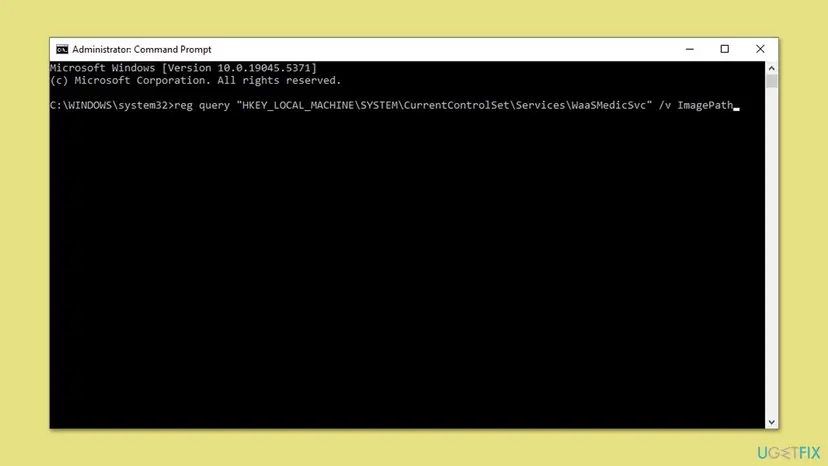
We could not confirm which file the WSearch or MDCoreSvc description points to on an affected PC, so read it with the command rather than trusting a value from another site.
It worked if: Test-Path prints False for the file named in the description. That confirms the missing file is the cause, and the service itself is untouched.
If not: If the file exists (True) and the message shows Error Code: 15100, the text is not inside it: write the text into the registry as in Fix 1, using that service's own description. If you do not know the right text, leave the message; it does no harm.
Fix 3. Undo an update blocker or debloat tool
10 to 20 minutesLow riskYou used a script or tool to stop Windows Update, remove the Medic Service or strip Windows parts.
Some update blocker scripts rename the WaaSMedic files and take away their permissions so the Medic Service cannot run. Users on Microsoft's Q&A forum describe one that lists WaasMedicSvc.dll, WaaSMedic.exe and WaaSMedicPS.dll among the files it locks. A renamed file is a missing file to Services.
- Open the tool again and look for its own Restore, Undo or Enable updates option. Use it first, because only the tool knows what it changed.
- If the tool came with a restore registry file or a backup folder, apply that.
- If you no longer have the tool, open Settings > Apps > Installed apps and uninstall it. Step by step: Uninstall a program or app in Windows
- Restart Windows, then run Fix 5 so Windows replaces any system files the tool removed.
- Open Settings > Windows Update and select Check for updates.
Pause updates in Settings, or a Group Policy setting on Pro editions, controls updates without breaking the services Windows needs to repair itself. A PC without working updates misses security fixes.
It worked if: The tool's restore option or an SFC scan puts the files back, Windows Update checks for updates normally, and Fix 1 then clears any remaining message.
If not: If Windows Update still will not run, go to Fix 5 and Fix 6.
Fix 4. Install the latest Windows updates
15 to 45 minutesLow riskWindows Update lists pending updates, or the PC still runs Windows 11 22H2 or an older build.
The mismatch between the registry value and the files is a Windows build problem, reported on 22H2. A newer build rewrites the service's files and registry values. We could not confirm which build fixes it, so do this together with Fix 1, not instead of it.
- Press Win + I and open Windows Update (Windows 10: Update & Security > Windows Update).
- Select Check for updates and install everything offered, including the cumulative update.
- Restart when asked, then check Services again.
- Press Win + R, type
winverand note the version and build if the message is still there.
If an update refuses to install from Windows Update, get it from the Microsoft Update Catalog: Install an update from the Microsoft Update Catalog Windows 10 left support on 14 October 2025, so a Windows 10 PC no longer gets regular fixes for display issues like this one.
Older advice, including the earlier version of this page, suggested joining Windows Insider to get a fix. No Microsoft source we read ties this message to an Insider build, and preview builds bring their own bugs.
It worked if: Windows Update says you are up to date, and after a restart the description may show normally.
If not: If the message is still there, use Fix 1. If updates fail with an error code, go to Fix 5.
Fix 5. Repair Windows system files with DISM and SFC
15 to 30 minutesNo riskWindows Update fails, other services misbehave, or you removed Windows parts with a tool.
DISM repairs the component store and SFC puts back damaged or missing system files from it. It helps when files were really removed. When the file never shipped with your build, Winhelponline notes that the message changes from Error Code: 2 to 15100 instead of going away, and Fix 1 is still needed.
- Open an elevated command window. Right-click Start and select Terminal (Admin), or type cmd in the search box, right-click Command Prompt and select Run as administrator. Select Yes when Windows asks for permission.
- Run DISM first. Type the command below and press Enter. DISM downloads clean copies of damaged components from Windows Update, so it can take several minutes. Wait until it says The operation completed successfully.
DISM.exe /Online /Cleanup-Image /RestoreHealth - Run System File Checker. In the same window, type the command below and press Enter. Do not close the window until the verification reaches 100%.
sfc /scannow - Read the result and restart. Compare the last message with the table below this guide, then restart the PC so that repaired files are loaded.
These steps were written for Windows 11 24H2 and 25H2. The full page with the other versions and what each result means: Run DISM and SFC to repair Windows system files

It worked if: SFC reports no integrity violations, or that it repaired them. Windows Update works again.
If not: If the message only changed to 15100, use Fix 1. If SFC cannot repair files, go to Fix 6.
Fix 6. Reinstall Windows over itself and keep your files
45 to 90 minutesRead the warningWindows Update fails and SFC and DISM could not repair it. Not for the description message alone.
A repair install replaces every Windows system file and resets the service registrations while keeping your apps and files. It is the last step when update components are damaged beyond what DISM can fix. For a description that is only text, Fix 1 is enough.
A repair install keeps personal files and apps when you choose to keep them, but any failed install can cost data. Copy your documents to another drive or the cloud before you start: Back up your files (Windows Backup, File History, Time Machine)
- Copy your personal files to another drive or the cloud.
- Download the Windows 11 or Windows 10 installation media from Microsoft's download page and open the ISO.
- Run setup.exe from the mounted ISO while Windows is running.
- When setup asks what to keep, choose Keep personal files and apps.
- Let the PC restart several times without turning it off, then sign in and check Windows Update.
Every screen, for Windows 11 and Windows 10: Reinstall Windows without losing files
It worked if: Windows starts with your apps and files in place, Windows Update works, and Services lists the Medic Service.
If not: If the description message is still there after the repair install, use Fix 1. It is the build mismatch, not damage.
If the message stays or Windows Update also fails: what to check
Separate the two problems first. The description message is display text. Windows Update failing is a real fault and has its own error code. Collect these details before you ask Microsoft support or a forum for help.
- The exact message. Error Code: 2 means the file is missing; Error Code: 15100 means the text is not in the file.
- The registry values. The output of the
reg querycommands from Fix 1 and Fix 2. - The Windows version and build. Press Win + R, type
winverand note both. - Windows Update errors. In Settings > Windows Update > Update history, note any failed update and its code.
- The service events. In Event Viewer, Windows Logs > System, filter by the source Service Control Manager and look for events that name the Windows Update Medic Service or Windows Update.
- Tools you ran. Any update blocker, debloat script or privacy tool, with its name and version.
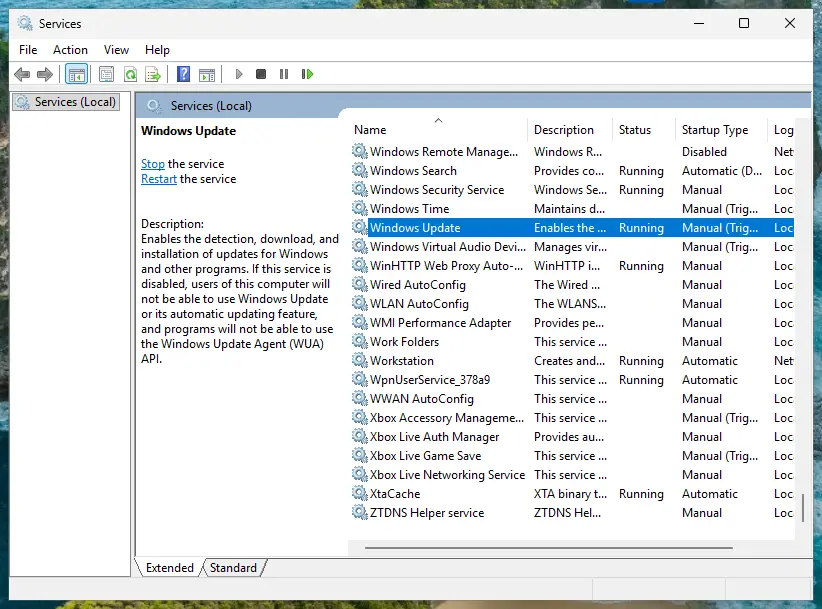
Windows Update troubles with their own codes have their own fixes. The full reset of Windows Update components is here: Reset Windows Update components
How to avoid WaaSMedicSvc description errors in the future
- Install cumulative updates when Windows offers them.
- Export a registry key before you edit it.
- Use Pause updates in Settings when you want a break from updates.
- Keep System Protection on for drive C:, so a restore point exists before big changes.
- Do not run scripts that rename, delete or lock WaaSMedic files. They break the services Windows uses to repair itself.
- Do not download WaaSMedicSvc.dll or WaaSMedicSvcImpl.dll from DLL sites. You cannot check what is inside, and the file may not even contain the text.
- Do not change the
Startvalue of WaaSMedicSvc to make the message go away. It is not related. - Do not reset Windows because of this message alone.
Frequently asked questions
What is WaaSMedicSvc?
WaaSMedicSvc is the service name of the Windows Update Medic Service. Its own description says it "Enables remediation and protection of Windows Update components." It checks and repairs the parts of Windows Update that have been disabled or damaged, which is why it may turn updates back on after you switch them off. WaaS stands for Windows as a Service. It is a genuine Windows component that lives in the Windows system folder, not malware. If you want fewer updates, use Pause updates in Settings instead of fighting this service.
WaaSMedicSvc que es? What does it mean in Spanish searches?
This page is in English, but the answer is the same: WaaSMedicSvc is the Windows Update Medic Service, a genuine part of Windows that repairs Windows Update. The message "Failed to Read Description. Error Code: 2" looks the same in every language version of Services, because Windows could not load the translated text. Error 2 means the file with the text was not found. Fix 1 writes the description into the registry, and you can type it in your own language if you prefer.
Is "Failed to Read Description. Error Code: 2" dangerous?
No, not by itself. The message only means Services could not load the text it displays for the service. We found no Microsoft statement that it stops the Medic Service or Windows Update. It is still worth checking that Windows Update works, because the same missing files can come from a tool that blocked updates. If Settings shows that updates install normally, the message is cosmetic and Fix 1 removes it. If updates fail, follow Fix 3 to Fix 5.
Why does WSearch show the same error?
Windows Search, service name WSearch, reads its description from a file in the same way. If that file is missing or does not contain the text, Services shows the same message with the same code. We could not confirm which file the WSearch description points to on an affected PC, so read it with the PowerShell command in Fix 2. If search works, the message is cosmetic. Users also report it on MDCoreSvc, a Microsoft Defender service, and Winhelponline describes the 15100 variant on McpManagementService.
What is the difference between Error Code: 2 and Error Code: 15100?
Error Code: 2 means the file named in the registry value was not found at all. Error Code: 15100 means the file was found, but it does not contain the text resource the registry asks for. Winhelponline reports that restoring WaaSMedicSvcImpl.dll by hand or with SFC turns the first message into the second. Both are solved the same way: write the description and display name into the registry as plain text with Fix 1.
Does the StringCacheGeneration 38b registry fix work?
It does not fix this message in the cases we know of. The tip, posted as an answer on Microsoft Q&A and in the earlier version of this page, creates the StringCacheSettings key under the MUI key with StringCacheGeneration set to 38b. That resets the cache of translated strings. When the file itself is missing, there is nothing to reload, and a user on the same Microsoft Q&A thread said the message was still there afterwards. Use Fix 1 instead.
Should I download WaaSMedicSvc.dll or WaaSMedicSvcImpl.dll?
No. DLL download sites cannot prove where their files come from, and a system file from an unknown source is a real security risk. It would not help anyway: Winhelponline found that the file Windows ships does not contain the text resources 100 and 101, so the message just changes to 15100. If system files are damaged, SFC and DISM restore genuine copies from Microsoft (Fix 5). For the message itself, Fix 1 is enough.
Can I disable WaaSMedicSvc to get rid of the error?
Disabling the service does not change the description, so the message would stay. Windows also protects this service, and users on Microsoft Q&A report Access Denied when they try to change its startup type in Services. Tools that force it off do so by renaming or locking its files, which is one of the causes of this message. A PC that cannot repair Windows Update misses security fixes. To control timing, use Pause updates or active hours instead.
Does this happen on Windows 10 and Windows 11?
The detailed reports describe Windows 11 22H2, and users still report the message on later Windows 11 builds. The earlier version of this page also showed it on Windows 10 22H2. The cause and Fix 1 are the same on both, because the registry key is the same. Note that Windows 10 left support on 14 October 2025, so a Windows 10 PC will not get regular fixes for problems like this. On Windows 11, install the latest cumulative update as in Fix 4.
Sources
- Microsoft Learn: System Error Codes (0-499), ERROR_FILE_NOT_FOUND 2 (0x2), "The system cannot find the file specified." (learn.microsoft.com)
- Microsoft Q&A: waaSMedicSvc failed to read description error code 2 (registry workaround, MUI cache answer and user reports) (learn.microsoft.com)
- Winhelponline: WaaSMedicSvc, Failed to Read Description, Error Code 2 (WaaSMedicSvcImpl.dll, error 15100, resolution) (winhelponline.com)
Did this fix work?
One click, no account. It tells the next reader which guides are worth their time.
Questions and experiences: fix WaaSMedicSvc error "Failed to Read Description. Error Code: 2" in Windows
Still broken, or found a fix we did not cover? Ask here: members and our editors answer. Reading is open; writing needs a free account.
…