
How to fix "We didn't get any response from the device" Bluetooth error in Windows 11 and 10

Prefer to fix it yourself? The manual steps follow.
- 8methods
- 5 to 30 minutes
- Easy
Applies to Windows 11 and Windows 10 with Bluetooth headphones, earbuds, speakers, keyboards, mice and controllers
8 methods in this guide
So recently I purchased new Logitech Bluetooth headphones and I can't get them to work. When trying to connect them, I get an error message "We didn't get any response from the device. Try connecting again." Is there a way to fix this? I am using the latest version of Windows 11.
The message "We didn't get any response from the device" means Windows sent a pairing request and your Bluetooth device never answered. Most often the device is not in pairing mode or is still busy with your phone. Put it in pairing mode with the phone's Bluetooth off, then remove the old pairing and add it again.
Windows found the device but it did not answer the pairing request in time. Start with Fix 1: charge the device, turn off Bluetooth on your phone, and hold the device's pairing button until its light flashes. Then remove the old entry in Settings > Bluetooth & devices and add the device again (Fix 2). If it still fails, move it closer and unplug USB 3.0 gear (Fix 3).
| Error | "We didn't get any response from the device. Try connecting again." |
|---|---|
| Where it appears | The Add a device window, right after you select a Bluetooth device to pair or connect it. |
| Main cause | The device is not in pairing mode, is low on battery, or is still connected to a phone or another PC. |
| Fastest fix | Phone Bluetooth off, device in pairing mode, then remove and add the device again (Fixes 1 and 2). |
| Also written as | "We didn't get a response from the device", "Try connecting your device again" and, in the same window, "That didn't work. Make sure your Bluetooth device is still discoverable, then try again." |
| Affects | Windows 11 and Windows 10, Bluetooth headsets, speakers, keyboards, mice and game controllers. |
| Vendor status | Microsoft has no fix or update for this exact message. Its support pages treat it as a pairing problem: pairing mode, range, battery, driver. |
| Time to fix | 2 minutes for Fixes 1 and 2; up to 30 minutes when the adapter driver must be reinstalled. |
Facts checked on 15 October 2026. Steps written for Windows 11 25H2 and 26H2 and Windows 10 22H2, Settings > Bluetooth & devices.
What "We didn't get any response from the device" means
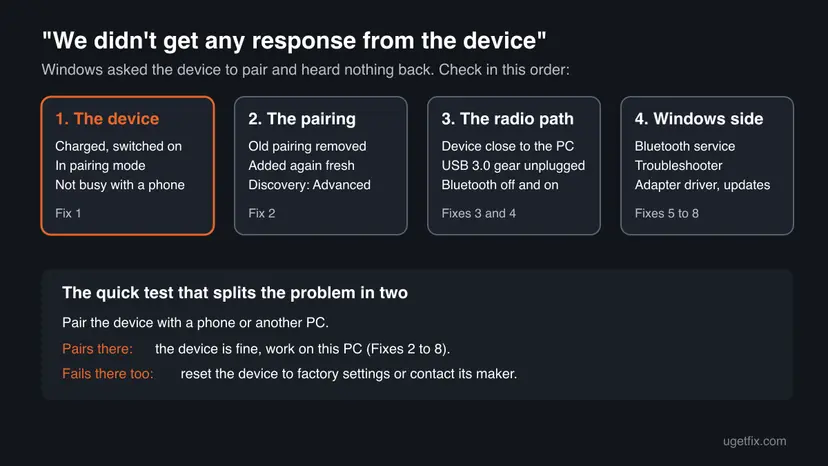
Windows shows We didn't get any response from the device. Try connecting again. in the Add a device window. By then it has already found the device by name, so the radio on your PC works. What failed is the next step: Windows asked the device to pair or connect, and no answer came back before Windows gave up.
That is why the message is about the device, not about Windows. A device that is switched off, out of pairing mode, asleep, low on battery or busy with another host cannot answer. Microsoft's own page on Bluetooth that will not connect lists the same group of reasons: the device "is not in pairing mode, is out of range, has a low battery", or a driver, service or update problem.
- Same message, other spellings people search: "we didn't get a response from the device", "we didn t get any response from the device try connecting again", "didn't get any response".
- Close relatives in the same window: "Try connecting your device again" and "That didn't work. Make sure your Bluetooth device is still discoverable, then try again." They come from the same pairing step, and the fixes on this page apply to them too.
- Not the same problem: Bluetooth missing from Settings, or a device that connects but plays no sound. Those have their own causes.
Why the device does not respond: causes from most to least common
Most often the device simply is not listening for a new PC. Many headphones reconnect to the last phone the moment they switch on, and while they are busy with it they ignore Windows. Less often an old, half-broken pairing record sits in Windows, or the signal is drowned by nearby USB 3.0 gear. Rarely the adapter driver or the Bluetooth service on the PC is the cause.
| How often | Cause | Sign | Fix |
|---|---|---|---|
| Most often | Device not in pairing mode, asleep or low on battery. | Light is solid or off instead of flashing. | Fix 1 |
| Most often | Device still connected to a phone, tablet or another PC. | Sound or input goes to the phone. | Fix 1 |
| Often | An old pairing record for the device is still in Windows. | The device is listed, or shows a generic name such as "Bluetooth headset". | Fix 2 |
| Less often | Range or interference from USB 3.0 devices, docks or cables. | Pairing works next to the PC with cables unplugged. | Fix 3 |
| Less often | Bluetooth radio or service stuck after sleep. | Other Bluetooth devices also stopped connecting. | Fixes 4 and 5 |
| Rarely | Outdated or wrong Bluetooth adapter driver. | Problem began after a Windows upgrade or a new driver. | Fixes 6 to 8 |
| Rarely | Faulty device. | It fails to pair with a phone too. | If it is still broken |
Before Windows repairs, pair the device with a phone or another PC. If it pairs there, the device is fine and the problem is on this PC. If it fails there too, no Windows fix will help.
How to fix "We didn't get any response from the device", from the most common cause
Work from Fix 1 down and try to pair after each fix. Fixes 1 to 3 cover the device and the pairing itself and solve most cases; Fixes 4 to 8 repair the Bluetooth side of Windows. Paths are given for Windows 11 and Windows 10 22H2, although Windows 10 left support on 14 October 2025.
| What you see | Start with |
|---|---|
| New device, first pairing, the message appears at once. | Fix 1. |
| The device paired before, then you removed it or it stopped connecting. | Fix 2. |
| It pairs only when the device is right next to the PC. | Fix 3. |
| No Bluetooth device connects any more, after sleep or an update. | Fixes 4 and 5. |
| Bluetooth problems began after a Windows upgrade or driver update. | Fix 7. |
Fix 1. Put the device in pairing mode and free it from your phone
2 minutesNo riskEvery reader. Above all with new headphones, earbuds and speakers that already know your phone.
The message means the device did not answer. A device answers a new PC only while it is awake, charged and in pairing mode, and many headsets jump back to the last phone as soon as they switch on.
- Charge the device. Microsoft notes that some devices do not enter pairing mode when the battery is low, so leave headphones or a speaker on the charger while you pair.
- On your phone, tablet and any other PC nearby, turn Bluetooth off for now.
- Turn the device off, wait a few seconds and turn it on again.
- Put it in pairing mode: usually hold the power or Bluetooth button until the light flashes. The device's manual names the exact button.
- On the PC, open Settings > Bluetooth & devices (Windows 10: Settings > Devices > Bluetooth & other devices) and make sure Bluetooth is on.
- Select Add device (Windows 10: Add Bluetooth or other device), choose Bluetooth and select the device while its light still flashes.
Most devices stay in pairing mode for only a short time. If the light stops flashing before you select the device in Windows, start pairing mode again and select it at once.
It worked if: Windows shows the device as Connected or Paired, and the device usually plays a sound or its light changes.
If not: If the same message appears, go to Fix 2 to clear any old pairing.
Fix 2. Remove the device from Windows and add it again
3 minutesLow riskThe device was paired before, shows up in the list, or appears under a generic name such as "Bluetooth headset".
Windows keeps a pairing record for each device. If the device was reset or paired elsewhere, it no longer matches that record and does not answer. Removing it lets both sides start from scratch.
- Open Settings > Bluetooth & devices > Devices. On Windows 10 open Settings > Devices > Bluetooth & other devices.
- Find the device. On Windows 11 select More options (...) next to it and choose Remove device, then Yes. On Windows 10 select the device and choose Remove device.
- Restart the PC.
- Put the device in pairing mode again as in Fix 1.
- Select Add device, choose Bluetooth and select the device.
- If it is not in the list, set Bluetooth devices discovery to Advanced under Device settings on the Devices page (Windows 11) and search again.
Microsoft explains the discovery setting this way: Default shows common Bluetooth devices, while Advanced displays all types of Bluetooth devices. On Windows 10 the matching switch is More Bluetooth options > Options > Allow Bluetooth devices to find this PC.
It worked if: The device appears with its real name, not a generic one, and pairs without the message.
If not: If it is found but still does not answer, go to Fix 3.
Fix 3. Bring the device closer and unplug USB 3.0 devices and cables
5 minutesNo riskPairing fails at a desk full of hubs, docks, external drives or a monitor cable, or works only right next to the PC.
Microsoft warns that unshielded USB devices plugged into a USB 3.0 port "can sometimes interfere with Bluetooth connections". A weak pairing signal can be lost before the device's answer reaches the PC.
- Hold the device close to the PC, with nothing metal between them.
- Unplug USB 3.0 drives, hubs and docks from the PC for the test.
- On a laptop, also unplug the monitor (HDMI) cable and the charger for one try.
- Put the device in pairing mode and add it again as in Fix 1.
- When it pairs, plug the other devices back in one by one to find the one that disturbs it.
In a Microsoft Q&A thread about this exact message, a user reported that removing the HDMI cable, the power cable and all USB devices let the laptop pair "almost instantly". More than 80 readers marked it helpful. It is a user report, not a Microsoft fix.
It worked if: The device pairs when the cables are out. Keep the noisy device on a USB 2.0 port or a short extension cable, away from the Bluetooth antenna.
If not: If it fails even with everything unplugged, the PC side is next: Fix 4.
Fix 4. Turn Bluetooth off and on, then restart the PC
3 minutesNo riskOther Bluetooth devices also stopped connecting, often after sleep or hibernation.
The Bluetooth radio can hang after sleep and stop sending the pairing request properly. Microsoft lists switching Bluetooth off for 10 seconds and restarting the PC as fixes for devices that will not connect.
- Open the quick settings on the right side of the taskbar and check that Airplane mode is off.
- In Settings > Bluetooth & devices, turn Bluetooth off and wait 10 seconds.
- Turn Bluetooth on again.
- Select Start > Power > Restart.
- Pair the device again as in Fix 1.
It worked if: The Bluetooth switch turns on normally and the device pairs.
If not: If the Bluetooth switch is missing or does nothing, go to Fix 5.
Fix 5. Restart the Bluetooth Support Service
3 minutesLow riskBluetooth is on but no device answers, and a restart of the PC did not help.
Pairing goes through the Bluetooth Support Service (bthserv). Its own description says it "supports discovery and association of remote Bluetooth devices", so a stuck service stops new pairings even when the switch is on.
- Press Win + R, type
services.mscand press Enter. - Find Bluetooth Support Service.
- Right-click it and select Restart. If it is not running, select Start.
- Leave Startup type as it is. On our test PC it is Manual (Trigger Start), which is normal.
- Pair the device again.
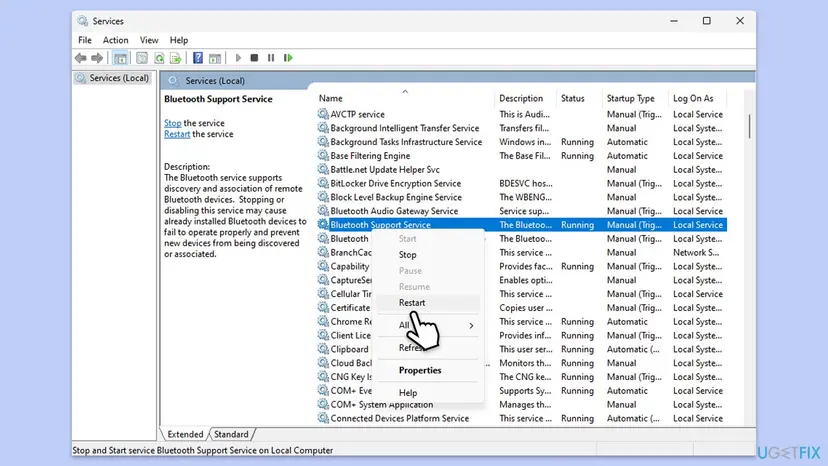
The same restart from an administrator Command Prompt is two commands, one after the other. Opening and changing a service step by step: Check and restart Windows services.
net stop bthserv
net start bthserv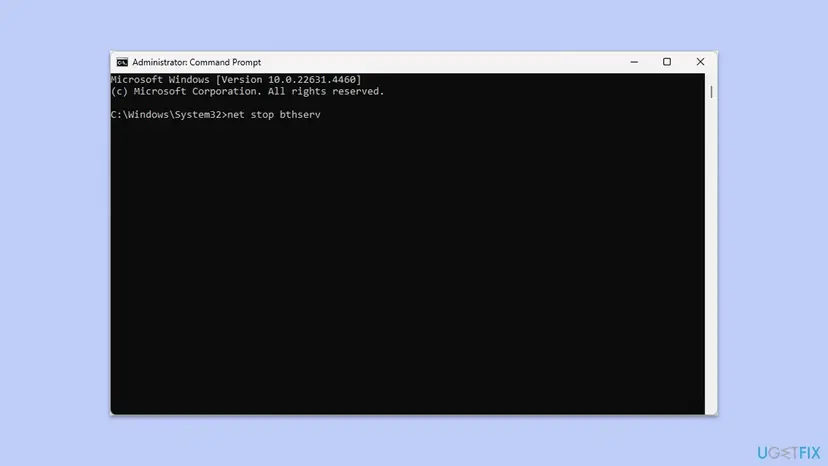
Some guides call this a "Bluetooth stack reset", but it only restarts the service. Never set Bluetooth Support Service to Disabled: its own description warns that installed devices may then fail and new devices cannot be found.
It worked if: The service shows Running and the device pairs on the next try.
If not: If the service will not start, or pairing still fails, run the troubleshooter in Fix 6.
Fix 6. Run the Bluetooth troubleshooter
5 minutesNo riskYou want Windows to check the adapter, service and settings for you.
Microsoft's first step for Bluetooth problems is the automated troubleshooter in the Get Help app. It checks whether the radio is on, the adapter works and the services run, and repairs what it can.
- Windows 11: open Settings > System > Troubleshoot > Other troubleshooters.
- Select Run next to Bluetooth. The Get Help app opens and starts its checks.
- Windows 10: open Settings > Update & Security > Troubleshoot, select Bluetooth under Find and fix other problems and select Run the troubleshooter.
- Follow the prompts and accept the fixes it offers.
- Pair the device again.
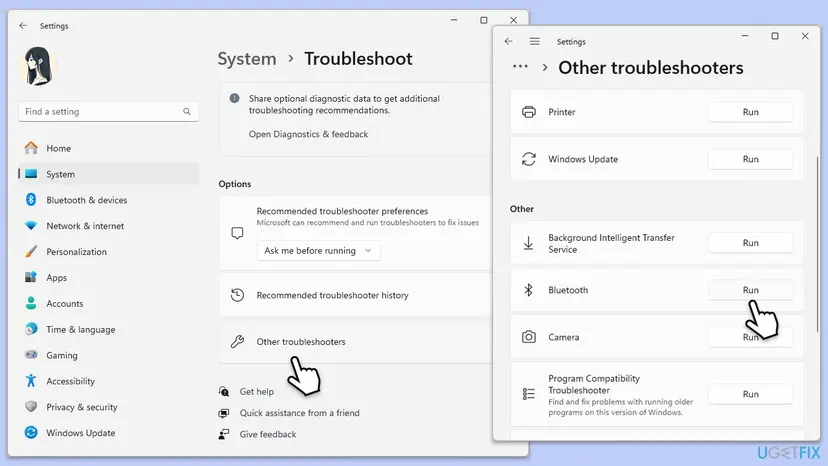
It worked if: Get Help reports a fixed problem or none found, and the device pairs.
If not: If it finds nothing and the message stays, update or reinstall the adapter driver: Fix 7.
Fix 7. Update or reinstall the Bluetooth adapter driver
15 minutesLow riskThe problem began after a Windows upgrade or update, or several devices fail on this PC but pair with others.
Microsoft calls an outdated or incompatible driver "one of the most common causes of Bluetooth connection problems". A driver made for an older Windows can find devices but fail the pairing exchange.
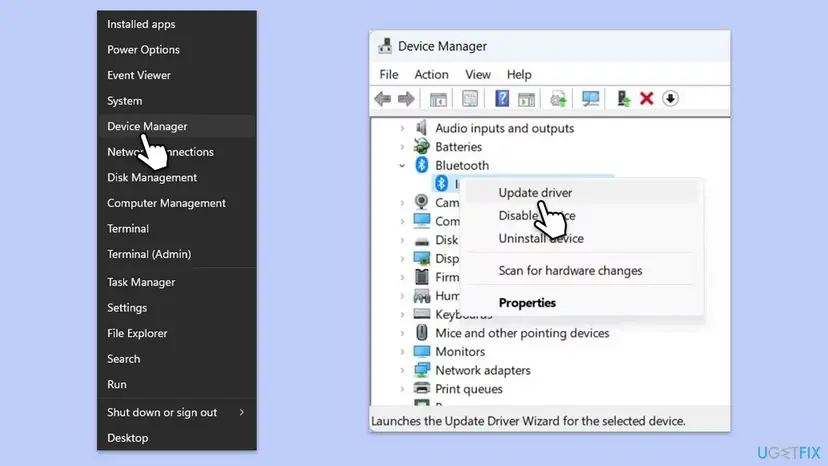
- Right-click Start and select Device Manager.
- Expand Bluetooth and find the adapter. Its name often includes the word "radio" or the chip maker, such as Intel, Realtek or MediaTek.
- Right-click it, select Update driver and then Search automatically for drivers. Restart if asked.
- If nothing new is found, download the Bluetooth driver for your exact model from the PC or motherboard maker's website and install it.
- Still failing: right-click the adapter, select Uninstall device and confirm, then select Start > Power > Shut down.
- Turn the PC on again. Windows reinstalls the driver. If it does not, open Device Manager and select Action > Scan for hardware changes.
Roll back, update and reinstall in detail, with screenshots: Update, roll back or reinstall a driver.
It worked if: The adapter shows no warning sign in Device Manager, and the device pairs.
If not: If the adapter vanishes or shows an error code, install the maker's driver. Then check Windows Update in Fix 8.
Fix 8. Install pending Windows updates
10 to 30 minutesLow riskUpdates are waiting, or the PC has not been updated for a while.
Microsoft lists checking for updates among its fixes for Bluetooth that will not connect. Optional updates can also carry a newer Bluetooth driver from the PC maker.
- Windows 11: open Settings > Windows Update and select Check for updates. Windows 10: Settings > Update & Security > Windows Update.
- Install everything it finds and restart.
- On Windows 11 also open Advanced options > Optional updates and install any Bluetooth driver listed there.
- Pair the device again.
It worked if: Windows says you are up to date, and the device pairs.
If not: Read the section below to find out whether the device itself is at fault.
If the device still does not respond
When all eight fixes fail, find out which side is broken before you spend more time. The test is the one from the top of this page: pair the device with a phone or another PC.
| Result | What it means | Next step |
|---|---|---|
| Pairs with a phone, not with this PC. | The device is fine. The PC's adapter or driver is the problem. | Install the maker's Bluetooth driver, or try a USB Bluetooth adapter. |
| Pairs with no host at all. | The device is not answering anyone. | Reset it to factory settings with the maker's button combination, then pair again. |
| Still pairs with no host after a reset. | Likely a hardware fault. | Contact the device maker or the seller while it is under warranty. |
| Other devices also fail on this PC. | The PC's Bluetooth radio is at fault. | Check Device Manager for an error code on the adapter, then contact the PC maker. |
- Where Windows logs it: open Event Viewer (
eventvwr.msc) > Windows Logs > System right after a failed try, and look for Bluetooth entries at the time of the failure. We could not confirm that a failed pairing always writes an entry, so an empty log does not clear the PC. - What to send to support: the device model, the exact message, your Windows version (Win + R,
winver), the Bluetooth adapter name from Device Manager and whether the device pairs with a phone.
How to stop the error from coming back
- Before you pair with the PC, switch off Bluetooth on the phone the device normally uses, or disconnect it there.
- Pair with the device charged and in pairing mode, and select it in Windows while the light still flashes.
- When you switch a device between PC and phone, do not remove it from Windows each time. Connect it from Settings > Bluetooth & devices instead.
- Keep USB 3.0 drives, hubs and docks away from where the Bluetooth device sits, or use a short extension cable.
- Install the Bluetooth driver from the PC maker after a major Windows upgrade.
- If the device connects but switches to muffled mono sound in calls, that is a different issue: see the Hands-free Telephony guide.
Frequently asked questions
What does "We didn't get any response from the device" mean?
It means Windows found your Bluetooth device and asked it to pair or connect, but the device never answered. The radio on your PC works, since the device shows in the list. The usual reason is on the device side: it left pairing mode, is low on battery, or is busy with your phone. Put it in pairing mode with the phone's Bluetooth off and try again (Fix 1).
How do I fix "We didn't get any response from the device. Try connecting again"?
Start with the device, not Windows. Charge it, turn off Bluetooth on your phone, and hold the pairing button until the light flashes. Then remove the device in Settings > Bluetooth & devices and add it again. If that fails, move it closer and unplug USB 3.0 devices. Only then restart the Bluetooth service, run the troubleshooter and update the adapter driver.
Why do my new Bluetooth headphones not respond to my PC?
New headphones often pair with the phone first and reconnect to it every time they switch on. While they are connected to the phone, many models do not answer a new PC. Turn off Bluetooth on the phone, switch the headphones off and on, and start pairing mode by holding the button named in the manual. Select them in Windows while the light flashes.
Is "That didn't work. Make sure your Bluetooth device is still discoverable" the same error?
It is a close relative from the same pairing step in the Add a device window. Both mean the device did not complete the pairing. "Still discoverable" points even more clearly at pairing mode: the device stopped being visible before pairing ended. The fixes on this page work for both messages. Start with Fix 1 and select the device quickly.
Why does this happen on my laptop but not on my phone?
Because the phone already has a working pairing with the device, and the laptop is a new host. The device may keep jumping back to the phone, or an old record on the laptop may not match. Laptops also sit next to USB 3.0 docks, drives and HDMI cables that Microsoft says can interfere. Fixes 1 to 3 cover these cases. This answers the question in any language, including Indonesian searches.
Do I need to reset the Bluetooth stack?
Usually not. What guides call a "stack reset" is a restart of the Bluetooth Support Service with net stop bthserv and net start bthserv, or from Services. It helps when no device can pair after sleep. It does not help when the device itself is not in pairing mode, which is the most common cause. Never set the service to Disabled.
Can a Bluetooth driver cause this error?
Yes, but less often than the device side. Microsoft says an outdated or incompatible driver is a common cause of Bluetooth connection problems, mainly after an upgrade to a new Windows version. If several devices fail on this PC but pair fine with phones, update the adapter driver in Device Manager or install the PC maker's driver (Fix 7).
The device is not even in the list. Is this the same problem?
Not quite. If the device never appears, Windows cannot see it at all, and this message does not show up. Put the device in pairing mode and, on Windows 11, set Bluetooth devices discovery to Advanced in Settings > Bluetooth & devices > Devices. Microsoft says Advanced shows all types of Bluetooth devices, not only common ones.
When should I give up and contact the maker?
When the device fails to pair with every host, even after a factory reset with the maker's button combination. That points to a hardware fault, and the maker or seller can replace it under warranty. If it pairs with phones but not with any PC fix, ask the PC maker about the Bluetooth adapter or use a USB Bluetooth adapter.
Sources
- Microsoft Support: Troubleshoot Bluetooth not connecting in Windows (support.microsoft.com)
- Microsoft Support: Fix Bluetooth problems in Windows (support.microsoft.com)
- Microsoft Q&A: Bluetooth error "We didn't get any response from the device. Try connecting again." (learn.microsoft.com)
Did this fix work?
One click, no account. It tells the next reader which guides are worth their time.
Questions and experiences: fix "We didn't get any response from the device" Bluetooth error in Windows 11 and 10
Still broken, or found a fix we did not cover? Ask here: members and our editors answer. Reading is open; writing needs a free account.
…