How to fix
Wfplwfs.sys BSOD error
on Windows
Resolve the Wfplwfs.sys BSOD error on Windows 10 and 11 effortlessly. Follow our expert-tested guide for quick fixes and avoid future crashes. Fixed in …

What causes How to fix Wfplwfs.sys BSOD error in Windows?
- Outdated driver
- Corrupted driver
- Software conflict
- System file corruption
- Issues after Windows update
- Issues after hardware replacement
Repairs Windows system files, removes malware, and restores a clean OS state — without reinstalling.
Hello. Periodically, I receive strange Blue Screen system crashes which occur under various circumstances - it started around a month ago. The referenced file is wfplwfs.sys. Could you please help? I thought this would stop by itself, but it seems like the problem persists several weeks later.
Many users have had an unpleasant experience with Blue Screen of Death crashes at least once throughout the years. This phenomenon is referred to as a stop error,[ref en-2] where Windows can no longer operate in a safe environment, forcing an automatic reboot. These crashes occur without warning, although most BSODs have an occurrence pattern.
In most cases, critical errors allow for a quick recovery after the system is rebooted. This is not the case sometimes, as users experience repeated BSODs. Wfplwfs.sys Blue Screen crashes have been reported by users to be persistent and wouldn't go away on their own. We are here to help you tackle this annoying issue.
The circumstances under which Wfplwfs.sys BSOD shows up can vary. For example, some users claimed that issues began after updating Windows, while others said it started after replacing hardware. The SYS file is actually a reference to a device driver,[ref en-1] which is the most common reason for Blue Screen of Death crashes in general. It is noteworthy that the error code could also vary:
There could be plenty of reasons why the driver is malfunctioning - it could be outdated/corrupted, issues caused by software conflict or system file corruption, and more. We recommend checking a comprehensive guide below that should help you fix the Wfplwfs.sys error once and for all.
Fix 1. Run a system repair app
In many cases, less experienced computer users might find it difficult to deal with these issues. Besides, troubleshooting might take a long time before the root cause is found.
If you require a quicker solution for system-related problems, you could instead opt to run a PC repair tool that could fix issues for you automatically.
- Download Reimage.
- Click on the ReimageRepair.exe

1 - If User Account Control (UAC) shows up, select Yes
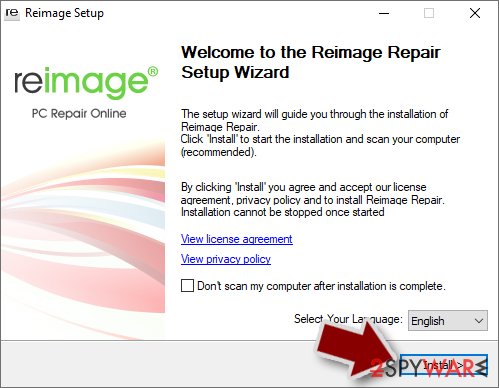
- Press Install and wait till the program finishes the installation process
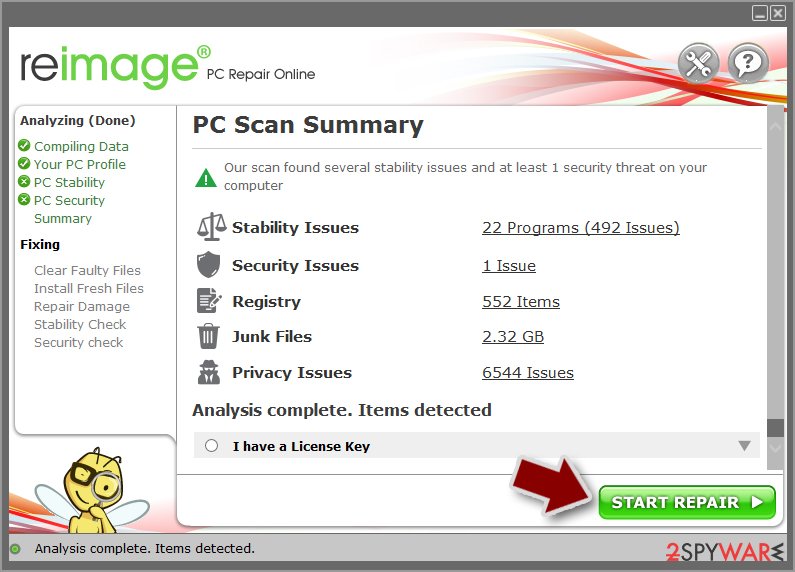
2 - The analysis of your machine will begin immediately
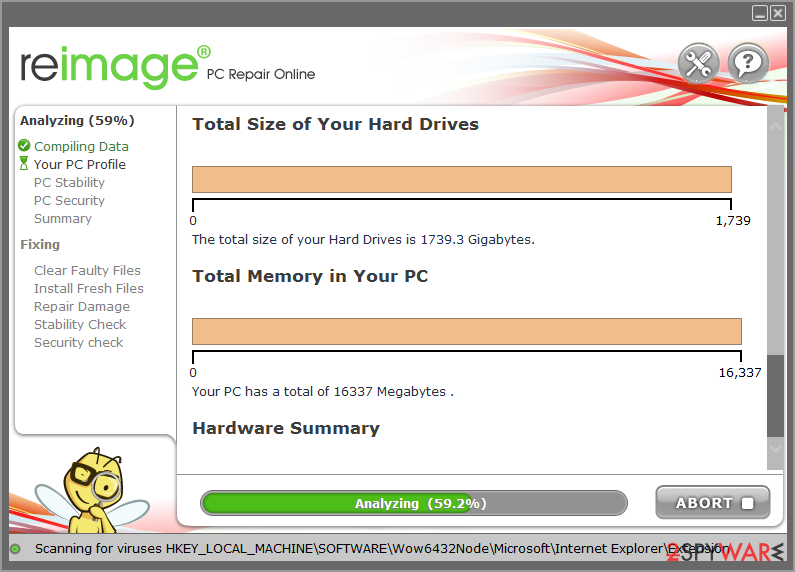
3 - Once complete, check the results – they will be listed in the Summary
- You can now click on each of the issues and fix them manually
- If you find many problems difficult to fix, we recommend you purchase the license and fix them automatically.
4
Fix 2. Check the system for corruption
A corrupted system file check is among the first things you should do when dealing with wfplwfs.sys Blue Screen of Death. The SFC scan can determine whether system files are corrupted and repair them if needed, while DISM can fix Windows image files.
- Type in cmd into Windows search
- Right-click Command Prompt result and select Run as administrator
- When the User Account Control window shows up, click Yes
- In the new window, type in the following command and press Enter:
sfc /scannow - After the scan is done, copy the following command and press Enter:
dism /online /cleanup-image /scanhealth
dism /online /cleanup-image /checkhealth
dism /online /cleanup-image /restorehealth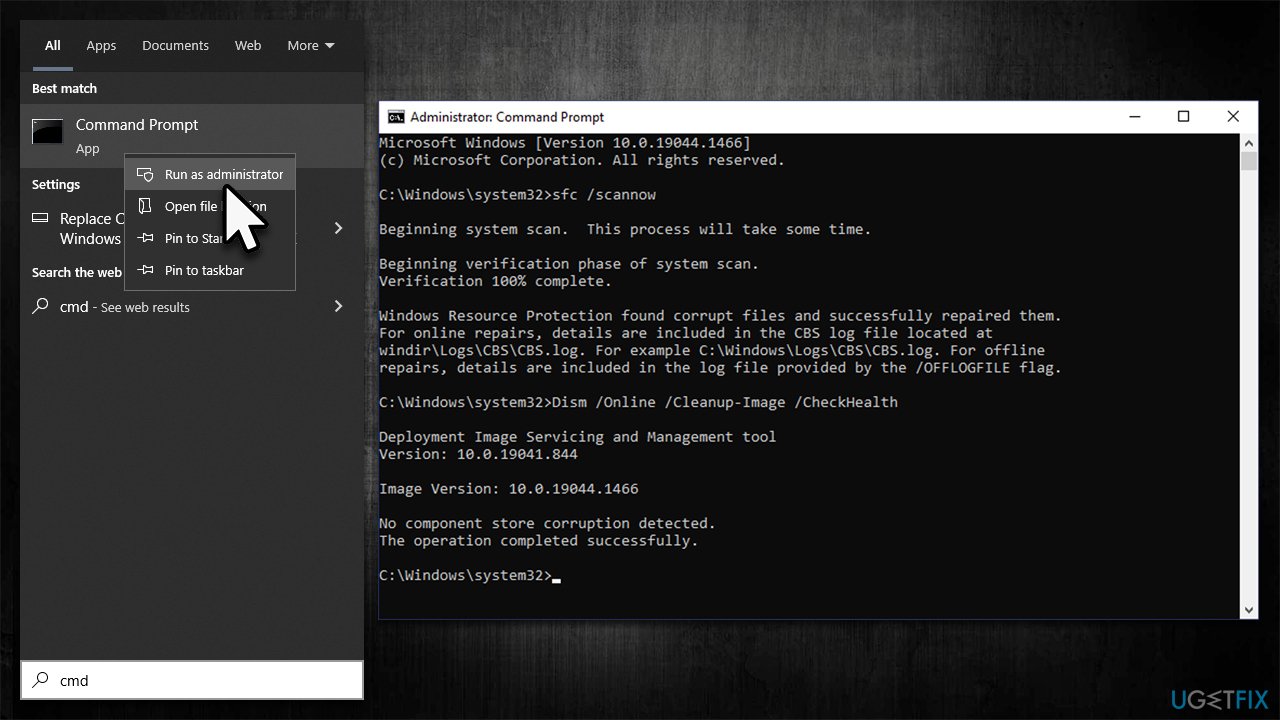
How to fix wfplwfs sys bsod error in windows run sfc dism - Restart your PC.
Fix 3. Check for software conflicts
It became apparent that for some users, the constant BSODs were caused by conflicting software. This is not something unusual when it comes to security, firewall, and similar software. If you have several such apps installed on your system, it is likely to be the issue. In order to find out which programs are conflicting, you should launch Windows in the Clean Boot[ref en-3] environment.
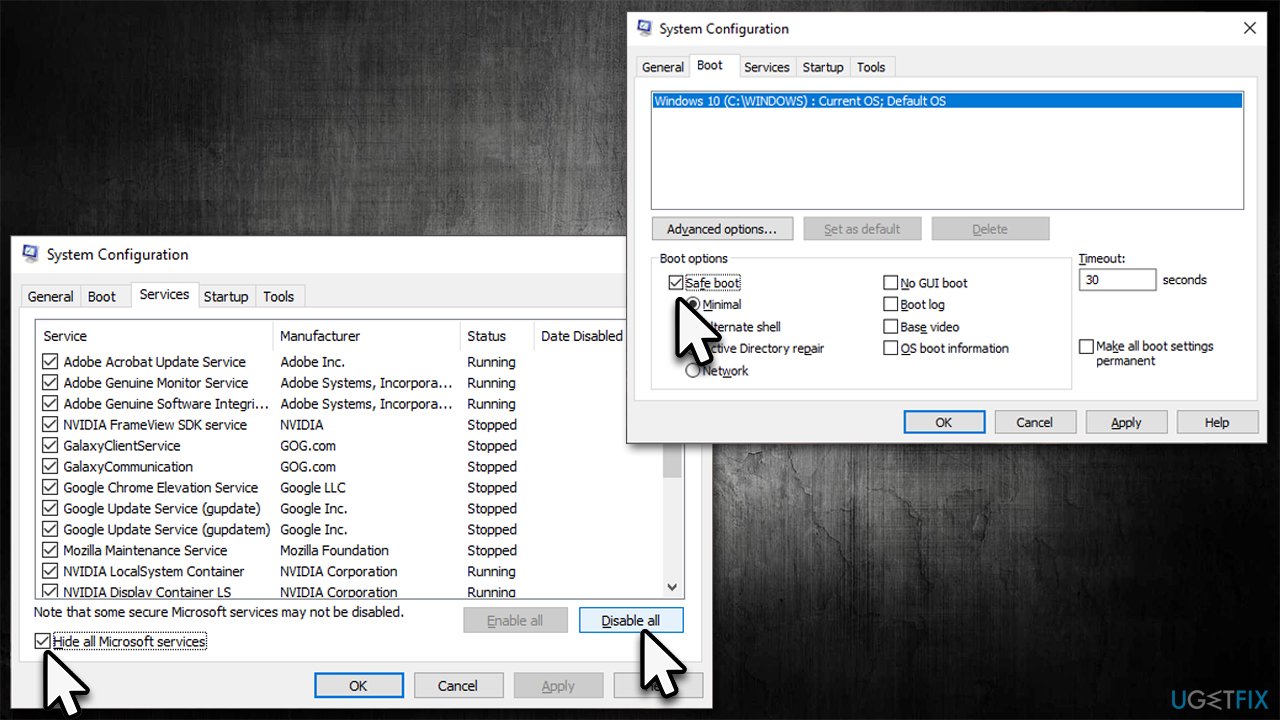
- Type msconfig in Windows search and press Enter
- Go to the Services tab
- Mark Hide all Microsoft services and select Disable all
- Go to the Startup tab and click Open Task Manager
- In the Task Manager, right-click on each of the items and select Disable, then close the Task Manager
- Go to the Boot tab, tick Safe Boot, then click Apply and OK.
How to fix wfplwfs sys bsod error in windows use clean boot
Fix 4. Uninstall the most recent Windows updates
Windows updates are particularly useful, although they might sometimes cause unexpected issues. Third-party drivers, in particular, might not work well with the newest version of Windows, causing crashes. If your issues started after the recent Windows update, you could uninstall it as follows:
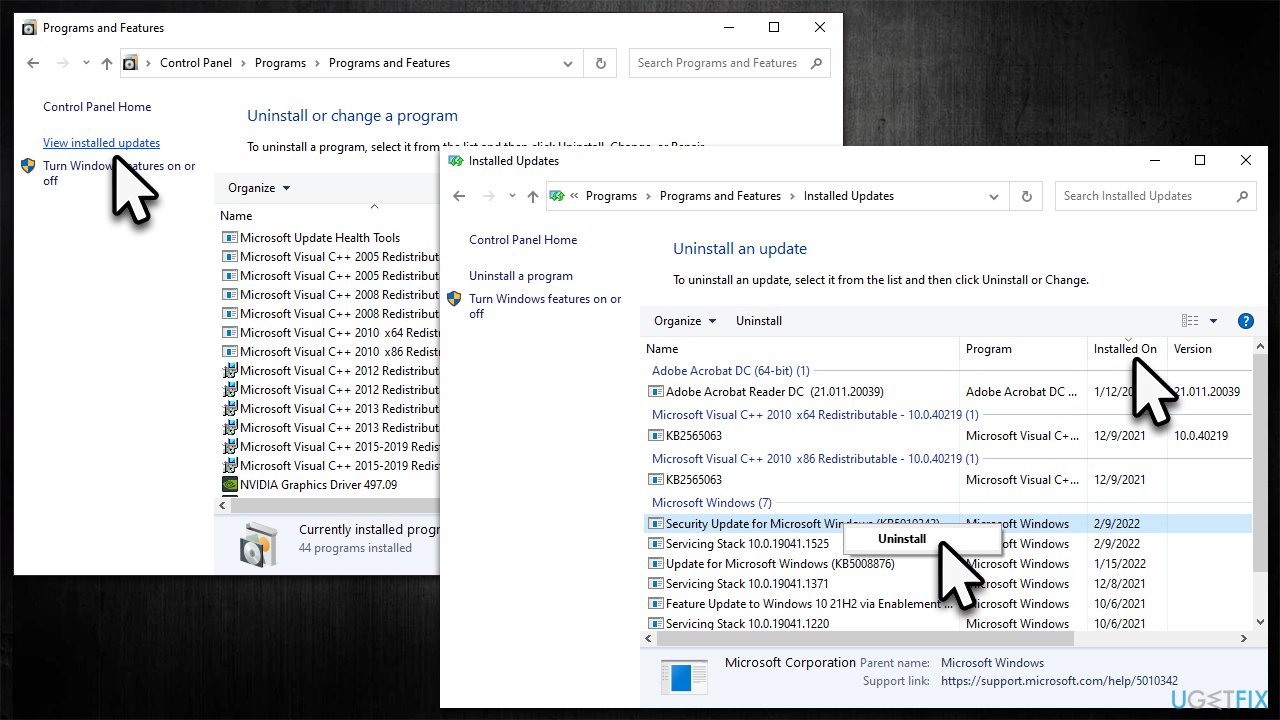
- Type Control Panel in Windows search and press Enter
- Select Programs > Uninstall a program
- Click on View installed updates on the left side of the window
- Sort all the updates by date
- Right-click on the most recent update and select Uninstall
How to fix wfplwfs sys bsod error in windows uninstall latest update - Proceed with on-screen instructions.
Fix 5. Update your drivers
Make sure that all your drivers are up to date.
- Type Update in Windows search and hit Enter
- Click Check for updates and install everything available
- Then, click View optional updates
- Find the Driver Updates section, tick the checkboxes, and click Download and Install
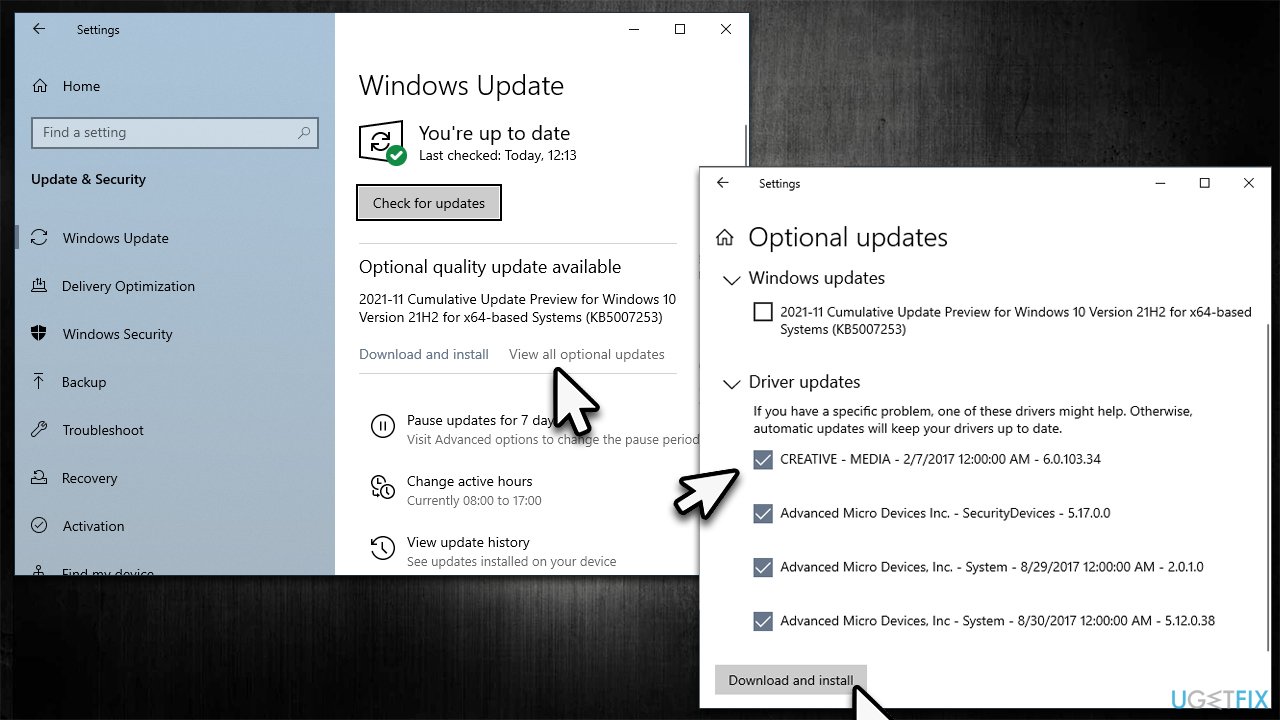
How to fix wfplwfs sys bsod error in windows install driver updates - Restart the device.
It is noteworthy that Windows might not always find the latest drivers. Thus, we recommend you visit the manufacturer's website or employ an automatic driver updater such as [rev id="DriverFix"].
Fix 6. Reinstall Windows
While reinstalling the operating system might seem scary, especially for those who didn't try doing so before. However, newer versions of Windows are relatively easy to reinstall and even let you keep your personal files without having them wiped. Nonetheless, we still recommend you make a backup of your files just in case. Also, make sure you disconnect all the external devices that aren't necessary, including printers, USB sticks, scanners, phones, etc.
- Visit the official Microsoft website and download Windows 10 installation media (Windows 11 version)
- Double-click the installer and select Yes when UAC shows up
- Agree to terms
- Pick Create installation media (USB flash drive, DVD or ISO file) for another PC option and click Next
- Select the Use Recommended options for this PC checkbox and click Next
- Choose the ISO file and click Next
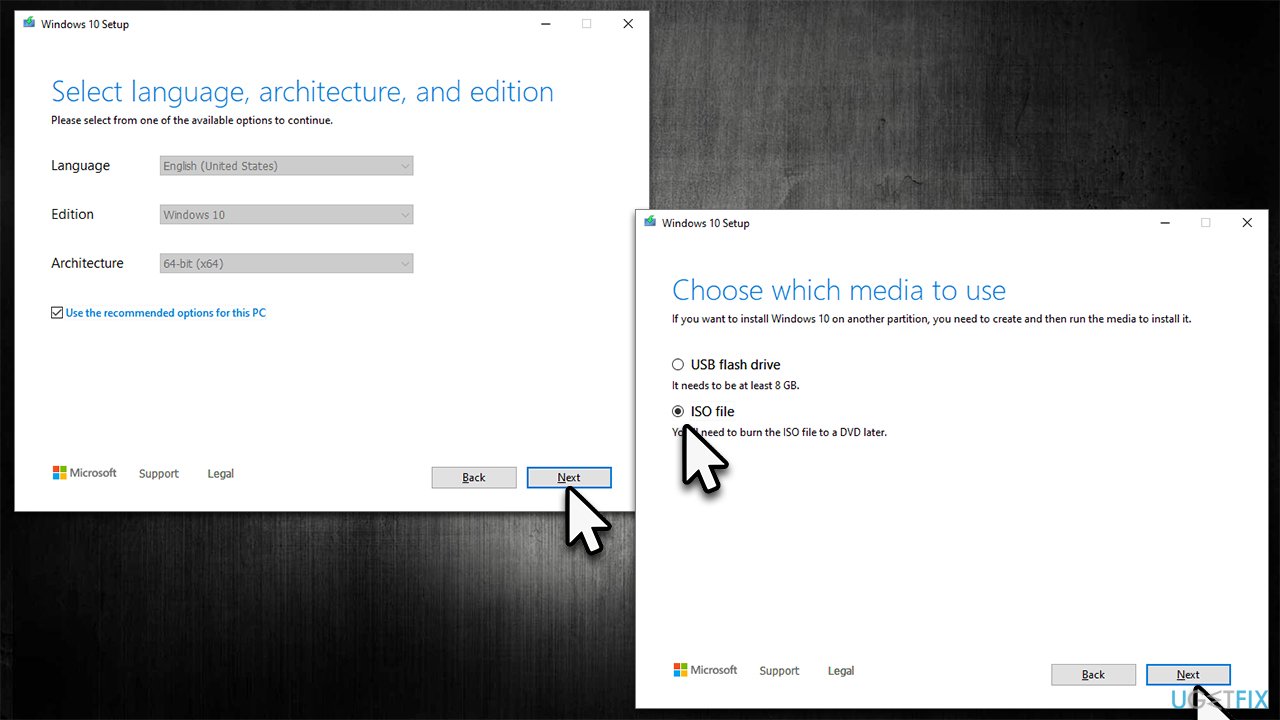
How to fix wfplwfs sys bsod error in windows reinstall windows - Once you have prepared the ISO, put it into the malfunctioning PC
- Restart your machine and rapidly press F8, F10, F12, Del, or another button that would let you load into BIOS
- Here, go to the Boot section and set the boot priority to Flash drive
- Restart your system, and then proceed with on-screen instructions to reinstall Windows.
Bottom line
To fix the Wfplwfs.sys BSOD error, you can run a system repair app, such as Reimage, to automatically resolve issues. If the problem persists after trying these fixes, further troubleshooting may be necessary.
Frequently asked questions
The Wfplwfs.sys BSOD error indicates a problem with the Windows Filtering Platform, often related to network drivers or security software. This error can cause your system to crash and display a blue screen during startup or while using the computer.
To troubleshoot the Wfplwfs.sys BSOD error on Windows 11, you can start by updating your network drivers and disabling any third-party security software temporarily. Additionally, running the System File Checker tool can help repair corrupted system files that may contribute to the issue.
To prevent the Wfplwfs.sys BSOD error in Windows 10, ensure that all your drivers are up to date and consider using the built-in Windows Defender instead of third-party antivirus programs. Regularly checking for Windows updates can also help maintain system stability.




Report an issue
What's wrong with this guide? We review every report and update or remove content.
Report received — thank you. We'll review and fix it.
You need a free account to submit a report.
Be the first to comment