
How to fix Windows activation error 0x80010105?

Prefer to fix it yourself? The manual steps follow.
- 7methods
- 5 to 30 minutes
- Easy
Applies to Windows 11 and Windows 10 Home and Pro, most often after a reinstall or a reset; the same code also appears in Internet Download Manager and other apps
7 methods in this guide
I had to deal with a great number of issues on my Windows 11 PC: apps were crashing, I couldn't change various settings, and the internet would randomly disappear. So I decided to reinstall Windows as a last resort, and now my activation is failing, despite a legal purchase of the software. I tried running the activation troubleshooter and got error code 0x80010105. When can I use my PC normally again?
Error 0x80010105 is not an activation verdict. It is a general Windows error that means the component the troubleshooter called crashed before it could answer, so your licence state is still unknown. Restart, check the connection and activate from Settings instead of the troubleshooter first.
0x80010105 means a Windows component threw an exception while the troubleshooter talked to it. It says nothing about your licence. Restart the PC, make sure it is online, then open Settings > System > Activation and select Activate or Troubleshoot again (Fix 1). If it fails, run slmgr /ato in an administrator Command Prompt (Fix 2): it returns the real activation code, which Microsoft's error list explains.
| Error | 0x80010105, Microsoft's name RPC_E_SERVERFAULT: "The server threw an exception." |
|---|---|
| Where it appears | In the Activation troubleshooter on Settings > System > Activation (Windows 10: Settings > Update & Security > Activation), usually right after a reinstall. Also in other apps, such as Internet Download Manager. |
| Main cause | The Windows component that handles the request crashed or could not finish, so the troubleshooter got no answer. Damaged system files or a stuck licensing service are the usual suspects. |
| Fastest fix | Restart, check the internet connection, then activate from Settings instead of the troubleshooter (Fix 1). |
| Also written as | 0X80010105, 80010105, "error code 0x80010105", and the related 0x80010108 (RPC_E_DISCONNECTED: the object invoked has disconnected from its clients). |
| Affects | Windows 11 and Windows 10. Windows 10 left support on 14 October 2025, but its activation works the same way. |
| Microsoft's status | Not on Microsoft's list of activation errors. For codes not listed, Microsoft says to contact customer support. |
| Is the licence lost? | No. The code is a COM error from the tool, not a licence result. slmgr /dlv shows the real licence status. |
| Time to fix | 5 minutes for Fix 1 and Fix 2. About 30 minutes when system files need repair. |
Facts checked on 15 October 2026. Steps written for Windows 11 (25H2 and 26H2) and Windows 10 22H2.
What error 0x80010105 means in Windows activation
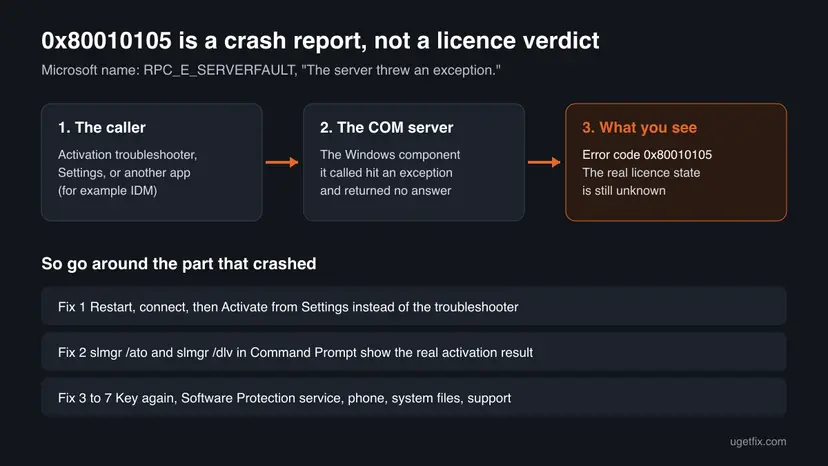
0x80010105 is not one of Windows activation's own codes. Activation codes start with 0xC004 or 0x8007 and appear in Microsoft's list of activation errors. This one comes from COM, the Windows system that lets one program call a service in another. Microsoft's table of COM error codes lists it as RPC_E_SERVERFAULT with the text "The server threw an exception."
In plain words: the Activation troubleshooter asked a Windows component to do part of the work, and that component crashed before it could reply. The troubleshooter then shows the crash code instead of an activation result. Your licence was never checked.
| What you see | Where | What it tells you |
|---|---|---|
| Error code: 0x80010105 | Activation troubleshooter, after Troubleshoot | The troubleshooter crashed. The licence is not judged yet. |
| Windows isn't activated | Settings > System > Activation | The state before and after the crash. The code on this page is the one to look up. |
| Cannot transfer the download to IDM. Error 0x80010105 | Browser, when Internet Download Manager takes over a download | The same COM crash in another program. Nothing to do with Windows activation, see the FAQ. |
| 0x80010108 | Same places | A sibling COM code: the other side disconnected instead of crashing. The same fixes apply. |
Nothing in this code says the key is wrong or blocked. If Windows was activated on this PC before a reinstall, the activation record still exists. The fixes below ask Windows again through a different route, and the answer you get then is the one that counts.
Why error 0x80010105 appears, from most to least common
Microsoft publishes no cause for this code in activation. The list below follows what the code means and what the reader's situation usually is: a fresh reinstall, a PC that had other problems, and a troubleshooter run straight away.
| Cause | How often | How to tell | Fix |
|---|---|---|---|
| The troubleshooter itself fails right after a reinstall, before Windows finished its first online check. | Most often | The error came the first time you opened Troubleshoot. | Fix 1, Fix 2 |
| No working connection, or a proxy or firewall in the way, so the component times out and throws. | Often | Other sites load slowly or not at all, or the PC is on a work network. | Fix 1 |
| The Software Protection service, which holds the licence, is stuck. | Sometimes | slmgr also hangs or reports a service error. | Fix 4 |
| The key was never entered after a clean install, so there is nothing to activate. | Sometimes | slmgr /dlv shows a default key or no product key. | Fix 3 |
| Damaged system files, the same damage that caused the problems before the reinstall. | Rarely after a clean install, more often after a reset that kept files | Settings pages fail to open, apps crash. | Fix 6 |
| The licence really cannot activate (wrong edition, used key, OEM key on other hardware). | Hidden behind this code | Fix 2 returns a 0xC004 code instead. | Fix 2, then Microsoft's list |
The last row matters most. 0x80010105 can hide an ordinary licence problem, and only the real code from Fix 2 tells you which one. We could not confirm from Microsoft which component inside the troubleshooter throws the exception.
How to fix Windows activation error 0x80010105
Fixes 1 and 2 go around the crashed troubleshooter and work for most readers. Fix 3 adds the key, Fix 4 restarts the licensing service, Fix 5 uses phone activation. Fixes 6 and 7 are for a damaged system and for a licence that still will not activate. Never use an activator tool or a key from a cheap key site.
| What you see or have | Start with |
|---|---|
| You just reinstalled Windows and ran the troubleshooter at once. | Fix 1 |
| Fix 1 gave the same error, or you want the real activation code. | Fix 2 |
| You have a 25-character key and it was not asked for during setup. | Fix 3 |
slmgr hangs or reports that a service is not running. | Fix 4 |
| The PC cannot reach the internet, or online activation keeps failing. | Fix 5 |
| Settings pages and apps also crash, like before the reinstall. | Fix 6 |
| Fix 2 returns a code that Microsoft's list does not solve. | Fix 7 |
Fix 1. Restart, check the connection and activate from Settings
5 minutesNo riskYou reinstalled or reset Windows and got 0x80010105 from the troubleshooter.
A restart reloads the components that threw the exception. Activation needs a working connection to Microsoft, and the Activate button asks for the licence directly, without the troubleshooter's extra steps.
Activation checks with Microsoft online, so test the connection first: How to check your internet connection in Windows

- Save your work and select Start > Power > Restart. Use Restart, not Shut down.
- Sign in with an administrator account. If you use a Microsoft account, sign in with the one you used before the reinstall.
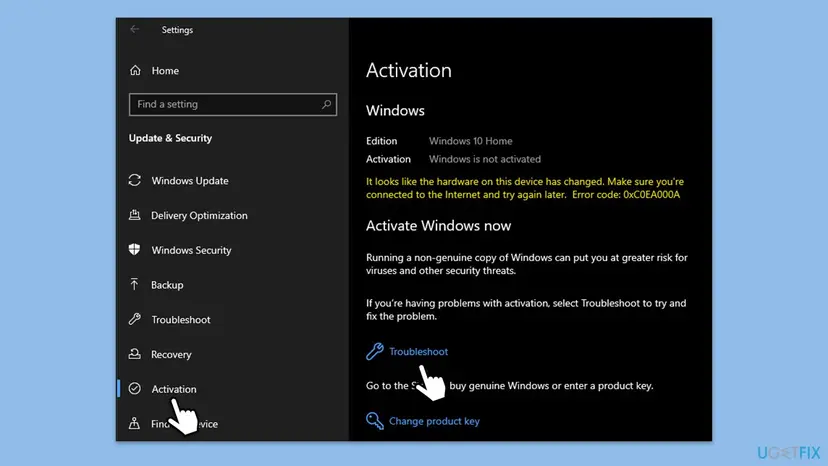
- Open Settings > System > Activation. On Windows 10 it is Settings > Update & Security > Activation.
- Expand Activation state. If you see Activate, select it and wait.
- If there is no Activate button, select Troubleshoot once more and read the new result.
Users report that a reinstalled PC sometimes activates by itself within a few hours of going online. If Fix 1 fails, Fix 2 shows the real status at once, so you do not have to wait and guess.
It worked if: The Activation page says Windows is activated, or the troubleshooter shows a normal activation code instead of 0x80010105.
If not: Same error again: go to Fix 2. A new code such as 0xC004F213: look it up on Microsoft's activation error list, or read our guide for that code.
Fix 2. Activate from Command Prompt and read the real result
5 minutesLow riskFix 1 did not help, or you want to know what is really wrong with the licence.
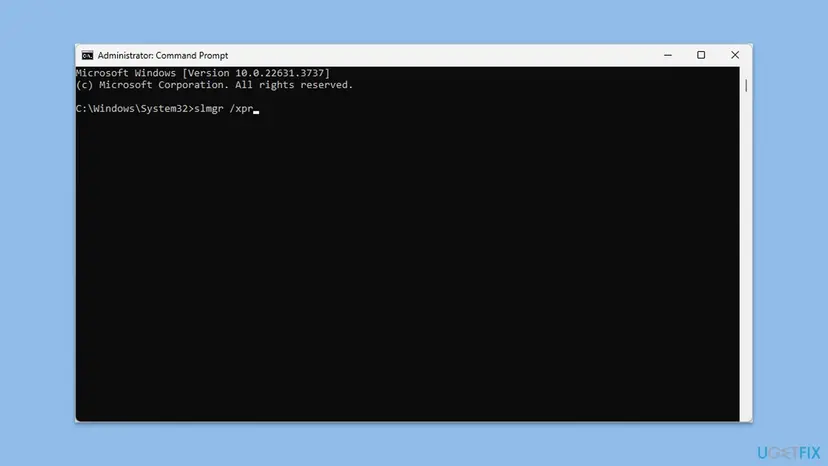
slmgr is the licensing script that ships with Windows. It talks to the licensing service without the troubleshooter in between, so a crash in the troubleshooter does not hide the answer.
- Type cmd in the search box on the taskbar, select Run as administrator next to Command Prompt, then Yes.
- Start online activation:
slmgr /ato - Wait for the Windows Script Host box and write down the message and any code in it.
- Show the detailed licence status:
slmgr /dlv - Look at License Status and the last five characters of the Partial Product Key.
| slmgr shows | What it means | Next |
|---|---|---|
| Product activated successfully | The licence was fine, only the troubleshooter crashed. | Done. Restart and check Settings. |
| A code starting with 0xC004 or 0x8007 | A real activation problem that 0x80010105 was hiding. | Look it up in Microsoft's activation error list. |
| License Status: Notification, no key of your own | Setup installed a default key, nothing to activate yet. | Fix 3 |
| The command hangs or reports a service error | The licensing service is stuck. | Fix 4 |
The old version of this guide used slmgr /xpr as an activation step. It only shows whether and until when Windows is activated. It does not activate anything.
It worked if: slmgr /ato reports a successful activation, or a clear activation code that you can look up.
If not: No key of your own: Fix 3. Service error or hang: Fix 4. A 0xC004 code you cannot solve: Fix 7.
Fix 3. Enter your product key again
3 minutesNo riskYou bought a retail key, or you skipped the key during the reinstall.
A clean install without a key leaves Windows with a default key that cannot activate. Entering your own key gives the licensing service something to activate.
- Find the key: the card in the retail box, the shop's confirmation email, or Order history in your Microsoft account if you bought it from Microsoft.
- Open Settings > System > Activation (Windows 10: Settings > Update & Security > Activation).
- Select Change product key.
- Type the 25-character key and select Next, then Activate.
If Settings refuses the key or fails with 0x80010105 again, install it from an administrator Command Prompt, restart, and activate:
Install the key and activate
slmgr /ipk XXXXX-XXXXX-XXXXX-XXXXX-XXXXX
slmgr /atoIf Windows came preinstalled on the PC and you never had a key of your own, skip this fix. A reinstall of the same edition on the same PC normally picks up that licence by itself once it is online, so go back to Fix 1 and Fix 2.
It worked if: The Activation page says Windows is activated.
If not: A message that the key is for another edition or is blocked: look up the code in Microsoft's list or see Fix 7.
Fix 4. Restart the Software Protection service
3 minutesLow riskslmgr hangs, reports a service error, or every activation attempt fails the same way.
The Software Protection service keeps the licence data and carries out activation. When it is stuck, every request to it can end in an exception, which is exactly what 0x80010105 reports.
Step by step for any Windows service: Check and restart Windows services
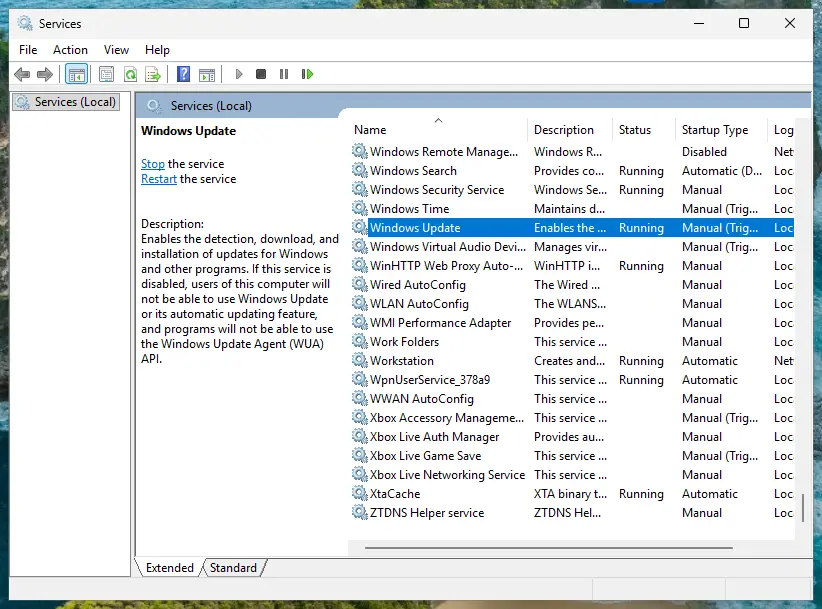
- Press Win + R, type services.msc and press Enter.
- Scroll to Software Protection.
- If its status is Running, right-click it and select Restart. If it is empty, right-click and select Start.
- Close Services and run Fix 2 again.
Do not change the service's Startup type. Windows starts and stops this service by itself when it needs it, so seeing it stopped later is normal.
It worked if: The service starts without an error and slmgr /ato now returns a result.
If not: If the service will not start, system files are likely damaged: Fix 6.
Fix 5. Activate Windows by phone
10 minutesNo riskOnline activation keeps failing, or the PC cannot reach Microsoft's servers.
Phone activation does not use the online path that failed. Microsoft gives it as the fallback when online activation keeps failing.
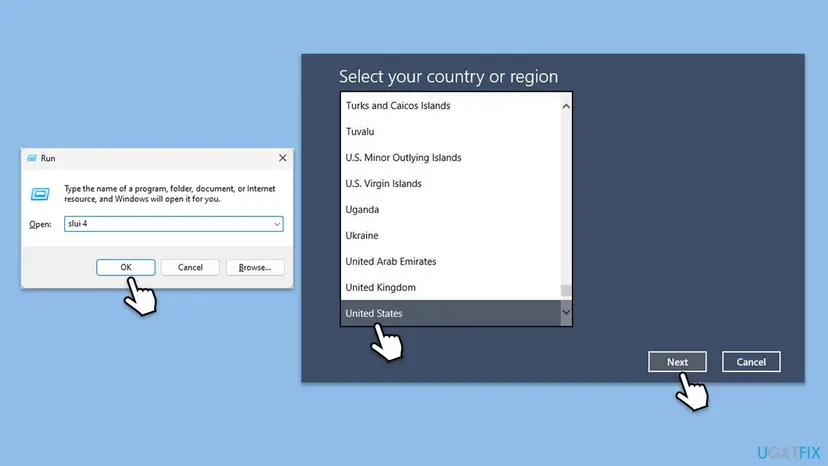
- Type SLUI 04 in the search box on the taskbar and select SLUI 04 in the results. Win + R with slui 4 opens the same window.
- Select your country or region and select Next.
- Call the number shown and follow the automated system.
- Type the confirmation ID you are given and select Activate Windows.
Microsoft says phone activation cannot be used for Windows 11 or Windows 10 Pro Education and Pro for Workstations. Those editions must activate online.
It worked if: The phone system accepts the installation ID and Windows shows as activated.
If not: If the phone system refuses the key, the licence itself is the problem: Fix 7.
Fix 6. Repair Windows system files
20 to 30 minutesLow riskOther parts of Windows also fail, as they did before the reinstall, or the service in Fix 4 will not start.
A COM server that throws an exception is often a damaged system file. DISM restores the component store and SFC replaces broken files with good copies.
- Open an elevated command window. Right-click Start and select Terminal (Admin), or type cmd in the search box, right-click Command Prompt and select Run as administrator. Select Yes when Windows asks for permission.

Search for cmd and choose Run as administrator. Screenshot: Windows 11 26H2. - Run DISM first. Type the command below and press Enter. DISM downloads clean copies of damaged components from Windows Update, so it can take several minutes. Wait until it says The operation completed successfully.
DISM.exe /Online /Cleanup-Image /RestoreHealth
DISM /RestoreHealth running. Screenshot: Windows 11 26H2. - Run System File Checker. In the same window, type the command below and press Enter. Do not close the window until the verification reaches 100%.
sfc /scannow
sfc /scannow at 100%. Screenshot: Windows 11 26H2. - Read the result and restart. Compare the last message with the table below this guide, then restart the PC so that repaired files are loaded.

The result line tells you what SFC did. Screenshot: Windows 11 26H2.
These steps were written for Windows 11 24H2 and 25H2. The full page with the other versions and what each result means: Run DISM and SFC to repair Windows system files
Restart after the scan and run Fix 2 again. If SFC reports files it could not repair after a reset that kept your files, a reinstall that keeps files may be the cleaner way out: Reinstall Windows without losing files
It worked if: SFC reports that it found no problems or repaired them, and activation now gives a normal result.
If not: If the system is clean and activation still fails, Fix 7.
Fix 7. Contact Microsoft support with the real activation code
15 to 30 minutesNo riskNone of the fixes above activated Windows.
0x80010105 is not on Microsoft's list of activation errors, and for codes that are not listed Microsoft says to contact customer support. Support can check a purchase that the PC cannot.
- Run
slmgr /dlvin an administrator Command Prompt and take a screenshot of the window. - Note every code you saw: 0x80010105 from the troubleshooter and any code from
slmgr /ato. - Collect your proof of purchase: the key card, the shop email or the Microsoft Store order.
- Open support.microsoft.com/contactus in a browser and choose Windows activation.
- Give support all of this in one message, and say that you reinstalled Windows.
It worked if: Support confirms the licence and activates Windows, or tells you plainly why it cannot activate.
If not: If support says the key belongs to another PC or a work organisation, that answer is final for that key.
If error 0x80010105 is still there
If the troubleshooter keeps crashing but slmgr /dlv says Licensed, you are done: Windows is activated and the troubleshooter is the only broken part. If neither works, collect these facts before you ask for help.
| What to check | Where | What it tells you |
|---|---|---|
| Licence status and key | slmgr /dlv in an administrator Command Prompt | Licensed or not, and which key is installed. |
| The real activation code | slmgr /ato | The code to look up on Microsoft's list. |
| Licensing events | Event Viewer, Windows Logs > Application, source Security-SPP | When each attempt ran and what it returned. |
| Crashing components | Event Viewer, Windows Logs > Application, level Error at the same minute | Which program failed when the troubleshooter showed the code. |
We could not confirm a specific Event Viewer entry for 0x80010105. Read the entries at the exact time of the error and include them when you contact support.
How to avoid error 0x80010105 at the next reinstall
- Before a reinstall, open Settings > System > Activation and make sure the licence is linked to your Microsoft account.
- Keep the product key card, email or Store order where you can find it.
- After the reinstall, connect to the internet and wait a few minutes before you run the troubleshooter.
- Use
slmgr /dlvto check the status when Settings shows a code you do not recognise.
- Do not run activator tools or registry tricks from forums or videos.
- Do not buy keys from marketplaces at a fraction of the retail price.
- Do not run the troubleshooter again and again: the result does not change until something else does.
Frequently asked questions
What does error code 0x80010105 mean?
It means a Windows component threw an exception while another program was calling it. Microsoft's COM error table names it RPC_E_SERVERFAULT, with the text "The server threw an exception." In Windows activation it appears when the Activation troubleshooter fails mid-way. It does not say that your licence or key is invalid. Run slmgr /ato in an administrator Command Prompt to get the real activation result.
Does 0x80010105 mean my Windows copy is not genuine?
No. The code is a general Windows error from the troubleshooter, not an activation result. Microsoft does not even list it among activation errors. Your licence is checked only when activation itself runs, for example with Activate in Settings or slmgr /ato. If that returns a real activation code, that code tells you whether the key is the problem.
Why did 0x80010105 appear after I reinstalled Windows?
Most often because the troubleshooter ran before Windows was ready, or before the PC was online. A fresh install also may not have your key yet if you skipped it during setup. Restart, make sure the connection works, and activate from Settings (Fix 1). If the PC had crashing apps before the reinstall, damaged system files can carry over after a reset that kept your files (Fix 6).
What is IDM error 0x80010105 "Cannot transfer the download to IDM"?
It is the same COM error code in a different program. Internet Download Manager hands downloads from the browser to its own program, and the error says that hand-over crashed. It has nothing to do with Windows activation, and the fixes on this page do not apply. We found no IDM page that explains this code. Users report that restarting the browser and IDM or reinstalling IDM from its official site helps. Do not use cracked versions.
Can a printer show error 0x80010105?
The same code can appear wherever Windows programs call each other through COM, and some users search for it with printers. The meaning is the same: the program on the other side crashed. For a printer, restart the PC and the printer and reinstall its driver. This page is about Windows activation, so the activation fixes here will not help a printer.
Is 0x80010105 the same on Windows 10?
Yes. The code and its meaning are the same on Windows 10 and Windows 11. Only the path differs: Settings > Update & Security > Activation on Windows 10, Settings > System > Activation on Windows 11. Windows 10 reached end of support on 14 October 2025, so a reinstall is a good moment to move to Windows 11 if the PC supports it.
Will updating Windows fix 0x80010105?
Not on its own. No Microsoft source ties this code to a missing update, and the old version of this guide had no proof for it either. Installing updates is still worth doing after a reinstall, because it replaces older system components. Do it after Fix 1 and Fix 2, not instead of them.
What happens if I leave Windows unactivated?
Windows keeps working and your files stay, but you get reminders to activate. Users report a watermark and locked personalisation settings. The licence terms allow use only when Windows is properly activated, so use the time to find your key or run the fixes on this page, and do not turn to activator tools.
Is there a free tool or key that fixes 0x80010105?
No legitimate one. Free keys posted online are generic or stolen, and activator tools change system files and run with full rights on your PC. Microsoft's licence terms forbid bypassing activation, and such tools can bring malware with them. The legal ways are on this page: your own key, the licence linked to your Microsoft account, phone activation, or Microsoft support.
Is this page available in Spanish or other languages?
No, this guide is in English only. If you searched for "activar windows" or asked about this code in another language, the steps are the same. Open Settings > System > Activation, restart and try Activate, then run slmgr /ato in an administrator Command Prompt. The menu names appear in your Windows language.
Sources
- Microsoft Support: Get help with Windows activation errors (support.microsoft.com)
- Microsoft Learn: COM Error Codes (RPC, RPC_E), Winerror.h (learn.microsoft.com)
Did this fix work?
One click, no account. It tells the next reader which guides are worth their time.
Questions and experiences: fix Windows activation error 0x80010105
Still broken, or found a fix we did not cover? Ask here: members and our editors answer. Reading is open; writing needs a free account.
…