How to fix
Windows Defender sees a legitimate file as virus
on Windows
Resolve issues when Windows Defender flags a legitimate file as a virus. Get expert-tested solutions and regain your peace of mind in minutes.

What causes How to fix Windows Defender sees a legitimate file as virus?
- Incompatible programs
- Corruption of data
- Corruption of applications
- Corruption of system settings
- Lack of valid signature for user-created scripts
Repairs Windows system files, removes malware, and restores a clean OS state — without reinstalling.
Hello. Windows Defender sees a PowerShell script as virus. I created it myself, so it is obvious the script is not malicious. Is there any way to fix this problem? Thanks in advance.
Windows Defender, now known as Microsoft Defender, is a security app for personal computers with Windows operating systems.[ref en-1] This program can protect devices from spyware, viruses, malware, PUPs, other intruders. While security solutions provided by Microsoft, especially Windows Security Essentials, were considered low-grade protection, the current state of Windows Defender competes well with third-party options, making it an attractive choice for many.
However, just like any other application, it has bugs that can be encountered in some cases. Previously, we observed issues like the app closing games abruptly, identifying the same threat repeatedly, or returning errors such as 0x8050800c or 0x800106ba. Windows Defender mistaking legitimate files as malicious is yet another issue that multiple users have reported on various IT forums and message boards.
While some users said that Windows Defender sees a legitimate file as a virus when downloading them from somewhere, some cases related to user-created scripts with PowerShell. These are utilized to automate certain processes within the Windows environment and are essentially harmless. Nonetheless, since the operating system can not detect a valid signature for it, Windows Defender might see PowerShell file as virus.
The issue with Windows Defender sees a legitimate file as the virus can be triggered by incompatible programs, files, or corruption of data, applications, or system settings. Even though PowerShell scripts[ref en-2] created by users themselves are truly harmless, some files downloaded from unknown sources might actually be malicious, so it is important to take caution.
Hence, it might be difficult to fix Windows Defender sees a legitimate file as a virus issue. For example, it was reported that the security software was flagging various harmless files as Trojan:Win32/Bluteal.B!rfn, which is originally used to detect CPU miners. This uncertainty raises questions and frustrates people the most.
You should ensure that there are no particular malware[ref en-3] programs that could lead to Windows Defender seeing a legitimate file as a virus or another virus detection alerts from the system security provider. While Defender is a relatively effective app, it has some bugs, so you should take update issues and the problems with a program itself into consideration.
How to fix Windows Defender sees a legitimate file as virus
You can fix Windows Defender sees a legitimate file as virus and various false positive detections by running an alternative anti-malware tool that checks for security issues, finds malware, and clears infections if needed. Also, programs like [d1] can help with compatibility or system corruption issues. You might find problems with not compatible files or applications that lead to issues with other programs, functions, and even systems' performance.
Do not speed to conclusions that indicated files are malicious, consider a few methods from the list below instead. File or folder exclusions might be the best method to avoid the reappearance of the Windows Defender sees a legitimate file as virus issue.
Fix 1. Scan the system from Safe Mode to fix Windows Defender sees a legitimate file as virus
- You can remove any malware properly via this mode, so press Win and R keys to open Run box.
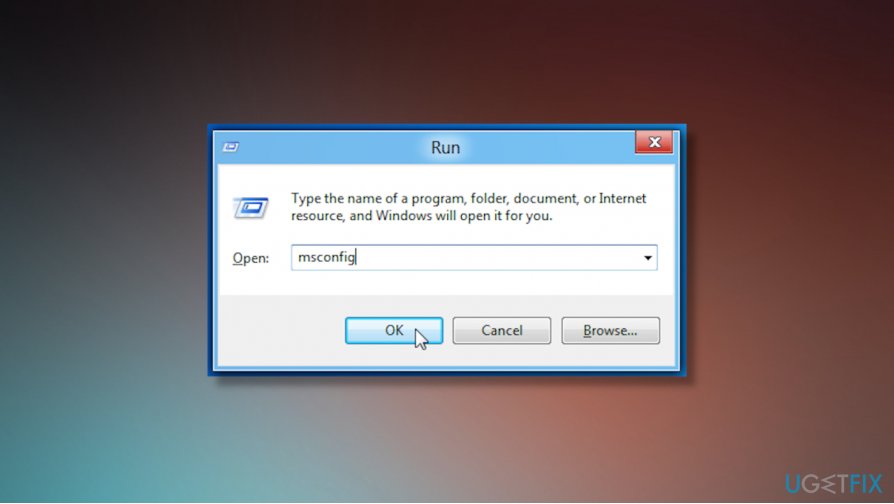
How to fix windows defender sees a legitimate file as virus run box - Then enter msconfig there.
- System Configuration window appears.
- Switch to the boot tab and click on Safe Boot option.
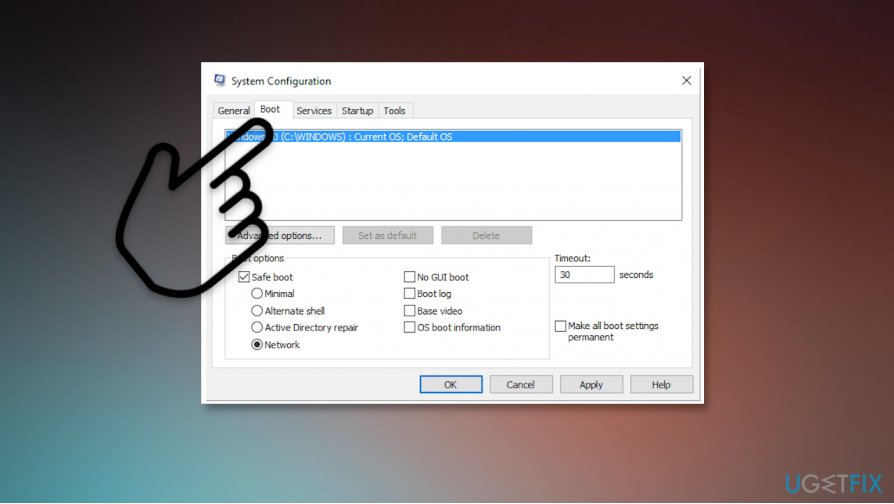
How to fix windows defender sees a legitimate file as virus sys config - Choose Network option and save changes.
- Restart the computer.
Fix 2. Add an exclusion to Windows Security
- Go to Start menu and choose Settings.
- Then select Update & Security.
- Select Windows Security and then Virus & threat protection.
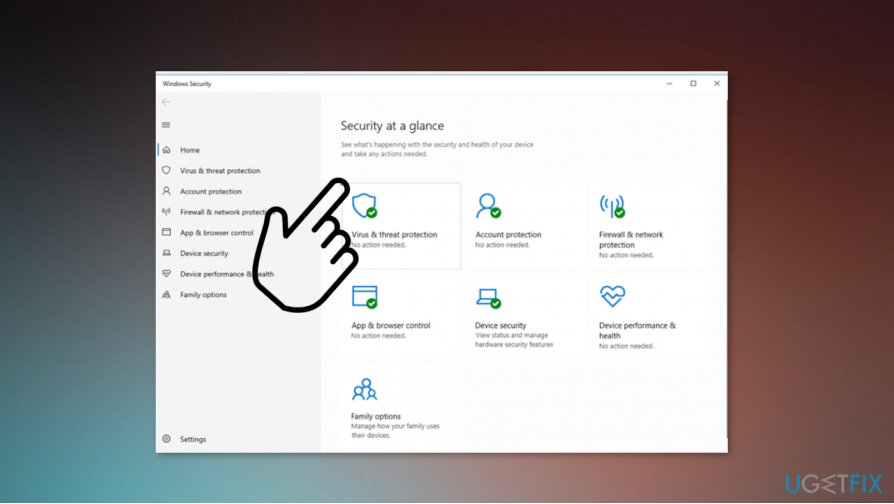
How to fix windows defender sees a legitimate file as virus protection - There, choose Manage settings.
- Then find Exclusions where you can select Add or remove the particular exclusion.
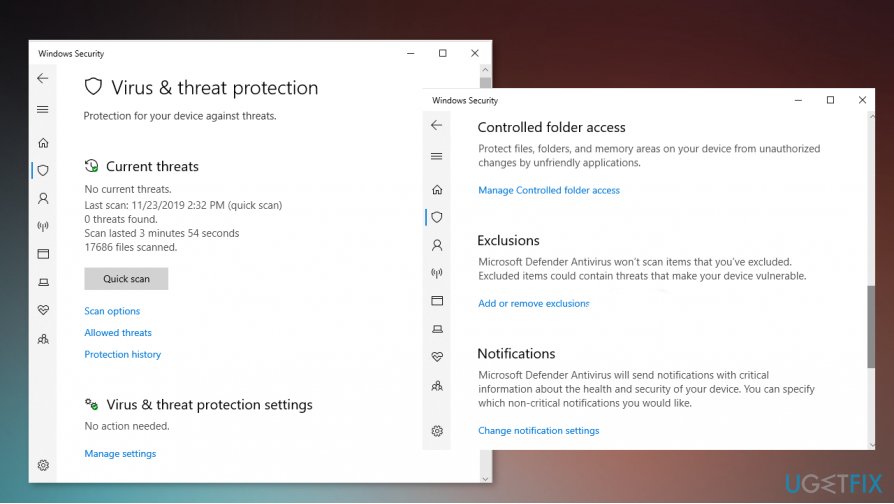
How to fix windows defender sees a legitimate file as vmanage settings - Choose to Add an exclusion and select specific files, folders, or file types, processes for the exclusion.
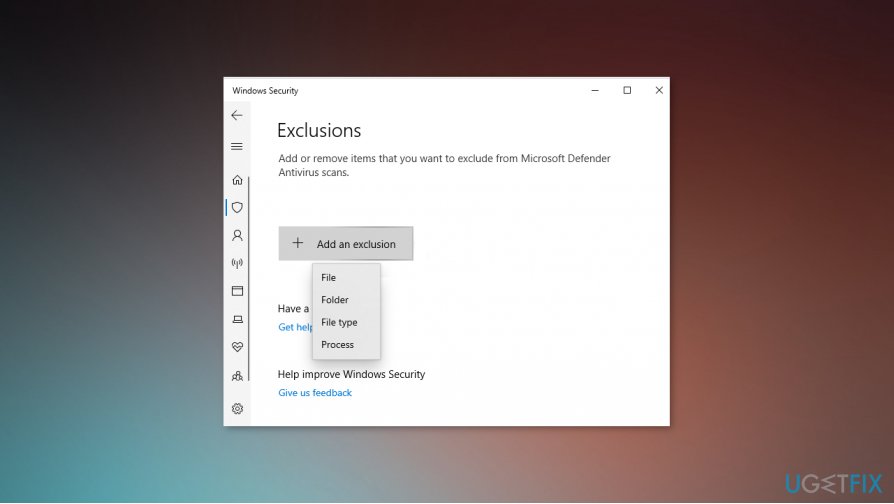
How to fix windows defender sees a legitimate file as virus exclusions
Fix 3. Check for Windows Defender updates to fix Windows Defender sees a legitimate file as virus
- Go to Settings.
- Find Update & Security and then find Windows Update to click on Check for updates.
- If new updates are available, you will find them listed under the Definition Update for Windows Defender and can install them.
Bonus: how to deal with Windows Defender sees PowerShell file as virus
The best way to fix the problem is by adding the file in question to the exclusion list, as we explained in solution number two. However, when dealing with some files, especially with PowerShell scripts, the issue remains even after excluding it from being detected. In such a case, you have to access the Windows Defender protection history and restore the file first. Here's how to do it:
- Open Windows Security and select Virus & Threat protection.
- Pick Protection history.
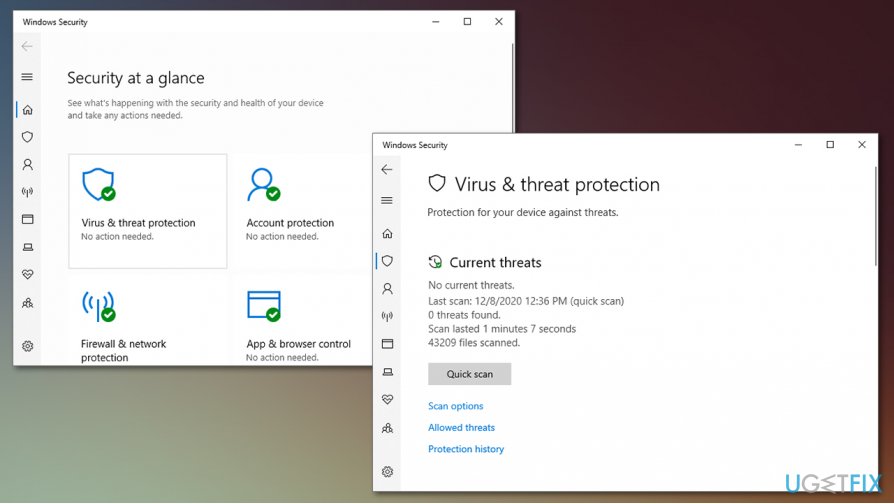
Windows defender sees a legitimate file as virus fix access protection history - In here, you will find a list of all the threats that have been blocked recently.
- Find the entry based on the time/date and click on it.
- In the bottom-right, click on Actions.
- From the drop-down menu, select Allow.
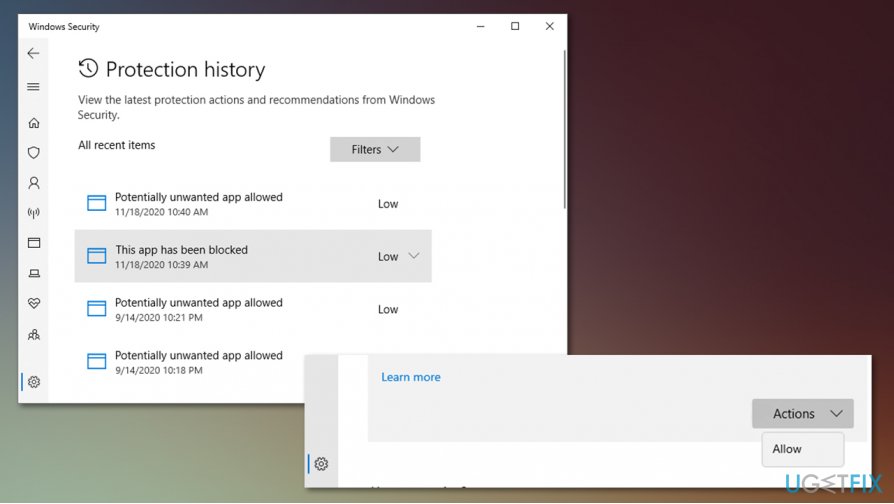
Windows defender sees a legitimate file as virus fix allow the file before adding exclusion - Now add the file to exclusions as explained above.
Bottom line
To address the issue of Windows Defender flagging legitimate files as viruses, ensure that no malware programs are present, and consider checking for data or application corruption. If the problem persists, users may need to review their security settings or consult additional resources for further assistance.
Frequently asked questions
Windows Defender may mistakenly identify a legitimate file as a virus due to heuristic analysis or outdated definitions. Regularly updating Windows 10 can help reduce these false positives.
You can exclude a legitimate file by going to Windows Security settings, selecting 'Virus & threat protection', and then adding the file to the exclusions list under 'Virus & threat protection settings'.
If Windows Defender keeps flagging the file, try running a full system scan, updating the antivirus definitions, or consider submitting the file to Microsoft for analysis.




Report an issue
What's wrong with this guide? We review every report and update or remove content.
Report received — thank you. We'll review and fix it.
You need a free account to submit a report.
Be the first to comment