
How to fix Windows Store error code: 0x803fb005?

Prefer to fix it yourself? The manual steps follow.
6 methods in this guide
Hello, I can't download new apps from the Windows Store. Instead, each time I try to download something, I receive a 0x803fb005 error. Sometimes I am also not able to update apps that are already installed. Please help me.
Windows Store, sometimes referred to as Microsoft Store, is a convenient built-in application that started being shipped with Windows 8 operating systems. It was a great addition to an already vastly improved OS from its previous versions - it allows users to avoid third-party sources and download apps directly from a trusted source instead. Indeed, Microsoft performs various security checks before an app can be allowed in, making it much more trustworthy.
Besides the security aspect of the Windows Store, it is an excellent tool to find, download, maintain, and update all the apps simultaneously. Despite its positive aspects, the feature does not bypass issues, as there have been an array of errors that users have been facing - Windows Store error code: 0x803fb005 is one of them.
Here is how the full message/a popup that users encounter when trying to download or update an app:
Something unexpected happened
Reporting this problem will help us understand it better. You can wait a bit and try again or restart your device. That may help.
Code: 0x803fb005
This particular error code seems not to be universal, and symptoms can vary from computer to computer. Some users said that they were unable to use the Store at all due to the repeated error, while others claimed it is related to one app - Minecraft before all else.
Additionally, people claimed that they could not download GamingServices - an Xbox app component that, ironically, others tried so hard to get rid of. Regardless of whether your problem is related to one app or all of them - we are here to try to help you fix Windows Store error code: 0x803fb005 for good.
There are several reasons why the error might occur, including issues with Windows Store cache, malfunctioning services, system file corruption, and more. As such, there is no universal way to fix this issue for everybody, so you should check all the solutions we provide below.
Windows Store errors are relatively common, and they can disturb regular computer usage - 0x00000194, 0x8000FFFF, 0x8024001E are just a few examples. Windows Store error code: 0x803fb005 fix can be easy or might require a little more troubleshooting - it all depends on what the reason for the issue is.
Fix 1. Run Windows Store troubleshooter
- Right-click on Start and pick Settings
- Select Update & Security option
- On the left, click Troubleshoot
- On the right side, click on Additional Troubleshooters (otherwise, all troubleshooters should be listed)
- Select Windows Store Apps and click Run troubleshooter.
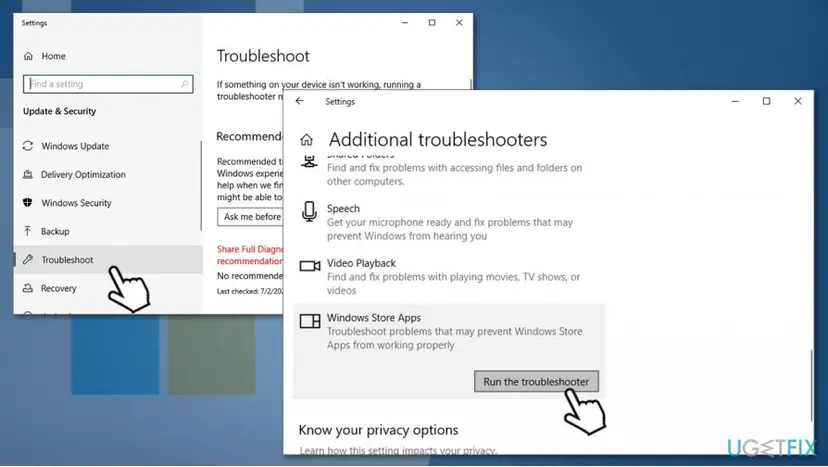
How to fix windows store error code 0x803fb005 run troubleshooter
Fix 2. Reset Windows Store and clean cache
- Type in WSReset into Windows search box
- Right-click on wsreset and select Run as administrator
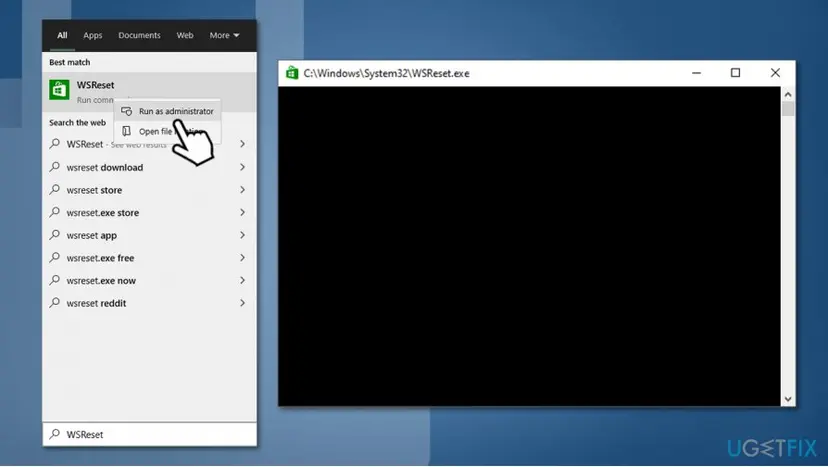
How to fix windows store error code 0x803fb005 reset windows store - A pop-up window with a black background should briefly show up – it should disappear in a few seconds, meaning that the Store has been reset.
Fix 3. Run SFC and DISM
Built-in features such as System File Checker and DISM can check and fix system file integrity. Here's how:
- In Windows search, type in cmd
- Right-click on Command Prompt search result, and pick Run as administrator
- Next, type in the following command and hit Enter:
sfc /scannow
- Wait till scan completes, reboot the PC, and see if that helped you fix Windows Store error 0x803fb005. If it didn't, you should try using DISM command (press Enter once again):
DISM /Online /Cleanup-Image /RestoreHealth
- Wait till scan completes.
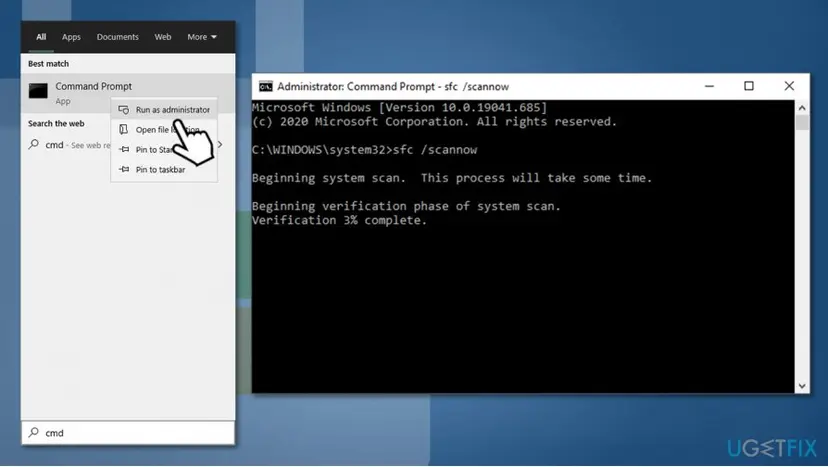
How to fix windows store error code 0x803fb005 run sfc and dism
Fix 4. Set BITS and Windows Update service to automatic
- In Windows search, type in Services and press Enter
- In the new window, sort Services by Name
- Locate Background Intelligent Transfer Service and double-click it
- Under Startup type, select Automatic from the drop-down menu
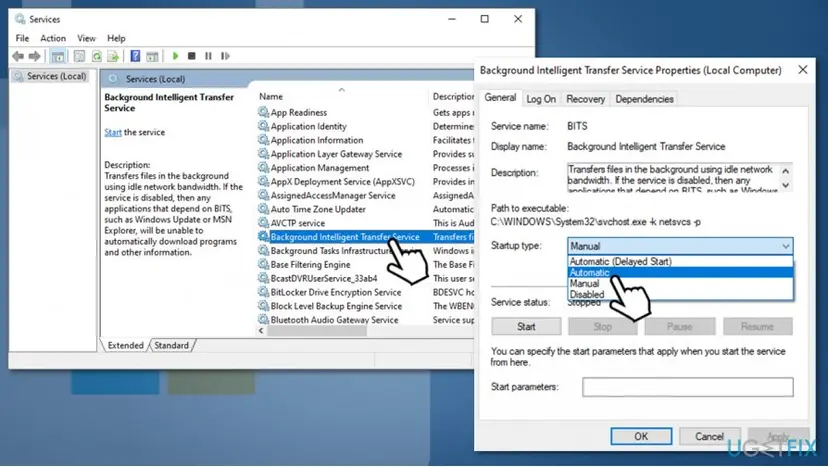
How to fix windows store error code 0x803fb005 set bits and update services to automatic - Pick Apply, and OK
- Now do the same with Windows Update Service
When done, close down Services and restart your PC.
Fix 5. Re-register all store apps
- Right-click on Start button and select PowerShell (Admin)
- If User Account Control shows up, press Yes
- Type in the following command and press Enter:
Get-AppXPackage -AllUsers | Foreach {Add-AppxPackage -DisableDevelopmentMode -Register "$($_.InstallLocation)\\AppXManifest.xml"}
- Restart your computer.
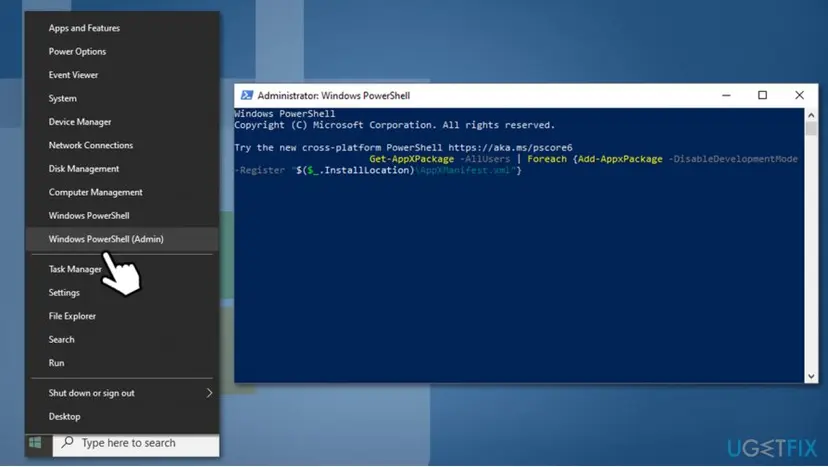
How to fix windows store error code 0x803fb005 reregister store apps
Fix 6. Reinstall Windows Store
- Open PowerShell as Admin as explained in the previous step
- Type in the following commands and press Enter after each:
Get-AppxPackage -allusers *WindowsStore* | Remove-AppxPackage
Get-AppxPackage -allusers *WindowsStore* | Foreach {Add-AppxPackage -DisableDevelopmentMode -Register “$($_.InstallLocation)\\AppXManifest.xml”}
Did this fix work?
One click, no account. It tells the next reader which guides are worth their time.
Questions and experiences: fix Windows Store error code: 0x803fb005
Still broken, or found a fix we did not cover? Ask here: members and our editors answer. Reading is open; writing needs a free account.
…