
How to fix Windows update error 0x80070437?

Prefer to fix it yourself? The manual steps follow.
6 methods in this guide
Hello, I hope you can help me. I have been trying to update my Windows 10 machine for several few weeks now, to no avail. Each time I try, I receive an error 0x80070437. Any tips on how to bypass this?
If you have installed Windows 10 and never changed its settings, the updates should automatically be applied to the system. The OS is shipped using these settings because the patching is an extremely important process for it to have the highest security and performance levels. Without updates, Windows could be susceptible to bugs, security vulnerabilities, and would lack the most recent features that improve the overall user experience.
Disabling automatic Windows updates is not recommended, although this option can be applied in some rare cases. If that's done, users are unable to receive the latest updates. Unfortunately, update errors are not that uncommon as well, and they also prevent the systems from being patched with the latest iterations. This time, we are talking about the 0x80070437 error.
The issue occurs when users try to initiate the update either manually or automatically, and Windows reports with the following update status message:
There were some problems installing updates, but we'll try again later. If you keep seeing this and want to search the web or contact support for information, this may help: (0x80070437)
The message text is very standard, and you could receive the same one when dealing with similar Windows update errors, such as 0x80070012, 0x80092004, or 0x800703e6. It does not provide any information on why the error occurred and what users should do to fix it.
If you checked the logs for this instance, you would see a more coherent description of the problem causing the error, which reads "Error_Different_Service_Account. The account specified for this service is different from the account specified for other services running in the same process."
Therefore, trying to enable certain services that could have been disabled could help you resolve this error. Likewise, it could also be related to corrupted system files. Below you will find several methods that should help you troubleshoot and resolve issues causing the 0x80070437 error.
Method 1. Run Windows Update troubleshooter
If you face Windows update errors in the future, you should always start by running the built-in Windows update troubleshooter. It can find the issues related to a particular feature and hint at what to do to repair it. Keep in mind that this does not always yield any results, so proceed with the next solution in that case.
- Type Troubleshoot in Windows search
- Select Additional troubleshooters
- Find Windows Update from the list
- Click it and select Run the troubleshooter
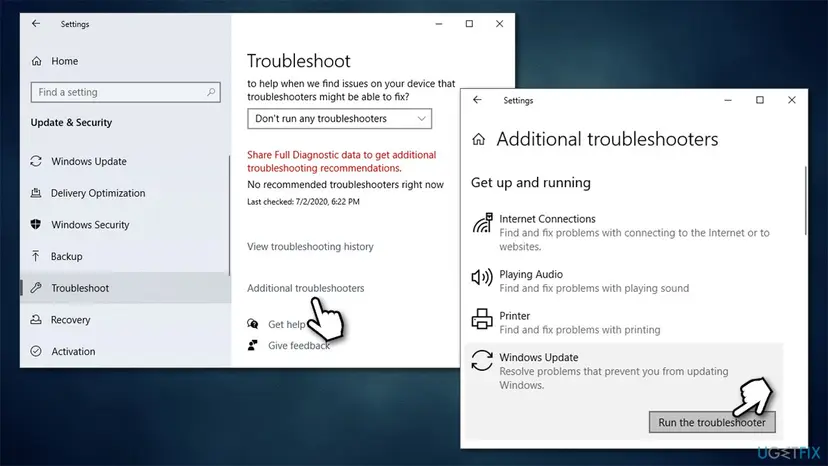
How to fix windows update error 0x80070437 run troubleshooter - Apply the suggested fixes and restart your computer.
Method 2. Check BITS and Windows Update services
- Type in Services in Windows search and hit Enter
- Scroll down to Background Intelligent Transfer Service (BITS) and double-click it
- Under the Startup type section, click on the dropdown menu and pick Automatic, then click on Start, Apply, and OK
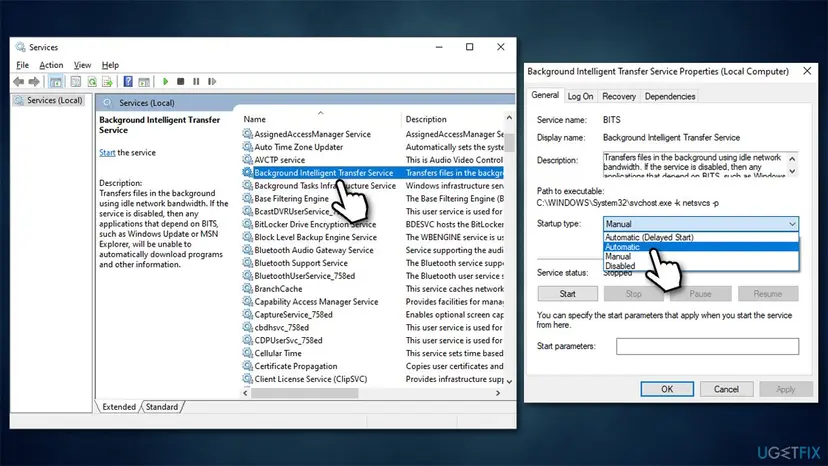
How to fix windows update error 0x80070437 set bits to automatic - Do the same with Windows Update Service
- Restart your PC.
Note: if these services were already running, right-click and select Restart.
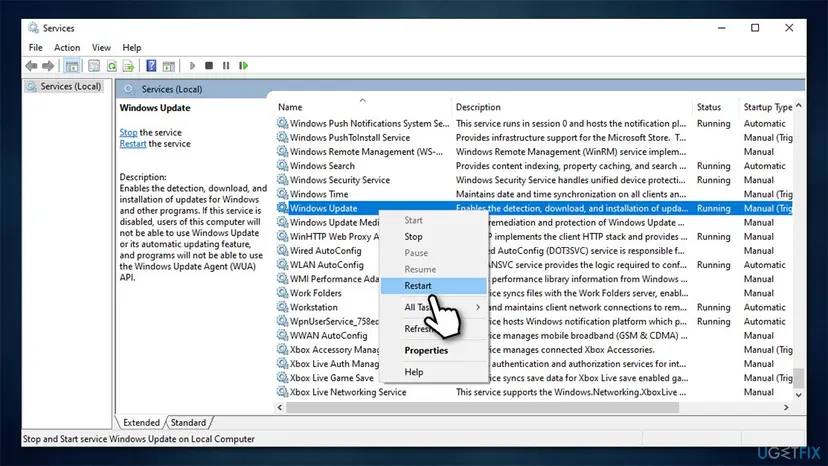
If you can't start these services for some reason, proceed with the next step.
Method 3. Check Windows files for corruption
System file corruption can occur due to various reasons. You can try repairing it with SFC or DISM, run via an elevated Command Prompt:
- Type cmd in Windows search
- Right-click on Command Prompt and pick Run as administrator
- When User Account Control shows up, click Yes
- Use the following command lines, pressing Enter after each:
sfc /scannow
DISM /Online /Cleanup-Image /CheckHealth
DISM /Online /Cleanup-Image /ScanHealth
DISM /Online /Cleanup-Image /RestoreHealth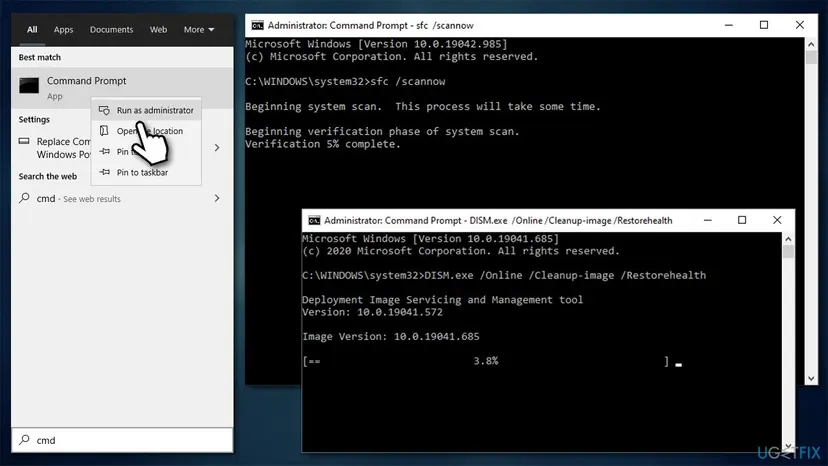
How to fix windows update error 0x80070437 run sfc and dism - Restart your PC.
Method 4. Ensure services are using the correct user account
In most cases, the issue is caused by insufficient permissions due to account usage mismatch. To resolve this, follow these steps below:
- Type in Services in Windows search and hit Enter
- Find Windows Defender Firewall and double-click it
- Go to the Log On tab
- Select This account option and type in Local Service
- Enter your password and click Apply
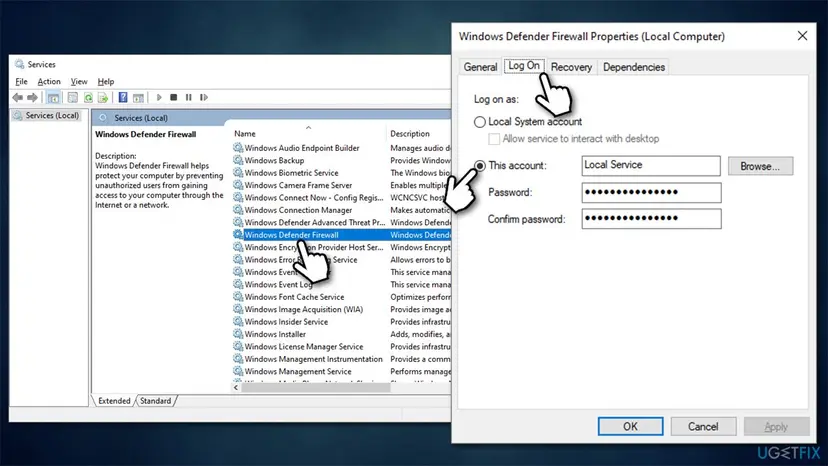
How to fix windows update error 0x80070437 use correct user account - Go back to the General tab and select the Startup type to Automatic
- Click Apply, OK, and restart your computer.
Method 5. Reset Windows Update Components
- Open Command Prompt (Admin)
- Copy and paste the following commands, pressing Enter each time:
net stop wuauserv
net stop cryptSvc
net stop bits
net stop msiserver - Press Win + E to open File Explorer
- Go to the following locations and delete the contents of these folders:
C:\\Windows\\System32\\catroot2
C:\\Windows\\SoftwareDistribution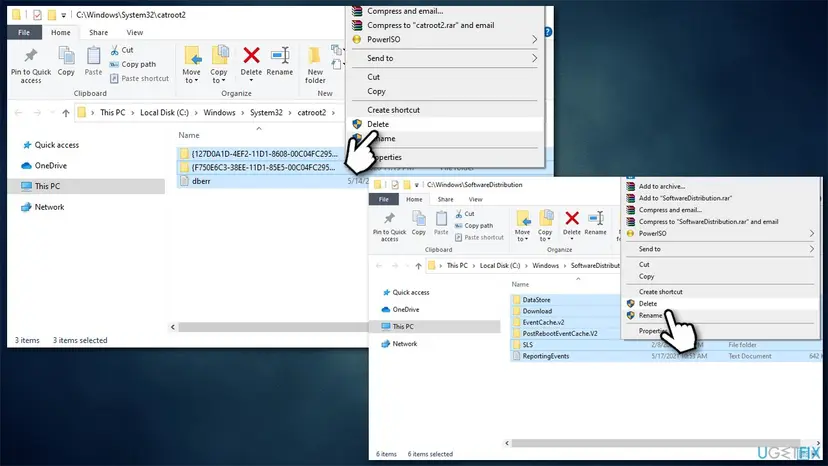
How to fix windows update error 0x80070437 reset windows update components - Open Command Prompt again and paste these commands:
net start wuauserv
net start cryptSvc
net start bits
net start msiserver - Reboot your PC.
Method 6. Reset your internet connection
If your internet is unstable, Windows updates might fail. You could try resetting your internet connection to default:
- Open Command Prompt as administrator
- In the new window, copy and paste the following commands, pressing Enter each time:
ipconfig /flushdns
ipconfig /registerdns
ipconfig /release
ipconfig /renew
netsh winsock reset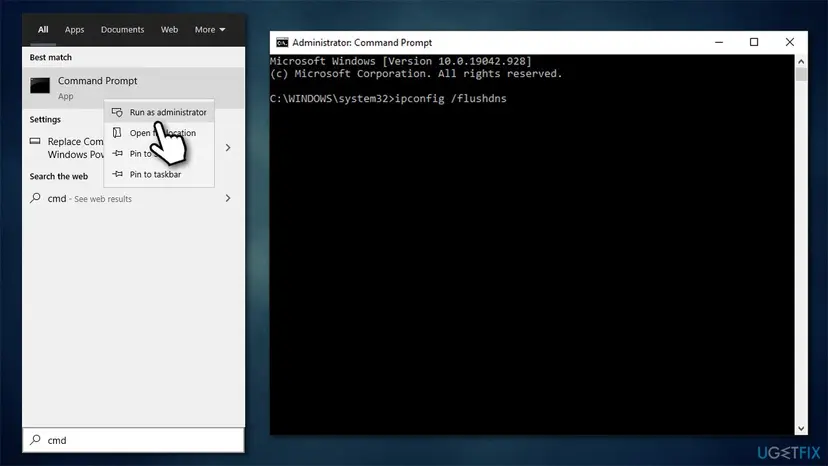
How to fix windows update error 0x80070437 reset internet connection - Wait for each of the commands to be executed and close down CMD.
Other things you should try
Sometimes, Windows update failures are a result of something quite obvious yet unexpected. Below you will find several tips that could sometimes help you fix the 0x80070437 error.
- If you haven't done so, restart your computer and try updating again.
- Remove all excess peripherals, including printers, cameras, phones, etc. (leave mouse and keyboard).
- To exclude underlying, specific Windows issues that could be causing the error, run a scan with a PC repair tool .
- Perform a full system scan with anti-malware software to check for virus infections.
- If you are using third-party security software, temporarily disable it and try rerunning an update process.
- If you recently encountered the error, you should wait a day or so and see if it would automatically resolve.
Did this fix work?
One click, no account. It tells the next reader which guides are worth their time.
Questions and experiences: fix Windows update error 0x80070437
Still broken, or found a fix we did not cover? Ask here: members and our editors answer. Reading is open; writing needs a free account.
…