How to fix
Windows upgrade error 0x800702A9
on Windows
Resolve Windows upgrade error 0x800702A9 effortlessly. Follow our expert-tested solutions for Windows 10 and 11 to get your system running smoothly again.

What causes How to fix Windows upgrade error 0x800702A9?
- Windows is missing some files required by Windows Update
- Incorrect user input
- Accidentally deleted files from the registry
- Outdated version of Windows
- Incompatibility with the device or system requirements
Repairs Windows system files, removes malware, and restores a clean OS state — without reinstalling.
Hello. I have been trying to upgrade my PC from Windows 8.1 to Windows 10 using the Microsoft upgrade page. It always fails around 75% and then reverts the page with an error 0x800702A9 "Windows 10 Installation has failed." I have tried it multiple times, but the same thing happens. Any suggestions would be appreciated.
Windows is one of the most popular operating systems in the world created by Microsoft. It is liked by many for its customization abilities, user-friendly interface, and automatic, built-in troubleshooting options. However, it still does not come without any errors. Sometimes users encounter issues that cannot be fixed automatically.
Often, users that have older versions of Windows want to upgrade to the newer version. Using an outdated version is not only impractical but dangerous as well. Microsoft stopped supporting Windows 7 in 2020,[ref en-1] which means that the machines with that OS will no longer receive security, stability, and other updates.
While at first the upgrade process of older Windows versions to Windows 10 seems like an easy task, for many it may become a headache. How easy the upgrading process is going to be, depends on the age of the device, compatibility, the system requirements, and the upgrade method.
Before starting the process or upgrading, we suggest you take a few precautionary steps. You should backup all the important files on your system, such as pictures, music, videos, documents, and other data. You can keep your files during the upgrading, and you will most likely not need backups, but it is recommended backing data regardless, in case something goes wrong. Simply take an external storage device, such as a USB stick, SSD, or a DVD, and copy all your files over.
Most often, error0x800702A9 indicates that Windows is missing some files required by Windows Update to perform the upgrade. When an error code such as this appears, Windows cannot finish upgrading the operating system. Other common reasons may include incorrect user input and accidentally deleted files from the registry[ref en-2] that now cause system malfunctions.
Troubleshooting manually could take a while because it is unclear what is causing the issue, so you can try using an automatic solution [d1] to avoid going through all of the possibilities. The repair tool can identify the damaged system components, fix BSODs,[ref en-3] and registry issues by scanning the system. This software could also be used to free up space by clearing cookies and cache, which should boost the device's performance.
Below you will find a few manual methods that could fix the Windows upgrade error 0x800702A9 and let you update your system. Note that this will take a while, so please follow all of the steps very carefully:
Method 1. Update Windows
- Open your Start menu and type in Settings
- Choose Update & Security and then Windows Update
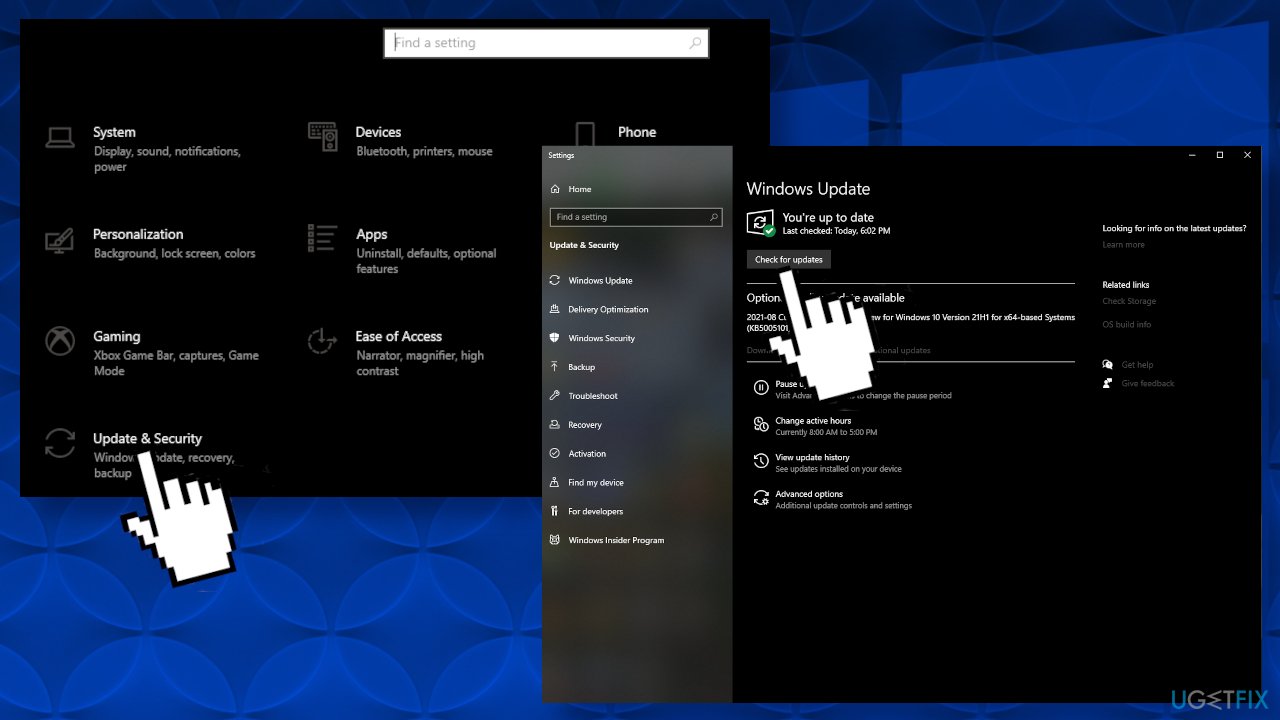
- Click the Check for updates button, and install the available updates
Method 2. Repair corrupted files
Use Command Prompt commands to repair system file corruption:
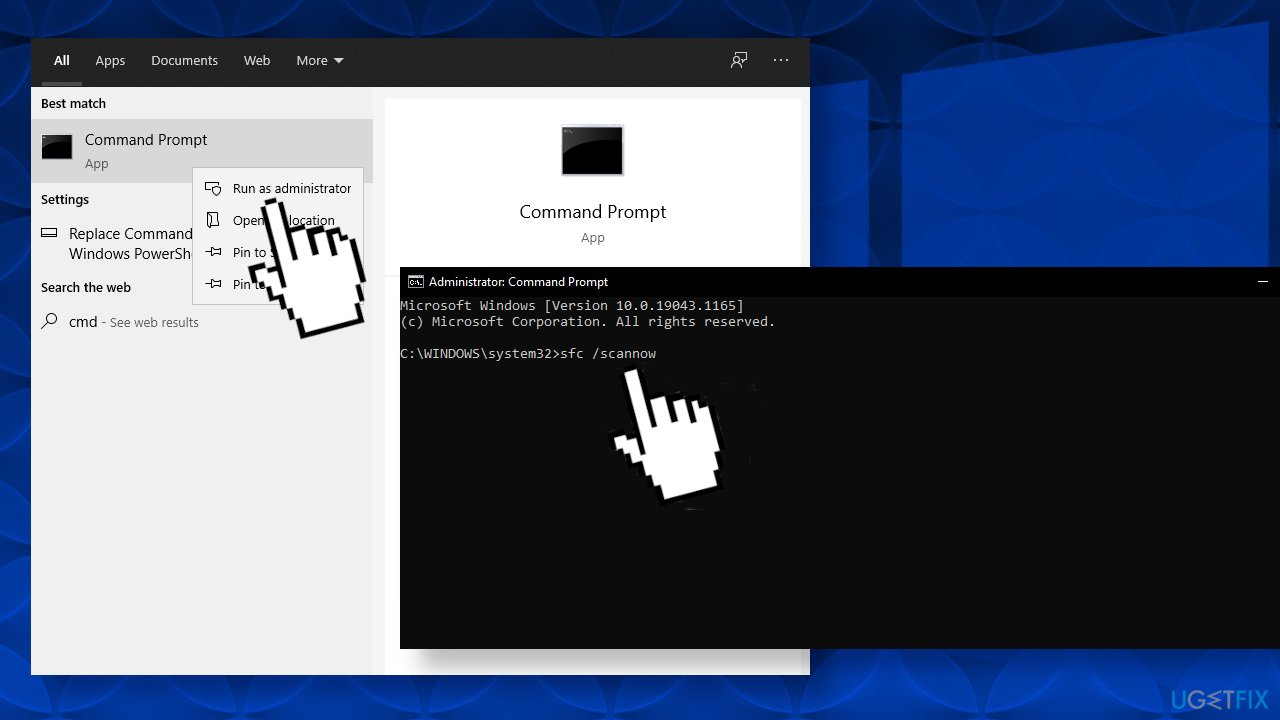
- Open Command Prompt as administrator
- Use the following command and press Enter:
sfc /scannow
- Reboot your system
- If SFC returned an error, then use the following command lines, pressing Enter after each:
DISM /Online /Cleanup-Image /CheckHealth
DISM /Online /Cleanup-Image /ScanHealth
DISM /Online /Cleanup-Image /RestoreHealth
Method 3. Check Disk
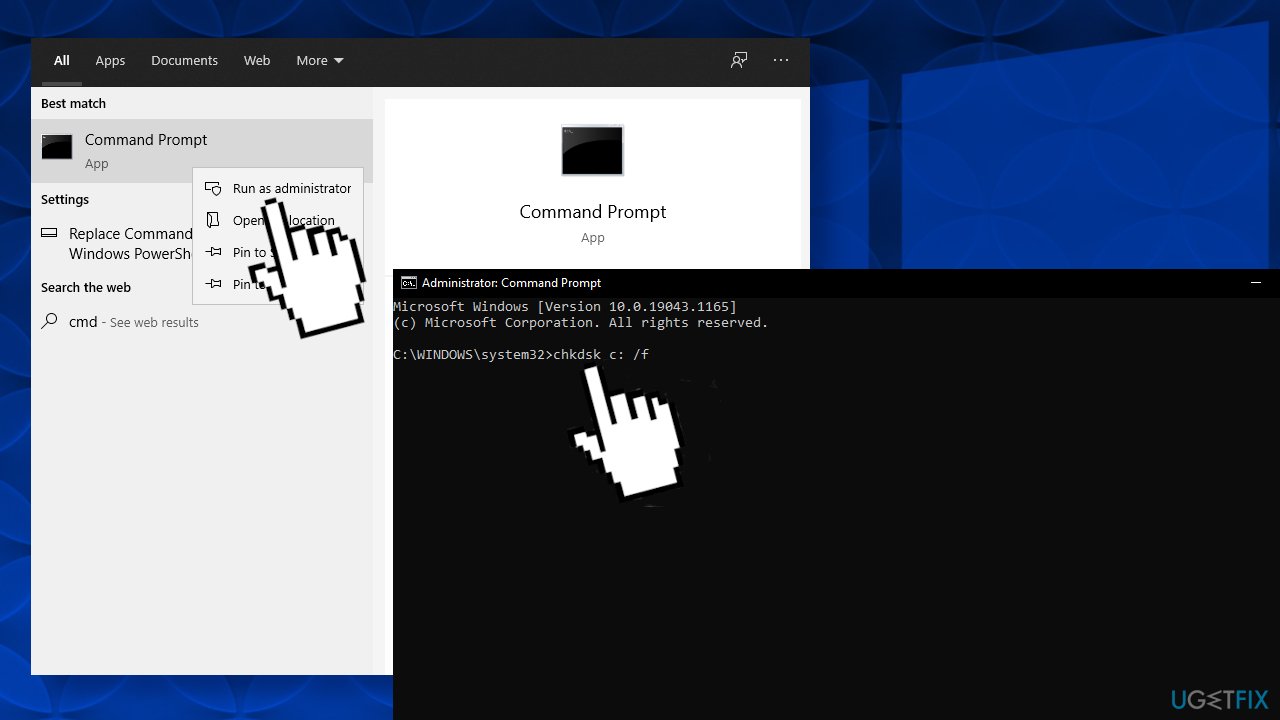
Ensure that your disk is not damaged. You can perform checks using Administrative Command Prompt:
- If you are using an HDD as your main driver (where your operating system is installed - C: by default), use the following command and press Enter:
chkdsk c: /f
- If you are using SSD, use this command:
chkdsk c: /f /r /x - If you receive an error, type in Y and hit Enter
- Restart your device to perform the check
Method 4. Uninstall non-Microsoft antivirus software
- Select Start, then select Settings
- Go to Apps > Apps & features
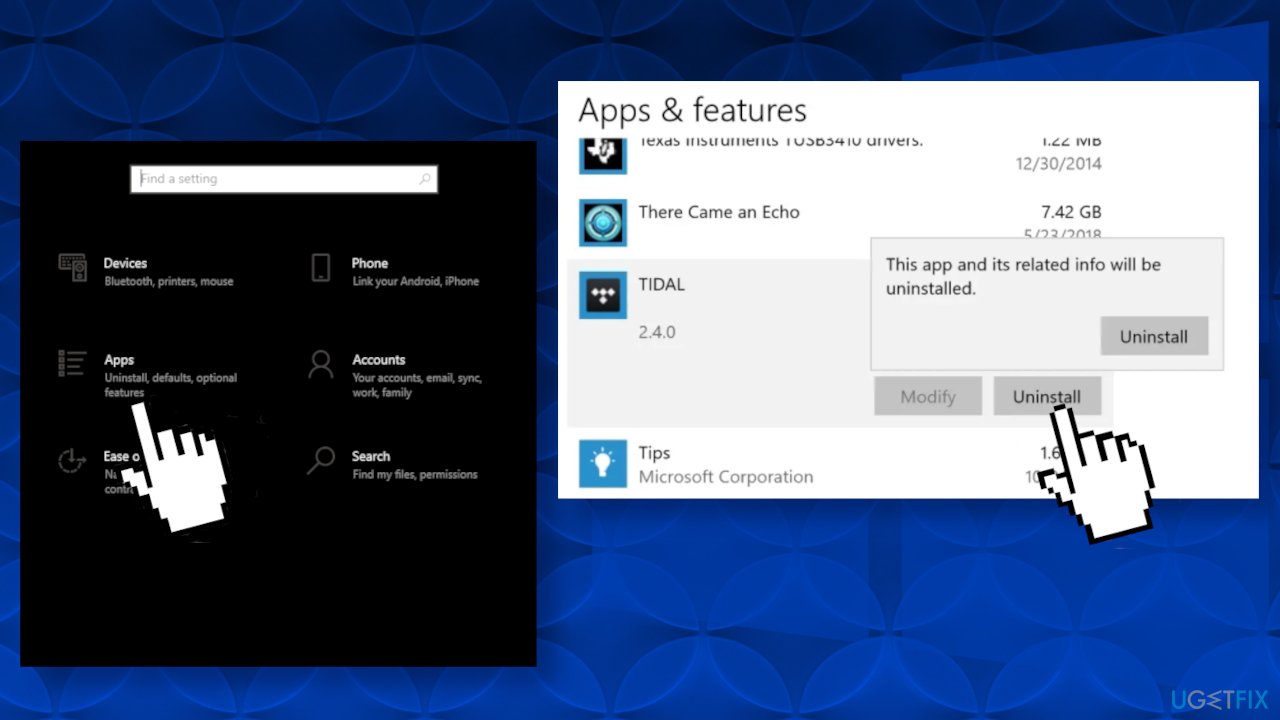
- Select the app you want to remove, and then click Uninstall
Method 5. Perform a Clean Installation
Performing a clean install wipes out data from PC, hence please create back up before you proceed
If all else fails and you can't even reset your Windows computer, you can reinstall the OS entirely. You won't even need an activation number or any proof of purchase, either. Just make sure you have more than 4GB of space available, as that's how much space the file you'll download takes up. Here's how to reinstall Windows 10:
- Download the ISO file
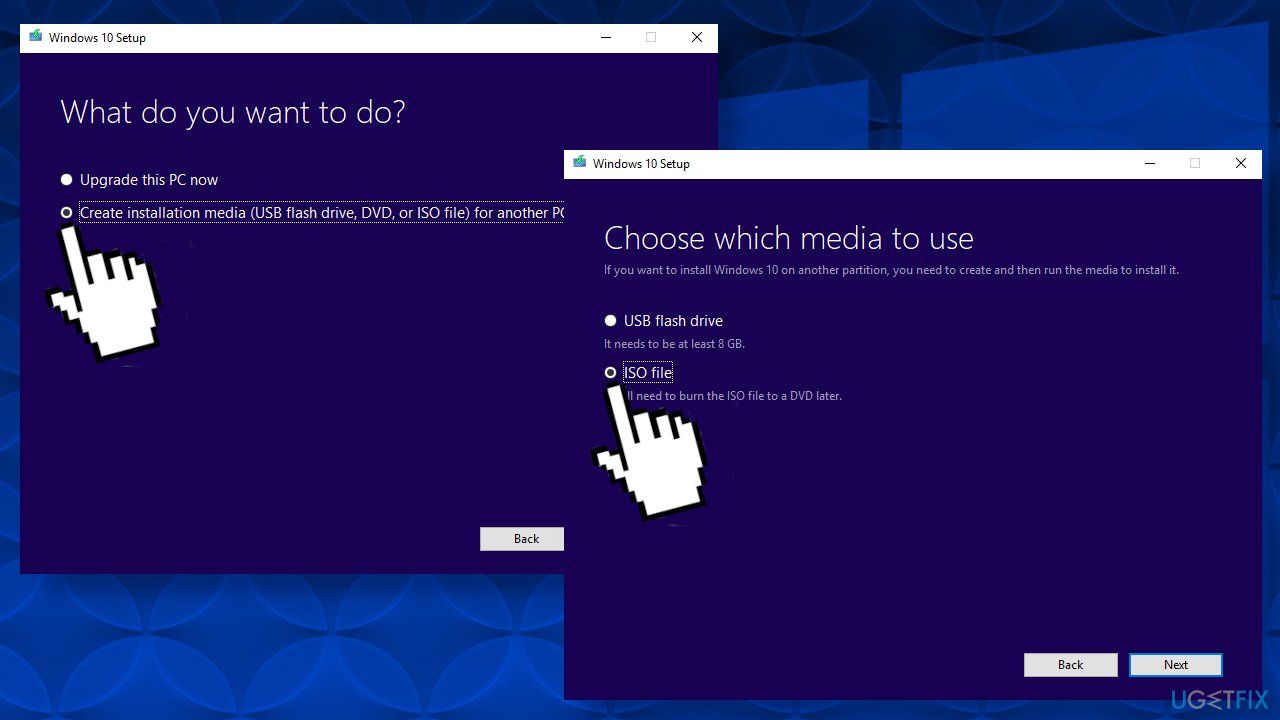
- Select Create installation media for another PC and click Next
- Select ISO file and click Next
- Click Finish
- Open the Windows ISO file you downloaded
- Open Setup and click Next
- Click Accept (Be prepared to wait; this next part may take a while)
- Click Install
- Wait for your system to restart and install Windows
You might also be interested in these topics:
Bottom line
To fix the error 0x800702A9, ensure that all necessary files are present, check for incorrect user inputs, and verify that no critical registry files are missing. Additionally, consider updating your device or using a different upgrade method. If none of these solutions work, further troubleshooting may be required.
Frequently asked questions
The error 0x800702A9 typically indicates that there is a problem with the system files or an issue with the Windows upgrade process on Windows 10 or Windows 11.
You can resolve the 0x800702A9 error by running the Windows Update Troubleshooter, performing a system file check with the 'sfc /scannow' command, and ensuring your system has sufficient disk space.
To avoid the 0x800702A9 error when upgrading to Windows 11, ensure that your system meets the minimum requirements and that all previous updates are installed before initiating the upgrade.




Report an issue
What's wrong with this guide? We review every report and update or remove content.
Report received — thank you. We'll review and fix it.
You need a free account to submit a report.
Be the first to comment