
How to fix "Your camera is reporting that it is blocked or turned off" error in Windows?

Prefer to fix it yourself? The manual steps follow.
- 6methods
- 2 to 20 minutes
- Easy
Applies to Windows 11, Windows 10; built-in laptop cameras and USB webcams
6 methods in this guide
For some reason, I can't use the new camera I bought last week. I keep getting the following message: "Your camera is reporting that it is blocked or turned off by a switch or button on your device." But there's no switch to use, at least not one that I'm aware of. My system is Windows 11.
Windows shows "Your camera is reporting that it is blocked or turned off by a switch or button on your device" when the camera itself tells Windows it is closed. Most often a privacy shutter, a camera key or a side switch is the reason. Check those first; if your laptop has none, restart and reinstall the camera driver.
The camera, not Windows, reports that it is switched off. Slide open the small shutter over the lens, press the camera key (often an Fn key in the top row) or flip the side switch, then test again (Fix 1). If your device has no switch at all, restart and check the camera is enabled (Fix 2), then reinstall the camera driver (Fix 3).
| Error | Your camera is reporting that it is blocked or turned off by a switch or button on your device. Please unblock it or turn the switch on to use it. |
|---|---|
| Where it appears | In Settings > Bluetooth & devices > Cameras, on the camera's own page, above a grey preview with a lock symbol. Apps show a black picture or a camera with a slash through it. |
| Main cause | A privacy shutter, camera key or side switch has turned the camera off, and the camera reports that state to Windows. |
| Fastest fix | Open the shutter, press the camera key or flip the switch, then look at the Cameras page again (Fix 1). |
| Also written as | "camera is blocked or turned off by a switch or button", "camera turned off by switch or button on device", "camera blocked", "camera disabled". |
| Affects | Windows 11 and Windows 10. Built-in laptop cameras and USB webcams. On Microsoft's Q&A thread for this message, more than 1,200 people marked the same question. |
| Microsoft's status | Not a bug. Microsoft's camera help lists a physical switch or button as step 2 of its general troubleshooting. |
| When it is not the switch | No switch exists, or the message stays with the shutter open: a stuck camera driver or, rarely, a faulty switch sensor. |
| Time to fix | Under 2 minutes for a switch, about 15 minutes for a driver reinstall. |
Facts checked on 15 October 2026. Steps written for Windows 11 (25H2 and 26H2) and Windows 10 22H2.
What "Your camera is reporting that it is blocked or turned off" means
The full message reads: Your camera is reporting that it is blocked or turned off by a switch or button on your device. Please unblock it or turn the switch on to use it. It sits in a yellow bar on the camera's page in Windows Settings. The word that matters is reporting: the camera sends Windows its own on or off state, and Windows only passes it on.
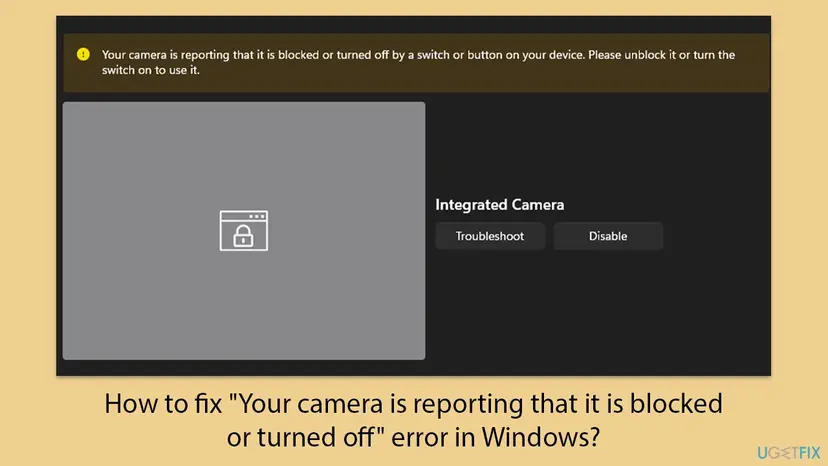
That is why the usual software fixes rarely help. No privacy setting, app permission or update makes Windows write this sentence. Microsoft describes the switch case in its camera help: when a camera switch or button is off, Windows may not see the camera at all, or apps show a camera with a slash through it.
| What you see | What it tells you |
|---|---|
| The message in Settings, grey preview with a lock | The camera reports "closed". Find the shutter, key or switch: Fix 1. |
| Black picture or a camera with a slash in Teams, Zoom or a browser | The same state seen from an app. Start with Fix 1 too. |
| The camera is missing from Settings and Device Manager | Some switches cut the camera off completely. Fix 1, then Fix 3. |
| No message, but apps say they have no permission | A different problem: Windows privacy settings. Fix 6. |
Why your camera says it is blocked or turned off
Most often a privacy control on the device itself is closed, and people do not know it exists. On a Microsoft Q&A thread with more than 1,200 people marking the same question, the accepted answers point to a tiny switch above the lens and to camera keys. Less often the camera driver is stuck in the off state. Rarely the switch or its sensor is broken.
| Cause | How often | How to tell | Fix |
|---|---|---|---|
| A shutter slider over the lens is closed. | Most often | A small dark cover or a coloured dot sits over the lens. | Fix 1 |
| The camera key or Fn key combination turned the camera off. | Often | A key in the top row shows a camera icon, sometimes with a light. | Fix 1 |
| A sliding switch on the side or edge of the laptop is off. | Sometimes | A switch with a camera icon near the ports or on the screen edge. | Fix 1 |
| The camera is disabled in Windows, or the state did not refresh after the switch moved. | Sometimes | The switch is open but the message stays until a restart. | Fix 2 |
| The camera driver reports a wrong state. | Sometimes | No switch exists, or the message began after a driver or Windows update. | Fix 3, Fix 5 |
| A USB webcam with its own cover or a loose plug. | Sometimes | An external webcam, often new. | Fix 4 |
| The switch or its sensor is faulty. | Rarely | Everything above failed and the camera works on no other system. | Still broken |
How to fix "Your camera is reporting that it is blocked or turned off by a switch or button"
Fix 1 solves this message for most readers and takes a minute. Fixes 2 and 3 are for devices with no switch, or where the message stays after the switch is open. Fix 4 is for USB webcams, Fix 5 holds the general repairs, and Fix 6 is for apps that still see no camera once the message is gone.
| What you see or have | Start with |
|---|---|
| A laptop with a built-in camera, any brand. | Fix 1 |
| You opened the shutter or pressed the key, but the message stays. | Fix 2, then Fix 3 |
| You are sure the device has no switch, shutter or camera key. | Fix 2, then Fix 3 |
| The message began right after a Windows or driver update. | Fix 3 |
| An external USB webcam. | Fix 4 |
| The message is gone, but an app still shows no picture. | Fix 6 |
Fix 1. Open the camera shutter, press the camera key or flip the camera switch
2 minutesNo riskEveryone, first. Especially on a new or unfamiliar laptop, or when you are sure there is no switch.
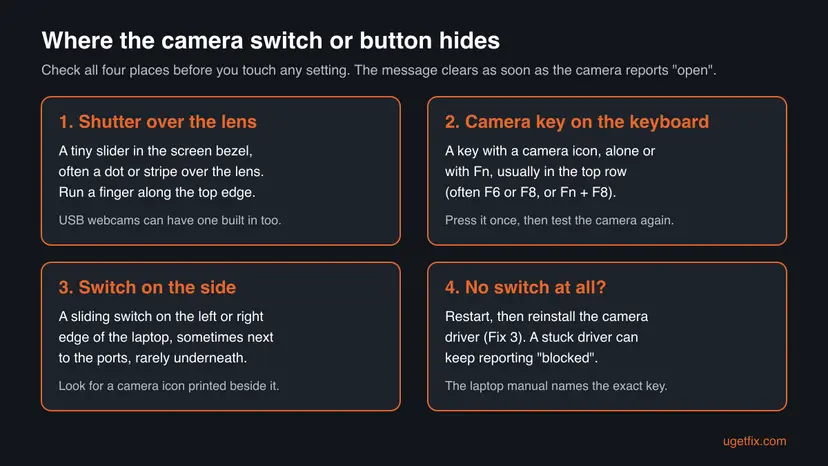
The message means the camera itself reports that it is closed. Microsoft lists four places such a control can be: a key used with Fn, a dedicated camera key, a sliding switch on the side, and a shutter slider built into the camera.
- Look closely at the lens above the screen. If a small cover, a dark stripe or a coloured dot sits over it, slide it sideways until you see the glass lens.
- Run a finger along the top edge of the screen. HP's support staff point out that the slider can be built into the bezel and is easy to miss.
- Check the top row of keys for a camera icon. Press that key once, then try it together with Fn.
- Check both sides of the laptop, and the edge near the ports, for a sliding switch with a camera icon.
- Open Settings > Bluetooth & devices > Cameras, select your camera and see whether the preview now shows a picture.
On the Microsoft Q&A thread, a helper lists F8 or Fn + F8 for most Lenovo laptops, sometimes with a switch above the lens, a camera key or side button on HP, and F6 or Fn + F6 on MSI. HP's staff also name Fn + F8 on some HP models. Your laptop manual names the exact key.
Several people on that thread found the switch only after reading this tip. One describes it as a switch on the edge of the laptop, right above the camera, and hard to find.
It worked if: The yellow bar disappears and the preview on the camera's Settings page shows a live picture.
If not: If you moved a switch but the message stays, restart in Fix 2. If there is truly no switch, go to Fix 2 and Fix 3.
Fix 2. Restart Windows and make sure the camera is enabled
5 minutesNo riskThe switch is open but the message stays, or the camera page shows an Enable button.
Windows can keep showing an old state until the camera starts again. Microsoft notes that waking a PC from sleep is not a restart. A camera that was disabled in Settings or Device Manager also cannot report that it is open.
- Select Start > Power > Restart. Do not use sleep or a lid close instead.
- Open Settings > Bluetooth & devices > Cameras and select your camera. If you see Enable instead of Disable, select Enable.
- Right-click Start and select Device Manager.
- Expand Cameras (or Imaging devices). If the camera has a down arrow on its icon, right-click it and select Enable device.
- Open the camera's Settings page again and check the preview.
HP's support staff suggest the same Device Manager check: expand Cameras, right-click the camera and select Enable device if it is offered. On Windows 10 the camera list is under Settings > Devices > Cameras.
It worked if: After the restart the camera page shows a live picture and no yellow bar.
If not: If the camera is enabled and the message stays, reinstall its driver in Fix 3.
Fix 3. Reinstall or roll back the camera driver
15 minutesLow riskYour device has no switch, the switch is open and Fix 2 did not help, or the message began after an update.
The "blocked" state reaches Windows through the camera driver. A driver that is damaged, or that changed with an update, can keep reporting "closed" even with the lens open. A fresh driver reads the state again from the camera.
- Right-click Start, select Device Manager and find the camera under Cameras, Imaging devices or Sound, video and game controllers.
- If the message began after an update, right-click the camera, select Properties, open the Driver tab and select Roll Back Driver, then Yes. Restart and test.
- If roll back is greyed out or did not help, select Uninstall Device on the same tab, tick Attempt to remove the driver for this device and select OK.
- In Device Manager select Action > Scan for hardware changes and wait for the camera to return.
- Restart the PC and open the camera's Settings page again.
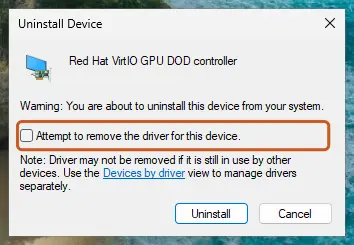
If Windows installs the same driver and the message stays, download the camera driver for your exact model from the laptop maker's support page. Full driver steps: Update, roll back or reinstall a driver
It worked if: The camera returns under Cameras without a warning sign, and its Settings page shows a picture.
If not: For a USB webcam go to Fix 4. For a built-in camera go to Fix 5.
Fix 4. Check a USB webcam: its cover, the port and the USB Video Device driver
10 minutesLow riskThe camera is an external USB webcam, such as a new one on its first use.
Many webcams have a cover or slider of their own, and Microsoft names a shutter built into the camera as one of the places to check. Microsoft also says most USB webcams follow the UVC standard and work with the driver built into Windows.
- Look at the front of the webcam for a sliding cover or a flap that folds over the lens, and open it.
- Unplug the webcam and plug it straight into another USB port on the PC, not into a hub or dock.
- If the message stays, open Device Manager, right-click the webcam and select Update driver.
- Select Browse my computer for drivers, then Let me pick from a list of available drivers on my computer.
- Select USB Video Device, then Next and Close, and check the camera's Settings page.
Microsoft warns that the built-in USB Video Device driver may not support every feature of your webcam, and Windows Hello face sign-in can stop working. To go back, open the webcam's Properties > Driver tab and select Roll Back Driver.
It worked if: The webcam appears under Cameras and its preview shows a picture.
If not: Try the webcam on a second PC. If it reports "blocked" there too, the cover or the webcam itself is at fault. Otherwise go to Fix 5.
Fix 5. Install updates and run the Camera troubleshooter
20 minutesNo riskFixes 1 to 4 did not help, or Windows has updates or driver updates waiting.
Microsoft says camera driver updates can appear under Optional updates in Windows Update. Microsoft's troubleshooter checks the camera's state and settings. Neither is specific to this message, so they come after the switch and the driver.
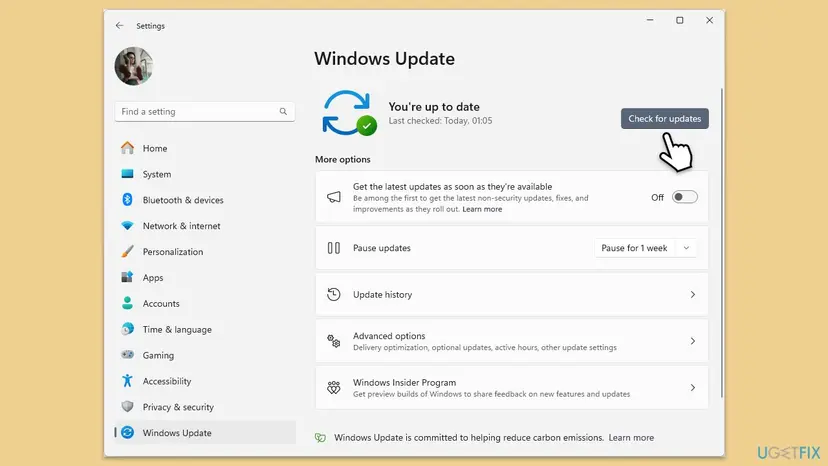
- Open Settings > Windows Update and select Check for updates. Install everything.
- Select Advanced options > Optional updates and install any camera driver offered. Restart.
- Open Settings > System > Troubleshoot > Other troubleshooters.
- Select Run next to Camera and follow its steps.
- Open the camera's Settings page again.
Windows 10 left support on 14 October 2025, so a Windows 10 laptop may not get newer camera drivers through Windows Update. Use the laptop maker's support page instead.
It worked if: Windows is up to date, the troubleshooter reports what it checked, and the yellow bar is gone.
If not: Read "If the camera still says it is blocked" below.
Fix 6. Allow camera access for apps once the message is gone
3 minutesNo riskThe yellow bar is gone, but Teams, Zoom, a browser or the Camera app still shows no picture.
This is a separate lock inside Windows. Microsoft says that after an update some apps in newer Windows 11 versions do not have camera access by default. It does not cause the "blocked" message, but it can hide the camera after you fix it.
- Open Settings > Privacy & security > Camera.
- Turn on Camera access.
- Turn on Let apps access your camera and switch on the apps you use.
- Turn on Let desktop apps access your camera, which browsers, Teams and Zoom need.
- Close and reopen the app.
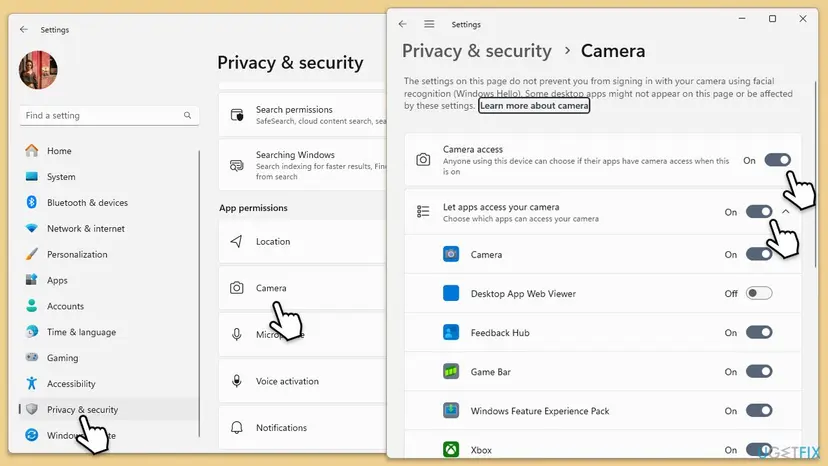
On Windows 10 the same switches are in Settings > Privacy > Camera. If Camera access is greyed out, Microsoft says an administrator has turned it off and only they can turn it on.
It worked if: Teams, Zoom, the browser or the Camera app shows your live picture instead of a black frame.
If not: If only one app fails, check that app's own camera setting, or the camera permission for the website in your browser.
If the camera still says it is blocked
No Windows log explains this message: the state comes from the camera. Narrow it down with three tests instead. Each one tells you who can help.
- Move the shutter, switch or key both ways while the camera's Settings page is open. If the message never changes, the switch or its sensor may not reach the camera.
- For a USB webcam, try it on a second PC. For a built-in camera, run the laptop maker's hardware diagnostics app if it has one.
- Press Win + R, type
msinfo32and press Enter to read the exact model under System Model. Search the maker's manual for the camera key of that model.
- What to send to support: the full message, the model from System Information, the camera name and driver version from Device Manager, and the Windows version from Settings > System > About.
- Who to ask: the laptop maker for a built-in camera, the webcam maker for a USB webcam.
- When it is hardware: the message stays on a fresh driver with every switch position, or a USB webcam reports the same on a second PC. A switch or shutter that is broken needs a repair.
A Windows reset does not fix a closed shutter or a broken switch. Try it only after the maker's diagnostics say the camera is fine.
How to keep the camera from getting blocked again
- Learn where your laptop's shutter, camera key or switch is, and check it before every call.
- Keep camera drivers from the laptop maker or from Windows Update optional updates.
- Restart, not just wake from sleep, after a driver change.
- Keep the camera's page in Settings as your quick test: a live picture there means the hardware works.
- Do not install driver updater programs from unknown sites.
- Do not disable the camera in Device Manager as a privacy measure and forget it.
A shutter is a good privacy habit. Just remember that Windows reads it as "turned off", and the message is the price of that protection.
Frequently asked questions
Why does my camera say it is blocked when there is no switch?
There usually is one, just very small. The slider can be part of the screen bezel right above the lens, and the camera key can be an ordinary function key with a tiny camera icon. Run a finger along the top edge and check the top row of keys. If there is truly nothing, restart (Fix 2) and reinstall the camera driver (Fix 3), because a driver can report the wrong state. Our reader's question is exactly this case.
How do I fix "your camera is reporting that it is blocked"?
Open the shutter over the lens, press the camera key or flip the side switch, and look at the camera's page in Settings > Bluetooth & devices > Cameras (Fix 1). If the message stays, restart Windows and make sure the camera is enabled (Fix 2). Then reinstall or roll back the camera driver in Device Manager (Fix 3). For a USB webcam, check its own cover and try another port (Fix 4).
Why is my camera blocked on my laptop?
Many laptops have a privacy control that turns the camera off: a sliding shutter, a camera key or a side switch. When it is closed, the camera tells Windows it is blocked. Microsoft lists these controls in its camera help. Less often a camera driver is stuck, or the camera was disabled in Settings or Device Manager. Rarely the switch itself is broken.
Which key turns the camera on or off on Lenovo, HP or MSI laptops?
It depends on the model. Users on the Microsoft Q&A thread report F8 or Fn + F8 on most Lenovo laptops, a camera key or side button on HP, and F6 or Fn + F6 on MSI. HP's support staff also name Fn + F8 on some HP models. Look for a camera icon on the key. Your laptop's manual is the reliable source; find the exact model with msinfo32.
The message says "camera disabled". Is that the same?
Not quite. "Disabled" means Windows has the camera turned off, in Settings or in Device Manager, and you can turn it back on there (Fix 2). "Blocked or turned off by a switch or button" means the camera itself reports being closed by hardware. Both leave apps without a picture, so check the switch first and then the Enable button.
Will a Windows update or Windows privacy setting cause this message?
The privacy settings do not cause it. They block apps in a different way, without this yellow bar. An update can, when it changes the camera driver, and then rolling back the driver often helps (Fix 3). Microsoft notes that after updates some apps in newer Windows 11 versions lose camera access, so check Privacy & security once the message is gone (Fix 6).
My USB webcam says it is blocked or turned off. What should I do?
Look at the webcam for its own cover or slider and open it. Plug it straight into another USB port on the PC, not a hub. If the message stays, switch the webcam to Windows' built-in USB Video Device driver (Fix 4). Microsoft says most webcams follow the UVC standard and work with it, though face sign-in may stop working. Test the webcam on a second PC to rule out a fault.
Is the fix the same on Windows 10 and Windows 11?
Yes. The message and the fixes are the same. Only menu names differ: the camera list is in Settings > Devices > Cameras on Windows 10 and in Settings > Bluetooth & devices > Cameras on Windows 11, and the privacy switches are under Privacy instead of Privacy & security. Windows 10 left support on 14 October 2025, so take its drivers from the laptop maker.
Should I turn off my antivirus to unblock the camera?
No. Security software does not produce this message; it comes from the camera itself. Microsoft links security software to a different camera code, 0xA00F4246, where the camera is locked. Some security suites do have their own webcam protection, which you can check and allow. If you test with protection paused, do it once and turn it back on: Turn off Microsoft Defender protection for a moment
Is my camera broken if the message never goes away?
Not necessarily. First move every switch both ways while the camera's Settings page is open, and reinstall the driver. If the message still never changes, the switch or its sensor may be faulty, which needs the laptop maker's repair. For a USB webcam, test it on a second PC: if it reports "blocked" there too, the webcam is at fault.
Sources
- Microsoft Support: Camera doesn't work in Windows (camera switch or button, app permissions, troubleshooter, driver roll back and reinstall, USB Video Device driver, camera error codes) (support.microsoft.com)
- Microsoft Q&A: Your camera is reporting that it is blocked or turned off by a switch or button on your device (accepted answers: switch above the lens, camera keys by laptop brand) (learn.microsoft.com)
- HP Support Community: the same message on an HP laptop, answer by HP support staff (Fn key, bezel shutter, Enable device, driver reinstall) (h30434.www3.hp.com)
Did this fix work?
One click, no account. It tells the next reader which guides are worth their time.
Questions and experiences: fix "Your camera is reporting that it is blocked or turned off" error in Windows
Still broken, or found a fix we did not cover? Ask here: members and our editors answer. Reading is open; writing needs a free account.
…