
How to fix Zoom error 4502 in Windows?

Prefer to fix it yourself? The manual steps follow.
- 7methods
- 5 to 30 minutes
- Easy
Applies to Recurring Zoom meetings scheduled with the Zoom Plugin for Microsoft Outlook in classic Outlook on Windows 11 and Windows 10
7 methods in this guide
Hello. I wanted to delete a Zoom meeting, but I got the 4502 error code. How can I fix this?
Zoom error 4502 appears in Outlook, not in the Zoom app: the Zoom Plugin for Microsoft Outlook could not cancel one occurrence of a recurring Zoom meeting. Your account and your PC are fine. Install the latest Outlook plugin first, then add a space to the series title and save it.
Error 4502 means the Zoom Plugin for Outlook could not cancel one date of a recurring meeting. Zoom's first fix is to install the latest Outlook plugin (Fix 1). If the error stays, open the whole series in desktop Outlook, add a space to its title, save, and cancel the single date again (Fix 2). Then check that the date has the same time in Zoom and Outlook (Fix 3).
| Error | Error 4502, often shown together with error 3000 (users report the text as 0;Error 3000). Zoom files both under its Outlook plugin. |
|---|---|
| Where it appears | In classic Outlook on Windows, when you cancel or delete one occurrence of a recurring Zoom meeting that was scheduled with the Zoom Plugin for Outlook. |
| Main cause | An old or damaged Zoom Plugin for Outlook, or a recurring series whose dates no longer match between Outlook and the Zoom web portal. |
| Fastest fix | Install the latest Zoom Plugin for Outlook from the Zoom Download Center and restart Outlook (Fix 1). |
| Also written as | Zoom error 4502, error 4502 Zoom Outlook, Zoom error code 4502, Outlook error 4502, 4502 when cancelling a meeting. |
| Sister code | Error 3000: the same plugin could not change the settings or time of the meeting. The same fixes apply. |
| Zoom's status | A known issue with its own Zoom support article, last updated 31 January 2025. A Microsoft Community answer from 2023 says Zoom 5.15.5.926 fixed the bug at the time. |
| Time to fix | 5 minutes for Fix 1 or Fix 2. Up to 30 minutes if you have to reinstall the plugin. |
Facts checked on 15 October 2026. Steps written for the Zoom Plugin for Microsoft Outlook in classic Outlook for Microsoft 365, the Zoom desktop app and the Zoom web portal on Windows 11 (25H2 and 26H2) and Windows 10 22H2, read against Zoom's support articles.
What Zoom error 4502 means
Zoom's own article is short and clear: error 4502 means an issue prevents you from canceling an occurrence in a recurring meeting with the Zoom Plugin for Microsoft Outlook. Error 3000 is its twin: the plugin could not change the settings of the meeting. Neither code comes from Windows or from a Zoom call.
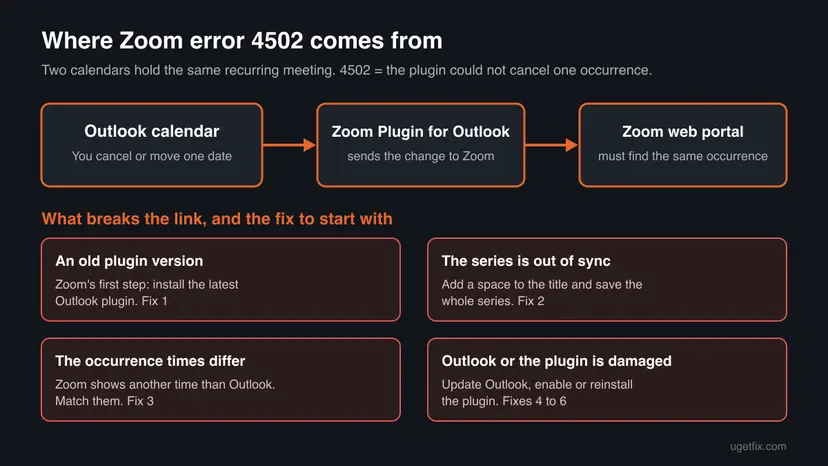
A recurring Zoom meeting lives in two places: as a series in your Outlook calendar and as a meeting in your Zoom account. When you cancel one date in Outlook, the plugin has to find the same occurrence in Zoom and cancel it there. If it cannot, Outlook stops and shows 4502.
| What you did in Outlook | Code you get | What failed |
|---|---|---|
| Canceled or deleted one date of a recurring Zoom meeting | 4502 | The plugin could not cancel that occurrence in Zoom |
| Moved one date, or changed its time or settings | 3000 | The plugin could not change the meeting in Zoom |
| Did both in a row | 4502 and 3000 | The series is out of sync, start with Fix 1 and Fix 2 |
Zoom has two Outlook tools. The Zoom Plugin for Microsoft Outlook is a desktop plugin you install from the Zoom Download Center. The Zoom for Outlook add-in runs in the web and desktop versions. Zoom's article ties 4502 to the plugin, and Zoom now recommends the add-in instead.
What causes Zoom error 4502, ranked
Zoom names its fixes but not how often each cause occurs. The order below follows Zoom's own order of steps and the reports of users in a Microsoft Q&A thread where more than 40 people had the same question. It is not a statistic.
| How often | Cause | Typical sign | Fix |
|---|---|---|---|
| Most often | An old Zoom Plugin for Outlook | The plugin has not been updated since it was installed. | Fix 1 |
| Often | The recurring series in Outlook is out of sync with Zoom | Only one series fails, other meetings cancel fine. | Fix 2 |
| Often | The occurrence has another time in Zoom than in Outlook | The date was moved earlier, or created in another time zone. | Fix 3 |
| Less often | Outlook itself is out of date or damaged | Other add-ins misbehave too, or Office has not updated for months. | Fix 4 |
| Less often | Outlook turned the plugin off | The Schedule a Meeting button is gone from the ribbon. | Fix 5 |
| Rarely | A damaged plugin install | Fix 1 to Fix 5 changed nothing. | Fix 6, Fix 7 |
The old version of this page, like many others, told you to turn off Windows Defender Firewall and to delete the Zoom data folder. Neither appears in Zoom's steps for 4502. The firewall stays on, and the Zoom app's data folder is not where the Outlook plugin keeps the series.
How to fix Zoom error 4502 in Outlook on Windows
Work through the fixes in order and try to cancel the date again after each one. Fix 1 and Fix 2 are the two steps Zoom gives first and take five minutes each. Success is simple: the single date disappears from Outlook and from the meeting list in your Zoom account.
| Your case | Start with | Then |
|---|---|---|
| 4502 or 3000 on any recurring Zoom meeting | Fix 1 | Fix 2 |
| Only one series fails, others cancel fine | Fix 2 | Fix 3 |
| The date shows another time in Zoom than in Outlook | Fix 3 | Fix 2 |
| The Zoom buttons are missing from the Outlook ribbon | Fix 5 | Fix 6 |
| Nothing helped, or your Mac colleagues have the same trouble | Fix 7 | Fix 6 |
Fix 1. Install the latest Zoom Plugin for Outlook
5 minutesNo riskEveryone first, especially if the plugin was installed long ago and never updated.
Zoom's article puts this first: if you see 4502, manually update to the latest version of the Outlook plugin. The plugin does not update with Outlook, so an old copy can keep sending changes in a way Zoom no longer accepts.
- Close Outlook completely.
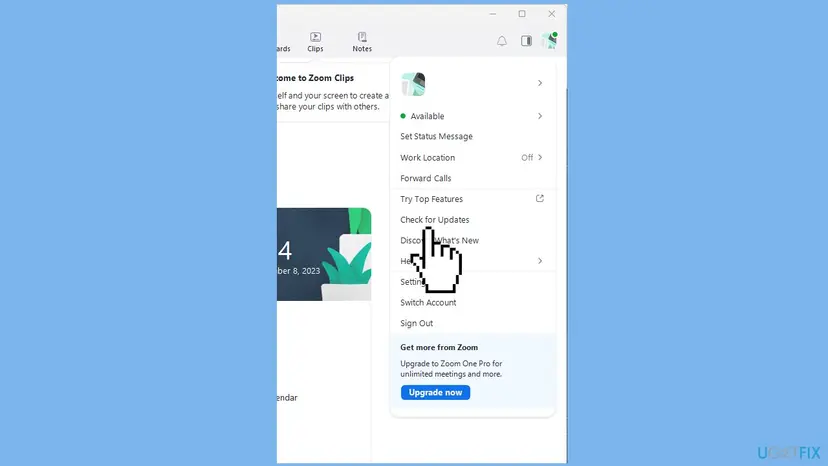
- Open the Zoom desktop app, select your profile picture at the top right and select Check for Updates. Install what it offers. The plugin needs the Zoom app installed and signed in.
- In your browser, open the Zoom Download Center at
zoom.us/download. - Find Zoom Plugin for Microsoft Outlook and select Download. It is an MSI file.
- Run the downloaded file and follow the installation wizard to the end.
- Open Outlook again. Zoom says a restart of Outlook is needed before the plugin works.
- Open the recurring meeting and cancel the single date again.
It worked if: Outlook asks whether to notify attendees, and the date disappears without error 4502.
If not: If 4502 returns on the same series, resave the series with Fix 2.
Fix 2. Add a space to the series title in Outlook and save it
5 minutesLow riskThe plugin is up to date, but one recurring meeting still refuses to cancel or move a date.
Zoom gives this exact workaround for an occurrence that cannot be updated. Saving the whole series again through the plugin sends Zoom a fresh copy of it, so the single date you cancel next can be matched.
- Open the Outlook desktop app. Do not use Outlook on the web for this.
- Double-click one date of the recurring Zoom meeting and choose to open the entire series.
- Click at the end of the meeting title and type one space.
- Select Save (or Send Update) so the series is saved through the plugin.
- Close the series and open the single date you want to cancel or move.
- Cancel or change that date and send the update.
Zoom adds that the meeting should be sent through the Outlook plugin to clear the mismatch. Users in the Microsoft Q&A thread report that saving the series with the extra space worked without sending a new invitation to everyone, and that it had to be repeated when the error came back.
It worked if: The series saves without an error, and the single date then cancels or moves normally.
If not: If the date still fails, compare its time in Zoom and Outlook with Fix 3.
Fix 3. Make the occurrence time match in Zoom and Outlook
10 minutesLow riskThe date you want to cancel was moved before, or Zoom shows it at another time than Outlook.
Zoom's article says that when you cannot edit a meeting in Outlook after updating the plugin, the occurrence must have the same time in Outlook and in Zoom. The plugin finds the date by its time, so a mismatch leaves it nothing to cancel.
- In Outlook, note the date and start time of the occurrence you want to cancel.
- Sign in to the Zoom web portal at
zoom.uswith the same account the plugin uses. - Open Meetings and select the recurring meeting.
- Find the same occurrence in its list of dates and compare the time.
- If the time differs, edit only that occurrence in Zoom and set it to the Outlook time. Save.
- Go back to Outlook, open the single date and cancel it again.
Check the time zone too. Your Zoom profile has its own time zone, and an occurrence created while you travelled can sit an hour or more away from the Outlook entry.
It worked if: Zoom and Outlook show the same time for the date, and Outlook cancels it without 4502.
If not: If the times match and the error stays, update and repair Outlook with Fix 4.
Fix 4. Update Outlook and repair Microsoft 365
10 to 20 minutesLow riskOutlook has not updated for months, or other add-ins also behave oddly.
Zoom's general steps for 4502 include upgrading Outlook 365 to the latest version. The plugin runs inside Outlook, so damaged or outdated Office files can break the hand-off to Zoom.
- In Outlook, select File > Office Account.
- Select Update Options > Update Now and wait until Office says you are up to date.
- Restart Outlook and try to cancel the date.
- If it still fails, close Outlook and run a Quick Repair of Microsoft 365. Step by step: How to repair Microsoft 365 or Office.
A Quick Repair keeps your mail, calendar and settings. It replaces damaged program files only. Windows 10 left support on 14 October 2025, so a PC that still runs it without Extended Security Updates gets no more fixes for Windows itself.
It worked if: Office reports that it is up to date, and the single date cancels after Outlook restarts.
If not: If the Zoom buttons are missing or greyed out, turn the plugin back on with Fix 5.
Fix 5. Turn the Zoom plugin back on in Outlook
5 minutesNo riskThe Schedule a Meeting button is missing from the ribbon, or Outlook warned that it disabled an add-in.
Outlook turns off add-ins that slow it down or crash. A half-disabled plugin can show the Zoom details in the meeting but fail when it has to send a cancellation, and Zoom gives these steps for a missing plugin icon.
- In Outlook, select File > Options > Add-ins.
- In Manage at the bottom, choose Disabled Items and select Go.
- If Zoom Outlook is listed, select it and select Enable. Close the window.
- In Manage, choose COM Add-ins and select Go.
- Tick Zoom Outlook plugin and select OK.
- Restart Outlook and check that the Zoom buttons are back.
It worked if: The Zoom buttons are back in the ribbon, and canceling a single date works.
If not: If the plugin will not stay on or the error stays, reinstall it with Fix 6.
Fix 6. Remove the Zoom plugin and install it again
15 minutesLow riskFix 1 to Fix 5 did not help, or the plugin installer failed or was interrupted.
Zoom's last general step for 4502 is to run its Clean Zoom tool to uninstall and reinstall the Outlook plugin. A clean install replaces plugin files that an update over a damaged copy leaves in place.
- Close Outlook and quit the Zoom app.
- Download and run Zoom's Clean Zoom tool from Zoom's support site. It removes the Zoom app and its plugins.
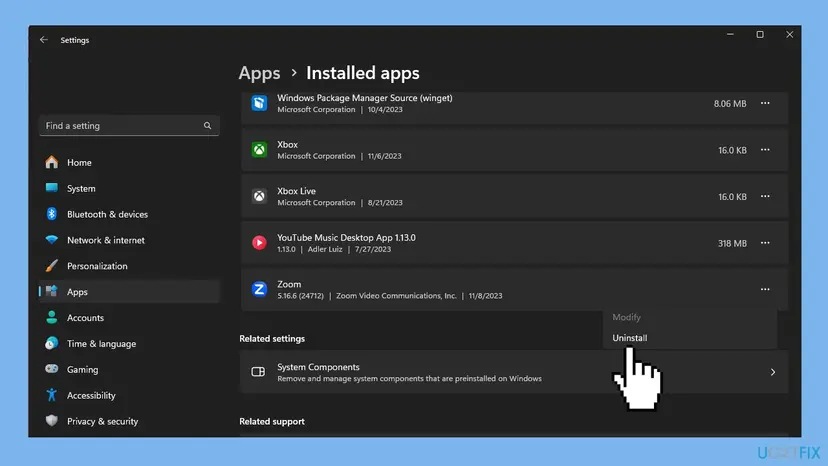
- If you cannot use it, uninstall Zoom Outlook Plugin and then Zoom in Settings > Apps > Installed apps. Step by step: Uninstall a program or app in Windows.
- Restart the PC.
- Install the Zoom desktop app and sign in, then install the Zoom Plugin for Microsoft Outlook from
zoom.us/download. - Open Outlook and cancel the date again.

It worked if: Outlook shows the Zoom buttons again, and the recurring meeting accepts the cancellation.
If not: If the error survives a clean reinstall, move to the Zoom for Outlook add-in with Fix 7.
Fix 7. Use the Zoom for Outlook add-in instead of the plugin
15 minutesLow riskNothing above helped, or your organisation already uses the new Outlook or Macs.
Zoom recommends the Zoom for Outlook add-in over the desktop plugin and asks organisations to migrate to it. Error 4502 belongs to the plugin, and one user in the Microsoft Q&A thread reports that switching to the new Outlook ended it.
- Cancel the stuck date in the Zoom web portal first, so Zoom no longer holds it.
- In Outlook, select Get Add-ins on the Home tab, search for Zoom for Outlook and select Add. On a work PC, IT may have to deploy it.
- Sign in to the add-in with your Zoom account.
- Uninstall the old Zoom Outlook Plugin so the two do not both act on new meetings.
- Schedule new recurring meetings with the add-in.
Meetings scheduled with the old plugin stay as they are. For a series that keeps failing, it is often simpler to end it after the last good date and schedule a new one with the add-in.
It worked if: New meetings carry the add-in's Zoom details, and their single dates cancel without error 4502.
If not: If the add-in also fails, collect the details in the next section for Zoom support.
If Zoom error 4502 is still there: what to collect and who can fix it
Error 4502 is never a hardware fault. When the fixes above fail, the cause is in the meeting record on Zoom's side or in your organisation's Zoom or Microsoft 365 settings. Collect these details before you contact anyone.
- The meeting ID of the recurring meeting and the date and time of the occurrence you tried to cancel.
- The codes exactly as shown, for example 4502 alone or together with 3000.
- The versions: the Zoom app (profile picture, Help > About Zoom), the Outlook plugin (Installed apps) and Outlook (File > Office Account).
- Whether the date shows the same time in Outlook and in the Zoom web portal, after Fix 3.
- Whether colleagues with the same plugin version get the same error.
| What you see | Likely reason | Who can fix it |
|---|---|---|
| Only one old series fails | That meeting's record in Zoom is out of sync | You: cancel in the web portal, schedule a new series |
| Every recurring meeting fails for many users | A plugin version or a known issue at Zoom | IT and Zoom support |
| The plugin cannot be installed or stays disabled | Office policy or add-in rules on a managed PC | IT |
How to keep Zoom error 4502 from coming back
The error comes back when Outlook and Zoom keep different copies of the same series. Make changes in one place and keep the plugin current.
- Update the Outlook plugin from the Zoom Download Center whenever you update the Zoom app. It does not update with Outlook.
- Change recurring Zoom meetings in desktop Outlook only, through the plugin, not in the web portal one day and Outlook the next.
- Keep Outlook updated through File > Office Account > Update Options.
- Check your Zoom profile time zone after travel, so new occurrences match Outlook.
- Plan the move to the Zoom for Outlook add-in, which Zoom now recommends over the plugin.
Frequently asked questions
What is error 4502 in Zoom?
It is an error of the Zoom Plugin for Microsoft Outlook. Zoom says it means an issue is preventing you from canceling an occurrence in a recurring meeting. It appears in Outlook when you cancel or delete one date of a recurring Zoom meeting, not during a Zoom call. Your Zoom account and your PC are usually fine. Start by installing the latest Outlook plugin in Fix 1.
Why do I get error 4502 when cancelling a Zoom meeting?
Because the plugin cannot find or cancel the same date in Zoom. Outlook keeps the series in your calendar and Zoom keeps it in your account, and the plugin has to cancel both. An old plugin, a series that is out of sync, or a date with another time in Zoom stops it. Fix 1, Fix 2 and Fix 3 cover these three cases in that order.
Is Outlook error 4502 the same as Zoom error 4502?
Yes. People search for it as an Outlook error because the message appears in Outlook, but the code comes from the Zoom Plugin for Microsoft Outlook. Outlook itself has no error 4502 for calendars. If you do not use Zoom meetings in Outlook and see a 4502 code, it belongs to another program, and the fixes on this page do not apply to it.
What is Zoom error 3000?
Error 3000 is the twin of 4502 in the same Zoom support article. It means the plugin could not change the settings of the meeting, for example when you move one date or change its time. Users often report both codes on the same series, and some see the text 0;Error 3000. The fixes are the same: update the plugin, resave the series and match the occurrence time.
Why does adding a space to the meeting title fix error 4502?
It forces Outlook to save the whole series again through the plugin, which sends Zoom a fresh copy of it. Zoom lists this as a troubleshooting step for occurrences that cannot be updated. Users in a Microsoft Q&A thread called it strange but reported that it worked, sometimes twice on the same series. Do it in the Outlook desktop app, not on the web.
Do I get error 4502 when I schedule a Zoom meeting in Outlook?
Usually not. Zoom ties 4502 to canceling one occurrence and 3000 to changing a meeting. If scheduling a new meeting fails, check that the Zoom app is installed and signed in, because the plugin needs it, and that the plugin is turned on in Outlook (Fix 5). Then update the plugin with Fix 1 and schedule the meeting again.
Will turning off the firewall fix Zoom error 4502?
No. Zoom's steps for 4502 do not include the firewall, and the plugin already reaches Zoom when it shows the error. Turning off Windows Defender Firewall leaves the PC open and does not change the series that is out of sync. Leave it on and work through Fix 1 to Fix 3, which change what the error is about.
Does reinstalling Zoom fix error 4502?
Only when the plugin itself is damaged. Reinstalling the Zoom app alone does not touch the Outlook plugin, which is a separate install with its own entry in Installed apps. Zoom suggests its Clean Zoom tool, which removes both, and then a fresh install of the app and the plugin. Try Fix 1 to Fix 5 first, because they take less time.
Has Zoom fixed error 4502?
Zoom keeps a support article for 4502 and 3000, last updated on 31 January 2025, so it is a known issue with known steps. In a Microsoft Community answer from November 2023, the bug was said to be fixed in Zoom 5.15.5.926 for Windows, yet users reported it after updating. That is why the series fixes in Fix 2 and Fix 3 still matter.
Can I cancel the meeting in Zoom instead of Outlook?
Yes, you can cancel or edit the occurrence in the Zoom web portal. The Outlook entry then stays in your calendar and in your attendees' calendars until you remove it there. That is fine for a one-off clean-up before you move to the add-in in Fix 7, but for regular use make changes in one place, so the two copies do not drift apart.
Sources
- Zoom Support: Zoom error codes 3000 and 4502 (meaning and Zoom's fixes) (support.zoom.com)
- Zoom Support: Microsoft Outlook plugin (desktop): requirements, download, missing plugin icon, add-in recommendation (support.zoom.com)
- Microsoft Q&A: Error 3000 and error 4502 for a week now (user reports, Zoom 5.15.5.926 answer) (learn.microsoft.com)
Did this fix work?
One click, no account. It tells the next reader which guides are worth their time.
Questions and experiences: fix Zoom error 4502 in Windows
Still broken, or found a fix we did not cover? Ask here: members and our editors answer. Reading is open; writing needs a free account.
…