
How to fix "The application was unable to start correctly (0xc0150002)" error in Windows?

Prefer to fix it yourself? The manual steps follow.
- 6methods
- 5 minutes to find the missing part, 10 to 30 minutes for the fix
- Easy
Applies to Windows 11, Windows 10, older desktop programs and games
6 methods in this guide
Whenever I launch or reboot Windows, an error message pops up. It says "The application was unable to start correctly (0xc0150002)." How can I fix it?
Error 0xc0150002 means Windows could not build the list of shared components a program asks for, so it stopped the program before its window opened. Most often an old Visual C++ 2005 or 2008 runtime is missing or damaged. Read the SideBySide entry in Event Viewer first: it names the program and the missing part.
0xc0150002 is a side-by-side (SxS) error: a program's manifest asks for a shared component that Windows cannot find or read. Open Event Viewer and read the SideBySide entry, which names the program and the component (Fix 1). If it names Microsoft.VC80.CRT or Microsoft.VC90.CRT, install the Visual C++ 2005 or 2008 runtime, both x86 and x64 (Fix 2). Otherwise reinstall the program from its maker (Fix 3).
| Error | The application was unable to start correctly (0xc0150002). Click OK to close the application. |
|---|---|
| Where it appears | A small window titled with the program file name and Application Error, right after you start a program, or at sign-in when a startup entry launches one. |
| Main cause | A side-by-side component that the program's manifest names is missing or damaged, most often the Visual C++ 2005 or 2008 runtime. |
| Fastest fix | Read the SideBySide event in Event Viewer (Fix 1), then install the runtime it names (Fix 2) or reinstall the program (Fix 3). |
| Code meaning | 0xC0150002 is STATUS_SXS_CANT_GEN_ACTCTX in Microsoft's NTSTATUS list: Windows was unable to process the application binding information, and the event log holds the details. |
| Also written as | 0xC0150002, 0xc0150002, error 0xc0150002, 0x0150002, oxc0150002. Decimal form: 3222601730. |
| Sister codes | 0xc0150001 (STATUS_SXS_SECTION_NOT_FOUND) and 0xc0150004 (STATUS_SXS_ASSEMBLY_NOT_FOUND) belong to the same side-by-side family and share the fixes. |
| Affects | Windows 11 and Windows 10. Windows 10 left support on 14 October 2025, but the fixes are the same on both. |
| Microsoft's status | Not a known issue of any Windows update. Microsoft's own diagnosis tool for this family is sxstrace (Fix 5). |
| Time to fix | 5 minutes to read the event. 10 to 30 minutes to install a runtime or reinstall the program. |
Facts checked on 15 October 2026. Steps written for Windows 11 (25H2 and 26H2) and Windows 10 22H2.
What "The application was unable to start correctly (0xc0150002)" means
The full message reads: The application was unable to start correctly (0xc0150002). Click OK to close the application. Windows shows it when it starts loading a program but cannot prepare the shared parts that the program says it needs. Selecting OK only closes the message; the program does not run.
Many Windows programs carry a small description called a manifest. It lists shared components, called side-by-side assemblies, by name, version and processor type (x86 or 64-bit). Before the program starts, Windows reads that list and builds an "activation context". If a listed part is missing, damaged or unreadable, that step fails and you get 0xc0150002.
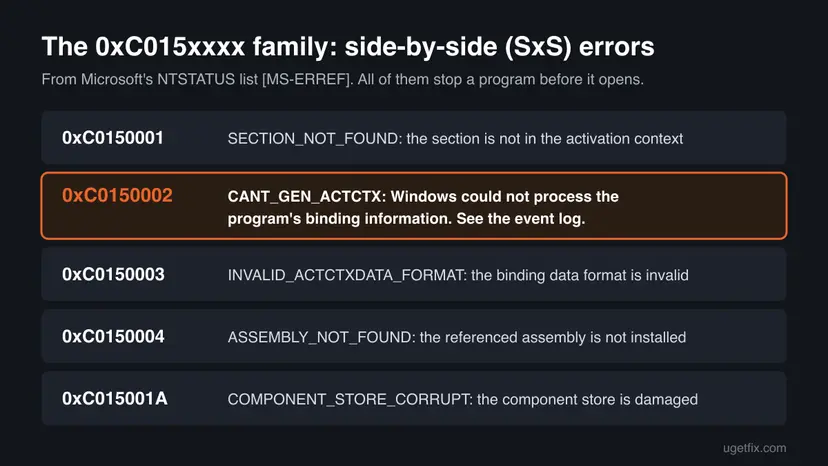
- 0xC0150002 is
STATUS_SXS_CANT_GEN_ACTCTX. Microsoft's text: Windows was unable to process the application binding information; refer to the system event log for further information. - 0xC0150004 is
STATUS_SXS_ASSEMBLY_NOT_FOUND: the referenced assembly is not installed on the system. 0xC0150001 isSTATUS_SXS_SECTION_NOT_FOUND. Both come from the same part of Windows. - What that means for you: Windows itself tells you to read the event log. The log, not the code, names the missing part.
- It is not a virus warning and not a hardware alarm. It is a loading failure of one program.
Shared side-by-side assemblies are stored in C:\Windows\WinSxS, and their policy files in C:\Windows\WinSxS\Policies. A program can also keep a private copy in its own folder. Never copy files into WinSxS by hand: they are installed only by proper installers and Windows Update.
Why a program fails to start with error 0xc0150002
Microsoft's C++ troubleshooting page lists what makes this kind of loading fail. The assembly named in the manifest is not installed in WinSxS nor next to the program, a policy redirects to a missing version, or the manifest itself is broken. In practice that sorts like this.
| How often | Cause | Signs | Fix |
|---|---|---|---|
| Most often | The program needs the Visual C++ 2005 or 2008 runtime, which is not installed, is only installed for the other processor type, or is damaged. | An older program or game fails. The event names Microsoft.VC80.CRT or Microsoft.VC90.CRT. | Fix 2 |
| Often | The program's own install is incomplete: its manifest, its .config file or a private component in its folder is missing or damaged. | The event names the program's own folder or a component with the program's name. | Fix 3 |
| Less often | A leftover startup entry keeps launching a program that was partly removed. | The window appears at sign-in or on its own, as in the reader's question above. | Fix 4 |
| Rarely | The Windows component store (WinSxS) is damaged, so shared parts cannot be read. | Several programs fail at once, or Windows parts fail too. | Fix 6 |
Updating drivers, running a clean boot or turning off the antivirus appear in many guides for this code. None of them adds a missing side-by-side component, and the code names no device. Read the event first, and you will usually know the one thing to install.
Why a 64-bit PC can still miss the 32-bit runtime
A manifest names the processor type of every component it needs. Microsoft notes that 64-bit assemblies cannot be loaded in 32-bit processes. Many older programs and games are 32-bit, so on 64-bit Windows they still need the x86 package of their runtime.
| Event or trace says | What it needs | Install |
|---|---|---|
Microsoft.VC80.CRT, processorArchitecture="x86" | Visual C++ 2005 runtime, 32-bit | Visual C++ 2005 Redistributable (x86) |
Microsoft.VC90.CRT, processorArchitecture="x86" | Visual C++ 2008 runtime, 32-bit | Visual C++ 2008 Redistributable (x86) |
Microsoft.VC80.CRT or Microsoft.VC90.CRT with amd64 | The same runtime, 64-bit | The x64 package of that year |
| A name with the program's own name in it | The program's private part | Reinstall the program (Fix 3) |
How to fix "The application was unable to start correctly (0xc0150002)"
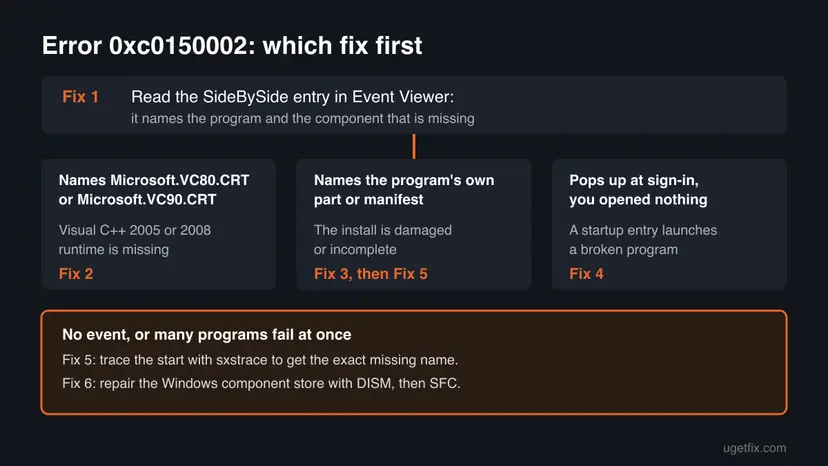
Fix 1 tells you which of the others to run. Fixes 2 and 3 solve most cases. Fix 4 is for a window that appears at sign-in. Fixes 5 and 6 are for when the event says too little or many programs fail. Test the program after each fix.
| What you see or have | Start with |
|---|---|
| You do not yet know which program or part fails | Fix 1 |
| The event names Microsoft.VC80.CRT or Microsoft.VC90.CRT | Fix 2 |
| The event names the program's own folder or part | Fix 3 |
| The window appears at sign-in or when you start Windows | Fix 4 |
| There is no SideBySide event, or it does not name a part | Fix 5 |
| Several programs fail with 0xc0150002 or 0xc0150004 | Fix 6 |
Fix 1. Read the SideBySide event in Event Viewer to find the missing part
5 minutesNo riskEveryone. Microsoft's own text for this code points to the event log.
When Windows cannot build a program's activation context, it writes an error with the source SideBySide. That entry holds the program path and, in most cases, the component that could not be found, which the error window does not show.
- Write down the file name in the title bar of the error window, such as
game.exe - Application Error, then select OK. - Press Win + R, type
eventvwr.mscand select OK. - Open Windows Logs > Application, then select Filter Current Log in the right pane.
- In Event sources, tick SideBySide and select OK.
- Select the newest Error at the time of the failure and read the General tab.
- Note the program path and every component name, version and processor type the text mentions. If the Application log is empty, repeat the filter in Windows Logs > System.
C:\Program Files or C:\Program Files (x86) is an installed program; the second one tells you it is 32-bit. A path in a Temp or AppData folder that you did not choose deserves a malware scan before anything else (Fix 4).
It worked if: You know which program fails, whether it is 32-bit, and which component it could not load.
If not: If there is no SideBySide event, use the program name alone and go to Fix 3, or get the exact name with Fix 5.
Fix 2. Install the Visual C++ 2005 or 2008 runtime the program asks for
10 to 15 minutesLow riskThe event or trace names Microsoft.VC80.CRT (Visual C++ 2005) or Microsoft.VC90.CRT (Visual C++ 2008), or you have an older program and no event.
Programs built with Visual C++ 2005 and 2008 load their runtime as a side-by-side assembly from WinSxS. Newer PCs often ship only the 2015 to 2022 runtime, which does not replace them. Each year's package installs next to the others; it does not overwrite them.
- Open Settings > Apps > Installed apps and type
Visual C++in the search box. - Look for Microsoft Visual C++ 2005 Redistributable or Microsoft Visual C++ 2008 Redistributable, with (x86) and (x64) after the name.
- If the year the event names is there, select the three dots, then Modify and Repair.
- If it is missing, open Microsoft's Latest supported Visual C++ Redistributable downloads page and get that year's package from its older versions section.
- Install the x86 package. On 64-bit Windows install the x64 package of the same year too.
- Restart the PC and start the program.
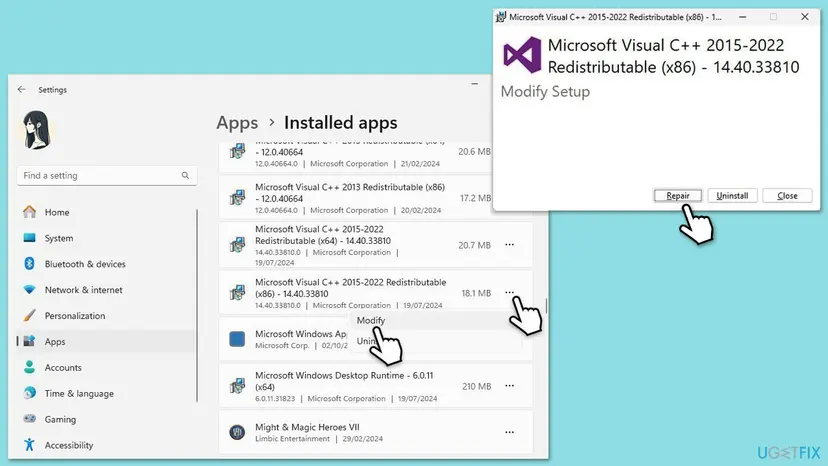
Step by step, including .NET Framework: How to repair Microsoft Visual C++ Redistributable and .NET Framework.
Microsoft marks the 2005 and 2008 packages as no longer supported, but it still offers them for old programs. Get them only from Microsoft, never from a DLL or runtime collection site. Do not uninstall the other Visual C++ years: other programs use them.
It worked if: The package installs or repairs with a success message, and the program starts after the restart.
If not: If the program still fails with the same component in the event, check you installed the right processor type (x86 for a program in Program Files (x86)). Then go to Fix 3.
Fix 3. Reinstall the program from its maker
10 to 20 minutesRead the warningThe event names the program's own folder or a component with its name, or the runtime is in place and it still fails.
A program can keep its manifest, its .config file and private side-by-side parts in its own folder. Microsoft's C++ troubleshooting page shows that Windows looks there when a part is not in WinSxS, and fails if it is missing. A fresh install puts those files back, and most installers also add the runtime they need.
Some programs and games keep projects or save games inside their own folder, and an uninstall can remove them. Copy that folder to another drive before you start.
- Press Win + R, type
appwiz.cpland select OK to open Programs and Features. - Select the failing program and choose Repair if it is offered. Test the program.
- If there is no repair or it did not help, right-click the program and select Uninstall.
- Restart the PC.
- Download the newest version from the maker's website or the store you bought it from, and install it.
- Start the program before you change any other setting.
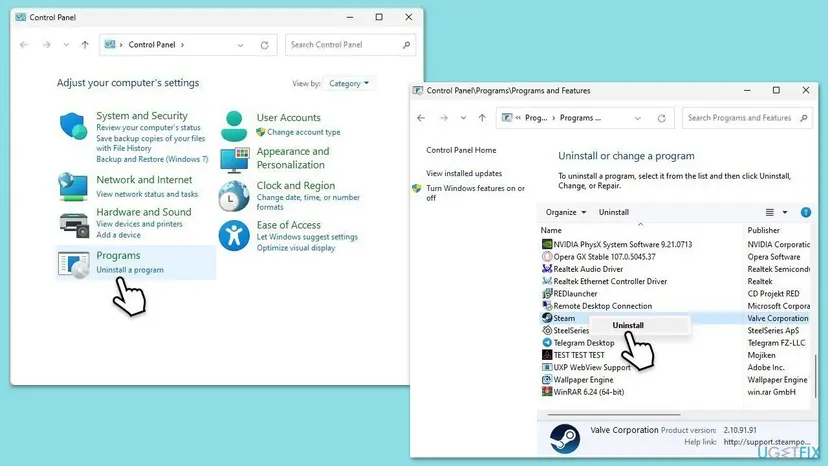
With the Settings app instead: Uninstall a program or app in Windows.
It worked if: The program opens, and no new SideBySide error appears in Event Viewer.
If not: If the newest version fails the same way, send its maker the event text (see "If 0xc0150002 still appears"). If many programs fail, go to Fix 6.
Fix 4. Stop the startup entry that launches a broken program at sign-in
10 minutesLow riskThe window appears when Windows starts or you sign in, and you did not open anything.
If 0xc0150002 appears at boot, something in your startup list is launching a program whose parts are gone, often the remains of a partly removed program. The SideBySide event from Fix 1 gives its path; disabling the entry stops the window without touching anything else.
- Right-click Start, select Task Manager and open Startup apps.
- Find the program from the error title bar or the event path. Right-click it and select Open file location to confirm it is the same file.
- If you still use that program, do Fix 2 or Fix 3 for it instead. If you do not, right-click the entry and select Disable.
- If it is not in the list, press Win + R, type
taskschd.msc, open Task Scheduler Library and look for a task whose Actions tab starts the same file. - Right-click that task and select Disable. Do not touch tasks whose author is Microsoft.
- Restart the PC and check whether the window returns.
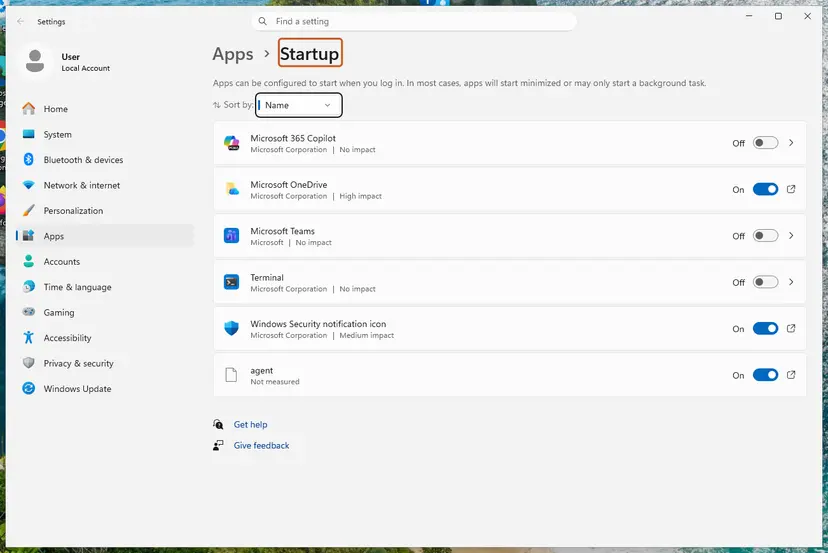
An .exe in a Temp or AppData folder that starts by itself and fails can be left over from unwanted software. Run a full scan before you delete anything: How to scan for malware with Microsoft Defender. Disabling an entry can be undone; deleting files cannot.
It worked if: Windows starts without the error window, and the programs you use still work.
If not: If the window still appears, read the time of the newest SideBySide event and match it with the entries in Task Scheduler, or trace the start with Fix 5.
Fix 5. Trace the program start with sxstrace to get the exact missing name
10 minutesNo riskThe event is missing or vague, or you installed the runtime and the program still fails.
sxstrace is Microsoft's tool to diagnose side-by-side problems on Windows 11 and Windows 10. It records every step of building the activation context and shows which manifest or assembly the program could not resolve.
- Select Start, type
cmd, right-click Command Prompt and select Run as administrator. Select Yes. - Type
sxstrace trace -logfile:%TEMP%\sxstrace.etland press Enter. Leave the window open; tracing runs until you stop it. - Start the failing program and wait for the 0xc0150002 window. Select OK.
- Go back to Command Prompt and answer its prompt to stop tracing.
- Type
sxstrace parse -logfile:%TEMP%\sxstrace.etl -outfile:%TEMP%\sxstrace.txtand press Enter. - Type
notepad %TEMP%\sxstrace.txtand press Enter. Press Ctrl + F and search forERROR. - Read the lines just above the error: they name the assembly, its version and its processor type. Use the table above to see which fix it needs.
sxstrace trace -logfile:%TEMP%\sxstrace.etl
sxstrace parse -logfile:%TEMP%\sxstrace.etl -outfile:%TEMP%\sxstrace.txt
notepad %TEMP%\sxstrace.txt
It worked if: The text file shows the name of the component that could not be found, such as Microsoft.VC90.CRT with its version.
If not: If the trace names a Microsoft component of Windows itself, or the parse finds nothing, go to Fix 6. If the stop prompt does not appear, run sxstrace stoptrace.
Fix 6. Repair the Windows component store with DISM and SFC
20 to 30 minutesNo riskSeveral programs fail with 0xc0150002 or 0xc0150004, the trace names a Windows component, or nothing above helped.
Shared side-by-side parts come from the Windows component store in WinSxS. Microsoft's list has a separate code for a damaged store (0xC015001A). DISM repairs that store and SFC then restores damaged system files from it. On a healthy PC it changes nothing, so it comes last.
- Open an elevated command window. Right-click Start and select Terminal (Admin), or type cmd in the search box, right-click Command Prompt and select Run as administrator. Select Yes when Windows asks for permission.

Search for cmd and choose Run as administrator. Screenshot: Windows 11 26H2. - Run DISM first. Type the command below and press Enter. DISM downloads clean copies of damaged components from Windows Update, so it can take several minutes. Wait until it says The operation completed successfully.
DISM.exe /Online /Cleanup-Image /RestoreHealth
DISM /RestoreHealth running. Screenshot: Windows 11 26H2. - Run System File Checker. In the same window, type the command below and press Enter. Do not close the window until the verification reaches 100%.
sfc /scannow
sfc /scannow at 100%. Screenshot: Windows 11 26H2. - Read the result and restart. Compare the last message with the table below this guide, then restart the PC so that repaired files are loaded.

The result line tells you what SFC did. Screenshot: Windows 11 26H2.
These steps were written for Windows 11 24H2 and 25H2. The full page with the other versions and what each result means: Run DISM and SFC to repair Windows system files
It worked if: DISM ends with The restore operation completed successfully, and SFC reports it repaired files or found no integrity violations. Restart and test the program.
If not: If the error remains, read "If 0xc0150002 still appears" below.
If 0xc0150002 still appears
When one program still fails after Fixes 2 and 3, its installer is not putting the parts its manifest asks for on your PC, and only its maker can fix that. Send them the facts, not only the code.
- Copy the text of the newest SideBySide error from Event Viewer (Fix 1).
- Attach the
sxstrace.txtfile from Fix 5. - Run
winverand copy the Windows version and OS build. - Send these to the program's support or official forum and ask which runtime its version needs.
- On a work or school PC, software policies may block installing runtimes. Ask your IT department before you change anything.
- Disk errors (Disk or Ntfs entries in the System log) point to a failing drive, which can damage WinSxS again. Check it with Check a disk for errors (chkdsk) and back up your files.
- A related code: if the same window shows 0xc0000141 instead, see our guide to error 0xc0000141, which has different causes.
- Windows parts fail too and DISM cannot repair the store: an in-place repair that keeps your files is next, Reinstall Windows without losing files.
How to keep error 0xc0150002 from coming back
Side-by-side errors come back when shared runtimes are removed or a program is half removed. A few habits prevent most of them.
- Keep every Visual C++ Redistributable year that is installed, both x86 and x64.
- Uninstall programs through Installed apps, so their startup entries go too.
- Install old programs and games with their own setup, which often adds the runtime they need.
- Keep a restore point or a backup before large clean-ups.
- Remove "duplicate" Visual C++ entries with a clean-up tool.
- Copy DLL or manifest files into
C:\Windows\WinSxSby hand. - Download runtimes or DLLs from sites other than Microsoft or the program's maker.
- Delete scheduled tasks you do not recognise without checking who made them.
Frequently asked questions
What does error 0xc0150002 mean?
It means Windows could not process a program's binding information, so it stopped the program before it opened. In Microsoft's NTSTATUS list, 0xC0150002 is STATUS_SXS_CANT_GEN_ACTCTX, a side-by-side error. The program's manifest asks for shared components, and Windows could not find or read one of them. Microsoft's own text says to look in the event log, where a SideBySide entry names the missing part.
How do I fix the 0xc0150002 error?
Open Event Viewer, filter the Application log for the source SideBySide and read the newest error. If it names Microsoft.VC80.CRT or Microsoft.VC90.CRT, install the Visual C++ 2005 or 2008 Redistributable from Microsoft, x86 and on 64-bit Windows also x64. If it names the program's own part, reinstall the program from its maker. If the window appears at sign-in, disable the startup entry. Repairing Windows with DISM and SFC comes last.
Why does 0xc0150002 appear when Windows starts?
Because a startup entry or scheduled task launches a program whose side-by-side parts are missing. This often happens after a program was partly removed, or after a clean-up tool deleted an old Visual C++ runtime. Read the SideBySide event to get the program path, then either repair that program or disable its entry in Task Manager under Startup apps. Run a malware scan first if the path is in a Temp or AppData folder.
What is the difference between 0xc0150002 and 0xc0150004?
Both are side-by-side codes from the same part of Windows. The code 0xc0150004 is STATUS_SXS_ASSEMBLY_NOT_FOUND: the referenced assembly is not installed on the system. 0xc0150002 is broader: Windows could not build the program's activation context at all, and a missing assembly is the most common reason. The fixes on this page work for both, starting with the SideBySide event and the Visual C++ runtime it names.
What about "unable to start correctly 0xc0150001"?
0xc0150001 is STATUS_SXS_SECTION_NOT_FOUND: a requested section is not present in the activation context. It belongs to the same side-by-side family and shows the same window. Read the SideBySide event and run sxstrace (Fix 5) to see what the program could not resolve, then reinstall the program or the runtime it names. If many programs show it, repair the component store with DISM and SFC.
Does this error appear on Windows 10?
Yes. The same window and code appear on Windows 10, and every fix on this page works the same way there. Windows 10 left support on 14 October 2025, so it gets no new security fixes. The cause is the program and its runtime, not the Windows version, so moving to Windows 11 alone does not fix it: the same runtime must be installed there too.
Is 0xc0150002 a virus?
No, the error itself is not a virus warning. It is a loading failure that Windows shows for any program whose side-by-side parts are missing. It is worth a malware scan only when the event names a file you never installed, especially one in a Temp or AppData folder that starts by itself. In that case run a full Microsoft Defender scan before you delete anything.
Can I fix it by downloading a missing DLL?
No. Side-by-side components are registered in WinSxS with a manifest, version and processor type, so a single DLL copied into a folder does not satisfy the program. DLL download sites also carry the wrong versions and sometimes malware. Install the Visual C++ Redistributable from Microsoft, or reinstall the program from its maker. Those put every file and manifest where Windows looks for them.
What is "ошибка при запуске приложения 0xc0150002" or "error 0xc0150002 sigma"?
The Russian text is the same message in a Russian Windows: the application was unable to start correctly with code 0xc0150002, and the Spanish "la aplicación no se pudo iniciar correctamente" is the same too. The fixes here apply in every language. Searches that add a program name, such as Sigma, mean that program is the one failing; we could not confirm which Sigma program is meant, but the SideBySide event will name what it is missing.
Sources
- Microsoft Learn: [MS-ERREF] NTSTATUS Values (0xC0150002 STATUS_SXS_CANT_GEN_ACTCTX, 0xC0150001, 0xC0150004, 0xC015001A) (learn.microsoft.com)
- Microsoft Learn: Troubleshooting C/C++ Isolated Applications and Side-by-side Assemblies (manifests, WinSxS, private assemblies, x86 and 64-bit) (learn.microsoft.com)
- Microsoft Learn: sxstrace command (diagnose side-by-side problems, Windows 11 and Windows 10) (learn.microsoft.com)
Did this fix work?
One click, no account. It tells the next reader which guides are worth their time.
Questions and experiences: fix "The application was unable to start correctly (0xc0150002)" error in Windows
Still broken, or found a fix we did not cover? Ask here: members and our editors answer. Reading is open; writing needs a free account.
…