
CompatTelRunner.exe (Microsoft Compatibility Telemetry): what it is and how to disable it

Prefer to fix it yourself? The manual steps follow.
- 5methods
- 2 to 10 minutes
- Easy
Applies to Windows 11 and Windows 10 PCs, every edition (Group Policy only on Pro, Enterprise and Education)
5 methods in this guide
While analyzing problems on my Windows computer, I noticed the CompatTelRunner.exe task running in Task Manager. I found out that it is a legitimate system file, but it uses an unexpectedly large amount of CPU. I tried ending the task, but it didn't work. Is there any way to disable it?
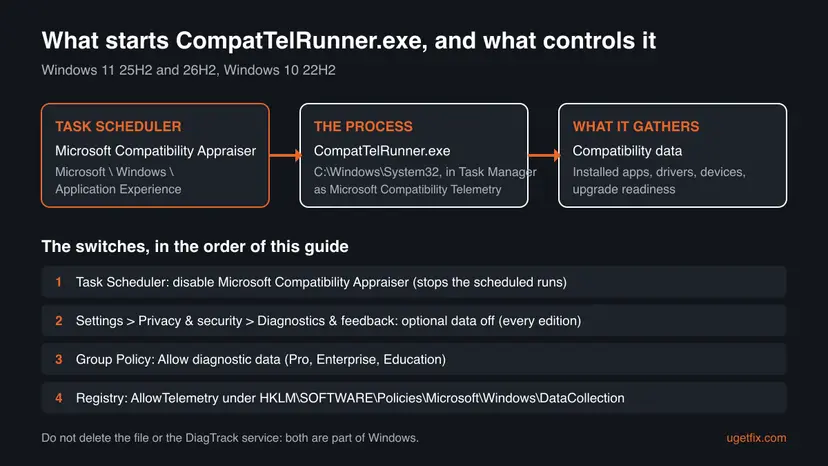
CompatTelRunner.exe is the Windows process behind Microsoft Compatibility Telemetry: it gathers data on your apps, drivers and devices for Microsoft. Yes, you can disable it safely, and the cleanest way is to turn off the Microsoft Compatibility Appraiser task in Task Scheduler. Do not delete the file: it is part of Windows.
Yes. CompatTelRunner.exe is a genuine Microsoft process, and nothing you use every day depends on it. To stop the CPU spikes, disable the Microsoft Compatibility Appraiser task in Task Scheduler (Method 2). Ending the process in Task Manager only works until the next scheduled run. Do not delete the file or the DiagTrack service. On Enterprise and Education, a Group Policy can turn diagnostic data off completely (Method 5).
| What it is | CompatTelRunner.exe, shown in Task Manager as Microsoft Compatibility Telemetry. It collects compatibility data: which apps, drivers and devices you have, and whether the PC is ready for the next Windows version. |
|---|---|
| Safe to disable | Yes, by disabling its scheduled task. Deleting the file is not safe and not needed. |
| What you gain | No more background runs that can keep a CPU core busy for minutes. No space is freed and no figure for a speed-up exists. |
| Side effect | Microsoft receives less compatibility data from your PC. Your PC, your apps and Windows Update keep working. |
| Location | C:\Windows\System32\CompatTelRunner.exe. |
| Started by | The Microsoft Compatibility Appraiser task in Task Scheduler Library > Microsoft > Windows > Application Experience. |
| Comes back | Users report that the task can run again after a Windows update. Check it after big updates. |
| Turn off all telemetry | Only on Windows Enterprise, Education and Server. Home and Pro always send at least required diagnostic data. |
Facts checked on 15 October 2026. Steps written for Windows 11 25H2 and 26H2 and Windows 10 22H2, read against Microsoft Learn and Microsoft Support.
What CompatTelRunner.exe (Microsoft Compatibility Telemetry) is
CompatTelRunner.exe (often typed as compatelrunner, compat tel runner or compattelrunner exe) is a Microsoft program in C:\Windows\System32. Task Manager shows it as Microsoft Compatibility Telemetry. It is started by a scheduled task called Microsoft Compatibility Appraiser, whose own description reads: "Collects program telemetry information if opted-in to the Microsoft Customer Experience Improvement Program."
What it gathers is part of Windows required diagnostic data. Microsoft lists it as compatibility data about which apps are installed and potential compatibility problems, system data on whether the device meets the requirements for the next Windows version, and data on connected devices and drivers. Microsoft uses this to decide whether your PC is ready for an update.
| Name | Where you see it | What it is |
|---|---|---|
CompatTelRunner.exe | Task Manager, Details tab. | The process that collects compatibility data. |
| Microsoft Compatibility Telemetry | Task Manager, Processes tab. | The same process, by its description. |
| Microsoft Compatibility Appraiser | Task Scheduler, Application Experience folder. | The task that starts the process on a schedule. |
| Connected User Experiences and Telemetry (DiagTrack) | Services. | The Windows component that manages and sends diagnostic data events. It is not the same thing as CompatTelRunner.exe. |
| Diagnostics & feedback | Settings. | Where you choose how much diagnostic data Windows sends. |
| Allow diagnostic data (older name Allow Telemetry) | Group Policy, Data Collection and Preview Builds. | The policy that sets the diagnostic data level for the whole PC. |
What you gain and what it costs to disable Microsoft Compatibility Telemetry
The gain is quiet: CompatTelRunner.exe takes no disk space worth talking about, so the only thing you win is CPU and disk time during its runs. Microsoft publishes no figure for that cost. On Microsoft Q&A, a user posted Microsoft support's answer to a business ticket, which said the process is CPU intensive and that the engineering team knows it. We could not confirm that statement on a Microsoft page.
| What happens | Source | |
|---|---|---|
| CPU and disk. | No scheduled runs. Users report runs of several minutes at full load on one core, more on PCs with many apps. | User reports on Microsoft Q&A, not a Microsoft figure. |
| Speed in daily work. | Unchanged between runs. Disabling it does not make games or apps faster. | No source shows a speed-up. |
| Privacy. | Less compatibility data leaves the PC. Other required diagnostic data is still sent on Home and Pro. | Microsoft Learn: diagnostic data levels. |
| Windows Update. | Keeps working. We could not confirm whether Microsoft offers feature updates differently without this data. | Microsoft Support: required data is used to check update readiness. |
| Security. | Unchanged. Microsoft says the device is just as secure at the lowest data level. | Microsoft Learn and Microsoft Support. |
If CompatTelRunner.exe slows your PC now and then, disabling its task is a fair trade. If you never noticed it, there is nothing to gain beyond privacy.
Who should disable CompatTelRunner.exe and who should leave it
- It keeps a CPU core or the disk busy for minutes after you sign in or wake the PC.
- Your laptop fans spin up and Task Manager shows Microsoft Compatibility Telemetry at the top.
- You want Windows to send as little data as possible.
- You manage Enterprise or Education PCs and turn diagnostic data off by policy.
- You never noticed it. It runs in the background for a short time on most PCs.
- You hope for more FPS or a faster boot. No source shows that.
- You are about to upgrade Windows and want Microsoft's compatibility checks to see your apps.
- The file sits outside
C:\Windows\System32. Then it is not Microsoft's: scan first (Method 1).
How to disable CompatTelRunner.exe and Microsoft Compatibility Telemetry
Check the file first, then disable the task that starts it: that is the method that works for most readers. Methods 3 to 5 limit when it runs or how much data Windows sends. Windows 10 22H2 paths are given too, although Windows 10 left support on 14 October 2025.
| Your case | Start with |
|---|---|
| You are not sure the process is Microsoft's. | Method 1. |
| It eats CPU and you want it to stop. | Method 2. |
| You want to keep the checks but not while you work. | Method 3. |
| You care about privacy, on any edition. | Method 4. |
| You run Enterprise or Education, or manage several PCs. | Method 5. |
Method 1. Check that CompatTelRunner.exe is the real Microsoft file
3 minutesNo riskYou saw the process for the first time, or it runs from an odd folder.
Malware can borrow the name of a known Windows process. The real CompatTelRunner.exe lives in C:\Windows\System32 and is signed by Microsoft, so one look tells them apart.
- Press Ctrl + Shift + Esc to open Task Manager.
- Open the Details tab and find
CompatTelRunner.exe. - Right-click it and select Open file location.
- Check that File Explorer opens
C:\Windows\System32. - Right-click the file, select Properties, open Digital Signatures and check that the signer is Microsoft.
- If the folder or the signer is anything else, run a full scan with Microsoft Defender.
A full scan checks every file on the PC. Step by step: How to scan for malware with Microsoft Defender.
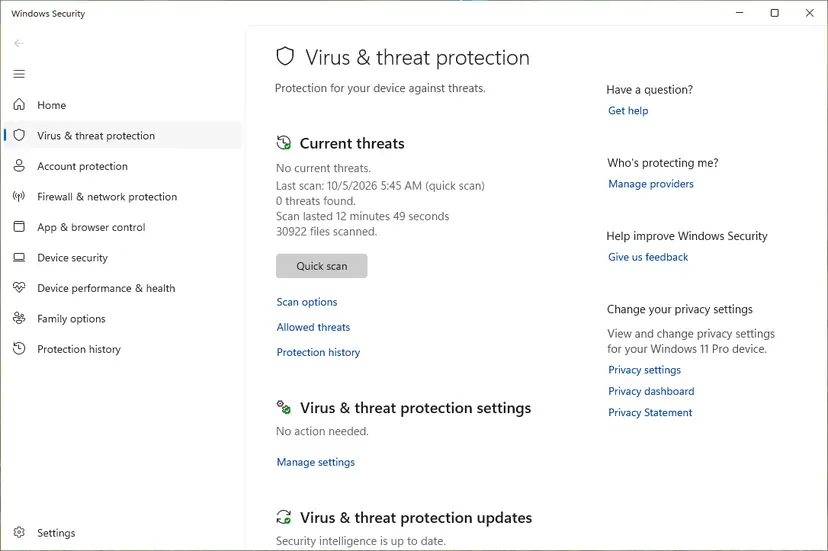
It worked if: The file is in C:\Windows\System32 and signed by Microsoft. It is the real process, so go on to Method 2.
If not: If Microsoft Defender finds a threat, follow its actions and restart before you change anything else.
Method 2. Disable the Microsoft Compatibility Appraiser task in Task Scheduler
3 minutesLow riskCompatTelRunner.exe uses a lot of CPU or disk, and ending it in Task Manager did not help for long.
The process does not run by itself: the Microsoft Compatibility Appraiser task starts it on a schedule. Microsoft's own answer on Microsoft Q&A gives this method, and it changes nothing else in Windows.
- Select Start, type Task Scheduler and press Enter.
- In the left pane, open Task Scheduler Library > Microsoft > Windows > Application Experience.
- In the middle pane, right-click Microsoft Compatibility Appraiser and select Disable.
- Confirm if Windows asks.
- If ProgramDataUpdater is in the same folder, disable it too. Users report that it also starts the process.
- Restart the PC and check that the Status column still says Disabled.
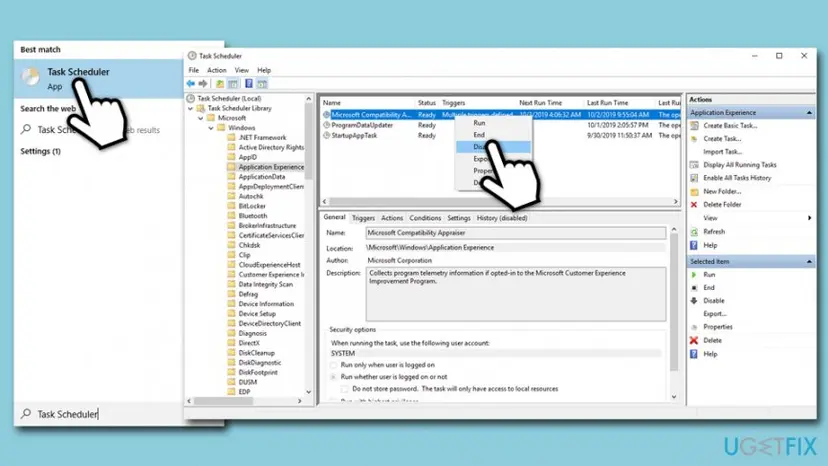
The Application Experience folder holds other tasks, such as StartupAppTask and PcaPatchDbTask. Disable only the ones named here. We could not confirm from Microsoft which tasks each Windows 11 build ships with.
It worked if: Microsoft Compatibility Appraiser shows Disabled, and Microsoft Compatibility Telemetry no longer appears in Task Manager after sign-in or wake-up.
If not: If it still runs, a Windows update may have turned the task on again, or another task starts it. Check the folder again, then use Method 4 or Method 5.
Method 3. Let the task run only when the PC is idle
5 minutesLow riskYou want to keep the compatibility checks, for example before a Windows upgrade, but not while you work.
Users report that the heavy runs often start right after wake-up, when the task catches up on a missed schedule. Task Scheduler can hold it until the PC is idle and stop it when you come back.
- Open Task Scheduler and go to Microsoft > Windows > Application Experience, as in Method 2.
- Right-click Microsoft Compatibility Appraiser and select Properties.
- On the Conditions tab, tick Start the task only if the computer is idle for and set 10 minutes.
- Tick Stop if the computer ceases to be idle.
- On the Settings tab, untick Run task as soon as possible after a scheduled start is missed.
- Select OK. Enter your password if Windows asks.
A user on Microsoft Q&A reports that Task Scheduler refused to save a changed trigger on this system task. If your change does not save, use Method 2 instead.
It worked if: The task runs only while you are away from the PC, and it stops as soon as you move the mouse or type.
If not: If Task Scheduler shows an error when you select OK, the task is protected on your build. Disable it with Method 2.
Method 4. Send only required diagnostic data in Settings
2 minutesNo riskYou disable it for privacy, on any edition including Home.
Settings sets how much diagnostic data Windows sends. It cannot switch off compatibility data on Home and Pro, because Microsoft counts it as required data, but it stops the optional data on top of it.
- On Windows 11, open Start > Settings > Privacy & security > Diagnostics & feedback.
- On Windows 10, open Start > Settings > Privacy > Diagnostics & feedback.
- Under Diagnostic data, choose to send only required diagnostic data.
- Optional: under Delete diagnostic data, select Delete to remove what was already collected from this device.
If the options are unavailable and the page says Some settings are hidden or managed by your organization, your workplace manages the PC. Ask your IT team.
It worked if: Only required diagnostic data is selected. Microsoft says the device stays just as secure and works normally.
If not: This does not stop the Appraiser task. If CompatTelRunner.exe still loads the CPU, use Method 2.
Method 5. Turn diagnostic data off with Group Policy or the registry
10 minutesRead the warningYou run Windows Enterprise or Education, or manage several PCs and want the setting locked.
The Allow diagnostic data policy sets the level for the whole PC, and the user cannot raise it. Microsoft lists Diagnostic data off as available only on Enterprise, Education and Server. On Pro, the lowest level it documents is Required.
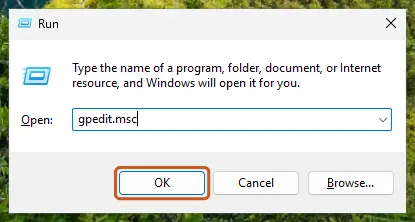
- Press Win + R, type
gpedit.mscand select OK. - Go to Computer Configuration > Administrative Templates > Windows Components > Data Collection and Preview Builds.
- Double-click Allow diagnostic data (Allow Telemetry on older Windows 10 versions).
- Select Enabled, then choose the level in the Options box: Diagnostic data off on Enterprise and Education, Required on Pro.
- Select OK and restart the PC.
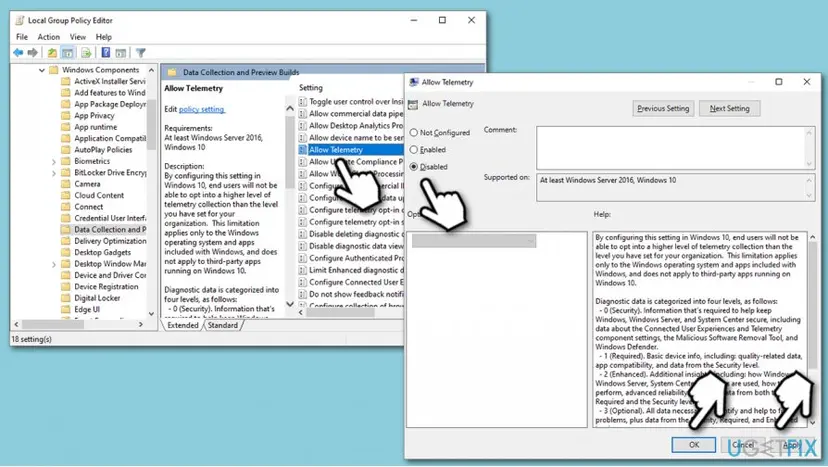
Without the editor, the same policy is a registry value. Values: 0 Diagnostic data off, 1 Required, 3 Optional. Back up the key first: Back up the registry before editing it. Then run this in Terminal as administrator:
Terminal (Admin)
reg add "HKLM\SOFTWARE\Policies\Microsoft\Windows\DataCollection" /v AllowTelemetry /t REG_DWORD /d 0 /fWith diagnostic data off, Windows sends no information about failed updates, and Microsoft recommends Required for PCs that rely on Windows Update. A wrong registry edit can change other settings, so export the key before you edit and keep the file.
It worked if: Settings shows that diagnostic data is managed by your organization, and on Enterprise or Education no diagnostic data is sent.
If not: On Home or Pro, CompatTelRunner.exe can still run, because compatibility data is part of required data. Disable its task with Method 2.
CompatTelRunner.exe still runs after you disabled it
- A Windows update turned the task back on. Open Task Scheduler and check the Application Experience folder again after each large update.
- Another task starts it. Users name ProgramDataUpdater and PcaPatchDbTask as related tasks. Disable ProgramDataUpdater if it exists; leave the rest unless you know what it does.
- You only ended the process. Ending it in Task Manager stops this run, not the next one. Disable the task (Method 2).
- It runs from another folder. Then it is not Microsoft's file. Scan the PC (Method 1).
If another background process also keeps the CPU busy, our guide to SearchFilterHost.exe high CPU usage works the same way: find the process, its task and its switch.
How to undo it and turn Microsoft Compatibility Telemetry back on
| What you changed | How to put it back |
|---|---|
| Disabled Microsoft Compatibility Appraiser or ProgramDataUpdater. | Right-click the task in Task Scheduler and select Enable. |
| Changed the task's Conditions or Settings. | Untick the idle options and tick Run task as soon as possible after a scheduled start is missed again. |
| Sent only required data in Settings. | Choose optional data again under Diagnostic data in Diagnostics & feedback. |
| Set Allow diagnostic data in Group Policy. | Set it to Not Configured and restart. |
| Added the AllowTelemetry registry value. | Import the backup .reg file, or delete the AllowTelemetry value and restart. |
Myths about CompatTelRunner.exe
- "It is a virus." The real file is Microsoft's, sits in System32 and is signed by Microsoft. A copy anywhere else is a different matter: check it with Method 1.
- "Deleting the file is the only way to stop it." Disabling its task stops it. Deleting a Windows file means taking ownership of System32 files, and updates or repairs can bring it back.
- "Delete the DiagTrack service to stop it." Old guides suggest
sc delete DiagTrack. That removes a Windows component for good and does not touch the Appraiser task. Use the methods above instead. - "The data is anonymous." Not quite. Microsoft says diagnostic data is stored with unique identifiers that can help it recognize a user on a device.
- "Disabling it makes the PC faster." Only during the minutes it would have run. No source shows a lasting speed-up.
Frequently asked questions
What is CompatTelRunner.exe?
CompatTelRunner.exe is the Microsoft Compatibility Telemetry process of Windows 10 and Windows 11. It sits in C:\Windows\System32 and is started by the Microsoft Compatibility Appraiser task. It collects data on installed apps, drivers and connected devices and on whether the PC is ready for the next Windows version. Microsoft uses this compatibility data, part of the required diagnostic data, to keep Windows up to date and to find problems with apps and drivers.
Is CompatTelRunner.exe safe, or is it malware?
The real CompatTelRunner.exe is safe: it is a Windows file signed by Microsoft. Malware can copy any name, though, so check yours. In Task Manager, right-click it on the Details tab and select Open file location. It must open C:\Windows\System32, and Properties > Digital Signatures must name Microsoft. Anything else calls for a full Microsoft Defender scan.
Is it safe to disable Microsoft Compatibility Telemetry?
Yes. Disabling the Microsoft Compatibility Appraiser task stops the process, and Windows, your apps and Windows Update keep working. Microsoft says the device is just as secure at the lowest diagnostic data level. The cost is that Microsoft gets less compatibility data from your PC. What is not safe is deleting the file or the DiagTrack service, which some old guides suggest.
How do I disable CompatTelRunner.exe?
Open Task Scheduler, go to Task Scheduler Library > Microsoft > Windows > Application Experience, right-click Microsoft Compatibility Appraiser and select Disable. Disable ProgramDataUpdater too if it is there. Restart and check that the status stays Disabled. This is the method Microsoft's own answer on Microsoft Q&A gives. On Enterprise and Education, the Allow diagnostic data policy can turn diagnostic data off completely.
Why does Microsoft Compatibility Telemetry use so much CPU?
While it runs, it goes through your installed apps, drivers and devices, so the run can be long on a PC with many apps. Users on Microsoft Q&A report minutes at full load on one core, often after wake-up, when a missed run catches up. Microsoft publishes no figure. Disabling its task (Method 2) or letting it run only when the PC is idle (Method 3) stops the slowdowns.
Why can't I end CompatTelRunner.exe in Task Manager?
You can end it, but it starts again at the next scheduled run. The Microsoft Compatibility Appraiser task in Task Scheduler starts it, so ending the process treats the symptom only. Disable the task instead, then restart the PC and check that the task still shows Disabled. If it is enabled again later, a Windows update turned it back on.
Can I delete CompatTelRunner.exe?
We do not advise it. It is a Windows system file in System32, and deleting it means taking ownership of the file away from Windows. Windows updates and system repairs can put it back, and you gain nothing that disabling the task does not give you. Disable the Microsoft Compatibility Appraiser task instead: it is quick and easy to undo.
Does disabling it stop all Windows telemetry?
No. CompatTelRunner.exe collects one kind of data. The Connected User Experiences and Telemetry component still manages and sends the rest. On Home and Pro, Windows always sends at least required diagnostic data. Only Enterprise, Education and Server can turn diagnostic data off, with the Allow diagnostic data policy. Settings can still limit what is sent on every edition.
Will disabling it affect Windows Update?
Windows Update keeps working after you disable the task. Microsoft says it uses required data to check whether a PC is ready for an update, so we cannot rule out that feature updates are offered differently, and we could not confirm it either. If you turn all diagnostic data off by policy, Microsoft notes that information about failed updates is no longer sent.
Is CompatTelRunner.exe on Windows 7 or Android?
This page is about Windows 10 and Windows 11, where the process runs today. Older Windows versions had it too, but they are out of support and we did not check them. Android has no CompatTelRunner.exe: it is a Windows program, so a search result that pairs it with Android is not about your phone.
Sources
- Microsoft Learn: Configure Windows diagnostic data in your organization (last updated 11 September 2025) (learn.microsoft.com)
- Microsoft Support: Diagnostics, feedback, and privacy in Windows (support.microsoft.com)
- Microsoft Q&A: Can I disable Microsoft Compatibility Telemetry (CompatTelRunner.exe)? (learn.microsoft.com)
Did this fix work?
One click, no account. It tells the next reader which guides are worth their time.
Questions and experiences: CompatTelRunner.exe (Microsoft Compatibility Telemetry): what it is and how to disable it
Still broken, or found a fix we did not cover? Ask here: members and our editors answer. Reading is open; writing needs a free account.
…