
How to transfer multiple photos at once in Phone Link?

Prefer to fix it yourself? The manual steps follow.
- 4methods
- 2 to 10 minutes
- Easy
Applies to Phone Link on Windows 11 and Windows 10 with an Android phone and Link to Windows; Samsung phones for drag and drop
4 methods in this guide
Hello. I can't seem to figure out how to transfer multiple photos at once using Phone Link. It only lets me select one photo at a time. Please, is there another way?
You cannot tick many photos in Phone Link's old Photos tab, but you no longer need it. On Windows 11 Microsoft moved phone photos into File Explorer, where Ctrl + A and copy move a whole folder at once. Samsung phones can also drag up to 100 photos from Phone screen.
Yes, but not from its old Photos tab. On Windows 11, turn on Show mobile device in File Explorer in Settings > Bluetooth & devices > Mobile devices > Manage devices, open your phone's Camera folder in File Explorer, press Ctrl + A and copy (Method 1). On a Samsung phone you can also drag up to 100 photos from Phone screen (Method 2). Windows 10 or no Wi-Fi: use a USB cable (Method 3).
| What it is | Phone Link connects an Android phone to a Windows PC. Its Photos tab shows recent photos one by one; on Windows 11 the photos now open in File Explorer instead. |
|---|---|
| Safe to change | Yes. Turning on Show mobile device in File Explorer only adds your phone to File Explorer's left pane. Copying does not touch the originals; deleting does (see Side effect). |
| What you gain | Select all, copy, paste and drag for whole folders, in original quality, including videos and folders outside the camera roll, per Microsoft. |
| Side effect | The phone's files in File Explorer are online-only. Delete one there and it is removed from the phone. It waits 30 days in Recycle bin - Connected device on the phone. |
| Where the setting is | Settings > Bluetooth & devices > Mobile devices > Manage devices, toggle Show mobile device in File Explorer. |
| Needs | Windows 11, Android 11 or later, Link to Windows 1.24072.258.0 or later. Only one phone shows in File Explorer at a time. |
| Drag and drop limits | Samsung with Link to Windows 1.0.52.30 or later, same Wi-Fi: up to 100 files per drag, no file over 512 MB, no folders, no cloud-only files. |
| Local copies | Windows keeps local copies of phone files in C:\Users\<your username>\CrossDevice. Deleting them there does not touch the phone. |
| Windows 10 | No File Explorer view. Use Phone screen drag (Samsung) or a USB cable. Windows 10 left support on 14 October 2025. |
Facts checked on 15 October 2026. Steps written for Windows 11 (25H2 and 26H2) and Windows 10 22H2.
Why Phone Link lets you select only one photo at a time
Phone Link's Photos tab was built as a viewer of your recent camera photos. It shows thumbnails, and you save a picture by opening it or right-clicking it. Users have reported for years that it offers no way to tick several photos and save them together, which is exactly the reader's complaint above.
Microsoft's answer was not a selection box in Phone Link. On Windows 11 it moved the Photos feature to File Explorer. Your phone appears in the left pane like a drive, and its folders behave like any other folder: select all, copy, paste, drag.
| Where | What it is | Many at once? |
|---|---|---|
| Photos tab in Phone Link | A viewer of recent camera photos inside the Phone Link app. On Windows 11 it is replaced by File Explorer. | No, one at a time. |
| Your phone in File Explorer | The phone's storage shown in File Explorer by Link to Windows, Windows 11 only. | Yes, any number, whole folders. |
| Phone screen in Phone Link | A live mirror of a Samsung phone. Its Gallery and My Files apps support drag and drop to the PC. | Yes, up to 100 files per drag. |
| USB cable (not Phone Link) | The phone as a media device in File Explorer over MTP, on Windows 10 and 11. | Yes, any number. |
Microsoft's photo, File Explorer and drag and drop pages for Phone Link all describe Android phones. We could not confirm a way to move photos from an iPhone in Phone Link, so iPhone owners should use a cable or iCloud for Windows.
What you gain by switching to File Explorer, and what it costs
The change costs nothing to try and undo, but it changes how deleting works. Read the last row before you tidy up photos from the PC.
| Old Photos tab | File Explorer (Method 1) | Phone screen drag (Method 2) | |
|---|---|---|---|
| Photos per action | One | All you select, whole folders | Up to 100 |
| Quality | Viewer copy | Original quality, per Microsoft | Original file |
| Videos and other folders | Camera roll only | All folders, videos and audio | Gallery and My Files only, no folders |
| Largest file | Not stated | No limit stated | 512 MB |
| Works on | Windows 10 and 11 | Windows 11, Android 11 or later | Samsung phones |
| Deleting | Not offered | Removes the file from the phone (30 days in its recycle bin) | Copies only, nothing is deleted |
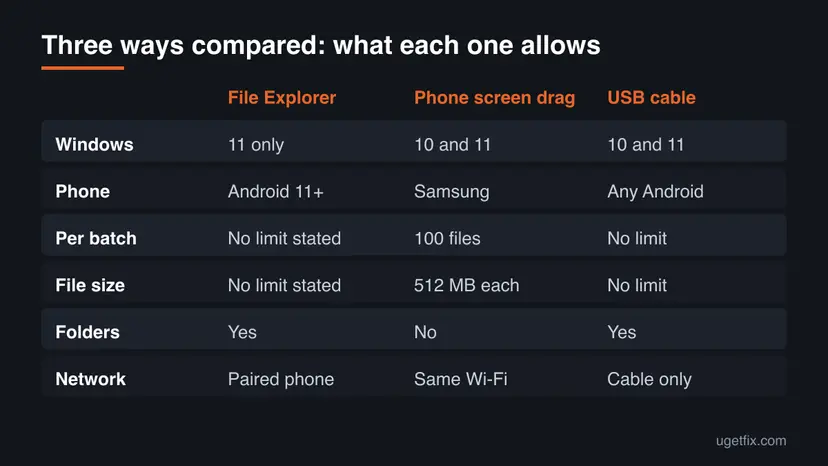
Speed depends on your Wi-Fi and the phone, and Microsoft gives no figure. For thousands of photos or long videos a cable is usually the safer choice, because a dropped Wi-Fi link stops a wireless copy.
Which way to use for your phone and PC
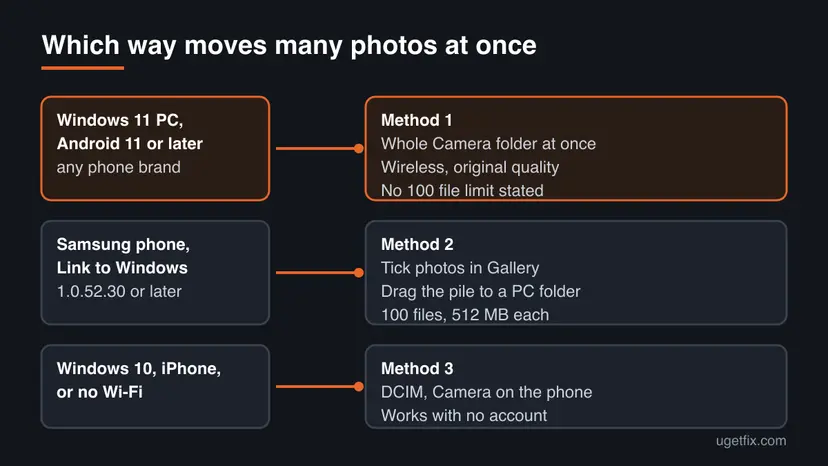
- You have Windows 11 and an Android 11 or newer phone: Method 1 copies a whole folder.
- You have a Samsung phone and want a handful of chosen photos: Method 2.
- You move a few thousand photos or large videos: Method 3, the cable.
- You use Windows 10: File Explorer does not show the phone, so skip Method 1.
- You want to free space on the phone by deleting from the PC: copy first, check the copies, then delete.
- Your photos are only in Google Photos or another cloud: drag and drop skips cloud-only files.
How to transfer multiple photos at once from your phone to the PC
The methods go from the one Microsoft now recommends to the most basic. Method 1 is for Windows 11, Method 2 for Samsung phones on Windows 10 or 11, Method 3 works everywhere with a cable. Method 4 helps when your phone does not appear at all.
Method 1. Show your phone in File Explorer and copy whole folders
5 minutesLow riskYou have Windows 11 and an Android 11 or newer phone linked in Phone Link.
Microsoft moved the Photos feature from Phone Link to File Explorer on Windows 11. There, the phone's folders accept the normal Windows selection keys, so one Ctrl + A picks every photo.
- Press Win + I to open Settings.
- Open Bluetooth & devices > Mobile devices and select Manage devices.
- Find your phone under My devices and turn on Show mobile device in File Explorer.
- Press Win + E and select your phone in the left pane of File Explorer.
- Open the Camera folder, or any other folder with photos.
- Press Ctrl + A to select all, or hold Ctrl and click to pick some.
- Press Ctrl + C, open a folder on your PC such as Pictures, and press Ctrl + V.
Microsoft says the phone's files in File Explorer are online-only. If you delete a file there, it is removed from the phone. Copy first, open a few copies on the PC, and only then delete on the phone.
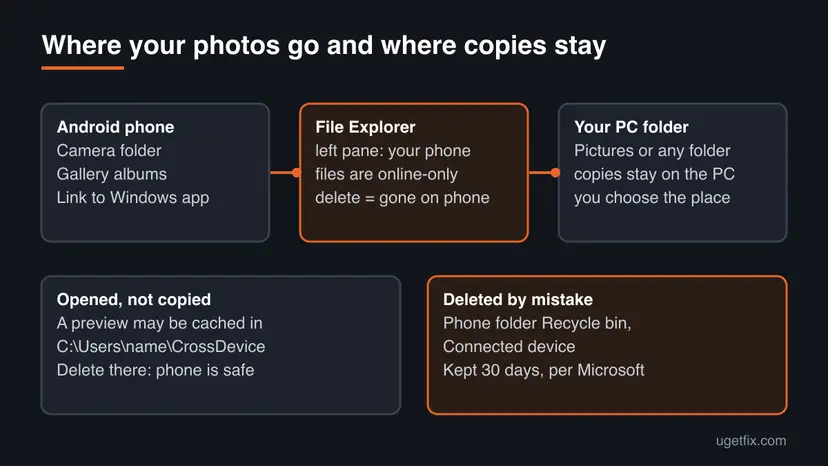
It worked if: Your phone shows in File Explorer's left pane, and the copied photos open from the PC folder with no phone connected.
If not: If the toggle is missing or the phone does not appear, check the requirements in Method 4. On Windows 10 go to Method 2 or Method 3.
Method 2. Select up to 100 photos on Phone screen and drag them to the PC
3 minutes per 100 photosNo riskYou have a Samsung phone with Link to Windows 1.0.52.30 or later, on Windows 10 or 11.
Phone screen mirrors the phone, so you select photos in the phone's own Gallery app with the mouse. Microsoft documents drag and drop of up to 100 files per drag for Samsung phones.
- Connect the phone and the PC to the same Wi-Fi network.
- Open Phone Link on the PC and select Phone screen.
- In the mirrored phone, open Gallery, go to Albums and open one.
- Long-press a photo with the mouse until a check mark appears, then release.
- Click more photos to add them, up to 100.
- Long-press one of the selected photos until a thumbnail appears.
- Drag it to a folder on the PC and release when the cursor says Copy.
Microsoft says minimizing Phone Link during drag and drop cancels the transfer. A red circle on the cursor means one item is a folder, a file is over 512 MB, or you picked more than 100.
Files from My Files (version 11.1.00.121 or later) work the same way. Dragging from other gallery apps is not supported, per Microsoft.
It worked if: A progress indicator shows, then the selected photos appear in the PC folder you dropped them on.
If not: If the cursor never shows Copy, update Link to Windows on the phone and try fewer photos. Otherwise use Method 3.
Method 3. Copy all photos over a USB cable
5 minutes plus copy timeNo riskYou use Windows 10, have no shared Wi-Fi, or move thousands of photos or long videos.
A cable does not depend on Phone Link, Wi-Fi or the phone brand. Windows shows the phone as a media device, so its DCIM folder can be selected and copied in one go.
- Connect the phone to the PC with a USB cable that carries data, not only charge.
- Unlock the phone.
- Pull down the notification shade and tap the USB notification.
- Choose File transfer (on some phones Transferring files or MTP).
- Press Win + E and open This PC, then your phone.
- Open Internal storage > DCIM > Camera.
- Press Ctrl + A, then Ctrl + C, open a PC folder and press Ctrl + V.
Before you wipe the phone or delete the originals, keep a second copy of the photos. Step by step: Back up your files (Windows Backup, File History, Time Machine).
It worked if: File Explorer shows a copy progress window and then the photos, with their original names, in the PC folder.
If not: If the phone does not appear, try another cable and USB port and choose File transfer again. Then try Method 4.
Method 4. Make the phone appear when File Explorer or Phone Link does not show it
10 minutesLow riskThe toggle is missing, the phone is not in File Explorer, or Phone Link shows no photos.
Most failures here are the requirements: Windows 10, an older Android or an old Link to Windows app. A stuck File Explorer or Phone Link app is the next most common cause.
- On the phone, check Settings > About phone > Software information for Android 11 or later.
- Update Link to Windows on the phone from its app store.
- On the PC, confirm the phone is listed in Settings > Bluetooth & devices > Mobile devices > Manage devices; if not, select Add device.
- If another phone is shown in File Explorer, turn it off: only one can show at a time.
- Restart File Explorer so the left pane is rebuilt.
Restarting File Explorer step by step: Restart File Explorer. If Phone Link itself hangs or shows no phone, repair it first and reset it only if repair does not help: How to repair or reset an app in Windows. A reset unlinks the phone, so you pair it again.
It worked if: Your phone appears in File Explorer's left pane or in Phone Link, and Method 1 or 2 works.
If not: If it still does not appear, use the cable in Method 3, which needs none of these apps.
Where Phone Link stores photos on your PC
Phone Link has no download folder of its own. Photos you copy or drag go where you paste or drop them. Photos you only open from the phone in File Explorer are kept as local copies by Windows.
- Copied or dragged photos
- The PC folder you chose, for example Pictures.
- Local copies of opened files
C:\Users\<your username>\CrossDevice, per Microsoft.- Files sent from PC to phone
- Internal Storage > Downloads on the phone.
- Deleted from the phone in File Explorer
- Recycle bin - Connected device on the phone, for 30 days.
To clear the local copies without touching the phone, Microsoft's order is: turn off Show mobile device in File Explorer first, then delete what you want in the CrossDevice folder.
How to undo it and put everything back
Nothing in this guide changes the phone's photos unless you delete them. Each change has a simple way back.
| What you changed | How to put it back |
|---|---|
| Turned on Show mobile device in File Explorer. | Turn the same toggle off in Settings > Bluetooth & devices > Mobile devices > Manage devices. |
| Deleted a photo from the phone's folder in File Explorer. | Open Recycle bin - Connected device on the phone within 30 days and restore it. |
| Copied photos to the PC that you do not need. | Delete them from the PC folder. The phone keeps its own originals. |
| Reset Phone Link (Method 4). | Open Phone Link and pair the phone again with the QR code. |
| Set the phone's USB mode to File transfer. | Unplug the cable; most phones go back to charging only. |
Myths about moving photos with Phone Link
- "Phone Link cannot move more than one photo." Its old Photos tab cannot, but File Explorer on Windows 11 and Phone screen drag on Samsung both move many. The limit belongs to one screen, not to the app.
- "The limit is 99 photos." Microsoft states 100 files per drag for Phone screen, each under 512 MB. File Explorer has no stated batch limit.
- "Deleting in File Explorer only clears the PC." It does not: Microsoft says the file is removed from the phone. It can be restored from the phone's recycle bin for 30 days.
- "Wireless transfers shrink the photos." Microsoft says File Explorer gives photos in original quality. The old Photos tab was a viewer, which is why people saw smaller copies there.
- "You need a third-party app." Windows already has three ways, all in this guide, and a cable needs no app at all.
Frequently asked questions
How do I select multiple photos in Phone Link?
On Windows 11, do not use the Photos tab: turn on Show mobile device in File Explorer in Settings > Bluetooth & devices > Mobile devices > Manage devices. Then open your phone in File Explorer, open Camera, and press Ctrl + A or hold Ctrl while clicking. On a Samsung phone you can also select in Phone screen: long-press one photo in Gallery until a check mark appears, then click more, up to 100.
How do I select all photos in Phone Link?
Phone Link's own Photos tab has no select all. Open the phone's Camera folder in File Explorer instead and press Ctrl + A, which needs Windows 11, Android 11 or later and the Show mobile device in File Explorer toggle. Phone screen drag on Samsung stops at 100 files per drag, so it cannot take a whole large camera roll in one go. On Windows 10, connect a cable and press Ctrl + A in DCIM > Camera.
Where does Phone Link store photos?
Phone Link has no fixed photo folder. Photos you copy or drag land where you paste or drop them on the PC. Photos you only open from the phone in File Explorer are kept as local copies in C:\Users\<your username>\CrossDevice, according to Microsoft. Files sent from the PC to the phone go to Internal Storage > Downloads on the phone. Deleting files in the CrossDevice folder does not touch the phone.
Can I remove and save all photos from Phone Link to my desktop?
Yes, in two steps. First copy: open the phone's Camera folder in File Explorer, press Ctrl + A, Ctrl + C, and paste on the desktop or in a folder. Check that the copies open. Only then delete the originals, because deleting in File Explorer removes them from the phone. If you delete something by mistake, it stays in Recycle bin - Connected device on the phone for 30 days.
Why did the Photos tab disappear from Phone Link?
Microsoft moved the Photos feature from Phone Link to File Explorer on Windows 11. Its support page says you now find the phone's photos in File Explorer instead of the Photos tab. The reasons it gives are original quality, copy, paste and batch actions, access to every folder, and videos and audio. If you see neither, turn on Show mobile device in File Explorer in Settings and check the requirements in Method 4.
How many photos can I transfer at once with Phone Link drag and drop?
Up to 100 files per drag, and no single file may be larger than 512 MB, according to Microsoft. Folders and photos that exist only in the cloud cannot be dragged. Drag and drop needs a Samsung phone with Link to Windows 1.0.52.30 or later on the same Wi-Fi as the PC. For more than 100, repeat the drag or use File Explorer, which has no stated batch limit.
Does this work on a Samsung Galaxy A54?
Yes, a Galaxy A54 qualifies for both wireless ways. It is a Samsung phone running Android 13 or later, so it meets the Android 11 requirement for File Explorer on Windows 11. It also comes with Link to Windows built in, which gives you Phone screen drag and drop of up to 100 photos. Update Link to Windows first, because both features need a recent version.
Can I transfer multiple photos from an iPhone with Phone Link?
We could not confirm it. Microsoft's pages on Phone Link photos, File Explorer access and drag and drop all describe Android phones only. For an iPhone, the dependable ways are a USB cable with the Windows Photos app import, or iCloud for Windows. Both move many photos at once and do not depend on Phone Link.
How do I transfer multiple photos from phone to laptop without Phone Link?
Use a USB cable. Connect the phone, unlock it, tap the USB notification and choose File transfer. On the laptop open This PC, your phone, Internal storage > DCIM > Camera, press Ctrl + A and copy the photos to a folder. This works on Windows 10 and 11 with any Android phone and has no batch limit. It is also the fastest choice for thousands of photos.
What if none of these methods work for me?
Start with the requirements, because most failures come from them: Windows 11 and Android 11 for File Explorer, Samsung for drag and drop. Update Link to Windows, restart File Explorer, and repair Phone Link as in Method 4. If it still does not work, the USB cable in Method 3 needs no Phone Link at all. This page is in English; the same steps apply in any Windows language, with translated menu names.
Sources
- Microsoft Support: Setting up photos in the Phone Link (Photos feature moved to File Explorer) (support.microsoft.com)
- Microsoft Support: Setting up and using your phone in File Explorer (support.microsoft.com)
- Microsoft Support: File drag & drop in Link to Windows (pre-installed) (support.microsoft.com)
Did this fix work?
One click, no account. It tells the next reader which guides are worth their time.
Questions and experiences: transfer multiple photos at once in Phone Link
Still broken, or found a fix we did not cover? Ask here: members and our editors answer. Reading is open; writing needs a free account.
…