How to fix
Should you enable Windows 10 GPU Hardware Scheduling
on Windows
Discover the benefits of enabling GPU Hardware Scheduling in Windows 10 to boost performance and optimize your gaming experience. Expert-tested insights…

Why does Should you enable Windows 10 GPU Hardware Scheduling occur?
- Faulty game releases
- Complex interactions of hardware and software
- Poor performance despite decent computer specs
- Lack of optimization in games
- Inadequate FPS during gaming
Repairs Windows system files, removes malware, and restores a clean OS state — without reinstalling.
Hello, I was browsing graphics settings in the Windows Settings menu, and I've noticed Hardware-accelerated GPU scheduling, which got me curious - I can see it disabled. I wonder if I should enable it for my gaming experience to be better? Any insight on this would be great, thanks.
Windows machines have been known as the most versatile systems for video games, and PC gaming has been evolving for several decades now. Games are becoming more advanced, with new technologies used, such as a relatively recent addition of Ray Tracing[ref en-3] technology which greatly enhances the visuals.
While visuals are something that many gamers look forward to, performance and adequate FPS (Frames per Second) are even more important. Beautiful graphics will provide little enjoyment when games stutter, lag, or even crash. We have been talking about these technical issues users have with games like Outriders, Valheim, Cyberpunk 2077, and more.
Some of the problems come from faulty releases. However, every Windows machine is a combination of complex interactions of hardware and software, which might create various issues. As a result, players experience poor performance while gaming, even while using decent computer specs.
When it comes to performance, hardware providers have created numerous enhancements (one of the best examples would be Nvidia's Deep Learning Super Sampling, or DLSS[ref en-2] for short). Microsoft has also added plenty of features that are meant to improve gaming performance, including the Gaming mode that can be turned on via settings.
A few years ago, a new feature to improve gaming performance emerged - Hardware-accelerated GPU Scheduling. We will talk about what it is, what it does, and whether or not you should enable this feature.
What is Hardware-accelerated GPU Scheduling?
To put it simply, GPU Hardware Scheduling is a feature for the Windows operating system aimed at boosting the FPS of any video game. First released in 2020, the feature was designed to improve the performance of Windows, especially during graphical-intensive tasks such as video gaming.
GPU is usually fed with input tasks by the Windows Display Driver Model GPU scheduler, which is the responsibility of the CPU. In order to make the process more manageable, the CPU would give commands in batches instead of one by one. While the whole process is efficient in increasing the game's FPS, it also increases the latency of input commands, which means that user commands would not be executed until the CPU sends another batch of commands.
With the help of GPU Hardware Scheduling, high-priority tasks are taken off of the CPU and sent off to the GPU-scheduling processor, which should reduce the input lag, all while maximizing FPS.
Requirements for GPU Hardware Scheduling
The feature was first added by Microsoft in May 2020 update (version 2004).[ref en-1] As such, to enable it, you must have this version of Windows 10 (or newer) installed on your device. However, this is not the only requirement, as your GPU also has to support Hardware-accelerated GPU Scheduling.
While both Intel and AMD are working on this feature support in the future, only Nvidia video cards currently support it. If you are using Nvidia GPU, have the latest drivers installed, and your PC built is relatively new, you are good to try out hardware scheduling.
Should you use GPU Hardware Scheduling?
First of all, many people believe that, by enabling hardware scheduling, they would immediately see drastic FPS or other performance improvements. This is not the case. Without it enabled, Windows manages the VRam tasks, while with it enabled, it lets the game decide when and how to send commands. If you like to see significant improvements, you would have to optimize your PC in other ways (employing [d1] or using system tweaks) or purchase better hardware.
The main benefit of enabling hardware scheduling is reducing the input lag or latency. Likewise, you could expect RAM usage to be lower when having the feature enabled. So, to answer your question about whether you should enable GPU Hardware Scheduling, you should definitely do it for better latency (especially when playing online games), although don't expect miracles in performance.
Enable Hardware Scheduling
Enabling the feature is easy - all you have to do is access the Windows settings menu.
- Right-click on Start and pick Settings
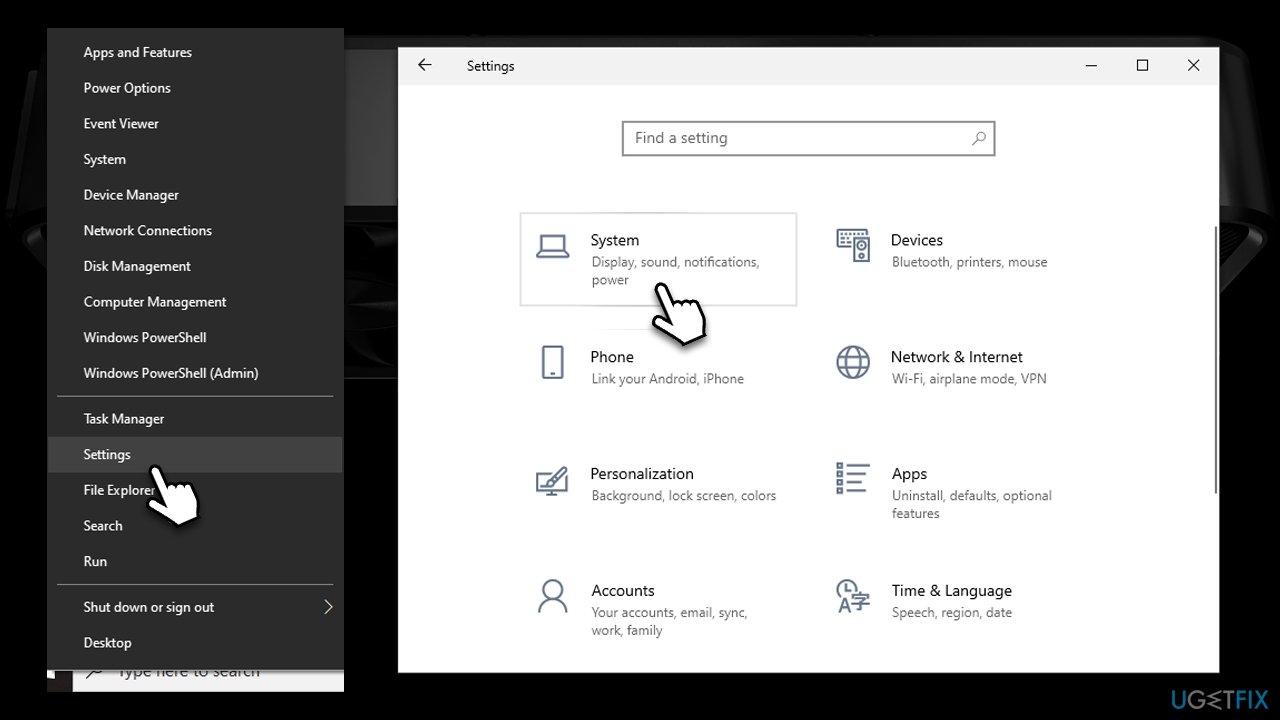
Should you enable windows 10 gpu hardware scheduling go to settings - Go to System and select Display
- Find the Multiple Displays section and select Graphics settings
- Toggle the switch to the right next to Hardware-accelerated GPU scheduling to enable it
- Restart your system.
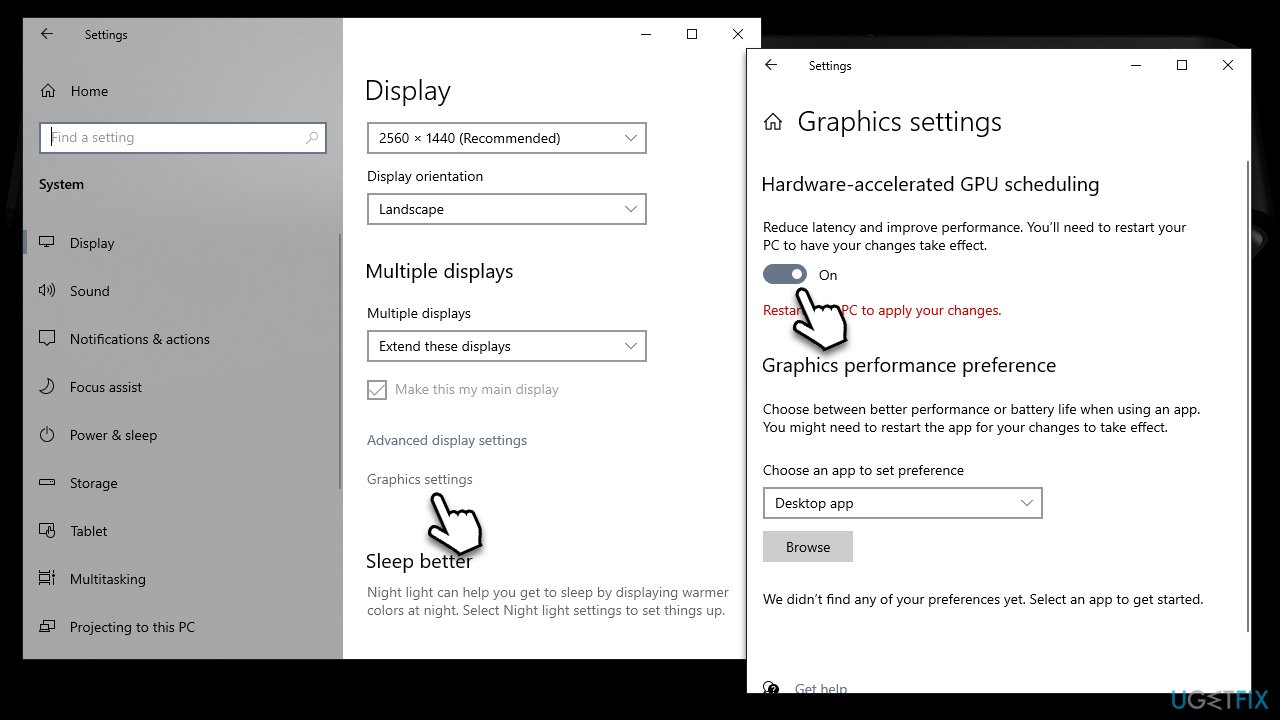
Should you enable windows 10 gpu hardware scheduling enable
Bottom line
Enabling Hardware-accelerated GPU Scheduling may boost FPS and improve gaming performance. Other fixes include using Nvidia's DLSS and activating Gaming mode in settings. If these solutions do not resolve the issues, further troubleshooting may be necessary.
Frequently asked questions
GPU Hardware Scheduling allows the GPU to manage its own memory and tasks more efficiently, potentially improving performance in graphics-intensive applications on Windows 10.
Yes, enabling GPU Hardware Scheduling can reduce latency and improve frame rates in games on Windows 11, especially if you have a compatible GPU.
To enable GPU Hardware Scheduling in Windows 10, go to Settings > System > Display > Graphics settings, and toggle the 'Hardware-accelerated GPU scheduling' option.




Report an issue
What's wrong with this guide? We review every report and update or remove content.
Report received — thank you. We'll review and fix it.
You need a free account to submit a report.
Be the first to comment