
Adobe GC Invoker Utility (AdobeGCClient.exe): what it is and can you stop it

Prefer to fix it yourself? The manual steps follow.
- 5methods
- 2 to 15 minutes
- Easy
Applies to Windows 11 and Windows 10 PCs and Macs with any Adobe app installed
5 methods in this guide
Hi, I found Adobe GC Invoker Utility running in the background. Is this legitimate? Should I disable it?
Adobe GC Invoker Utility (AGCInvokerUtility.exe) is the startup entry of the Adobe Genuine Service, and AdobeGCClient.exe is the check it runs. It is genuine Adobe software, not a virus. You can turn off the startup entry or uninstall the service, but the clean answer is to remove the Adobe apps you no longer use: the service then removes itself.
Yes, but think about why first. Adobe GC Invoker Utility belongs to the Adobe Genuine Service, which checks whether installed Adobe apps are genuine. It is legitimate and Adobe recommends keeping it. If you still use Adobe apps, leave it on or only turn off its startup entry (Method 2). If you no longer use Adobe apps, uninstall them (Method 3): Adobe says the service then uninstalls itself.
| What it is | The startup entry (AGCInvokerUtility.exe) and the check (AdobeGCClient.exe) of the Adobe Genuine Service (AGS), which verifies that installed Adobe apps are genuine. |
|---|---|
| Safe to disable | Yes, nothing in Windows depends on it. Adobe recommends keeping it while you have Adobe apps and lets you uninstall it. |
| What you gain | One startup entry and one background process fewer. On a normal PC that is a small gain, not a visible speed-up. |
| Side effect | None for your Adobe apps' features. Adobe says it may still use other methods, which cannot be uninstalled, to check its software. |
| Location | Adobe does not publish the Windows path. The old version of this guide found it under C:\Program Files (x86)\Common Files\Adobe. On a Mac: Applications > Utilities > Adobe Genuine Service. |
| Created by | Installed together with several Adobe apps, such as Photoshop, Premiere Pro or Acrobat. |
| Comes back | After an uninstall, it can come back when you install or update an Adobe app. We could not confirm from Adobe when exactly it is reinstalled. |
| Clean way to remove it | Uninstall every Adobe app. Adobe: "the AGS will automatically uninstall itself". |
Facts checked on 15 October 2026. Steps written for Windows 11 25H2 and 26H2 and Windows 10 22H2, with Adobe's own help pages for Windows and macOS.
What Adobe GC Invoker Utility and AdobeGCClient.exe are
Adobe calls the program behind these names the Adobe Genuine Service (AGS). In Adobe's words it "periodically verifies whether Adobe apps on your machine are genuine and notifies you if they are not". It checks data such as the serial number, the licence type and Adobe's code. It is not a virus, not adware and not a leftover.
Adobe's help pages do not list the file names, but they say you "may see the AGS validation process running" in Task Manager on Windows and in Activity Monitor on a Mac. Adobe GC Invoker Utility (file AGCInvokerUtility.exe) is the startup entry that starts the check at sign-in, and AdobeGCClient.exe is the process that runs it. Users who ask Adobe's community how to delete AdobeGCClient are pointed to Adobe's page on uninstalling the Adobe Genuine Service.
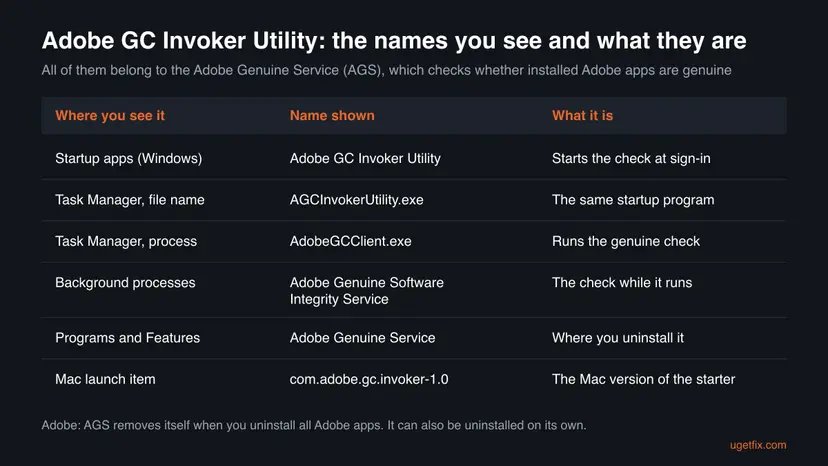
| Name | Where you see it | What it is |
|---|---|---|
| Adobe GC Invoker Utility | Windows Startup apps (Settings or Task Manager), publisher Adobe Systems Incorporated. | The startup entry that starts the genuine check when you sign in. |
AGCInvokerUtility.exe | Task Manager, Details tab, or Open file location. | The file of that startup entry. |
AdobeGCClient.exe | Task Manager, Details tab. | The process that runs the check. |
| Adobe Genuine Software Integrity Service and Adobe Genuine Software Service | Task Manager, Background processes, often marked 32 bit. | The same service while it runs. |
| Adobe Genuine Service | Control Panel, Programs and Features. | The entry Adobe tells you to uninstall. |
com.adobe.gc.invoker-1.0.plist, AdobeGCClient, AdobeCleanUpUtility | macOS. | The Mac launch item, the check and Adobe's own uninstaller. |
Adobe does not spell out "GC" on its help pages. The names sit next to the Adobe Genuine Software processes and are removed by the Adobe Genuine Service uninstaller, so treat them as one service.
What you gain and what it costs if you stop it
Stopping the service removes one item from startup and one background process. We found no Adobe or Microsoft page that gives a figure for its CPU, memory or boot time cost, so we will not promise a faster PC. On most computers you will not notice a difference.
| What happens | Source | |
|---|---|---|
| Startup. | One entry fewer at sign-in. Windows rates its impact in the Startup impact column; in the old screenshot of this guide it was None. | Windows Task Manager. |
| CPU and memory. | One small background process fewer. No published figure exists. | No vendor figure. |
| Your Adobe apps. | They keep working. The service checks them, it does not run them. | Adobe help: AGS verifies and notifies. |
| Licence checks. | Not removed. Adobe "reserves the right to use other methods" that cannot be uninstalled. | Adobe: Uninstall Adobe Genuine Service. |
| Notices about non-genuine apps. | Removing AGS does not make a non-genuine app genuine. Adobe may disable a non-genuine app. | Adobe Genuine software FAQ. |
| Comes back. | An Adobe app installer may install it again. | Adobe: AGS "comes with several Adobe apps". |
The real gain is a tidier startup list and peace of mind when you no longer use Adobe software. If you still use Adobe apps every day, the honest gain is close to nothing.
Who should stop Adobe GC Invoker Utility and who should leave it
- You removed Photoshop, Acrobat or other Adobe apps and the entry stayed behind.
- You no longer use any Adobe app and want the startup list clean.
- You run a lab or office PC where your IT team manages Adobe licences another way.
- It keeps a CPU core busy for a long time and reinstalling the Adobe app did not help.
- You use a paid Adobe subscription every day. The check costs you nothing visible.
- You hope to make an app work that Adobe flagged as not genuine. It will not, and this guide does not help with that.
- You are not sure the file is Adobe's. Check it first (Method 1).
- You hope for a faster PC. No source shows a measurable speed-up.
How to check, stop or remove Adobe GC Invoker Utility
The methods go from the safest to the most thorough: check the file, turn off the startup entry, remove the Adobe apps you no longer need, then remove the service itself on Windows or a Mac. Windows 10 22H2 steps are given too, although Windows 10 left support on 14 October 2025.
| Your case | Start with |
|---|---|
| You are not sure the process is Adobe's. | Method 1. |
| You use Adobe apps but want a shorter startup list. | Method 2. |
| You no longer use Adobe apps. | Method 3. |
| Adobe apps are gone, but Adobe Genuine Service is still listed. | Method 4. |
| You use a Mac. | Method 5. |
Method 1. Check that AGCInvokerUtility.exe and AdobeGCClient.exe are really Adobe's
5 minutesNo riskYou found the process and do not know where it came from, or your antivirus warns about it.
Any malware can name itself after a known program. The real files carry Adobe's publisher name and sit in Adobe's own folder, so one look tells the two apart.
- Press Ctrl + Shift + Esc to open Task Manager.
- Open the Details tab and find
AdobeGCClient.exeorAGCInvokerUtility.exe. - Right-click it and select Open file location.
- Check that the folder is inside
C:\Program Files (x86)\Common Files\Adobeor another Adobe folder under Program Files. - Right-click the file, select Properties, open Digital Signatures and check that the signer is Adobe.
- If the folder or the signer is anything else, scan the PC with Microsoft Defender.
A full scan with Windows Security checks every file on the PC. Step by step: How to scan for malware with Microsoft Defender.
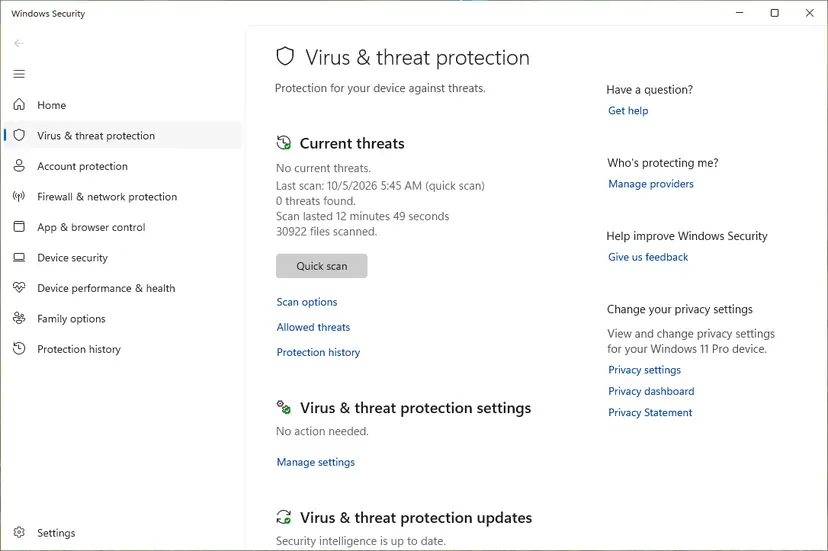
Adobe warns that modified, non-genuine Adobe software carries a higher risk of viruses and malware. If an Adobe app on this PC did not come from Adobe or an authorized reseller, remove it and run a full scan.
It worked if: The file sits in an Adobe folder and its digital signature names Adobe. Then it is the real Adobe Genuine Service.
If not: If the scan finds something, follow Windows Security's actions first, then go on to Method 3.
Method 2. Turn off the Adobe GC Invoker Utility startup entry
2 minutesLow riskYou still use Adobe apps but do not want the check to start at every sign-in.
The startup entry is what starts the check at sign-in. Turning it off keeps the Adobe apps and the service installed, and you can turn it back on at any time.
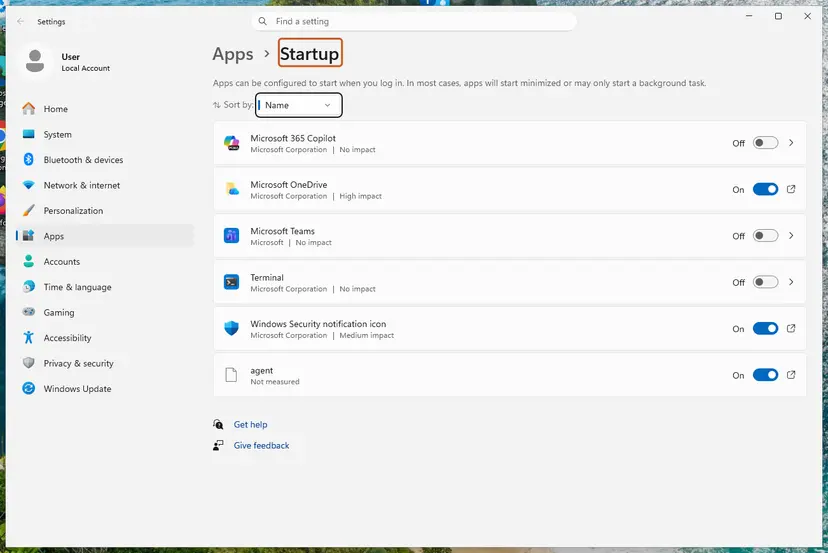
- Select Start > Settings > Apps > Startup.
- Find Adobe GC Invoker Utility in the list.
- Set its switch to Off.
- Restart the PC and check that it is still Off.
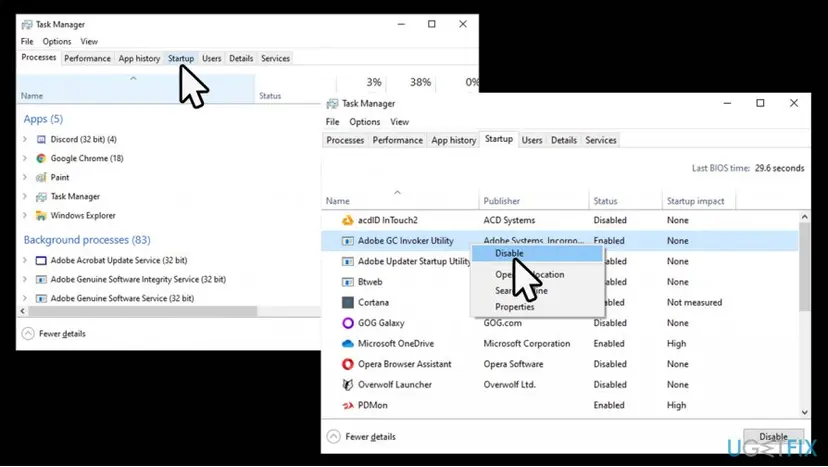
Task Manager does the same and shows the publisher. Right-click Start, select Task Manager, open Startup apps, select Adobe GC Invoker Utility and select Disable. On Windows 10, press Ctrl + Shift + Esc, select More details and open the Startup tab. More on this: Stop apps from opening at startup.
Turning off the startup entry does not change the licence of any Adobe app. Adobe says it may use other checks that cannot be removed, and an Adobe update may turn the entry on again. We could not confirm from Adobe which updates do that.
It worked if: After a restart, Adobe GC Invoker Utility shows Disabled or Off, and AdobeGCClient.exe is not in Task Manager right after sign-in.
If not: If the entry is On again after an Adobe update, turn it off once more, or go to Method 3 if you no longer need the Adobe apps.
Method 3. Uninstall the Adobe apps you no longer use, so the service removes itself
10 to 15 minutesLow riskYou do not use Photoshop, Premiere Pro, Acrobat or other Adobe apps any more, or only a trial is left.
This is the way Adobe designed. In Adobe's words: "When you uninstall all Adobe apps from your machine, whether they are genuine or not, the AGS will automatically uninstall itself."
- Save any work you keep in Adobe apps somewhere outside their folders.
- If you use Creative Cloud, open the Creative Cloud desktop app and uninstall each Adobe app from there.
- For other Adobe apps, select Start > Settings > Apps > Installed apps.
- Find each Adobe app, select More (the three dots), then Uninstall, and confirm.
- Remove the Creative Cloud desktop app last, if you no longer need it.
- Restart the PC and check Installed apps for Adobe Genuine Service.
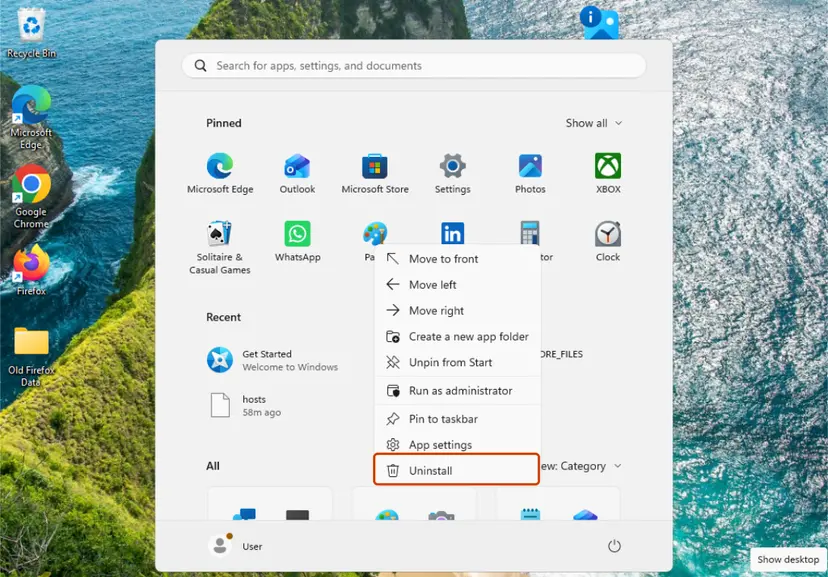
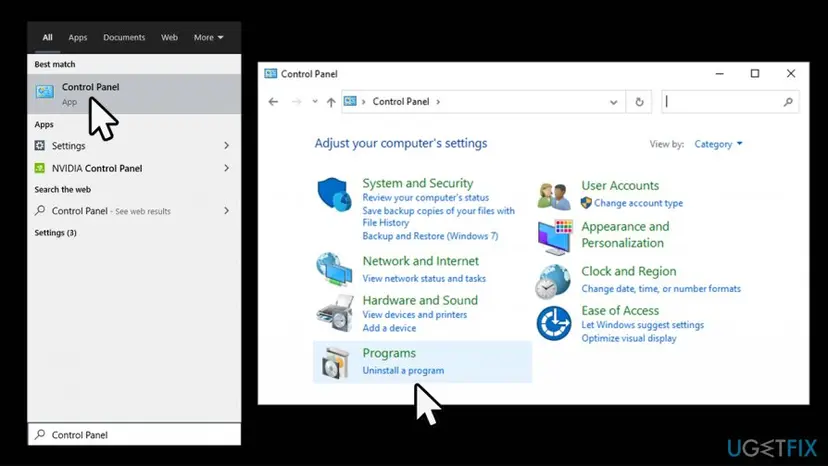
Some Adobe programs can only be removed in Control Panel, which is also where Adobe shows its own uninstall steps. Step by step for every way: Uninstall a program or app in Windows.
Adobe's genuine software FAQ points to the Creative Cloud Cleaner tool for apps that will not go away the normal way. Use it only after the normal uninstall failed.
It worked if: The Adobe apps are gone, Adobe Genuine Service is no longer listed after the restart, and Adobe GC Invoker Utility is gone from Startup apps.
If not: If Adobe Genuine Service is still listed, remove it by hand with Method 4.
Method 4. Uninstall Adobe Genuine Service on Windows the way Adobe describes
3 minutesLow riskThe Adobe apps are gone and the service stayed, or you decided to remove it while keeping your apps.
Adobe publishes its own manual uninstall for Windows. Its uninstaller removes the service and its support files, which also removes the startup entry and the AdobeGCClient.exe process.
- Type Control Panel in the search box on the taskbar and open it.
- Select Programs > Programs and Features.
- Right-click Adobe Genuine Service and select Uninstall.
- Read the message of the Adobe Genuine Service uninstaller and select Uninstall.
- Restart the PC.
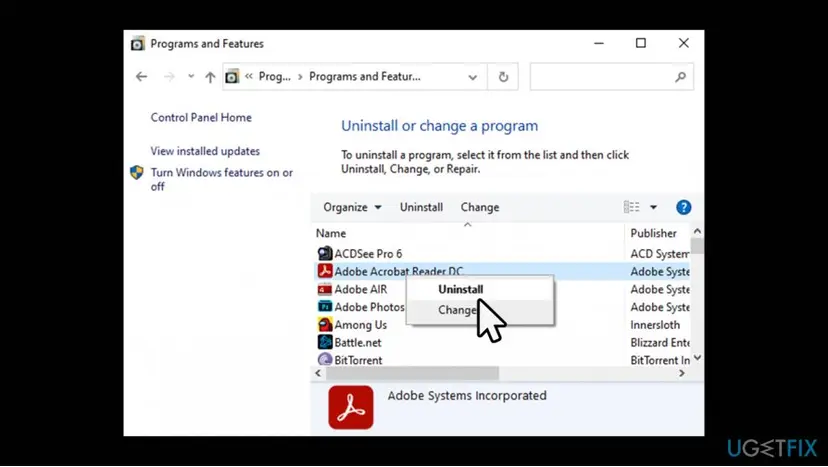
Adobe recommends that you keep AGS while you have Adobe software. It also says that "Adobe reserves the right to use other methods to protect Adobe software from fraudulent activity that cannot be uninstalled". Removing AGS is your choice, not a licence change.
It worked if: Adobe Genuine Service is no longer in Programs and Features, and neither Adobe GC Invoker Utility nor AdobeGCClient.exe appears after the restart.
If not: If it is back after you installed or updated an Adobe app, that app's installer brought it again. Use Method 2 if you keep the app, or Method 3 if you do not.
Method 5. Remove Adobe Genuine Service and AdobeGCClient on a Mac
3 minutesLow riskYou found AdobeGCClient or com.adobe.gc.invoker-1.0.plist on a Mac.
On a Mac, Adobe ships its own uninstaller, AdobeCleanUpUtility, in the Adobe Genuine Service folder. Running it removes the service and its cached data, so you do not have to delete launch items by hand.
- Open Finder > Applications > Utilities > Adobe Genuine Service.
- Double-click AdobeCleanUpUtility.
- Select Uninstall.
- Enter your Mac user name and password and select OK.
- Restart the Mac.
Here too, Adobe says the service uninstalls itself when you remove every Adobe app. If you no longer use any, uninstall them from the Creative Cloud desktop app instead and the service goes with them.
It worked if: The Adobe Genuine Service folder is gone from Utilities, and AdobeGCClient is no longer in Activity Monitor after the restart.
If not: If AdobeCleanUpUtility is missing from the folder, uninstall all Adobe apps first (the same idea as Method 3), then check the Utilities folder again.
How to undo it and put Adobe GC Invoker Utility back
Nothing in this guide deletes your files or your Adobe account. Every change is easy to reverse.
| What you changed | How to put it back |
|---|---|
| Turned off Adobe GC Invoker Utility in Startup apps. | Set its switch to On in Settings > Apps > Startup, or select Enable in Task Manager. |
| Uninstalled Adobe apps. | Install them again from the Creative Cloud desktop app or from Adobe.com. The service comes back with them. |
| Uninstalled Adobe Genuine Service. | Install or update an Adobe app. AGS comes with several Adobe apps. |
| Ran AdobeCleanUpUtility on a Mac. | Install or update an Adobe app from Adobe. |
Myths about Adobe GC Invoker Utility and AdobeGCClient.exe
- "It is a virus." The real files are Adobe's and are signed by Adobe. A copy in a strange folder or without a signature is a different matter: check it with Method 1.
- "It only exists on PCs with pirated Adobe apps." No. Adobe says AGS comes with several Adobe apps, so it is on PCs with paid subscriptions too.
- "Removing it speeds up the PC." No source gives a figure. It is one small process, and on most PCs nothing measurable changes.
- "Removing it stops all of Adobe's licence checks." No. Adobe says it may use other methods that cannot be uninstalled.
- "If I remove it, my Adobe apps stop working." Not with genuine apps. The service checks the apps, it does not run them.
Frequently asked questions
What is AGC Invoker Utility?
AGC Invoker Utility, shown as Adobe GC Invoker Utility in Windows, is the startup entry of the Adobe Genuine Service. Its file is AGCInvokerUtility.exe. At sign-in it starts the check that Adobe uses to verify whether installed Adobe apps are genuine. Adobe says this service comes with several Adobe apps, so you usually get it with Photoshop, Premiere Pro, Acrobat or the Creative Cloud apps. It is legitimate Adobe software.
What is Adobe GC Invoker Utility in Startup, and can I disable it?
It is the item that starts Adobe's genuine software check each time you sign in, and yes, you can disable it. Open Settings > Apps > Startup and set Adobe GC Invoker Utility to Off, or disable it on the Startup apps tab of Task Manager. Your Adobe apps keep working. Adobe recommends keeping the service, and an Adobe update may turn the entry on again, so check it after updates.
What is Adobe GC Client (AdobeGCClient.exe)?
AdobeGCClient.exe is the process that runs the Adobe Genuine Service check. Adobe describes the check as verifying data such as the serial number, licence type and Adobe code of installed apps. You see it in Task Manager on Windows or in Activity Monitor on a Mac. It is removed together with the Adobe Genuine Service, either by Adobe's uninstaller or automatically when you uninstall all Adobe apps.
Is AGCInvokerUtility.exe a virus?
The real AGCInvokerUtility.exe is not a virus. It is part of Adobe's Genuine Service and is signed by Adobe. Malware can use any file name, though, so check yours: in Task Manager right-click it, select Open file location, and look at the folder and at Properties > Digital Signatures. An Adobe folder and an Adobe signature mean it is genuine. Anything else calls for a full scan with Microsoft Defender.
What does Adobe GC Invoker Utility do?
It starts Adobe's genuine software check. Adobe says the service periodically verifies whether Adobe apps on your machine are genuine, notifies you with pop-ups and in-app notifications if they are not, and offers support to solve the problem. Adobe may disable an app it finds to be non-genuine. On a PC with paid Adobe apps the check runs quietly and you will see nothing besides the process.
What is com.adobe.gc.invoker-1.0.plist on my Mac?
It is the Mac launch item of the same Adobe Genuine Service, which starts the check much like the Windows startup entry does. Do not hunt down and delete plist files by hand. Adobe ships an uninstaller instead: open Applications > Utilities > Adobe Genuine Service, run AdobeCleanUpUtility and select Uninstall. If you remove all Adobe apps, Adobe says the service uninstalls itself.
Does disabling Adobe GC Invoker Utility make my PC faster?
Not in a way you are likely to notice. It is one small startup item and one short background process, and we found no Adobe or Microsoft figure for its cost. Windows rated its startup impact as None in the old screenshot of this guide. If your PC starts slowly, the Startup impact column in Task Manager shows which apps really cost time.
I got an AGCInvokerUtility.exe application error. What should I do?
The error means the Adobe Genuine Service did not start properly. First update or reinstall the Adobe app it came with through the Creative Cloud desktop app, which reinstalls the service as well. If the error stays and you no longer use Adobe apps, uninstall them and the service goes too. If you keep the apps, Adobe's Windows uninstall for the service (Method 4) removes the failing part. Check the file with Method 1 if the error appeared out of nowhere.
I got a notice that my Adobe software is not genuine. What now?
Adobe says the notice appears when its service finds an app that is not genuine, and that you should follow the notice's instructions. If an Adobe app came from somewhere other than Adobe or an authorized reseller, uninstall it and get it from Adobe.com. Adobe offers support through the notice for people who bought software without knowing it was not genuine. This guide does not help to hide the notice: removing the service does not make an app genuine.
¿Qué es AGCInvokerUtility?
AGCInvokerUtility is the startup program of the Adobe Genuine Service, Adobe's check of whether installed Adobe apps are genuine. This page is in English: the answer above, and Method 2 for turning off the startup entry, cover the same question. In short, it is legitimate Adobe software. You can turn it off in Settings > Apps > Startup, or it removes itself when you uninstall all Adobe apps.
Sources
Did this fix work?
One click, no account. It tells the next reader which guides are worth their time.
Questions and experiences: Adobe GC Invoker Utility (AdobeGCClient.exe): what it is and can you stop it
Still broken, or found a fix we did not cover? Ask here: members and our editors answer. Reading is open; writing needs a free account.
…