How to fix
PDC_WATCHDOG_TIMEOUT error
on Windows
Resolve the PDC_WATCHDOG_TIMEOUT error on Windows 10 quickly and effectively. Follow our expert-tested solutions for a hassle-free fix! Updated 2025.

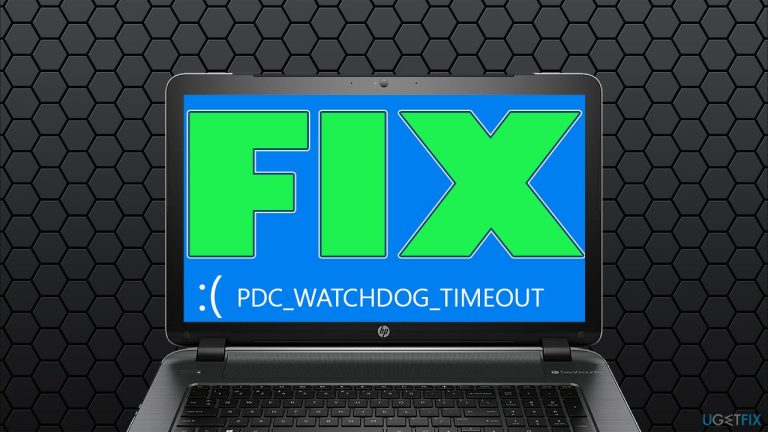
What causes How to fix PDC_WATCHDOG_TIMEOUT error in Windows 10?
- Incompatible driver
- Corrupt driver
- Unnecessary driver
- Memory corruption from an unknown driver
- Issues when taking a ThinkPad off the docking station
- Problems after the PC wakes from sleep
Repairs Windows system files, removes malware, and restores a clean OS state — without reinstalling.
Hi. I have recently encountered a random Blue Screen error PDC_WATCHDOG_TIMEOUT, which restarted my PC immediately. Windows managed to recover after a restart, and I thought it was all good. The next day, while watching a video, I received the error once again. I think something is wrong. Any advice on how to fix it?
PDC_WATCHDOG_TIMEOUT is yet another Blue Screen of Death[ref en-3] error that can occur on Windows machines. It has a bug check value of 0x0000014F and indicates that the system failed to respond within the allocated time period. While this BSOD is not as common as, e.g., DPC WATCHDOG VIOLATION, users still encounter it from time to time.
While you might encounter PDC WATCHDOG TIMEOUT BSOD on Windows 7 or earlier versions, the problem is more prominent on newer operating systems, such as Windows 10 or Windows 8. Also, it seems like users who encounter this error use laptops rather than desktops - most affected brands include Lenovo and Dell.
There are many scenarios when the error can occur. On various tech support boards, users reported that they encountered PDC_WATCHDOG_TIMEOUT when taking a ThinkPad off the docking station. Others claimed that they faced the problem after the PC went to sleep and was unable to start again.
Just like with any other Blue Screen error, Windows delivers a standard Blue Screen message which reads the following:
Your PC ran into a problem and needs to restart. We're just collecting some error info, and then we'll restart for you. (1% complete)
If you'd like to know more, you can search online later for this error: PDC_WATCHDOG_TIMEOUT
The error refers to a system file known as pdc.sys (another common system file causing BSODs is Ntoskrnl.exe, so it is not uncommon for users to receive the error connected to both system files) located in C:\\WINDOWS\\system32\\drivers folder, which leads to the following conclusions:
- The error was caused by an incompatible, corrupt, or unnecessary driver
- The error was caused by memory corruption stemming from an unknown driver.
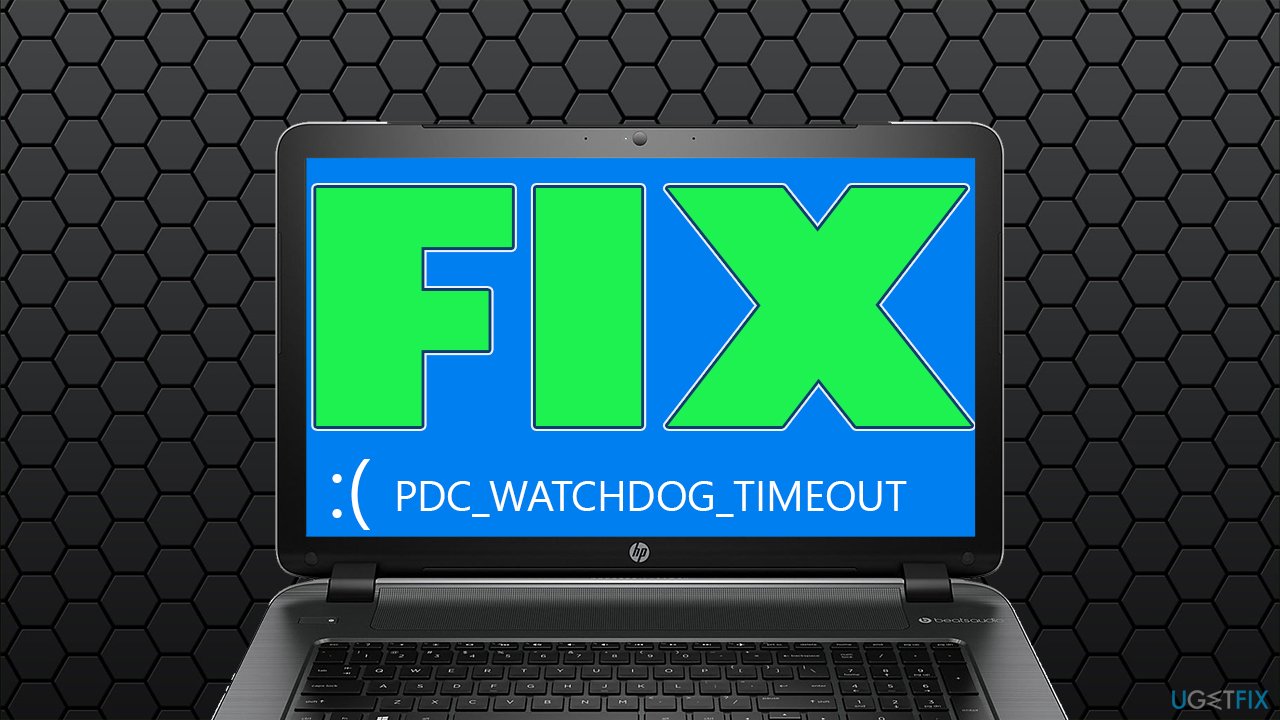
Therefore, in order to fix PDC_WATCHDOG_TIMEOUT BSOD, you will have to perform several troubleshooting steps we list below. Keep in mind that each Windows 10 machine is different, so there is no universal way to solve the problem for everyone.
Method 1. Run an automatic repair tool
Windows is an intricate operating system with thousands of settings and parameters. System file corruption is one of the main reasons for many Blue Screen errors, including PAGE_FAULT_IN_NONPAGED_AREA, APC_INDEX_MISMATCH, DRIVER_IRQL_NOT_LESS_OR_EQUAL, and many others.
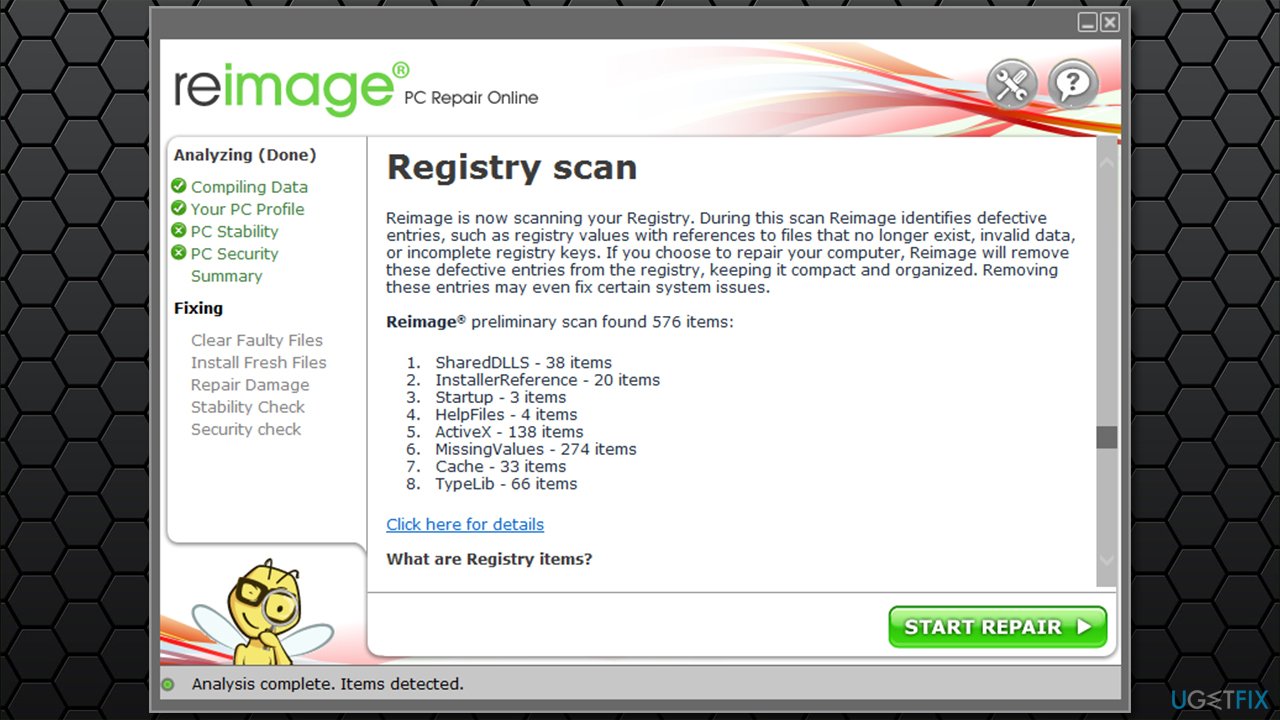
Sometimes, getting to the root cause of these issues and fixing them can be rather difficult, especially if you are less experienced with Windows operating system operations. Thus, for a quick solution, we highly recommend you try running a scan with [d1] - a repair software that can fix critical system file corruption automatically thanks to its 250,000 file database. You will not have to reinstall your Windows, saving up a lot of time.
Method 2. Check your memory
There are several ways how you could check your RAM.[ref en-1] For example, there are several third-party tools available, such as Memtest. However, the checks can take several hours to complete, taking valuable time. If that suits you, download the app and run the test. This test would point at broken hardware, such as a bad motherboard slot or the RAM stick itself.
However, there are more simple tests you could run on Windows, e.g., using the built-in Memory Diagnostic Tool.
- Type in Memory in Windows search and press Enter
- Select the Restart now and check for problems (recommended) option
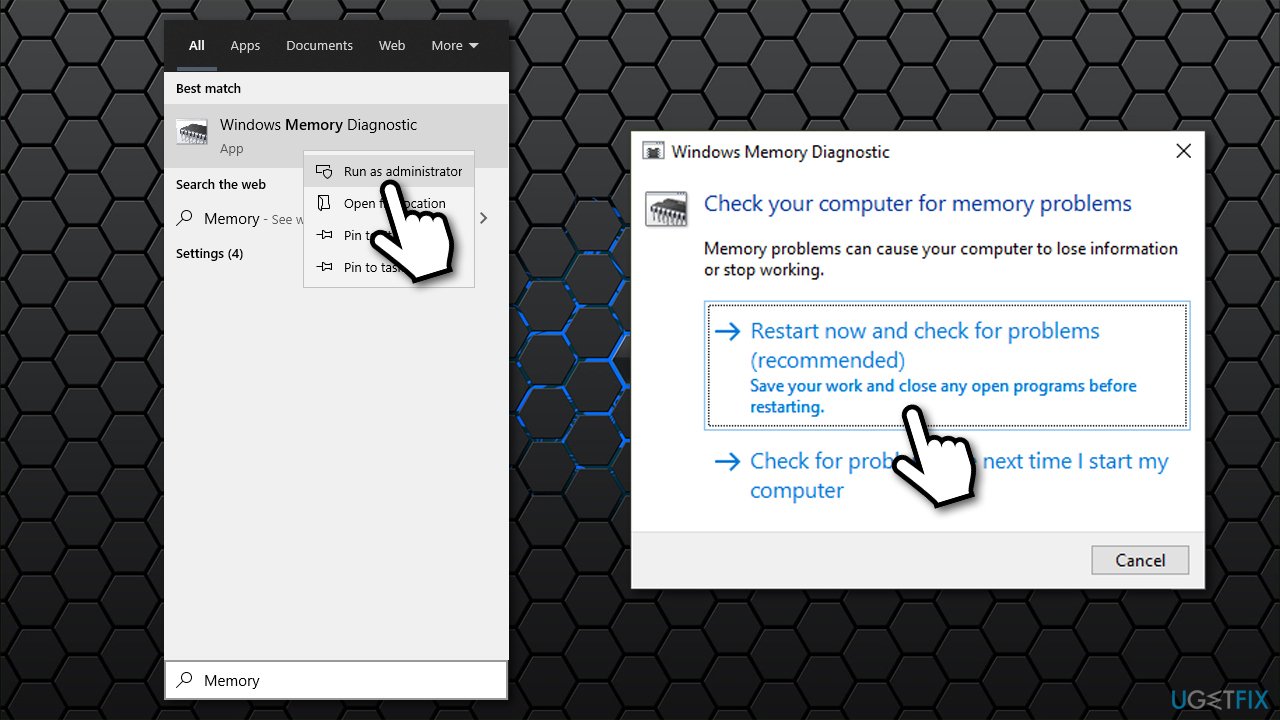
How to fix pdc watchdog timeout error in windows 10 run memory diagnostic test - This will immediately restart your computer and begin the check
- The Memory test might take awhile - the results will be reported shortly after.
Method 3. Update your drivers
One of the main reasons for the PDC WATCHDOG TIMEOUT error is corrupted or incompatible drivers.
- Right-click on Start and pick Device Manager
- Expand the IDE ATA/ATAPI controllers section
- Right-click on SATA AHCI Controller and select Update driver
- Select Search automatically for drivers and wait
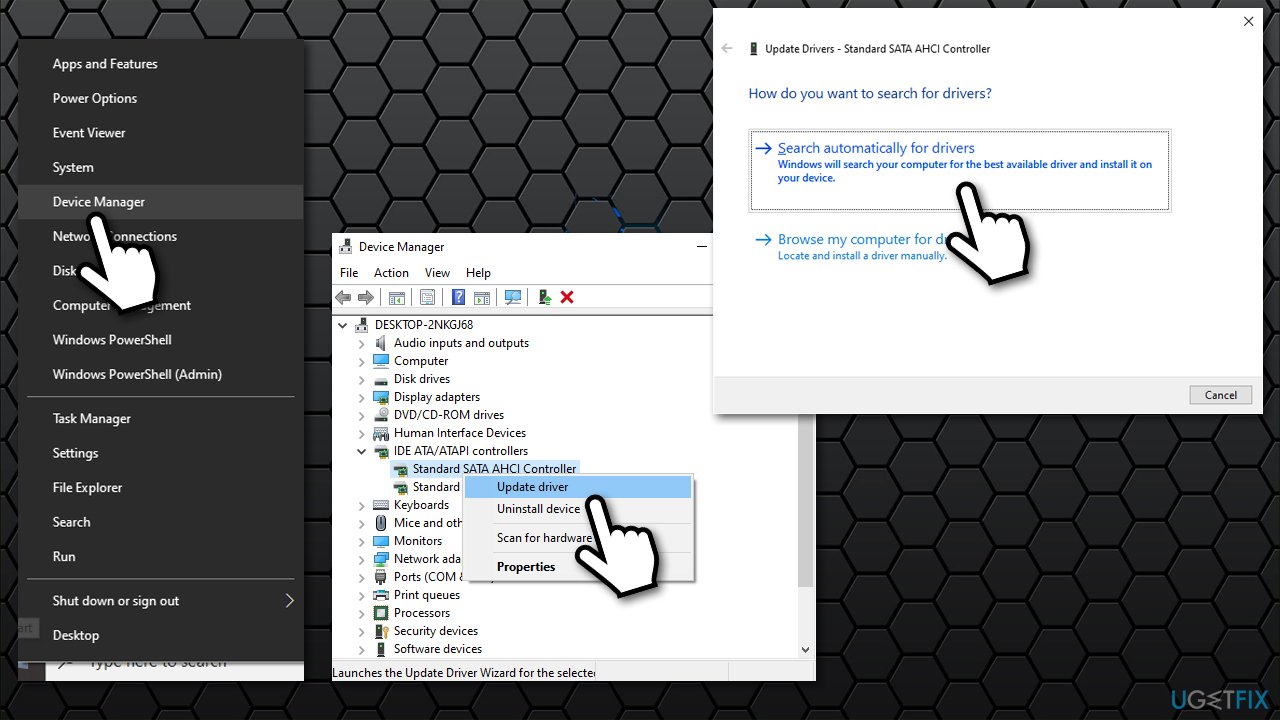
How to fix pdc watchdog timeout error in windows 10 update drivers - If new drivers are found, restart your device.
Keep in mind that Device Manager is far from an ideal option to update your drivers, as it can fail to find the latest version. Thus, when dealing with Blue Screen errors, it is strongly advised you download them from the manufacturer's website, although you need to know the model of your device. If you are not sure about it, we strongly recommend using an automatic driver updater [rev id="DriverFix"] instead.
Method 4. Update your BIOS
Updating BIOS[ref en-2] might be a bit tricky, but it should not be that difficult if you do everything as instructed. The problem with providing precise instructions is that the BIOS version and type might be different on different machines.
- Type in System Information in Windows search and press Enter
- In here, you need to find BIOS Version/Date and note the information displayed, e.g., American Megatrends Inc.
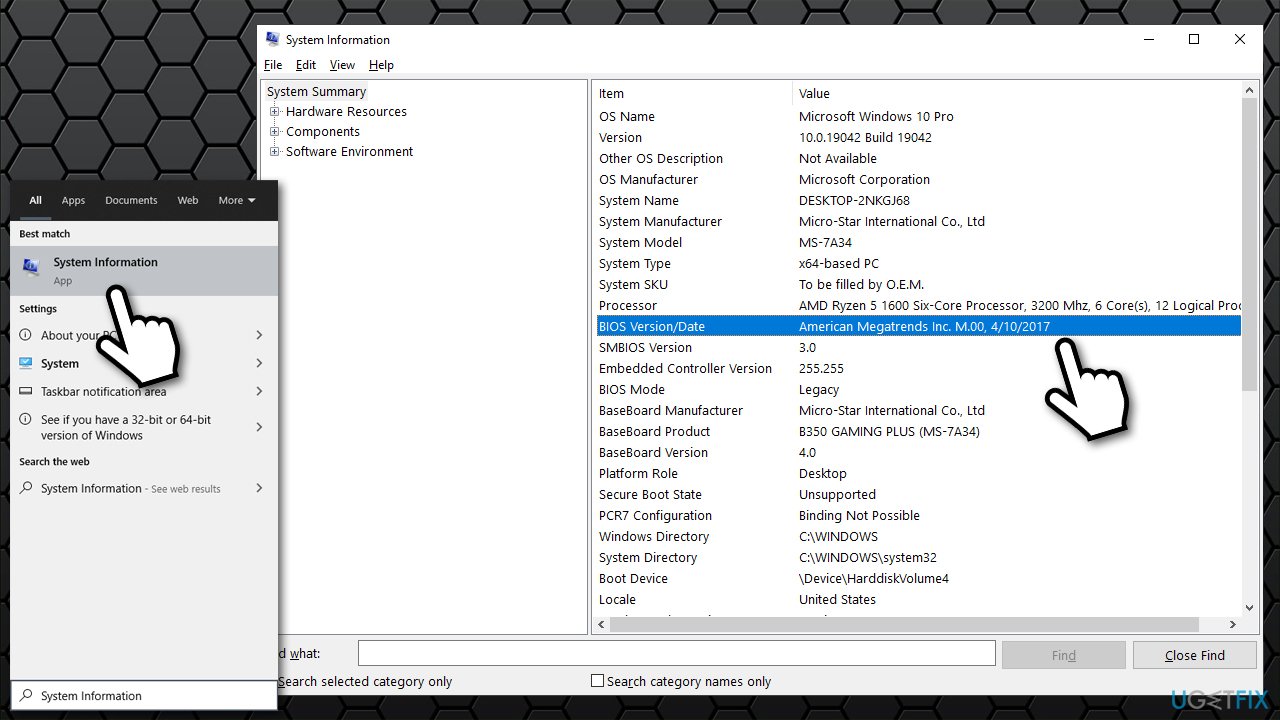
How to fix pdc watchdog timeout error in windows 10 update bios check version - Another information you need to note is from the BaseBoard Product section, e.g., MS-7A34
- Once you have all this data, visit the manufacturer of your motherboard and head to the download section
- There, look enter the model name of your motherboard, and cross-check it with the current version of BIOS installed
- Download the provided installer and launch it
- Once complete, reboot your system, and BIOS update should be completed
- In some cases, a special software might be provided by the manufacturer to make the whole process much easier.
In any case, if you are not sure what you are doing, do not proceed with this step. Instead, contact the developer directly and ask for technical support.
Bottom line
To fix the PDC_WATCHDOG_TIMEOUT BSOD, you may need to update or reinstall drivers, check for memory corruption, or adjust power settings. If these steps do not resolve the issue, consider seeking further technical support or exploring additional troubleshooting methods.
Frequently asked questions
The PDC_WATCHDOG_TIMEOUT error is often caused by hardware incompatibility, outdated drivers, or issues with system services. It can also occur due to overclocking settings or corrupted system files.
To update drivers, go to Device Manager, right-click on the device you want to update, and select 'Update driver.' You can also visit the manufacturer's website to download the latest drivers compatible with Windows 10.
Yes, you can run the System File Checker tool by opening Command Prompt as an administrator and typing 'sfc /scannow.' This will scan and repair any corrupted system files that may be causing the error.




Report an issue
What's wrong with this guide? We review every report and update or remove content.
Report received — thank you. We'll review and fix it.
You need a free account to submit a report.
Be the first to comment