How to fix
Nvwgf2umx.dll error
on Windows
Resolve the nvwgf2umx.dll error in Windows 10 and 11 effortlessly with expert-tested solutions that ensure smooth performance in minutes.

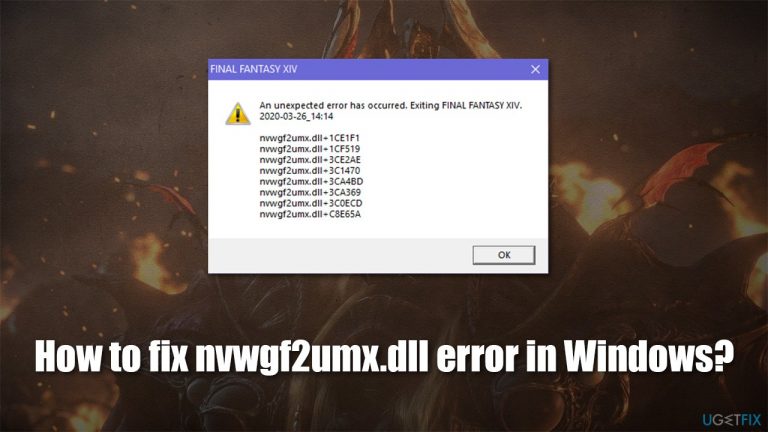
What causes How to fix nvwgf2umx.dll error in Windows?
- Incorrect configuration settings
- Outdated drivers
- Incompatible drivers
- Corrupted system files
- Complexity of modern games
Repairs Windows system files, removes malware, and restores a clean OS state — without reinstalling.
Hello. I somewhat am OK with games crashing sometimes, but I have been experiencing Grand Theft Auto V crashes way too often. The rashes are relatively random and can occur at any time - they always return nvwgf2umx.dll error. Please help?
Video games have become more complex and innovative not only by design but also technologically, which means that more hardware resources are needed in order to make them run smoothly. Crash error nvwgf2umx.dll is something that has been preventing players from enjoying their time with many games for years; it occurs when playing titles such as Grand Theft Auto V, Call of Duty Warzone, Call of Duty Modern Warfare, Fallout 4, Final Fantasy XIV, Dark Souls 3, and many others.
It is not uncommon for games to crash at random times, as a PC is a complicated mechanism that performs thousands of operations every second. If something goes wrong, it may terminate the currently-run application. While some crashes do not provide any information (at least they do not provide the error message for the user), others show an error code or other useful information.
In this case, the message shows the following (other error might indicate 0xc0000005 code):
An unexpected error has occurred. Exiting [Gamename].
nvwgf2umx.dll + [string]
nvwgf2umx.dll + [string]
<...>
The error message claims that problem is related to a Dynamic Link Library[ref en-2] file. These files are prevalent in the Windows operating system - some of which belong to the OS while others are implemented by third-party programs. DLLs are used to execute code and provide elements that are needed by the program at a particular time frame. In other words, these files are almost identical to EXE files in their function, the difference is that they cannot be executed directly.
The overwhelming majority of game crashes, low FPS,[ref en-3] lag, and similar issues are typically related to incorrect configuration settings, outdated/incompatible drivers, corrupted system files, or similar. Games such as Cyberpunk 2077, Outriders, and Valheim had their own set of problems upon launch (some of where were attributed to bugs and glitches),[ref en-1], but the situation is getting better over time due to patches.
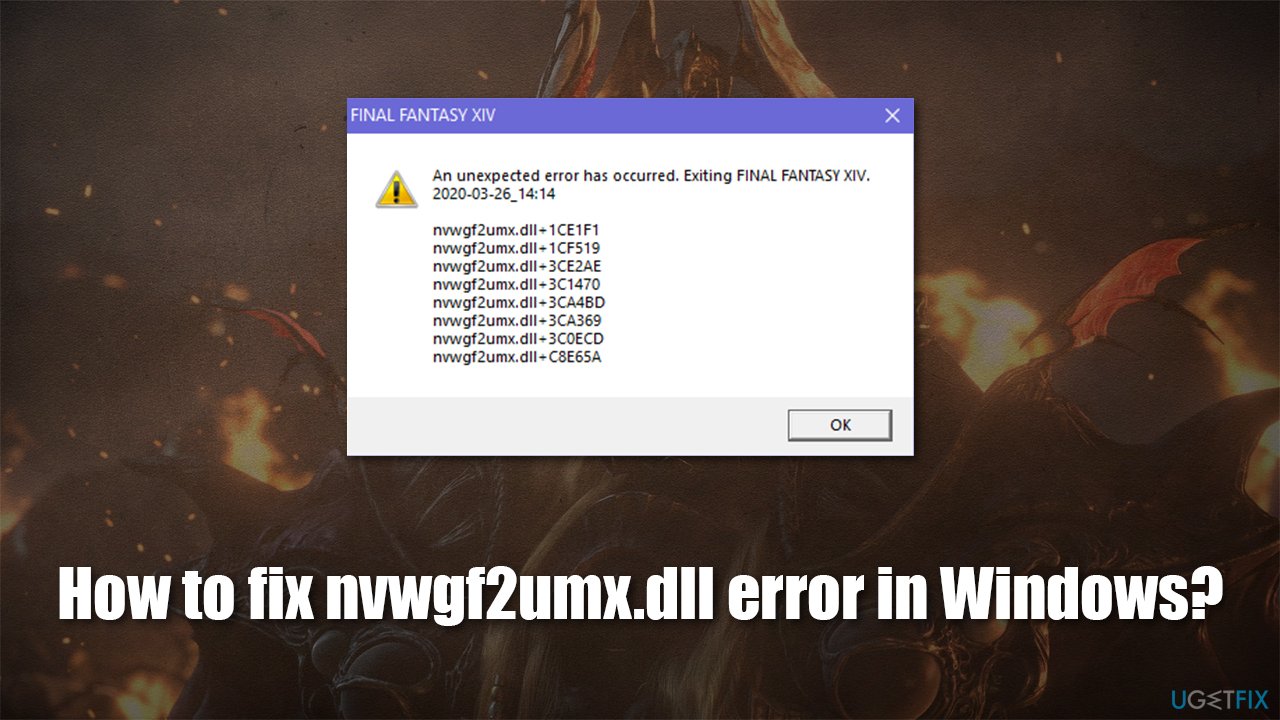
It is not always easy to determine whether these issues are caused by bad configuration, game optimization, or other factors. Crashes like nvwgf2umx.dll, however, indicate that the issue lies within a DLL file, hence there are steps you could undertake to fix the problem.
Before you refer to the solutions below, we highly recommend you try running a scan with a repair tool [d1] since it can quickly diagnose and fix a vast majority of Windows problems, including those that are related to missing or corrupt DLL files.
Method 1. Reinstall GPU drivers
One of the main reasons for DLL file errors is incompatible, corrupt, or outdated video drivers. Thus, uninstall them altogether:
- Right-click on Start and pick Apps and Features
- Here scroll down to find everything related to your GPU (Nvidia or AMD accordingly)
- Click on each of the entries, select Uninstall > Uninstall
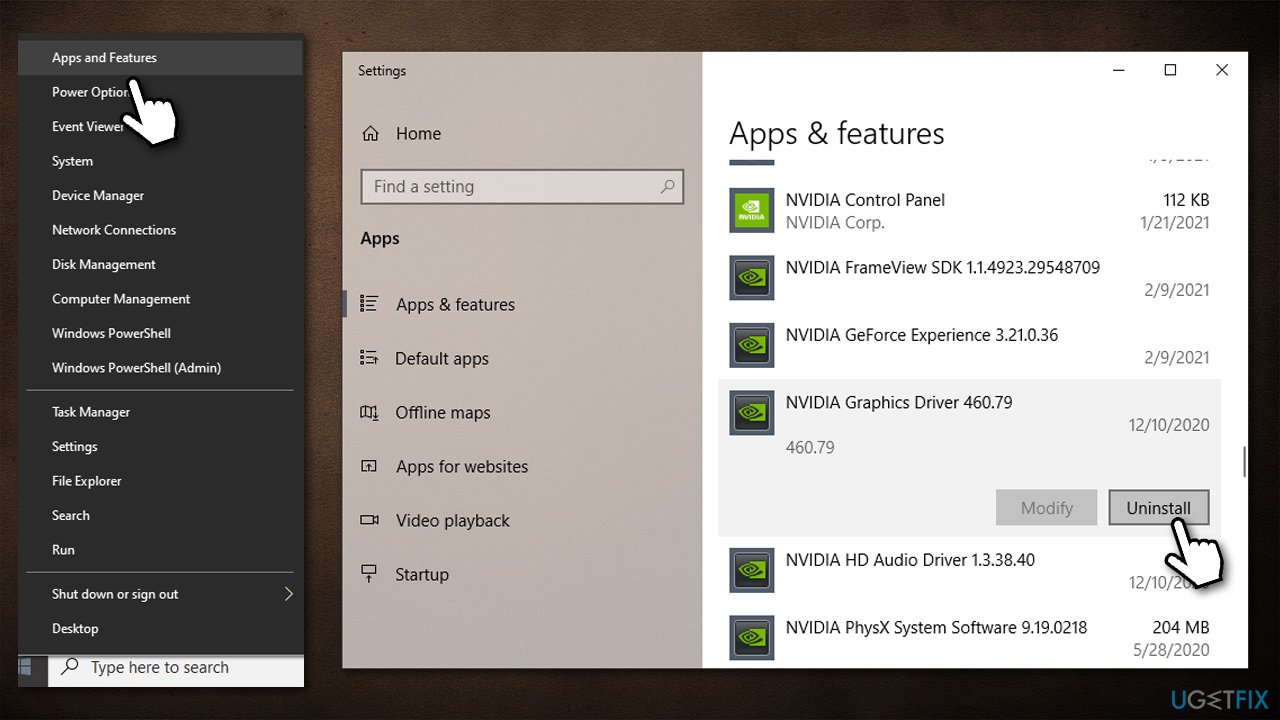
How to fix nvwgf2umx dll error in windows uninstall gpu drivers - Reboot your PC.
Now you have to install the newest drivers for your graphics card. To do that, you should visit your hardware manufacturer's website and download the needed software from there. If you are not sure which GPU model you are using, we recommend using an automatic driver updater such as [rev id="DriverFix"].
Method 2. Check your antivirus and disable VPN
In some cases, the problem can be caused by an overly aggressive third-party antivirus. If possible, you should disable its protection features temporarily and see if that stops the crashes while playing the game. If it does, you should add the main game's .EXE file to the exceptions list. Instructions for this could be found on your AVs website. Alternatively, you could opt for a different security software altogether.
If you are using a VPN, disable its connection to a remote server and see if that helped you.
Method 3. Run SFC scan
Corrupted system files can easily result in DLL file problems. Try repairing them via the elevated Command Prompt:
- Type cmd in Windows search
- Right-click on Command Prompt and select Run as administrator
- Paste the following command and press Enter:
sfc /scannow
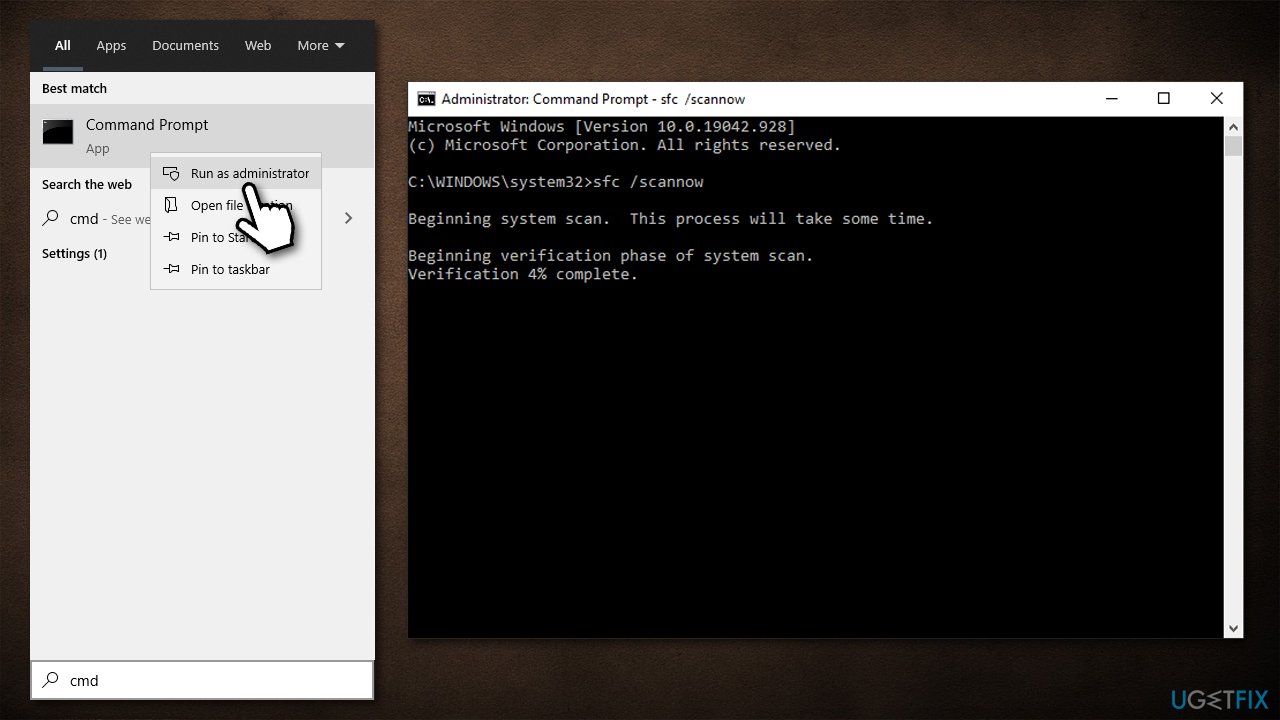
How to fix nvwgf2umx dll error in windows run sfc scan - Wait for the scan to finish and reboot your PC.
Method 4. Verify the game files
If you have purchased the game via Steam or another platform, you can verify game file integrity within the platform:
Steam
- Go to your Library
- Right-click on the problematic game and pick Properties
- Go to Local Files and select Verify integrity of game files.
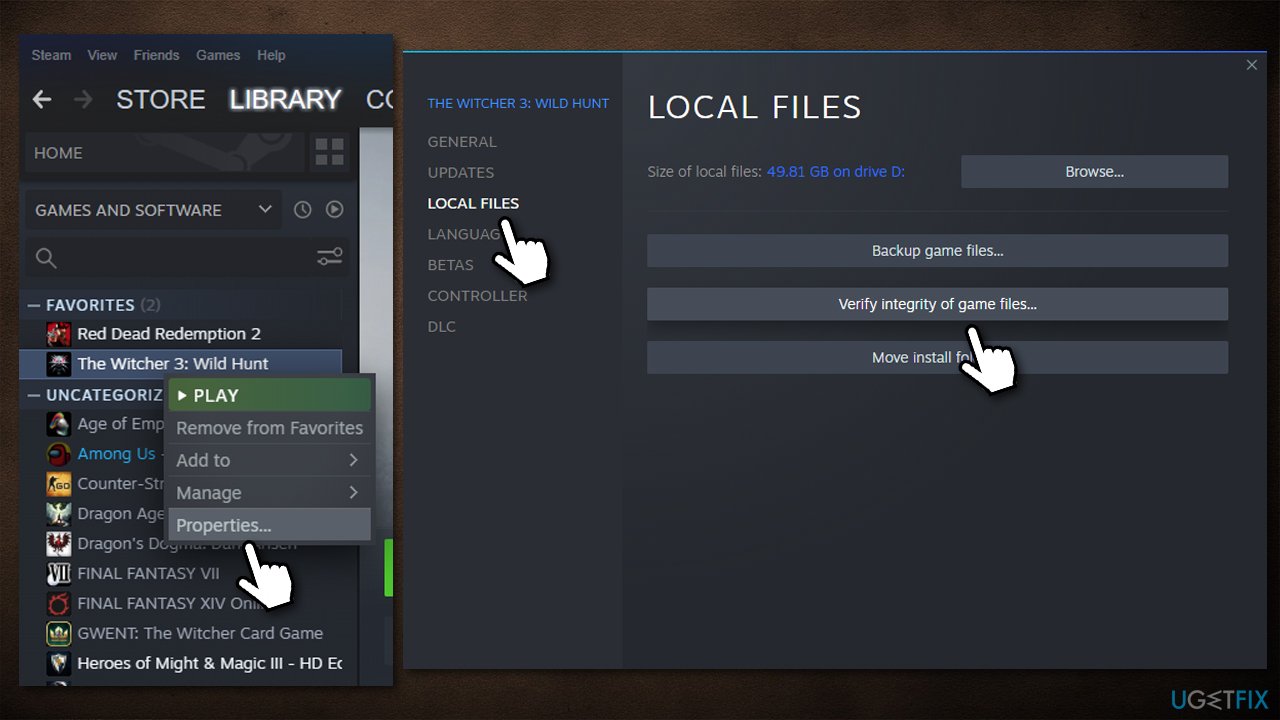
How to fix nvwgf2umx dll error in windows verify integrity of game files
Origin
- Open Origin and head to your games Library
- Right-click on the game and pick Repair
- Wait for the process to finish.
GOG
- Go to Owned games section
- Right-click on the game and select Manage installation > Verify/Repair
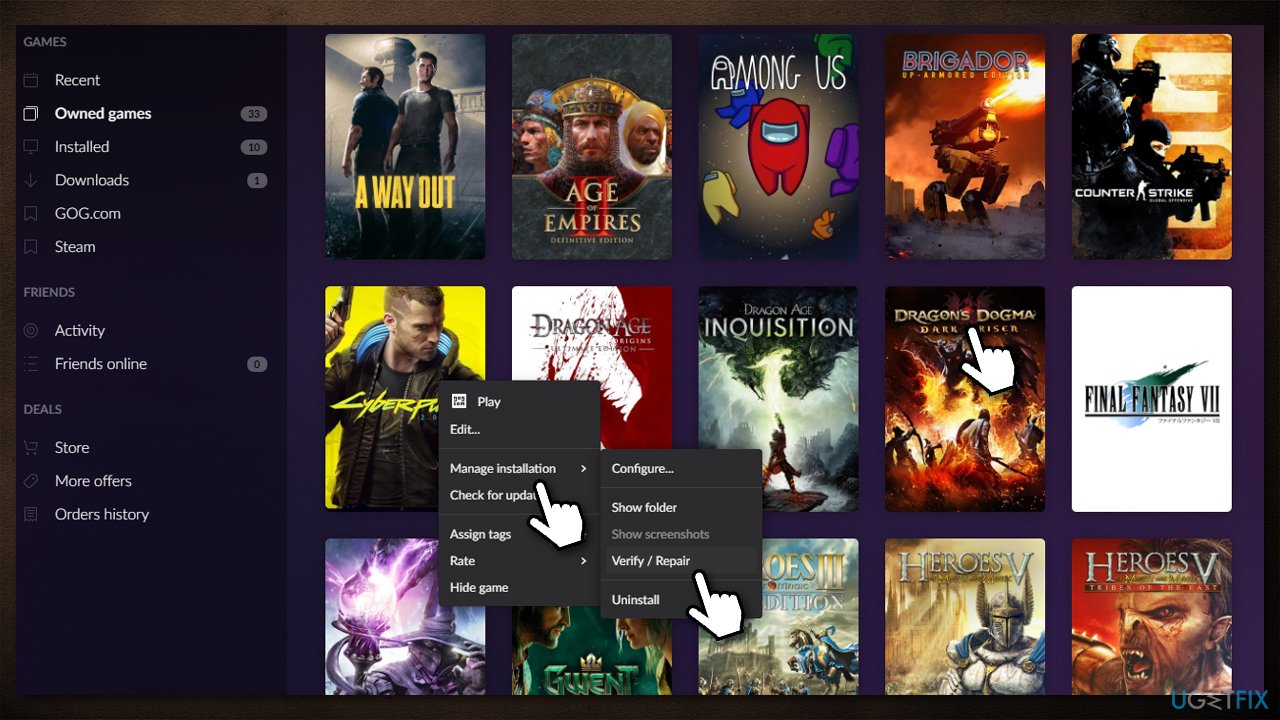
How to fix nvwgf2umx dll error in windows verify integrity of game files on gog - Wait for the verification to be complete.
Epic Games
- Go to your game Library
- Click on the three dots next to the game
- Select Verify.
Method 5. Reinstall the game
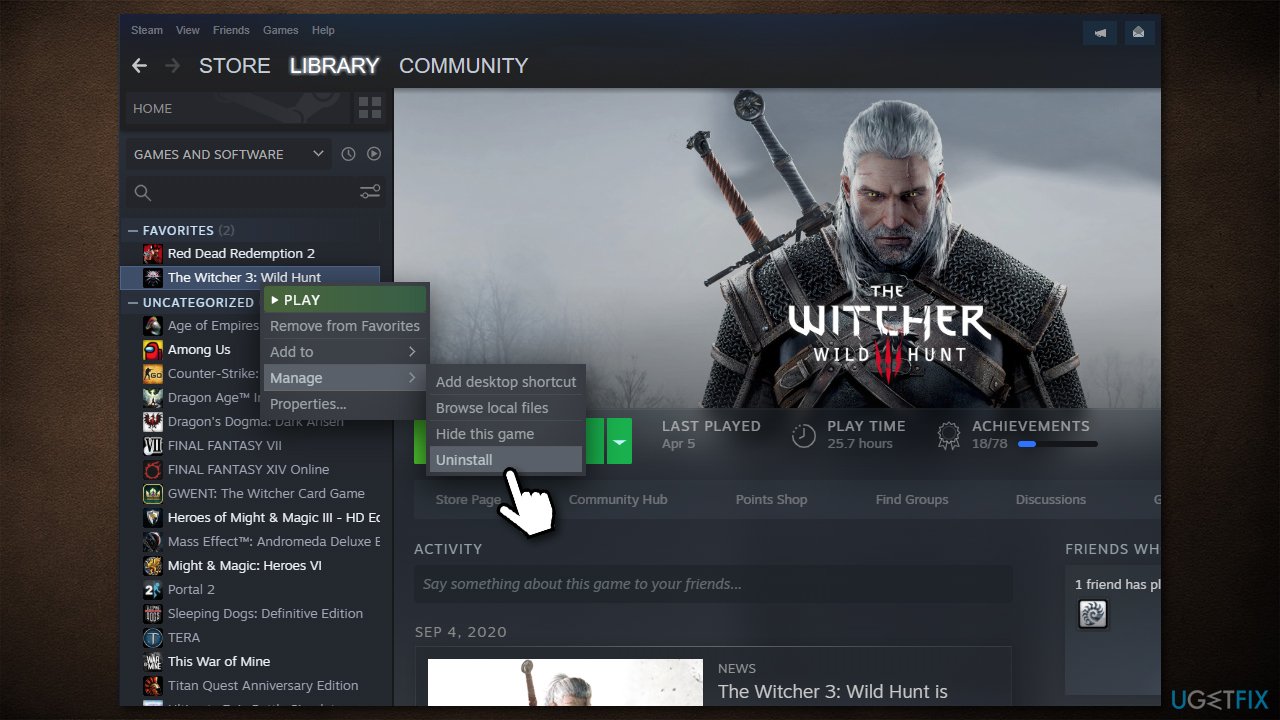
Some users said that reinstalling the game helped them solve the nvwgf2umx.dll crashes. Thus, uninstall the game first, and then reinstall it again. As per usual, you can do it either via Steam/Origin/GOG/Epic Games or other launchers or the general Control Panel/Apps and Features method. Keep in mind that you will likely have to re-download the game, and, depending on its size, it may take a while, so be warned.
Method 6. Disable overclocking
Overclocking is a common practice among gamers, as it allows them to push their hardware beyond its normal operation capabilities. While it can improve the gaming experience in many ways, it is undeniable that overclocking can also cause system instability and result in the application or even Windows crashes.
Therefore, if you are using overclocking your GPU or/and CPU, you should access BIOS and disable it.
Method 7. Update your BIOS
Keep in mind that this solution is not for everybody. Updating BIOS incorrectly might result in more issues and even failure to start Windows. However, BIOS updates are now much easier to implement. In any case, if you are not sure what you are doing, skip this fix.
- Type in System Information in Windows search and hit Enter
- Note down info next to BIOS Version/Date and BaseBoard Product
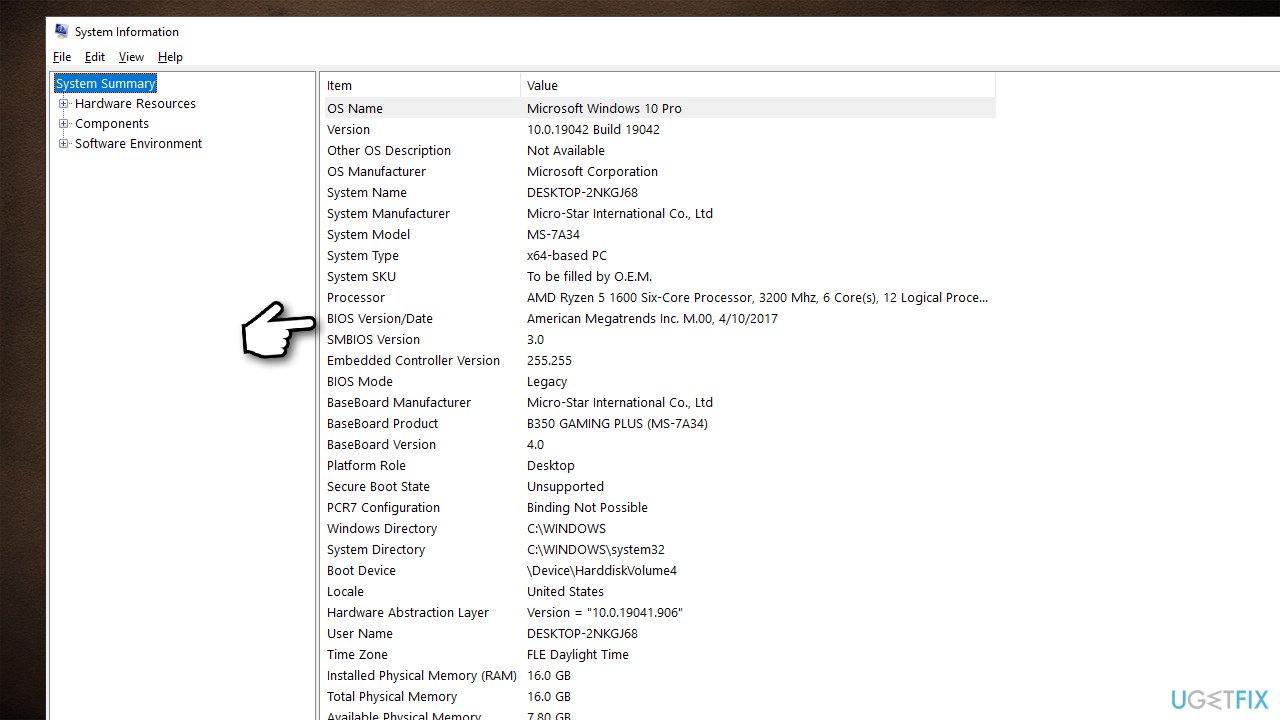
How to fix nvwgf2umx dll error in windows update bios - Open your web browser and visit the official site of your motherboard manufacturer
- Head to Downloads section
- Download the appropriate version of BIOS for your motherboard and launch the installer
- Reboot your system once complete.
Method 8. Disable Discord overlay
If you are using Discord, try this:
- Open Discord
- Go to Settings
- Scroll down and select Game Activity
- Here, toggle the overlay off for the game that crashes with an error.
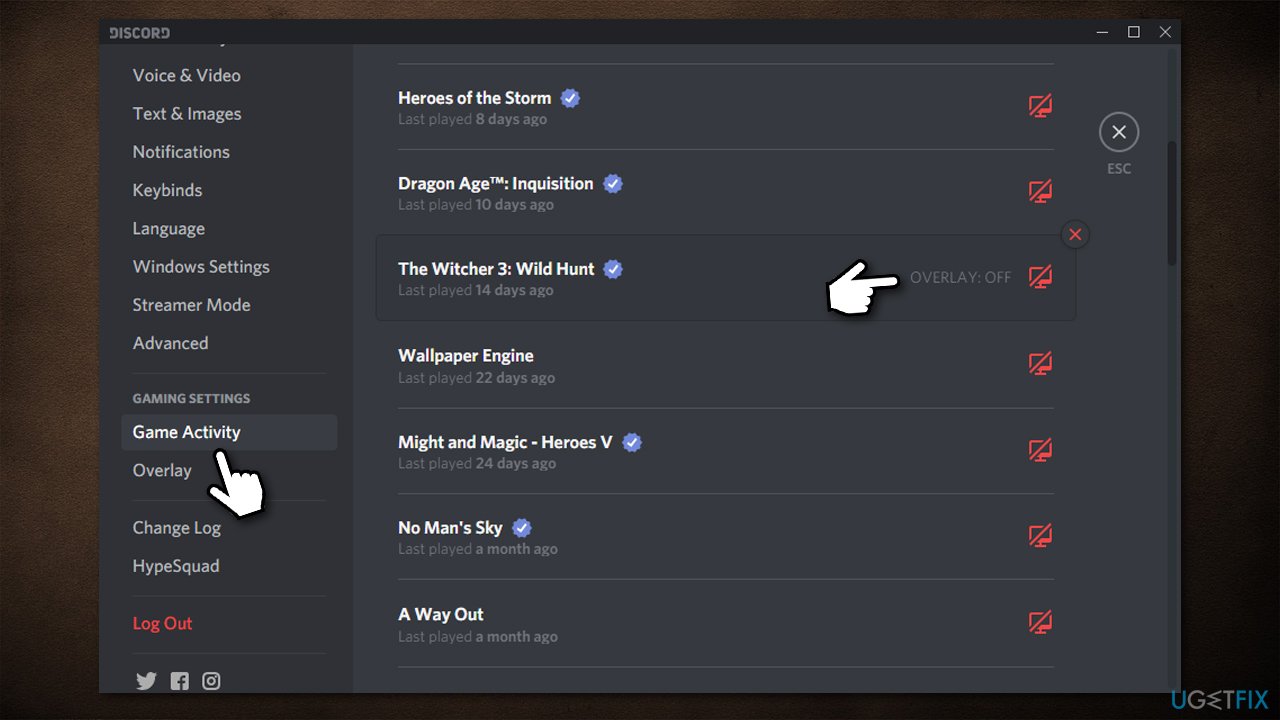
How to fix nvwgf2umx dll error in windows disable discord overlay
Method 9. Disable Steam overlay
- Open Steam
- Go to Steam > Settings
- Go to In-Game section
- At the very top, remove the tick next to Enable the Steam Overlay while in-game
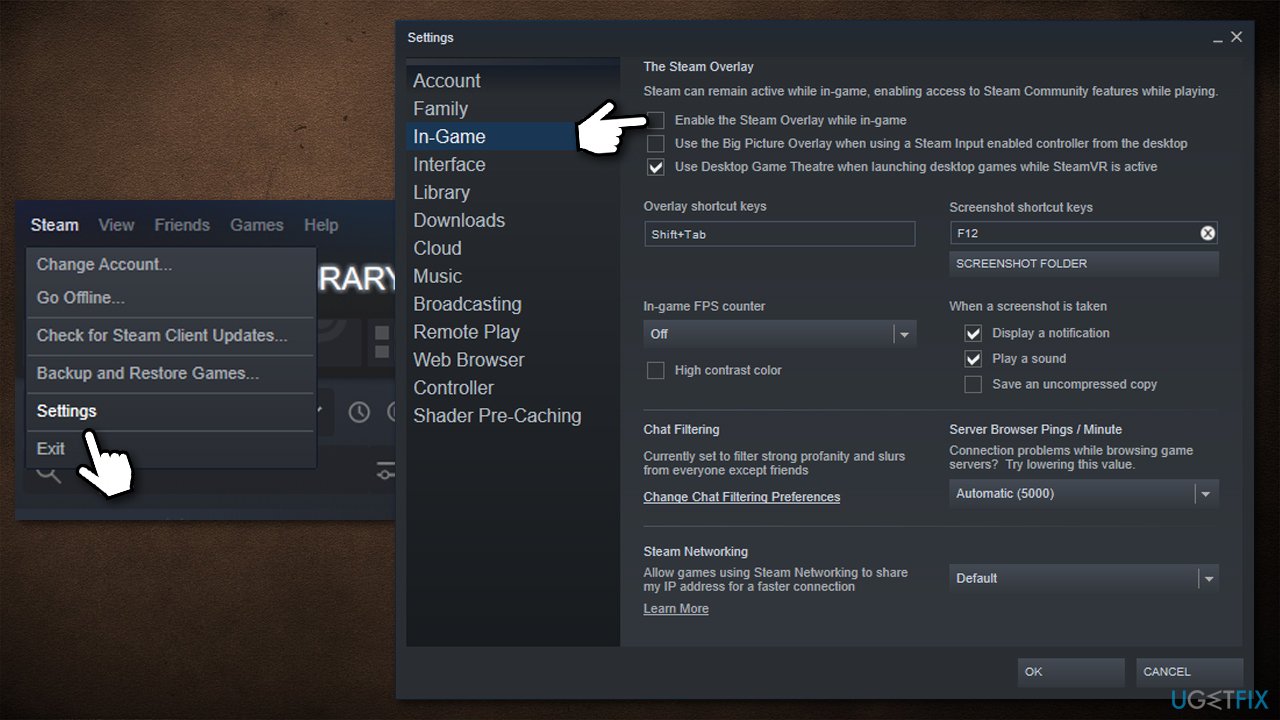
How to fix nvwgf2umx dll error in windows disable steam overlay - Click OK.
Bottom line
To fix the nvwgf2umx.dll error, consider updating your drivers, checking your configuration settings, and repairing any corrupted system files. If these solutions do not resolve the issue, further troubleshooting may be necessary.
Frequently asked questions
The nvwgf2umx.dll error is often caused by outdated or corrupted graphics drivers, or conflicts with the NVIDIA graphics card software in Windows 10 or Windows 11.
You can update your NVIDIA drivers by visiting the official NVIDIA website, downloading the latest driver for your graphics card, and installing it on your Windows 10 or Windows 11 system.
If reinstalling the drivers doesn't work, try running the System File Checker tool by executing 'sfc /scannow' in the Command Prompt, which can help repair corrupted system files on Windows 10 or Windows 11.




Report an issue
What's wrong with this guide? We review every report and update or remove content.
Report received — thank you. We'll review and fix it.
You need a free account to submit a report.
Be the first to comment