How to fix
Disable or enable “Safe Browsing” on Google Chrome
on Windows
Easily enable or disable Safe Browsing in Google Chrome on your Windows 10 or Windows 11 PC. Quick tips for a safer browsing experience, expert-tested.


Why does How to disable or enable “Safe Browsing” on Google Chrome occur?
- Phishing techniques used by malicious sites
- Social engineering tactics to trick users
- Potentially unwanted programs (PUPs) being downloaded
- Malware from unsafe websites
- False positives marking legitimate sites as unsafe
Repairs Windows system files, removes malware, and restores a clean OS state — without reinstalling.
Hello. I cannot seem to be able to access one page on Google Chrome because I get a warning in a red background. Is there any way to bypass this?
Staying safe on the Internet is very important as there are many pages using phishing[ref en-1] and social engineering techniques to trick users into providing their personal information, downloading PUPs (potentially unwanted programs),[ref en-2] and malware. Various scams like fake software updates, giveaways, surveys are still very common on the Internet.
Many browsers, as well as Google Chrome, have implemented ways that protect users from such websites as much as possible. Safe Browsing is a security service on Google Chrome that detects and warns users about potentially dangerous sites that could be harmful to users.
The problem with this system is, that sometimes it can trigger false positives and mark completely legitimate sites as unsafe for one reason or the other. There are 5 messages that you can see with this warning:
- The site ahead contains malware
- Deceptive site ahead
- Suspicious site
- The site ahead contains harmful programs
- This page is trying to load scripts from unauthenticated sources
Even though false positives do happen, please make sure that the site you want to visit is actually safe. If you have any doubts we suggest you just follow Google's advice and not visit it. There are malicious links spread in bogus websites that perform drive-by downloads.[ref en-3] If you accidentally click on one, you might not even notice how a Trojan[ref en-4] or another malware installs in your system.

You can bypass or completely disable the Safe Browsing function on Google Chrome, although it is not recommended. If you disable it and change your mind, do not worry about it, you can enable it using the same methods. If you plan on visiting suspicious sites we suggest at least using a maintenance tool like [d1] that can clear your browsers completely, eliminate cookies[ref en-5] and cache and repair various system errors.
Method 1. Ignore the Security Warning
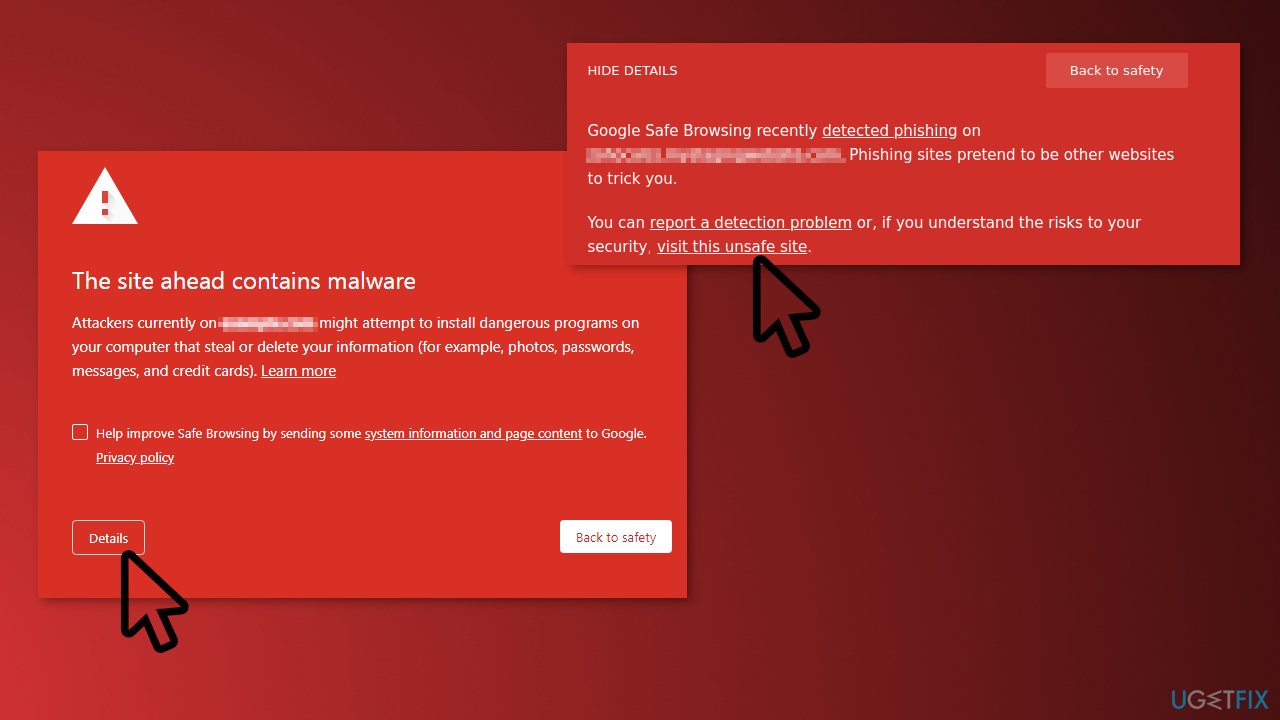
- On the security warning page, click on Details
- From there click on Visit this unsafe site
Method 2. Disable or Enable Through the Registry Editor
- Press Windows + R, and type in Regedit and click OK
- Copy-paste this key HKEY_LOCAL_MACHINE\\SOFTWARE\\Policies into the address bar
- Right-click on policies and select a new key. Afterward, rename this key to Google
- Right-click on the Google key and create a new key labeled Chrome
- Right-click the open space on the right and create a new DWORD (32-bit) value named SafeBrowsingProtectionLevel

- Double-click the newly made key and enter the value respective to your need
0 = No Protection
1 = Standard Protection
2 = Enhanced Protection
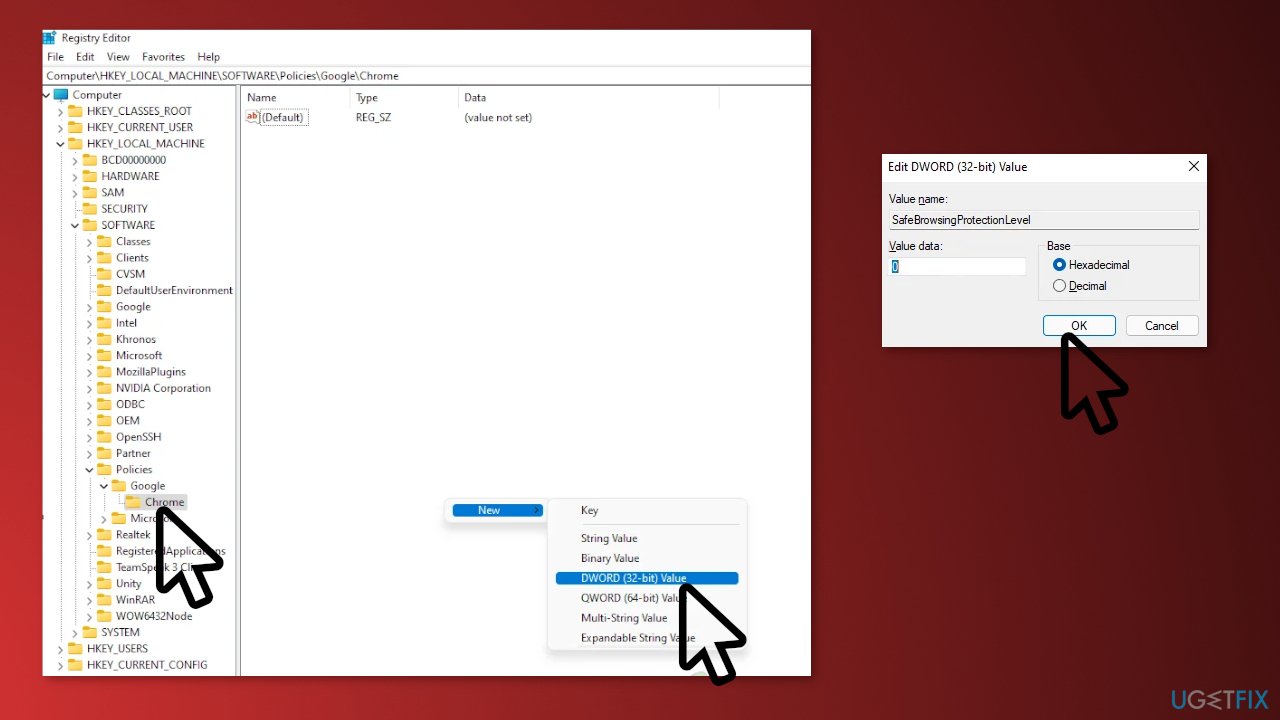
- Restart your PC for the changes to take effect
Method 3. Disable or Enable Through Google Settings
- From a new tab, click on the 3 dots on the top right corner and click on settings from the drop-down menu
- Click on privacy and security
- Then click on Security
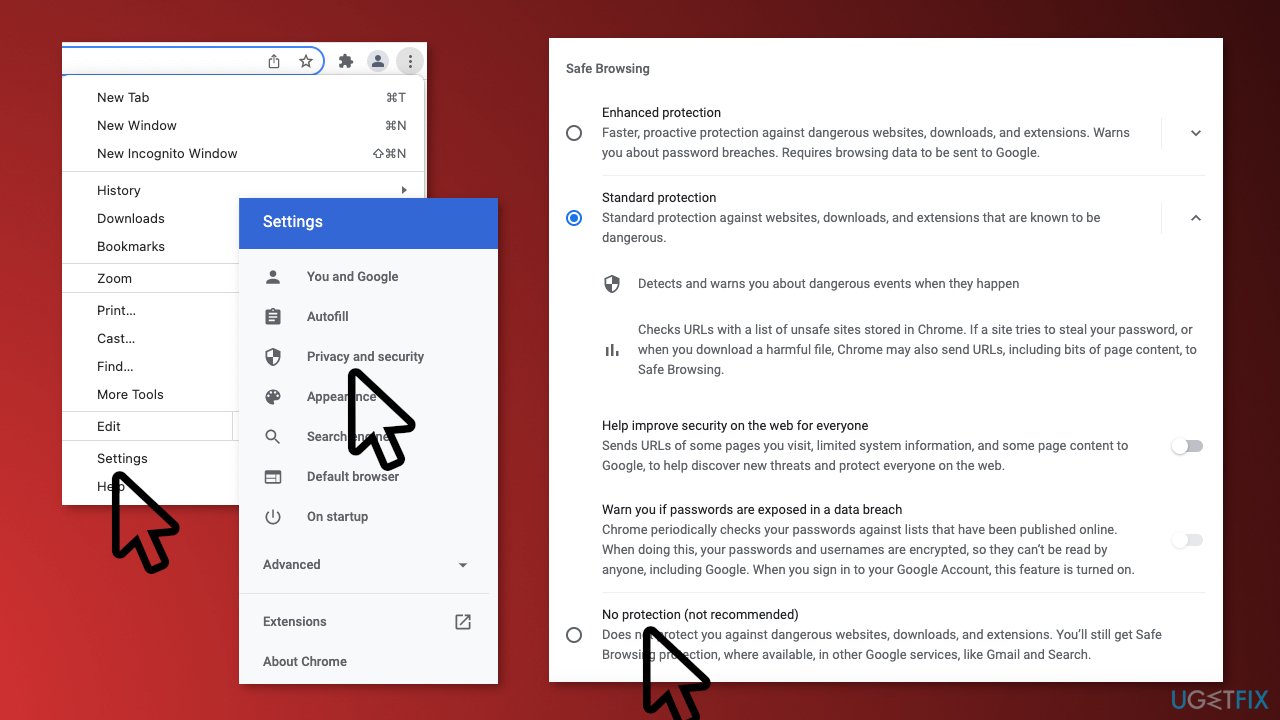
- Click on no protection and Turn Off on the prompt that passes to disable Safe Browsing
You might also be interested in these topics:
Bottom line
To bypass the Safe Browsing warning, you can click on 'Details' and then 'Visit this unsafe site.' Alternatively, you can disable Safe Browsing altogether, but this is not recommended. If these methods do not work, consider using a maintenance tool to clear your browser and repair system errors.
Frequently asked questions
To disable Safe Browsing on Windows 10, open Chrome, go to Settings > Privacy and security > Security, and select 'No protection' under Safe Browsing.
Yes, you can enable Safe Browsing on Windows 11 by navigating to Chrome's Settings, then to Privacy and security > Security, and selecting either 'Standard protection' or 'Enhanced protection'.
Keeping Safe Browsing enabled in Chrome on Windows helps protect you from dangerous websites and downloads, enhancing your online security.




Report an issue
What's wrong with this guide? We review every report and update or remove content.
Report received — thank you. We'll review and fix it.
You need a free account to submit a report.
Be the first to comment