How to fix
Bcrypt.dll is missing or corrupted
on Windows
Resolve the Bcrypt.dll missing or corrupted error in Windows 10 and 11 with our expert-tested solutions. Quick fixes and clear steps included!


What causes How to fix Bcrypt.dll is missing or corrupted in Windows?
- Missing Bcrypt.dll file
- Corrupted Bcrypt.dll file
- Issues with Windows Cryptographic Primitives Library
- Problems with related applications like Skype
- Malfunctioning system components
Repairs Windows system files, removes malware, and restores a clean OS state — without reinstalling.
Hello, I have been experiencing a weird error that shows up whenever I try to use Skype - "This program can't start because bcrypt.dll is missing from your computer. Try reinstalling the program to fix this program." I can't use the app at all now, and it is very frustrating for me. Any ideas on how to fix this? Thanks in advance.
Windows is an intricate operating system with thousands of different components built-in to make it work correctly. There are background processes, scheduled tasks, services, and other items running on any computer at any time, and all of them have to work in harmony at any given time.
DLL[ref en-3] files are one of the most common file types one can encounter of Windows - these are file extensions similar to executables, and it is used to implement code or to call up certain elements when they are required by the system or the application. DLL can't be executed directly and often employs hosts for their operation. Once such a file is missing or is damaged, the related application, process, or other components can no longer work properly.
Bcrypt.dll is one of the files that users reported to be a culprit for unexpected errors. In some cases, users might encounter the error when trying to start a particular application such as Skype, when trying to run Commands on Command Prompt, or even after booting the computer. Some of the problems might be minor, while others might lock people out of using vital apps such as Windows Store.
Bcrypt.dll is run under a process known as Windows Cryptographic Primitives Library and is an integral part of Windows hence it's located in the System32 folder. It provides cryptographic operations such as creating hashes or encrypting[ref en-1] and decrypting data. If it malfunctions, some components can't be started properly, resulting in an error.
In order to fix the Bcrypt.dll error, you'll have to try several troubleshooting options we provide below until you find one that works for you.
1. Use automatic repair software
Since Bcrypt.dll is a part of the Windows operating system, its corruption might cause problems when trying to open some apps or using the computer in general. System file corruption is one of the most prominent reasons for Blue Screen[ref en-2] crashes, DLL errors, and other common issues on Windows.
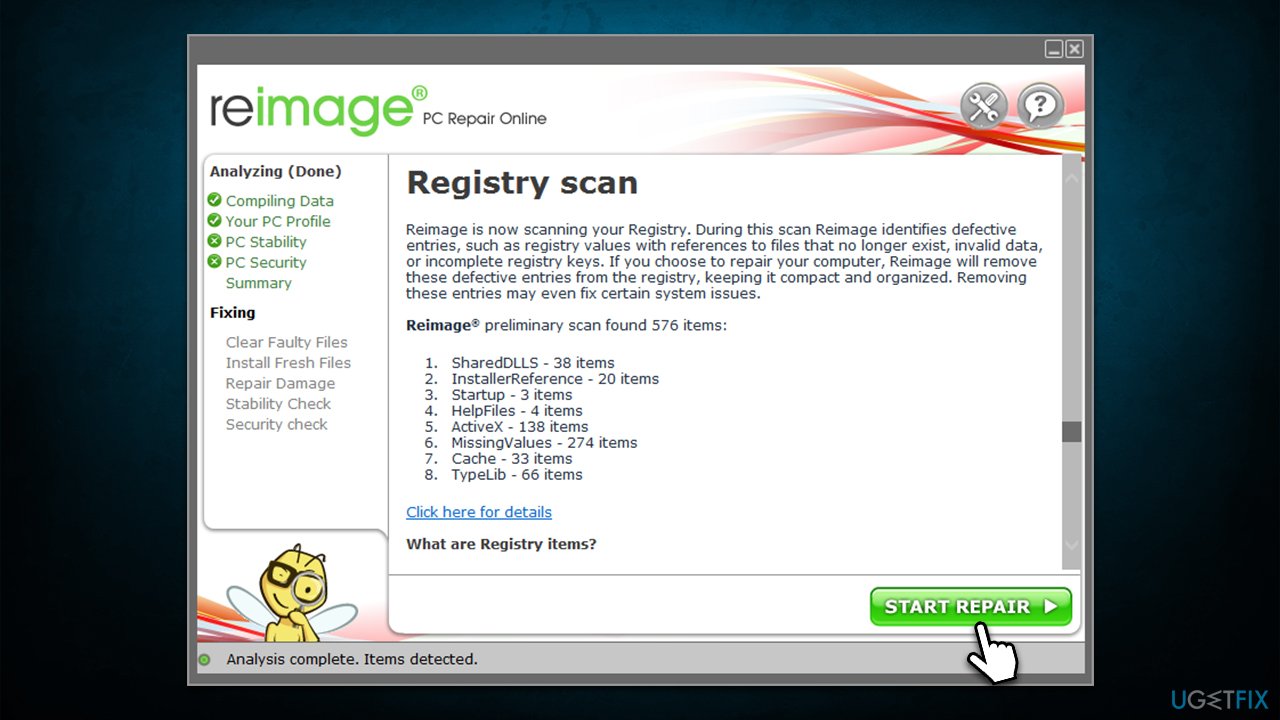
[d1] can find and replace damaged or missing system components automatically without users having to reinstall the operating system, which would get rid of the error in the process. Thus, download the app and run a full system scan with it - the patented technology works wonders when it comes to common computer problems.
2. Run Windows Store App troubleshooter
If one of the built-in apps, such as Skype, is causing the error to occur, you should try running the relevant troubleshooter.
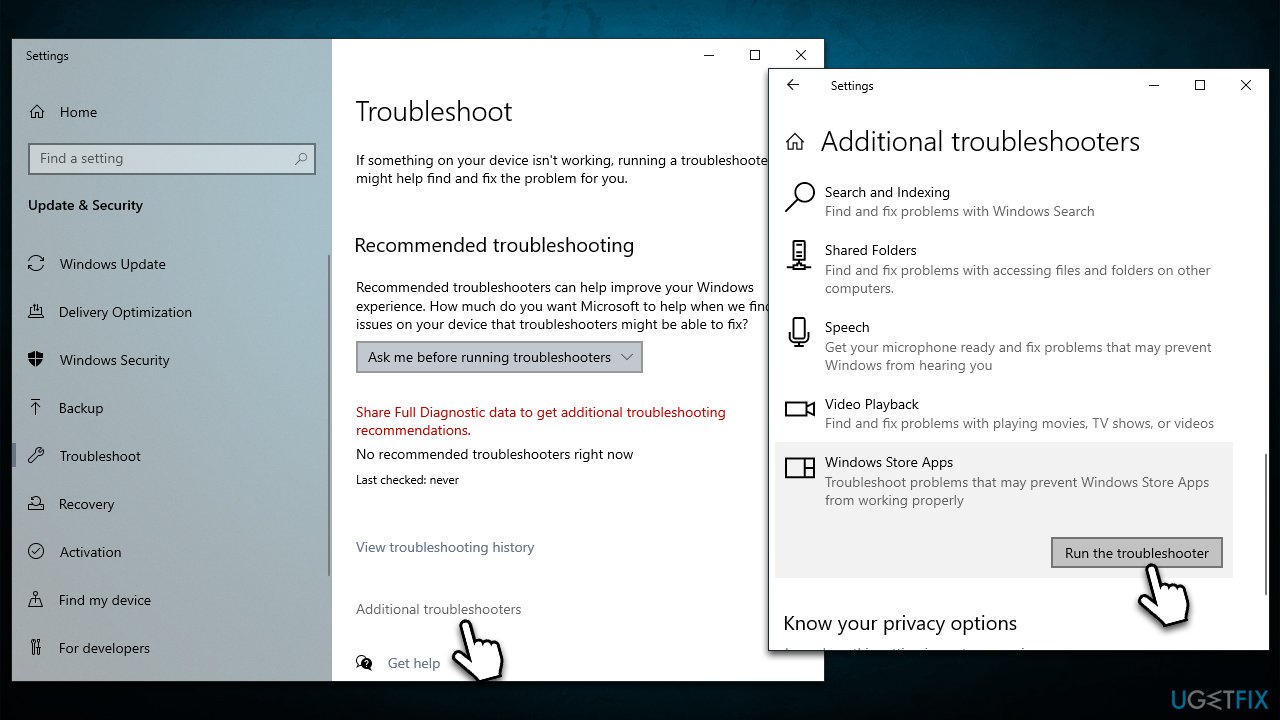
- Type in Troubleshoot in Windows search and hit Enter
- Click Additional troubleshooters
- Scroll down to the Windows Store Apps option and select it
- Click Run the troubleshooter and wait for the results
- Apply the suggestions and then reboot your PC.
3. Run SFC and DISM
System file corruption or damaged Windows image files can be fixed by running several commands in an elevated Command Prompt.
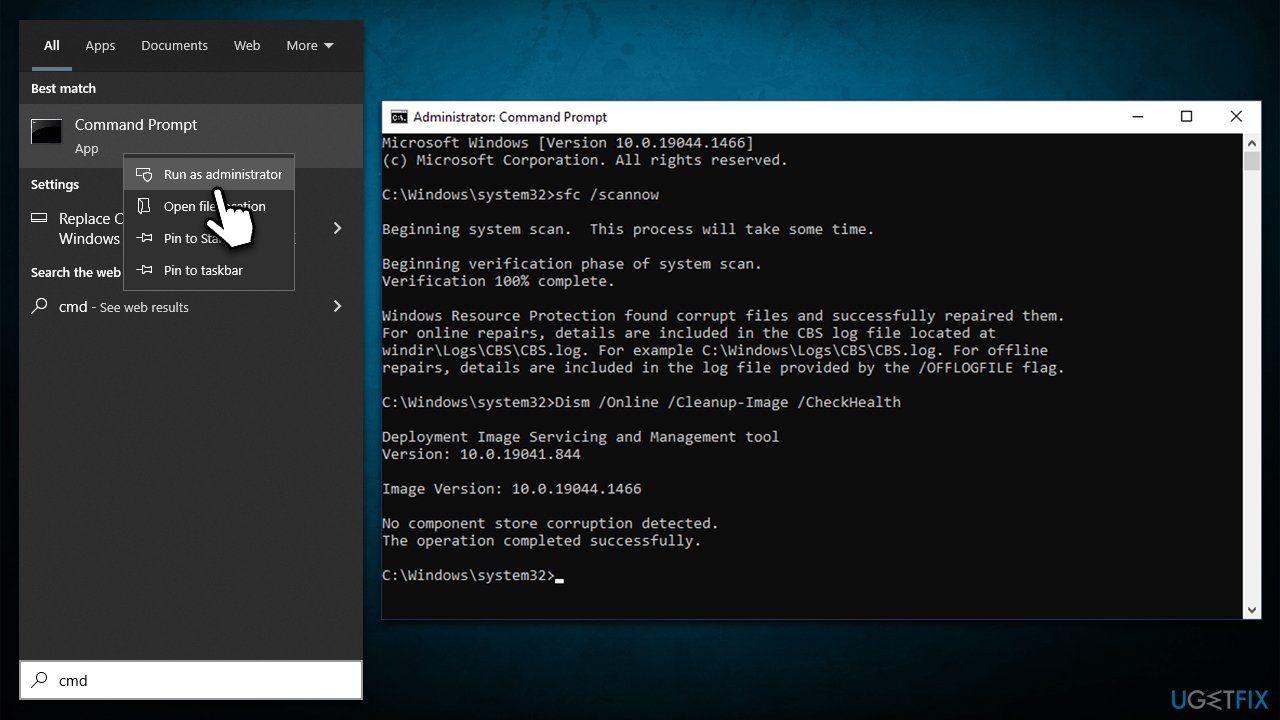
- Type cmd in Windows search
- Right-click on Command Prompt and select Run as administrator
- When User Account Control shows up, click Yes
- Paste the following command and press Enter:
sfc /scannow - Wait till the scan is finished and then run each of these commands next:
dism /online /cleanup-image /checkhealth
dism /online /cleanup-image /restorehealth - Restart your device.
4. Reinstall the affected program
If you are sure which app is causing the problem reinstalling, it may fix the Bcrypt.dll error.
- Right-click Start and pick Apps & Features
- Scroll down to find the app in question
- Select Uninstall > Uninstall
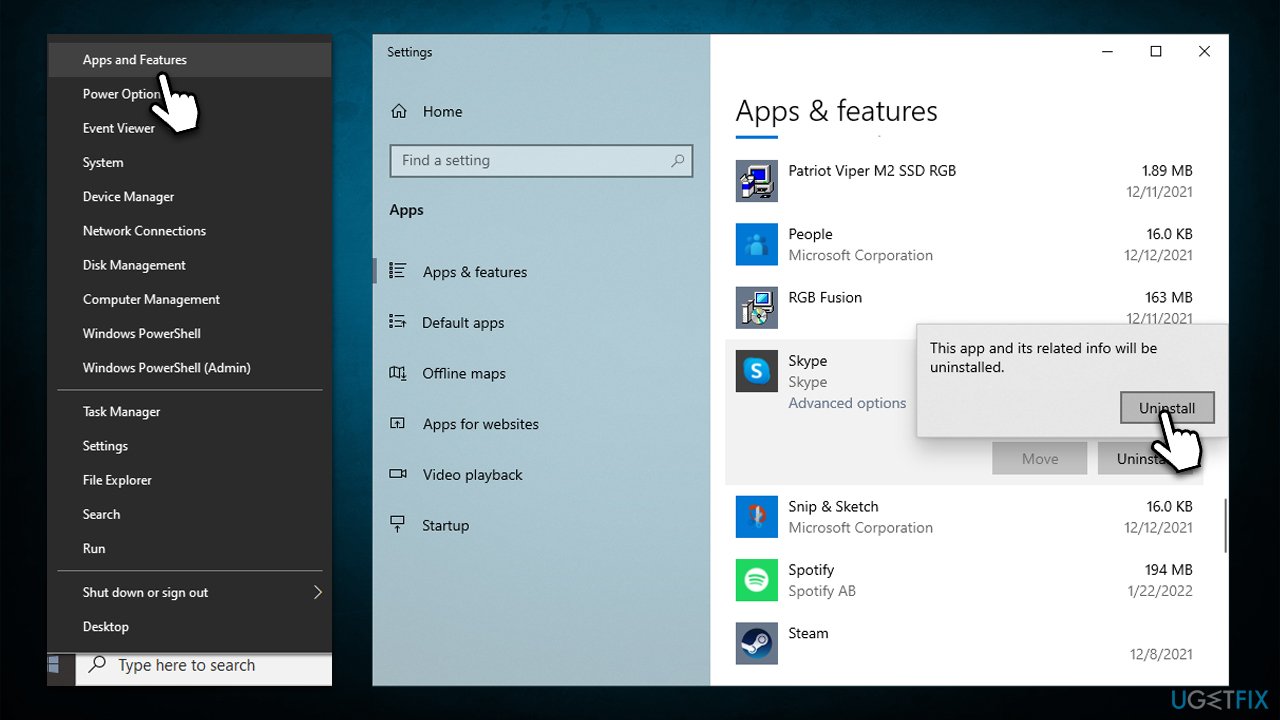
- Follow on-screen instructions to remove the program
- Restart the PC and reinstall it.
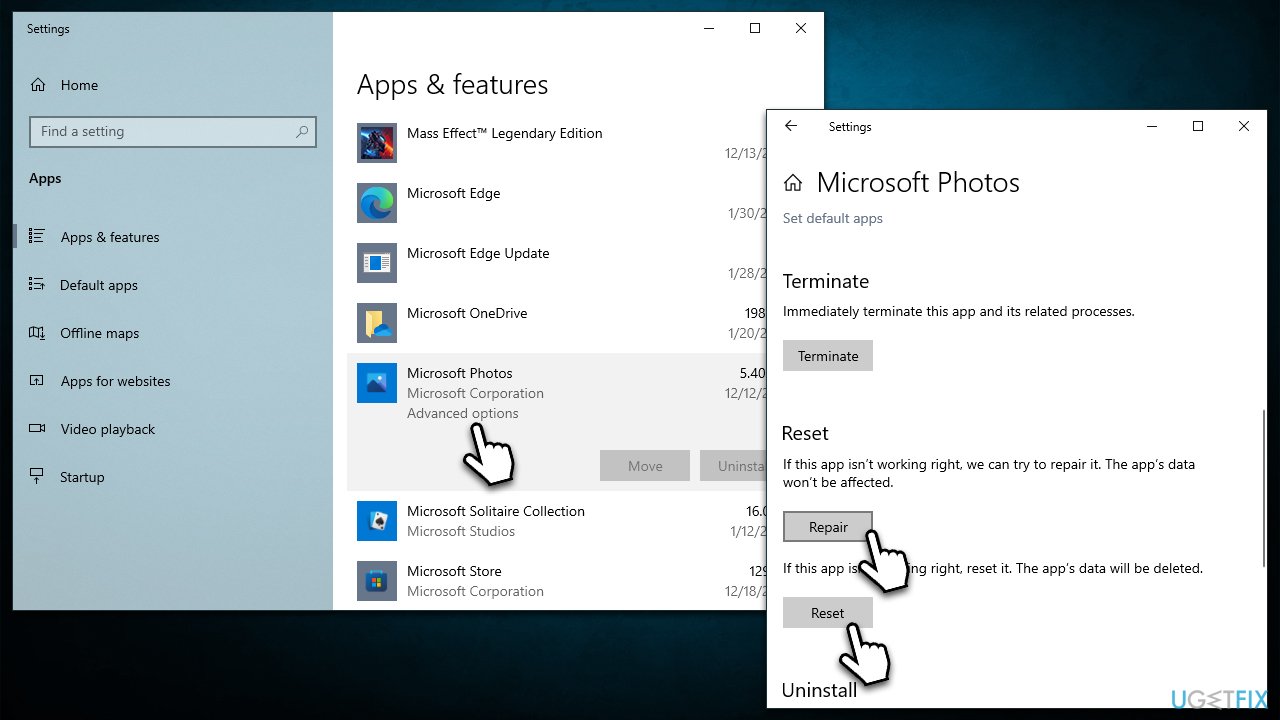
If you are having troubles with the built-in Windows app, you can instead go to Advanced options and try to Repair or Reset it instead.
5. Use Media Creation Tool
In some cases, missing DLL files can't be repaired in any way, hence you can reinstall Windows without losing files (although we still recommend creating backups). Also, disconnect any external devices such as printers or cameras.
- Visit the official Microsoft website and download Windows 10 installation media (Windows 11 version)
- Double-click the installer and select Yes when UAC shows up
- Agree to terms
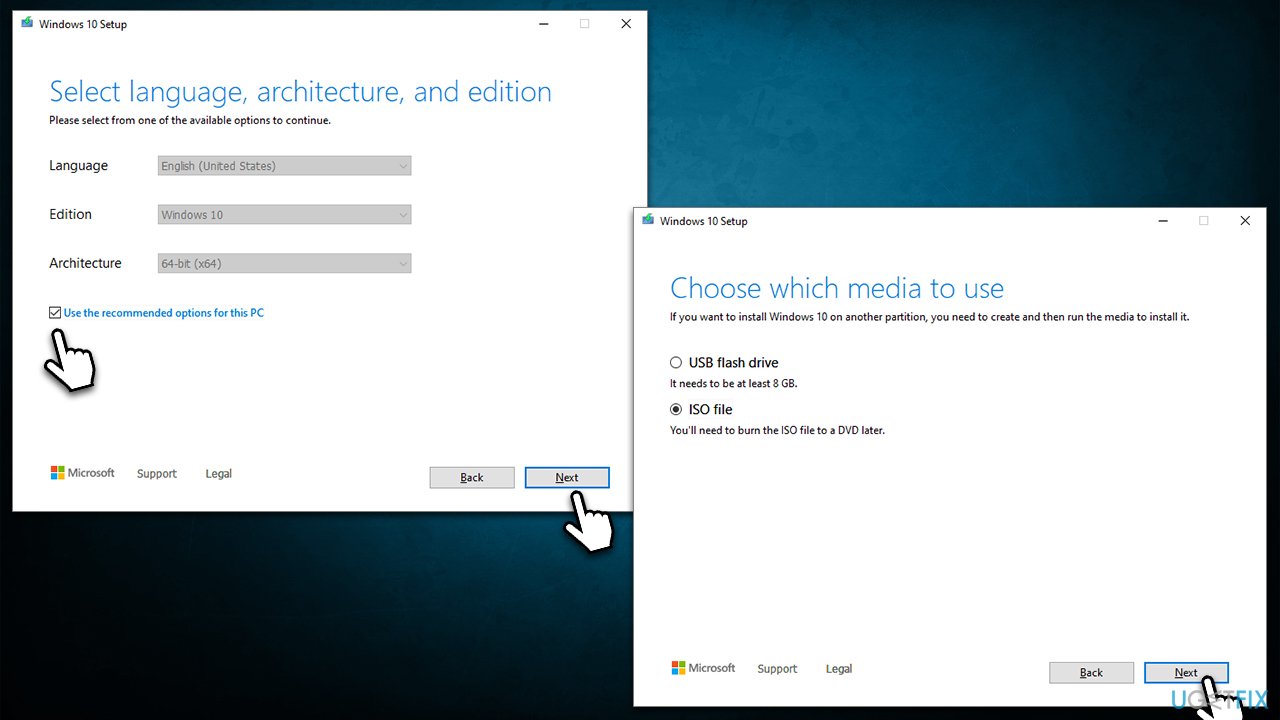
- Pick Create installation media (USB flash drive, DVD or ISO file) for another PC option and click Next
- Select the Use Recommended options for this PC checkbox and click Next
- Choose ISO file and click Next
- Once you have prepared the ISO, put it into the malfunctioning PC
- Restart your machine and rapidly press F8, F10, F12, Del, or another button that would let you load into BIOS
- Here, go to the Boot section and set the boot priority to Flash drive
- Restart your system and then proceed with on-screen instructions to reinstall Windows.
Other errors you might want to get familiar with:
Bottom line
To fix the Bcrypt.dll error, you can try using automatic repair software, reinstalling the affected application, or running system file checks. If none of these solutions work, consider seeking further assistance or reinstalling Windows.
Frequently asked questions
You can try restoring the Bcrypt.dll file from the Recycle Bin or running the System File Checker tool by executing 'sfc /scannow' in the Command Prompt to repair missing or corrupted system files.
You can download a clean version of Bcrypt.dll from a trusted source and place it in the C:\Windows\System32 directory, but ensure to back up the original file first if it exists.
Yes, make sure your Windows 10 or Windows 11 is up to date by checking for updates in the Settings app, as Microsoft often releases patches that can resolve such DLL issues.




Report an issue
What's wrong with this guide? We review every report and update or remove content.
Report received — thank you. We'll review and fix it.
You need a free account to submit a report.
Be the first to comment