How to fix
Faulty_Hardware_Corrupted_Page BSOD
on Windows
Resolve the Faulty_Hardware_Corrupted_Page BSOD in Windows 10 and 11 effortlessly. Follow expert-tested solutions for a quick fix! Fixed in minutes.

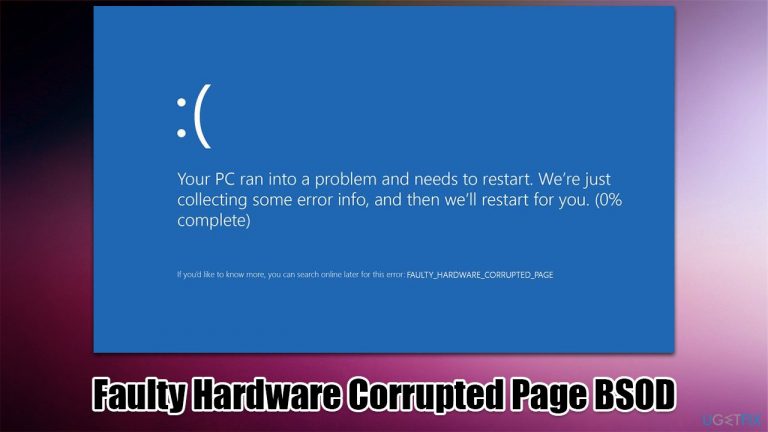
What causes How to fix Faulty_Hardware_Corrupted_Page BSOD in Windows?
- Corrupted memory
- Corrupted driver
- Outdated drivers
- Missing updates
- Hardware malfunction
Repairs Windows system files, removes malware, and restores a clean OS state — without reinstalling.
Hello. I was playing a video game and my PC suddenly rebooted with Faulty_Hardware_Corrupted_Page error. After a restart, I could proceed with my work but then the system crashed once again. It now became a recurring issue. Is there anything that could be done in order to fix this or is my hardware faulty? I have not changed any hardware recently.
Blue Screen of Death[ref en-3] errors can be extremely annoying considering which circumstances they appear in. In most cases, users are busy working, using the PC for entertainment, or playing a video game - all of which Windows abruptly stops and presents a message in the blue background, and then automatically restarts.
It is not a secret that users tend not to be fond of such unexpected behavior, as they can lose information or progress made within work files or games. However, despite the unpleasant experience, a BSOD is created by Windows in order to prevent damage that could be caused to it if no reboot would be initiated at that time.
Faulty_Hardware_Corrupted_Page Blue Screen is one of the stop errors which causes users' computers to crash. It has a bug check value of 0x12B, which indicates problems with system memory. Those who get the error for the first time might be seriously concerned, as many would automatically assume that some hardware component is broken.
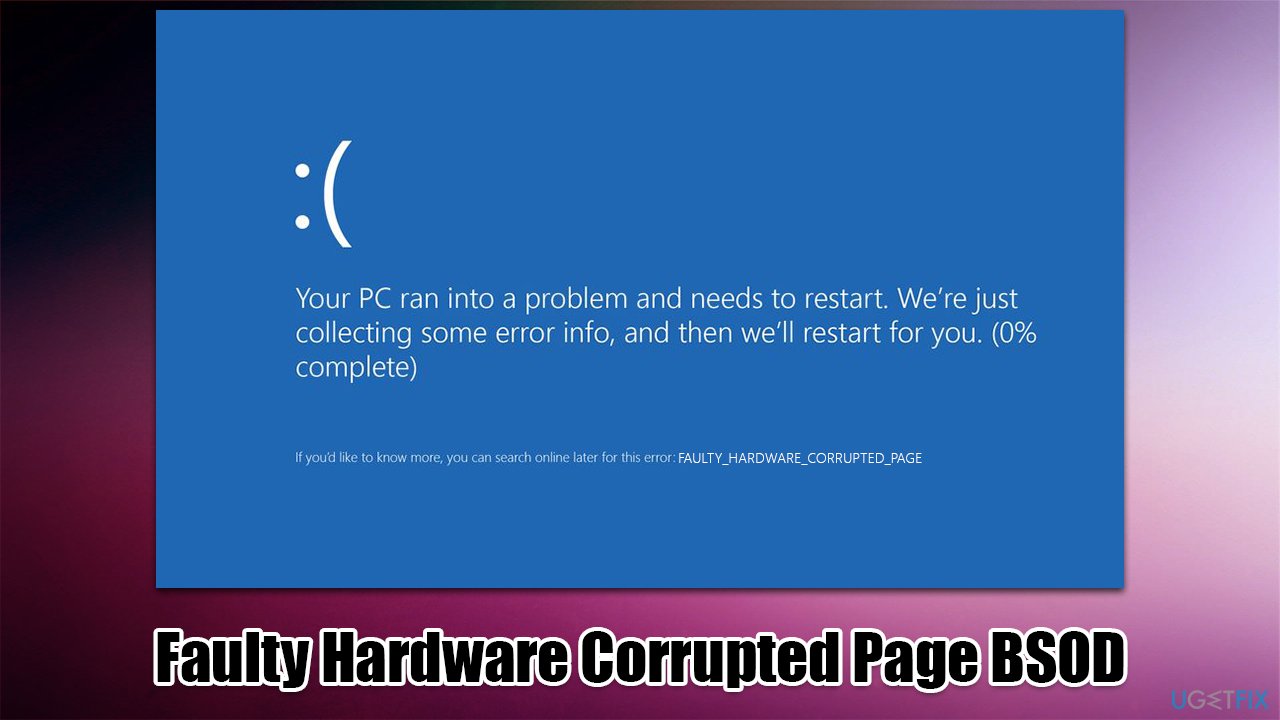
Luckily, it is not always the case, and, quite often, it is possible to fix Faulty_Hardware_Corrupted_Page BSOD by performing various troubleshooting steps. Corrupted memory does not automatically mean that the damage is permanent and can't be fixed. For example, a corrupted driver[ref en-2] might be causing this error as well, so reinstalling or updating it might be an easy solution.
Before you proceed, we recommend you try fixing the Faulty Hardware Corrupted Page error automatically with the help of the [d1] PC repair tool. The app can deal with various common Windows issues, including BSODs, DLL[ref en-1] errors, registry corruption, app crashes, and more.
Fix 1. Install all the available updates and drivers
First of all, you should make sure that all the available Windows updates are installed on your device.
- Type Updates in Windows search and press Enter
- In the Settings window, click Check for updates
- The mandatory updates will be installed automatically
- Next, to install optional updates, click Download and install
- Finally, click View all optional updates
- Tick all the available driver update boxes and install them all
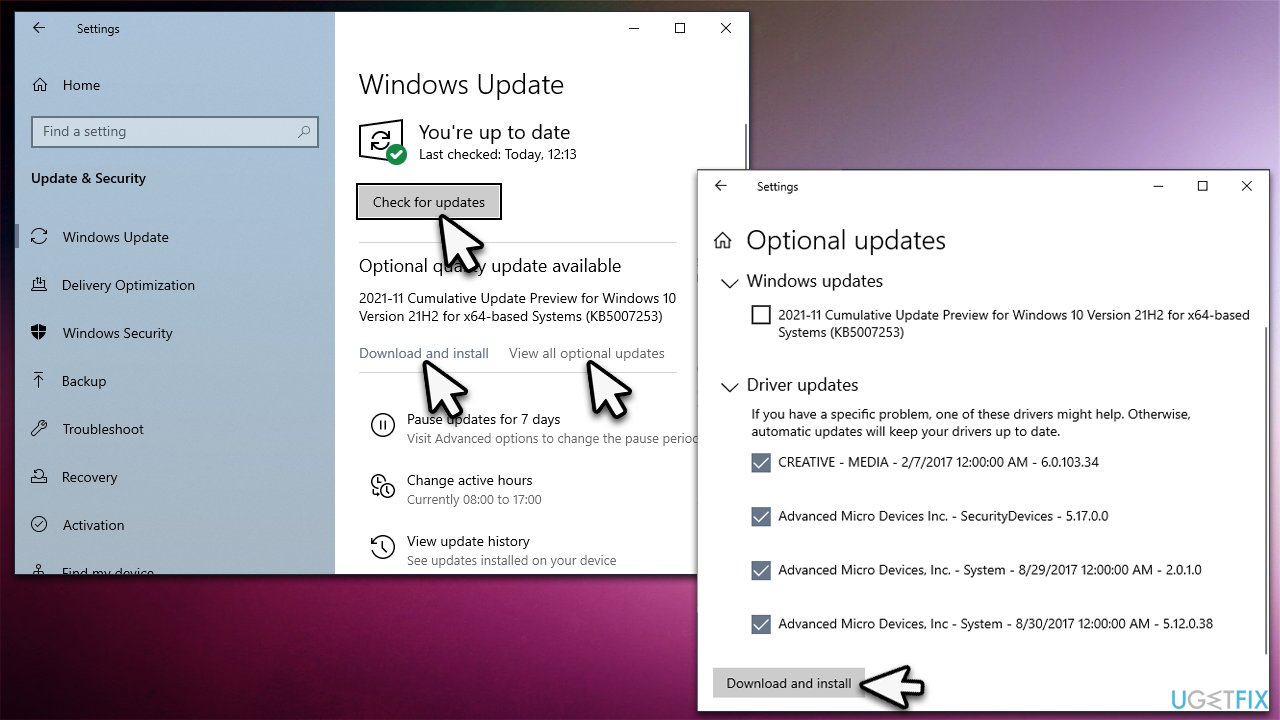
How to fix faulty hardware corrupted page bsod in windows install drivers and updates - Finally, restart your device.
Note: Windows might not always find the latest updates for all your hardware. Therefore, we recommend visiting the official website of the hardware manufacturer and downloading adequate drivers from there. If you want a problem-free solution, install [rev id="DriverFix"] and run a quick scan - it should fix all the driver problems automatically for you.
Fix 2. Run SFC and DISM
System file corruption is one of the main reasons for BSODs to occur. Try repairing them by running commands in elevated Command Prompt:
- Type cmd in Windows search
- Right-click on Command Prompt and select Run as administrator
- If the User Account Control window pops up, select Yes
- In Command Prompt, paste in the following command and press Enter:
sfc /scannow - Once the scan is complete, you should run the DISM scan that could find and repair Windows image errors:
dism /online /cleanup-image /checkhealth
dism /online /cleanup-image /restorehealth - After all these scans are complete, restart your PC.
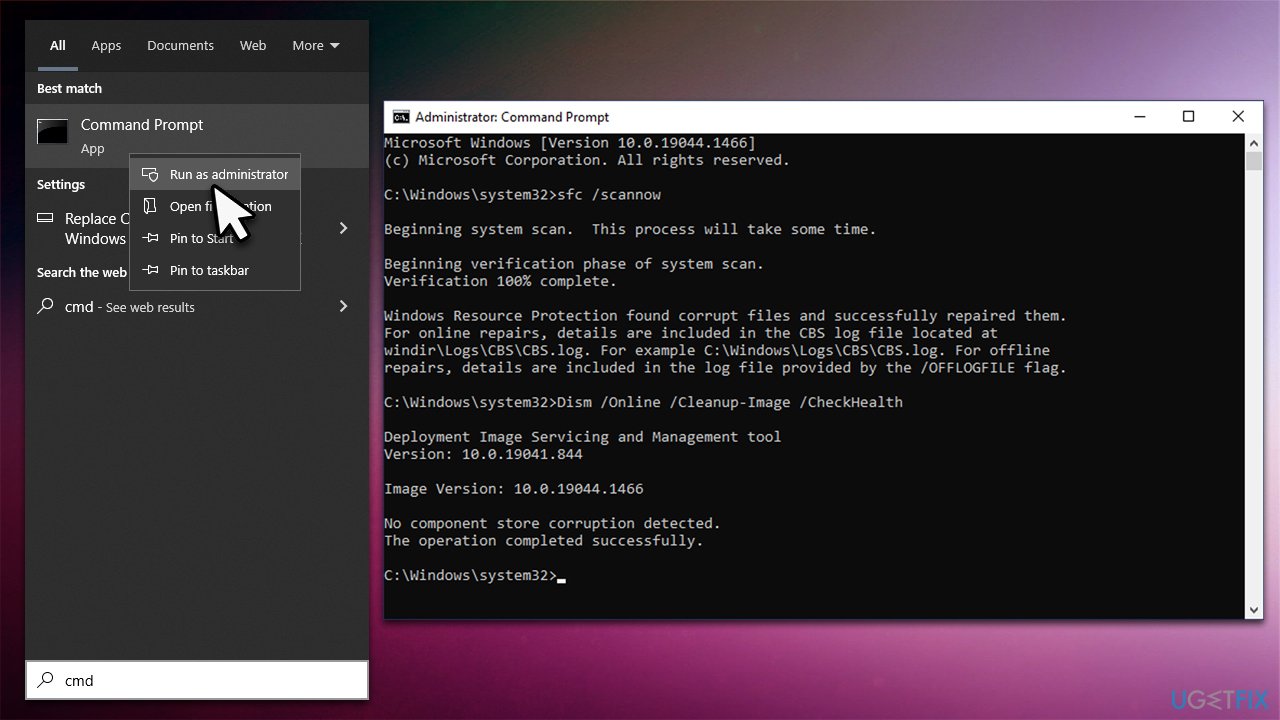
How to fix faulty hardware corrupted page bsod in windows run sfc dism
Fix 3. Disable Fast Startup
Fast Startup is an option that is enabled by default - it allows Windows to boot up quicker. However, it is also known to cause some issues to some users, so you should try disabling it:
- Type Control Panel in Windows search and hit Enter
- Select Small icons view and pick Power options
- On the left side of the window, select Choose what the power buttons do
- Pick the Change settings that are currently unavailable option at the top
- Remove the tick from the Turn on fast startup (recommended) option and select Save changes.
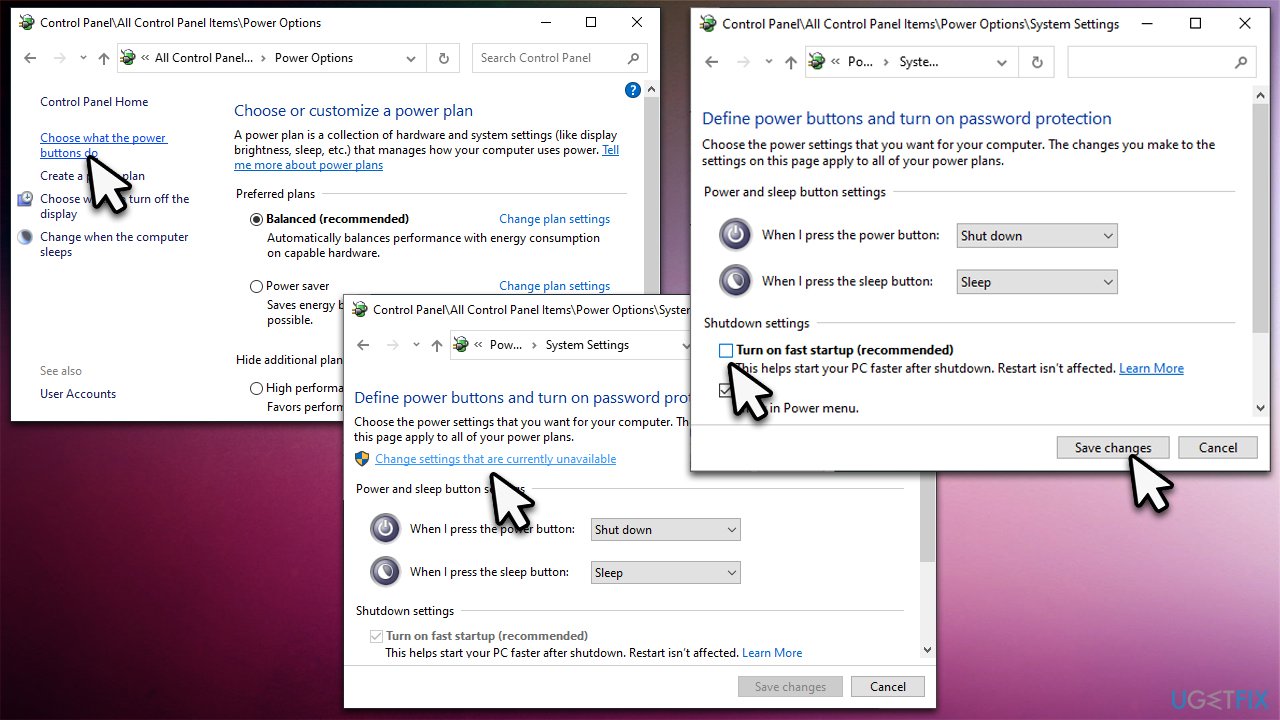
How to fix faulty hardware corrupted page bsod in windows disable fast startup
Fix 4. Run Windows Memory Diagnostic
As evident, this step can let you check for memory corruption.
- Type Memory in Windows search and hit Enter
- Pick Windows Memory Diagnostic result
- Select Restart now and check for problems (recommended)
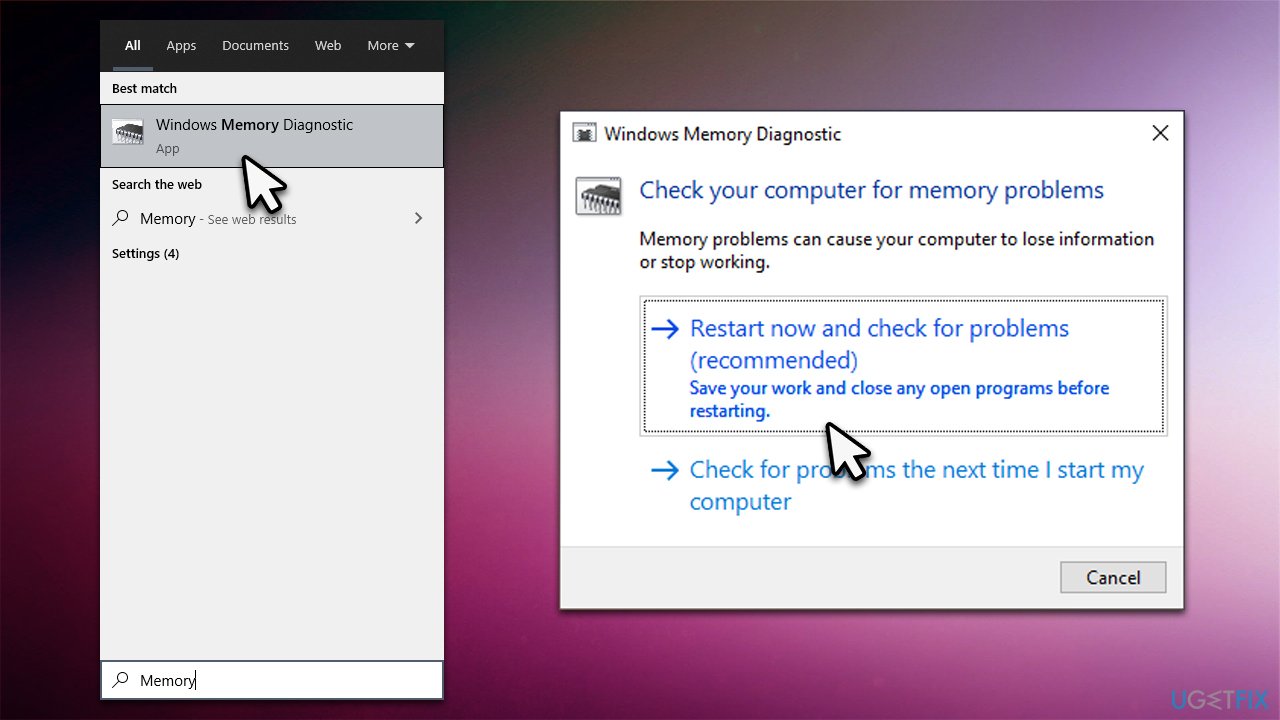
How to fix faulty hardware corrupted page bsod in windows windows memory diagnostic - Your PC will restart and the check will begin. Keep in mind that this might take a while, so be patient. The results will be displayed after the computer is booted.
Fix 5. Reset Windows
In some cases, BSODs can be only fixed with the help of Windows reinstallation. It is now very easy to do – all you have to do is follow the instructions. Before you proceed, make sure you backup all your personal files (although you will have an option to keep your files), and all external devices are disconnected apart from your keyboard and mouse.
- Right-click on Start and pick Settings
- Go to the Update & Security section and select Recovery
- Under Reset this PC, click on Get Started
- Select Keep my files and Cloud download
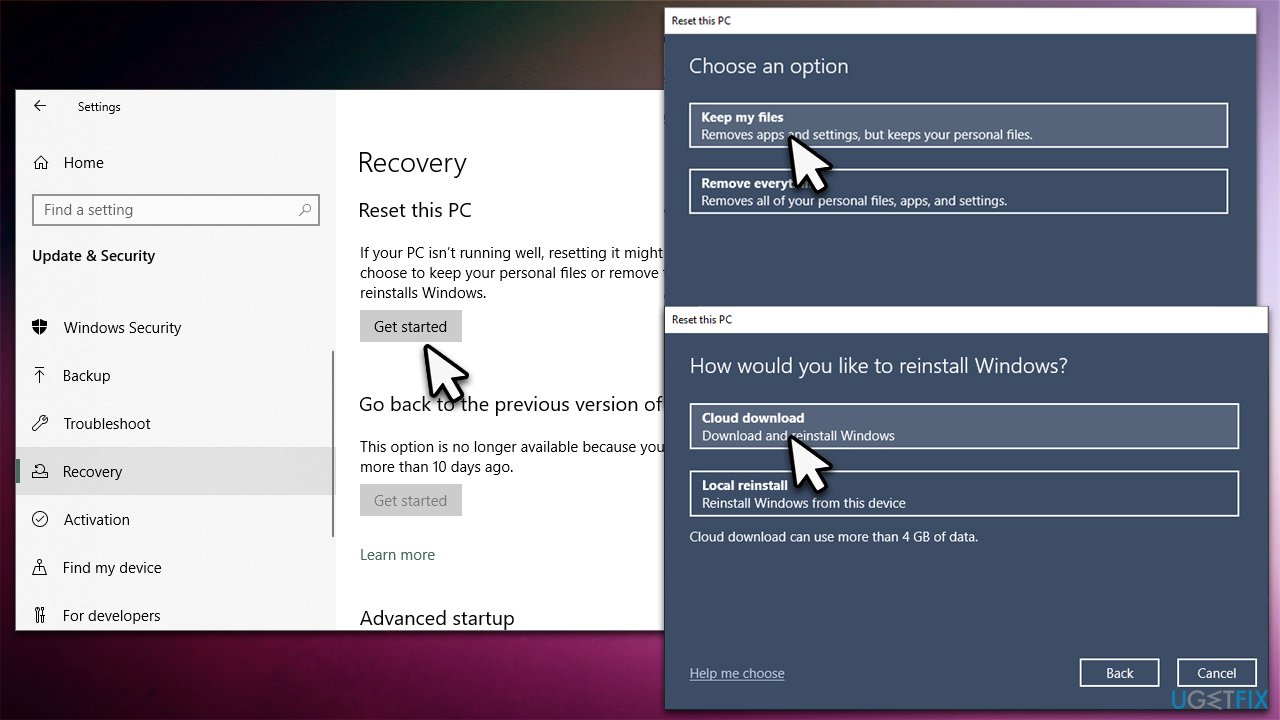
How to fix faulty hardware corrupted page bsod in windows reset windows - Click Next in the next prompt
- Finally, click Reset.
Similar BSOD errors we discussed previously:
Bottom line
To fix the Faulty_Hardware_Corrupted_Page BSOD, you can install all available updates and drivers, and consider reinstalling or updating corrupted drivers. If these steps do not resolve the issue, it may be necessary to use a PC repair tool or further diagnose potential hardware problems.
Frequently asked questions
This BSOD error usually indicates issues with hardware components, such as faulty RAM or a malfunctioning hard drive, or it can be triggered by corrupted system files.
You can start by running a memory diagnostic tool and checking for disk errors using the CHKDSK command to identify any underlying hardware issues.
Yes, you can try performing a system restore to revert your system to a previous state or use the SFC /scannow command to repair corrupted system files.




Report an issue
What's wrong with this guide? We review every report and update or remove content.
Report received — thank you. We'll review and fix it.
You need a free account to submit a report.
Be the first to comment