How to fix
ERR_CACHE_MISS error
on Windows
Fix the ERR_CACHE_MISS error on Windows 10 or 11 with expert-tested solutions. Resolve issues quickly and efficiently, ensuring smooth browsing.

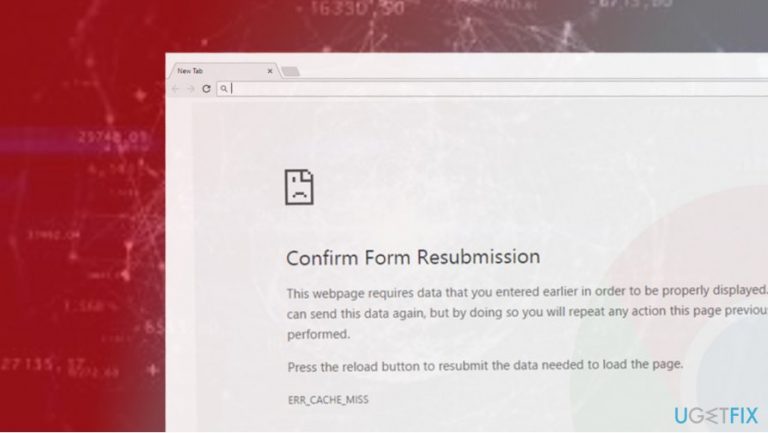
What causes How to fix ERR_CACHE_MISS error?
- Faulty settings and configurations
- Browser’s cache issues
- Inappropriate extensions
- Need for repeated data submission
- Browser crashes or unresponsiveness
Repairs Windows system files, removes malware, and restores a clean OS state — without reinstalling.
Hi, guys. When I‘m browsing the net, some of the websites I try visiting return an error ERR_CACHE_MISS. It does not tell much about the problem, so I don’t know what I can do to fix it.
ERR_CACHE_MISS error means that the site you are visiting requires particularly submission of data to proceed. You might already do so, but the site requires that again. However, when the error keeps repeating, it can mean there are problems with the web browser used. Cache issues or incorrect configurations might trigger the resubmission problem.
It is known that ERR_CACHE_MISS is a Google Chrome-specific error that might be encountered at any time when trying to reach a particular website by entering the URL or after clicking on a link within a website. As the error is tied to the browser more than the operating system, it can occur on all versions of Windows, as well as other platforms, such as macOS. Chrome can display various issues that even trigger browser crashes or unresponsiveness. It is a popular application, so users often report errors and asks for solutions.
ERR_CACHE_MISS error occurs due to faulty settings and configurations, browser’s cache,[ref en-1] inappropriate extensions, and similar problems. So there are a few steps that can be made to fix the problem. The description of the error mentions “Confirm Form Resubmission,” which means that the website that the user opts for visiting requires a repeated data submission.
In most cases, the ERR_CACHE_MISS error disappears after restarting the browser or updating it to the latest version available. If, however, that did not help in your case, you may need to perform a couple of fixes, including:
- removing the browser’s cache,
- history,
- resetting its default settings,
- or resetting network settings.
You’ll be able to find the instructions on how to fix ERR_CACHE_MISS error down below. However, since each computer's configuration is different, distinctive solutions would work for different cases, so start from the top and continue until you find what works for you.
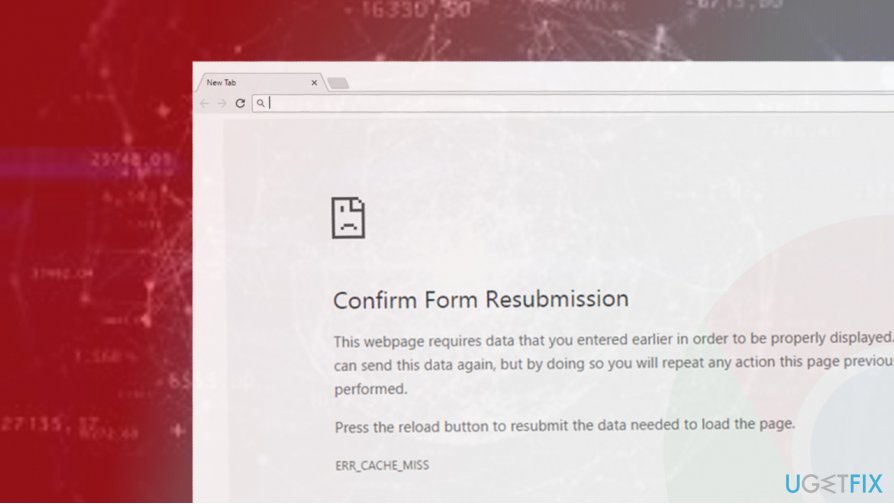
If, after all, you cannot fix the ERR_CACHE_MISS error, try running Internet Connections Troubleshooter[ref en-2] and check if the system detects any issues. If nothing helps, the problem may be originating from the website’s server end. In this case, the website’s administrator is the only person available to fix the problem, so you’ll have to wait - simply attempt to visit the website later.
This ERR_CACHE_MISS error is just one of many that the users can encounter while browsing the web on Google Chrome. For example, Your Connection is Not Private, ERR_NAME_NOT_RESOLVED, ERR_CONNECTION_TIMED_OUT, or ERR_NAME_RESOLUTION_FAILED are just a few issues that they might come across.
How to fix ERR_CACHE_MISS error
More often than not, the ERR_CACHE_MISS error is triggered by a faulty web browser’s settings or configurations. However, cybercriminals keep inventing various strategies to trick people and turn their PCs unusable. Therefore, the emergence of any error, be it system or browser related, should be immediately followed by a full system scan with a professional anti-malware.[ref en-3]
If a scan solved nothing, you could also try using [d1] - this tool can automatically repair various system components in case errors or crashes occur. This way, you can fix issues in the system and focus on a particular browser problem. Finally, you can refer to the ERR_CACHE_MISS error fix below - we start from the easiest ones and then proceed with a bit more complicated solutions. Do not skip, and make sure to try at least a few.
Clear Browsing Data
If you haven’t cleared browsing data for ages, some of the files on it may be corrupt. The only way to check that is to clear browsing data completely. If you don’t want to lose saved passwords and other personalized data, select the Basic data clearing option:
- Open Google Chrome and click on More icon (three vertical dots at the top-right corner of the window).
- Select Settings
- Under Privacy and Security section, find Clear browsing data option and click it.
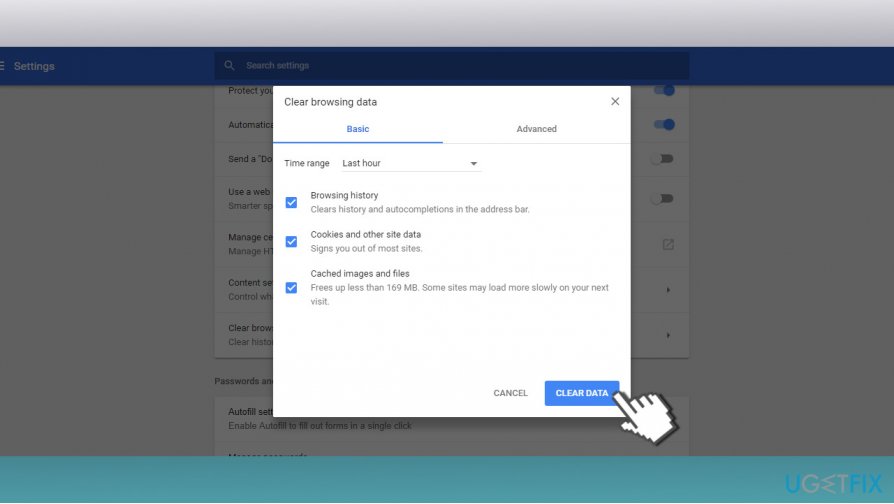
Clear browsing data - You should see a box where three options are marked by default – Browsing history, Cookies and other site data, and Cached images and files. Do not unmark any of them because such data needs to be cleared (Ensure that Time range is set to All time).
- Once done, restart Google Chrome and check if the error persists.
Disable suspicious web browser’s extensions
If the ERR_CACHE_MISS error started soon after the installation of a free app, chances are that you’ve installed a potentially unwanted program (PUP) and allowed installation of third-party browser extensions. The latter may cause various browser’s problems, including err cache miss bug.
- Open Google Chrome and type chrome://extensions in the address bar.
- Alternatively, you can click on More button (three vertical dots), click on More tools option, and select Extensions.
- Carefully check the list of enabled extensions and remove the ones that you are not familiar with.
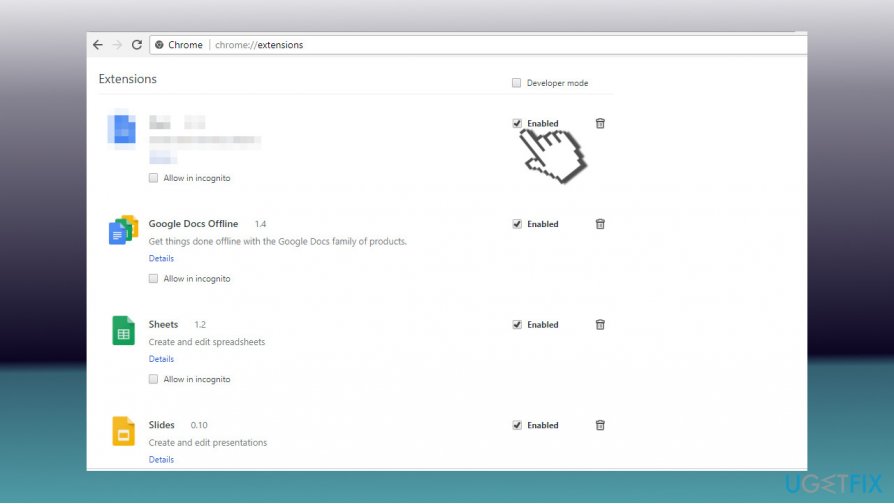
Disable extensions - For this purpose, Click on the Remove button next to the add-on you want to get rid of.
- Restart the browser.
Reset Google Chrome to fix ERR_CACHE_MISS error
IMPORTANT: by resetting your web browser, you’ll lose all saved configurations, bookmarks, saved passwords, autofill forms, and similar information. Therefore, save everything that is needed and only then perform these steps:
- Open Google Chrome, enter chrome://settings in the address bar, and press Enter.
- Scroll down to the bottom and click Advanced.
- At the very bottom of the window you’ll find a Reset button.
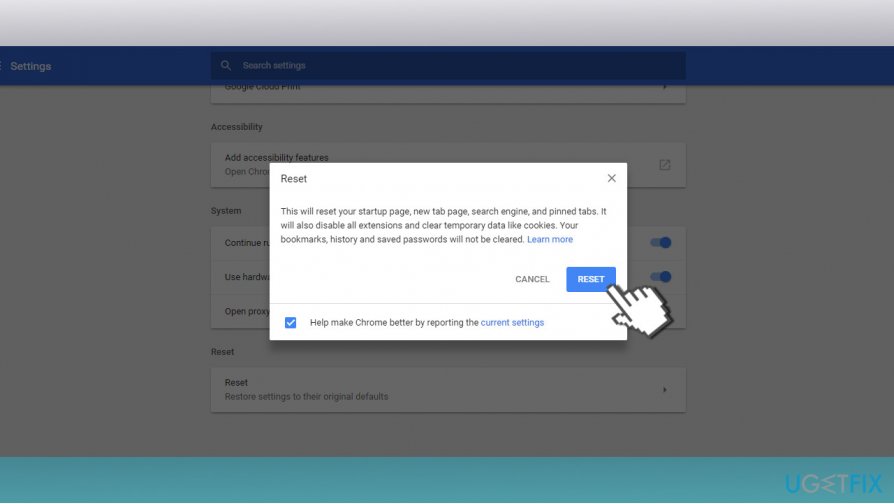
Reset google chrome - Click on it and then click Reset again to confirm.
Turn off cache system
Note that this solution will work only when in Developer Mode. Once you quit it, the cache system will be automatically enabled. Thus, once you disable it, check if the error disappears.
- Press Ctrl + Shift + I and press F1 to open Settings in Developer Mode.
- Locate Network option and mark the Disable cache (while DevTools is open) check box.
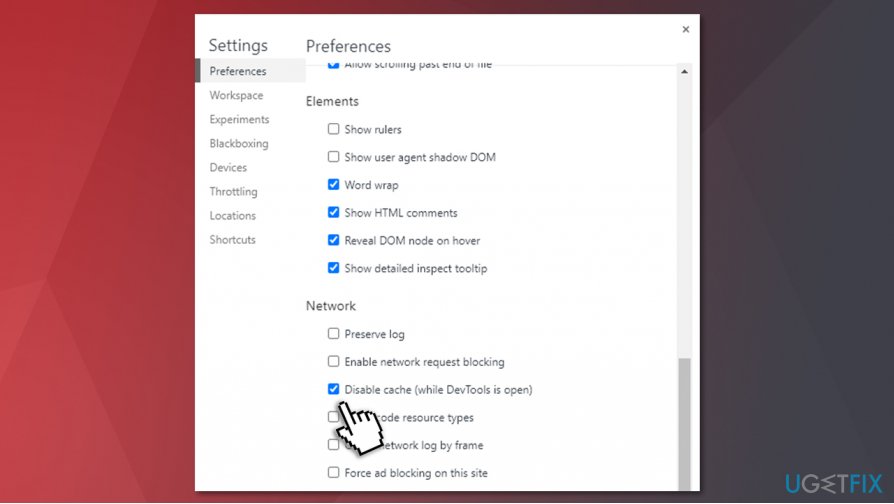
Err cache miss error fix disable cache - Now refresh the website that returns the ERR_CACHE_MISS error.
Reset Network Settings
If none of the previous fixes helped to fix the problem, try resetting network settings. That’s the last method applicable for this problem, so if it won’t work either, we would recommend contacting website’s administrator and inform him about the problem.
- Right-click on Windows key and select Command Prompt (Admin).
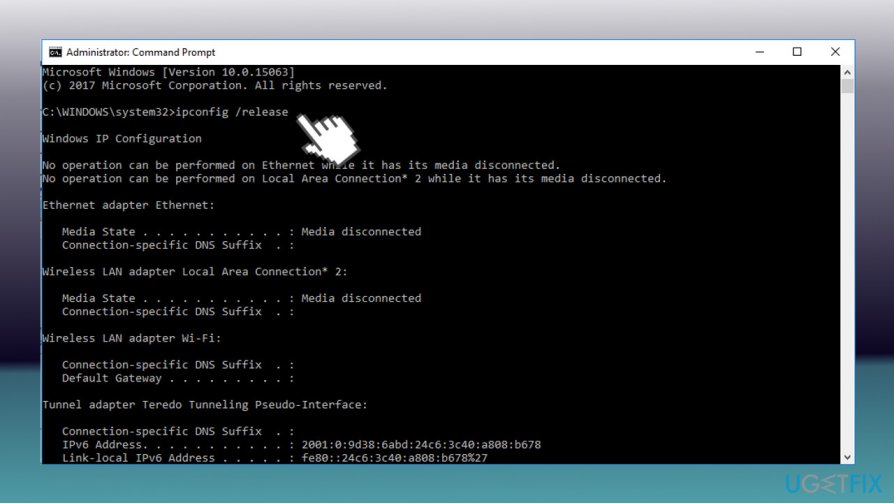
Reset network settings - Copy and paste the following commands in the Command Prompt window and press Enter after each:
ipconfig /release
ipconfig /all
ipconfig /flushdns
ipconfig /renew
netsh int ip set dns
netsh winsock reset
Ensure LAN settings are set to automatic and fix ERR_CACHE_MISS error
If you previously used a proxy and forgot about it, your internet might not work correctly. Here's how to set your LAN settings to be detected automatically:
- In Windows search, type in inetcpl.cpl and hit Enter.
- Go to Connections tab.
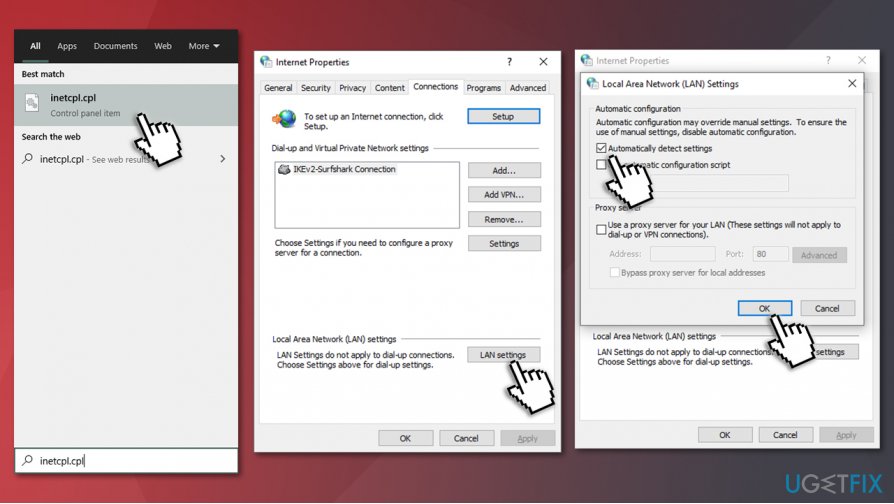
Err cache miss error fix set lan settings to automatic - Click LAN settings at the bottom of the tab.
- In the new window, tick the Automatically detect settings and press OK.
Change your DNS settings
DNS is usually provided by your ISP. In some cases, your provider might block some content on the internet through these settings. Besides, a certain potentially unwanted programs are known to change DNS settings without permission to hijack users' searchers and insert ads everywhere. Therefore, we advise using Google's provided DNS server - here's how to change it:
- Right-click on Start and pick Network Connections.
- Scroll down and select Change adapter options.
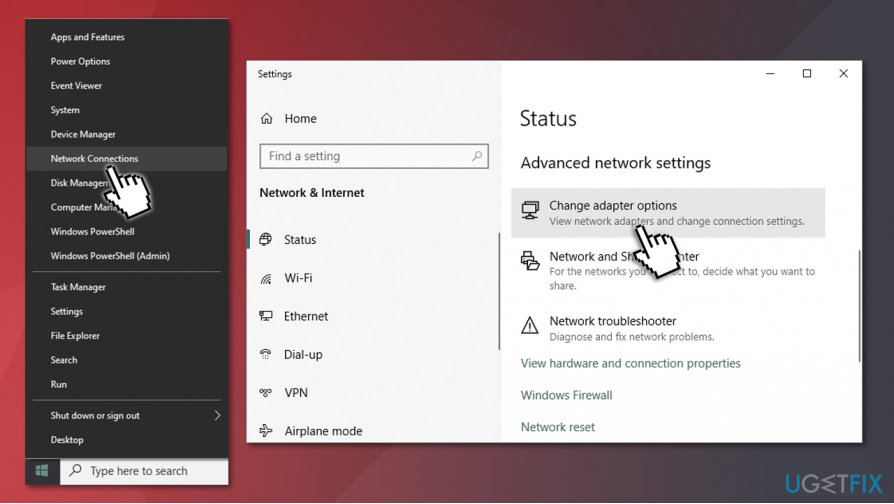
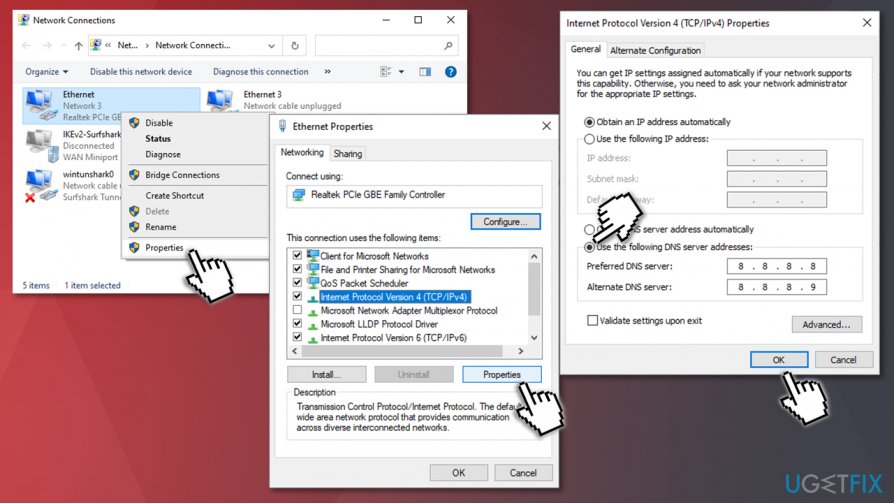
Err cache miss error fix change adapter options - Select your connection (for example, Ethernet), right-click and pick Properties.
- Click on Internet Protocol Version 4 (TCP/IPv4) once and then click on Properties.
- In the new window, select Use the following DNS server address: option and type in the following numbers:
Preferred DNS server: 8.8.8.8
Alternate DNS server: 8.8.8.9
Bottom line
To fix the ERR_CACHE_MISS error, you can try restarting the browser, updating it to the latest version, removing the browser’s cache and history, resetting its default settings, or resetting network settings. If none of these solutions work, consider running the Internet Connections Troubleshooter.
Frequently asked questions
The ERR_CACHE_MISS error typically occurs due to issues with the browser cache, corrupt cookies, or misconfigured settings in your web browser on Windows 10 or Windows 11.
To clear the cache in Google Chrome, go to Settings > Privacy and security > Clear browsing data, then select 'Cached images and files' and click 'Clear data' on your Windows 10 or Windows 11 device.
Yes, you can try restarting your Windows 10 or Windows 11 computer or using a different web browser to see if the issue persists, which can help identify if it's a browser-specific problem.




Report an issue
What's wrong with this guide? We review every report and update or remove content.
Report received — thank you. We'll review and fix it.
You need a free account to submit a report.
Be the first to comment