
[Fix] 22H2 Windows 11 update fails with error 0x8007001F-0x3000D

Prefer to fix it yourself? The manual steps follow.
- 8methods
- 15 minutes to 2 hours
- Advanced
Applies to Feature upgrades to Windows 11 (the 22H2 update in the reader's case, and 23H2 to 26H2 today) through Windows Update, the Installation Assistant or setup.exe from an ISO
8 methods in this guide
Hello. I tried to install the 22H2 Windows 11 update, but I received the 0x8007001F-0x3000D error. What should I do?
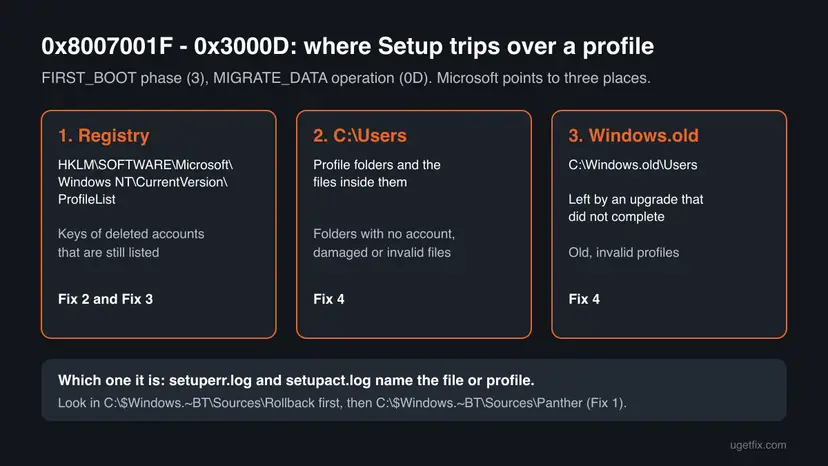
Error 0x8007001F - 0x3000D means Windows Setup restarted into the new Windows 11, failed while moving your accounts and files across, and rolled back. Microsoft ties it to invalid user profiles: leftover registry entries, broken folders in C:\Users or old profiles in Windows.old. Start by reading the setup log, which names the profile or file.
Microsoft lists 0x8007001F - 0x3000D as a failure in the FIRST_BOOT phase during the MIGRATE_DATA operation, usually caused by an invalid user profile. Find the profile or file named in setuperr.log (Fix 1). Then remove accounts nobody uses (Fix 2), leftover keys under ProfileList in the registry (Fix 3) and orphaned folders in C:\Users or Windows.old\Users (Fix 4). Your files are not lost by the rollback.
| Error | 0x8007001F - 0x3000D: "The installation failed in the FIRST_BOOT phase with an error during MIGRATE_DATA operation." |
|---|---|
| Where it appears | After the first restart of a Windows 11 feature update. Setup rolls back and shows the code when your old Windows starts again. |
| Main cause | An invalid user profile: a deleted account still listed under ProfileList in the registry, or invalid files in C:\Users or C:\Windows.old\Users. |
| Fastest fix | Read the profile or file named next to 8007001F in setuperr.log (Fix 1), then remove that profile (Fix 2 to Fix 4). |
| Also written as | 0x8007001F-0x3000D, 0x8007001F 0x3000D, 8007001F - 0x3000D, or only 0x3000D. |
| Close relatives | 0x8007001F - 0x2000D and 0x8007001F - 0x4000D fail at the same data migration step in another phase. 0xC1900101 - 0x3000D is a display driver problem (see the FAQ). |
| Affects | Windows 11 feature updates, first reported with 22H2 and still seen with later versions. Upgrades from Windows 10 22H2 too; Windows 10 left support on 14 October 2025. |
| Microsoft's status | Not a bug in one update. Microsoft documents this exact code pair and says to analyze the log files and delete the invalid files or profiles they name. |
| Time to fix | 15 to 30 minutes for Fix 1 to Fix 4, plus one to two hours for the next upgrade attempt. |
Facts checked on 16 October 2026. Steps written for Checked against Microsoft's upgrade documentation for feature upgrades to Windows 11 25H2 and 26H2, started from Windows 10 22H2 or an older Windows 11 version such as 22H2.
What error 0x8007001F - 0x3000D means
Windows Setup reports a failed feature update with two codes. The first, the result code, says what failed. The second, the extend code, says in which phase and during which operation. When the 22H2 update, or any later Windows 11 version, stops with this pair, the rollback screen reads:
0x8007001F - 0x3000D. The installation failed in the FIRST_BOOT phase with an error during MIGRATE_DATA operation
| Part | Microsoft's meaning | What it means for you |
|---|---|---|
| 0x8007001F | The 8007 marks a Win32 error. 001F is error 31, ERROR_GEN_FAILURE: "A device attached to the system is not functioning." | A general failure. In this upgrade step Microsoft links it to user profiles, not to a broken device. |
| 0x3000D, first digit 3 | Phase 3 is SP_EXECUTION_FIRST_BOOT. | The PC had already restarted into the new Windows 11 for the first time. |
| 0x3000D, last digits 0D | Operation 0D is SP_EXECUTION_OP_MIGRATE_DATA. | Setup was carrying accounts, files and settings from the old Windows into the new one. |
Error 31 reads like a hardware fault, but Microsoft's own entry for 8007001F - 0x3000D names user profiles as the problem. Treat devices and drivers as a later check (Fix 5), not as the first suspect.
Why the Windows 11 update fails with 0x8007001F - 0x3000D
Setup migrates every profile it finds, not only the one you use. If one of them is broken, the whole migration stops and Setup restores your old Windows. Microsoft names the first three causes below for this exact code. The rest are less common and are ranked by how close they come to a data migration failure.
| Cause | How often | How to tell | Fix |
|---|---|---|---|
An account was deleted, but its profile is still listed in the registry under ProfileList. | Most often (Microsoft) | The log names a SID or a profile path that has no folder in C:\Users, or User Profiles shows Account Unknown. | Fix 1, Fix 2, Fix 3 |
Invalid files or orphaned folders in C:\Users. | Often (Microsoft) | Folders for people who no longer have an account, or a file in a user folder named in the log. | Fix 4 |
Old profiles in C:\Windows.old\Users from an upgrade that did not finish. | Often after an earlier failure (Microsoft) | A Windows.old folder exists on drive C. | Fix 4 |
| A device or its driver fails in the first boot of the new Windows. | Less often | The log mentions a driver, or extra USB devices were plugged in. | Fix 5 |
| Half-written files from earlier attempts, or too little free space. | Less often | Several attempts have failed, or drive C is nearly full. | Fix 6 |
| File system errors or damaged system files. | Rarely | CHKDSK or SFC finds errors, or other updates fail too. | Fix 7 |
How to fix Windows 11 update error 0x8007001F - 0x3000D
Fix 1 reads which profile or file stopped the migration. Fix 2 to Fix 4 remove the invalid profiles Microsoft names for this code, from the safest place to the most direct. Fix 5 to Fix 7 cover the less common causes. Fix 8 installs Windows without migrating any data, for when nothing else works.
| What you see or have | Start with |
|---|---|
You can open the setup log and it names a profile, SID or file near 8007001F. | Fix 1, then the fix for that item |
| The PC once had other accounts, or User Profiles lists Account Unknown. | Fix 2 |
ProfileList in the registry holds keys for accounts that no longer exist. | Fix 3 |
C:\Users holds folders with no account, or C:\Windows.old exists. | Fix 4 |
| USB drives, docks, card readers or other extra devices are plugged in. | Fix 5 |
| Several attempts have failed, or drive C is nearly full. | Fix 6 |
| CHKDSK, SFC or other updates report errors. | Fix 7 |
| Fix 1 to Fix 7 are done and the update still rolls back. | Fix 8 |
Fix 1. Find the profile or file that stopped the migration in setuperr.log
10 minutesNo riskEveryone, right after the rollback, before the next attempt overwrites the logs.
Microsoft says the specific files and profiles that cause 0x8007001F - 0x3000D are recorded in the Windows Setup log files. Reading them tells you which account or folder to fix instead of trying everything.
- Press Win + R, type
C:\$Windows.~BT\Sources\Rollbackand press Enter. Select Continue if Windows asks for permission. If the folder is missing, useC:\$Windows.~BT\Sources\Pantherinstead. - Copy
setuperr.logandsetupact.logto your Desktop, so a cleanup or the next attempt does not remove them. - Open the copy of
setuperr.login Notepad and press Ctrl + End to jump to the last line. - Press Ctrl + F, type
8007001F, select Up and then Find Next to reach the last time the code appears. - Read the lines just above it. Lines marked MIG come from the migration engine. Look for a profile path under
C:\Users, a SID that starts withS-1-5-21, or a file path. - Search the same file for
Abandoning apply due to error for object. The object named on that line is often the item that failed. - Note the time stamp of those lines and look at
setupact.logaround the same time for more detail.
A SID or an account you no longer use goes to Fix 2 or Fix 3. A folder or file under C:\Users or Windows.old goes to Fix 4. A driver or device name goes to Fix 5.
It worked if: You have a profile name, a SID or a file path from the log, and you know which of Fix 2 to Fix 5 it belongs to.
If not: If both folders are gone or the log names nothing useful, work through Fix 2 to Fix 4 in order: they cover Microsoft's causes for this code.
Fix 2. Delete accounts nobody uses and profiles listed as Account Unknown
10 minutesRead the warningThe PC was shared, came from a previous owner or a workplace, or Fix 1 named a profile that is not yours.
Microsoft says to make sure deleted accounts are not still present on the PC. The User Profiles dialog removes the registry entry and the folder together, which is the cleanest way to take a dead profile out of the migration.
Deleting an account or a profile also deletes its Desktop, Documents, Pictures and other folders. Copy anything you still want from C:\Users\<that name> to another drive first: Back up your files (Windows Backup, File History, Time Machine).
- Sign in with an administrator account that you will keep.
- Press Win + I. Open Accounts > Other users in Windows 11, or Accounts > Family & other users in Windows 10.
- For each account nobody uses any more, select it, then Remove and Delete account and data.
- Press Win + R, type
sysdm.cpland press Enter. - On the Advanced tab, select Settings in the User Profiles area.
- Select every profile shown as Account Unknown, select Delete and confirm with Yes.
- Restart the PC and start the Windows 11 update again.
It worked if: Only accounts that are really used are left, and User Profiles lists no Account Unknown entry.
If not: If the log named a SID that is not in User Profiles, remove its registry key in Fix 3.
Fix 3. Remove leftover profile keys from ProfileList in the registry
15 minutesRead the warningFix 1 named a SID, or User Profiles looks clean but Microsoft's cause still fits: an account was deleted by hand or by a tool.
Microsoft names corrupt entries under HKLM\SOFTWARE\Microsoft\Windows NT\CurrentVersion\ProfileList as a cause of this exact code. Setup reads every key there and tries to migrate the profile it points to, so a key for a missing folder breaks the migration.
Deleting the key of a profile that is still in use can sign that person into a temporary profile. Back up the registry first, export each key before you delete it, and never touch your own key: Back up the registry before editing it.
- Press Win + R, type
regedit, press Enter and select Yes. - Paste this path into the address bar at the top of Registry Editor and press Enter:
HKEY_LOCAL_MACHINE\SOFTWARE\Microsoft\Windows NT\CurrentVersion\ProfileList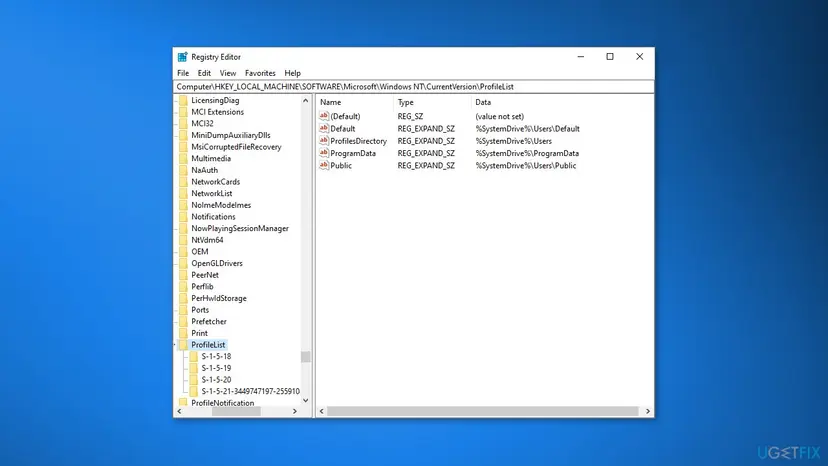
The ProfileList key with one subkey per profile; the screen is the same in Windows 11 and Windows 10. - Select each subkey whose name starts with
S-1-5-21and read its ProfileImagePath value on the right. - Compare that path with the folders in
C:\Usersand with the accounts in Settings. A key whose folder is gone, or whose account was deleted, is a leftover. - Leave
S-1-5-18,S-1-5-19andS-1-5-20alone: they belong to Windows itself. - Right-click a leftover key, select Export and save the file. Then right-click it again, select Delete and confirm with Yes.
- Close Registry Editor, restart the PC and start the update again.
It worked if: Every remaining S-1-5-21 key points to a folder that exists in C:\Users and to an account you still use.
If not: If you deleted the wrong key, double-click the exported .reg file to put it back. If the keys are clean, check the folders in Fix 4.
Fix 4. Clear orphaned folders in C:\Users and old profiles in Windows.old
15 minutesRead the warningFix 1 named a folder or a file, C:\Users holds folders for people without an account, or a C:\Windows.old folder exists.
Microsoft names invalid files in the \Users directory as a cause, and adds that an upgrade which did not complete can leave invalid profiles in Windows.old\Users. Removing them leaves Setup only valid profiles to migrate.
A deleted folder in C:\Users takes its files with it, so copy what you need first. Removing Windows.old also removes the option to go back to the Windows version you had before, so do it only if you do not plan to go back.
- Open File Explorer and go to
C:\Users. - Compare the folders with your accounts. Leave Public, your own folder and every folder of an account still in use.
- For a folder with no account, copy anything worth keeping to another drive, then delete the folder. Select Continue if Windows asks for permission.
- If Fix 1 named one file, move it out of the user folder to another drive instead of deleting it.
- If
C:\Windows.oldexists, press Win + I and open System > Storage > Temporary files. The path is the same in Windows 10. - Tick Previous Windows installation(s) and select Remove files.
- Restart the PC and start the update again.
Do not delete Windows.old by hand in File Explorer: Windows protects parts of it, and a half-deleted copy is exactly the kind of invalid profile this error trips over. More ways to free space safely: Free up disk space and delete temporary files
It worked if: C:\Users holds only folders of real accounts plus Public, and C:\Windows.old is gone.
If not: If the update still fails, open the new setuperr.log from the attempt: a different path means another item to clean. If the profiles are clean, go to Fix 5.
Fix 5. Unplug extra devices and update the display driver
15 minutesLow riskThe log mentions a driver, or extra devices such as USB drives, docks, card readers or printers were connected during the update.
The text of 0x8007001F is about a device that is not functioning, and Microsoft documents the same FIRST_BOOT and MIGRATE_DATA step failing with a display driver. Removing devices and refreshing the display driver rules that out.
- Unplug every device you do not need for the update: USB drives, external disks, docks, card readers, printers and game controllers. Keep the mouse, keyboard and display.
- Update the display adapter driver, or reinstall it if it is already the newest one, as in the steps below.
- Restart the PC and start the update with only the needed devices connected.
- Open Device Manager. Right-click Start and select Device Manager.
- Open the device's Driver tab. Expand the category (for example Display adapters), right-click the device, select Properties and open the Driver tab. Driver Date and Driver Version show what is installed now.
- Update the driver. Select Update Driver and let Windows search automatically. To use a driver you downloaded from the device maker, select Browse my computer for drivers instead and point to the unpacked folder.
- Or roll back the driver. If the problem started after a driver update, select Roll Back Driver, choose a reason and select Yes. The button is greyed out when Windows has no earlier driver to return to.
- Or reinstall the driver. Select Uninstall Device. Tick Attempt to remove the driver for this device only if you want Windows to delete the driver package too, then select Uninstall.
- Restart. Restart the PC. Windows detects the device again and installs a driver for it.
These steps were written for Windows 11 24H2 and later. The full page with the other versions and what each result means: Update, roll back or reinstall a driver
It worked if: The update gets past the first restart without the rollback screen.
If not: Connect the devices again after the update. If it still fails, clear the old attempt files in Fix 6.
Fix 6. Reset Windows Update and start a fresh download with the Installation Assistant
20 minutes, plus the upgradeLow riskTwo or more attempts have failed, the update comes through Windows Update, or drive C is nearly full.
Each rollback leaves its work files on drive C. A clean Windows Update cache and a new copy from the Installation Assistant mean the next try does not reuse files written by the failed one.
Copy the setup logs out first, as in Fix 1. Then reset the Windows Update components: Reset Windows Update components. After that:
- Open Microsoft's Download Windows 11 page and select Download Now under Windows 11 Installation Assistant.
- Run the downloaded file and select Yes when Windows asks for permission.
- Select Accept and install and keep the PC on power while it downloads and checks the files.
- Select Restart now when the Installation Assistant asks, and let the PC restart on its own.
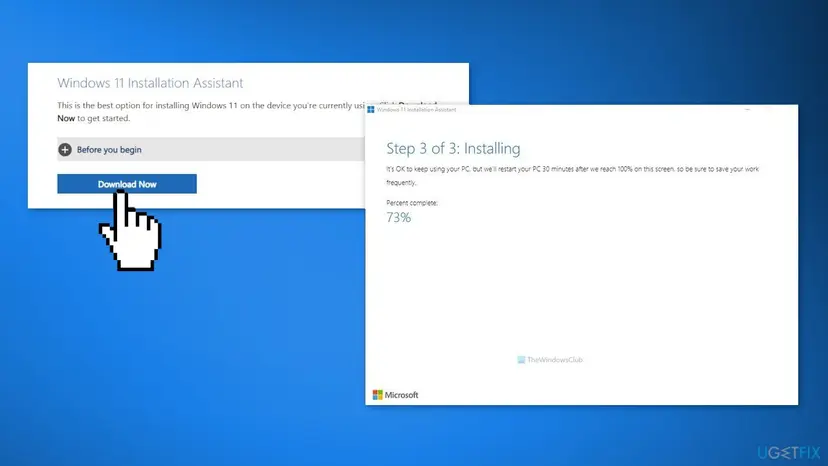
The Installation Assistant downloads a fresh copy of Windows 11 and starts the upgrade from it.
It worked if: The Installation Assistant downloads the whole upgrade again and the PC restarts into the new Windows 11.
If not: If it rolls back with the same code, the cause is still in the profiles or the disk: read the new log, then try Fix 7.
Fix 7. Check the disk with CHKDSK and repair system files
30 minutes to 2 hoursLow riskCHKDSK or SFC has found errors before, the PC lost power during an attempt, or other updates fail too.
A profile file on a damaged part of the file system is an invalid file to Setup. CHKDSK repairs the file system under C:\Users, and SFC with DISM repairs the Windows files Setup builds on.
First check drive C for file system errors: Check a disk for errors (chkdsk). Then repair the system files:
- Open an elevated command window. Right-click Start and select Terminal (Admin), or type cmd in the search box, right-click Command Prompt and select Run as administrator. Select Yes when Windows asks for permission.

Search for cmd and choose Run as administrator. Screenshot: Windows 11 26H2. - Run DISM first. Type the command below and press Enter. DISM downloads clean copies of damaged components from Windows Update, so it can take several minutes. Wait until it says The operation completed successfully.
DISM.exe /Online /Cleanup-Image /RestoreHealth
DISM /RestoreHealth running. Screenshot: Windows 11 26H2. - Run System File Checker. In the same window, type the command below and press Enter. Do not close the window until the verification reaches 100%.
sfc /scannow
sfc /scannow at 100%. Screenshot: Windows 11 26H2. - Read the result and restart. Compare the last message with the table below this guide, then restart the PC so that repaired files are loaded.

The result line tells you what SFC did. Screenshot: Windows 11 26H2.
These steps were written for Windows 11 24H2 and 25H2. The full page with the other versions and what each result means: Run DISM and SFC to repair Windows system files
It worked if: CHKDSK reports no remaining problems, and SFC says it found no integrity violations or repaired them.
If not: If CHKDSK reports bad sectors, back up your files before anything else and read the hardware note below. Otherwise go to Fix 8.
Fix 8. Install Windows 11 from the ISO without migrating any data
1 to 2 hoursRead the warningFix 1 to Fix 7 did not help, and you are ready to install your apps again and restore your files from a backup.
This error happens while Setup migrates data. If you choose to keep nothing, there is no migration step, so an invalid profile can no longer stop the update. Running the ISO with the default options is still an upgrade and migrates everything.
Keeping nothing deletes your files, apps and settings on the Windows drive. Back up your files to another drive or a cloud service and note your apps and licence keys first: Back up your files (Windows Backup, File History, Time Machine).
- On Microsoft's Download Windows 11 page, download the file under Download Windows 11 Disk Image (ISO) for x64 devices.
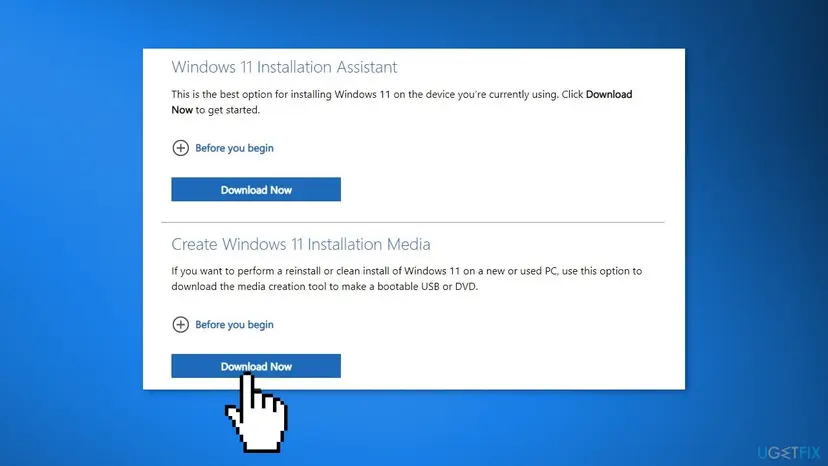
Microsoft's Download Windows 11 page offers the Installation Assistant, installation media and the ISO file. - Right-click the ISO file and select Mount. Open the new drive in File Explorer and double-click
setup.exe. - When Setup shows what it will keep, select Change what to keep.
- Select Nothing, then Next and Install.
- After Windows 11 starts, copy your files back from the backup and install your apps again from their makers.
If you would rather keep your files and only refresh Windows itself once the update is done, the keep options are explained here: Reinstall Windows without losing files
It worked if: Setup finishes without the rollback, and you sign in to a fresh Windows 11.
If not: If even a clean install fails, the problem is not a profile: read the still broken section below.
If error 0x8007001F - 0x3000D is still there
Each attempt writes new logs, so the answer is in the newest setuperr.log. Copy it out right after the rollback and compare it with the one from the attempt before.
| What the new log shows | What to do |
|---|---|
| Another profile or SID | Repeat Fix 2 or Fix 3 for it. A PC that has had many accounts can hold several dead profiles. |
| The same file every time | Move the file to another drive, delete it from the user folder, and try again. |
| A driver name | Update or remove that driver and unplug its device, as in Fix 5. |
| A different code pair | That is a new error. Search for the new pair: it has its own cause. |
| A work or school PC | Ask the IT department. Roaming profiles and domain accounts are managed by their policies. |
- What to send to Microsoft support or a technician: the full code pair, your current Windows version and build, how you started the update, and the PC model.
- Attach
setuperr.logandsetupact.logfromC:\$Windows.~BT\Sources\RollbackorC:\$Windows.~BT\Sources\Panther. - List the accounts, keys and folders you already removed.
If CHKDSK reports bad sectors, the PC freezes during the update, or a clean install with Fix 8 fails as well, suspect the drive or another part. Check the drive's health and back up your files before any further attempt.
How to keep 0x8007001F - 0x3000D from coming back
- Remove accounts through Settings or User Profiles, so the registry key and the folder go together.
- Remove
Windows.oldwith Temporary files once you are happy with an update. - Copy
setuperr.logout after any failed update before you try again. - Keep only the devices you need plugged in during a feature update.
- Do not delete a user folder in
C:\Usersby hand and leave its account behind. - Do not use registry cleaners that remove profile keys without asking.
- Do not delete
Windows.oldor$Windows.~BTin File Explorer. - Do not stay on an old version: Windows 11 22H2 Home and Pro no longer get updates, and Windows 10 left support on 14 October 2025.
Frequently asked questions
What does 0x8007001F - 0x3000D mean?
It means the Windows 11 update failed in its FIRST_BOOT phase while it migrated your data, and Setup rolled back to your old Windows. Microsoft's upgrade error codes split it in two. 0x8007001F is Win32 error 31, ERROR_GEN_FAILURE. 0x3000D is phase 3, SP_EXECUTION_FIRST_BOOT, with operation 0D, SP_EXECUTION_OP_MIGRATE_DATA. Microsoft's entry for this exact pair says it can be due to a problem with user profiles. The spellings 0x8007001F-0x3000D and 0x8007001F 0x3000D are the same error.
What does 0x3000D mean on its own?
0x3000D is only the extend code: it tells you when the update failed, not why. The first digit, 3, is the FIRST_BOOT phase, the first start of the new Windows during the upgrade. The last two digits, 0D, are the MIGRATE_DATA operation, when Setup moves accounts, files and settings. The why is in the first code. With 0x8007001F it points to user profiles. With 0xC1900101 Microsoft points to a display driver.
Is 0x8007001F a hardware failure?
Usually not in this case. The general text of error 31 says that a device attached to the system is not functioning, which sounds like hardware. But Microsoft's resolution for 8007001F - 0x3000D names invalid user profiles and invalid files in the Users directory, not a device. Start with Fix 1 to Fix 4. Check devices and drivers in Fix 5 only if the profiles are clean, and suspect hardware only if a clean install fails too.
What is 0x8007001F - 0x2000D?
It is the same result code in an earlier phase. The 2 in 0x2000D is the SAFE_OS phase, when the PC runs a small setup environment after the first restart, and 0D is again MIGRATE_DATA. The data migration failed before the new Windows started for the first time. Microsoft does not list this pair separately, but the migration step and the log files are the same, so Fix 1 to Fix 4 are the place to start. A related case is explained in our guide to 0x80070004 - 0x2000D.
What is 0x8007001F - 0x4000D?
It is the same failure one phase later. Windows shows it as "The installation failed in the SECOND_BOOT phase with an error during MIGRATE_DATA operation." Microsoft's data migration advice is the same: analyze the log files to find the file or registry entry that blocks the migration. Invalid profiles, leftover ProfileList keys and old folders in Windows.old are the usual suspects, so the fixes on this page apply unchanged.
Is 0xC1900101 - 0x3000D the same error?
No, it fails at the same step for another reason. Microsoft lists 0xC1900101 - 0x3000D as a failure in the FIRST_BOOT phase during MIGRATE_DATA that can occur due to a problem with a display driver. Its mitigation is to disconnect all devices except the mouse, keyboard and display, and to update or uninstall the display driver. That is Fix 5 on this page. With 0x8007001F the first suspect is a user profile instead.
I still get this error on 22H2. Does this page apply to newer versions?
Yes. The reader's question was about the 22H2 update, but every later feature update, up to 25H2 and 26H2, uses the same Setup engine with the same phases, operations and log folders. The code means the same thing and the fixes are the same. Windows 11 22H2 Home and Pro no longer receive updates, so install the current version rather than looking for the 22H2 package.
Do I lose my files when the update rolls back?
No. The rollback returns the PC to the Windows you had before the update, with your files, apps and settings in place. Only the time spent is lost. Your files are at risk only in the fixes that warn you: deleting accounts and profiles in Fix 2 and Fix 4, deleting registry keys in Fix 3, and Fix 8, which installs Windows without keeping anything. Back up before those.
Is it safe to delete keys in ProfileList?
It is safe for a key that belongs to an account which no longer exists, after you back up the registry and export the key. It is not safe for your own key, for the keys of accounts still in use, or for the system keys S-1-5-18, S-1-5-19 and S-1-5-20. Deleting a live key can sign that person into a temporary profile. Check the ProfileImagePath value against C:\Users before you delete anything, as Fix 3 shows.
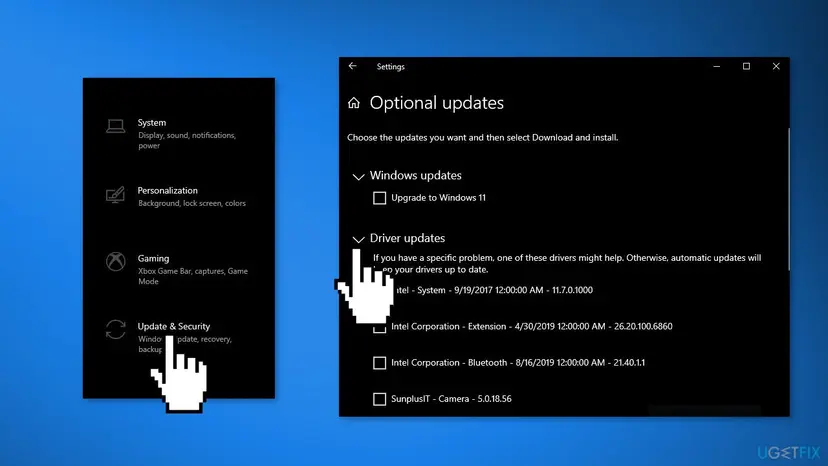
What is "Intel - System - 9/19/2017 12:00:00 AM - 11.7.0.1000"?
That is how Windows Update names an Intel system driver it offers, with the driver's date and version. It is a driver update, not part of error 0x8007001F - 0x3000D, and this page does not cover it. We could not confirm from Intel which device this exact version is for. If the driver installs and is offered again, or fails, check the device in Device Manager or get the current driver from your PC maker.
Sources
- Microsoft Learn: Windows 10 upgrade resolution procedures (8007001F - 0x3000D, 0xC1900101 - 0x3000D) (learn.microsoft.com)
- Microsoft Learn: Windows upgrade error codes (extend code phases and operations) (learn.microsoft.com)
- Microsoft Learn: Log files and resolving upgrade errors (setupact.log, setuperr.log locations) (learn.microsoft.com)
Did this fix work?
One click, no account. It tells the next reader which guides are worth their time.
Questions and experiences: [Fix] 22H2 Windows 11 update fails with error 0x8007001F-0x3000D
Still broken, or found a fix we did not cover? Ask here: members and our editors answer. Reading is open; writing needs a free account.
…