
Can't bring a window to the foreground in Windows 11: windows not coming to front when clicked

Prefer to fix it yourself? The manual steps follow.
8 methods in this guide
- What the problem means
- Causes, most common first
- The fixes
- 1. Use the thumbnail or Alt + Tab
- 2. Bring back an off-screen window
- 3. Turn off hover activation
- 4. Restart Windows Explorer
- 5. Turn off Always on top
- 6. When an app opens behind
- 7. Find an app that steals focus
- 8. Install pending updates
- Still not coming to front
- Prevent it
- FAQ
I have difficulty with Windows 11. I cannot bring a window to the foreground. I don't know why, but sometimes when I try to maximize the window from the taskbar, it works. Mostly I can only see a small window of my browser, for example, and once I click it, the window does not come to the foreground. Help me!
When a window will not come to the front in Windows 11, the click usually lands on a taskbar thumbnail, a window sits off screen, or Windows Explorer has stopped answering. Windows also blocks apps from jumping in front of the window you are using on purpose. Press Alt + Tab first, then work through the fixes below in order.
The small window you see is the taskbar thumbnail: click it, or press Alt + Tab and pick the window. If the window still does not appear, it is open on a screen you cannot see, so select it and press Win + Shift + Left arrow or Alt + Space, then Move (Fix 2). If clicks do nothing at all, restart Windows Explorer in Task Manager (Fix 4).
| Error | No error message. A window stays behind others, shows only as a small preview over the taskbar, or its taskbar button flashes orange instead of opening it. |
|---|---|
| Where it appears | The taskbar, the Alt + Tab switcher and the desktop, in any app: browsers, File Explorer, Office, games and installers. |
| Main cause | The click opens the taskbar thumbnail and not the window, or the window is placed outside the visible screen after a monitor was unplugged. |
| Fastest fix | Click the thumbnail itself or press Alt + Tab (Fix 1). For a window you cannot see, press Win + Shift + Left arrow (Fix 2). |
| Also searched as | windows 11 apps not opening in foreground, windows not coming to front when clicked, bring window to front windows 11, how to bring application to front windows 11. |
| By design | Microsoft Learn: an app cannot force its window to the foreground while you work in another window. Windows flashes its taskbar button instead. |
| Affects | Windows 11 and Windows 10. Windows 10 lost support on 14 October 2025, so its shell bugs no longer get fixes. |
| Time to fix | Under a minute for Fixes 1 to 4. A clean boot to find an app that grabs focus takes about 20 minutes. |
Facts checked on 16 October 2026. Steps written for Steps read against Windows 11 25H2 and 26H2 and Windows 10 22H2; window rules checked against Microsoft Learn and Microsoft Support.
What it means when you can't bring a window to the foreground in Windows 11
The foreground window is the one you are working in: it sits on top, its title bar is active and your keyboard types into it. Microsoft Learn describes it in these words: keyboard input is directed to the window, and Windows gives its program a slightly higher priority than other programs.
Readers describe the problem in four ways. Each points to a different cause, so note which one you see before you start.
| What you see | What it usually means |
|---|---|
| You click the app on the taskbar and only a small preview of the window appears. | That preview is the taskbar thumbnail. The app has several windows or grouped buttons, and the window opens only when you click the thumbnail. |
| The taskbar shows the app as open, but no window appears anywhere. | The window is placed off screen, often on a monitor that is no longer connected. |
| A newly started app opens behind your current window and its taskbar button flashes. | Windows' focus rule: an app cannot push itself in front while you work elsewhere. |
| Clicks on the taskbar, Alt + Tab or the title bar do nothing. | Windows Explorer, which draws the taskbar and switcher, has hung. |
Microsoft Learn states that an application cannot force a window to the foreground while the user is working with another window. Instead, Windows flashes the taskbar button of the window. Click the flashing button and the window comes to the front.
Why windows are not coming to front when clicked: the causes, most common first
Microsoft does not publish how often each cause happens. The order below is ours, from the old reader question on this page and from how the Windows shell decides which window may come forward. Each cause has its own fix.
| How often | Cause | Fix |
|---|---|---|
| Most often | The taskbar button is grouped, so a click opens the thumbnail row and not the window | Fix 1 |
| Often | The window is placed outside the visible screen after a monitor, dock or projector was disconnected | Fix 2 |
| Often | Activate a window by hovering over it with the mouse is on, so other windows jump in front as the mouse moves | Fix 3 |
| Less often | Windows Explorer hangs, so the taskbar and the switcher stop reacting | Fix 4 |
| Less often | Another window is set to stay always on top and covers the one you want | Fix 5 |
| Less often | The app tries to come forward by itself and Windows blocks it, flashing the button instead | Fix 6 |
| Rarely | A background program keeps taking focus back from the window you choose | Fix 7 |
| Rarely | A shell bug that a pending Windows update fixes | Fix 8 |
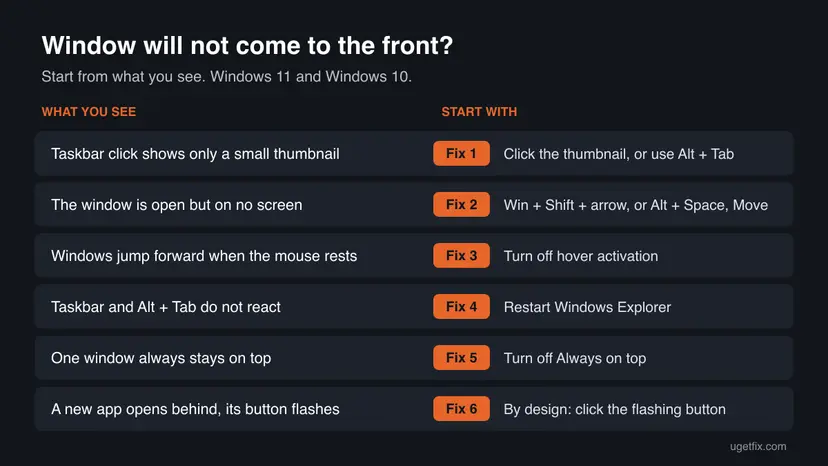
How to bring a window to the front in Windows 11 when clicking does not work
The fixes start with the causes that are most common and cost nothing. Fixes 1 and 2 use only the keyboard and the taskbar. Fixes 3 to 6 change one setting each. Fixes 7 and 8 are for a problem that keeps coming back after the others.
| What you see | Start with |
|---|---|
| A click on the taskbar shows only a small preview of the window. | Fix 1 |
| The app is open on the taskbar, but its window is on no screen. | Fix 2 |
| Windows come to the front by themselves when the mouse rests on them. | Fix 3 |
| The taskbar, Start and Alt + Tab do not react to clicks. | Fix 4 |
| The same window always covers the one you choose. | Fix 5 |
| A newly opened app stays behind and its taskbar button flashes. | Fix 6 |
| The window comes forward, then loses focus again a second later. | Fix 7 |
Fix 1. Open the window from its thumbnail, with Alt + Tab or with the Windows key and a number
1 minuteNo riskYou click the app on the taskbar and see only a small preview of its window.
When an app has more than one window, or taskbar buttons are combined, the first click shows a row of thumbnails. The window comes forward only when you click one of those thumbnails, not the app icon again.
- Click the app's button on the taskbar once and wait for the thumbnails to appear.
- Click the thumbnail of the window you want, not the app icon below it.
- If that does not work, hold Alt and press Tab until the window is selected, then let go of both keys.
- Or press Win + Tab to open Task view and click the window there.
- To jump straight to a pinned app, press Win and the number of its position on the taskbar, for example Win + 1 for the first one.
To stop the thumbnail row from appearing, give every window its own taskbar button. In Windows 11, open Settings > Personalization > Taskbar, expand Taskbar behaviors and set Combine taskbar buttons and hide labels to Never. In Windows 10, set Combine taskbar buttons to Never combine in Taskbar settings.
Win + number opens the pinned app at that position or switches to it if it is already running. Win + T cycles through the taskbar apps, and on several monitors it cycles through apps on all of them.
It worked if: The window you picked comes to the front, its title bar becomes active and your typing goes into it.
If not: If Alt + Tab selects the window but nothing appears on screen, the window is off screen: go to Fix 2.
Fix 2. Move a window that opens off screen back to your monitor
2 minutesNo riskThe app shows as open on the taskbar and in Alt + Tab, but its window is not visible on any screen.
Windows remembers where a window was. After you disconnect a second monitor, a dock or a projector, some apps reopen at those old coordinates, outside the screen you have. The window is in the foreground, you just cannot see it.
- Select the window with Alt + Tab or by clicking its taskbar thumbnail, so it is the active window.
- Press Win + Shift + Left arrow or Win + Shift + Right arrow. Microsoft lists these as moving the active window to the monitor on the left or right.
- If nothing appears, press Win + Up arrow to maximize the active window on the current screen.
- Still nothing: press Alt + Space to open the window's shortcut menu, press M for Move, then press any arrow key once.
- Move the mouse: the hidden window now follows the pointer. Click to drop it where you can see it.
- Press Enter if you moved it with the arrow keys instead.
To stop this after unplugging a screen, open Settings > System > Display, expand Multiple displays and tick Remember window locations based on monitor connection and Minimize windows when a monitor is disconnected. Windows then puts windows back on the screen they came from when you reconnect it.
It worked if: The missing window slides onto your main screen and stays there when you click into it.
If not: If the window comes onto the screen but other windows keep jumping in front of it, go to Fix 3.
Fix 3. Turn off Activate a window by hovering over it with the mouse
3 minutesNo riskWindows come to the front on their own as the mouse passes over them, and the one you clicked drops behind.
This accessibility option brings any window to the front as soon as the pointer rests on it. With it on, moving the mouse toward the window you want activates whatever lies on the way, so your click seems to fail.
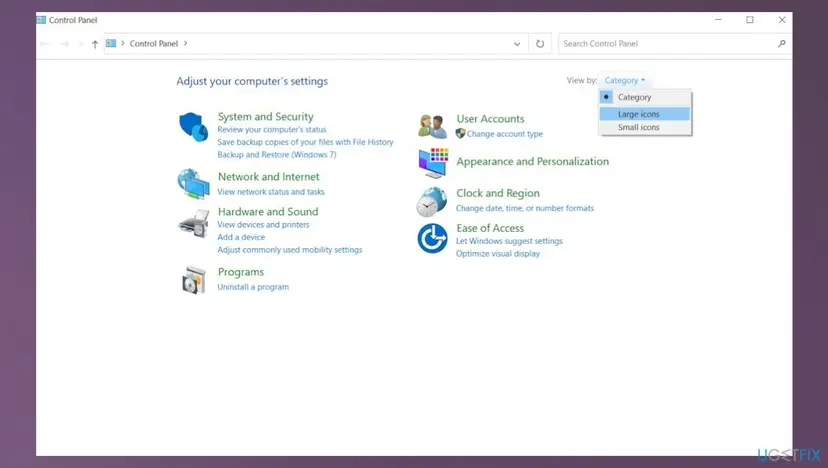
- Open Control Panel: press Win + R, type
controland press Enter. - Set View by at the top right to Large icons.
- Select Ease of Access Center.
- Select Make the mouse easier to use.
- Under Make it easier to manage windows, clear Activate a window by hovering over it with the mouse.
- Select Apply, then OK.
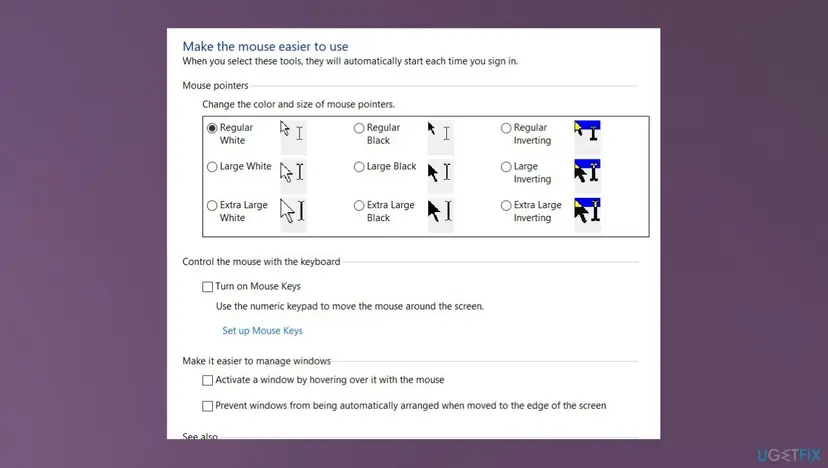
It worked if: Windows stay where they are while you move the mouse, and only the window you click comes to the front.
If not: If the box was already clear and clicks still do nothing, restart Windows Explorer with Fix 4.
Fix 4. Restart Windows Explorer when the taskbar and Alt + Tab stop reacting
1 minuteLow riskClicks on the taskbar buttons or thumbnails do nothing, or Alt + Tab shows windows but will not switch.
Windows Explorer draws the taskbar, its thumbnails and the desktop. When this one process hangs, the taskbar still shows but no longer passes your clicks on, so no window can be brought forward from it. Restarting it rebuilds the taskbar without closing your apps.
- Press Ctrl + Shift + Esc to open Task Manager.
- On Processes, find and select Windows Explorer.
- Select Restart task at the top. The taskbar disappears for a few seconds and comes back.
- Click the app's taskbar button again.
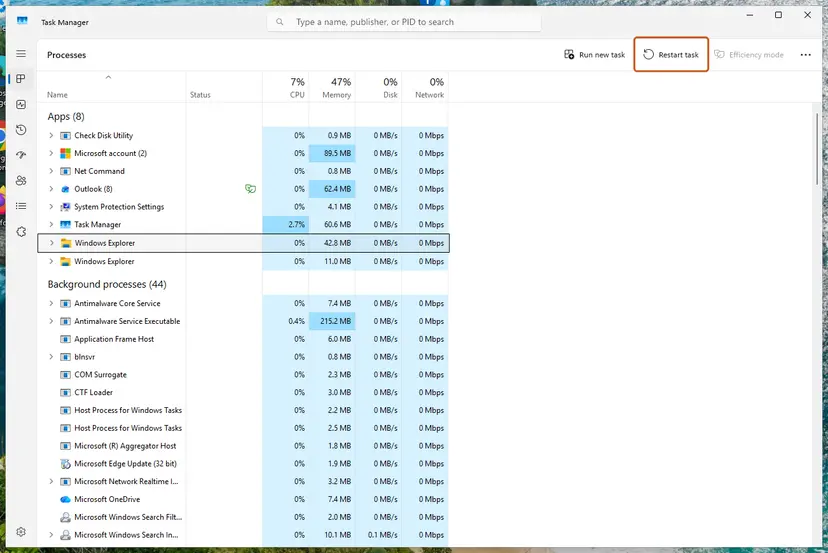
Step by step, with the Windows 10 variant and the command line way: Restart File Explorer
It worked if: The taskbar reloads and a click on an app button or thumbnail brings its window to the front again.
If not: If the taskbar works but one particular window keeps covering the rest, go to Fix 5.
Fix 5. Turn off Always on top for the window that keeps covering the others
2 minutesNo riskOne window, such as Task Manager, a video player or a chat window, stays above everything you click.
A window set to stay on top is drawn above all normal windows, even the foreground one. The window you clicked is active behind it, so it looks as if it never came to the front.
- Find out which window stays on top: minimize the others with Win + Home and see which one remains over the active window.
- If it is Task Manager, open its Settings and clear Always on top under Window management. In Windows 10 the option is in the Options menu.
- If PowerToys is installed and the window has a coloured border, select it and press Win + Ctrl + T to turn off PowerToys Always On Top.
- For a media player, browser picture in picture or chat app, turn off its own Always on top, Pin on top or Keep on top option in that app's menu or settings.
- Click the window you wanted again.
It worked if: The covering window drops back into the normal order, and the window you click comes in front of it.
If not: If no window is on top and a new app simply opens behind your current one, go to Fix 6.
Fix 6. Bring an app that opens behind other windows to the front, and change the foreground lock time-out
5 minutesRead the warningAn app you start, or a dialog it opens, appears behind your current window while its taskbar button flashes.
This is Windows' focus rule at work. Microsoft Learn explains that a program may bring its window forward only when, for example, the foreground lock time-out has expired or the program received the last input. If not, Windows flashes the button and leaves your current window in front.
- Click the flashing taskbar button once. The waiting window comes to the front.
- Or press Alt + Tab and pick it from the switcher.
- When you start a program, leave the mouse and keyboard alone until its window appears. Typing in another window in the meantime gives that window the last input, and the new one stays behind.
If an app you rely on, for example a password prompt or a scanner tool, always opens behind, you can shorten the time-out that protects the current window. Windows reads it as the foreground lock time-out (SPI_GETFOREGROUNDLOCKTIMEOUT in Microsoft's documentation) and stores it per user in the registry.
A wrong registry edit can break other settings, so back it up first: Back up the registry before editing it. With a time-out of 0, any program can jump in front while you type, so your keystrokes can land in a window you did not choose. We did not find a Microsoft page that documents this registry value, so treat it as an advanced change.
- Press Win + R, type
regeditand press Enter. Select Yes in the User Account Control prompt. - Go to
HKEY_CURRENT_USER\Control Panel\Desktop. - Double-click ForegroundLockTimeout. Note the current value so you can set it back; it is commonly
200000in decimal, that is 200 seconds. - Set Base to Decimal, type a smaller number of milliseconds such as
0, and select OK. - Sign out and sign back in so Windows reads the new value.
It worked if: Apps you start come straight to the front instead of opening behind with a flashing button.
If not: If windows now come forward but lose focus again a second later, another program takes it: find it with Fix 7. To undo, set the old value back and sign out.
Fix 7. Find a background app that keeps taking focus with a clean boot
20 minutesLow riskThe window comes to the front, then something else takes focus a moment later, again and again.
Some background programs, such as update helpers, overlays and tray tools, briefly open an invisible or small window. Each time they do, your window loses the foreground. Starting Windows with only Microsoft services shows whether a third-party program is the cause.
- Watch the taskbar when the focus jumps: a button that lights up or appears for a moment is often the culprit.
- Note programs that started at the same time as the problem, and close them one at a time from the notification area.
- If you cannot see it, start Windows with Microsoft services only, as in the clean boot procedure below.
- Test the window that would not stay in front. If it now works, turn the startup items back on in small groups until the problem returns.
Step by step: How to perform a clean boot in Windows
It worked if: After a clean boot the window stays in front, and turning items back on in groups shows which program steals focus.
If not: If the problem stays after a clean boot, a third-party program is not the cause: install pending updates with Fix 8.
Fix 8. Install pending Windows updates and restart
15 to 30 minutesLow riskNone of the fixes above helped, or the problem began right after a Windows feature update.
The taskbar, Task view and window switching are part of the Windows shell, so a bug in them can only be fixed by Microsoft in an update. A restart after the update also clears a shell that has been running in a bad state for days.
- Press Win + I and open Windows Update. In Windows 10 open Update & Security > Windows Update.
- Select Check for updates and install everything that is offered, including optional quality updates.
- Restart the PC when Windows asks, even if it does not insist.
- Test the window again after you sign in.
It worked if: After the restart, windows come to the front when you click their taskbar button or thumbnail.
If not: If it still fails, read the still-broken section below to check whether Windows Explorer is crashing.
What to do when windows still won't come to the front after every fix
If the problem is still there, find out whether Windows Explorer crashes or whether only your user profile is affected. Both checks take a few minutes and tell you where to look next.
- Open Event Viewer (press Win + X, then Event Viewer) and go to Windows Logs > Application. Look for Error entries with source Application Error, event ID 1000, that name
explorer.exeas the faulting application. The faulting module named there, for example a shell extension DLL, points to the program to update or remove. - Create a second user account and sign in to it. If windows come to the front normally there, the problem lives in your own profile settings: Create a new user account to test a problem.
- Unplug extra monitors, docks and KVM switches and test with one screen. If the problem goes away, update the display driver and the dock's firmware.
- If one app is the only one that will not come forward, update or reinstall that app; the problem is in its window code, not in Windows.
When you report it to Microsoft in the Feedback Hub, include your Windows version from winver, how many monitors are connected, and the Event Viewer entry if there is one.
How to keep windows from getting stuck behind others or off screen
Most of the causes above come from settings and habits, not from damage. A few changes keep them from returning.
- Keep Remember window locations based on monitor connection on if you use a laptop with a dock or a second screen.
- Set taskbar buttons to Never combine if you often work with several windows of one app.
- Use Alt + Tab or Win + Tab to switch: they work even when the taskbar thumbnails do not.
- Install Windows updates and restart at least once a week, so the shell starts fresh.
- Leaving Always on top on in tools you do not need above everything.
- Typing into another window while a program you just started is still loading.
- Setting ForegroundLockTimeout to 0 on a shared or work PC, where a pop-up could catch typed passwords.
- Unplugging a monitor while apps are open on it, without moving them first.
Frequently asked questions
Why are Windows 11 apps not opening in the foreground?
Usually because Windows protects the window you are using. Microsoft Learn explains that an application cannot force a window to the foreground while you are working with another window; Windows flashes the new window's taskbar button instead. So an app that loads slowly, while you keep typing elsewhere, opens behind. Click the flashing button or press Alt + Tab. If apps open behind even when you wait, check for an always on top window (Fix 5) and, as an advanced change, lower the foreground lock time-out (Fix 6).
Why are windows not coming to front when clicked on the taskbar?
The most common reason is that the click opens the thumbnail row, not the window. When an app has several windows, or buttons are combined, Windows shows small previews first, and you must click the preview you want. If the previews appear and clicking them still does nothing, Windows Explorer has probably hung; restart it from Task Manager with Restart task. If the window is selected but invisible, it is off screen, and Win + Shift + Left arrow or Alt + Space, then Move, brings it back.
How do I bring a window to the front in Windows 11 with the keyboard?
Hold Alt and press Tab until the window is selected, then release. Win + Tab opens Task view, where you can click any window or desktop. Win + a number switches to the app pinned at that position on the taskbar, and Win + Ctrl + a number switches to its last active window. Win + Up arrow maximizes the active window. These are all on Microsoft's own list of Windows keyboard shortcuts, and they work even when the taskbar does not react to the mouse.
How do I bring an application to the front that is open on another monitor or off screen?
Select it with Alt + Tab so it is the active window, then press Win + Shift + Left arrow or Win + Shift + Right arrow. Microsoft lists these as moving the active window to the monitor on the left or right. If the window still does not show, press Alt + Space, then M for Move, press an arrow key once and move the mouse; the window follows the pointer until you click. Turn on Remember window locations based on monitor connection in Display settings so it does not happen again.
Clicking on a window does not move it to the foreground in Windows 11. Is my mouse broken?
Rarely. Test it: if the mouse clicks buttons and links normally inside the window, it works. A window that stays behind after a click is usually covered by an always on top window, or the click lands on a window behind the one you see because of the hover option. Check Activate a window by hovering over it with the mouse in Control Panel, Ease of Access Center, Make the mouse easier to use. If a second mouse or the touchpad behaves the same, the cause is in Windows, not the mouse.
Is it safe to set ForegroundLockTimeout to 0?
It does not damage Windows, and you can set the old value back, but it changes how Windows protects your typing. With 0, any program can jump in front at any moment, so text you are typing can go into a pop-up you did not choose, including a password. Use it only on your own PC, back up the registry first, note the old value, and sign out to apply the change. On a shared or work PC, leave it alone.
Does restarting Windows Explorer close my programs or files?
No. Restarting Windows Explorer in Task Manager reloads the taskbar, the Start button, the desktop and any open File Explorer windows. Programs such as browsers, Office and games keep running, and documents stay open with their unsaved changes. Only the File Explorer folder windows close, and you can open them again. The taskbar disappears for a few seconds while it restarts, which is normal. If it does not come back, press Ctrl + Shift + Esc and run explorer.exe from Run new task.
Does this problem also happen in Windows 10?
Yes. The focus rule that keeps apps from jumping in front, the hover option in Control Panel, the off-screen window after a monitor is unplugged and a hung Windows Explorer all work the same way in Windows 10 22H2. The fixes on this page give the Windows 10 menu names where they differ. Windows 10 lost support on 14 October 2025, so shell bugs found there now are no longer fixed by updates.
Sources
- Microsoft Learn: SetForegroundWindow function (winuser.h), Remarks on which processes may set the foreground window (learn.microsoft.com)
- Microsoft Support: Keyboard shortcuts in Windows (support.microsoft.com)
Did this fix work?
One click, no account. It tells the next reader which guides are worth their time.
Questions and experiences: Can't bring a window to the foreground in Windows 11: windows not coming to front when clicked
Still broken, or found a fix we did not cover? Ask here: members and our editors answer. Reading is open; writing needs a free account.
…