
Can't pin folders to Quick Access in Windows: "A disk error occurred during a read operation"

Prefer to fix it yourself? The manual steps follow.
- 6methods
- 2 to 15 minutes
- Easy
Applies to File Explorer Quick access (Home in Windows 11) on Windows 11 and Windows 10 (Windows 10 support ended on 14 October 2025)
6 methods in this guide
Whenever I attempt to pin items to the Quick Access menu, I get an error "A disk error occurred during a read operation." I also can't see the Quick Access icon on the left side of File Explorer. Is this some type of a bug? If yes, how do I fix this?
When Pin to Quick access ends with "A disk error occurred during a read operation" or "Catastrophic failure", your drive is almost never failing. The small file that stores your Quick access pins is damaged. Delete that one file, restart File Explorer and pin your folders again.
The Quick access database is damaged, not your disk. Open Command Prompt and delete the file %AppData%\Microsoft\Windows\Recent\AutomaticDestinations\f01b4d95cf55d32a.automaticDestinations-ms, then restart File Explorer (Fix 1). Quick access goes back to its default folders and pinning works again. Your own folders and files are not touched; only the list of pins is reset, so note your pinned folders first.
| Error | "A disk error occurred during a read operation." Some users see "Catastrophic failure" instead. Both appear right after you choose Pin to Quick access. |
|---|---|
| Where it appears | In File Explorer, in a small error window, when you right-click a folder and pin it, or drag it onto Quick access. Often Quick access is also empty or missing from the left pane. |
| Main cause | A damaged Quick access pin file, f01b4d95cf55d32a.automaticDestinations-ms, in %AppData%\Microsoft\Windows\Recent\AutomaticDestinations. |
| Fastest fix | Delete that one file and restart File Explorer (Fix 1). It takes about two minutes. |
| Also written as | Pin to quick access a disk error occurred, quick access catastrophic failure, pin to quick access not working, folder won't pin to quick access, can't pin downloads or documents to quick access. |
| Affects | Windows 10 and Windows 11. In Windows 11 the Quick access page is called Home, and Quick access is the folders section on it and in the left pane. |
| Vendor status | We found no Microsoft support article for this message. On Microsoft Q&A an Independent Advisor names the damaged Quick access database as the cause and the file reset as the fix; more than 100 people marked that answer helpful. |
| Data at risk | None of your files. The reset removes your list of pinned folders, which you pin again by hand. |
| Time to fix | 2 minutes for Fix 1, about 5 minutes for Fix 2, up to an hour if a disk check or system file repair is needed. |
Facts checked on 15 October 2026. Steps written for Windows 11 (25H2 and 26H2) and Windows 10 22H2.
What "A disk error occurred during a read operation" means in Quick Access
File Explorer does not keep your Quick access pins in the registry. It keeps them in one jump list file in your user profile, the same kind of file that holds the recent items you see when you right-click an app on the taskbar. The Quick access file is always called f01b4d95cf55d32a.automaticDestinations-ms.
When you pin a folder, Explorer reads that file, adds the folder and writes it back. If the file is damaged, the read fails and Explorer reports it with a generic message. The words "disk error" come from that failed read of one file, not from a test of your drive.
- Message 1
- A disk error occurred during a read operation.
- Message 2
- Catastrophic failure
- File
f01b4d95cf55d32a.automaticDestinations-ms- Folder
%AppData%\Microsoft\Windows\Recent\AutomaticDestinations- Also shown in
- The jump list of File Explorer on the taskbar and Start menu: pins made there and in Quick access are the same list.
Since Windows 11 version 22H2, the page that opens with File Explorer is called Home. Quick access is now the name of the folders section on Home and of the pinned folders in the left pane. The pin file and the fix are the same in Windows 10 and Windows 11.
Why you can't pin folders to Quick Access: causes ranked
Most often the pin file is damaged: after a crash, a forced shutdown, a cleaner tool or a profile copied from another PC. Less often the other jump list files are damaged too. Rarely the drive or Windows itself has a problem.
| Cause | Typical sign | Fix |
|---|---|---|
| The Quick access pin file is damaged. This is the cause in most reports. | Every pin attempt shows the disk error or Catastrophic failure. Quick access may be empty. | Fix 1 |
| Other jump list files are damaged as well. | The error stays after Fix 1, or the right-click lists of other apps on the taskbar are empty or wrong. | Fix 2 |
| Quick access is hidden, not broken. | No error at all, but Quick access or frequent folders are missing from File Explorer. | Fix 3 |
| A real file system error on the drive. | The same disk error appears when you open or copy other files, not only when you pin. | Fix 4 |
| Damaged Windows files or a shell add-on from another program. | Explorer also crashes or menus fail in other places. | Fix 5 and Fix 6 |
How to fix "A disk error occurred during a read operation" when pinning to Quick Access
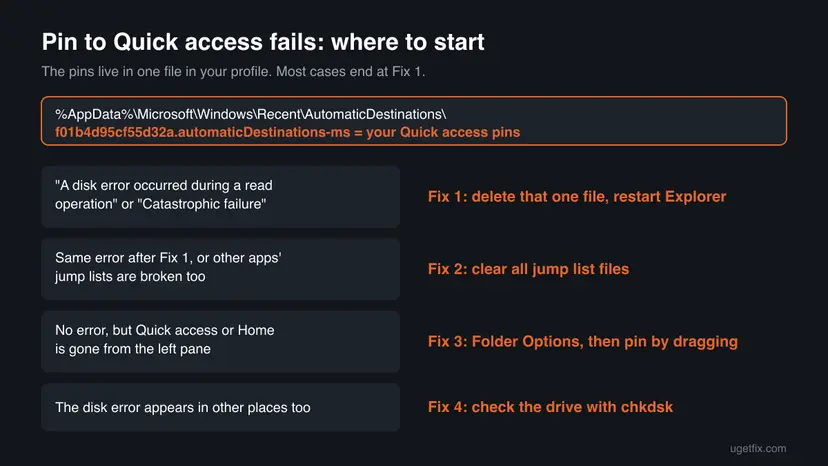
Fix 1 solves most cases and only resets your list of pins. Fix 2 is a wider reset of the same kind of file. Fix 3 is for Quick access that is hidden rather than broken. Fixes 4 to 6 are for the rare cases where the cause sits outside Quick access.
| What you see or have | Start with |
|---|---|
| "A disk error occurred during a read operation" when you choose Pin to Quick access. | Fix 1 |
| "Catastrophic failure" when you pin a folder. | Fix 1 |
| The error is still there after Fix 1. | Fix 2 |
| No error, but Quick access, Home or frequent folders are missing. | Fix 3 |
| The disk error also appears when you open or copy other files. | Fix 4 |
| File Explorer also crashes or hangs in other places. | Fix 5, then Fix 6 |
Fix 1. Reset the Quick Access pin file
2 minutesLow riskEveryone who sees the disk error or Catastrophic failure when pinning. Try this first.
The error comes from Explorer failing to read the pin file. Deleting it makes Explorer build a new, clean file with the default folders, so the next pin has a healthy file to write to.
Before you start, look at Quick access and write down or take a screenshot of the folders you pinned. The reset brings back only the default folders, such as Desktop, Documents, Downloads and Pictures.
- Close all File Explorer windows.
- Press Win + R, type
cmdand press Enter. Administrator rights are not needed: the file is in your own profile. - Copy the command below, paste it into Command Prompt and press Enter. Pasting avoids typing errors in the long file name.
del /f /q /a "%AppData%\Microsoft\Windows\Recent\AutomaticDestinations\f01b4d95cf55d32a.automaticDestinations-ms" - If Command Prompt shows nothing, the file was deleted. If it says the file could not be found, the file was already gone and Explorer will create it.
- Restart File Explorer: press Ctrl + Shift + Esc, select Windows Explorer and select Restart task.
- Open File Explorer, right-click a folder and choose Pin to Quick access to test.
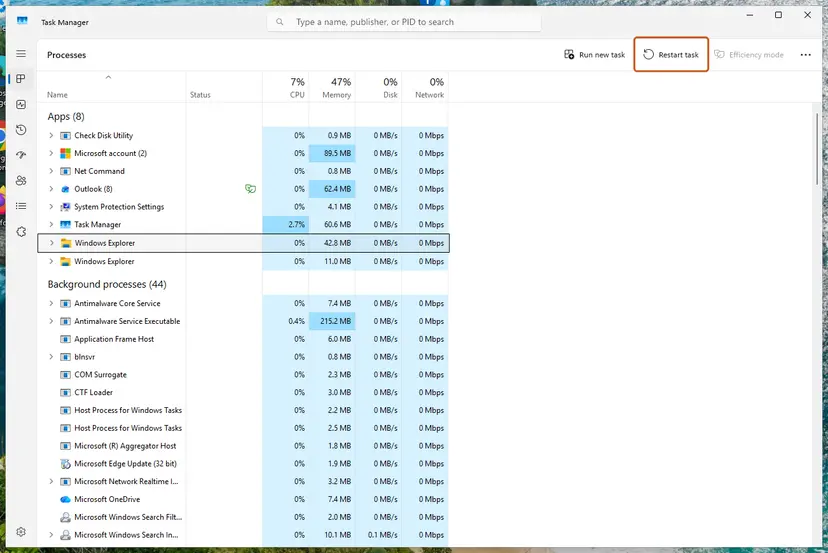
You can do the same without a command. Open File Explorer, paste %AppData%\Microsoft\Windows\Recent\AutomaticDestinations into the address bar and press Enter. Select the file f01b4d95cf55d32a.automaticDestinations-ms, press Ctrl + D to delete it, then restart Explorer.
A message that the file is being used by another process means an Explorer window still had it open. Restart Windows Explorer in Task Manager first, then run the del command again right away.
It worked if: Quick access shows the default folders again, and Pin to Quick access adds a folder without any error. Pin your own folders back one by one.
If not: If the error comes back on the first pin, go to Fix 2. If Quick access itself does not show up, go to Fix 3.
Fix 2. Clear all jump list files in the Recent folder
5 minutesRead the warningThe error stays after Fix 1, or the right-click lists of other apps on the taskbar are broken too.
Explorer reads several jump list files together. If more than one is damaged, deleting only the Quick access file is not enough, so this clears the whole set and Windows builds them again.
This empties the recent items and pinned items in the jump lists of every app, the lists you see when you right-click an app on the taskbar or Start. It also clears Recent files in File Explorer. Your documents themselves are not deleted. Take a screenshot of any jump list pins you want to keep.
- Close File Explorer and any apps whose jump lists you use, such as Word or your browser.
- Press Win + R, type
cmdand press Enter. - Delete the recent item shortcuts. This removes only the shortcuts in the Recent folder, not the files they point to.
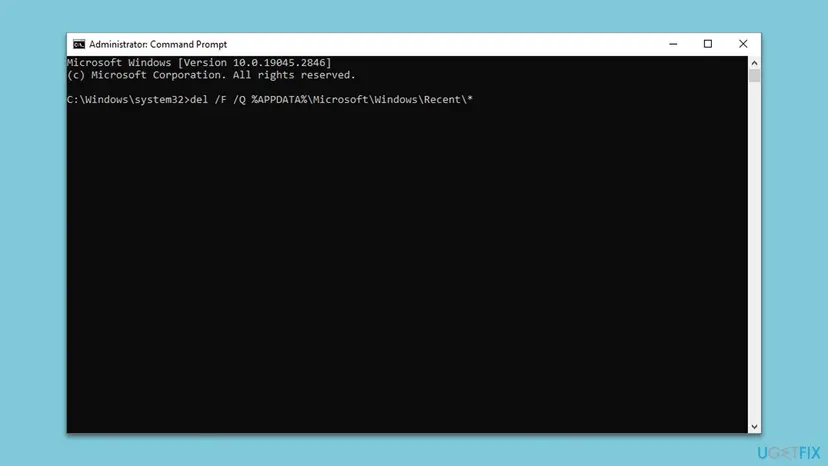
del /f /q "%AppData%\Microsoft\Windows\Recent\*" - Delete the automatic jump list files, which include the Quick access pin file.
del /f /q "%AppData%\Microsoft\Windows\Recent\AutomaticDestinations\*" - Delete the custom jump list files that apps write themselves.
del /f /q "%AppData%\Microsoft\Windows\Recent\CustomDestinations\*" - Restart the PC so every app starts with empty, healthy jump lists.
- Open File Explorer and pin a folder to test.
It worked if: After the restart, pinning works and Quick access shows the default folders. Taskbar jump lists start empty and fill again as you use the apps.
If not: If the error is still there, check whether the disk error also appears outside Quick access and go to Fix 4.
Fix 3. Show Quick Access again and pin by dragging
3 minutesLow riskThere is no error, but Quick access, Home or the frequent folders are missing, or the pin command seems to do nothing.
Quick access can be set to hide frequent folders, and File Explorer can open to This PC instead of Home. Then pins exist but you do not see them, which looks like pinning failed.
- Open File Explorer. In Windows 11 select See more (the three dots) and Options. In Windows 10 select View and Options.
- On the General tab, set Open File Explorer to to Home in Windows 11 or Quick access in Windows 10.
- Under Privacy, tick Show frequently used folders.
- Select Restore Defaults on the same tab if other settings were changed, then select OK.
- Test pinning another way: drag a folder from the right side of File Explorer and drop it on Quick access in the left pane.
If Home or Quick access is missing from the left pane altogether, Folder Options cannot bring it back. That has a separate cause and fix: Quick Access missing in Windows 11.
It worked if: File Explorer opens on Home or Quick access, and your pinned folders show both on that page and in the left pane.
If not: If pinning still fails with an error, go back to Fix 1. If the left pane entry is gone, use the linked guide.
Fix 4. Check the drive with chkdsk
10 to 60 minutesLow riskThe same disk error appears when you open, copy or save other files, not only when you pin.
Then the message may be true: the file system on the drive has errors and the pin file sits on a damaged spot. chkdsk finds and repairs file system errors.
Start with a scan that only reports. Run the repair only if it finds errors. Back up important files first if the drive shows errors in other places.
- Open Command Prompt as administrator. Type cmd in the search box on the taskbar, right-click Command Prompt and select Run as administrator. Select Yes when Windows asks for permission.
- Scan the drive without changing anything. Type the command below and press Enter. Replace C: with another drive letter to check that drive. This scan only reports; it does not fix anything.
chkdsk C: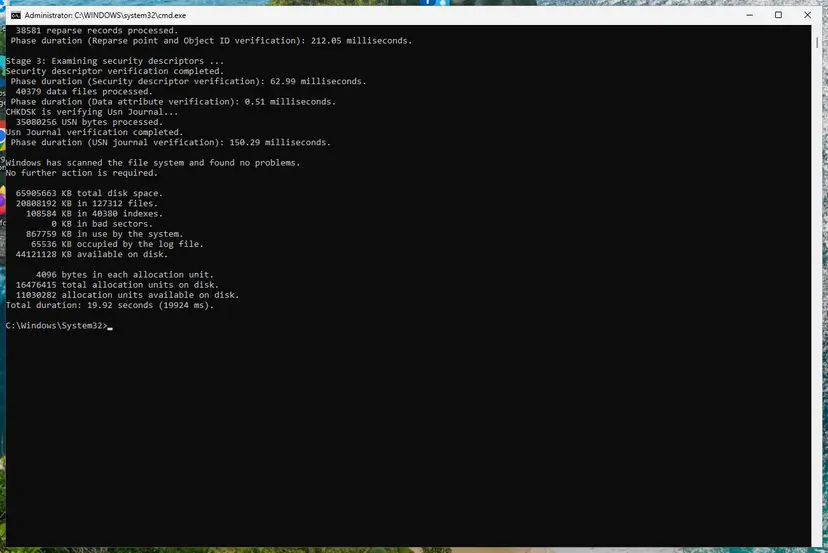
A clean result: no problems found and 0 KB in bad sectors. Screenshot: Windows 11 26H2. - If errors were found, run the repair. Run chkdsk with /f to fix file system errors. On the Windows drive (C:) chkdsk cannot lock the drive while Windows is running, so it offers to check it at the next restart.
chkdsk C: /f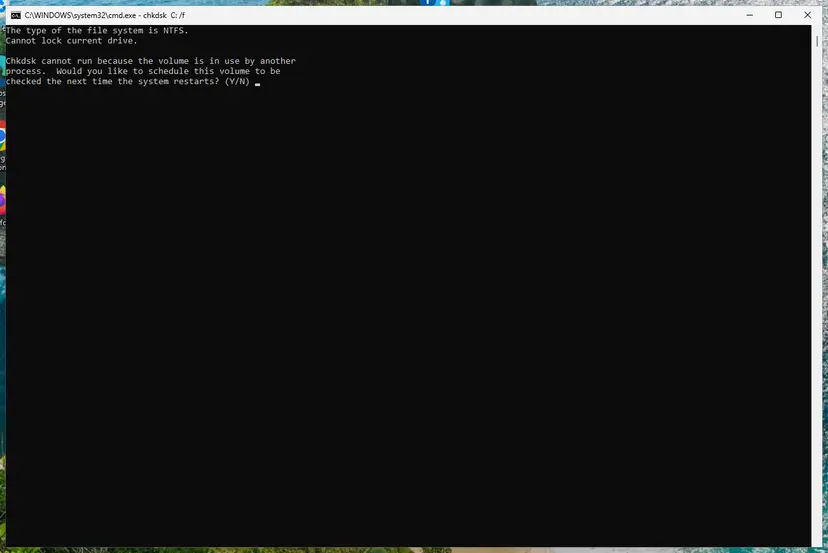
On the system drive chkdsk /f asks to run at the next restart. Screenshot: Windows 11 26H2. - Schedule the check and restart. Type Y and press Enter, then restart the PC. chkdsk runs before Windows starts. Do not turn the PC off while it runs.
- Read the result after the restart. The report of a check made at startup is not shown on the desktop. Open PowerShell and run the command below to see it, or open Event Viewer (eventvwr.msc) > Windows Logs > Application and filter by the sources Chkdsk and Wininit.
Get-WinEvent -FilterHashtable @{LogName='Application'} | Where-Object { $_.ProviderName -match 'wininit' } | Select-Object -First 1 | Format-List TimeCreated, Message
These steps were written for Windows 11 and Windows 10 (the steps are the same). The full page with the other versions and what each result means: Check a disk for errors (chkdsk)
It worked if: chkdsk reports no problems, or it repairs them and the disk error no longer appears when you pin or open files.
If not: If chkdsk finds bad sectors or cannot finish, read the drive's health as described under "Still broken" below.
Fix 5. Repair Windows system files
15 to 30 minutesLow riskFile Explorer also crashes, hangs or shows errors in other menus.
If Windows components that File Explorer uses are damaged, a clean pin file will not help. DISM and SFC replace damaged system files with good copies.
Run DISM first, then SFC, then restart and repeat Fix 1. Step by step: Run DISM and SFC to repair Windows system files.
- Open an elevated command window. Right-click Start and select Terminal (Admin), or type cmd in the search box, right-click Command Prompt and select Run as administrator. Select Yes when Windows asks for permission.
- Run DISM first. Type the command below and press Enter. DISM downloads clean copies of damaged components from Windows Update, so it can take several minutes. Wait until it says The operation completed successfully.
DISM.exe /Online /Cleanup-Image /RestoreHealth - Run System File Checker. In the same window, type the command below and press Enter. Do not close the window until the verification reaches 100%.
sfc /scannow - Read the result and restart. Compare the last message with the table below this guide, then restart the PC so that repaired files are loaded.
These steps were written for Windows 11 24H2 and 25H2. The full page with the other versions and what each result means: Run DISM and SFC to repair Windows system files
It worked if: SFC reports that it found no integrity violations or that it repaired them. After the restart, pinning works.
If not: If pinning still fails after the restart and Fix 1, go to Fix 6 and test in a clean boot.
Fix 6. Test in a clean boot
15 minutes plus restartsLow riskFixes 1 to 5 did not help, or the error started after you installed a file manager, cloud drive or context menu tool.
Programs from other companies can add their own items and handlers to File Explorer. A clean boot starts Windows without them, so you can see whether one of them breaks pinning.
Start Windows with only Microsoft services, try pinning, then turn the other services and startup apps back on in small groups until the error returns. Step by step: How to perform a clean boot in Windows.
- Open System Configuration. Select Search on the taskbar, type msconfig and select System Configuration from the results.
- Hide Microsoft services. On the Services tab, select the Hide all Microsoft services check box. Only services from other companies stay in the list.

With Hide all Microsoft services ticked, only third-party services stay in the list. Screenshot: Windows 11 26H2. - Disable the remaining services. Select Disable all, then select Apply.
- Open Task Manager. On the Startup tab of System Configuration, select Open Task Manager.
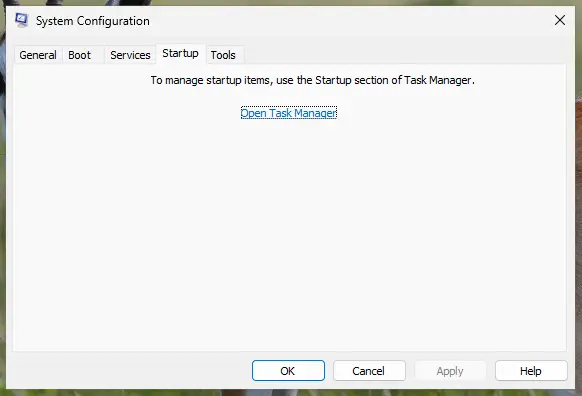
The Startup tab only links to Task Manager. Screenshot: Windows 11 26H2. - Disable the startup apps. On the Startup apps tab in Task Manager, select each item whose status is Enabled and select Disable. Write down or take a screenshot of the items you disable: you need the list to turn them back on.
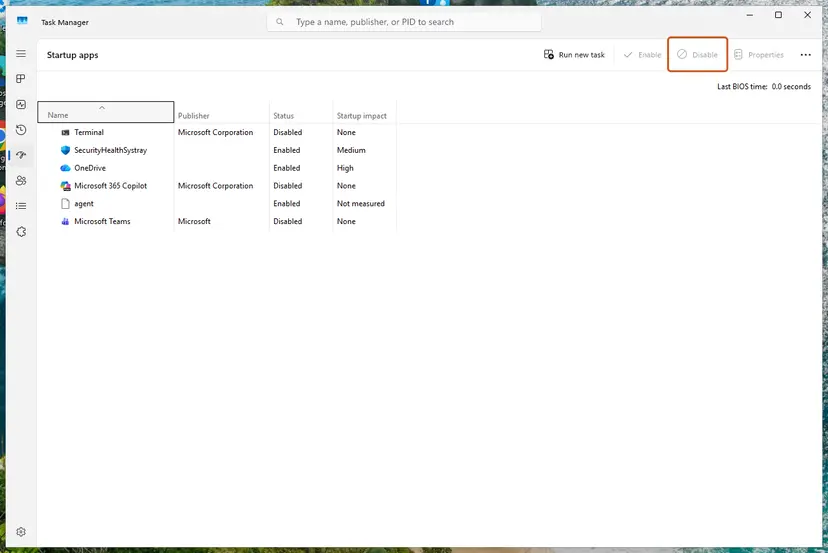
Select an app, then Disable. Screenshot: Windows 11 26H2. - Confirm the changes. Close Task Manager. On the Startup tab of System Configuration, select OK.
- Restart and test. Restart the PC. Windows now starts in a clean boot environment: try again the thing that failed (run the app, install the update, uninstall the program).
These steps were written for Windows 11 25H2 and 26H2. The full page with the other versions and what each result means: How to perform a clean boot in Windows
It worked if: If pinning works in the clean boot, one of the turned off programs causes the error. The group you turned on last holds it.
If not: If pinning fails in a clean boot too, read the next section.
Still can't pin to Quick Access: narrow it down
Windows writes no specific log entry for a failed pin that we could find. These checks take the place of a log and each one rules out a group of causes:
| Check | Result | What it means |
|---|---|---|
| Sign in to a second user account, or create a test one, and pin a folder there. | Pinning works. | The cause is in your own profile. Repeat Fix 1 and Fix 2 while signed in to your account. |
| Same test account. | Pinning fails there too. | The cause applies to the whole PC: system files (Fix 5), a program (Fix 6) or the drive (Fix 4). |
| Open Event Viewer, then Windows Logs and System, and look for Disk or Ntfs errors. | Errors with today's time. | The drive has real read problems. Back up your files now and check the drive's health. |
- What to send to support: your Windows version from
winver, the exact message, whether a test account has the same problem, and the result of chkdsk. - When it is hardware: only when the disk error appears outside Quick access as well, Event Viewer shows Disk errors, or chkdsk reports bad sectors. Then back up first and replace the drive if its health check fails.
- Last resort: if nothing helps and a test account fails too, reinstalling Windows while keeping your files is an option: Reinstall Windows without losing files.
Keep Quick Access pins working
The pin file gets damaged when Windows cannot finish writing it. These habits keep that from happening again:
- Shut down from the Start menu and let Windows finish updates before you turn the PC off.
- Keep a screenshot or short list of your pinned folders, so a reset costs you one minute.
- Restart File Explorer with Restart task in Task Manager instead of ending it in the middle of work.
- Exclude the
Recentfolder from cleaner tools that delete history or jump lists while Explorer is running.
- Do not copy the
AutomaticDestinationsfolder from another PC or another Windows version into your profile. - Do not reset Windows over a pin error before you try Fix 1.
- Do not run disk repair tools from other companies on a drive that only shows this one error.
Frequently asked questions
Why can't I pin folders to Quick Access?
Almost always because the Quick access pin file is damaged. File Explorer stores all pins in one file, f01b4d95cf55d32a.automaticDestinations-ms, in your profile. When that file cannot be read, every pin attempt fails with an error, or nothing seems to happen. Deleting the file and restarting File Explorer makes Windows build a new one, and pinning works again (Fix 1). Less often Quick access is only hidden by a Folder Options setting, or another program's Explorer add-on gets in the way.
Does "A disk error occurred during a read operation" mean my hard drive is failing?
Not when it appears only while pinning to Quick Access. The message comes from File Explorer failing to read its own pin file, and a Microsoft Q&A answer names the damaged Quick access database as the cause. Your drive needs checking only if the same message appears when you open, copy or save other files, or if Event Viewer shows Disk errors. In that case back up your files and run chkdsk as in Fix 4.
What does "Catastrophic failure" mean when pinning to Quick Access?
It is a generic Windows error text that File Explorer shows when an action fails in a way it cannot describe. Users report it with the same pin action and the same damaged Quick access file, and the same reset helps. We could not find a Microsoft article that ties this message to the pin file, so treat Fix 1 as the first test. If it does not help, continue with Fix 2 and Fix 5.
Will deleting the Quick Access file delete my folders or files?
No. The file holds only the list of shortcuts that Quick access shows, not the folders themselves. After the reset, Quick access shows the default folders such as Desktop, Documents, Downloads and Pictures, and the folders you pinned yourself are no longer listed. Every folder is still in its place on the drive. Pin them again by right-clicking each one and choosing Pin to Quick access.
Why can't I pin Downloads or Documents to Quick Access?
Downloads and Documents are pinned by default, so Windows does not offer to pin them a second time. If they are missing from Quick access, the pin file was damaged or they were unpinned. Fix 1 restores the default pins, including Downloads and Documents. If they still do not appear, check that File Explorer opens to Home or Quick access in Folder Options (Fix 3).
Why is pin to Quick Access not working on Windows 11?
On Windows 11 the cause is the same as on Windows 10: a damaged pin file in %AppData%\Microsoft\Windows\Recent\AutomaticDestinations. What differs is the naming. The page that opens with File Explorer is now called Home, and Quick access is the folders section on it. A folder you pin shows under Quick access on Home and in the left pane. If neither shows it, see Fix 3.
Can I back up my Quick Access pins before resetting?
You can copy the file f01b4d95cf55d32a.automaticDestinations-ms to another folder before you delete it. That copy holds your pins, but if it is the damaged file, putting it back brings the error back too. A copy helps only as a backup of a healthy file, made after pinning works again. For this repair a screenshot or a list of your pinned folders is the safer choice.
Does this page cover Windows 10?
Yes. Windows 10 22H2 uses the same pin file, the same folder and the same commands, and Quick access keeps its old name there. Folder Options is under View and Options instead of See more. Windows 10 support ended on 14 October 2025, so it no longer gets fixes from Microsoft, but this repair does not depend on updates.
Sources
Did this fix work?
One click, no account. It tells the next reader which guides are worth their time.
Questions and experiences: Can't pin folders to Quick Access in Windows: "A disk error occurred during a read operation"
Still broken, or found a fix we did not cover? Ask here: members and our editors answer. Reading is open; writing needs a free account.
…