
[Fix] Error code 0x800f0950: installing Language packs on Windows?

Prefer to fix it yourself? The manual steps follow.
- 8methods
- 5 minutes to 2 hours
- Intermediate
Applies to Windows 11 and Windows 10: language packs and language features, .NET Framework 3.5 and other optional features
8 methods in this guide
When I got the OS upgrade, I discovered that there was an error with my computer and I could not continue with the installation process because I needed to update some language packs first. I got an error code 0x800f0950 while trying to install them. Would you tell me what exactly this error means?
Error code 0x800F0950 means Windows could not download an optional part, such as a language pack, Basic typing or .NET Framework 3.5, from Windows Update. A Windows Update policy, waiting updates or a damaged update cache is usually behind it. Install waiting updates and restart first, then check for a policy that blocks optional features.
Error code 0x800F0950 means Windows could not fetch an optional feature from Windows Update. Install every waiting update, restart and try again (Fix 1). On a work or school PC, a policy that sends updates through the organization's server (WSUS) is the usual cause, and Fix 2 lets optional features come from Windows Update instead. If only .NET Framework 3.5 fails, go to Fix 5.
| Error | Sorry, we're having trouble getting this feature installed. with Error code: 0x800F0950, or the same code in Windows Features, DISM or PowerShell. |
|---|---|
| Where it appears | Settings > Time & language > Language & region after Add a language or a language feature, Turn Windows features on or off for .NET Framework 3.5, and Add-WindowsCapability, Install-Language or DISM. |
| Main cause | Windows cannot get the Feature on Demand package from Windows Update: an update policy or WSUS blocks it, updates are waiting, or the update cache is damaged. |
| Fastest fix | Install waiting updates, restart and add the language again (Fix 1). On a managed PC, the Group Policy setting in Fix 2. |
| Also written as | 0x800f0950, 0x800F0950, error code = 0x800f0950, 800f0950, 0x800f950 (a typo), and the signed form in PowerShell. |
| Affects | Windows 11 and Windows 10, on Home and Pro. The same code appears for languages and for .NET Framework 3.5. |
| Microsoft's status | No known issue is listed for this code. Microsoft's .NET Framework 3.5 page lists other codes (0x800f0906, 0x800f0907, 0x800f081f, 0x800F0922). From Windows 11 26H1 (build 28000), .NET Framework 3.5 is a standalone installer only. |
| Where the cause is written | C:\Windows\Logs\CBS\CBS.log and C:\Windows\Logs\DISM\dism.log. |
| Time to fix | 5 to 20 minutes for Fix 1 to Fix 5. About an hour or more for the repair reinstall in Fix 8. |
Facts checked on 15 October 2026. Steps written for Windows 11 (25H2 and 26H2) and Windows 10 22H2.
What error code 0x800F0950 means
Windows does not keep every optional part on the disk. Language packs, Basic typing, Speech, Handwriting and .NET Framework 3.5 are Features on Demand: Windows downloads them from Windows Update when you ask for them. Error code 0x800F0950 means that download or its install failed.
So the code is not about the language itself. The same number shows up in three places, and the fixes are the same for all of them. People search it in many spellings: 0x800f0950, error code: 0x800f0950, error code = 0x800f0950 (the DISM and PowerShell form) and 800f0950.
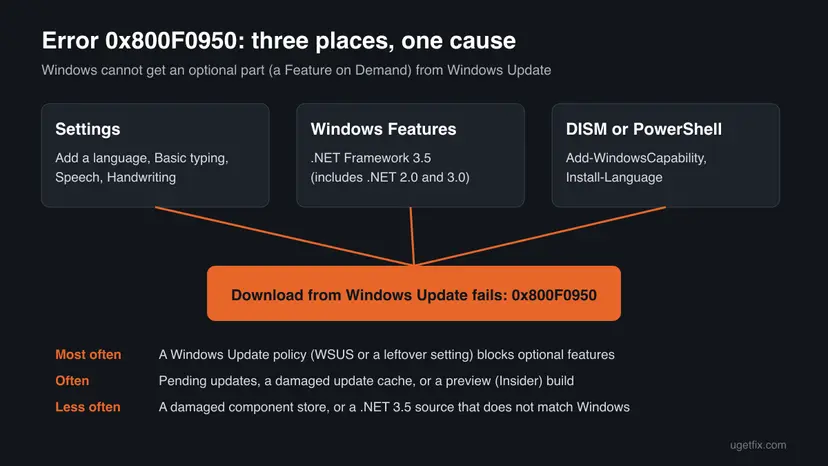
| Where you see it | What you were doing | What it looks like |
|---|---|---|
| Settings | Add a language, or a language feature in Language options | Sorry, we're having trouble getting this feature installed. Error code: 0x800F0950 |
| Windows Features | Turning on .NET Framework 3.5 (includes .NET 2.0 and 3.0), or an app asked for it | The change cannot be completed, with the code 0x800F0950 |
| PowerShell or DISM | Add-WindowsCapability or Install-Language as administrator | A line such as Add-WindowsCapability failed. Error code = 0x800f0950 |
| Windows setup or upgrade | An upgrade that needs the old languages again | Setup stops and asks for the language packs, as in the reader's question above |
Why error 0x800F0950 happens
The causes are ordered by how likely they are on a typical PC. Windows OS Hub, which tested language pack errors on Windows 10 and 11, fixes 0x800F0950 the same way as the WSUS error 0x80073D01. Microsoft Q&A threads with this code point to Windows Update policies as well.
| Cause | How often | How to tell | Fix |
|---|---|---|---|
| Updates are waiting for a restart or half installed, often right after an upgrade. | Often | Settings > Windows Update shows Restart required or pending updates. | Fix 1 |
| The PC takes updates from a WSUS server, which does not hold Features on Demand. | Often on work and school PCs | The PC is managed by an organization. Other optional features fail too. | Fix 2 |
| A leftover Windows Update policy blocks the download on a home PC. | Sometimes | A tweak tool, a debloat script or a former employer once changed update settings. | Fix 3 |
| The Windows Update cache is damaged. | Sometimes | Windows Update itself shows errors, or the download fails at the same point. | Fix 4 |
| The .NET Framework 3.5 source does not match the Windows version. | Only for .NET 3.5 | Languages install fine, .NET 3.5 does not. | Fix 5 |
| A Windows Insider preview build. | Less often | Settings > Windows Update > Windows Insider Program shows a channel. | Fix 6 |
| The component store is damaged. | Rarely | DISM reports errors, several features and updates fail. | Fix 7, then Fix 8 |
If the language shows no code at all and only hangs at a percentage, pending or initializing, the problem is the download itself. Our guide to a stuck language pack download covers that case, including the metered connection setting.
The code comes from the servicing stack, not from the drive or the memory. Your Windows licence is not the cause either. The one edition limit we know of is Windows Home Single Language, which is built for one display language.
How to fix error code 0x800F0950 on Windows
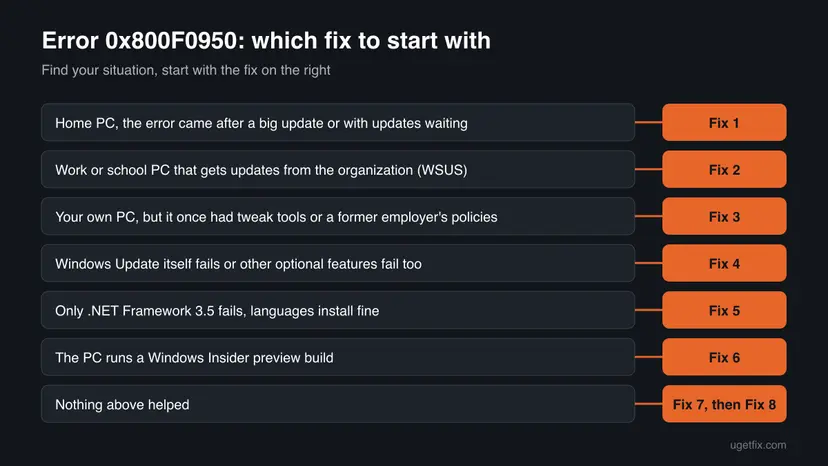
Fix 1 helps most home PCs and takes minutes. Fix 2 and Fix 3 remove a policy that blocks optional features. Fix 4 resets the update cache. Fix 5 is only for .NET Framework 3.5 and Fix 6 only for preview builds. Fix 7 and Fix 8 repair Windows itself.
| What you see or have | Start with |
|---|---|
| Home PC, the error came after an upgrade or with updates waiting | Fix 1 |
| Work or school PC that gets updates from the organization | Fix 2 |
| Your own PC that once ran tweak tools or had a work policy | Fix 3 |
| Windows Update itself fails, or other optional features fail too | Fix 4 |
| Only .NET Framework 3.5 fails, languages install fine | Fix 5 |
| The PC runs a Windows Insider preview build | Fix 6 |
| Nothing above helped | Fix 7, then Fix 8 |
Fix 1. Install waiting Windows updates, restart and add the language again
10 to 40 minutesNo riskEvery home PC first, and always after a Windows upgrade.
Language packs and other Features on Demand must match the exact Windows build. While an update waits for a restart, Windows is between two builds and the matching package cannot be installed. Users on Microsoft Q&A report that .NET Framework 3.5 installed after they updated Windows.
- Open Settings > Windows Update and select Check for updates. On Windows 10 the page is Settings > Update & Security > Windows Update.
- Install everything that is offered, including optional quality updates.
- Restart with Start > Power > Restart. Restart once more if Windows Update still says Restart required.
- Open Settings > Time & language > Language & region. If the failed language is listed, select ... next to it and Remove.
- Select Add a language, pick the language, tick only Language pack and select Install.
- When the language pack is in, add Basic typing, Speech and Handwriting one at a time in Language options.
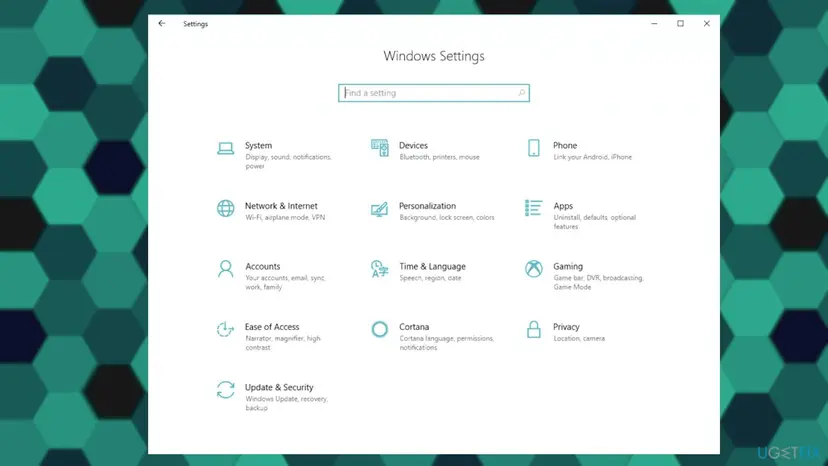
Adding the language pack alone and the features later tells you which part fails. If only Basic typing shows 0x800F0950, the language is fine and the next fixes apply to that one feature.
It worked if: The language moves to installed under Preferred languages and no error code appears.
If not: On a work or school PC go to Fix 2. On your own PC go to Fix 3.
Fix 2. Let a work or school PC get optional features from Windows Update
10 minutesRead the warningA PC managed by an organization that gets its updates from a WSUS server.
Windows OS Hub explains that a PC set to take updates from an internal WSUS server cannot get language packs from it, and that 0x800F0950 is fixed the same way. A Group Policy setting tells Windows to fetch optional features directly from Windows Update.
This changes how a managed PC gets updates. The organization may undo it at the next policy refresh or may need to set it in the domain policy. On your own PC, note the old setting so you can put it back.
- Open the Run box. Press Windows key + R.
- Start the editor. Type the command below and select OK. Select Yes if Windows asks for permission.
gpedit.msc
These steps were written for Windows 11 and Windows 10, Pro, Enterprise and Education (the steps are the same). The full page with the other versions and what each result means: Open the Local Group Policy Editor
- Go to Computer Configuration > Administrative Templates > System.
- Double-click Specify settings for optional component installation and component repair.
- Select Enabled and tick Download repair content and optional features directly from Windows Update instead of Windows Server Update Services (WSUS). Select OK.
- Open Terminal (Admin), apply the policy and restart the update service:
gpupdate /force net stop wuauserv net start wuauserv - Add the language or turn on .NET Framework 3.5 again.
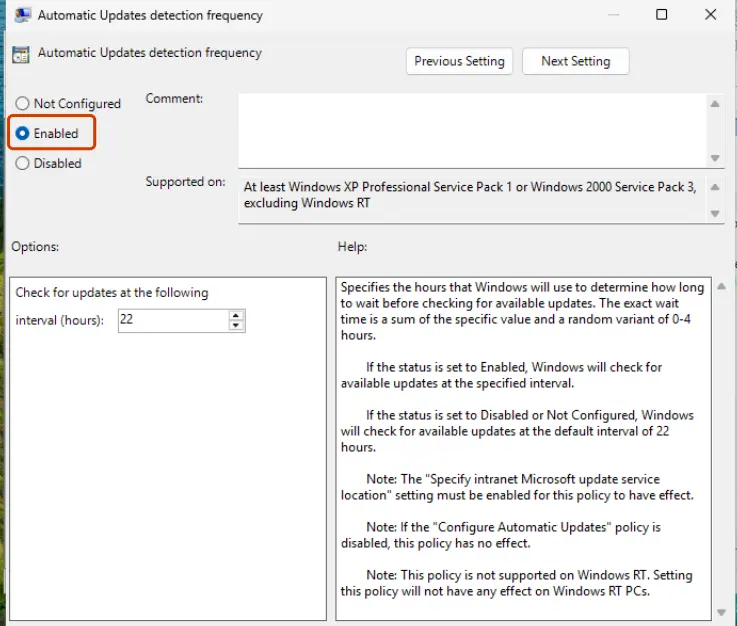
It worked if: The language or feature downloads and installs. Windows OS Hub notes that RSAT and .NET Framework 3.5 then install as well.
If not: Send the error code to the administrator. If the PC is your own, go to Fix 3.
Fix 3. Remove a leftover Windows Update policy on your own PC
10 minutesRead the warningA home PC without WSUS that once ran a tweak tool or debloat script, or was a work PC before.
Two registry values can keep Windows away from Windows Update for optional features. Windows OS Hub names DoNotConnectToWindowsUpdateInternetLocations set to 1 as a block for Features on Demand, and UseWUServer as the switch that sends updates to WSUS.
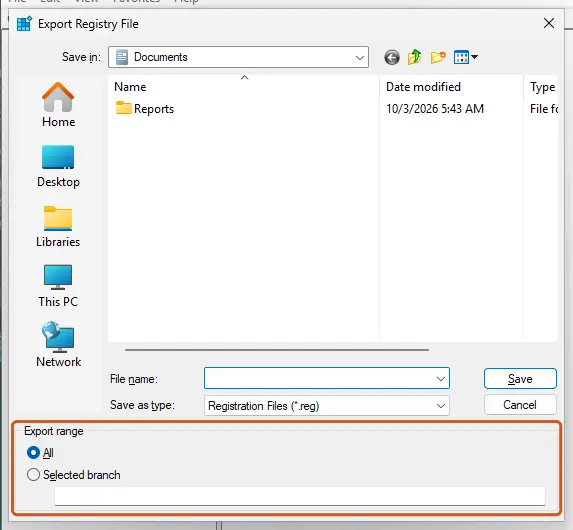
A wrong registry change can break Windows Update. Export the key before you change it, so you can import it back: Back up the registry before editing it. Do not do this on a PC your organization manages.
- Open Terminal (Admin) and check whether the policy key exists:
reg query HKLM\SOFTWARE\Policies\Microsoft\Windows\WindowsUpdate /s - If Windows says it cannot find the key, no such policy is set. Skip to Fix 4.
- If the key exists, press Win + R, type
regeditand press Enter. Select Yes. - Go to
HKEY_LOCAL_MACHINE\SOFTWARE\Policies\Microsoft\Windows\WindowsUpdate. Export it with File > Export. - Double-click DoNotConnectToWindowsUpdateInternetLocations if it is there, set it to 0 and select OK.
- Open the AU subkey. If UseWUServer is there, set it to 0.
- Restart the update service in Terminal (Admin), then try the language again:
net stop wuauserv
net start wuauserv
It worked if: Settings > Windows Update no longer says that some settings are managed by your organization, and the language installs.
If not: Import the exported .reg file if anything else stopped working, then go to Fix 4.
Fix 4. Reset the Windows Update cache
10 minutesLow riskWindows Update shows errors too, or the download fails at the same point every time.
The half-downloaded package stays in the update cache and Windows reuses it at every retry. Renaming the cache folders makes Windows download the feature from zero. A Microsoft Q&A advisor suggested a full Windows Update reset for this code.
- Open Command Prompt as administrator. Type cmd in the search box, right-click Command Prompt and select Run as administrator. Select Yes when Windows asks for permission.
- Stop the update services. Type the commands below and press Enter after each one. If Windows says that other services depend on Cryptographic Services, it stops them too. A message that a service is not started is fine.
net stop wuauserv net stop bits net stop cryptsvc - Delete the download queue files. This clears the list of downloads that the Background Intelligent Transfer Service keeps. If Windows says it cannot find the files, continue.
del "%ALLUSERSPROFILE%\Application Data\Microsoft\Network\Downloader\qmgr*.dat" - Rename the update cache folders. Renaming keeps a copy in case you need it; Windows creates new, empty folders when the services start again. If you get Access is denied, a service is still running: repeat the previous step.
ren %systemroot%\SoftwareDistribution SoftwareDistribution.old ren %systemroot%\System32\catroot2 catroot2.old - Start the services again. Type the commands below and press Enter after each one. The requested service has already been started is fine: Windows started it on its own.
net start cryptsvc net start bits net start wuauserv - Restart and check for updates. Restart the PC. Then select Start > Settings > Windows Update > Check for updates. The first check can take longer than usual because everything is downloaded again.
These steps were written for Windows 11 and Windows 10 (the steps are the same). The full page with the other versions and what each result means: Reset Windows Update components

It worked if: Windows Update checks again from an empty cache, and the language or feature installs when you add it again.
If not: If only .NET Framework 3.5 still fails, go to Fix 5. Otherwise go to Fix 7.
Fix 5. Turn on .NET Framework 3.5 the way Microsoft supports for your Windows version
5 to 20 minutesNo riskAn app asked for .NET Framework 3.5 and turning it on fails with 0x800F0950.
Microsoft supports different ways by version. Windows 10 and Windows 11 up to 25H2 turn it on in Windows Features with a download from Windows Update. From Windows 11 26H1 (build 28000) it is only a standalone installer, so the Windows Features route no longer exists.
Microsoft's own advice comes first: .NET Framework 3.5 dates from 2008, so check whether the app has a newer version that does not need it.
- Check your build in Settings > System > About under OS build.
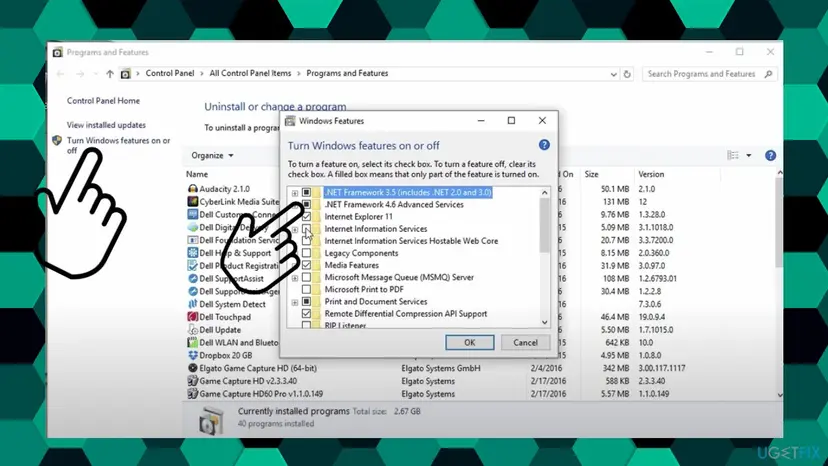
- On Windows 10 and Windows 11 before 26H1, select Start, search for Windows Features and open it.
- Tick .NET Framework 3.5 (includes .NET 2.0 and 3.0) and select OK. You do not need the WCF child items.
- Select Let Windows Update download the files for you if asked, and restart when prompted.
- On Windows 11 26H1 (build 28000) or later, use the .NET Framework 3.5 installer and its language pack from Microsoft's .NET Framework 3.5 page instead.
- Without internet, or when Windows Update still fails, install it from Windows installation media of the same version with DISM, as Microsoft's page describes.
Microsoft warns that a .NET Framework 3.5 source from another Windows version installs a mismatched copy or fails, and can leave Windows unserviceable. Never use .cab files from download sites.
It worked if: Windows Features shows the .NET Framework 3.5 box filled, and the app that asked for it starts.
If not: If Windows Update is blocked by a policy, Fix 2 and Fix 3 apply to .NET 3.5 too. Otherwise go to Fix 7.
Fix 6. Leave the Windows Insider preview
Minutes to wait for the next release, or 1 to 2 hours for a reinstallRead the warningThe PC runs a Windows Insider build in the Dev, Canary, Beta or Release Preview channel.
Optional packages for a preview build may not be published yet or may not match it. A Microsoft community support agent advised a reader with 0x800F0950 on a preview build to leave the program. Windows OS Hub does not cover this case.
Leaving the Dev or Canary channel at once means a clean install of Windows, which erases apps and files. Back up first: Back up your files (Windows Backup, File History, Time Machine).
- Open Settings > Windows Update > Windows Insider Program.
- Open the option to stop getting preview builds.
- In the Beta or Release Preview channel, choose to unenroll this device when the next version of Windows is released.
- Keep installing updates. When the public release reaches your build, the PC returns to the normal channel.
- Add the language again after that update.
It worked if: Settings > Windows Update no longer shows an Insider channel, and the language installs on the public build.
If not: If the code returns on the public build, go to Fix 7 and repair the component store.
Fix 7. Repair the component store with DISM and SFC
15 to 40 minutesNo riskFix 1 to Fix 4 did not help, and other updates or features fail too.
Language packs and .NET Framework 3.5 install into the same component store as updates. When that store is damaged, every new package fails. DISM repairs it and SFC then repairs the system files.
- Open an elevated command window. Right-click Start and select Terminal (Admin), or type cmd in the search box, right-click Command Prompt and select Run as administrator. Select Yes when Windows asks for permission.

Search for cmd and choose Run as administrator. Screenshot: Windows 11 26H2. - Run DISM first. Type the command below and press Enter. DISM downloads clean copies of damaged components from Windows Update, so it can take several minutes. Wait until it says The operation completed successfully.
DISM.exe /Online /Cleanup-Image /RestoreHealth
DISM /RestoreHealth running. Screenshot: Windows 11 26H2. - Run System File Checker. In the same window, type the command below and press Enter. Do not close the window until the verification reaches 100%.
sfc /scannow
sfc /scannow at 100%. Screenshot: Windows 11 26H2. - Read the result and restart. Compare the last message with the table below this guide, then restart the PC so that repaired files are loaded.

The result line tells you what SFC did. Screenshot: Windows 11 26H2.
These steps were written for Windows 11 24H2 and 25H2. The full page with the other versions and what each result means: Run DISM and SFC to repair Windows system files
Type the DISM command exactly, with no space after each slash. A reader on Microsoft Q&A got error 87 from every DISM command, which points to a typing error or a broken build rather than to 0x800F0950.
It worked if: DISM reports The operation completed successfully., SFC finds no violations or repairs them, and the feature installs after a restart.
If not: If DISM cannot repair the store, go to Fix 8.
Fix 8. Reinstall Windows over itself and keep your apps and files
1 to 2 hoursLow riskNothing above helped and languages, .NET 3.5 and updates keep failing.
A repair reinstall puts a clean copy of the same Windows version over the old one, with a new component store and update stack. Apps, files and settings stay.
- Open Recovery in Settings. Open Settings > System > Recovery. Next to Fix problems using Windows Update, select Reinstall now. This keeps your apps, files and settings.

Fix problems using Windows Update reinstalls the current version and keeps apps, files and settings. Screenshot: Windows 11 26H2. - Start the reinstall. Choose whether the PC may restart on its own 15 minutes after the installation, then select OK.
- Wait and restart. Windows Update downloads and installs a repair copy of your current Windows version. Keep the PC plugged in and online, and restart it when asked.
These steps were written for Windows 11 22H2 and later. The full page with the other versions and what each result means: Reinstall Windows without losing files
Your files are meant to stay, but a failed reinstall can leave Windows unable to start. Back up what you cannot lose first: Back up your files (Windows Backup, File History, Time Machine). Keep a laptop plugged in.
It worked if: The PC starts into the same desktop, and the language or feature installs without 0x800F0950.
If not: If the error still returns, read the CBS log as the next section explains and use Reset this PC with Keep my files.
If error 0x800F0950 does not go away
Before you reset Windows, read what the servicing stack wrote. It names the package that failed, and it is what support or an administrator will ask for.
- Press Win + R, type
%windir%\Logs\CBSand press Enter. - Copy
CBS.logto the Desktop and open the copy in Notepad. - Press Ctrl + F and search for
0x800f0950. The lines just above the last hit name the package, such as aLanguageFeaturesorNetFx3package. - For DISM and
Add-WindowsCapability, open%windir%\Logs\DISM\dism.logand search the same way.
| Situation | What to do |
|---|---|
| Work or school PC | Send the administrator the language or feature, the code and the log lines. Managed PCs often get languages from the organization. |
| The repair reinstall is missing or fails | Use Reset this PC with Keep my files and Cloud download: Reinstall Windows without losing files. Apps are removed, files stay. |
| The language installs but cannot be the display language | Check for Windows Home Single Language in Settings > System > About. |
| An Office or Microsoft 365 language fails, not Windows | That is a different installer. Use the Microsoft 365 language accessory pack from Microsoft's Office support pages. |
How to keep error 0x800F0950 from coming back
- Finish waiting Windows updates and restart before you add a language or a feature.
- Add the language pack first and its optional features later.
- Note any update policy you change, so you can explain it to an administrator.
- Keep the installation media of your exact Windows version if you need .NET 3.5 offline.
- Do not run debloat scripts that turn off Windows Update services or policies.
- Do not download language or .NET
.cabfiles from unknown sites. - Do not delete files in
C:\Windows\WinSxSto save space. - Do not turn off security software to make the install pass. No source ties it to this code.
Microsoft ended support for Windows 10 on 14 October 2025. Languages and .NET 3.5 still come from Windows Update, so an unsupported Windows 10 PC may see this code more often over time.
Frequently asked questions
What does error code 0x800F0950 mean?
It means Windows could not download or install an optional feature from Windows Update. The feature is usually a language pack, a language feature such as Basic typing, or .NET Framework 3.5. The code is the same in Settings, in Windows Features and in DISM or PowerShell. The usual causes are updates waiting for a restart, a Windows Update policy or WSUS server that blocks optional features, and a damaged update cache.
How do I fix error code 0x800F0950 on Windows 11?
Start with Fix 1: install every waiting update in Settings > Windows Update, restart, then add the language again with only the language pack ticked. On a work or school PC, enable the Group Policy setting for optional component installation in Fix 2. On a home PC that once ran tweak tools, check the Windows Update policy key in Fix 3. Then reset the update cache and repair the component store.
Is error 0x800F0950 on Windows 10 fixed the same way?
Yes. The code means the same on Windows 10 22H2, and all eight fixes work there. Only the paths differ: Windows Update is under Settings > Update & Security, and languages are under Settings > Time & Language > Language. Windows 10 left support on 14 October 2025, so keep in mind that a PC without extended security updates gets no new fixes from Microsoft.
What does Add-WindowsCapability failed. Error code = 0x800f0950 mean?
It is the same error, shown by PowerShell or DISM when an administrator adds a capability such as a language feature or RSAT. The command could not get the package from Windows Update. On managed PCs the WSUS policy is the usual reason, so Fix 2 applies first. On your own PC, check the policy values in Fix 3, then reset the update cache. Look in dism.log for the package name.
Why does .NET Framework 3.5 fail with 0x800F0950?
.NET Framework 3.5 is downloaded from Windows Update when you turn it on, so the same blocks apply: waiting updates, a WSUS policy or a damaged cache. Microsoft also says that from Windows 11 26H1 (build 28000) it is no longer a Windows component, only a standalone installer. On earlier versions, use Windows Features or installation media of the same Windows version, as Fix 5 explains.
Why can't I install the Basic typing feature with error 0x800F0950?
Basic typing is a separate Feature on Demand from the language pack, so it can fail on its own. Remove nothing yet. Install waiting updates and restart, then open Settings > Time & language > Language & region, select the three dots next to the language, then Language options, and add Basic typing again. If the code returns, the policy and cache fixes apply to it the same way.
Is 0x800F0950 the same as 0x800F0954?
No, but they are close. Windows OS Hub lists 0x800F0954 and 0x800F0908 for language pack downloads that fail on a metered connection or a damaged update cache. 0x800F0950 is fixed like the WSUS error 0x80073D01, with the Group Policy setting in Fix 2. Resetting the update cache in Fix 4 helps with all of them.
Why do all my DISM commands fail with error 87?
Error 87 means DISM did not accept a parameter, which is usually a typing error. Type the command with no spaces after the slashes, for example DISM /Online /Cleanup-Image /RestoreHealth, in Terminal opened as administrator. A Microsoft community agent told one reader with this result on a preview build to leave the Insider program first. Once DISM runs, go back to Fix 7.
Can I install a language pack offline to avoid 0x800F0950?
On a running PC, the supported ways are Add a language in Settings and Install-Language in PowerShell, and both download from Windows Update. Administrators can add languages from Microsoft's Features on Demand media for the exact Windows build. Do not install language .cab files from download sites. They cannot be checked and may not match your build, which can cause new errors.
Will a Windows upgrade fail because of error 0x800F0950?
It can stop an upgrade that needs to bring your installed languages along, as in the reader's question at the top. Finish all waiting updates and restart first, then install the languages again before the upgrade. If a language still fails, remove it from Preferred languages, run the upgrade and add the language back afterwards. Keep at least one working display language.
Sources
- Microsoft Learn: Install .NET Framework 3.5 on Windows 10 and Windows Server (learn.microsoft.com)
- Windows OS Hub: Cannot Install Language Pack on Windows 10 or 11 (woshub.com)
- Microsoft Q&A: Unable to install language pack. Error code 0x800F0950 (learn.microsoft.com)
Did this fix work?
One click, no account. It tells the next reader which guides are worth their time.
Questions and experiences: [Fix] Error code 0x800f0950: installing Language packs on Windows
Still broken, or found a fix we did not cover? Ask here: members and our editors answer. Reading is open; writing needs a free account.
…