
[Fix] "Save As" window keeps popping up in Office apps

Prefer to fix it yourself? The manual steps follow.
- 9methods
- 2 to 30 minutes
- Easy
Applies to Word, Excel, PowerPoint and other Microsoft 365 and Office desktop apps on Windows 11 and Windows 10
9 methods in this guide
Hello. When I try to use Excel, the "Save As" window on the left keeps popping up repeatedly on its own. This is getting really frustrating. Is there any way to fix this?
When the Save As window keeps popping up in Word, Excel or PowerPoint, Office usually cannot save the file where it is, or something keeps sending the Save As command. Save the file once to a normal folder first. If the window still opens on its own, test the F12 key and the add-ins.
Office opens Save As instead of saving when the file has no home it can write to: a new file, an email attachment, a template or a read-only file. Use File > Save As > Browse and save it once to Documents (Fix 1). If the window opens while you press nothing, a stuck F12 key or an add-in sends the command: test the keyboard and start the app with /safe (Fix 3 and Fix 4).
| Error | No error code. The Save As pane on the left of the File screen (the Backstage) or the classic Save As dialog opens again and again. In Excel the same complaint is often the Save / Don't Save prompt on closing. |
|---|---|
| Where it appears | Word, Excel and PowerPoint for Microsoft 365, Office 2024 and 2021 on Windows, when you press Ctrl + S, select Save, close the file or, in bad cases, while you type. |
| Main cause | Office cannot save the file in place: it was never saved, it is read-only, it came from an attachment or Protected View, or it is a template. Less often a stuck F12 key or an add-in. |
| Fastest fix | File > Save As > Browse, pick Documents, keep the normal format (.docx, .xlsx, .pptx) and save (Fix 1). Then Ctrl + S saves without asking. |
| Also written as | Save As keeps popping up, Save As window keeps opening, Excel save pop up window, Excel save don't save pop up, Word keeps asking where to save. |
| Shortcut behind it | F12 opens the classic Save As dialog in every Office app. Ctrl + S opens it only for a file that has no saved location yet. |
| Microsoft's status | Not a bug in itself. Microsoft documents the Save experience and the option to skip the Backstage for keyboard shortcuts. The Excel prompt on close is documented as recalculation, not damage. |
| Time to fix | 2 minutes for Fix 1 and Fix 2. Up to 30 minutes when add-ins, Office updates or a repair are involved. |
Facts checked on 15 October 2026. Steps written for Microsoft 365 apps, Office 2024 and Office 2021 on Windows 11 (25H2 and 26H2) and Windows 10 22H2, read against Microsoft Support.
What the Save As window popping up in Word, Excel and PowerPoint means
Readers describe three different things with the same words, and each has its own fix. The first is the Save As pane that fills the left side of the File screen. Microsoft calls that screen the Backstage. The second is the classic Windows style Save As dialog with a folder tree.
- Save As appears every time you press Ctrl + S. Office asks where to save because the file has no saved location it can write to. This is the most common case.
- Save As appears by itself, with no key pressed. Something sends the Save As command, most often the F12 key or a keyboard tool, less often an add-in.
- Excel asks Save, Don't Save or Cancel when you close a file you did not change. That is not a Save As window, but readers search it as the Excel save pop up. Excel saw a change made by a recalculation.
None of these pop-ups means the document is damaged. Office asks because it wants to know where or whether to save. Select Cancel if you are unsure, then follow the fix that matches what you see.
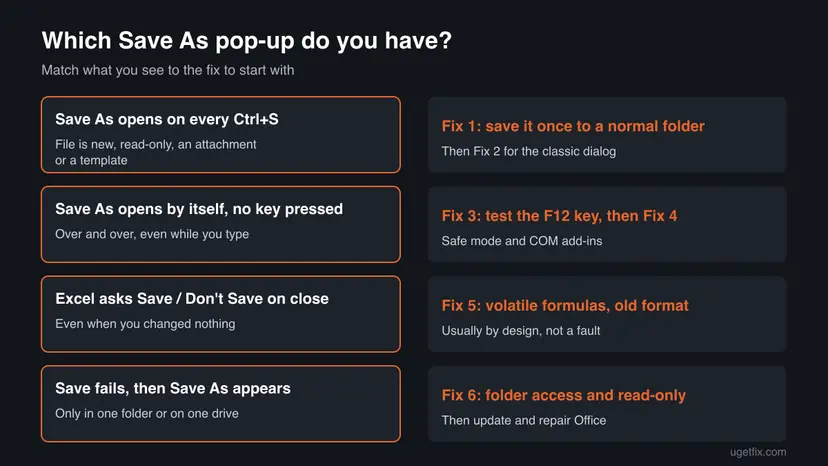
Why Office keeps opening Save As, from the most common cause to the rare
Microsoft does not publish one cause for this complaint, because it is not one fault. The ranking below is our reading of how Office decides between saving in place and asking, and of Microsoft's notes on the Excel prompt.
| How often | Cause | Typical sign | Fix |
|---|---|---|---|
| Most often | The file was never saved, came from an email or the web, or is a template | Title bar shows Document1, Book1, a yellow Protected View bar or Read-Only | Fix 1 |
| Often | The Backstage is shown for keyboard shortcuts, so every first save fills the screen | Ctrl + S on a new file opens the full File screen, not a small dialog | Fix 2 |
| Often in Excel | Volatile formulas, an older file format, links or macros change the workbook on opening | Save / Don't Save on close, even with no edits | Fix 5 |
| Less often | A stuck F12 key, a function key lock or keyboard software that sends F12 | Save As opens while you type or right after Office starts | Fix 3 |
| Less often | An add-in that hooks the save command (PDF tools, document management, cloud sync) | Problem gone when the app starts with /safe | Fix 4 |
| Rarely | The folder blocks writing: read-only attribute, OneDrive conflict, network share, Controlled folder access | Saving fails in one folder only | Fix 6 |
| Rarely | Damaged or outdated Office files, or another program at startup | Nothing above helped | Fix 7, Fix 8, Fix 9 |
Some websites blame a Windows update or a virus for this. We found no Microsoft document that ties the Save As window to either. A scan does no harm, but start with the fixes in this order.
How to stop the Save As window from popping up in Office
The fixes are ordered by how often they end the pop-up and how little they change. Fix 1 and Fix 2 take two minutes and settle most cases. After each fix, open a document, change one letter and press Ctrl + S: when the title bar shows the file name and no window opens, you are done.
| What you see | Start with | Then |
|---|---|---|
| Save As opens on Ctrl + S, the title bar shows Document1, Book1 or Read-Only | Fix 1 | Fix 2, Fix 6 |
| The full File screen opens and you want the small classic dialog | Fix 2 | Fix 1 |
| Save As opens by itself, even while you type | Fix 3 | Fix 4, Fix 9 |
| Excel asks Save, Don't Save or Cancel on a file you did not change | Fix 5 | Fix 7 |
| Saving fails in one folder, works on the desktop | Fix 6 | Fix 1 |
| Every Office app does it after an update | Fix 7 | Fix 8, Fix 4 |
Fix 1. Save the file once to a normal folder in its normal format
2 minutesNo riskEveryone whose Save As window opens on Ctrl + S or on Save, above all for new files, attachments and templates.
Office saves in place only when the file already has a location it can write to. A new file, an attachment opened from Outlook, a file in Protected View, a read-only copy or a template has none, so every save asks again until you give it one.
- Look at the title bar. Document1, Book1 or Presentation1 means the file was never saved. Read-Only or Compatibility Mode after the name means Office cannot or will not save in place.
- If a yellow Protected View bar is shown, select Enable Editing only when you trust the file.
- Select File > Save As > Browse.
- Open Documents or another folder on your own disk, not the Downloads or Temp folder of the email program.
- In Save as type, keep **Word Document (*.docx), Excel Workbook (*.xlsx) or PowerPoint Presentation (*.pptx)**, not a template or an old format.
- Select Save, then close the file and open it again from that folder.
- Change one letter and press Ctrl + S.
Double-clicking a .dotx, .xltx or .potx template opens a new untitled copy. That copy always asks where to save. Save it under a new name, and open that file next time instead of the template.
It worked if: The title bar shows your file name without Read-Only, and Ctrl + S saves without opening any window.
If not: If the window you see is the full File screen, use Fix 2. If saving to Documents fails too, go to Fix 6.
Fix 2. Show the classic Save As dialog instead of the Backstage and set a default folder
2 minutesNo riskReaders who see the large Save As pane on the left of the File screen and find it disruptive.
Microsoft lets you skip the Backstage when you open or save with keyboard shortcuts. A new file then gets the small classic dialog, and with Save to Computer by default it starts in your own folder, not OneDrive.
- In Word, Excel or PowerPoint, select File > Options.
- Select Save in the left list.
- Select Don't show the Backstage when opening or saving files with keyboard shortcuts.
- If you save on this PC, select Save to Computer by default.
- In Default local file location, type or browse to the folder you use, for example your Documents folder.
- Select OK. Repeat in the other Office apps you use: the folder setting applies only to the app you set it in.
Microsoft Support describes F12 as the shortcut for the classic Save As dialog. Ctrl + S opens a dialog only for a file that has not been saved yet. A file that already has a home is saved silently.
It worked if: Ctrl + S on a new file opens a small dialog in your chosen folder, and the full File screen no longer takes over the window.
If not: If Save As still opens on files that are already saved, or opens with no key pressed, go to Fix 3.
Fix 3. Check the F12 key and keyboard software that sends Save As
5 minutesNo riskReaders whose Save As window opens on its own, while typing or right after the app starts.
F12 is the Save As shortcut in every Office app. A key that sticks, a function key lock on a laptop or a mouse or keyboard tool that maps a button to F12 sends the command again and again. We found no Microsoft document on this case; it follows from what F12 does.
- Close the Save As window with Cancel.
- Press Win + Ctrl + O to open the On-Screen Keyboard. A key that shows as pressed while you touch nothing is stuck.
- Press F12 and Ctrl a few times on the real keyboard to free them, or clean around them.
- On a laptop, check the Fn lock: some models swap media keys and F1 to F12 when it is on.
- Close keyboard or mouse software that runs macros or maps buttons, from the icons next to the clock.
- Unplug an external keyboard, or test with another one, and use Office for a few minutes.
It worked if: The Save As window stops opening while you work, or it stops only with the other keyboard or with the tool closed.
If not: If it still opens by itself with no keyboard attached, the command comes from inside Office: go to Fix 4.
Fix 4. Start the Office app in safe mode and turn off COM add-ins
10 minutesLow riskReaders whose Save As window opens by itself, or appears after an add-in or a PDF or cloud tool was installed.
Add-ins can replace or extend the Save command. PDF makers, document management systems and cloud storage add-ins do this. Safe mode starts the app with no add-ins, so it tells you in one minute whether one of them is involved.
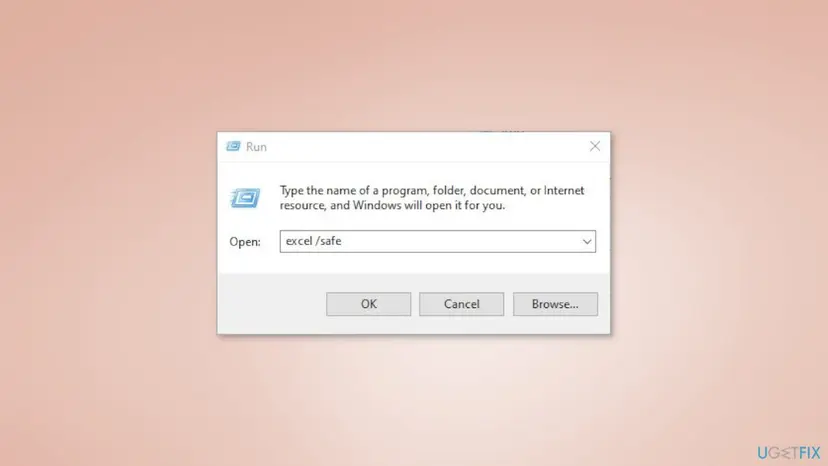
- Close the app, press Win + R and type the command for it:
winword /safe(Word),excel /safe(Excel),powerpnt /safe(PowerPoint) oroutlook /safe(Outlook). - Select OK and work in the file for a few minutes. If the Save As window stays away, an add-in is the cause.
- Close safe mode and open the app normally.
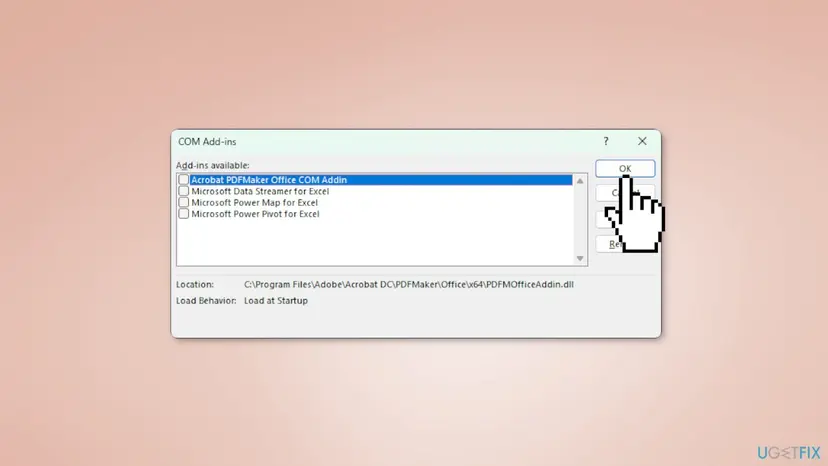
- Select File > Options > Add-ins.
- Next to Manage, choose COM Add-ins and select Go.
- Clear every check box and select OK. Restart the app.
- Turn the add-ins back on one at a time, restarting the app each time, until the pop-up returns. Leave that one off and check its maker for an update.
It worked if: After clearing the add-ins, Save As no longer opens by itself, and you know which add-in to leave off.
If not: If safe mode shows the same pop-up, add-ins are not the cause: go to Fix 6 or Fix 7.
Fix 5. Stop Excel from asking Save or Don't Save on a workbook you did not change
10 minutesLow riskExcel users who see Save, Don't Save and Cancel each time they close a workbook, even after saving.
Microsoft's note on this prompt says Excel asks because something in the file did change: a recalculation. Volatile formulas, a file last saved in an older Excel, links to other workbooks, linked pictures, iterative formulas, charts fed from other workbooks and VBA that updates the file all count.
- Select Save, close the workbook and open it again. A file last saved in an older Excel recalculates once and then stops asking.
- If it is an
.xlsfile, select File > Info > Convert and save it as an **Excel Workbook (*.xlsx)**. - Press Ctrl + F, select Options, set Look in to Formulas and search for
TODAY(,NOW(,RAND,OFFSET(andINDIRECT(. - Decide whether those formulas must update every time. A date typed with Ctrl + ; does not change, while
TODAY()does. - On the Data tab, open Edit Links or Workbook Links, depending on your version, to see links to other workbooks.
- If the file has macros, ask its author whether the code changes the sheet when it opens.
While the workbook holds a volatile formula, Excel recalculates it on every opening and asks on closing. That is expected. Select Don't Save when you know you changed nothing, or replace the formula with a fixed value.
It worked if: Excel closes the workbook without the Save, Don't Save and Cancel prompt when you did not edit it.
If not: If even a new blank workbook asks to save, the cause is outside the file: try Fix 4 and then Fix 7.
Fix 6. Remove read-only and allow Office to write to the folder
5 minutesLow riskReaders whose save fails in one folder, a network share or a OneDrive folder, and Office then offers Save As.
When Office cannot write to the original file, it falls back to Save As so your changes are not lost. A read-only attribute, a sync conflict, a share you can only read or Windows ransomware protection blocking the app all lead there.
- Close the file. In File Explorer, right-click it, select Properties and clear Read-only on the General tab if it is ticked.
- For a file in OneDrive or SharePoint, check the OneDrive icon next to the clock for sync errors or a second copy with your PC name added.
- For a network share, copy the file to Documents and test there. If it saves, ask the share's owner for write access.
- Open Windows Security > Virus & threat protection > Manage ransomware protection.
- If Controlled folder access is on, select Allow an app through Controlled folder access, then Add an allowed app > Recently blocked apps, and allow the Office app you trust.
- Open the file again and press Ctrl + S.
It worked if: Office saves in the original folder without opening Save As, and the folder no longer refuses the file.
If not: If every folder fails, or the problem began after an Office update, go to Fix 7.
Fix 7. Update Microsoft 365 or Office
10 minutesLow riskReaders on an older Office build, or when the pop-up started in every app at once.
Office receives fixes through its own updates. When the Save behaviour changed after a build, the next build is the first place a correction arrives, and it costs nothing to check.
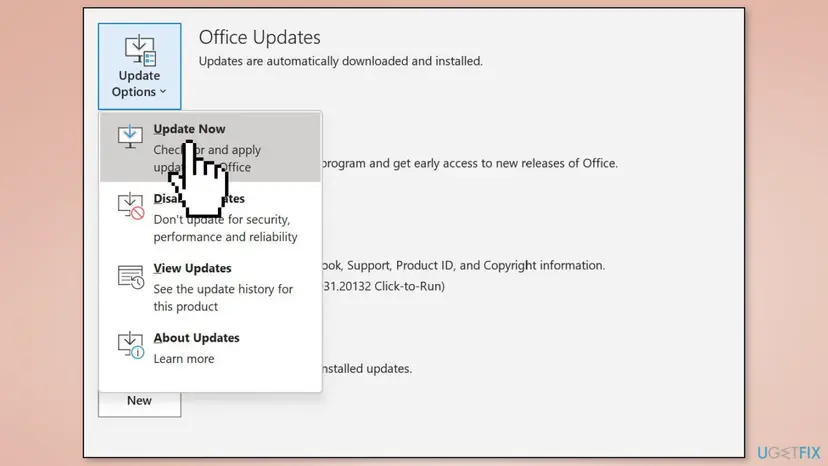
- Open Word, Excel or PowerPoint and select File > Account.
- Under Product Information, select Update Options > Update Now.
- Wait until You're up to date! appears, then close and reopen the app.
It worked if: Office reports that it is up to date, and Ctrl + S on a saved file no longer opens Save As.
If not: If the pop-up stays after the update, repair Office with Fix 8.
Fix 8. Repair Microsoft 365 or Office
15 minutesLow riskReaders for whom Fix 1 to Fix 7 did not help and the problem appears in more than one Office app.
A repair replaces damaged Office program files and keeps your documents and settings. Start with Quick Repair; Online Repair reinstalls Office from the internet. Step by step: How to repair Microsoft 365 or Office
- Open Installed apps. Right-click the Start button and select Installed apps.
- Find Microsoft 365 or Office. Find your Microsoft 365 or Office product in the list. If you have a standalone app such as Visio or Project, search for it by its own name.
- Open the repair window. Select the three dots next to the product and select Modify.
- Start with Quick Repair. In the repair window, select Quick Repair, then Repair. It is the faster option: it finds damaged files and replaces them.
- Finish and test. Follow the instructions on the screen until the repair is done. Restart the PC if you are asked to, then open the app that had the problem.
- Run Online Repair if the problem is still there. Open the same repair window again and select Online Repair, then Repair. Microsoft recommends this option to make sure everything gets fixed. It takes longer than Quick Repair.
These steps were written for Windows 11 25H2 and 26H2. The full page with the other versions and what each result means: How to repair Microsoft 365 or Office
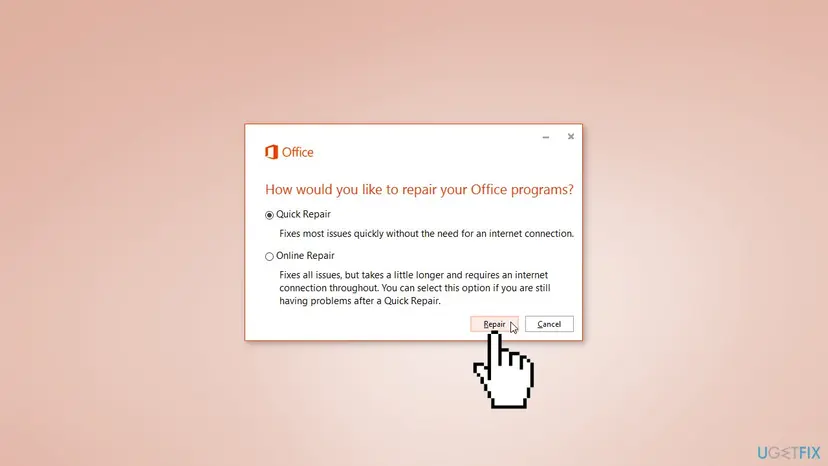
It worked if: After the repair and a restart, the Office apps save in place and the Save As window opens only when you ask for it.
If not: If Online Repair did not help either, find the program that interferes with a clean boot in Fix 9.
Fix 9. Find a background program with a clean boot
20 minutesLow riskReaders whose pop-up continues in safe mode and after the repair, which points outside Office.
A clipboard manager, macro tool, backup or sync program can send keys or lock files in the background. A clean boot starts Windows without them, so it shows whether one of them causes the Save As window. Step by step: How to perform a clean boot in Windows
- Open System Configuration. Select Search on the taskbar, type msconfig and select System Configuration from the results.
- Hide Microsoft services. On the Services tab, select the Hide all Microsoft services check box. Only services from other companies stay in the list.
- Disable the remaining services. Select Disable all, then select Apply.
- Open Task Manager. On the Startup tab of System Configuration, select Open Task Manager.
- Disable the startup apps. On the Startup apps tab in Task Manager, select each item whose status is Enabled and select Disable. Write down or take a screenshot of the items you disable: you need the list to turn them back on.
- Confirm the changes. Close Task Manager. On the Startup tab of System Configuration, select OK.
- Restart and test. Restart the PC. Windows now starts in a clean boot environment: try again the thing that failed (run the app, install the update, uninstall the program).
These steps were written for Windows 11 25H2 and 26H2. The full page with the other versions and what each result means: How to perform a clean boot in Windows
When the test is done, turn the services and startup apps back on in halves until the pop-up returns. Then remove or update that program and return to normal startup.
It worked if: Office works without the pop-up in the clean boot, and turning items back on shows which program brings it back.
If not: If the pop-up also happens in a clean boot, read the section below on what to check next.
If the Save As window still keeps popping up: what to check next
When every fix failed, narrow down where the fault lives. Two short tests tell you whether it is the file, your Windows account or the PC.
| Test | Result | What it means |
|---|---|---|
| Create a new blank document, save it to Documents, edit and press Ctrl + S | Saves silently | The problem is the original file or its folder: Fix 1, Fix 5, Fix 6 |
| Open the same file in Word or Excel for the web at office.com | Saves normally | The desktop Office or something on the PC: Fix 4, Fix 8, Fix 9 |
| Sign in to a second Windows account and try there | Works | Your own profile or its Office settings hold the fault |
- On a work or school PC, tell IT which app, which folder and what you press when the window appears. Document management add-ins and policies are set by them.
- Write down the Office version from File > Account > About for support.
- If the keyboard test in Fix 3 showed a stuck key that will not free, the keyboard needs repair or replacement.
How to keep Office from asking to Save As again
A few habits stop most repeats. They cost nothing and keep your files where you expect them.
- Save attachments to a folder before editing them.
- Keep files in current formats:
.docx,.xlsx,.pptx. - Set Default local file location once in each Office app.
- Keep Office updated through File > Account.
- Editing a template directly when you want a normal document.
- Working on files in Downloads or a temporary folder.
- Volatile formulas such as TODAY() where a fixed date will do.
- Keeping add-ins you no longer use.
Frequently asked questions
Why does the Save As window keep popping up in Word?
In most cases Word cannot save the document where it is. The file was never saved and its title bar still says Document1, it was opened from an email or in Protected View, it is read-only, or it is a template. Word then asks for a new location on every save. Save it once to Documents as a .docx file and Ctrl + S saves silently. If the window appears while you press nothing, test the F12 key and start Word with winword /safe to rule out add-ins.
Why does Excel keep asking Save or Don't Save when I changed nothing?
Because Excel did change something: it recalculated. Microsoft lists volatile functions such as TODAY and NOW, files last saved in an older Excel, links to other workbooks, linked pictures, iterative formulas, charts fed from other workbooks and macros that update the file. Save once in the current version and reopen. If the prompt stays, look for volatile formulas with Find set to look in formulas. The prompt is expected behaviour while those formulas are in the workbook.
How do I get rid of the Excel save pop up window?
It depends on which window you mean. If Save As opens on Ctrl + S, save the workbook once as an .xlsx file in your own folder, so it has a location. If the full File screen bothers you, select File, Options, Save and tick the option that skips the Backstage for keyboard shortcuts. If the Save, Don't Save and Cancel prompt appears on closing, remove volatile formulas or old formats as Fix 5 shows.
Why does Ctrl + S open Save As instead of saving?
Ctrl + S opens a window only when the file has no saved location Office can write to. A brand new file, a copy from an email or the web, a template and a read-only file all fall into that group. Once you save the file to a normal folder in a current format, Ctrl + S saves in place without asking. If Ctrl + S still opens the window on a saved file, check the title bar for Read-Only and the folder permissions.
Can an add-in make the Save As window open by itself?
Yes, it can. Add-ins can change what the Save command does, and PDF tools, document management systems and cloud storage add-ins often hook into it. Start the app with its safe mode command, for example excel /safe or winword /safe. If the window stays away in safe mode, turn off the COM add-ins in File, Options, Add-ins and turn them back on one at a time to find the one that causes it.
Does AutoSave stop the Save As pop-up?
AutoSave saves a file continuously, but only a file stored in OneDrive or SharePoint. A file on your own disk is saved with Ctrl + S as before, and switching AutoSave on for it asks you to choose a cloud location first. That request is another window people mistake for the problem. If you keep files locally, leave AutoSave off and give the file a normal location with Fix 1.
Will repairing Office delete my documents?
No. Quick Repair and Online Repair replace Office program files. They do not touch documents in your folders, OneDrive or email. Online Repair reinstalls Office, so you may need to sign in to your Microsoft account again afterwards, and some app settings can return to their defaults. Save open work and close every Office app before you start, as Microsoft advises.
Does this guide work for Office in another language or on a Mac?
The fixes work for Office on Windows in any language: only the labels are translated, and the commands such as excel /safe and the F12 shortcut stay the same. This page covers Windows only. Office for Mac has different menus and shortcuts, and its add-in and safe mode steps differ. If you searched in another language, use the menu positions in the steps when the names differ from the English ones.
Sources
Did this fix work?
One click, no account. It tells the next reader which guides are worth their time.
Questions and experiences: [Fix] "Save As" window keeps popping up in Office apps
Still broken, or found a fix we did not cover? Ask here: members and our editors answer. Reading is open; writing needs a free account.
…