
[Fix] "This sign-in option is disabled because of failed sign-in attempts" error in Windows

Prefer to fix it yourself? The manual steps follow.
- 6methods
- 2 minutes to 2 hours
- Easy
Applies to Windows 11 and Windows 10 PCs that sign in with a Windows Hello PIN, face or fingerprint, with a Microsoft account or a local account
6 methods in this guide
Hi. Today in the morning, I attempted to log in to my Windows machine as I usually do, but after entering my correct PIN just once, I received a message "This sign-in option is disabled because of failed sign-in attempts," which is baffling. I did not restart my PC and neither have I entered my PIN several times. Please advise on what to do.
This sign-in option is disabled because of failed sign-in attempts means the TPM security chip has locked your Windows Hello PIN, face and fingerprint for a while. Your account is not locked: sign in with the account password now, or keep the PC switched on at the sign-in screen for 2 hours and type the PIN once.
The TPM chip has paused PIN sign-in after too many failed attempts or interrupted shutdowns. Under the PIN box select Sign-in options, choose the key icon and sign in with your account password (Fix 1). No password? Plug the PC in and leave it switched on at the sign-in screen for 2 hours without shutting it down, then type the PIN once (Fix 2).
| Error | This sign-in option is disabled because of failed sign-in attempts or repeated shutdowns. The PIN, face and fingerprint sign-in are paused; the password is not. |
|---|---|
| Where it appears | On the Windows sign-in screen, under the PIN box, right after you type the PIN or right after the PC starts. |
| Main cause | The TPM chip's anti-hammering lock: Windows sets a TPM 2.0 chip to lock after 32 failed attempts to use its keys. Shutdowns in the middle of a PIN check can add to the count. |
| Fastest fix | Select Sign-in options, then the key icon, and sign in with the account password (Fix 1). |
| Also written as | This sign-in option is disabled, the sign-in option is disabled because of failed login attempts, sign-in option disabled, Windows 10 sign-in option disabled. |
| Affects | Windows 11 and Windows 10. Windows 10 left support on 14 October 2025 and gets no further sign-in fixes. |
| Microsoft's status | A designed security lock, not a listed bug. Microsoft's TPM page says a locked TPM is left after the PC stays on, and that you can use other credentials such as a password meanwhile. |
| Time to fix | 2 minutes with the password, up to 2 hours of waiting without it, about 5 minutes to re-create the PIN afterwards. |
Facts checked on 16 October 2026. Steps written for Windows 11 (25H2 and 26H2) and Windows 10 22H2 with a Windows Hello PIN and a TPM 2.0 chip, read against Microsoft's TPM anti-hammering documentation.
What "This sign-in option is disabled" means
The full message on the Windows sign-in screen reads: This sign-in option is disabled because of failed sign-in attempts or repeated shutdowns. Use a different sign-in option, or keep your device powered on for at least 2 hours and then try again. Shorter forms show only the first sentence, which is why people search for "this sign-in option is disabled because of failed" and stop there.
A Windows Hello PIN does not go to a server. It unlocks a key stored in the TPM, the security chip of your PC. Microsoft's TPM documentation explains that the chip counts every failed attempt to use its keys and, after too many, locks for a while so that nobody can guess the PIN. While it is locked, Windows cannot check the PIN at all, so it shows this message even when you typed the right one.
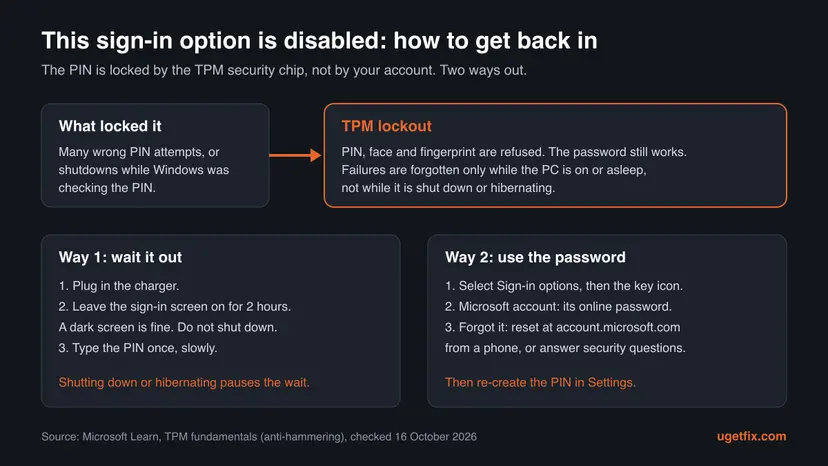
| What the message says | What it really means |
|---|---|
| failed sign-in attempts | The TPM counted too many wrong PINs or broken key checks, not necessarily from you today |
| repeated shutdowns | The PC was switched off or lost power while Windows was checking the PIN, which can count as failures |
| Use a different sign-in option | Your account password is not handled by this lock and still works |
| keep your device powered on for at least 2 hours | The chip forgets failures only while the PC runs or sleeps, not while it is shut down |
Only the PIN, face and fingerprint are paused on this one PC. Your Microsoft account, its password and your files are untouched, and nothing has been deleted.
Why the sign-in option is disabled, from the most common cause
Microsoft names two triggers in the message itself. The ranking below is our reading of the TPM documentation and of the reports in Microsoft's own forum, where hundreds of people say the message appeared after one correct PIN. It is not a statistic.
| How often | Cause | Typical sign | Fix |
|---|---|---|---|
| Most often | Shutdowns or power loss during sign-in: a laptop whose battery ran flat, a held power button, a crash at the sign-in screen | You typed the right PIN once and still got the message | Fix 1 or Fix 2 |
| Often | Wrong PINs typed by you, a child or someone else, or a stuck key | Several attempts in a row before the message | Fix 1 or Fix 2 |
| Often | The PC was shut down or hibernated during the wait, so the lock never wore off | The message is still there after hours | Fix 2, done with the PC kept on |
| Less often | The PIN data no longer fits the key in the TPM, for example after an update or a BIOS update | The message returns after every restart even though the password works | Fix 4, then Fix 5 |
| Rarely | You do not know any password for the account and cannot reset it | Fix 1 and Fix 3 fail, the wait does not help | Fix 6 |
This lock lives in the TPM chip and affects only Windows Hello. The Windows account lockout policy in secpol.msc locks the whole account and shows a different message. That one has its own guide: The referenced account is currently locked out.
How to fix "This sign-in option is disabled" in Windows
Fix 1 and Fix 2 get you back in; Fix 4 and Fix 5 stop the message from coming back. Try the password first, because it costs two minutes and is not affected by the lock. Do not restart or shut down the PC while you wait: that pauses the timer.
| Your situation | Start with | Then |
|---|---|---|
| You know the account password | Fix 1 | Fix 4 |
| Microsoft account, password forgotten, you have a phone or another PC | Fix 3 | Fix 1 |
| You do not know any password | Fix 2 | Fix 3 |
| The message came back after every restart for days | Fix 1 | Fix 5 |
| Work or school PC | Fix 1 | Ask IT about the TPM lockout |
| No password, no reset possible, the wait failed | Fix 6 |
Fix 1. Sign in with your account password instead of the PIN
2 minutesNo riskEveryone who knows the password of the account, or can find it out from another device.
The TPM lock blocks only the keys that the PIN, face and fingerprint unlock. Microsoft's TPM page says that when the TPM is locked you can use other credentials, such as a user name and password, so the password is checked normally.
- On the sign-in screen, press any key and select Sign-in options under the PIN box.
- Select the key icon. The PIN box changes to a Password box.
- For a Microsoft account, type the password you use at outlook.com or account.microsoft.com, not the PIN.
- For a local account, type the password you set when the account was created.
- Press Enter. Check Caps Lock and the keyboard language shown in the corner of the screen if the password is refused.
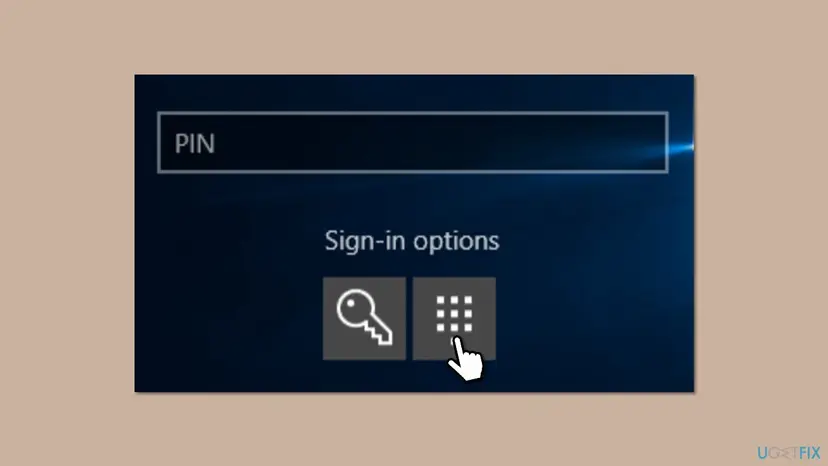
If only the PIN icon is shown, the setting For improved security, only allow Windows Hello sign-in for Microsoft accounts on this device is on. Select I forgot my PIN instead: it asks for the Microsoft account password and works as a password sign-in.
It worked if: Windows opens your desktop. The PIN stays locked until the TPM forgets the failures, but you can work normally.
If not: If the password is refused and you cannot recall it, reset it (Fix 3). If you have no way to reset it, wait with the PC on (Fix 2).
Fix 2. Keep the PC switched on at the sign-in screen for 2 hours
2 hoursNo riskYou do not know the password but you know the PIN, and nobody else needs the PC for two hours.
Windows sets the TPM to forget failed attempts over time, but only while the PC is running, asleep or in a low power state. Microsoft says Windows does not require the chip to forget failures while the PC is fully off or hibernating, so a PC that is shut down never counts down.
- Plug a laptop into its charger so it cannot run out of battery.
- Start the PC and leave it on the sign-in screen. Do not type the PIN again.
- Let the screen go dark if it wants to. A dark screen or sleep still counts, as long as the PC is not shut down.
- Do not press the power button, restart or close the lid in a way that shuts the PC down.
- After 2 hours, press a key, check that Num Lock is on if your PIN has digits, and type the PIN once, slowly.
Each failed attempt is counted again, so do not test the PIN during the two hours. If a child or another person uses the PC, keep it out of reach until the wait is over.
It worked if: The PIN is accepted and Windows opens the desktop.
If not: If the message is still there after a full 2 hours with the PC on, sign in with the password (Fix 1) or reset it (Fix 3). If it returns after every restart, use Fix 5 once you are in.
Fix 3. Reset the account password from the sign-in screen or another device
5 to 10 minutesLow riskYou do not remember the password of the account but can still reach its email address, phone or security questions.
A new password gives you the sign-in option that the TPM lock does not block. For a Microsoft account the reset happens online, so the locked PC does not matter.
- On the sign-in screen, select I forgot my PIN or, after choosing the key icon, I forgot my password.
- For a Microsoft account, Windows opens the Microsoft sign-in window. Select Forgot my password, choose your email or phone and enter the code you receive.
- Set a new password. You can do the same at account.microsoft.com from a phone or another computer.
- Wait one or two minutes so the PC can reach the internet, then sign in with the new password using the key icon.
- For a local account, type any password, select OK, then Reset password and answer your three security questions.
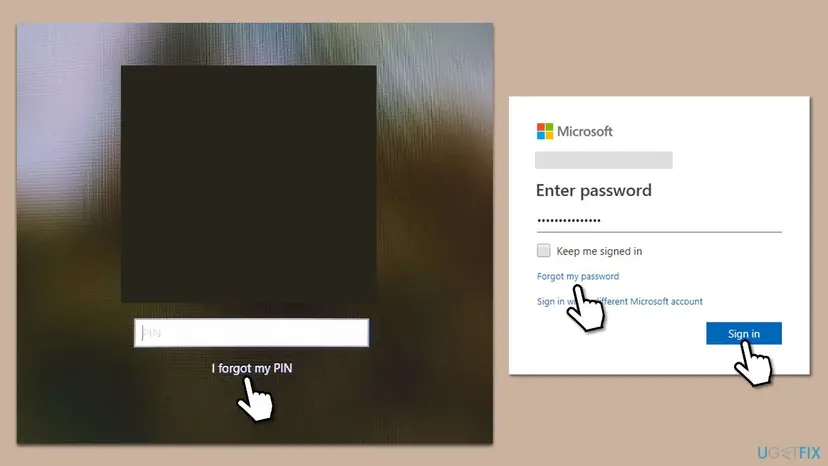
A local account has no online reset. If none of your security answers are right and no other administrator account exists, the remaining options are the wait (Fix 2) or a reset of Windows (Fix 6).
It worked if: The new password signs you in to the desktop.
If not: If the Microsoft account cannot be recovered online, use Microsoft's account recovery form from another device. If it is a local account without answers, use Fix 2, then Fix 6.
Fix 4. Remove the PIN and set up a new one after you sign in
5 minutesLow riskYou are signed in with the password and want the PIN back, or the message appeared without any wrong PIN.
A new PIN makes Windows create a new key for your account in the TPM. When the old PIN setup was damaged by a crash or an update, a fresh one stops the failed checks that keep feeding the lock.
- Press Win + I and open Accounts > Sign-in options.
- Expand PIN (Windows Hello) and select Remove. Confirm with your account password.
- If Remove is grey, under Additional settings turn off For improved security, only allow Windows Hello sign-in for Microsoft accounts on this device, then close and reopen Settings.
- Restart the PC and sign in with the password.
- Open Accounts > Sign-in options again, select PIN (Windows Hello) > Set up and create the new PIN.
- Restart once more and sign in with the new PIN to check that it lasts.
If Settings refuses to change the PIN while the TPM is still locked, leave the PC on for about 20 minutes and try again. Microsoft's TPM page says a TPM 2.0 chip leaves the locked state after 10 minutes of running.
It worked if: The new PIN is accepted after a full restart and the message does not return.
If not: If the message returns after every restart even with a new PIN, check the TPM and empty the old PIN data (Fix 5).
Fix 5. Check the TPM and clear old PIN data when the message keeps coming back
15 minutesRead the warningThe message appears after every restart, even after a new PIN, often after a Windows or BIOS update.
If the PIN data no longer matches the key in the TPM, every sign-in is a failed key check, and the chip keeps counting them. Microsoft's TPM page also says an administrator can reset the lockout from tpm.msc when the TPM owner password is stored on the PC.
- Sign in with your password to an administrator account.
- Press Win + R, type
tpm.mscand press Enter. - Under Status, look for The TPM is ready for use. If the console offers to reset the TPM lockout, select it.
- If the console asks for a TPM owner password you do not have, close it. A wrong owner password blocks further resets for 24 hours.
- If the TPM is not ready or the message still returns, empty the Windows Hello PIN folder as described in our guide to PIN error 0x80090027, Fix 2, then set up a new PIN.
Clear TPM in tpm.msc erases every key in the chip, including the ones BitLocker and other accounts use. Do not use it to fix this message. Emptying the PIN folder also removes the PIN of every account on the PC, so each user must sign in with a password once afterwards.
It worked if: tpm.msc reads The TPM is ready for use, and a new PIN survives two restarts.
If not: If the TPM is not found or never becomes ready, read the still broken section below: the firmware TPM may be switched off or faulty.
Fix 6. Reset Windows from the recovery screen and keep your files
1 to 2 hoursRead the warningYou know no password for any account on the PC, the reset of Fix 3 is impossible and the 2-hour wait did not help.
Reset this PC reinstalls Windows and lets you create a new account at the end, so it gets you back in without any old password. It is the last answer Microsoft's forum staff give when no password can be recovered.
Keep my files keeps documents in the user folders but removes installed apps and settings. If the drive is encrypted with BitLocker, you need the 48-digit recovery key, which a Microsoft account keeps at account.microsoft.com/devices/recoverykey. Without that key, the files on an encrypted drive cannot be read after the reset.
- On the sign-in screen, hold Shift and select Power > Restart.
- On the blue Choose an option screen, select Troubleshoot > Reset this PC.
- Select Keep my files.
- Choose Cloud download or Local reinstall and follow the prompts. Enter the BitLocker recovery key if asked.
- When setup finishes, create a new account and, if you want one, a new PIN.
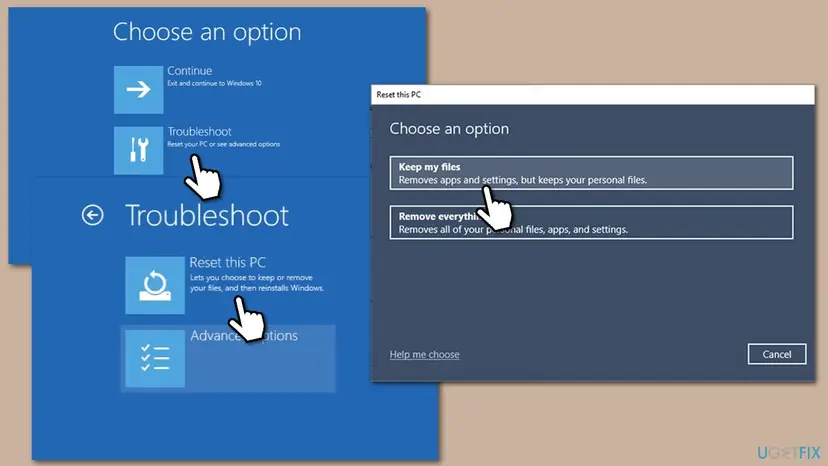
If you can still sign in with any administrator account, back up first (Back up your files (Windows Backup, File History, Time Machine)) and use the Settings route instead, which can keep your apps too: Reinstall Windows without losing files.
It worked if: Windows starts with a new account, and your old documents are under the old user folder in C:\Users.
If not: If the reset fails or asks for a BitLocker key you do not have, contact the PC maker or Microsoft Support with proof of ownership.
If the sign-in option is still disabled
As long as the password works, you are not locked out: you can use the PC without a PIN while you sort out the cause. If even a new PIN locks again after every restart, collect what support or the PC maker will ask for.
- The exact message and whether it appears right after start or only after you type the PIN.
- The TPM status: a photo of
tpm.mscwith its Status box, and the BIOS version from System Information (msinfo32). - Event Viewer: open Applications and Services Logs > Microsoft > Windows > HelloForBusiness > Operational and note the errors from the time of the failure.
- Work or school PC: the TPM owner password may be stored by your organization. Only IT can reset the lockout with it.
- Hardware: if
tpm.mscsays no compatible TPM is found, turn the TPM on in the firmware settings (often PTT on Intel or fTPM on AMD). If it is on and still fails, it is a case for the PC maker.
How to keep the sign-in option from being disabled again
- Know your account password and keep password sign-in possible. It is your way in whenever the PIN is locked.
- Do not hold the power button at the sign-in screen. Shut down from the power icon once Windows has loaded.
- Keep a laptop charged: a battery that dies during sign-in is a common start of the lock.
- Lock the PC with Win + L when children are around, instead of leaving the PIN box open to guesses.
- Save your BitLocker recovery key at account.microsoft.com before you ever need a reset.
- Wait with the PC on and plugged in
- Use the key icon and your password
- Re-create the PIN after you get in
- Restart again and again to test the PIN
- Clear the TPM
- Change the account lockout policy in secpol.msc for this message
Frequently asked questions
What does "This sign-in option is disabled because of failed sign-in attempts" mean?
It means the TPM security chip in your PC has paused the keys that your Windows Hello PIN, face and fingerprint use. The chip does this after too many failed attempts, and shutdowns during a PIN check can count too. Your account is not locked. Choose Sign-in options, then the key icon, and sign in with the account password, or keep the PC on for 2 hours and try the PIN once.
Why did I get the message after typing the correct PIN only once?
The count is kept by the TPM chip, not by the sign-in screen, so earlier failures still count. Shutdowns while Windows was checking the PIN, a battery that went flat, a child testing numbers or a damaged PIN setup can all add to it. Microsoft's forum is full of reports like yours. Sign in with the password, then remove the PIN and set up a new one (Fix 4).
Do the 2 hours have to be in one go?
Not exactly, but the PC must be on. Microsoft says the TPM forgets failures while Windows runs, sleeps or is in a low power state, and does not have to forget them while the PC is shut down or hibernating. Time spent switched off does not count. The easiest way is to plug in the charger and leave the PC on at the sign-in screen for 2 hours in one go.
Does a black screen during the wait reset the timer?
No. A screen that turns off, or a PC that goes to sleep, still counts toward the wait. Microsoft's support staff said the same in its forum: the screen goes dark to save power, but the PC is not off. What stops the countdown is a full shutdown, hibernation or a battery that runs out. Keep a laptop on its charger and do not press the power button.
How long am I locked out after failed sign-in attempts?
The message asks for at least 2 hours with the PC on. Microsoft's TPM documentation says a TPM 2.0 chip leaves the locked state after 10 minutes of running and forgets all failures after 320 minutes, but older settings or other chips can take longer. That is why Windows asks for 2 hours. If you know the password, you do not have to wait at all.
Which password does Windows want when I choose the key icon?
It depends on the account. For a Microsoft account it is the password of that account, the one you use for Outlook or account.microsoft.com, not the PIN. For a local account it is the password set when the account was created on this PC. If the Microsoft account password is refused, check that you are using the same email address, and reset it from another device if needed.
How do I turn off the sign-in option disabled lock or the 2-hour lockout?
You cannot turn it off at the sign-in screen, and you should not: it protects your PIN from guessing. Once you are signed in, an administrator can reset the lockout in tpm.msc if the TPM owner password is stored on the PC. Changing the account lockout threshold in secpol.msc, as some guides suggest, does not affect this TPM lock.
Why does my HP or ASUS laptop say this sign-in option is disabled?
The message comes from Windows and the TPM, not from the laptop maker, so HP, ASUS, Lenovo and other laptops show it the same way. Laptops get it more often because a flat battery or a held power button shuts them down during sign-in. The fixes on this page apply. If tpm.msc says no TPM is found, check the TPM setting in the BIOS.
Will resetting the PC delete my files?
Reset this PC with Keep my files keeps the documents in your user folders but removes installed apps and settings. Remove everything deletes the files. If the drive uses BitLocker, you need the recovery key, or the files cannot be read after the reset. Try the password, the password reset and the 2-hour wait first, because they keep everything.
What does this sign in option is disabled artinya mean, and what about password reset kaise kare?
Both are searches in other languages. Artinya is Indonesian for what it means, and the answer is that the TPM chip has paused the PIN after failed attempts or shutdowns. Password reset kaise kare is Hindi for how to reset the password: for a Microsoft account, use Forgot my password at account.microsoft.com, as shown in Fix 3 of this page.
Sources
- Microsoft Learn: Trusted Platform Module (TPM) fundamentals, anti-hammering (lock after 32 failures, one forgotten every 10 minutes, not while off or hibernating, reset from tpm.msc) (learn.microsoft.com)
- Microsoft Support: Sign-in options in Windows (Accounts > Sign-in options, only allow Windows Hello sign-in setting) (support.microsoft.com)
- Microsoft Q&A: This sign-in option is disabled because of failed sign-in attempts or repeated shutdowns (full message text, staff answer on the 2-hour wait and passwords) (learn.microsoft.com)
Did this fix work?
One click, no account. It tells the next reader which guides are worth their time.
Questions and experiences: [Fix] "This sign-in option is disabled because of failed sign-in attempts" error in Windows
Still broken, or found a fix we did not cover? Ask here: members and our editors answer. Reading is open; writing needs a free account.
…