
How to fix 0x80090027 (PIN isn't available) error in Windows

Prefer to fix it yourself? The manual steps follow.
- 7methods
- 5 to 45 minutes
- Medium
Applies to Windows 11 and Windows 10 PCs that sign in with a Windows Hello PIN, face or fingerprint, home PCs and work or school PCs
7 methods in this guide
Hello. I recently updated to Windows 11 and I can't log in with my PIN because I get the 0x80090027 error code. How do I fix this?
Error 0x80090027 means Windows Hello passed a value its key storage could not accept, so the key your PIN unlocks cannot be used and the PIN, face and fingerprint sign-in all stop. Sign in with your account password, remove the PIN, restart and set up a new one first.
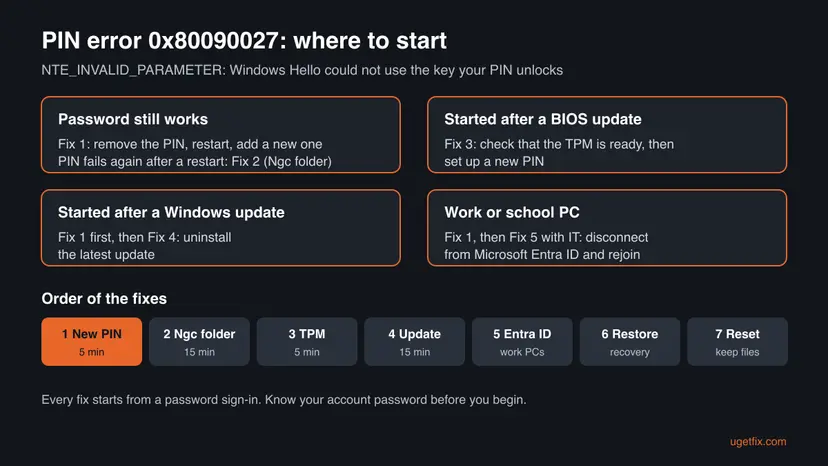
0x80090027 means Windows Hello could not use the key behind your PIN. On the sign-in screen choose Sign-in options, select the key icon and sign in with your password. Then remove the PIN in Settings > Accounts > Sign-in options, restart and set up a new one (Fix 1). If the PIN breaks again after the next restart, empty the Ngc folder (Fix 2). After a BIOS update, check the TPM (Fix 3).
| Error | Something went wrong and your PIN isn't available (code: 0x80090027). Microsoft's meaning: Caller provided a wrong parameter. |
|---|---|
| Where it appears | On the Windows sign-in screen under the PIN box, in the Create a PIN step of Windows Hello setup, and sometimes when a browser asks Windows Hello to confirm a passkey. |
| Main cause | The Windows Hello PIN data in the Ngc folder no longer matches the key in the TPM, often after a Windows upgrade, a feature update or a BIOS update. |
| Fastest fix | Sign in with the password, remove the PIN, restart and set up a new PIN (Fix 1). |
| Also written as | 0x80090027, 80090027, code: 0x80090027, 2148073511 (decimal), -2146893785 (signed), NTE_INVALID_PARAMETER. |
| Affects | Windows 11 and Windows 10. Windows 10 left support on 14 October 2025, so a Windows 10 PC gets no further fixes for Windows Hello. |
| Microsoft's status | Listed among Windows Hello PIN errors with no known mitigation: Microsoft says to contact Microsoft Support (page updated 29 March 2026, checked 15 October 2026). No Windows update is named as a fix. |
| Time to fix | 5 minutes for a new PIN, 15 minutes for the Ngc folder, up to 45 minutes for a repair from the recovery screen. |
Facts checked on 15 October 2026. Steps written for Windows 11 (25H2 and 26H2) and Windows 10 22H2 with a Windows Hello PIN, read against Microsoft's Windows Hello PIN error table.
What error 0x80090027 means and where you see it
A Windows Hello PIN is not checked like a password. The PIN unlocks a secret key that Windows created for your account on this PC, usually inside the TPM security chip. Windows keeps the setup of that key in a system folder named Ngc. Error 0x80090027 is the cryptographic code NTE_INVALID_PARAMETER. Microsoft's Windows Hello error table describes it as Caller provided a wrong parameter: Windows asked the key storage to do something with a value it could not accept.
In practice that means the PIN data and the key no longer fit together. Your account and its password are fine, which is why the password still signs you in while the PIN, face and fingerprint sign-in all fail at once. Face and fingerprint depend on the PIN, so they go down with it.
| Spelling | Where you see it |
|---|---|
| Something went wrong and your PIN isn't available (code: 0x80090027). | Windows sign-in screen, under the PIN box |
| Something happened and your PIN isn't available. | The same screen on some Windows builds and languages |
0x80090027 or 80090027 | Windows Hello Create a PIN window, Event Viewer |
2148073511 or -2146893785 | The same code in decimal or as a signed number, in app logs and scripts |
NTE_INVALID_PARAMETER | The code's name in the Windows developer header winerror.h and in logs |
Some searches pair 0x80090027 with NTE_DEVICE_NOT_FOUND. That is a different code, 0x80090035, which Microsoft's table explains as a policy that requires a TPM on a device that has none. If your screen shows 0x80090027, the fixes on this page apply.
What causes error 0x80090027, from the most common
Microsoft does not name a cause for this code, so the ranking is our reading of Microsoft's error table, the reports in Microsoft's own support forum and the old version of this guide, not a statistic. A typical report: the PIN broke a few weeks after an upgrade to Windows 11, and a reset PIN worked only until the next restart.
| How often | Cause | Typical sign | Fix |
|---|---|---|---|
| Most often | The PIN data in the Ngc folder no longer fits the key, for example after a Windows upgrade or an interrupted PIN change | The PIN fails, the password works | Fix 1, then Fix 2 |
| Often | A reset PIN is saved on top of the broken data | A new PIN works until the next restart, then 0x80090027 returns | Fix 2 |
| Often after firmware changes | A BIOS update reset or switched off the firmware TPM that holds the key | The error started right after a BIOS update | Fix 3 |
| Less often | A recent Windows update changed the sign-in components | The error started the day after an update installed | Fix 4 |
| On work PCs | The device's Microsoft Entra ID registration no longer matches the Windows Hello key | Work or school account, the error shows in Create a PIN | Fix 5 |
| Rarely | Damaged Windows files or settings | Other sign-in or security features fail too | Fix 6, Fix 7 |
The code comes from Windows' own key storage on this PC. Your Microsoft account, its password and your files are not damaged by it.
How to fix error 0x80090027
Every fix starts from a password sign-in, so make sure you know your account password or can reset it at account.microsoft.com from another device. The fixes go from the quickest and safest to the slowest. You are done when a new PIN still works after a full restart.
| Your situation | Start with | Then |
|---|---|---|
| Home PC, the PIN fails, the password works | Fix 1 | Fix 2 |
| A new PIN works until the next restart | Fix 2 | Fix 3 |
| The error started after a BIOS or firmware update | Fix 3 | Fix 2 |
| The error started after a Windows update | Fix 1 | Fix 4 |
| Work or school PC, the error shows in Create a PIN | Fix 1 | Fix 5 with IT |
| You cannot sign in at all, not even with a password | Fix 1, steps 1 to 3 | Fix 6 |
Fix 1. Sign in with the password, remove the PIN and set up a new one
5 minutesLow riskEveryone who can sign in with the account password, or reset it from the sign-in screen.
Removing the PIN makes Windows drop the old key setup, and adding a new PIN creates a new key. Microsoft's first steps for PIN errors are the same: try again, sign out and in, restart, then create the PIN again.
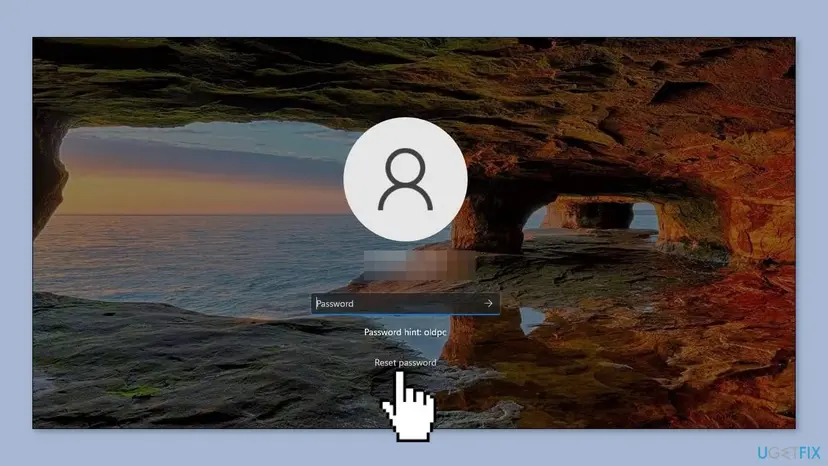
- On the sign-in screen, press any key, select Sign-in options under the PIN box and select the key icon.
- Type your account password and press Enter.
- If you do not know the password of a Microsoft account, reset it at account.microsoft.com from a phone or another PC. For a local account, type any password, select OK, then Reset password and answer your security questions.
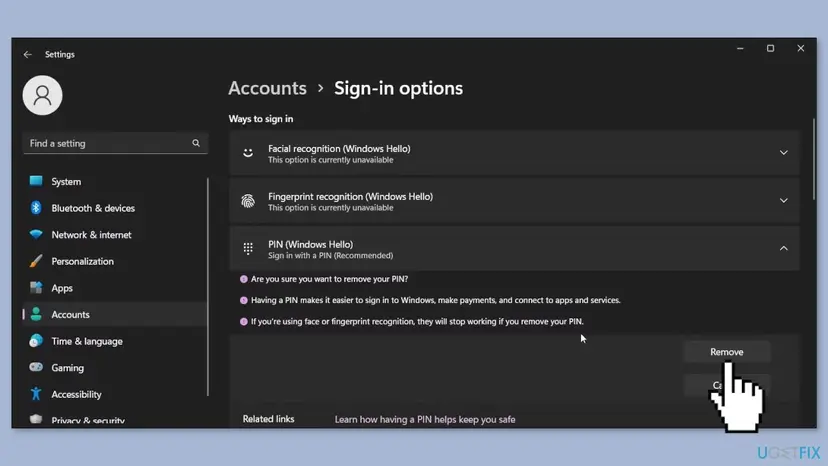
- Once signed in, press Win + I and open Accounts > Sign-in options. Expand PIN (Windows Hello).
- Select Remove, select Remove again and confirm with your password.
- If Remove is grey, under Additional settings turn off For improved security, only allow Windows Hello sign-in for Microsoft accounts on this device. On Windows 10 it is Require Windows Hello sign-in for Microsoft accounts.
- Restart the PC and sign in with the password again.
- In Sign-in options, select PIN (Windows Hello) > Set up, confirm your password and choose a new PIN.
- Restart once more and sign in with the new PIN.
It worked if: Windows saves the new PIN without an error and still accepts it after a full restart.
If not: If the new PIN works only until the next restart, or Set up shows 0x80090027 again, the broken data is still in the Ngc folder: go to Fix 2.
Fix 2. Take ownership of the Ngc folder, empty it and add a new PIN
15 minutesRead the warningFix 1 did not last, or a new PIN fails after every restart. You must be able to sign in with a password to an administrator account.
Removing the PIN in Settings does not always delete the old key setup. Emptying the Ngc folder removes all of it, so Windows builds a fresh setup the next time you add a PIN.
The Ngc folder holds the PIN, face and fingerprint setup of all accounts on the PC. Each user must sign in with a password afterwards and set Windows Hello up again. Know your password before you start. On a work PC that uses Windows Hello for Business, ask IT first.
- Sign in with your password to an administrator account.
- Open File Explorer with Win + E, select View > Show > Hidden items.
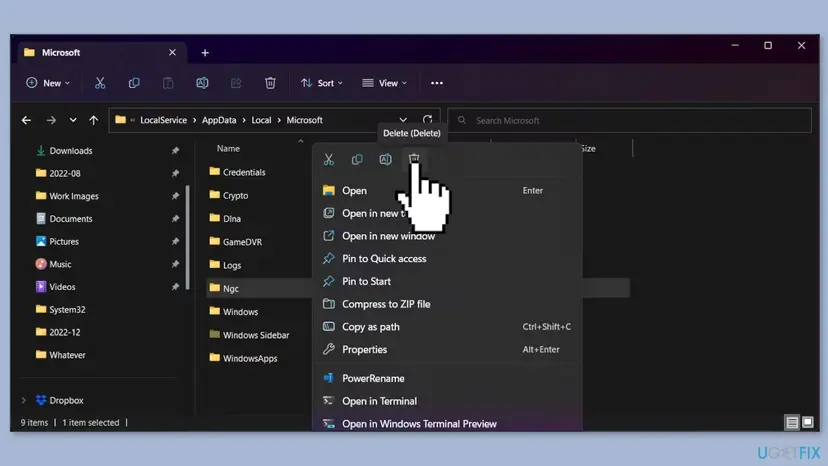
- Go to
C:\Windows\ServiceProfiles\LocalService\AppData\Local\Microsoft. Confirm the access prompt if one appears. - Right-click the Ngc folder and select Properties > Security > Advanced.
- Next to Owner select Change, type your user name, select Check Names and OK.
- Tick Replace owner on subcontainers and objects, then select Apply and OK.
- Open the Ngc folder, select everything in it and delete it. Keep the empty Ngc folder itself.
- Restart, sign in with the password and add a new PIN in Settings > Accounts > Sign-in options.
The same folder fix, with more detail on permissions, is in our guide to Windows login error 0x80090011, a neighbouring PIN code.
It worked if: Windows asks you to set up a PIN as if for the first time, and the new PIN works after a restart.
If not: If the error started after a BIOS update or the new PIN still fails, check the TPM with Fix 3.
Fix 3. Check that the TPM is ready, especially after a BIOS update
5 minutesLow riskThe error started after a BIOS or firmware update, after a change in the firmware settings, or a new PIN fails every time.
The key the PIN unlocks usually lives in the TPM. A firmware update can reset the firmware TPM or switch it off, and then the old key cannot be used and a new PIN cannot be created.
- Sign in with your password, press Win + R, type
tpm.mscand press Enter. - Under Status, look for The TPM is ready for use.
- If the console says that no compatible TPM is found, restart into the firmware settings and turn the TPM on. It is often called PTT on Intel PCs or fTPM on AMD PCs.
- If the Actions pane offers Prepare the TPM, select it. Microsoft gives this step for the neighbouring code 0x80090029, TPM isn't set up.
- When the TPM is ready, empty the Ngc folder (Fix 2) and set up a new PIN.
After a TPM change, an encrypted drive asks for the 48-digit BitLocker recovery key at startup. A personal PC's key is saved in your Microsoft account; on a work PC, ask IT. Do not clear the TPM to fix a PIN: it deletes every key in it.
It worked if: tpm.msc shows The TPM is ready for use and a new PIN saves and survives a restart.
If not: If the TPM is ready and the PIN still fails, and the error began after a Windows update, go to Fix 4.
Fix 4. Uninstall the latest Windows update
15 minutesLow riskThe PIN broke right after a Windows update installed, and Fix 1 and Fix 2 did not hold.
In Microsoft's forum, the support answer for a PIN that broke after an update is to remove that update. It returns the sign-in components to the version that worked with your PIN.
If you can sign in with the password, remove the update from Settings. If you cannot sign in at all, use the recovery variant: hold Shift, select Power > Restart on the sign-in screen and go to Troubleshoot > Advanced options > Uninstall Updates. Step by step: How to uninstall a Windows update.
- Open Windows Update. Select Start > Settings > Windows Update.
- Open the update history. Under More options, select Update history. Note the KB number and the date of the update you suspect.
- Open the list of removable updates. Scroll down to Related settings and select Uninstall updates.
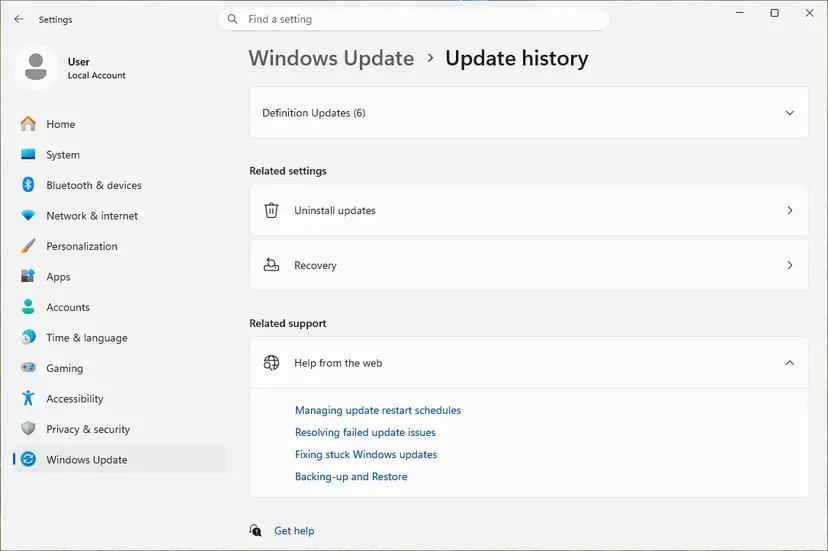
Uninstall updates is under Related settings. Screenshot: Windows 11 26H2. - Uninstall the update. Find the update in the list and select Uninstall next to it. If the update is not in the list, Windows does not allow it to be removed this way.
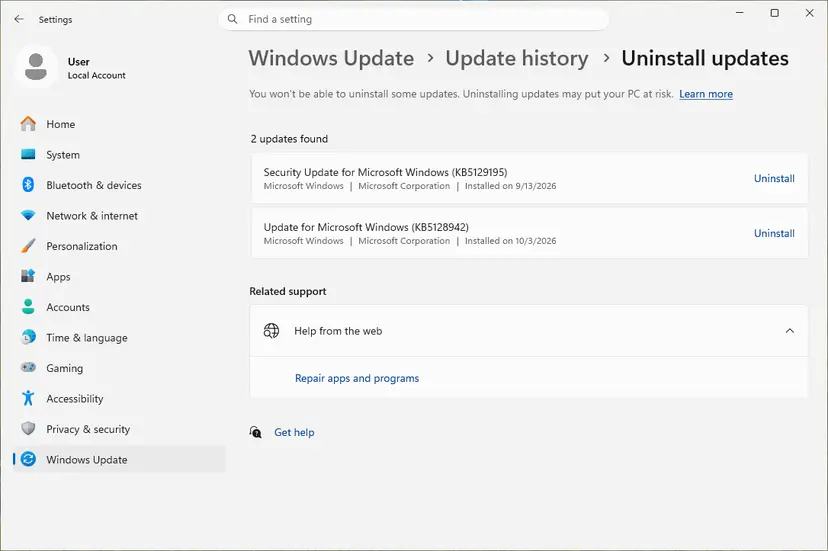
Each removable update has its own Uninstall link. Screenshot: Windows 11 26H2. - Pause updates. Go back to Settings > Windows Update and select Pick a date on the Pause updates control. If your PC shows a list there instead, select the pause length you prefer. Without a pause Windows downloads the same update again.
These steps were written for Windows 11 25H2 and 26H2. The full page with the other versions and what each result means: How to uninstall a Windows update
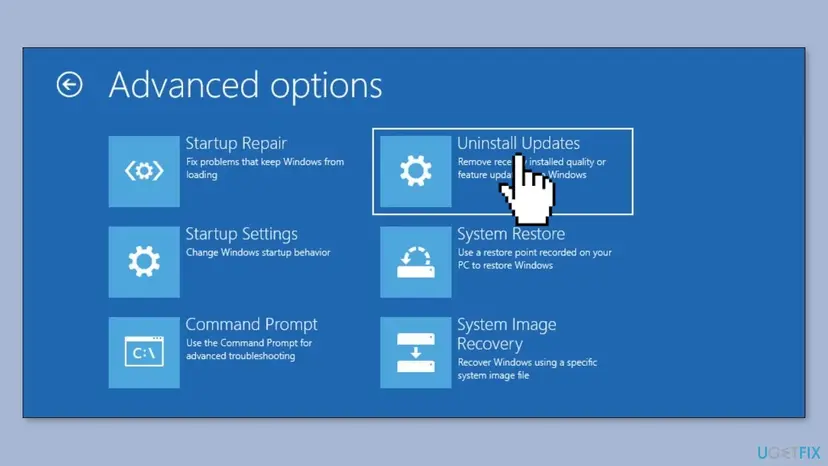
It worked if: After the restart the update is gone from the history, and a new PIN saves and works after another restart.
If not: If the PIN still fails, a work or school PC goes to Fix 5 and a home PC to Fix 6.
Fix 5. Disconnect from Microsoft Entra ID and join again (work or school PC)
15 to 30 minutesRead the warningThe PC belongs to a work or school organization and the error shows when you create the PIN. Do this with your IT administrator.
Microsoft's general steps for Windows Hello PIN errors end with this one: a new device registration lets Windows Hello for Business create a new key that matches it.
After you disconnect, the work account can no longer sign in to this PC until it is joined again. Know the password of a local administrator account on the PC and get IT's approval. Company apps and policies may need to be set up again.
- Sign in with your password and open Settings > System > About.
- Select Disconnect from organization and confirm.
- Restart and sign in with the local administrator account.
- Join the PC again in Settings > Accounts > Access work or school > Connect, as IT tells you.
- Sign in with the work account and set up the PIN in Settings > Accounts > Sign-in options.
It worked if: The PC shows as connected under Access work or school and the new PIN saves.
If not: Ask IT to check the device and Windows Hello for Business on their side, and read the still broken section below.
Fix 6. Use System Restore or Startup Repair from the recovery screen
15 to 45 minutesLow riskYou cannot sign in at all, or the error started after a driver, a program or a cleanup tool and Fix 4 did not apply.
System Restore returns Windows settings, drivers and programs to a point from before the PIN broke, without touching your files, and it runs before you sign in.
- Open the recovery environment. On the sign-in screen or in the Start menu, select Power, hold Shift and select Restart. For other ways, see Start Windows or a Mac in Safe Mode.
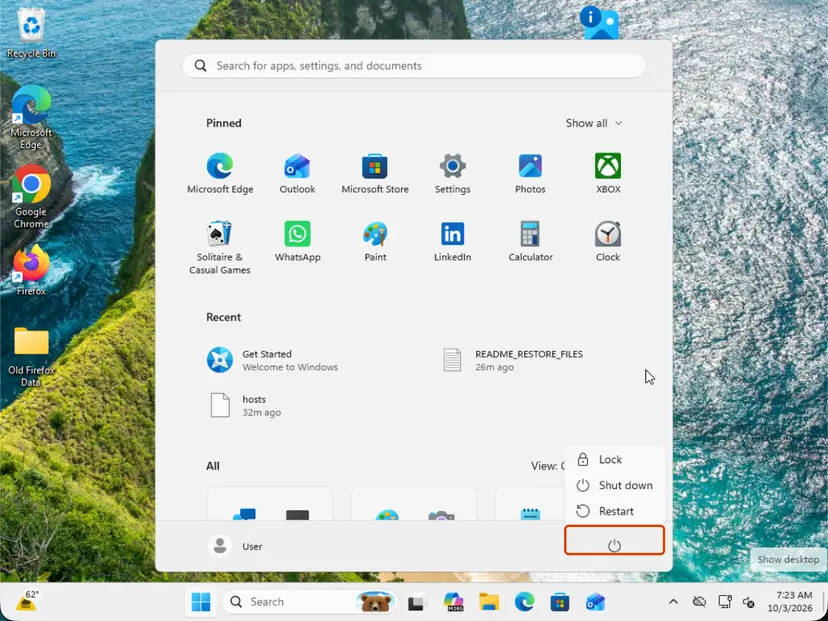
Hold Shift while you select Restart. Screenshot: Windows 11 26H2. - Go to Advanced options. Select Troubleshoot > Advanced options.
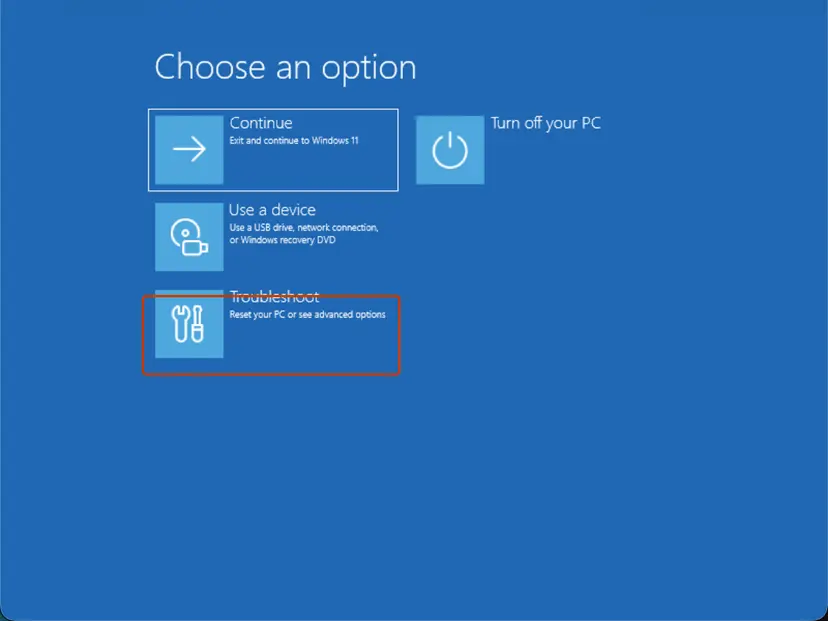
Choose an option: Troubleshoot. Screenshot: Windows 11 26H2. - Select System Restore. Select System Restore. If the drive is encrypted, enter your BitLocker recovery key when asked.
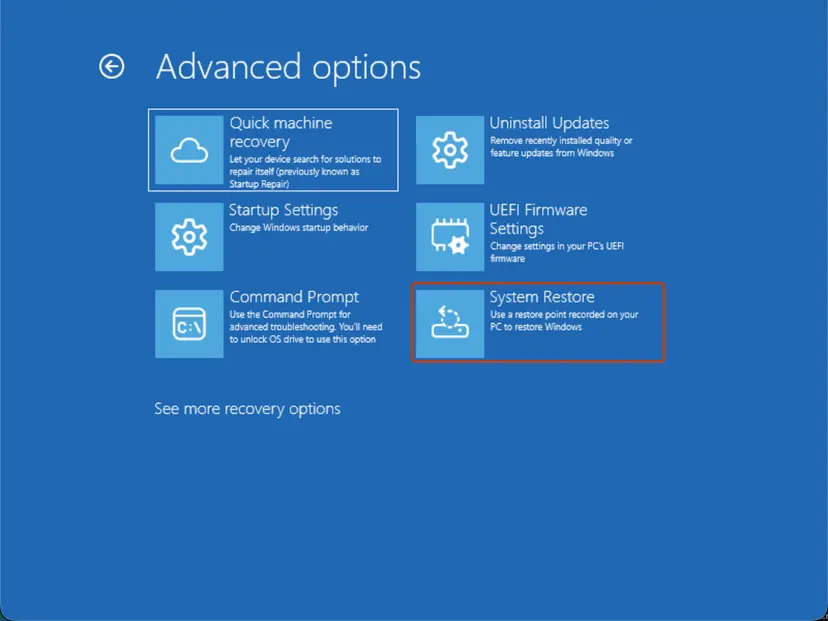
Advanced options: System Restore. Screenshot: Windows 11 26H2. - Choose a restore point and finish. Select a restore point from before the problem, optionally Scan for affected programs, then select Next and Finish.
- Restart. When the restore is done, select Restart.
These steps were written for Windows 11 and Windows 10, from the Windows Recovery Environment. The full page with the other versions and what each result means: Undo recent changes with System Restore
If there is no restore point, select Startup Repair on the same Advanced options screen. Step by step: Run Startup Repair.
It worked if: Windows restarts, says the restore finished, and a new PIN can be set up.
If not: If the restore fails or there is no restore point, reinstall Windows with your files kept (Fix 7).
Fix 7. Reinstall Windows and keep your files
1 to 2 hoursRead the warningNothing above helped. In Microsoft's forum this is the last answer given for 0x80090027 that returns after every PIN reset.
A reinstall that keeps your files replaces every Windows component, including the Windows Hello parts, while your documents stay where they are.
A reset with Keep my files removes installed apps, and any reinstall can fail halfway. Copy your documents and photos to an external drive or OneDrive first. Step by step: Back up your files (Windows Backup, File History, Time Machine).
- Open Recovery in Settings. Open Settings > System > Recovery. Next to Fix problems using Windows Update, select Reinstall now. This keeps your apps, files and settings.

Fix problems using Windows Update reinstalls the current version and keeps apps, files and settings. Screenshot: Windows 11 26H2. - Start the reinstall. Choose whether the PC may restart on its own 15 minutes after the installation, then select OK.
- Wait and restart. Windows Update downloads and installs a repair copy of your current Windows version. Keep the PC plugged in and online, and restart it when asked.
- If that did not help: Reset PC. Back in Settings > System > Recovery, next to Reset this PC, select Reset PC. This keeps your personal files but removes installed apps and settings.
- Choose Keep my files. Select Keep my files. Do not select Remove everything.
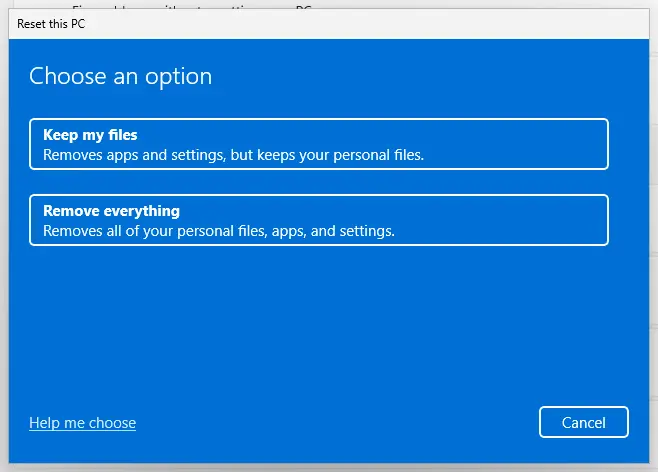
Keep my files removes apps and settings but keeps personal files. Screenshot: Windows 11 26H2. - Choose where Windows comes from. Select Cloud download to download a fresh copy of Windows, or Local reinstall to use the files already on the PC (faster, but may not include the latest updates).
- Reset. Review the summary and select Reset. The PC restarts several times.
These steps were written for Windows 11 22H2 and later. The full page with the other versions and what each result means: Reinstall Windows without losing files
It worked if: Windows starts with your files in place, and a new PIN saves on the first try and survives a restart.
If not: If the error survives a reinstall, read the still broken section: the TPM or the firmware is the likely cause.
If error 0x80090027 is still there
As long as the password works, you are not locked out: you can keep using the PC without a PIN. Microsoft lists 0x80090027 as an error with no known mitigation and says to contact Microsoft Support, so collect what they, the PC maker or IT will ask for.
- The exact message and where it appeared: sign-in screen, Create a PIN, or a browser passkey prompt.
- Event Viewer: open Applications and Services Logs > Microsoft > Windows > HelloForBusiness > Operational and note the errors from the time of the failure.
- The TPM status: a picture of
tpm.mscwith its Status box, and the BIOS version from System Information (msinfo32). - Work or school PC: run
dsregcmd /statusin Command Prompt and send the output to IT. - Hardware: if a new PIN fails even after a reinstall and the TPM is not ready, contact the PC maker. A TPM or firmware fault is a warranty case, not a Windows setting.
How to keep error 0x80090027 from coming back
- Know your account password. It is the way back in whenever the PIN fails, so keep password sign-in allowed.
- Before a BIOS update, save the BitLocker recovery key and expect to set up the PIN again afterwards.
- Change or remove the PIN only in Settings, and let Windows finish before you restart.
- Do not let cleanup or tweaking tools touch
C:\Windows\ServiceProfiles. The PIN data lives there. - Keep a restore point: System Restore is the fastest way back when you are locked out.
Frequently asked questions
What is error code 0x80090027?
0x80090027 is the Windows cryptographic error NTE_INVALID_PARAMETER. Microsoft's Windows Hello error table describes it as Caller provided a wrong parameter and lists no fix, only a referral to Microsoft Support. On a home PC it means the PIN data no longer fits the key it should unlock. Sign in with your password, remove the PIN, restart and set a new one. If that does not last, empty the Ngc folder.
What does "Something went wrong and your PIN isn't available" mean?
It means Windows could not use the key your PIN unlocks, so it cannot sign you in with the PIN. The PIN you typed is not wrong and your account is fine. Select Sign-in options under the PIN box, choose the key icon and sign in with your password. Some builds say Something happened and your PIN isn't available; the fixes are the same.
Why does my new PIN stop working after a restart?
That is the most common report for 0x80090027: you sign in with the password, set a new PIN, and after the next restart the error is back. It usually means the old key setup in the Ngc folder was not removed, so the new PIN is saved on top of broken data. Empty the Ngc folder as in Fix 2, restart and add the PIN again. After a BIOS update, check the TPM too (Fix 3).
The PIN stopped working after a BIOS update. What happened?
A BIOS or firmware update can reset the firmware TPM or switch it off. The key your PIN unlocks lives there, so Windows can no longer use it and reports a PIN error. Sign in with the password, open tpm.msc and check for The TPM is ready for use. Turn the TPM on in the firmware if needed, then empty the Ngc folder and set up a new PIN. Keep your BitLocker recovery key at hand.
Is 0x80090027 the same as NTE_DEVICE_NOT_FOUND?
No. 0x80090027 is NTE_INVALID_PARAMETER in the Windows header winerror.h. NTE_DEVICE_NOT_FOUND is 0x80090035, which Microsoft explains as a policy that requires a TPM on a device without one. Both appear around Windows Hello, which is why searches mix them. If your screen says 0x80090027, start with the PIN fixes on this page; if it says 0x80090035, the work PC's policy or the TPM is the cause.
What does 0x80090027 mean in WebAuthNAuthenticatorGetAssertion?
WebAuthNAuthenticatorGetAssertion is the Windows function a browser calls when you sign in to a website with a passkey and Windows Hello. If Windows Hello cannot use its key, the call fails with the same 0x80090027. Fix the Windows Hello PIN first with Fix 1 or Fix 2. If the PIN works in Windows but one site still fails, remove that site's passkey and create it again. We could not find a Microsoft page that documents this case.
Can I sign in to Windows without the PIN?
Yes, with your account password. Select Sign-in options under the PIN box and choose the key icon. If you forgot the password of a Microsoft account, reset it at account.microsoft.com from another device. For a local account, a wrong password shows Reset password, which asks your security questions. There is no safe way around both the PIN and the password, by design.
Will deleting the Ngc folder delete my files?
No. The Ngc folder holds Windows Hello data only: the PIN, face and fingerprint setup of the accounts on the PC. Your documents, apps and browser passwords are not stored there. After you empty it, each user signs in with a password and sets up a PIN again. Delete only what is inside the folder, not the folder itself.
Is "error code 27" the same error?
Not necessarily. Some people shorten 0x80090027 to error 27, but many programs have their own error 27 that has nothing to do with Windows Hello. This page is about the Windows PIN message with the full code 0x80090027. If your error 27 comes from another program, search for that program's name with the code. For readers asking in other languages what the solution is: sign in with your password and set up a new PIN (Fix 1).
Sources
- Microsoft Learn: Windows Hello errors during PIN creation (0x80090027, Caller provided a wrong parameter, no known mitigation; 0x80090029 and 0x80090035) (learn.microsoft.com)
- Microsoft Q&A: PIN isn't available, code 0x80090027 (PIN, face and fingerprint fail after a Windows 11 upgrade; Safe Mode, uninstall the update, reset) (learn.microsoft.com)
Did this fix work?
One click, no account. It tells the next reader which guides are worth their time.
Questions and experiences: fix 0x80090027 (PIN isn't available) error in Windows
Still broken, or found a fix we did not cover? Ask here: members and our editors answer. Reading is open; writing needs a free account.
…