
[Fix] USB-C monitor not detected on Windows 11

Prefer to fix it yourself? The manual steps follow.
- 8methods
- 2 to 30 minutes
- Easy
Applies to Laptops and desktops on Windows 11 and Windows 10 with a USB-C or Thunderbolt port, USB-C monitors, USB-C docks, hubs and USB-C to HDMI or DisplayPort adapters
8 methods in this guide
I can't connect my Lenovo laptop to a monitor (it's a Philips monitor) via the docking station (USB-C). It says Display not detected. Any advice for me?
A USB-C monitor that Windows 11 does not detect is almost always a link that cannot carry video: a port without DisplayPort Alt Mode, a dock, or a charge-only cable. Windows rarely breaks it by itself. First plug the monitor straight into the port marked for video, with the cable that came in the box.
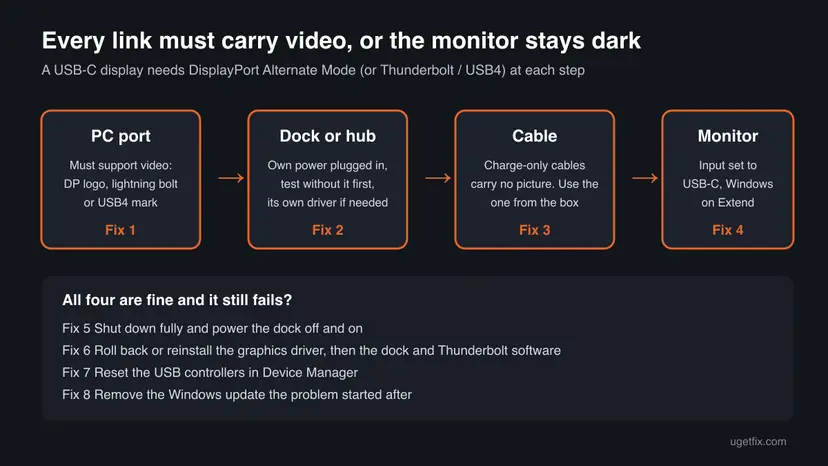
A USB-C port only sends a picture if it supports DisplayPort Alternate Mode, Thunderbolt or USB4, and every cable and dock in between must support it too. Plug the monitor directly into the laptop's video-capable USB-C port (Fix 1), test without the dock (Fix 2) and use the cable from the monitor's box (Fix 3). Then press Win + P and pick Extend (Fix 4).
| Error | The monitor shows No signal or a message like Display not detected, and Windows lists only one screen. Windows can also show the notification Display connection might be limited. |
|---|---|
| Where it appears | On the external monitor itself, in Settings > System > Display, and as a USB-C notification in the corner of the screen. |
| Main cause | A link that does not carry video: a USB-C port without DisplayPort Alt Mode, a dock or hub, a charge-only cable, or the wrong USB-C port. |
| Fastest fix | Connect the monitor directly to the USB-C port that supports video, with the cable that came with it (Fix 1 to Fix 3). |
| Also written as | USB-C monitor not detected, USB-C display not working Windows 11, USB-C hub or dock not detecting monitor, USB-C port not detecting monitor, USB-C device not working Windows 11. |
| Affects | Windows 11 and Windows 10 22H2, any laptop or PC with USB-C, most often through a dock or hub. |
| Vendor status | Microsoft treats it as a hardware and cable support issue: the PC, the display and the cable must all support the same Alternate Mode. Windows 10 left support on 14 October 2025. |
| Where to look | The USB-C notification text, Display adapters and Universal Serial Bus controllers in Device Manager, and Update history in Windows Update. |
| Time to fix | 2 to 5 minutes for the port, dock and cable checks, 10 to 20 minutes for a driver reinstall or update removal. |
Facts checked on 16 October 2026. Steps written for Windows 11 (25H2 and 26H2) and Windows 10 22H2.
What "USB-C monitor not detected" means on Windows 11
USB-C is the shape of the plug, not a promise of video. Microsoft explains that a picture travels over USB-C through Alternate Modes: DisplayPort, HDMI or MHL Alternate Mode, or Thunderbolt. There is no setting to turn them on. The PC uses the mode on its own, but only if the port, the cable, the dock and the monitor all support it.
So when your USB-C display is not detected, Windows usually never received a video signal to detect. The monitor says No signal, the old guide's reader saw Display not detected, and Settings > System > Display shows only the laptop screen. When Windows sees part of the problem, it shows its own USB-C notification instead.
- Display connection might be limited
- Windows 11 text: "Make sure the DisplayPort device you're connecting to is supported by your PC." Windows 10 text: "DisplayPort/MHL connection might not work. Try using a different cable."
- Use different USB port
- Windows 10 text: "This USB port doesn't support DisplayPort or Thunderbolt or MHL. Plug the USB device into a different USB port on your PC."
- USB or Thunderbolt device functionality might be limited
- The dock or adapter has USB-C features the PC or the cable does not support.
- USB device might need more power
- The PC cannot power the dock or adapter, often on battery or with many devices attached.
These notifications are the clearest clue you get. On Windows 11, search for usb, open USB settings and make sure Connection notifications is on. On Windows 10 it is Settings > Devices > USB > Notify me if there are issues connecting to USB devices.
Why your USB-C display is not detected, most common cause first
The ranking follows the causes Microsoft lists for USB-C display problems and how often each one comes up in user reports. Each row points to the fix that matches it.
| How often | Cause | How to spot it | Fix |
|---|---|---|---|
| Most often | The USB-C port does not support video, or it is the wrong one of two ports | One port works and the other does not; no DisplayPort or lightning bolt mark next to the port | Fix 1 |
| Most often | A dock, hub or adapter in between, or too many USB-C devices at once | The monitor works when plugged in directly but not through the dock | Fix 2 |
| Often | The cable carries charging and data but not video | A phone charger cable, a long thin cable, or not the one from the box | Fix 3 |
| Often | Windows or the monitor is set to the wrong mode or input | The monitor stays on another input; Win + P is on PC screen only | Fix 4 |
| Sometimes | The port, the dock or the graphics driver is stuck after sleep | It worked yesterday and stopped without any change | Fix 5 |
| Sometimes | The graphics driver or the dock's own software changed or is missing | It stopped after a driver update; Device Manager shows a warning sign | Fix 6 and Fix 7 |
| Rarely | A Windows update changed the USB-C or graphics stack | It stopped right after an update in Update history | Fix 8 |
How to fix a USB-C monitor not detected on Windows 11 and 10
Fixes 1 to 4 take a few minutes and need no software, and they solve most cases. Fixes 5 to 8 are for a setup that used to work and then stopped. If you see one of the USB-C notifications above, it already points at Fix 1, 2 or 3.
| What you see or what your PC has | Start with |
|---|---|
| The laptop has two or more USB-C ports, or you are not sure the port supports video | Fix 1 |
| The monitor goes through a dock, hub or USB-C adapter | Fix 2 |
| Display connection might be limited or Try using a different cable | Fix 3 |
| The monitor powers on but shows No signal, or it is a new setup | Fix 4 |
| It worked before and stopped after sleep or a restart | Fix 5 |
| It stopped after a graphics driver or dock update | Fix 6 |
| A yellow warning sign under Universal Serial Bus controllers | Fix 7 |
| It stopped right after a Windows update | Fix 8 |
Fix 1. Use the USB-C port that supports video
2 minutesNo riskEveryone, first. Most of all laptops with more than one USB-C port, and desktops with USB-C on the motherboard.
Microsoft says a DisplayPort Alt Mode adapter must be connected to the USB-C port on your PC that supports DisplayPort Alternate Mode. Many laptops have one port for video and charging and another for data only, and they look the same.
- Unplug the monitor's USB-C cable from the laptop.
- Look next to each USB-C port for a small symbol. A DisplayPort mark or a lightning bolt (Thunderbolt) usually means the port carries video. A plain USB mark often means data only.
- If there are no marks, open your laptop's spec page or manual and look for "DisplayPort Alt Mode", "Thunderbolt" or "USB4" next to the port.
- Plug the monitor into the port that supports video.
- Wait 10 seconds and look at the monitor and at Settings > System > Display.
A USB-C port on the motherboard carries the processor's built-in graphics, not the graphics card's. If it shows nothing, connect the monitor to the graphics card's own ports with a DisplayPort or HDMI cable instead.
It worked if: The monitor wakes up within a few seconds, and Display settings shows two numbered screens.
If not: If the port supports video and the monitor still stays dark, take the dock or hub out of the chain with Fix 2.
Fix 2. Connect the monitor directly, without the dock or hub
5 minutesNo riskAnyone who connects the monitor through a docking station, a USB-C hub or an adapter.
In every USB-C display case Microsoft lists, one cause is a device connected through an external hub or dock, and another is too many USB-C devices attached at once. Microsoft's monitor guide also says docks, dongles and adapters can cause conflicts.
- Unplug all USB-C devices from the laptop except the charger.
- If the monitor has a USB-C input, connect it straight to the laptop's video-capable port with the monitor's own cable.
- If the monitor works now, plug the dock back in and connect its own power adapter to the wall. A dock running on laptop power alone can drop the video.
- Connect the monitor to the dock again and wait 10 seconds.
- If the dock still fails, check its manual: some docks need their own driver or firmware from the dock maker or the laptop maker.
- With two monitors on one dock, test with one first. Microsoft notes that a display splitter cannot extend to two monitors, because it only copies one signal.
It worked if: The monitor works directly. Then either it also works through the powered dock, or you know the dock is the problem.
If not: If the monitor fails even when plugged in directly, swap the cable with Fix 3.
Fix 3. Use a USB-C cable that carries video
5 minutesNo riskAnyone who sees Display connection might be limited, uses a phone charger cable, or bought a cable separately.
Microsoft names the cable as a cause in every USB-C display notification and says you might need a specific USB-C cable for an Alternate Mode. Many USB-C cables are made for charging and data and carry no picture at all.
- Use the cable that came with the monitor or the dock.
- If you have none, use a cable sold for video, Thunderbolt or USB4. Microsoft's advice for USB4 docks is the maker's cable or a certified USB4 cable.
- Check both plugs sit fully in the ports, and blow dust out of the laptop's port with compressed air.
- Test the same cable and monitor on a second PC if you have one. Microsoft suggests this to tell a monitor fault from a PC fault.
If the monitor has only HDMI or DisplayPort, a USB-C to HDMI or USB-C to DisplayPort adapter works only from a video-capable port. Plug the adapter straight into the laptop, not into a hub.
It worked if: With the right cable the monitor is detected, and the USB-C notification no longer appears.
If not: If the hardware chain is right and the monitor shows No signal, check the Windows and monitor settings in Fix 4.
Fix 4. Make Windows and the monitor look for each other
3 minutesNo riskThe monitor powers on but shows No signal, or Windows shows only one screen.
Windows can be set to show the picture on the laptop only, and many monitors do not switch to the USB-C input on their own. Microsoft's first step for an external monitor that does not work is Win + P and Extend.
- Use the monitor's own buttons to open its menu and set the input source to USB-C (some monitors call it Type-C or DP).
- Press Win + P and select Extend.
- Open Settings > System > Display, expand Multiple displays and select Detect.
- If the monitor flickers or stays black, press Win + Ctrl + Shift + B. Microsoft says this key sequence resets the graphics driver. The screen goes black for a moment and you hear a beep.
If the monitor is detected but the picture is wrong, such as a low resolution or only 60Hz, the USB-C link has less bandwidth than the monitor needs. Our guide on a refresh rate you can't change covers that part.
It worked if: Display settings shows the monitor as screen 2, and the desktop extends onto it.
If not: If it worked before and stopped, restart the whole chain with Fix 5.
Fix 5. Shut down fully and restart the dock
5 minutesNo riskA setup that worked before, and stopped after sleep, a restart or moving the laptop.
Microsoft suggests a restart, then a full Shut down and start, for a monitor setup that suddenly stopped. Powering the dock off at the same time clears its own state, because the dock keeps running on its adapter while the laptop sleeps.
- Save your work and select Start > Power > Restart. Check the monitor.
- If it is still dark, select Start > Power > Shut down.
- Unplug the dock's power adapter and the USB-C cable from the laptop.
- Wait 30 seconds, plug the dock's power back in and connect the cable.
- Turn the laptop on and log in.
With Fast Startup on, Shut down does not reset everything, while Restart does. If the monitor only comes back after Restart, you can turn Fast Startup off with Turn off Fast Startup.
It worked if: The monitor is detected when you log in.
If not: If it stopped after an update, check the graphics driver and the dock software with Fix 6.
Fix 6. Roll back or reinstall the graphics driver, then update the dock software
10 to 20 minutesLow riskIt stopped after a graphics driver update, or Display adapters shows a warning sign or Microsoft Basic Display Adapter.
Over USB-C the picture still comes from the graphics driver. Microsoft's steps for a monitor that stopped after an update are to roll back the display driver, and if that is not possible, to reinstall it.
In Device Manager, expand Display adapters, open your adapter's Properties and use Roll Back Driver on the Driver tab. If the button is grey, uninstall the device with Attempt to remove the driver for this device, restart, and let Windows install it again. Step by step: Update, roll back or reinstall a driver.
- Open Device Manager. Right-click Start and select Device Manager.
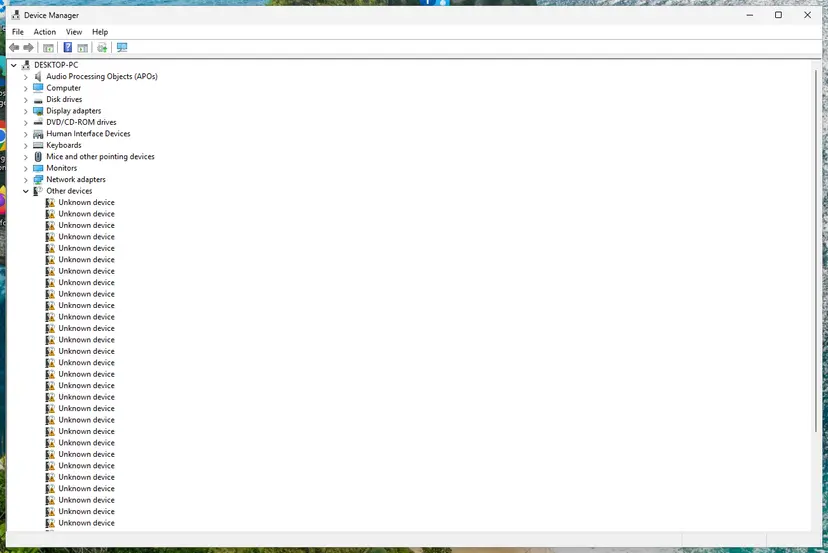
Device Manager lists devices by category; a yellow warning sign marks a device with a problem. Screenshot: Windows 11 26H2. - Open the device's Driver tab. Expand the category (for example Display adapters), right-click the device, select Properties and open the Driver tab. Driver Date and Driver Version show what is installed now.
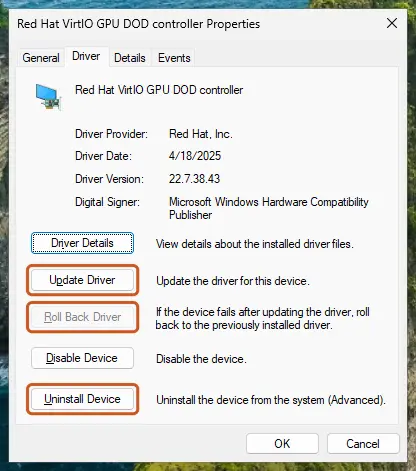
The Driver tab holds all three actions: update, roll back, uninstall. Screenshot: Windows 11 26H2. - Update the driver. Select Update Driver and let Windows search automatically. To use a driver you downloaded from the device maker, select Browse my computer for drivers instead and point to the unpacked folder.
- Or roll back the driver. If the problem started after a driver update, select Roll Back Driver, choose a reason and select Yes. The button is greyed out when Windows has no earlier driver to return to.
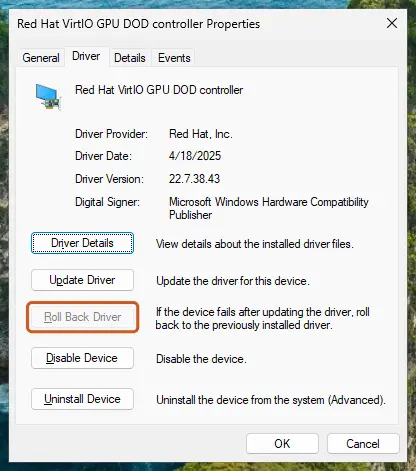
Roll Back Driver is greyed out here because there is no earlier driver. Screenshot: Windows 11 26H2. - Or reinstall the driver. Select Uninstall Device. Tick Attempt to remove the driver for this device only if you want Windows to delete the driver package too, then select Uninstall.
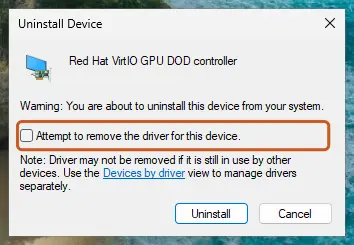
Tick the checkbox only to delete the driver package as well. Screenshot: Windows 11 26H2.
These steps were written for Windows 11 24H2 and later. The full page with the other versions and what each result means: Update, roll back or reinstall a driver
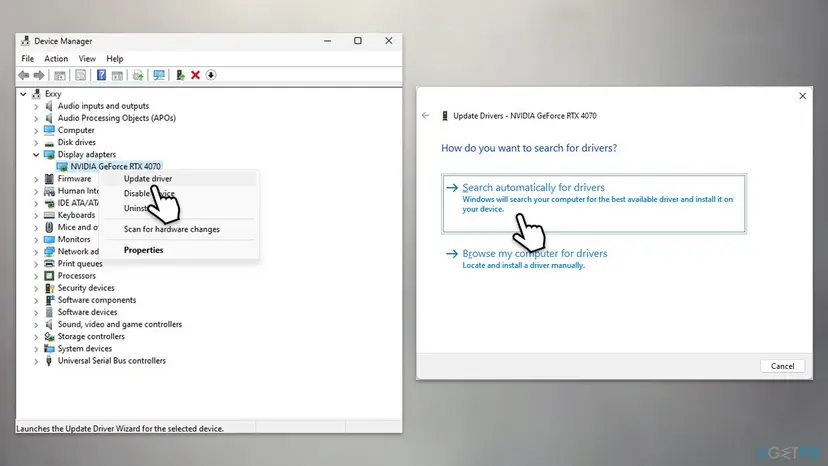
- Get graphics drivers from your laptop maker's support page or from Intel, AMD or NVIDIA, not from driver download sites.
- On Thunderbolt laptops, also install the Thunderbolt or USB-C firmware and dock updates the laptop maker lists for your model.
- If the dock's manual says it needs its own display driver, install the current one from the dock maker.
It worked if: Device Manager shows your real graphics card with no warning sign, and the monitor is detected after the restart.
If not: If Universal Serial Bus controllers shows a warning sign, reset the USB controllers with Fix 7.
Fix 7. Check and reset the USB controllers in Device Manager
5 minutesLow riskDevice Manager shows a yellow warning sign under Universal Serial Bus controllers or USB Connector Managers, or you see USB device not recognized.
Microsoft says USB device not recognized means the device reported a problem or its driver has one, and that the error code under Device status tells you which. Turning the affected controller off and on reloads its driver.
- Right-click Start and select Device Manager.
- Expand Universal Serial Bus controllers and look for a device with a yellow exclamation mark.
- Right-click it, select Properties and note the code under Device status. Microsoft's page Error codes in Device Manager explains each code.
- Close the window, right-click the same device and select Disable device, then Yes.
- Wait a few seconds, right-click it again and select Enable device.
- Plug the monitor in again.
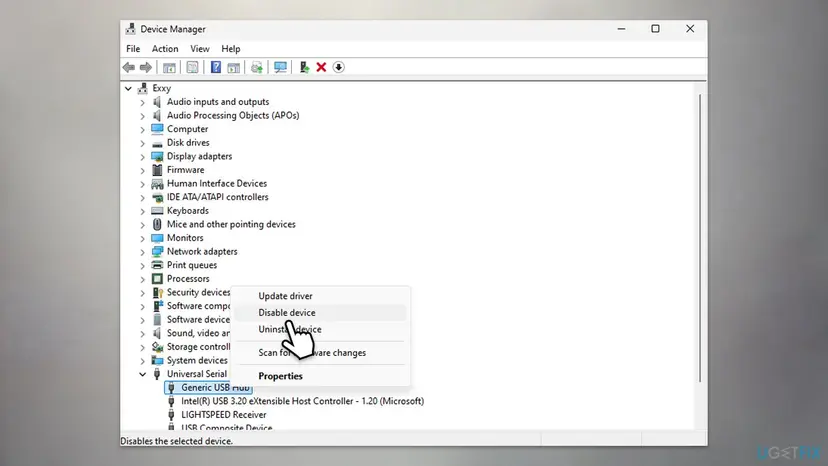
If the mouse or keyboard is on the hub you disable, it stops working until you enable it again. Use the laptop's touchpad and keyboard for these steps, or restart the PC, which enables the device again.
It worked if: The warning sign is gone and the monitor is detected when you plug it in.
If not: If the problem started right after a Windows update, remove that update with Fix 8.
Fix 8. Uninstall the Windows update the problem started after
10 to 15 minutes plus a restartRead the warningThe monitor stopped working on the day a Windows update was installed, and Fixes 1 to 7 did not help.
Removing an update brings back the USB-C and graphics files you had before it. Use it only when the dates match, because the update also carries security fixes.
Your files and apps are not affected, but the PC is without the update's security fixes until you install it again. Pause updates for a week or two and check whether a newer update fixes the monitor.
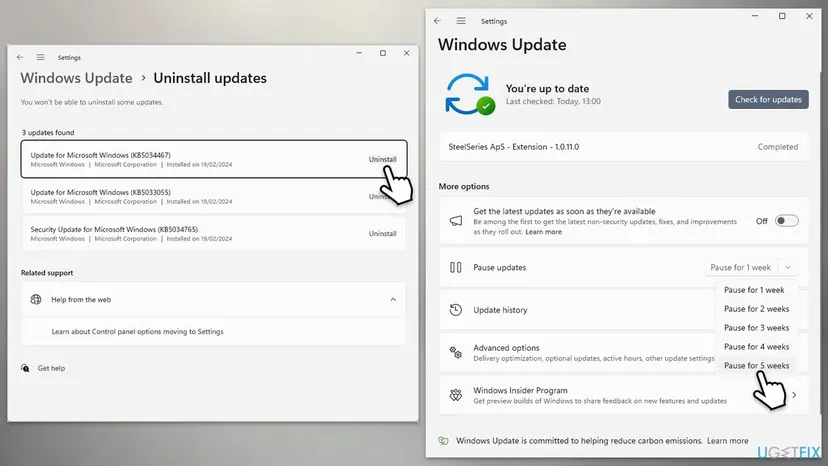
Open Settings > Windows Update > Update history and compare the install dates with the day the monitor stopped. Then remove that update and pause updates. Step by step: How to uninstall a Windows update.
- Open Windows Update. Select Start > Settings > Windows Update.
- Open the update history. Under More options, select Update history. Note the KB number and the date of the update you suspect.
- Open the list of removable updates. Scroll down to Related settings and select Uninstall updates.
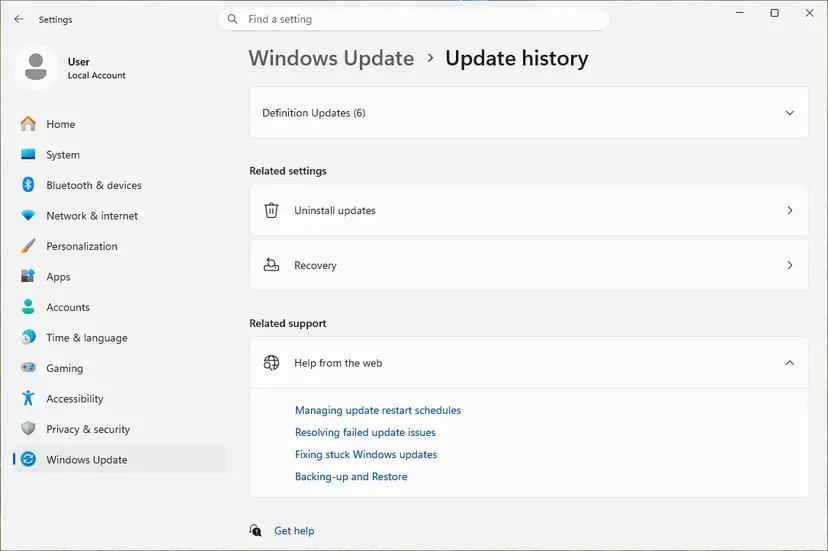
Uninstall updates is under Related settings. Screenshot: Windows 11 26H2. - Uninstall the update. Find the update in the list and select Uninstall next to it. If the update is not in the list, Windows does not allow it to be removed this way.
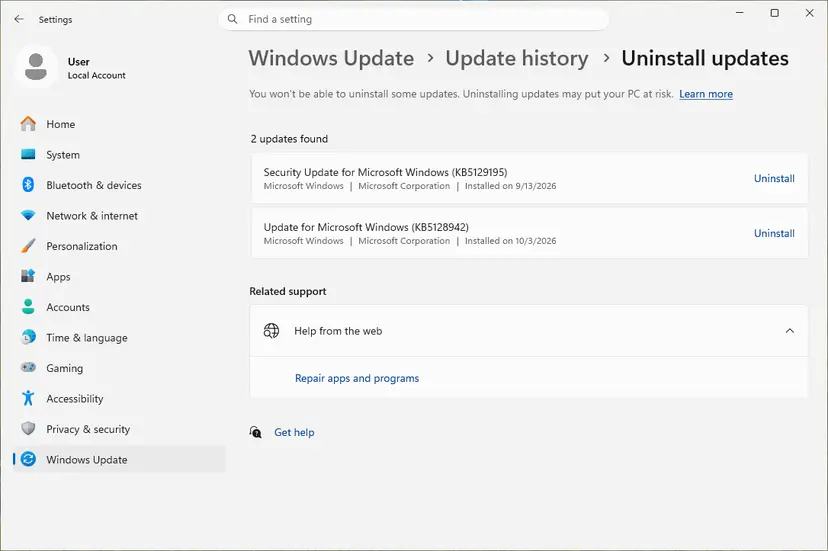
Each removable update has its own Uninstall link. Screenshot: Windows 11 26H2. - Pause updates. Go back to Settings > Windows Update and select Pick a date on the Pause updates control. If your PC shows a list there instead, select the pause length you prefer. Without a pause Windows downloads the same update again.
These steps were written for Windows 11 25H2 and 26H2. The full page with the other versions and what each result means: How to uninstall a Windows update
It worked if: After the restart the monitor is detected again.
If not: If nothing here helped, read the next section: the port, the dock or the monitor may have a hardware fault.
USB-C display still not detected: when it is the hardware
If the monitor stays dark after all eight fixes, test each part on its own. Microsoft's advice is the same: try another cable, and try the monitor with a different system.
- The monitor works on another PC with the same cable. Your laptop's port is the limit. Check the spec page for which ports carry video, or the port may be faulty.
- The monitor fails on every PC. Try another input on the monitor (HDMI or DisplayPort). If USB-C alone fails, the monitor's USB-C input may be faulty.
- Only the dock fails. Check the dock maker's list of supported laptops. Microsoft notes a dock can have USB-C features your PC does not support.
- One monitor works, the second does not. Your graphics may not support more monitors over one port. Microsoft says to ask the graphics maker how many monitors it supports.
- The port does not charge or see USB drives either. That points to a port fault, not a display setting.
Before you contact the laptop or dock maker, note the laptop model, the dock and monitor models, the cable you use, the USB-C notification text and any Device Manager error code. You can also report it to Microsoft in the Feedback Hub, as Microsoft's monitor guide suggests.
How to keep your USB-C monitor working
A USB-C setup breaks most often when one part of the chain changes: a new cable, a different port, a new dock or a driver update. Keep the parts that work together.
- Keep the monitor on the same video-capable USB-C port and the cable from its box.
- Give the dock its own power adapter.
- Install graphics, Thunderbolt and dock updates from the laptop maker for your model.
- Keep USB Connection notifications on, so Windows tells you which link fails.
- Do not use phone charger cables for a monitor.
- Do not chain a hub behind a dock behind an adapter when a direct port is free.
- Do not install drivers from driver download sites or updater programs.
Frequently asked questions
Why is my USB-C monitor not detected on Windows 11?
Most often one link cannot carry video. Microsoft explains that USB-C sends a picture only through an Alternate Mode, such as DisplayPort Alternate Mode or Thunderbolt, and that the PC, the cable and the display must all support it. A data-only port, a charge-only cable or a dock in between is enough to stop it. Plug the monitor straight into the video-capable port with the cable from its box, then press Win + P and select Extend.
How do I enable a USB-C monitor in Windows 11?
There is no switch to turn USB-C video on. Microsoft says the PC uses the right Alternate Mode automatically when it is supported. What you can do is make sure the monitor is on its USB-C input, press Win + P and choose Extend, then open Settings > System > Display, expand Multiple displays and select Detect. If nothing appears, the port or cable does not carry video (Fix 1 and Fix 3).
Why does my USB-C hub or dock not detect my monitor?
A hub or dock adds two more links that must carry video, and it needs enough power. Microsoft lists a device connected through an external hub or dock as a cause in every USB-C display case. Test the monitor directly first. If that works, give the dock its own power adapter, use the dock maker's cable and check whether the dock needs its own driver or firmware. Some cheap hubs carry data and charging only.
Why is my portable USB-C monitor not detected?
A portable monitor often takes both its picture and its power from the one USB-C cable, so it needs a port that carries video and enough power. Microsoft's USB device might need more power notification lists the causes: the PC is on battery, it already powers other devices, or the device needs more than the port gives. Plug the laptop into its charger, unplug other USB devices, and connect the monitor's own power input if it has one. Then check the port and cable with Fix 1 and Fix 3.
My USB-C port is not working at all on Windows 11. What should I do?
If the port also fails with USB drives and charging, it is not a display problem. Open Device Manager and look under Universal Serial Bus controllers for a yellow warning sign, then read the error code under Device status, as Microsoft describes for USB device not recognized. Reset the controller with Fix 7 and update the chipset and USB-C drivers from your laptop maker. If the port still does nothing, it may be faulty.
What does "Display connection might be limited" mean?
It is a Windows notification that the USB-C display link cannot work fully. Microsoft lists its causes: the display or adapter has USB-C features your PC or cable does not support, it is on the wrong USB-C port, it goes through a hub or dock, or too many USB-C devices are connected. On Windows 10 the same notification adds "Try using a different cable". Start with Fix 1, Fix 2 and Fix 3.
The USB-C monitor stopped working after a Windows update. What now?
First rule out the hardware with Fixes 1 to 4, because a restart after an update is also when a loose cable or a sleeping dock shows up. Then roll back the graphics driver, which Microsoft recommends for monitor problems after an update (Fix 6). If the problem started on the exact day of a Windows update, check Update history and remove that update with Fix 8. Pause updates for a short time and install the update again once a fix arrives.
Does every USB-C port support a monitor?
No. USB-C describes the plug. A port supports a monitor only if the maker built it with DisplayPort Alternate Mode, Thunderbolt or USB4 video. Many laptops have one video port and one data port that look alike. The marks next to the port and the laptop's spec page tell you which one carries video. Microsoft's own advice is to connect a DisplayPort Alt Mode adapter to the port that supports that mode.
Can I connect two monitors through one USB-C port?
Sometimes. It depends on your graphics, the port and the dock. Microsoft says a display adapter may not support more than one monitor and that you should ask its maker how many it supports. A display splitter cannot extend to two monitors, because it only copies one signal. A dock built for two screens can work if your laptop supports it. Get one monitor working first, then add the second.
Is this guide also for Windows 10 and Lenovo or other laptops?
Yes. The fixes are the same on Windows 10 22H2, and only the notification settings path differs (Settings > Devices > USB). Windows 10 left support on 14 October 2025, so new USB-C and graphics drivers for it may stop coming. Lenovo, Dell, HP and other laptops follow the same USB-C rules. Your laptop maker's support page lists which ports carry video and which dock updates exist for your model.
Sources
- Microsoft Support: Fix USB-C problems in Windows (support.microsoft.com)
- Microsoft Support: Troubleshoot external monitor connections in Windows (support.microsoft.com)
Did this fix work?
One click, no account. It tells the next reader which guides are worth their time.
Questions and experiences: [Fix] USB-C monitor not detected on Windows 11
Still broken, or found a fix we did not cover? Ask here: members and our editors answer. Reading is open; writing needs a free account.
…