
How to fix 0x80070425 error in Windows?

Prefer to fix it yourself? The manual steps follow.
- 7methods
- 5 minutes for a restart, 10 to 30 minutes for the rest
- Intermediate
Applies to Windows 11, Windows 10
7 methods in this guide
Hi, I can't seem to add my email account to the Mail app because of the 0x80070425 error. The message says, "Something went wrong. We're sorry, but we weren't able to do that." Any tips on how to resolve this?
Error 0x80070425 means a Windows service is busy or stuck and cannot take a start or stop command right now. Most often it is the Credential Manager service, which breaks saved passwords, Sign-in options and email accounts. Start with a full restart of the PC, then check the Credential Manager service.
0x80070425 is Windows error 1061: "The service cannot accept control messages at this time." A service is stuck while it starts or stops. Restart the PC with Restart, not Shut down (Fix 1). Then open services.msc, set Credential Manager to Manual and start it (Fix 2). For another service, end its stuck process (Fix 3). The old Mail app no longer works at all, so move the account to Outlook (Fix 4).
| Error | 0x80070425, Windows error 1061 (0x425), ERROR_SERVICE_CANNOT_ACCEPT_CTRL: "The service cannot accept control messages at this time." |
|---|---|
| Where it appears | Credential Manager (grey or empty), Settings > Accounts > Sign-in options, the Mail app when you add an account, the Services window, and net stop or net start in Command Prompt. |
| Main cause | A service is stuck in a starting or stopping state. On home PCs it is most often Credential Manager (service name VaultSvc). |
| Fastest fix | A full Restart of the PC (Fix 1), then start Credential Manager in Services with Startup type Manual (Fix 2). |
| Also written as | Error code 0x80070425, 80070425, error 1061, system error 1061, "the service cannot accept control messages at this time", Credential Manager error 0x80070425. |
| Affects | Windows 11 and Windows 10, also Windows Server. The code is the same on every version. |
| Credential Manager defaults | Service name VaultSvc, Startup type Manual, always installed, runs inside C:\Windows\system32\lsass.exe. |
| Microsoft's status | Not a bug with a patch. It is a standard Windows error code. The Windows Mail app it often showed up in lost support on 31 December 2024. |
| Time to fix | 5 minutes for a restart and the service check. Up to 30 minutes for a system file repair. |
Facts checked on 15 October 2026. Steps written for Windows 11 (25H2 and 26H2) and Windows 10 22H2.
What error 0x80070425 means
The code has two parts. 0x8007 says it is a Windows system error wrapped for an app, and 0425 is the error number in hexadecimal. In decimal that number is 1061. Microsoft's list of system error codes gives 1061 the name ERROR_SERVICE_CANNOT_ACCEPT_CTRL and the text "The service cannot accept control messages at this time."
A control message is a command to a service: start, stop, pause or restart. In practice the service is busy. It is still starting, still stopping, or hung in one of those states, so Windows refuses a new command until it is done. That is why a restart of the whole PC fixes it so often: the stuck state does not survive it.
How the error looks in the Services window and in Command Prompt (the service name changes)
Windows could not stop the Credential Manager service on Local Computer.
Error 1061: The service cannot accept control messages at this time.

C:\> net stop VaultSvc
System error 1061 has occurred.
The service cannot accept control messages at this time.
Apps show the same error as the hex code. Credential Manager can show 0x80070425 with the same text, and the old Mail app showed "Something went wrong" with 0x80070425 in the details, as in the question at the top.
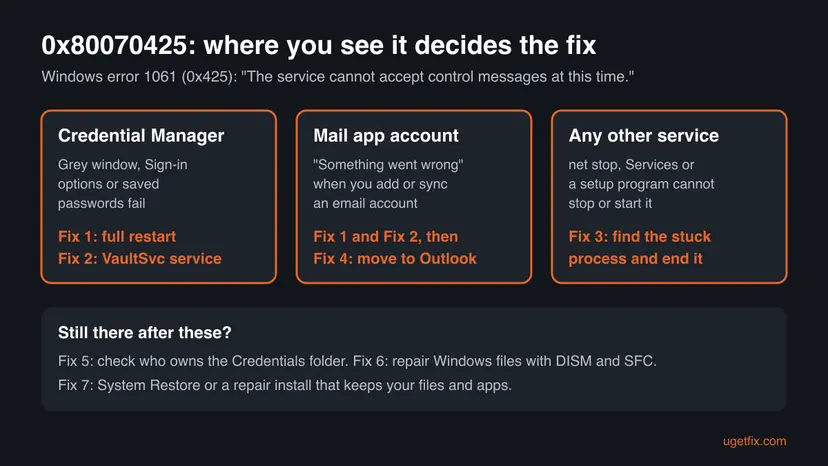
Why error 0x80070425 appears, most common cause first
Most often Credential Manager is stuck or stopped. Less often another service hangs while it stops, for example during a program's setup. Rarely the cause is damaged Windows files or wrong rights on your saved credentials.
| Cause | How it looks | Fix |
|---|---|---|
| A service hangs in a starting or stopping state. | sc query shows START_PENDING or STOP_PENDING; buttons in Services are grey. | Fix 1, Fix 3 |
| Credential Manager is stopped or set to Disabled. | Credential Manager will not open, Sign-in options fail, apps forget passwords. | Fix 2 |
| The account lives in the retired Mail and Calendar app. | The error came when you added or synced an email account in Mail. | Fix 4 |
| Your account does not own the Credentials folder in your profile. | Credential Manager runs but saving or reading passwords fails. | Fix 5 |
| Windows files that services use are damaged. | Several services fail, or the error returns after every restart. | Fix 6, Fix 7 |
If Windows says "The dependency service or group failed to start", that is error 1068, not 1061, and the cause is a service further down the chain: error 1068: the dependency service or group failed to start.
How to fix error 0x80070425 in Windows
Fix 1 and Fix 2 solve the Credential Manager case, which is the one most readers have. Fix 3 is for any other service that is stuck. Use the table to start in the right place.
| What you see | Start with |
|---|---|
| Credential Manager is grey or empty, or Sign-in options show 0x80070425. | Fix 1, then Fix 2 |
| The Mail app shows "Something went wrong" with 0x80070425. | Fix 1, Fix 2, then Fix 4 |
net stop, Services or a setup program says error 1061 for another service. | Fix 3 |
| Credential Manager runs, but passwords are not saved. | Fix 5 |
| The error comes back after every restart, or several services fail. | Fix 6, then Fix 7 |
Fix 1. Restart the PC fully to clear the stuck service
5 minutesNo riskEveryone, before you change any setting.
Error 1061 means a service is caught between two states. A restart stops and starts every service again from scratch. Shut down is not the same: with Fast startup on, Windows saves part of its state and loads it back, so a hung service can come back with it.
- Save your work and close your apps.
- Select Start, then the Power button, then Restart.
- Sign in and wait a minute for Windows to start its services.
- Open Credential Manager again, or retry what showed the error.
Give it ten minutes, since Windows waits for stuck services to end. If it still does not restart, hold the power button until the PC turns off, then turn it on again.
It worked if: Credential Manager opens, the service starts or stops normally, and the error does not come back.
If not: If it is Credential Manager, go to Fix 2. If it is another service, go to Fix 3.
Fix 2. Set the Credential Manager service (VaultSvc) to Manual and start it
5 minutesLow riskCredential Manager, Sign-in options or an email account shows 0x80070425, and Fix 1 did not help.
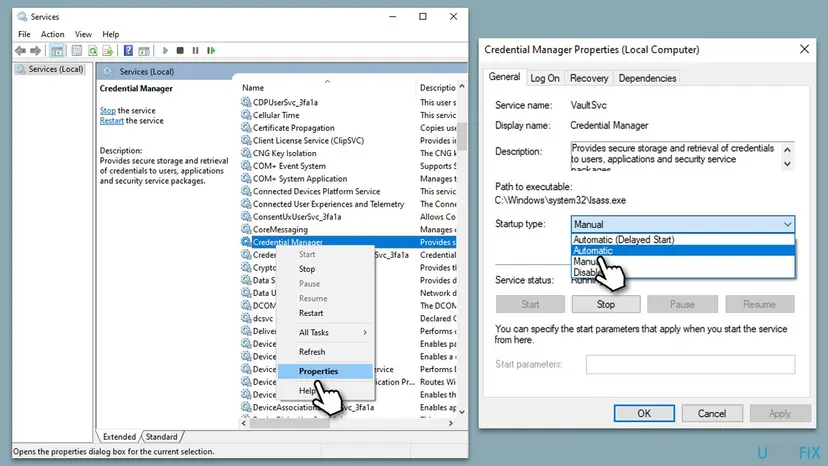
Credential Manager stores the passwords apps and Windows use to sign in. If its service is stopped or set to Disabled, everything that asks for a saved password fails, and Windows shows this error. Microsoft lists its default Startup type as Manual: Windows starts it when an app needs it.
- Press Win + R, type
services.mscand press Enter. - Find Credential Manager and double-click it.
- Check the General tab: Service name must be
VaultSvcand Path to executableC:\Windows\system32\lsass.exe. - Set Startup type to Manual. If it stops again and again, Automatic is fine too.
- Select Apply, then Start if Service status shows Stopped.
- Select OK and open Credential Manager again.
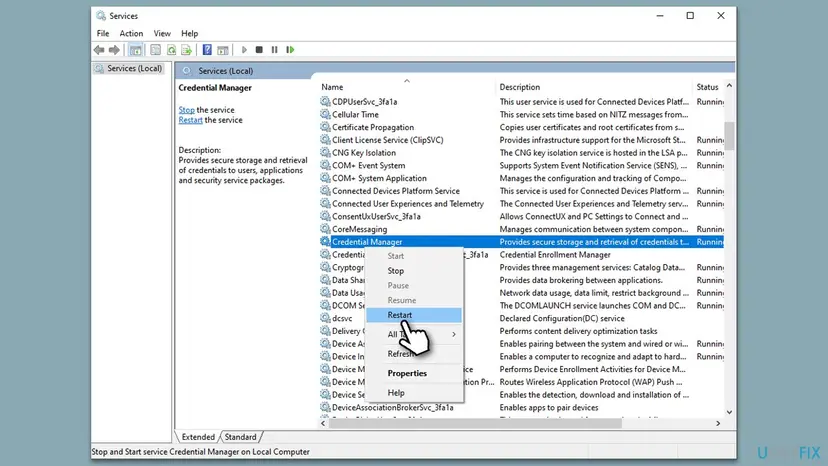
If the service shows Running but the error stays, right-click Credential Manager and select Restart. If Restart is grey or answers error 1061 again, the service is stuck: restart the PC (Fix 1), because it lives inside lsass.exe and cannot be ended on its own.
The same from an administrator Command Prompt (keep the space after start=)
sc query VaultSvc
sc config VaultSvc start= demand
net start VaultSvc
Opening Services and starting a service step by step: Check and restart Windows services
It worked if: Service status shows Running, Credential Manager opens with its Web Credentials and Windows Credentials tabs, and Sign-in options work.
If not: If the Startup type is grey or goes back to Disabled after a restart, run a malware scan with How to scan for malware with Microsoft Defender, then go to Fix 6. If the service runs but passwords are not saved, go to Fix 5.
Fix 3. Find the stuck service's process and end it
5 minutesRead the warningError 1061 comes from another service, for example when net stop or a program's setup cannot stop it, and you cannot restart the PC right now.
A service in STOP_PENDING never finishes on its own if its program hangs. Ending its process frees Windows to start it cleanly again, without a full restart.
Ending the wrong process can lose unsaved work in that program, or restart Windows at once. If the PID belongs to lsass.exe (as for Credential Manager), or to svchost.exe shared by many services, restart the PC instead (Fix 1). Save your work first.
- In Services, open the stuck service's Properties and copy the Service name.
- Type
cmdin search, right-click Command Prompt and select Run as administrator. - Run
sc queryexwith the service name. Note STATE and PID. - If STATE is STOP_PENDING or START_PENDING, run
tasklist /svc /fi "PID eq <PID>"to see which program it is and which other services share it. - If it is the service's own program and no other service shares it, run
taskkill /PID <PID> /F. - Start the service again with
net startand the service name.
Command Prompt as administrator (replace the name and the PID)
sc queryex <service name>
tasklist /svc /fi "PID eq <PID>"
taskkill /PID <PID> /F
net start <service name>
In PowerShell or Terminal type sc.exe, not sc, because there sc is a short name for another command.
It worked if: sc query shows STATE: 4 RUNNING after net start, or 1 STOPPED if you only wanted it stopped, and the program's setup can go on.
If not: If taskkill answers "Access is denied" or the service hangs again, restart the PC (Fix 1). If it hangs after every restart, read its errors as the still-broken section explains.
Fix 4. Move an email account from the retired Mail app to Outlook
10 minutesLow riskThe error came when you added or synced an account in the Windows Mail app, as in the question at the top.
Microsoft ended support for Windows Mail, Calendar and People on 31 December 2024. Microsoft says you can no longer send and receive email with Windows Mail and Calendar, so fixing the error in Mail no longer gives you working mail.
- Make sure Credential Manager runs (Fix 2), because Outlook also stores sign-ins in Windows.
- Open Outlook from the Start menu. On Windows 11 the new Outlook for Windows is built in; on Windows 10 install it from the Microsoft Store.
- Select Settings > Accounts > Email accounts > Add account.
- Type your email address and follow the sign-in steps of your provider.
- For Gmail or Yahoo, allow access on the provider's page when it asks.
Accounts such as Outlook.com, Gmail or Yahoo keep their mail on the server, so it shows up again in Outlook. Mail from a POP account was stored on the PC; open Mail once more, if it starts, and use the export offer it shows before you remove it.
It worked if: The account shows in Outlook's folder list and new mail arrives.
If not: If Outlook shows its own error, sign in to the account in a browser first to check the password. If Outlook also fails because of Credential Manager, go to Fix 5.
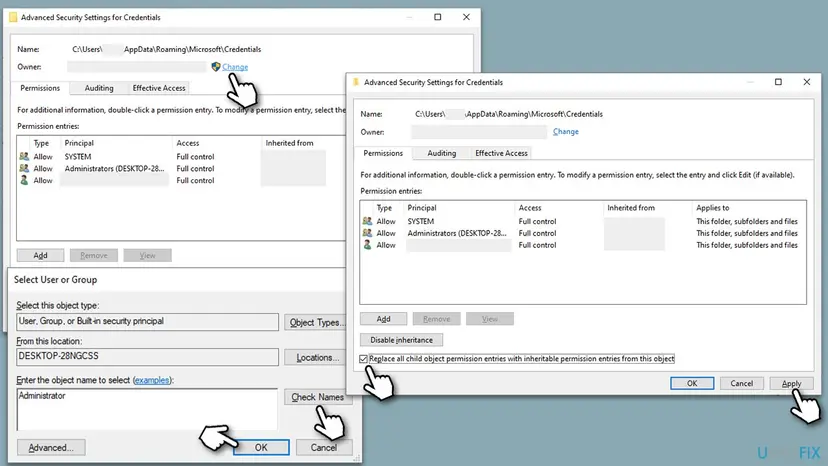
Fix 5. Check that your account owns the Credentials folder
10 minutesRead the warningCredential Manager runs, but it cannot save or read passwords, or the error came after you copied a profile or changed accounts.
Saved credentials sit in a folder in your profile. If its owner is another account, for example after a profile copy, Windows cannot read or write them for you. Normally the owner is your own account, with SYSTEM and Administrators also allowed.
Wrong rights can lock you out of saved passwords. Make a restore point first with Undo recent changes with System Restore, and write down what the Owner line showed before you change it. Do not change rights on the whole AppData folder.
- In File Explorer, select View > Show > Hidden items (Windows 10: View > Hidden items).
- Paste
%AppData%\Microsoftinto the address bar and press Enter. - Right-click Credentials, select Properties, then Security and Advanced.
- If Owner is not your account, select Change, type your user name, select Check Names and OK.
- Check Replace all child object permission entries with inheritable permission entries from this object, then Apply and OK.
- Repeat for
%LocalAppData%\Microsoft\Credentialsif it exists, then restart the PC.
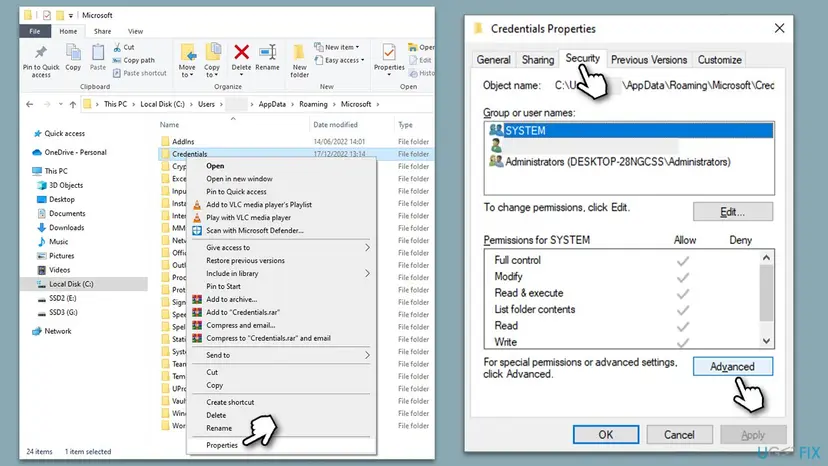
It worked if: Owner shows your account, SYSTEM and Administrators keep Full control, and Credential Manager saves new passwords.
If not: If you see no Credentials folder or the owner was already right, this is not the cause. Go to Fix 6.
Fix 6. Repair Windows system files with DISM and SFC
15 to 30 minutesNo riskThe error comes back after every restart, or several Windows services fail.
When a service's own files are damaged, it can hang every time it starts or stops. DISM repairs the store of Windows components, and SFC then puts damaged system files back from it.
- Open an elevated command window. Right-click Start and select Terminal (Admin), or type cmd in the search box, right-click Command Prompt and select Run as administrator. Select Yes when Windows asks for permission.
- Run DISM first. Type the command below and press Enter. DISM downloads clean copies of damaged components from Windows Update, so it can take several minutes. Wait until it says The operation completed successfully.
DISM.exe /Online /Cleanup-Image /RestoreHealth - Run System File Checker. In the same window, type the command below and press Enter. Do not close the window until the verification reaches 100%.
sfc /scannow - Read the result and restart. Compare the last message with the table below this guide, then restart the PC so that repaired files are loaded.
These steps were written for Windows 11 24H2 and 25H2. The full page with the other versions and what each result means: Run DISM and SFC to repair Windows system files

It worked if: SFC says it found no integrity violations or repaired them, and after a restart the service starts and stops normally.
If not: Install the waiting Windows updates in Settings > Windows Update, restart, and if the error stays go to Fix 7.
Fix 7. Go back to a restore point or reinstall Windows over itself
30 to 90 minutesRead the warningNothing above worked, or the error began right after an update, a driver or a tweak tool.
System Restore puts back the service settings and drivers of an earlier day in one step. A repair install replaces every Windows file and resets the services while it keeps your files and apps.
Your documents stay. Programs, drivers and updates installed after the restore point are removed. Back up important files first, especially before a repair install: Back up your files (Windows Backup, File History, Time Machine)
- Press Win + R, type
rstruiand press Enter. - Choose a restore point from before the error started and select Scan for affected programs.
- Select Next and Finish, and let the PC restart.
- With no usable restore point, reinstall Windows while you keep your files and apps.
System Restore step by step: Undo recent changes with System Restore Repair install: Reinstall Windows without losing files
It worked if: Credential Manager and the other services start and stop without error 1061.
If not: Collect the details in the next section before you ask Microsoft or a program's maker for help.
If error 0x80070425 is still there: what to read and what to collect
Error 1061 tells you that a service is stuck, not why. The why is usually in the System log, written when the service hung.
- The service state. Run
sc queryex <service name>and note STATE and PID. - The System log. Press Win + X, select Event Viewer, open Windows Logs > System and filter by the source Service Control Manager. Look for entries such as "The service did not respond to the start or control request in a timely fashion" (error 1053) or "terminated unexpectedly" for the same service.
- What changed. Run
perfmon /relto open Reliability Monitor, which lists installs, updates and crashes by day. - Your Windows version and build. Press Win + R, type
winverand note both.
| Sign | What it means |
|---|---|
| The same service hangs after every clean restart. | Its program or a driver it uses is broken. Update or reinstall that program; for Windows services, Fix 6 and Fix 7. |
| Many services hang and the PC is slow to shut down. | The disk may be failing. Check it with Check a disk for errors (chkdsk) and back up your files. |
| The error is 1058 or 1068, not 1061. | The service is disabled (1058) or a service it depends on failed (1068). These have other fixes. |
| The error only shows on a work PC, for example when leaving a domain. | Your organisation's IT controls the services and accounts. Ask them. |
Windows 10 left support on 14 October 2025. A Windows 10 PC whose services keep hanging gets no more security fixes, so a repair install is a good moment to plan the move to Windows 11.
How to avoid error 0x80070425 in the future
- Use Restart, not Shut down, when Windows acts strangely; it clears stuck services.
- Leave Credential Manager on its default Startup type, Manual.
- Keep System Protection on for drive C:, so a restore point exists before big changes.
- Wait a minute after sign-in before you open account settings, so services can finish starting.
- Do not use "disable unneeded services" lists or tweak tools; Credential Manager is often on them.
- Do not end
lsass.exein Task Manager to restart Credential Manager; Windows will restart at once. - Do not keep using the retired Mail app for new accounts.
- Do not change rights on whole profile folders to fix one service.
Frequently asked questions
What is error code 0x80070425?
It is Windows error 1061 shown in the hex form apps use. Microsoft's list of system error codes names it ERROR_SERVICE_CANNOT_ACCEPT_CTRL. Its text is "The service cannot accept control messages at this time". It means a Windows service is busy starting or stopping, or is hung, so it refuses a new start or stop command. On home PCs it is most often the Credential Manager service. A full restart of the PC clears it in most cases.
How do I fix Credential Manager error 0x80070425?
Restart the PC with Restart, not Shut down. If the error stays, open services.msc, double-click Credential Manager, set Startup type to Manual and select Start. Its service name is VaultSvc. If it is running but stuck, a restart is the only clean way, because the service runs inside lsass.exe, which you must not end. If passwords still are not saved, check that your account owns the Credentials folder in your profile, as Fix 5 shows.
Why does the Mail app show 0x80070425 when I add an account?
The Mail app needs Credential Manager to store your sign-in. When that service is stuck or stopped, adding the account fails with "Something went wrong" and 0x80070425. Fix the service with Fix 1 and Fix 2. Then move the account to Outlook: Microsoft ended support for Windows Mail and Calendar on 31 December 2024, and says you can no longer send and receive email with it.
What does "The service cannot accept control messages at this time" mean?
It means Windows sent a command to a service, such as stop or restart, and the service could not take it. Usually the service is still starting or still stopping. sc query shows this as START_PENDING or STOP_PENDING. Wait a minute and try again. If it stays that way, end the service's process as Fix 3 shows, or restart the PC. If it happens after every restart, the service's program or Windows files are damaged.
What is System error 1061 in net stop or net start?
It is the same error as 0x80070425, shown by the net command instead of an app. The next line reads "The service cannot accept control messages at this time." Run sc queryex with the service name to see its state and process ID. If it is stuck in STOP_PENDING and its process serves only that service, end it with taskkill and start the service again. If the process is lsass.exe or shared by many services, restart the PC instead.
Is 0x80070425 different on Windows 11 and Windows 10?
No. The code, the text and the fixes are the same on Windows 11 and Windows 10, and on Windows Server. Only a few menu paths differ, and this guide gives both. Windows 10 left support on 14 October 2025, so a Windows 10 PC no longer gets fixes for the services involved. On both versions, Credential Manager's default Startup type is Manual, which is the right setting to go back to.
Can a program's setup or IIS cause error 1061?
Yes. A setup program that stops a service before it replaces files gets error 1061 when that service hangs while stopping. Web servers and database services show it the same way. Close the program that uses the service, wait a minute and try again. If it stays, find the process with sc queryex and end it, as Fix 3 shows, then run the setup again. A restart of the PC before the setup is the simplest way.
Should I set Credential Manager to Automatic?
It is not needed. Microsoft lists Credential Manager's default Startup type as Manual, which means Windows starts it as soon as an app or Windows needs it. Automatic does no harm and some readers keep it if the service stopped often, but Disabled always breaks saved passwords. If the setting keeps going back to Disabled by itself, a tweak tool or malware changes it, so scan the PC.
Qual é esse erro 0x80070425?
This page is in English. 0x80070425 is Windows error 1061: "The service cannot accept control messages at this time", in Portuguese "O serviço não pode aceitar mensagens de controle neste momento". A Windows service, most often Credential Manager (Gerenciador de Credenciais), is stuck. Restart the PC, then open services.msc and start Credential Manager with Startup type Manual. The fixes above work the same on Windows in any language.
Is there a fix for 0x80070425 in other languages of Windows?
Yes, the fixes are the same in every language of Windows; only the names on the screen are translated. The service name VaultSvc and the commands sc query, net start and taskkill are the same everywhere, so you can type them as this page shows. Readers who searched in Thai for a fix (แก้ไข) can follow Fix 1 and Fix 2 with these commands.
Sources
- Microsoft Learn: System Error Codes (1000-1299), 1061 (0x425) ERROR_SERVICE_CANNOT_ACCEPT_CTRL, 1053, 1056, 1058 (learn.microsoft.com)
- Microsoft Learn: Security guidelines for system services, Credential Manager (VaultSvc, Startup type Manual) (learn.microsoft.com)
- Microsoft Support: Outlook for Windows, the future of Mail, Calendar and People (support ended 31 December 2024) (support.microsoft.com)
Did this fix work?
One click, no account. It tells the next reader which guides are worth their time.
Questions and experiences: fix 0x80070425 error in Windows
Still broken, or found a fix we did not cover? Ask here: members and our editors answer. Reading is open; writing needs a free account.
…