
How to fix 0x80180018 error when adding a second account in Windows?

Prefer to fix it yourself? The manual steps follow.
- 5methods
- 5 minutes for you, plus the time IT needs to assign a licence
- Easy
Applies to Windows 11 and Windows 10 PCs that connect a work or school (Microsoft Entra ID) account managed by Microsoft Intune or another MDM service
5 methods in this guide
Hi, I am attempting to add a second work account to my Windows PC, but I keep getting the 0x80180018 error. Any tips on how to get rid of it?
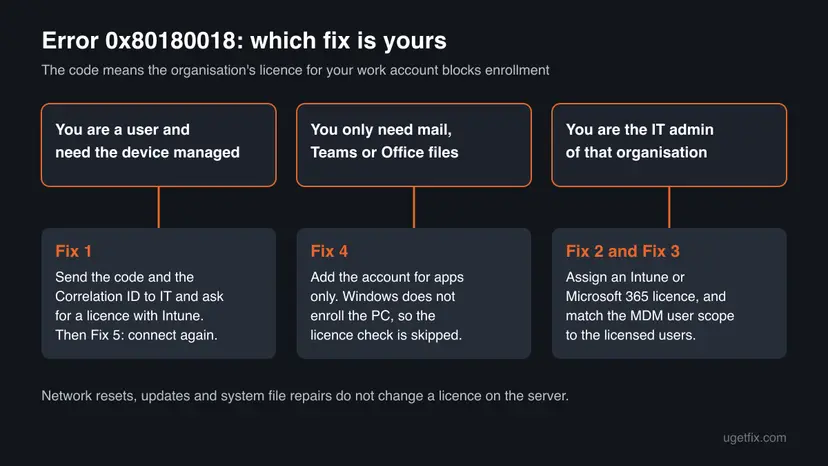
Error 0x80180018 appears when Windows tries to enroll your PC in an organisation's device management, usually Microsoft Intune, and the server finds the licence of your work account in a bad state. It is not a fault in Windows, so the fix sits with the organisation. Send the code to IT first; if you only need mail and Office, add the account for apps only.
Error code 80180018 means the user licence for device management is missing or in a bad state, and Microsoft says the user will need to call the admin. Send IT the error code and the Correlation ID and ask for a licence that includes Intune (Fix 1). If you only need Outlook, Teams or OneDrive, add the account for apps only, which does not enroll the PC (Fix 4).
| Error | Something went wrong. There was an error with your licence, with Server error code: 80180018 (hex form 0x80180018). |
|---|---|
| Where it appears | Settings > Accounts > Access work or school > Connect, during Windows setup on a work PC, or in the Company Portal when the PC enrolls in management. |
| Main cause | The user has no valid Intune licence, or it is in a bad state. Microsoft's internal name for the code is MENROLL_E_USERLICENSE. |
| Fastest fix | IT assigns an Intune or Microsoft 365 licence that includes Intune, then you connect again (Fix 1, Fix 2 and Fix 5). |
| Also written as | 0x80180018, 80180018, server error code 80180018, MDM user licence error, "There was an error with your license". |
| Affects | Windows 11 and Windows 10, Home and Pro, with any work or school account whose organisation turned on automatic MDM enrollment. |
| Vendor status | Not a bug and not fixed by an update. Microsoft documents it as a licence state that blocks enrollment and that only the admin can change. |
| Who can fix it | The organisation's Microsoft 365 or Intune admin. On your side you can only report it, retry, or add the account for apps only. |
| Time to fix | 5 minutes for your part. How fast the licence applies on Microsoft's side we could not confirm. |
Facts checked on 15 October 2026. Steps written for Windows 11 (25H2 and 26H2) and Windows 10 22H2.
What error 0x80180018 (server error code 80180018) means
When you connect a work or school account in Windows, the organisation can make Windows also enroll the PC in its mobile device management (MDM), most often Microsoft Intune. Enrollment checks that your account holds a licence for that service. Error 0x80180018 is the answer when that check fails.
Microsoft's list of MDM registration errors names the code MENROLL_E_USERLICENSE and describes it as: "The license of user is in bad state blocking enrollment; the user will need to call the admin." The full message looks like this:
The message on screen
Something went wrong.
There was an error with your licence.
You can try to do this again or contact your system administrator with the error code 80180018.

Additional problem information:
Server error code: 80180018
Correlation ID:
Timestamp:
Server message:Your first work account may belong to an organisation that does not use MDM, or to one where you hold a licence. The second account belongs to another organisation, or another tenant, whose rules ask Windows to enroll the PC, and there your account has no valid licence.
What causes error 0x80180018, from most to least common
Microsoft ties this code to one thing, the user licence. The table ranks the ways the licence ends up wrong, from the sources we read, and links each to a fix.
| How often | Cause | Fix |
|---|---|---|
| Most often | The account is in the MDM user scope, so Windows tries to enroll, but no licence with Intune is assigned to it | Fix 1, then Fix 2 |
| Often | The licence exists but is in a bad state: expired, removed, or the subscription lapsed | Fix 1, then Fix 2 |
| Less often | The MDM user scope covers users who should never enroll, such as guests or a second tenant's accounts | Fix 3 |
| Less often | You do not need device management at all, only mail and Office for the second account | Fix 4 |
| Rarely | A half-finished earlier attempt left the account listed after IT already fixed the licence | Fix 5 |
The old advice to run the network troubleshooter or install Windows updates does not change a licence on Microsoft's servers. A slow network gives other messages; this one comes back from the server with its own code.
How to fix 0x80180018 when adding a work or school account
Fix 1 is for every reader with the error, because only the organisation can change the licence. Fixes 2 and 3 are for its admin. Fix 4 is the way around it when you only need apps, and Fix 5 finishes the job after IT has acted.
| What you see or who you are | Start with |
|---|---|
| A user who needs the PC managed by the organisation | Fix 1 |
| The Microsoft 365 or Intune admin of the organisation | Fix 2, then Fix 3 |
| You only need Outlook, Teams or OneDrive for the second account | Fix 4 |
| IT says the licence is now assigned, but the account is listed half added | Fix 5 |
| The code is 8018000a, 80180013 or 80180016, not 80180018 | FAQ below |
Fix 1. Send the error to IT and ask for a licence that includes Intune
5 minutesNo riskEvery user who sees 80180018 and needs the PC enrolled in the organisation's management.
Microsoft's own description says the user will need to call the admin. The Correlation ID and Timestamp let IT find your failed attempt in their logs instead of guessing.
- Leave the error window open and look under Additional problem information.
- Write down or take a screenshot of Server error code, Correlation ID and Timestamp.
- Note which account you were adding, and whether the PC is yours or the organisation's.
- Send these details to the organisation's IT or help desk, and say the message is "There was an error with your licence".
- Ask them to check that your account has a licence that includes Microsoft Intune, and that it is active.
- Wait for their reply before you connect again, then follow Fix 5.
"Adding my work account in Windows fails with server error code 80180018 (MENROLL_E_USERLICENSE). Correlation ID and time attached. Can you check my Intune licence and the MDM user scope?"
It worked if: IT confirms a licence with Intune is assigned to your account, and the next connection finishes without the message.
If not: If IT says the licence is fine and the error stays, ask them to check the MDM user scope in Fix 3, or use Fix 4 if apps are enough.
Fix 2. Assign an Intune or Microsoft 365 licence to the user (admins)
10 minutesLow riskYou are the admin of the organisation that owns the work account in the error.
The code is raised by the enrollment service when the user's licence is missing or in a bad state. Microsoft's enrollment troubleshooting tells admins to assign either an Intune or a Microsoft 365 licence to the user.
- Sign in to the Microsoft 365 admin center at
https://admin.microsoft.comwith an admin account. - Find the user whose account shows the error and open their licences.
- Check that a licence is assigned which includes Microsoft Intune, for example Intune itself or a Microsoft 365 plan that bundles it.
- If the licence is there but its subscription expired or was cancelled, renew it or assign another one.
- Save, then ask the user to retry with Fix 5.
A licence costs money per user. If the second account belongs to a person who does not need a managed PC, Fix 3 or Fix 4 may suit the organisation better than buying one.
It worked if: The user's licence list shows a plan with Intune as active, and their next connection enrolls the PC without the code.
If not: If the user is licensed and still gets 80180018, check who is in the MDM user scope with Fix 3.
Fix 3. Match the MDM user scope to the users who hold a licence (admins)
10 minutesLow riskYou are the admin, and users without a licence, or a second tenant's accounts, hit the error.
The MDM user scope decides whose devices Windows enrolls automatically when they add a work account. If it says All while only some users hold a licence, every unlicensed user who adds the account gets the licence error.
- Sign in to the Azure portal at
https://portal.azure.comand select Microsoft Entra ID. - Select Mobility (MDM and MAM), then Microsoft Intune.
- Look at MDM user scope: None, Some or All.
- If it is All, either license every user who may add a work account, or switch to Some and pick a group of licensed users.
- While you are there, check that MDM terms of use URL is
https://portal.manage.microsoft.com/TermsofUse.aspx; Restore default MDM URLs resets it. - Select Save.
Setting the scope to None stops automatic enrollment for the whole organisation, not only for one user. Change it to a group rather than to None, and tell your users before you do.
It worked if: Users outside the scope connect their work account with no enrollment attempt, and users inside it hold a licence and enroll normally.
If not: If a licensed user in scope still gets the code, open a support request with Microsoft and attach the user's Correlation ID and Timestamp.
Fix 4. Add the second work account for apps only, without enrolling the PC
5 minutesLow riskYou only need Outlook, Teams, OneDrive or Office files for the second account, not a managed PC.
The licence check runs during device enrollment. An account added for apps signs in to the apps but does not ask Windows to enroll the PC, so the enrollment licence check does not apply.
- Press Win + I and open Accounts > Email & accounts.
- Under Accounts used by email, calendar, and contacts or Accounts used by other apps, select Add a work or school account.
- Sign in with the second work account and its password.
- If an Office app asks whether to let the organisation manage the device, clear Allow my organization to manage my device and choose to sign in to this app only.
- Open Outlook, Teams or OneDrive and check that the second account works there.
It worked if: The second account appears under Email & accounts and signs in to its apps, with no 80180018 message.
If not: If the organisation requires a managed device for its mail or files, apps will refuse to open its data: go back to Fix 1.
Fix 5. Disconnect the half-added account and connect it again
10 minutesLow riskIT confirmed the licence, but the account sits half added under Access work or school.
A failed attempt can leave the account listed without a finished enrollment. Removing it and starting again makes Windows run the licence check again against the new licence.
- Make sure the PC is online, step by step: How to check your internet connection in Windows.
- Open Access work or school. The shortcut works on Windows 11 and Windows 10:
ms-settings:workplace - If the second account is listed from the failed attempt, select it and choose Disconnect, then Yes. Leave your first work account alone.
- Restart the PC.
- Open Access work or school again and select Connect (on Windows 11, Connect next to Add a work or school account).
- Sign in with the second account and follow the prompts.
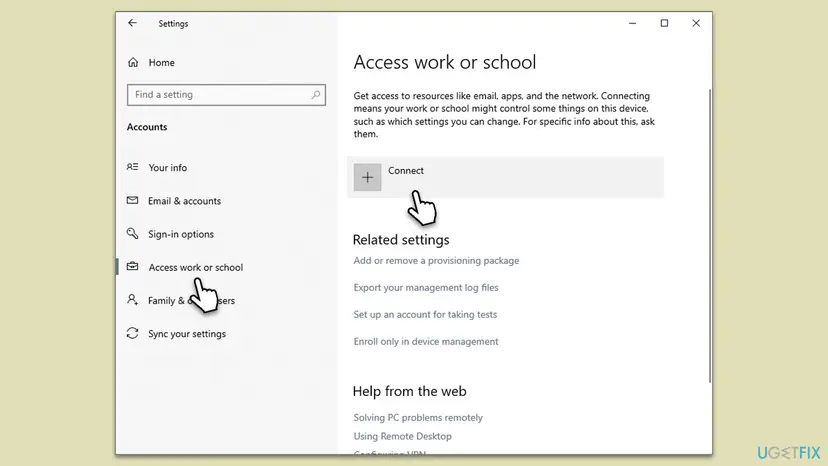
It worked if: The connection finishes, the account shows under Access work or school, and Settings says some settings are managed by your organisation.
If not: If 80180018 comes back, the licence is still not active for the account: send IT the new Correlation ID from the message.
Still getting 0x80180018: what to collect and who to ask
Because the code comes from the organisation's licence, the useful next step is better details for IT, not more repairs on the PC. Collect these:
- The Correlation ID and Timestamp from the newest error message, not an old one.
- The management report: in Access work or school, select Export your management log files and send the saved report to IT.
- Your Windows edition and version from
winver, such as Windows 11 Pro 25H2. - Which account you add, and which work accounts are already connected on the PC.
- Whether the error shows in Settings, during Windows setup, or in the Company Portal.
The PC's hardware, drivers and Windows files play no part in this code. A new user account, a reset or a reinstall gives the same error until the licence is fixed. Windows 10 left support on 14 October 2025, which does not change this error but limits fixes for others.
How to avoid the licence error with work accounts
- Before you add a second work account, ask whether that organisation manages devices and whether you hold its licence.
- If you only need its mail and files, add it for apps only (Fix 4) instead of under Access work or school.
- Admins: keep the MDM user scope on a group of licensed users, not All.
- Admins: when a subscription ends or a user changes plans, check that the Intune part stays assigned.
- Keep the PC's clock right with How to fix the date and time in Windows, so a renewal does not fail with the related 0x80180016.
A managed PC answers to the organisation that enrolled it. On your own PC, think twice before you let a second organisation manage it, because its policies then decide parts of your settings.
Frequently asked questions
What does error code 80180018 mean?
It means the licence of your work or school account is missing or in a bad state, so the organisation's device management refused to enroll the PC. Microsoft lists the code as MENROLL_E_USERLICENSE and says the user will need to call the admin. The text on screen is "There was an error with your licence" with Server error code 80180018. It is the same error as 0x80180018; Windows only drops the 0x in front.
Why do I get 0x80180018 only when adding a second work account?
Because the second account belongs to an organisation, or a tenant, with different rules. Your first account may come from a place that does not use device management, or from one where you hold a licence. When you add the second one, its organisation asks Windows to enroll the PC, and the enrollment service finds no valid licence for you. The PC itself is fine. Ask that second organisation's IT, or add the account for apps only.
Can I fix error 80180018 myself without IT?
You cannot assign yourself a licence, so the error itself needs the admin. What you can do alone is add the account for apps only under Email & accounts, which signs in Outlook, Teams and OneDrive without enrolling the PC. That works when the organisation lets unmanaged devices open its data. If its apps then refuse your files or mail, a managed PC is required and only IT can give you the licence.
Will a network reset, Windows Update or SFC fix 0x80180018?
No. Those repairs change the PC, while this code is the server's answer about your licence. The old advice on many pages, including the earlier version of this one, listed the network troubleshooter and updates, but nothing in Microsoft's description of the code points to the PC. Keep Windows updated for its own sake, then spend your time on Fix 1 instead.
Which licence does the account need to stop the error?
A licence that includes Microsoft Intune. Microsoft's enrollment troubleshooting tells admins to assign either an Intune or a Microsoft 365 licence to the user, which in practice means a Microsoft 365 plan that bundles Intune. Some organisations get Intune through Enterprise Mobility + Security. Ask your IT which plan they use; the plan names and prices change, and only the admin sees which ones the organisation owns.
I got server error code 80180018 during Windows setup. What now?
The same licence check runs when a new or reset PC joins an organisation during setup, so the cause and the fix are the same. On a PC your employer gave you, send IT the Correlation ID from the screen and wait for the licence. On your own PC that you do not want managed, go back in setup and set it up for personal use, then add the work account for apps only later.
Is 0x80180018 the same as 8018000a, 80180013 or 80180014?
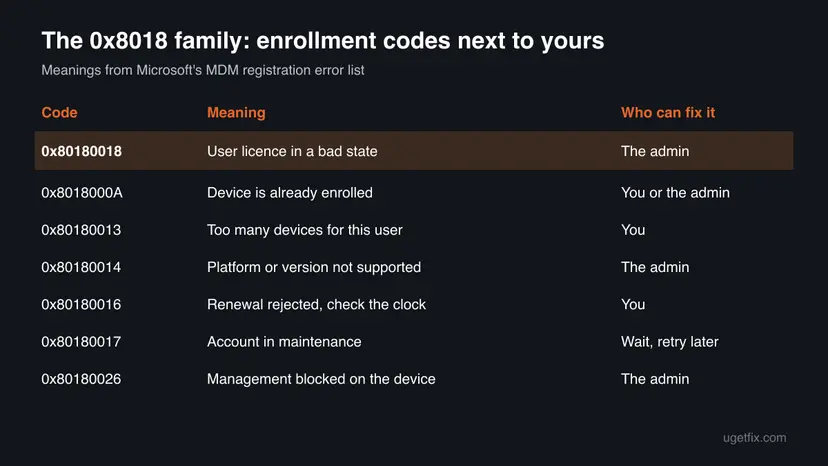
No, they are different codes from the same family. Microsoft lists 0x8018000A as: the device is already enrolled. Another user's work account often did that. Code 0x80180013 means the user has enrolled too many devices and can remove old ones. Code 0x80180014 means the platform or Windows version is not supported by the organisation. Code 0x80180016 is a rejected renewal, where Microsoft says to check the time on the device.
What is error 8018?
8018 is the start of the codes Windows uses for MDM enrollment, the step where an organisation takes over management of a PC. The full code always has eight digits, such as 80180018 for the licence error, 8018000a for an already enrolled device or 80180014 for an unsupported version. Look at the last digits on your screen and compare them with the table in the meaning section of this page.
Co to je za chybu, qual erro, kenapa ya, jak naprawić ten błąd: what is this error in plain words?
This page is in English. In plain words: the organisation behind the work or school account you tried to add has not given that account a valid licence for managing devices. Windows asked to join the organisation's management, and the organisation's server said no. You cannot fix it on the PC. Send the error code 80180018 to the organisation's IT, or add the account only for Outlook, Teams and OneDrive.
Does 0x80180018 mean my PC has a problem or malware?
No. The code comes from the organisation's management server as an answer about the licence on your account. It says nothing about the health of Windows, your drivers or your files. A new Windows user account, a reset or a fresh install will show the same message until IT fixes the licence. If your PC shows other errors as well, treat them separately.
Sources
- Microsoft Learn: MDM registration constants (MENROLL_E_USERLICENSE 0x80180018 and the other 0x8018 codes) (learn.microsoft.com)
- Microsoft Learn: Troubleshooting Windows device enrollment problems in Intune (licence, MDM user scope, terms of use URL) (learn.microsoft.com)
- HTMD Blog: Intune Fix MDM User License Error Code 0X80180018 (the full message and its problem information) (anoopcnair.com)
Did this fix work?
One click, no account. It tells the next reader which guides are worth their time.
Questions and experiences: fix 0x80180018 error when adding a second account in Windows
Still broken, or found a fix we did not cover? Ask here: members and our editors answer. Reading is open; writing needs a free account.
…