
How to fix 0x87e00005 Xbox app error in Windows?

Prefer to fix it yourself? The manual steps follow.
- 8methods
- 5 to 40 minutes
- Beginner to intermediate
Applies to Windows 11 and Windows 10; the Xbox app for PC, Gaming Services, Microsoft Store and PC Game Pass games such as Forza Horizon 5, Microsoft Flight Simulator 2024 and Minecraft
8 methods in this guide
Hello. I have been trying to install a video game on my Windows 11 PC, but I keep receiving error 0x87e00005 in the Xbox app. What should I do?
Error 0x87e00005 stops a game install or update in the Xbox app or Microsoft Store on a Windows PC. Microsoft has no page that explains the code, but it points at Gaming Services, the part of Windows that installs Xbox PC games. Start with the Gaming Services Repair Tool inside the Xbox app.
0x87e00005 is an install error: the Xbox app or Microsoft Store cannot finish writing a game to your PC. Sign out and in, restart and try once more (Fix 1). If it returns, open the Xbox app, select your profile picture, then Support > Gaming Services Repair Tool (Fix 2). If that does not clear it, remove and reinstall Gaming Services (Fix 3), then reset Microsoft Store (Fix 4).
| Error | 0x87e00005 when a game install or update stops in the Xbox app for PC or in Microsoft Store. |
|---|---|
| Where it appears | In the Xbox app's install queue or on the game's page, and in Microsoft Store > Library, right after you select Install or Update. |
| Main cause | Gaming Services, the Windows component that installs Xbox PC games, is damaged, out of date or blocked. Less often the Store cache or the install drive. |
| Fastest fix | Xbox app > profile picture > Support > Gaming Services Repair Tool (Fix 2), after one sign out and restart (Fix 1). |
| Also written as | 0x87E00005, 0X87E00005, 87e00005, "Error code: 0x87E00005". Sometimes mistyped as 0x87e50005. |
| Affects | Windows 11 and Windows 10 PCs with the Xbox app. Reports name Forza Horizon 5, Microsoft Flight Simulator 2024 and Minecraft Launcher. Not the Xbox One or Series console. |
| Vendor status | No Xbox Support or Microsoft Learn article explains 0x87E00005 in our check on 15 October 2026. Microsoft's general Xbox PC install steps apply. |
| Time to fix | 5 to 15 minutes for the repair tool and the Gaming Services reinstall. Longer when a large game has to download again. |
Facts checked on 15 October 2026. Steps written for Windows 11 (25H2 and 26H2) and Windows 10 22H2.
What error code 0x87e00005 means in the Xbox app and Microsoft Store
0x87e00005 appears when a PC game will not install or update through the Xbox app or Microsoft Store. The download may start and stop at a few percent, or fail at once. Users ask Microsoft about it in many languages, and since 2021 one of them sums it up: there is no official information about this error code.
- Code
- 0x87e00005 (also 0x87E00005, 87e00005)
- Shown by
- The Xbox app for PC and Microsoft Store on Windows 11 and Windows 10
- When
- During a game install or update, not when the game is already running
- Part of Windows involved
- Gaming Services and the Store's install system
Codes that start with 0x87E0 come from the install side of Xbox PC gaming, the same family as 0x87E00029 and 0x87E00198. The ending 0005 matches the number Windows uses for access denied, as in 0x80070005. That suggests the installer was not allowed to write something, but Microsoft has not confirmed this reading, so treat it as a hint only.
0x87e50005 is a mistyping we see in searches; we found no source that defines it. 0x87DD0005 is a different Xbox sign-in error with its own Xbox Support page. If your code has DD in it, this page is not for you.
Why the Xbox app shows 0x87e00005: the causes, ranked
Microsoft publishes no numbers for this code. The order below is our reading of the reports on Microsoft Q&A and of Xbox Support's own troubleshooting order for PC installs.
| Cause | How often | How to tell | Fix |
|---|---|---|---|
| A stuck session or sign-in: the Xbox app and the Store use different accounts, or a download froze. | Often, and quick to rule out | It happened once, on one game. | Fix 1 |
| Gaming Services is damaged, half updated or missing. | Most often when it repeats | Every game fails, or the Xbox app opens with missing content. | Fix 2, then Fix 3 |
| The Microsoft Store cache or the Store app is damaged. | Sometimes | Store apps that are not games also fail to download. | Fix 4 |
| Windows, the Xbox app or Gaming Services is out of date. | Sometimes | Windows 10 older than 22H2, or updates waiting in the Store Library. | Fix 5 |
| The install drive or folder cannot be written: no space, an external drive, a drive that is not NTFS, or a blocked folder. | Less often | Only one drive fails, or other games install fine elsewhere. | Fix 6 |
| Security software blocks the installer. | Rarely | A third-party antivirus or Controlled folder access is on. | Fix 7 |
| Damaged Windows system files. | Rarely | Other Windows features also misbehave. | Fix 8 |
How to fix error 0x87e00005 in the Xbox app on Windows 11 and Windows 10
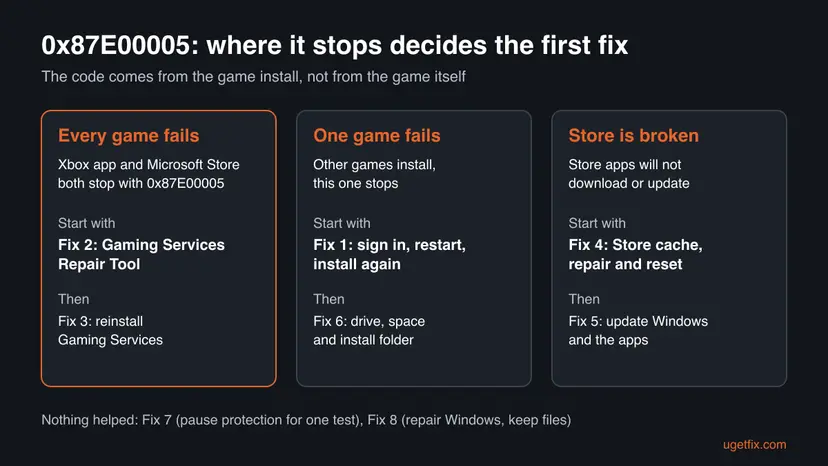
Fix 1 takes two minutes and clears one-off failures. Fixes 2 and 3 repair Gaming Services, which is behind most repeated cases. Fixes 4 to 6 deal with the Store, updates and the drive. Fixes 7 and 8 are the last tests.
| What you see or have | Start with |
|---|---|
| 0x87e00005 once, on one game, after a long download. | Fix 1 |
| Every game in the Xbox app fails with 0x87e00005. | Fix 2, then Fix 3 |
| The Xbox app opens with missing content or asks to install Gaming Services. | Fix 2 |
| Microsoft Store apps that are not games fail to download too. | Fix 4 |
| Windows 10 below 22H2, or updates waiting in Microsoft Store Library. | Fix 5 |
| Games install on drive C but not on a second or external drive. | Fix 6 |
Fix 1. Sign in with one account, restart and try the install again
5 minutesLow riskThe error appeared once, on one game, or after the PC slept during a download. This is the first step for everyone.
Xbox Support lists checking the Xbox status, signing in and restarting as its first steps for PC installs. A Store and Xbox app signed in with two different accounts, or a frozen download, can stop an install that is otherwise fine.
- Check the Xbox status page at
support.xbox.com/xbox-live-status. If store or game services show a problem, wait for it to clear. - Open Microsoft Store, select your profile picture and note the account.
- Open the Xbox app, select your profile picture and check that it is the same account. If not, sign out and sign in with the right one.
- If you play through PC Game Pass, check that the subscription is active on that account.
- Restart the PC with Start > Power > Restart, not Shut down.
- Open the Xbox app, go to the game and select Install again.
It worked if: The download runs past the point where it stopped and the game installs.
If not: If 0x87e00005 comes back, go to Fix 2.
Fix 2. Run the Gaming Services Repair Tool from the Xbox app
5 to 10 minutesLow riskThe error repeats, every game fails, or the Xbox app opens with missing content.
Gaming Services does the actual install of Xbox PC games. Xbox Support offers this tool for problems installing or updating Gaming Services and for an Xbox app that launches with missing content, which is what most 0x87e00005 reports describe.
- Open the Xbox app and select your profile picture at the top.
- Select Support.
- Select Gaming Services Repair Tool, then Start Troubleshooting.
- Let it run and follow what it reports. It may reinstall Gaming Services by itself.
- Restart the PC and try the install again.
Xbox Support says that on Windows 22H2 or older you may need to be signed in as the local administrator to run it, and that the answer is to update Windows (Fix 5). Xbox Support also offers a downloadable version of the tool.
It worked if: The tool reports that Gaming Services is repaired or healthy, and the game installs.
If not: If the code returns, go to Fix 3 and reinstall Gaming Services by hand.
Fix 3. Remove Gaming Services with PowerShell and install it again
10 minutesLow riskThe repair tool did not help or could not run, or Gaming Services refuses to update in the Store.
A Gaming Services package that is half updated keeps failing every install. Removing it for all users and installing a fresh copy from Microsoft Store replaces it completely. Your games stay installed.
- Close the Xbox app and Microsoft Store.
- Right-click Start and select Terminal (Admin). On Windows 10 select Windows PowerShell (Admin). Select Yes.
- Paste the first command below and press Enter. It removes Gaming Services for all users.
- Paste the second command and press Enter. Microsoft Store opens on the Gaming Services page.
- Select Get or Install and wait until it is done.
- Restart the PC, open the Xbox app and try the install again.
Terminal (Admin): remove Gaming Services
Get-AppxPackage -AllUsers Microsoft.GamingServices | Remove-AppxPackage -AllUsersTerminal (Admin): open Gaming Services in Microsoft Store
start ms-windows-store://pdp/?productid=9MWPM2CQNLHN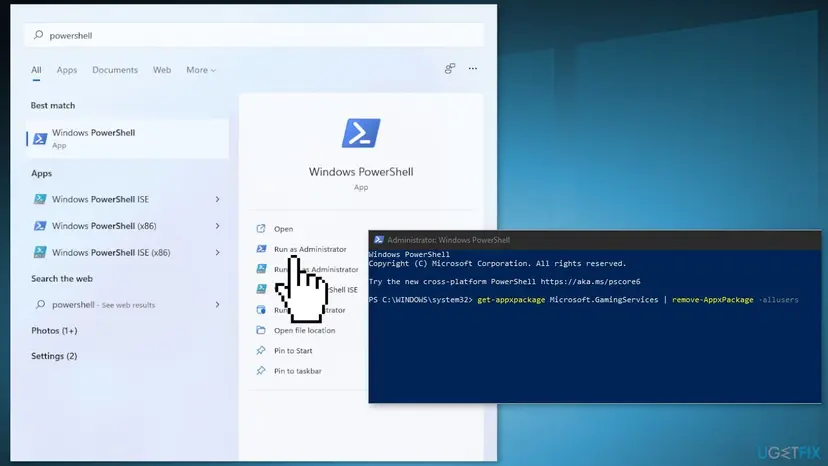
The older version of this page also told readers to delete the GamingServices and GamingServicesNet keys in the registry. We left that out: Microsoft does not document it, and the repair tool and the package reinstall do the same job without a registry edit.
It worked if: Gaming Services shows as installed in Microsoft Store, the Xbox app opens normally and the game downloads.
If not: If the Store itself will not download Gaming Services or the game, go to Fix 4.
Fix 4. Clear the Microsoft Store cache, then repair or reset the Store and the Xbox app
5 to 10 minutesLow riskStore apps that are not games fail too, or the Gaming Services install in Fix 3 stopped.
Xbox PC games download through the same system as Microsoft Store. A damaged Store cache or Store app stops every download, games included, and the Xbox app's own settings can keep a failed install stuck.
Clear the cache with wsreset.exe, then use Repair and, if needed, Reset on Microsoft Store. Step by step: Reset the Microsoft Store
- Press Win + I and open Apps > Installed apps. On Windows 10 open Apps > Apps & features.
- Find Xbox, select the three dots and Advanced options.
- Select Terminate, then Repair. Try the install.
- If it still fails, come back and select Reset, then sign in to the Xbox app again.
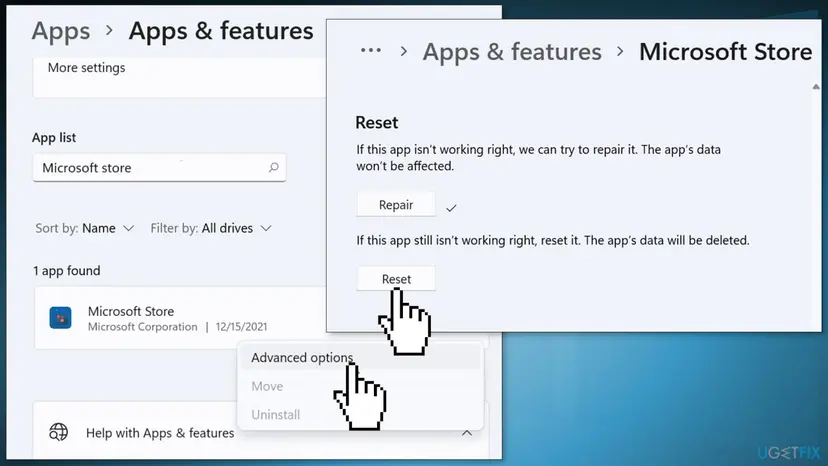
On Windows 11 recent builds, Microsoft Store is listed under Settings > System > System components instead of Installed apps. Every screen for any app: How to repair or reset an app in Windows
It worked if: Microsoft Store opens and downloads apps again, and the Xbox app installs the game.
If not: If the Store still fails or will not open, re-register it with How to re-register Microsoft Store apps with PowerShell, then go to Fix 5.
Fix 5. Update Windows, the Xbox app and Gaming Services
10 to 30 minutesLow riskWindows updates are waiting, Windows 10 is older than 22H2, or the Store Library shows pending updates.
Xbox Support says Windows 10 22H2 or newer is required for some Xbox app features. New games and Gaming Services versions expect a current Windows and Xbox app; an old one can fail the install.
- Press Win + I and open Windows Update. On Windows 10 open Update & Security > Windows Update.
- Select Check for updates and install everything offered, then restart.
- Check your version in Settings > System > About. Windows 10 must be 22H2.
- Open Microsoft Store > Library and select Get updates. Let Xbox and Gaming Services update.
- Open the Xbox app and try the install again.
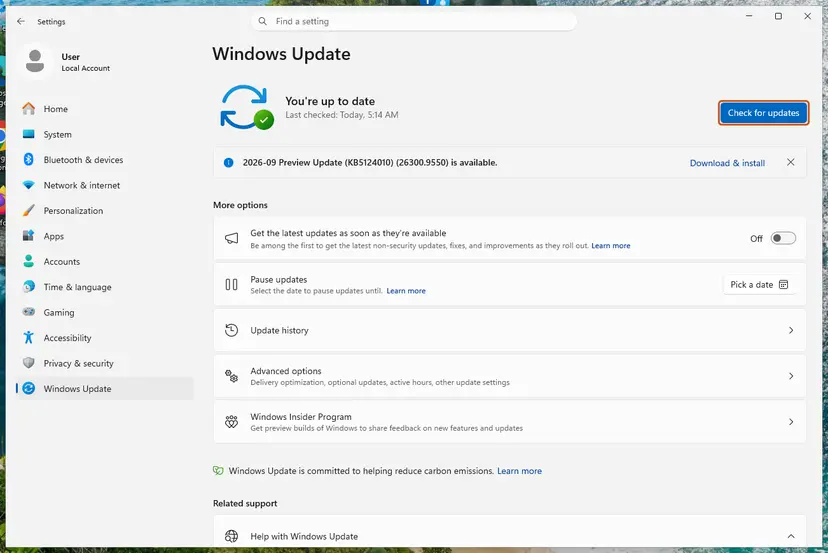
It worked if: Windows Update says you are up to date, the Store Library shows no pending updates, and the game installs.
If not: If only one drive or one game fails, go to Fix 6.
Fix 6. Check the install drive: space, format and folder
5 to 15 minutesLow riskGames install on one drive but not another, the game is very large, or you use an external drive.
The installer has to write the whole game to the chosen drive. A full drive, a drive formatted as FAT32 or exFAT, or a folder Windows will not let the installer write to stops the install.
- Open File Explorer > This PC and check the free space on the game drive. You need the game's size plus room for the update.
- Right-click the drive, select Properties and check File system. Xbox PC games need NTFS.
- In the Xbox app, open your profile picture > Settings and find the install options. Set the default drive to an internal NTFS drive.
- If you use an external drive, keep it plugged in for the whole install, or install on the internal drive to test.
- Select Install again and pick that drive.
To make room: Free up disk space and delete temporary files. To check the drive for errors: Check a disk for errors (chkdsk)
It worked if: The game installs to the internal NTFS drive with no error.
If not: If it fails on every drive, go to Fix 7.
Fix 7. Pause third-party antivirus or Controlled folder access for one test
5 minutesLow riskEverything above failed and a third-party antivirus is installed, or Controlled folder access is on in Windows Security.
Xbox Support lists checking antivirus settings for PC installs. If 0x87e00005 is an access problem, as its last digits hint, a security tool that blocks the installer would cause it.
Pause protection only for the install test, and turn it on again right after. If the install works while paused, add the Xbox app and Gaming Services as allowed apps instead of leaving protection off.
- Pause your third-party antivirus for a few minutes. Step by step: Turn off Microsoft Defender protection for a moment
- Or, if you use Controlled folder access, open Windows Security > Virus & threat protection > Manage ransomware protection.
- Select Allow an app through Controlled folder access and add the Xbox app if it is listed as blocked.
- Try the install in the Xbox app once.
- Turn protection back on at once, whatever the result.
It worked if: The game installs while protection is paused. Turn it back on and add the exception.
If not: If it still fails, go to Fix 8.
Fix 8. Repair Windows with an in-place reinstall that keeps your files
1 to 2 hoursRead the warningNothing above worked, and other Windows features also misbehave.
A Microsoft Q&A advisor suggested a repair upgrade for a 0x87E00005 case that nothing else fixed. It replaces Windows system files while keeping your files and apps, which also rebuilds what Gaming Services depends on.
An in-place reinstall keeps personal files and apps when you pick that option, but a power cut or a wrong choice can cost data. Copy what matters first: Back up your files (Windows Backup, File History, Time Machine)
- Run a system file check first, it takes about 15 minutes: Run DISM and SFC to repair Windows system files
- Restart and try the install. If it still fails, back up your files.
- Reinstall Windows over itself and choose to keep your files and apps: Reinstall Windows without losing files
- When Windows is back, install Gaming Services from Microsoft Store if it is missing, then the game.
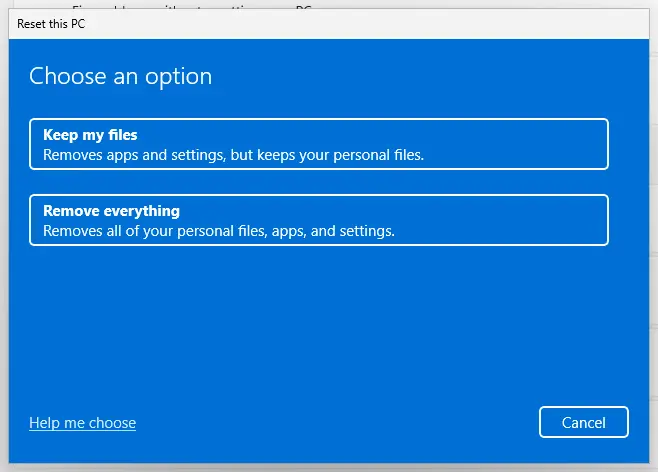
It worked if: Windows starts with your files in place, and the Xbox app installs the game.
If not: Read "If 0x87e00005 is still there" below.
If 0x87e00005 is still there
The Xbox app shows only the code. The detailed reason is written by Windows when the install package fails. Look there before you contact support.
- Try the install once more and note the time it fails.
- Open Windows PowerShell and run
Get-AppxLog | Out-GridView. Look for red entries at that time. - In Event Viewer (
eventvwr.msc), open Applications and Services Logs > Microsoft > Windows > AppXDeployment-Server > Microsoft-Windows-AppXDeploymentServer/Operational and check the same time. - Note any line that says access is denied or names a folder or drive.
- What to send to Xbox Support: the code, the game, where it stops (percent), the drive, your Windows version from Settings > System > About, and the fixes you tried.
- When it may be hardware: installs fail only on one drive, chkdsk reports errors, or large file copies to that drive fail too.
- When it is the account: the same game installs for another Microsoft account on the same PC. Then check the licence and Game Pass status on yours.
How to keep 0x87e00005 from coming back
- Keep Windows, the Xbox app and Gaming Services updated through Windows Update and Microsoft Store > Library.
- Use the same Microsoft account in Microsoft Store and the Xbox app.
- Install games on an internal NTFS drive with space to spare for updates.
- Do not let the PC sleep or shut down while a game is downloading.
- Do not use tuning tools that remove Gaming Services or turn off Store services.
Windows 10 left support on 14 October 2025. The Xbox app still runs on Windows 10 22H2, but a PC that gets no updates can fall behind what new games and Gaming Services expect.
Frequently asked questions
What does error code 0x87e00005 mean on Xbox for PC?
It means a game install or update could not finish through the Xbox app or Microsoft Store. Microsoft has not published a definition of the code. Its 0x87E0 start places it with other Xbox PC install errors, and reports tie it to Gaming Services, the Windows component that installs Xbox games. The ending 0005 hints at a denied write, but that is our reading, not Microsoft's. In practice the Gaming Services Repair Tool and a Gaming Services reinstall are the fixes to try first.
Is 0x87e00005 a Microsoft Store error or an Xbox error?
Both, because they share the same install system. Searches for Microsoft Store error 0x87e00005 and Xbox error 0x87e00005 describe the same failure: a game, or sometimes the Minecraft Launcher, will not download. Xbox PC games come through the Store's download system and are installed by Gaming Services. That is why the fixes on this page cover the Xbox app, Gaming Services and Microsoft Store together. Start with Fix 2 for games and Fix 4 when non-game Store apps also fail.
Does 0x87e00005 happen on Windows 11 and Windows 10 alike?
Yes. Reports come from both Windows 11 and Windows 10, and the fixes are the same on both. Only some menu paths differ, and the steps give both. On Windows 10 make sure you run version 22H2, because Xbox Support says some Xbox app features need 22H2 or newer. Windows 10 left support on 14 October 2025, so a Windows 10 PC no longer gets fixes, which can make Gaming Services problems more likely over time.
Can I get 0x87e00005 on an Xbox One or Xbox Series console?
The reports we read are about Windows PCs. A console uses its own install system and its own error codes, and Xbox Support has separate install help for consoles. If you see a similar code on a console, use the console's own steps: restart the console, check the Xbox status and storage, and look up the exact code on the Xbox Support site. This page covers the Xbox app for PC and Microsoft Store on Windows.
Will reinstalling Gaming Services delete my games or saves?
No. Removing the Gaming Services package does not uninstall your games, and Xbox PC games keep saves in the cloud for your account in most cases. The games will not start until Gaming Services is installed again, which is why Fix 3 ends with installing it from Microsoft Store and restarting. If a game keeps local saves or mods outside the cloud, copy that folder before any bigger repair, as a general precaution.
Is 0x87e50005 the same error as 0x87e00005?
We found no source that defines 0x87e50005, and it appears in searches far less often than 0x87e00005. It is most likely a mistyping of the same code. Check the exact code in the Xbox app before you start. Codes with E5 in that place, such as 0x87e50029, usually come when a game starts rather than while it installs, so they need different fixes. If your screen really shows 0x87e50005, Fixes 2 to 5 are still safe to try.
Should I delete the GamingServices keys in the registry?
We do not recommend it. Older guides, including the earlier version of this page, told readers to delete the GamingServices and GamingServicesNet service keys and restart. Microsoft does not document that step, and a registry edit carries its own risk. The Gaming Services Repair Tool in the Xbox app and a package reinstall with PowerShell do the same job safely. If you still decide to edit the registry, back it up first with our registry backup steps.
Why does the error come back after I reset Microsoft Store?
Because a Store reset does not touch Gaming Services, and Gaming Services is the more common cause. A reset clears the Store's cache and settings, which helps when the Store itself is broken. If the code returns, run the Gaming Services Repair Tool from the Xbox app, then remove and reinstall Gaming Services with the PowerShell command in Fix 3. Also check that Windows and the Xbox app are fully updated, as Fix 5 describes.
What if the commands do not work?
Make sure you opened Terminal or PowerShell as administrator; without it, the remove command fails with access errors. Close the Xbox app and Microsoft Store before running it. If the Store link does not open, open Microsoft Store and search for Gaming Services by hand. Red lines about packages in use can appear and usually do not matter. If nothing changes, run the Gaming Services Repair Tool instead, which does the same work with its own checks.
Sources
- Xbox Support: Fix gaming issues with the Xbox app for PC and handhelds (support.xbox.com)
- Xbox Support: Gaming Services Repair Tool for PC (support.xbox.com)
- Microsoft Q&A: 0x87E00005, microsoft can you fix your store? (user question with advisor answers, 2021) (learn.microsoft.com)
Did this fix work?
One click, no account. It tells the next reader which guides are worth their time.
Questions and experiences: fix 0x87e00005 Xbox app error in Windows
Still broken, or found a fix we did not cover? Ask here: members and our editors answer. Reading is open; writing needs a free account.
…