
How to fix Account Picture error in Windows?

Prefer to fix it yourself? The manual steps follow.
- 8methods
- 5 to 40 minutes
- Easy
Applies to Microsoft accounts, local accounts and work or school accounts on Windows 11 and Windows 10
8 methods in this guide
I can't change my Microsoft account picture. When I try, I always get the "Account picture error. Setting the account picture failed. Please try again." This happens with every picture I try, and it doesn't matter how many times I do it. I'm on Windows 11, by the way.
The Account picture error appears when Windows cannot save the photo you picked in Settings > Accounts > Your info. With a Microsoft account the picture lives online, so changing it at account.microsoft.com usually works when Settings fails. With a local account, a plain JPG copy and an empty picture cache fix most cases.
The Account picture error means Windows could not save or sync the new photo. If you sign in with a Microsoft account, change the photo at account.microsoft.com under Your info, restart and let Windows sync it (Fix 1). With a local account, pick a plain JPG or PNG stored on the PC (Fix 2), then clear the AccountPictures cache (Fix 3).
| Error | Account picture error with the line This picture couldn't be saved. or Setting the account picture failed. Please try again., sometimes with an error code and a correlation ID. |
|---|---|
| Where it appears | In Settings > Accounts > Your info right after you select Browse files or Open camera under Adjust your photo. |
| Main cause | The picture cannot be stored or synced: a Microsoft account that does not sync from the PC, a damaged picture cache, or a file Windows cannot read. |
| Fastest fix | Change the photo online at account.microsoft.com > Your info > Change photo and restart (Fix 1). Local account: a plain JPG from the Pictures folder (Fix 2). |
| Also written as | Account picture error, setting the account picture failed, this picture couldn't be saved. Codes seen with it: 0xcaa100d5, 0xcaa60007, 0x800702e4, 0xd0020017. |
| Affects | Windows 11 and Windows 10 alike, with Microsoft, local and work or school accounts. Windows 10 left support on 14 October 2025. |
| Microsoft's status | Not a known issue in Microsoft's release notes. Microsoft's own help names Your info and the AccountPictures folder, nothing more. |
| Time to fix | 5 minutes for Fix 1 to Fix 3. Up to 40 minutes if you need the profile test and system repair. |
Facts checked on 15 October 2026. Steps written for Settings > Accounts > Your info, the AccountPictures folders and the Microsoft account profile on Windows 11 (25H2 and 26H2) and Windows 10 22H2, read against Microsoft Support and Microsoft Q&A.
What the Account picture error means
You open Settings > Accounts > Your info, select Choose a file or Browse files under Adjust your photo, pick a picture, and instead of your face a blue box appears. Its title is Account picture error. The line under it is either This picture couldn't be saved. or Setting the account picture failed. Please try again.
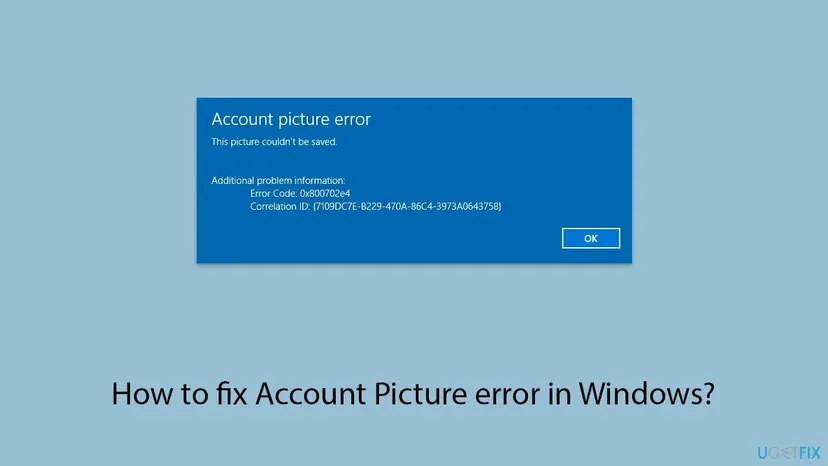
Both lines mean the same thing: Windows took the file but could not store it as your account picture or could not send it to your account online. The code under Additional problem information points to the part that failed.
| Code in the box | What it points to | Start with |
|---|---|---|
| 0xcaa100d5, 0xcaa60007 | Codes that start with CAA come from the Windows account broker, the part that talks to your Microsoft account online. Microsoft has not published what these two mean. Users report them with Microsoft accounts. | Fix 1 |
| 0x800702e4 | The standard Windows code for "The requested operation requires elevation". In the reports it shows up with local accounts and damaged picture folders. | Fix 3, Fix 4 |
| 0xd0020017 | Seen in user reports only. We could not confirm its meaning. | Fix 2, Fix 3 |
| No code at all | Usually the file itself or the picture cache. | Fix 2 |
Look at the top of Your info. An email address under your name means a Microsoft account: the picture is stored online and synced to the PC. Local account means the picture is kept only in your Windows profile. A work or school address means your organisation manages the photo.
What causes the Account picture error, ranked
Microsoft has not published a cause. The order below is our reading of Microsoft's own help pages and of the Microsoft Q&A reports. It is not a statistic.
| How often | Cause | Typical sign | Fix |
|---|---|---|---|
| Most often | The Microsoft account picture does not sync from the PC | Microsoft account, a CAA code, every picture fails. | Fix 1 |
| Often | The file is unusual: very large, an odd format, or an online-only OneDrive file | One picture fails, another works. | Fix 2 |
| Often | Damaged files in your AccountPictures cache | Every picture fails, the old photo is still shown or reverts. | Fix 3 |
| Less often | Damaged files in the shared User Account Pictures folder | The error appeared since the PC was set up, code 0x800702e4. | Fix 4 |
| Less often | The link between Windows and your Microsoft account is broken | Fix 1 changed the photo online, the PC never shows it. | Fix 5 |
| Rarely | A damaged user profile or damaged system files | The error stays in your account but not in a new one. | Fix 6, Fix 7, Fix 8 |
| Work or school PCs | The organisation controls the profile photo | Signed in with a work or school address. | IT, see below |
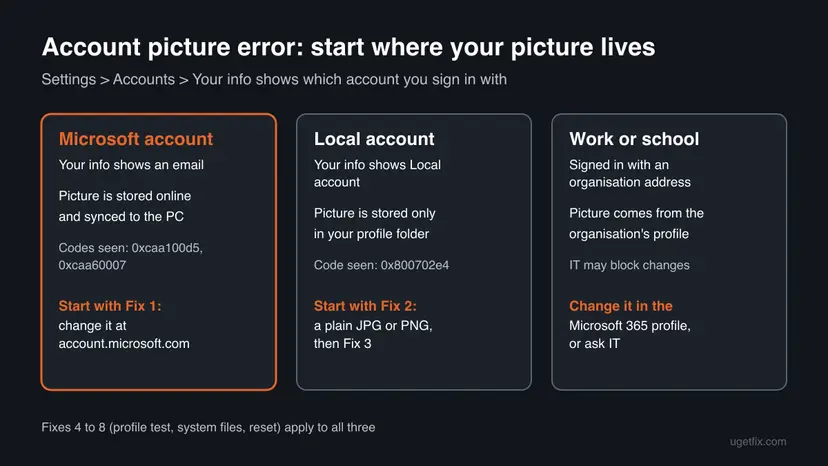
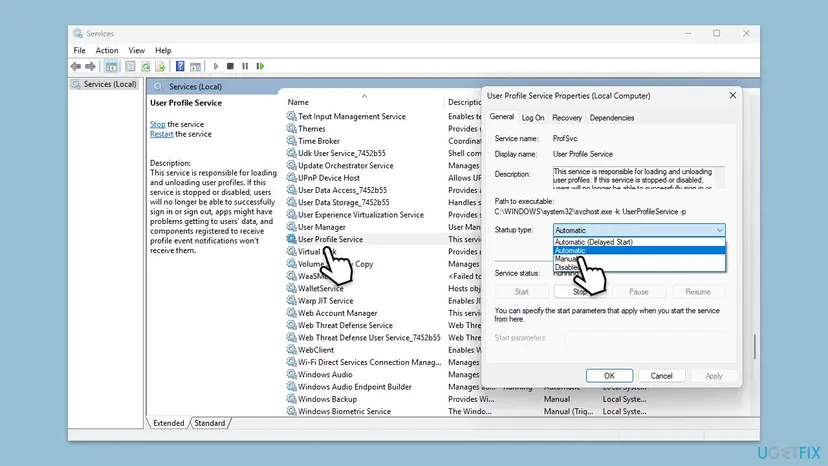
Many guides tell you to start the User Profile Service. Its own description says that if it is stopped, users can no longer sign in or out, so if you reached the desktop it is running. Others tell you to give yourself Full Control of system folders. Do not: it weakens the PC and Microsoft does not ask for it.
How to fix the Account picture error in Windows
Check your account type first, then follow the fixes in order and try the picture again after each one. Fix 1 to Fix 3 take a few minutes each and solve most cases. Success looks the same every time: the new photo appears at the top of Your info and on the Start menu.
| Your case | Start with | Then |
|---|---|---|
| Microsoft account, code 0xcaa100d5 or another CAA code | Fix 1 | Fix 5 |
| Local account, any code | Fix 2 | Fix 3 |
| Code 0x800702e4 | Fix 3 | Fix 4 |
| One picture fails, another works | Fix 2 | Fix 3 |
| Work or school account | Change it in the organisation's profile | Ask IT |
| Nothing helped | Fix 6 | Fix 7 |
Fix 1. Change the picture on your Microsoft account online
5 minutesLow riskYou sign in to Windows with a Microsoft account, especially with code 0xcaa100d5 or another code that starts with CAA.
A Microsoft account picture is stored with the account, not on the PC. Microsoft's help sends you to the Your info tab of the account dashboard, and a Microsoft Q&A advisor answered this error the same way: upload there, restart and let Windows sync.
- Open a browser and go to
https://account.microsoft.com. Sign in with the same account you use for Windows. - Select the Your info tab.
- Select Change photo and upload your picture. Save it.
- Restart the PC and sign in while it is online.
- Open Settings > Accounts > Your info and check the photo. Syncing can take a while, so check again later if the old one is still shown.
The same photo then appears in Outlook.com, Teams for personal use and other devices with that account. If you only want a different picture on this PC, use a local account (Fix 5 explains the switch).
It worked if: The new photo shows at account.microsoft.com and, after the restart, at the top of Your info and on the Start menu.
If not: If it is online but never reaches the PC, clear the cache with Fix 3, then reconnect the account with Fix 5.
Fix 2. Use a plain JPG or PNG saved on the PC
5 minutesLow riskLocal accounts, any picture that fails without a code, or when one picture fails and another works.
Windows has to read the file and make small copies of it for the account picture. A very large photo, an unusual format or a OneDrive file that exists only online can fail at that step, while a simple copy on the disk does not.
- Find the picture in File Explorer. If it has a cloud icon, right-click it and select Always keep on this device, or copy it into Pictures on your PC.
- Right-click the picture and select Open with > Paint.
- Select Resize (or Image > Resize), choose Pixels and set the width to about 1000, keeping the aspect ratio.
- Select File > Save as > JPEG picture and save it in Pictures with a simple name such as
me.jpg. - Open Settings > Accounts > Your info, select Browse files next to Choose a file and pick the new file.
The 1000 pixel width is our suggestion for a quick test, not a Microsoft limit. If a small square photo works and your original does not, the file was the problem. If no picture at all works, the cause is on the PC: go to Fix 3.
It worked if: The new picture appears in Your info without the error box.
If not: If every picture fails, clear the AccountPictures cache with Fix 3.
Fix 3. Clear your AccountPictures cache
5 minutesLow riskEvery picture fails, the photo reverts to the old one, or you see code 0x800702e4.
Windows keeps your last three account pictures in your profile's AccountPictures folder. Microsoft's own help shows this folder for deleting old pictures. A damaged file there can block the next save, and Windows creates the folder content again.
- Press Win + R, paste this path and press Enter:
%APPDATA%\Microsoft\Windows\AccountPictures - If you prefer File Explorer, the full path is
C:\Users\yourname\AppData\Roaming\Microsoft\Windows\AccountPictures. AppData is hidden: select View > Show > Hidden items. - Copy the files to a folder on the desktop if you want to keep the old pictures.
- Press Ctrl + A and delete the files in the AccountPictures folder.
- Restart the PC.
- Set the picture again in Settings > Accounts > Your info.
Deleting these files removes only the list of recent pictures in Your info, not your photos elsewhere. A Microsoft account picture comes back from the account at the next sync.
It worked if: Your info shows the default silhouette or your online photo, and a new picture saves without the error.
If not: If the error stays, move the shared default pictures aside with Fix 4.
Fix 4. Move the shared User Account Pictures aside
10 minutesRead the warningThe error has been there since Windows was set up, often with code 0x800702e4, and Fix 3 did not help.
Windows keeps the default account pictures for all users in C:\ProgramData\Microsoft\User Account Pictures. A Microsoft Q&A advisor answered a 0x800702e4 report by backing up and clearing this folder, then restarting.
These files are the default pictures every user on the PC sees. Do not just delete them: move them to a backup folder, as the steps say, so you can put them back if nothing changes. You need an administrator account.
- Create a folder on your desktop called
User Account Pictures backup. - Press Win + R, paste this path and press Enter:
C:\ProgramData\Microsoft\User Account Pictures - Select all files with Ctrl + A and drag them into the backup folder. Confirm with Continue if Windows asks for administrator permission.
- Restart the PC.
- Set your picture again in Settings > Accounts > Your info.
- If nothing changed, move the files back into the original folder.
It worked if: The picture saves. Users without a picture of their own may see a plain silhouette until Windows replaces the defaults.
If not: Move the files back. For a Microsoft account, reconnect it with Fix 5. For a local account, go to Fix 6.
Fix 5. Reconnect Windows to your Microsoft account
15 minutesRead the warningMicrosoft account users whose photo changed online in Fix 1 but never shows on the PC.
The picture reaches the PC only through the link between your Windows profile and the Microsoft account. Switching to a local account and back makes Windows build that link again, which is the next step a Microsoft Q&A advisor gave for this error.
During the switch you set a local password and later sign in with your Microsoft account password. Write both down. On a PC with BitLocker or device encryption, make sure your recovery key is saved at account.microsoft.com before you start. Your files and apps stay.
- Open Settings > Accounts > Your info.
- Select Sign in with a local account instead and follow the steps. Choose a user name and password.
- Sign out and sign in with the local account. Restart the PC.
- Open Settings > Accounts > Your info again and select Sign in with a Microsoft account instead.
- Sign in with your Microsoft account and restart.
- Check the picture in Your info.
If the link to switch is missing from Your info, our guide to the missing Sign in with a local account instead option shows why and what to do.
It worked if: After you sign in with the Microsoft account again, the online photo appears in Your info and on the sign-in screen.
If not: Test the profile with a new user account in Fix 6.
Fix 6. Test the picture in a new user account
10 minutesLow riskFix 1 to Fix 5 did not help and you want to know if the problem is your profile or Windows.
A new account starts with a clean profile and empty picture folders. If the picture saves there, the cause sits in your own profile. If it fails there too, Windows itself is damaged and Fix 7 is next.
Create a local test account, sign in to it and set any picture in Your info. The steps:
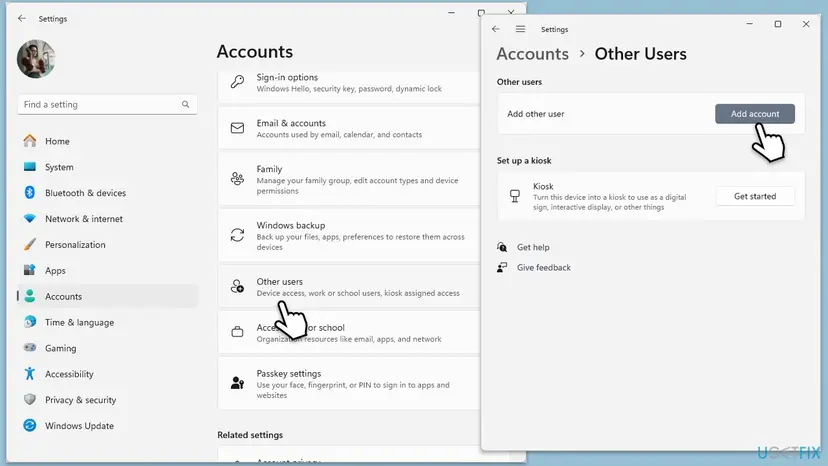
- Open Other users. Open Settings > Accounts > Other users. You can also press Windows key + R and run the command below.
ms-settings:otherusers - Add an account. Next to Add other user, select Add account.
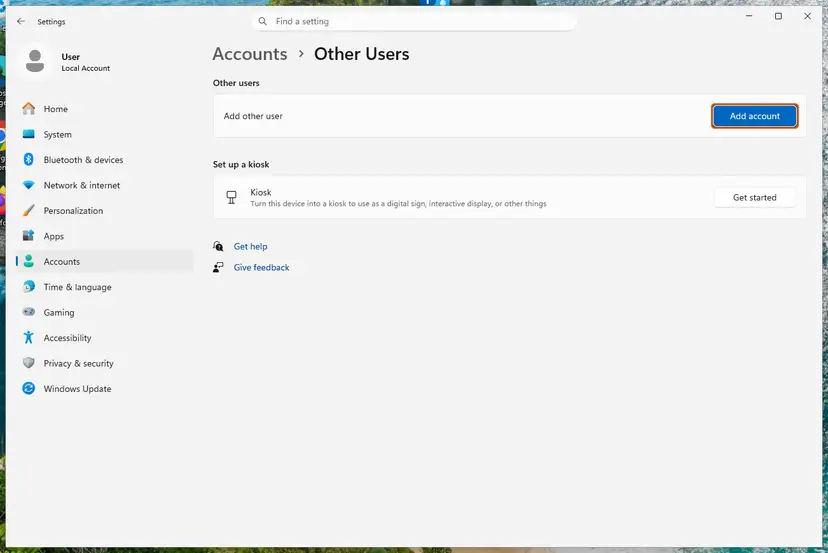
Add account is next to Add other user. Screenshot: Windows 11 26H2. - Skip the Microsoft account. Select I don't have this person's sign-in information.
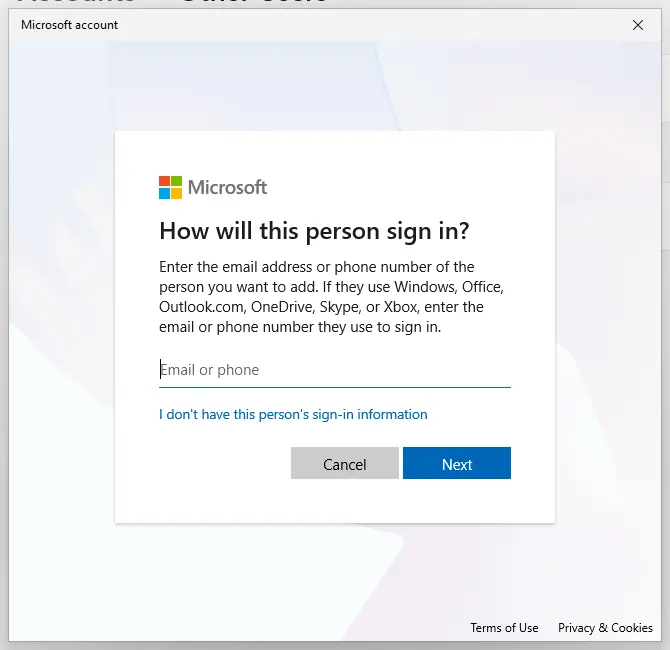
The link for a local account is under the email box. Screenshot: Windows 11 26H2. - Choose a local account. Select Add a user without a Microsoft account.
- Name the account. Type a user name and, if you want one, a password. If you set a password, Windows also asks for answers to security questions. Select Next.
- Make it an administrator (optional). Back in Other users, select the new account, then Change account type next to Account options. Choose Administrator and select OK. For testing a problem, a standard account is usually enough.
- Sign in to the new account. Open Start, select your account picture and choose the new account. The first sign-in takes a few minutes while Windows sets up the profile.
These steps were written for Windows 11 24H2, 25H2 and 26H2. The full page with the other versions and what each result means: Create a new user account to test a problem
If the picture works in the test account, the simplest way out is to move your files to it and use it from now on. Delete the test account when you no longer need it.
It worked if: The test account saves a picture without the error, which shows the cause is your old profile.
If not: If the error appears in the new account too, repair the system files with Fix 7.
Fix 7. Repair system files and update Windows
20 minutesLow riskThe error appears in every account on the PC.
When a clean account fails too, the Windows parts that save and sync the picture may be damaged. SFC and DISM restore the original system files, and updates replace the account components.
- Open an elevated command window. Right-click Start and select Terminal (Admin), or type cmd in the search box, right-click Command Prompt and select Run as administrator. Select Yes when Windows asks for permission.

Search for cmd and choose Run as administrator. Screenshot: Windows 11 26H2. - Run DISM first. Type the command below and press Enter. DISM downloads clean copies of damaged components from Windows Update, so it can take several minutes. Wait until it says The operation completed successfully.
DISM.exe /Online /Cleanup-Image /RestoreHealth
DISM /RestoreHealth running. Screenshot: Windows 11 26H2. - Run System File Checker. In the same window, type the command below and press Enter. Do not close the window until the verification reaches 100%.
sfc /scannow
sfc /scannow at 100%. Screenshot: Windows 11 26H2. - Read the result and restart. Compare the last message with the table below this guide, then restart the PC so that repaired files are loaded.

The result line tells you what SFC did. Screenshot: Windows 11 26H2.
These steps were written for Windows 11 24H2 and 25H2. The full page with the other versions and what each result means: Run DISM and SFC to repair Windows system files
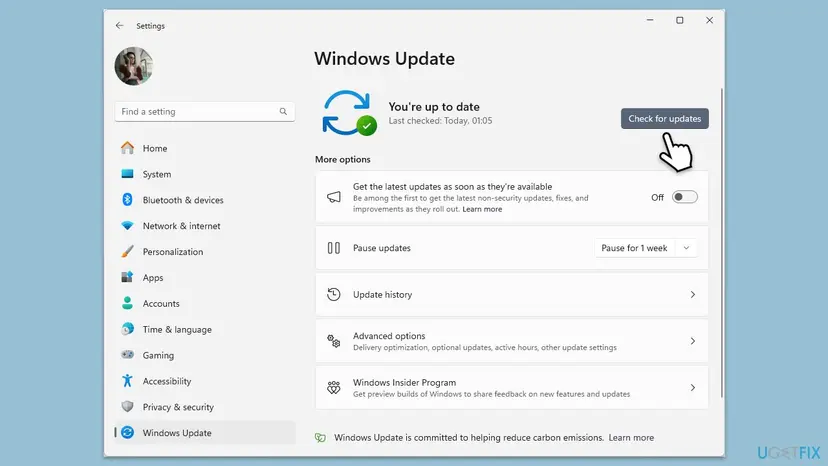
It worked if: SFC reports no remaining problems, Windows says it is up to date, and the picture saves after a restart.
If not: If it still fails in every account, reinstall Windows with your files kept, Fix 8.
Fix 8. Reinstall Windows and keep your files
1 to 2 hoursRead the warningLast resort: the error appears in every account after Fix 7 and the picture matters to you.
An in-place reinstall replaces all Windows files while keeping your files and, with the right option, your apps. It removes any damage that SFC and DISM could not repair.
The reinstall keeps your files, but back them up first anyway, and note your Microsoft account password and BitLocker recovery key. For an account picture alone, this is a big step: using a new account (Fix 6) is often simpler.
- Open Recovery in Settings. Open Settings > System > Recovery. Next to Fix problems using Windows Update, select Reinstall now. This keeps your apps, files and settings.

Fix problems using Windows Update reinstalls the current version and keeps apps, files and settings. Screenshot: Windows 11 26H2. - Start the reinstall. Choose whether the PC may restart on its own 15 minutes after the installation, then select OK.
- Wait and restart. Windows Update downloads and installs a repair copy of your current Windows version. Keep the PC plugged in and online, and restart it when asked.
- If that did not help: Reset PC. Back in Settings > System > Recovery, next to Reset this PC, select Reset PC. This keeps your personal files but removes installed apps and settings.
- Choose Keep my files. Select Keep my files. Do not select Remove everything.
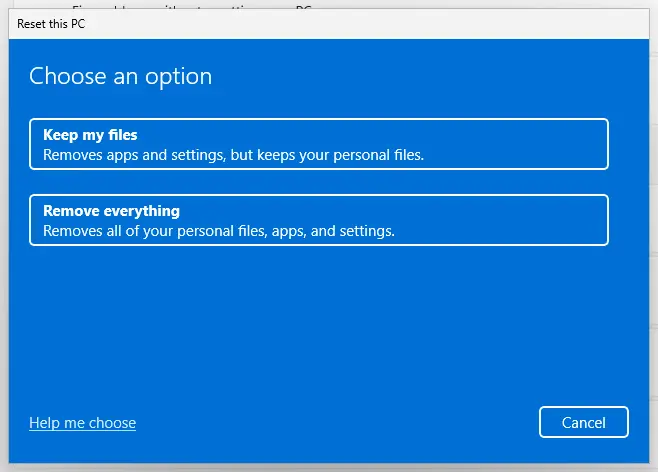
Keep my files removes apps and settings but keeps personal files. Screenshot: Windows 11 26H2. - Choose where Windows comes from. Select Cloud download to download a fresh copy of Windows, or Local reinstall to use the files already on the PC (faster, but may not include the latest updates).
- Reset. Review the summary and select Reset. The PC restarts several times.
These steps were written for Windows 11 22H2 and later. The full page with the other versions and what each result means: Reinstall Windows without losing files
It worked if: After the reinstall, the picture saves in Your info.
If not: Contact Microsoft support with the error code and correlation ID from the box.
If the Account picture error is still there
The error is never caused by hardware. If it stays after these fixes, the cause is the account or the organisation, and the details below help support find it.
- From the error box: the error code and the Correlation ID. Copy them before you select OK.
- The account online: check at account.microsoft.com that the photo shows there. If you cannot change it there either, the problem is with the account, not Windows.
- Windows' own log: right-click Start, open Event Viewer and look under Windows Logs > Application for errors at the time you set the picture.
- Your account type: a work or school address means only the organisation can change or allow the photo.
| What you see | Likely reason | Who can fix it |
|---|---|---|
| The photo cannot be changed at account.microsoft.com either | The Microsoft account itself | Microsoft support |
| Work or school account, Change photo is missing or refused | The organisation blocks photo changes | IT |
| Works in a new account, fails in yours | Your profile | You, by moving to the new account |
| Fails in every account after repairs | Windows files or settings | Fix 8, or Microsoft support |
Microsoft's help says a work or school photo appears on all apps and devices that use the account. In Outlook or Office, select File > Account > Change photo to open your organisation's profile page. If it refuses, your IT has turned photo changes off.
How to keep the Account picture error from coming back
Once the picture is set, the error does not return on its own. These habits keep it that way.
- With a Microsoft account, change the photo online at account.microsoft.com rather than in Settings.
- Pick a plain JPG or PNG stored on the PC, not a huge camera file or an online-only OneDrive file.
- Delete old pictures from the AccountPictures folder instead of renaming or editing them there.
- Do not change permissions on profile or ProgramData folders with tweak tools.
- Keep Windows updated. Windows 10 gets no more fixes without Extended Security Updates.
Frequently asked questions
What does error code 0xcaa100d5 mean?
It is a code from the Windows account broker, the part that connects Windows to your Microsoft account online. Every code that starts with CAA comes from it. Microsoft has not published what 0xcaa100d5 means, but users report it with the Account picture error on Microsoft accounts, when the new photo cannot be sent to the account. Change the photo at account.microsoft.com under Your info and restart (Fix 1). If the PC still shows the old picture, clear the cache (Fix 3) and reconnect the account (Fix 5).
Why does it say Setting the account picture failed. Please try again?
Windows took the file but could not save it as your account picture or send it to your Microsoft account. Trying again with the same file rarely helps. With a Microsoft account, change the picture online at account.microsoft.com (Fix 1). With a local account, save a plain JPG copy in Pictures and use that (Fix 2), then clear your AccountPictures folder and restart (Fix 3). The message is the same on Windows 11 and Windows 10.
Is the Account picture error different on Windows 10 and Windows 11?
No. The box, the messages and the codes are the same, and so are the fixes. The menus differ a little: Windows 10 calls the user list Family & other users, Windows 11 calls it Other users. Your info is under Settings > Accounts on both. Windows 10 left support on 14 October 2025, so without Extended Security Updates it gets no more fixes for its account parts.
Why is my login photo wrong or missing on the sign-in screen?
The sign-in screen shows the same picture as Settings > Accounts > Your info. If the picture failed to save, the screen shows the old photo or a grey silhouette. Fix the Account picture error first with the fixes above. With a Microsoft account, a new photo can take a restart and a while online to sync to the sign-in screen. If it still shows the old one, clear the AccountPictures folder (Fix 3) and restart.
How do I fix the login photo if no picture works at all?
Test it in a new local account (Fix 6). If a picture saves there, your own profile is the cause, and moving to the new account is often the quickest way out. If it fails in the new account too, repair the system files with SFC and DISM and install all updates (Fix 7). Only reinstall Windows (Fix 8) if the picture matters enough for an hour or two of work.
What does Sign-in couldn't be completed, please contact your administrator for help mean?
This is a different message from the Account picture error. It comes from the sign-in of a work or school account, not from saving a photo, and the organisation's rules are usually behind it. This page is about the picture error. If you see that message in Teams, Outlook or the Store, our guide to sign in error CAA2000C covers the stored account data, and the correlation ID helps your IT find the cause.
Can I change my account picture with a work or school account?
Only if your organisation allows it. Microsoft's help says a work or school photo appears on all apps and devices that use the account. In Outlook or another Office app, select File > Account > Change photo, which opens your organisation's profile page. If Change photo is missing or the upload is refused, IT has turned photo changes off, and no fix on the PC changes that.
Is it safe to delete the files in the AccountPictures folder?
Yes. Microsoft's own help sends you to this folder to delete account pictures you no longer want. It holds the last three pictures shown in Your info, not your photo library. Deleting them only empties the list of recent pictures. A Microsoft account picture comes back from the account at the next sync. Copy the files elsewhere first if you want to keep one of them.
Do I need to give myself Full Control of the User Account Pictures folder?
No. Some guides suggest changing the permissions of system folders to Full Control. Microsoft does not ask for this, and changing permissions on ProgramData weakens the PC for every user. Your own AccountPictures folder already belongs to you. If the shared defaults are damaged, move them to a backup folder as Fix 4 shows, which needs only administrator approval once.
Does turning off the antivirus fix the Account picture error?
We found no Microsoft source that ties the error to antivirus software, and we do not suggest turning protection off for it. If you use a third-party security tool with folder protection, check its log for a blocked change to the AccountPictures folder at the time of the error. If it blocked Settings, allow that one action in the tool and keep protection on.
Sources
- Microsoft Support: Change your account picture in Windows (Your info, AccountPictures folder, last three pictures) (support.microsoft.com)
- Microsoft Support: Change your Microsoft account picture (Your info tab, work or school photo) (support.microsoft.com)
- Microsoft Q&A: Can't change account profile picture (error 0x800702e4, advisor answers) (learn.microsoft.com)
Did this fix work?
One click, no account. It tells the next reader which guides are worth their time.
Questions and experiences: fix Account Picture error in Windows
Still broken, or found a fix we did not cover? Ask here: members and our editors answer. Reading is open; writing needs a free account.
…