
How to fix AMDRSServ.exe - System Error in Windows?

Prefer to fix it yourself? The manual steps follow.
- 8methods
- 15 to 45 minutes
- Easy
Applies to Windows 11, Windows 10; AMD Software: Adrenalin Edition (AMD Radeon graphics cards and Ryzen processors with Radeon graphics)
8 methods in this guide
- What the error means
- What AMDRSServ.exe is
- Causes, most common first
- The fixes
- 1. Reinstall with Factory Reset
- 2. Clean reinstall with Cleanup
- 3. Stop the driver swap
- 4. Laptop driver or older release
- 5. Check the file is genuine
- 6. Allow it in Windows Security
- 7. System Restore
- 8. Repair Windows files
- Still broken
- Prevent it
- FAQ
Hello. When I try to launch a game on my Windows PC, I get the "AMDRSServ.exe - System Error" message. Is there a way to fix this issue?
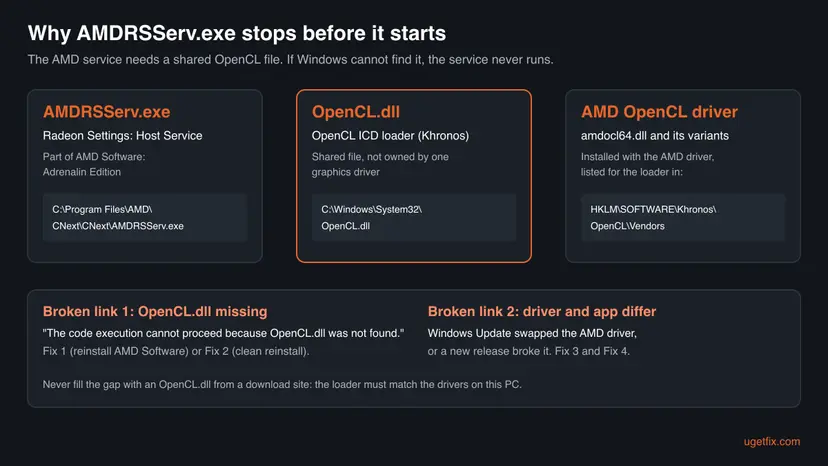
AMDRSServ.exe is the Radeon Settings: Host Service of AMD Software: Adrenalin Edition, and its System Error almost always reads "The code execution cannot proceed because OpenCL.dll was not found". The AMD service is fine; the shared OpenCL file it needs is missing or no longer matches the AMD driver. Reinstall AMD Software with the Factory Reset option first.
The window means AMDRSServ.exe could not load OpenCL.dll, usually after an AMD driver update, a Windows Update driver swap or a partly removed driver. Download AMD Software from amd.com/support, choose Additional Options > Factory Reset and install (Fix 1). If the error stays, remove everything with AMD Cleanup Utility in Safe Mode and install again (Fix 2). Do not download OpenCL.dll from a DLL site.
| Error | AMDRSServ.exe - System Error: "The code execution cannot proceed because OpenCL.dll was not found. Reinstalling the program may fix this problem." |
|---|---|
| Where it appears | A small Windows error window right after sign-in, when AMD Software starts, or when a game starts and calls the AMD service. |
| Main cause | The OpenCL loader OpenCL.dll is missing, or the AMD driver and AMD Software no longer match after an update. |
| Fastest fix | Reinstall AMD Software: Adrenalin Edition with Factory Reset (Fix 1). |
| The file | C:\Program Files\AMD\CNext\CNext\AMDRSServ.exe, described as Radeon Settings: Host Service, digitally signed by Advanced Micro Devices. |
| Also written as | amdrsserv, amdrserv, amdsserv, amdserv.exe, AMD RSServ, AMDRSServ.exe error, AMDRSServ.exe blocked. |
| Affects | Windows 11 and Windows 10 PCs with a Radeon graphics card or a Ryzen processor with Radeon graphics. |
| Vendor status | Not among the known issues of AMD Software 26.2.2 or 26.9.2 (29 September 2026), the newest release we checked. Users report it after single releases, for example 26.2.2. |
| Time to fix | 15 minutes for Fix 1, about 40 minutes for a full clean reinstall. |
Facts checked on 14 October 2026. Steps written for Windows 11 (25H2 and 26H2) and Windows 10 22H2, AMD Software: Adrenalin Edition 26.9.2.
What the AMDRSServ.exe System Error means
The window title is AMDRSServ.exe - System Error and the text under it is "The code execution cannot proceed because OpenCL.dll was not found. Reinstalling the program may fix this problem." Windows shows this before the program runs a single line of its own code. The loader looked for a DLL that AMDRSServ.exe needs, did not find it, and stopped the start.
So the AMD file itself is not broken. What is missing is OpenCL.dll, the OpenCL loader. OpenCL is a standard way for programs to run computing work on the graphics chip. AMD Software uses it, and so do video editors, some games and benchmark tools.
People search for this error in many spellings, and the same page answers all of them:
- amdrsserv, amdrserv, amdsserv, amdserv.exe and AMD RSServ are typing variants of the same file name, AMDRSServ.exe.
- AMDRSServ.exe error and AMDRSServ.exe - System Error are the same window. The text always names the missing DLL; with this AMD service it is almost always
OpenCL.dll. - Windows cannot find 'C:\Program Files\AMD\CNext\CNext\AMDRSServ.exe' is a different message: here the AMD file itself is gone but something still tries to start it.
- AMDRSServ.exe blocked or AMDRSServ.exe Windows Defender is a Windows Security notice from controlled folder access, not an error window. It is covered in Fix 5 and Fix 6.
- RSServCmd.exe sits in the same AMD folder and fails for the same reasons when its files are missing.
- Some users report an AMDRSServ.exe - Entry Point Not Found window instead. That points to a DLL that exists but is the wrong version, which is again a driver and software mismatch (Fix 1 to Fix 3).
The window suggests reinstalling the program. Here the program is AMD Software: Adrenalin Edition together with the AMD graphics driver, not the game you were starting. Reinstalling the game does not bring back OpenCL.dll.
What is AMDRSServ.exe, and is it safe?
AMDRSServ.exe is a background service of AMD Software: Adrenalin Edition, the control panel that ships with AMD Radeon drivers. Task Manager lists it as Radeon Settings: Host Service. It serves the AMD Software window and features such as performance tuning, recording and game profiles, which is why it starts with Windows and why games can wake it up.
- Usual location
C:\Program Files\AMD\CNext\CNext\AMDRSServ.exe- Store version location
- A folder under
C:\Program Files\WindowsApps\whose name starts withAdvancedMicroDevicesInc-2.AMDRadeonSoftware - Description in Task Manager
- Radeon Settings: Host Service
- Publisher
- Advanced Micro Devices, Inc. The genuine file carries AMD's digital signature.
- Needed for Windows?
- No. It is needed only for AMD Software features. The graphics driver itself works without it.
- Known AMD bug
- AMD Software 22.11.2 fixed a bug where AMDRSServ.exe kept GPU use at 100 % after closing games, for example on a Radeon 570.
On a PC with an AMD graphics chip, AMDRSServ.exe in the CNext folder is the normal AMD service and is safe. A file with the same name in another folder, or one without AMD's signature, is not AMD's and should be scanned (Fix 5). Uninstalling AMD Software removes the service; the display driver keeps working.
What causes the AMDRSServ.exe System Error, most common first
AMD has not published a cause for this error, so the order below comes from how the OpenCL loader works, AMD's own install articles and what users report on AMD's and Microsoft's forums.
| Cause | How often | Start with |
|---|---|---|
An AMD driver update did not finish, or left AMD Software and the driver at different versions, so OpenCL.dll or AMD's OpenCL driver is missing. | Most often | Fix 1, then Fix 2 |
| Windows Update replaced the AMD driver with its own version after AMD Software was installed. | Often | Fix 3 |
| A new AMD release does not suit this PC: a laptop that needs the maker's driver, or a release that users report as broken. | Sometimes | Fix 4 |
Another graphics driver was removed (an old NVIDIA or Intel driver, or a driver cleaner) and took the shared OpenCL.dll with it. We could not confirm which tools do this. | Sometimes | Fix 2 |
| Microsoft Defender controlled folder access blocks AMDRSServ.exe from writing to protected folders. | Only with that feature on | Fix 5, then Fix 6 |
| A fake AMDRSServ.exe in another folder, or damaged Windows files. | Rarely | Fix 5, Fix 7 and Fix 8 |
In one AMD community thread from 2026 the user saw the OpenCL.dll error together with AMD Software's message "The version of AMD Software that you have launched is not compatible with your currently installed AMD graphics driver". Going back from 26.2.2 to 26.2.1 solved it for that user. When you see both messages, the cause is the mismatch, not a single lost file.
How to fix the AMDRSServ.exe System Error
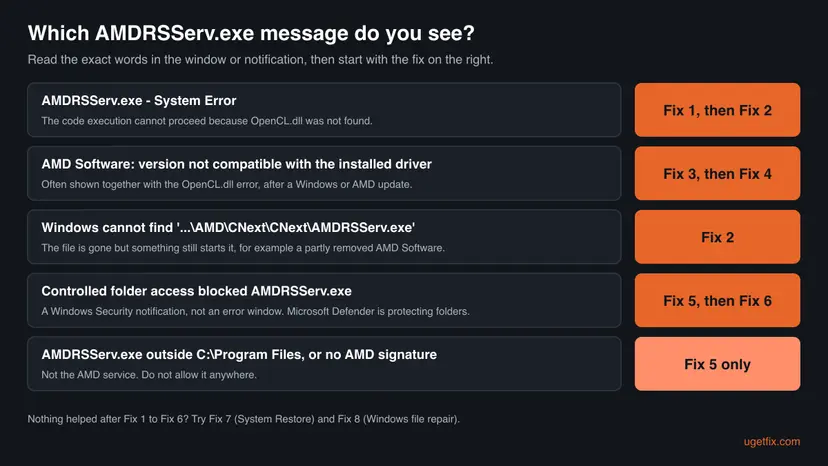
Fixes 1 to 4 repair the AMD software and driver and solve most cases. Fixes 5 and 6 are for the Windows Defender and blocked messages. Fixes 7 and 8 are general repairs for the few cases that remain.
| What you see or have | Start with |
|---|---|
| "OpenCL.dll was not found" after sign-in or when a game starts. | Fix 1, then Fix 2 |
| "Windows cannot find 'C:\Program Files\AMD\CNext\CNext\AMDRSServ.exe'". | Fix 2 |
| AMD Software says it is not compatible with the installed driver. | Fix 3, then Fix 4 |
| A laptop or all-in-one PC, or the error began with one AMD release. | Fix 4 |
| Windows Security says controlled folder access blocked AMDRSServ.exe. | Fix 5, then Fix 6 |
| AMDRSServ.exe runs from a folder other than the AMD folders above. | Fix 5 only |
| Fixes 1 to 6 did not help, or other programs fail with DLL errors too. | Fix 7, then Fix 8 |
Fix 1. Reinstall AMD Software with the Factory Reset option
15 minutesLow riskEveryone who sees the OpenCL.dll error; this is the first thing to do.
A fresh AMD package puts the AMD driver, its OpenCL driver and AMD Software back at one matching version. Factory Reset first removes all older AMD Software versions, so no half-updated parts stay behind.
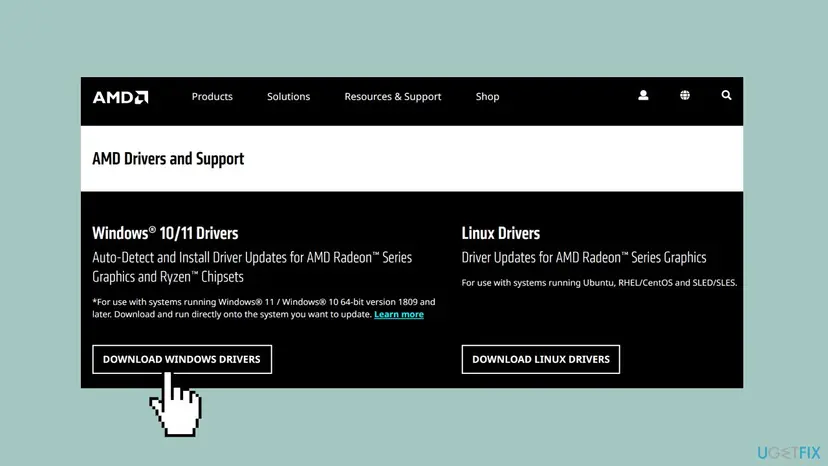
- Open AMD Drivers and Support and select Download Windows Drivers to get the AMD Auto-Detect and Install tool. You can also pick your exact product in the product selector on the same page.
- Run the downloaded file and select Install (or Yes) to unpack it. AMD recommends keeping the default folder.
- Let the AMD Software Installer check your PC. It lists Recommended (certified by Microsoft) and Optional (newest) drivers. Choose Recommended unless you need a fix from the newest release.
- Select Additional Options and keep Software Type at Default or Minimal.
- Tick Factory Reset. AMD says this removes all earlier versions of AMD Software and pauses Windows Update for a while. You cannot roll back to the old driver afterwards.
- Select Accept & Install. The screen can flicker and go dark for a moment; that is normal.
- Let the installer restart the PC. After a Factory Reset it continues on its own after the restart. Select Close when it is done.
AMD's install article suggests closing other apps and pausing third-party antivirus, remote access and streaming tools during setup. Turn them back on right after the install. Leave Microsoft Defender on.
It worked if: After the restart no System Error window appears, and AMD Software opens from the desktop right-click menu or the Start menu.
If not: If the installer stops with an error number, or the window comes back, go to Fix 2 for a full clean removal first.
Fix 2. Remove all AMD graphics software with AMD Cleanup Utility, then install again
40 minutesRead the warningFix 1 did not help, the installer failed, or Windows cannot find AMDRSServ.exe at all.
AMD Cleanup Utility removes every AMD graphics and audio driver and AMD Software, including leftovers a normal uninstall misses. The following install then starts from nothing, so the OpenCL files and AMDRSServ.exe come back together.
This removes AMD Software settings, game profiles and tuning. Write down any custom fan or tuning values first. Download the new AMD package before you start, because the screen runs on a basic Windows driver until it is installed. The utility does not touch AMD chipset drivers and creates a restore point named AMD Cleanup Utility Restore Point before it removes anything.
- Download the AMD Software package for your card (see Fix 1) and save it, but do not run it yet.
- Download AMD Cleanup Utility from AMD's article GPU-601. The file is
amdcleanuputility.exe. - Let Windows Update finish first. AMD says the utility stops when Windows Update is running.
- Double-click
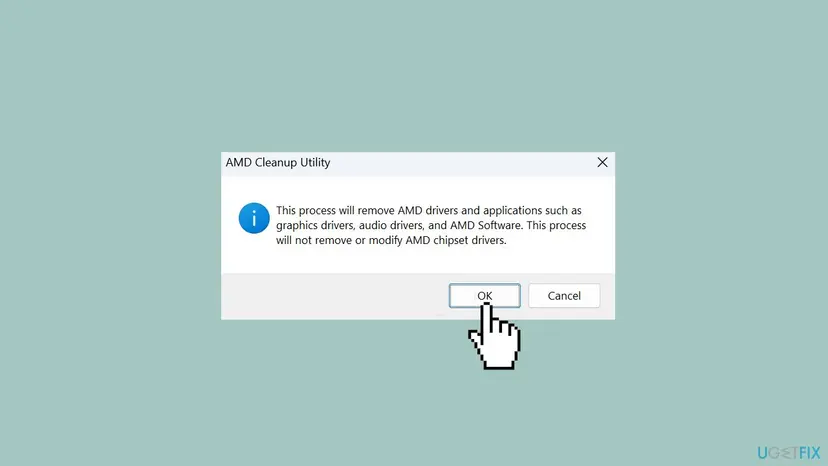
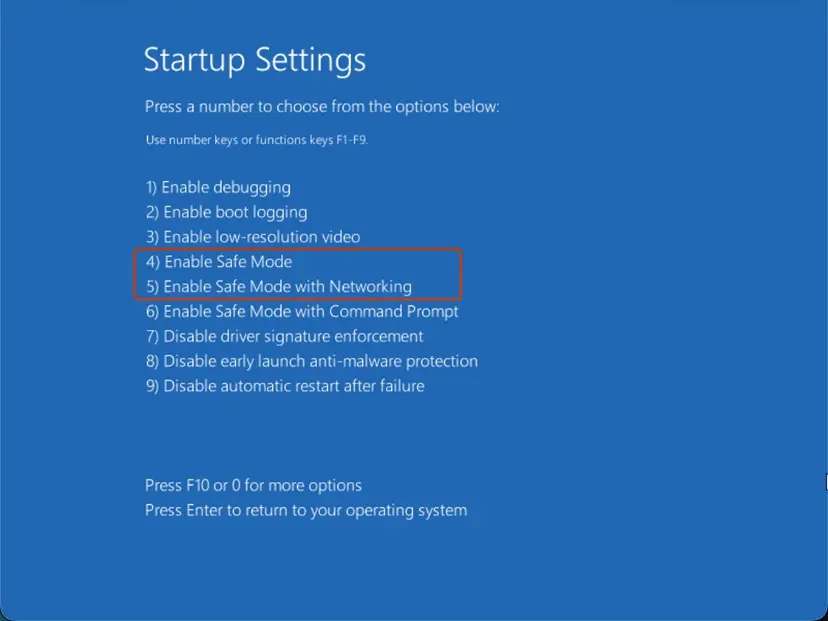
amdcleanuputility.exe. When it asks about Safe Mode, select Yes. AMD recommends Safe Mode for the best result and restarts the PC into it for you. If you prefer to start Safe Mode yourself: Start Windows or a Mac in Safe Mode. - Select OK on the message that explains the cleanup.
- Wait. The display can flicker or go blank, and AMD says the cleanup can take 15 to 20 minutes.
- Select Finish (or View Report to see what was removed), then Yes to restart.
- Run the AMD package you downloaded in step 1 and install with the default options.
It worked if: After the new install, AMDRSServ.exe starts without a window, and C:\Windows\System32\OpenCL.dll exists again.
If not: If the same error comes back right after a fresh install, the release itself may not suit your PC: go to Fix 3 and Fix 4.
Fix 3. Stop Windows Update from replacing the AMD driver
10 minutesLow riskAMD Software says it is not compatible with the installed driver, or the error returns after every Windows update.
AMD documents that Windows can revert the AMD graphics driver right after AMD Software was installed. Then AMDRSServ.exe belongs to one release and the driver with its OpenCL files to another.
- Press Win + R, type
sysdm.cpland press Enter to open System Properties. - Open the Hardware tab and select Device Installation Settings.
- Choose No and select Save Changes.
- Restart the PC.
- Install AMD Software again as in Fix 1, or as in Fix 2 if Fix 1 already failed once.
- Right-click Start, open Device Manager, expand Display adapters, open your AMD card and check Driver Version on the Driver tab. It should match the package you installed.
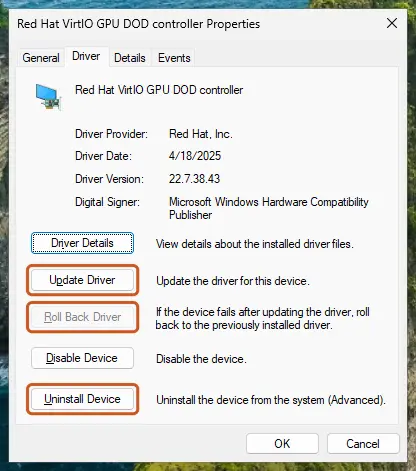
AMD's release notes list both versions of a package, for example 26.9.2 contains driver 26.20.15.02 with Windows Driver Store version 32.0.32015.2008. Device Manager shows the Driver Store number. When the AMD error is gone and has stayed away for a while, you can set Device Installation Settings back to Yes.
It worked if: AMD Software opens without the compatibility message, and the driver version stays the same after the next Windows Update.
If not: If the versions match and the error stays, the release may not fit your PC: go to Fix 4.
Fix 4. Install the AMD driver made for your PC or go back one release
20 minutesLow riskA laptop or all-in-one PC, an older Radeon card, or the error started with one AMD release.
AMD's own packages are reference drivers. AMD says laptops and all-in-one PCs should use the maker's driver, and a single release that breaks OpenCL on your hardware is solved by the release before it.
- Find your graphics name in Device Manager > Display adapters (see the picture in Fix 3).
- Laptop or all-in-one PC: open the support page of the PC maker, enter the model or serial number and install its AMD graphics driver. AMD writes that the maker's drivers are customised and validated for that system.
- Desktop card: open the release notes of the current AMD package and check that your card is listed. Release 26.9.2 lists Radeon RX 5000 to RX 9000 series cards, Radeon PRO W5000 to W7000 cards and Ryzen processors with Radeon graphics.
- Card not on that list: use the product selector at AMD Drivers and Support and pick your exact card. It offers the package that still supports it.
- Error started right after an update: open the AMD release notes of the release before it. Each release notes page carries its own download link.
- Install the chosen package with AMD Cleanup Utility first, as AMD recommends for every downgrade (Fix 2, steps 2 to 7).
It worked if: The chosen package installs without errors and the System Error window no longer appears at sign-in or game start.
If not: If no package works, check the hardware signs in "Still broken" below, or continue with Fix 5 if Windows Security is involved.
Fix 5. Check that AMDRSServ.exe is the real AMD file and scan it
10 minutesNo riskWindows Security blocked AMDRSServ.exe, or you are not sure the file belongs to AMD.
Malware can use the name of a known process. The real AMD service has a fixed folder and AMD's signature; a copy elsewhere is not AMD's and must not be allowed through any protection.
- Press Ctrl + Shift + Esc to open Task Manager and open the Details tab.
- Right-click AMDRSServ.exe and select Open file location. The folder should be
C:\Program Files\AMD\CNext\CNextor, for the Store version, aWindowsAppsfolder that starts withAdvancedMicroDevicesInc-2.AMDRadeonSoftware. - Right-click the file, select Properties and open the Digital Signatures tab. The signer should be Advanced Micro Devices, Inc.
- If the folder or the signer is different, do not allow the file anywhere. Run a full scan with Microsoft Defender.
Microsoft Defender's full scan and the Protection history: How to scan for malware with Microsoft Defender
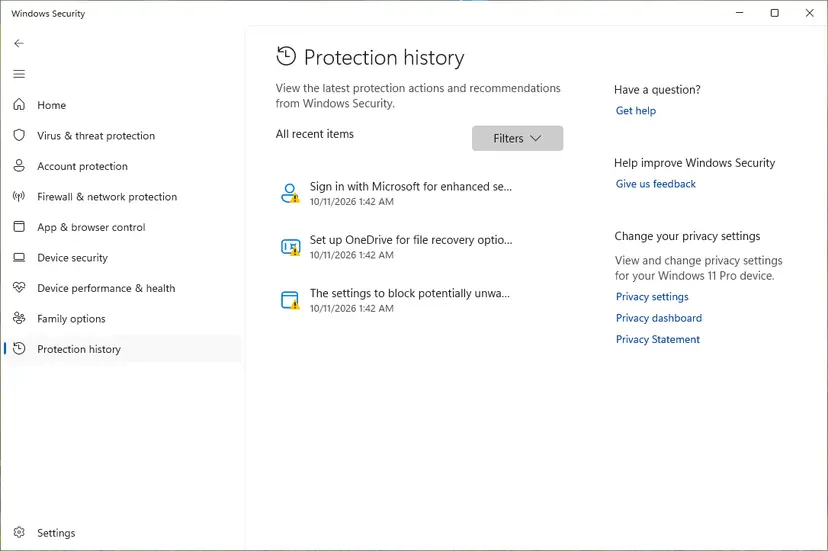
It worked if: The file sits in the AMD folder with AMD's signature, or Defender found and removed the fake copy.
If not: If the genuine file is still blocked by controlled folder access, continue with Fix 6.
Fix 6. Allow AMDRSServ.exe through controlled folder access
5 minutesLow riskWindows Security shows "Controlled folder access blocked" for the genuine AMD file.
Controlled folder access lets only trusted apps change files in Documents, Pictures, Videos and other protected folders. Defender trusts most apps by reputation, so a new AMD build that writes to those folders can be blocked until you allow its one path.
- Open Windows Security from the Start menu and select Virus & threat protection.
- Under Virus & threat protection settings select Manage settings, then under Controlled folder access select Manage controlled folder access. The Manage ransomware protection link lower on the page opens the same pane.
- Select Allow an app through Controlled folder access and confirm the User Account Control prompt with Yes.
- Select + Add an allowed app, then Recently blocked apps and pick AMDRSServ.exe. If it is not listed, select Browse all apps instead.
- Browse to
C:\Program Files\AMD\CNext\CNext, selectAMDRSServ.exeand select Open. - Restart the PC. Microsoft says an allowed app takes effect only when it starts again.
The same in an elevated PowerShell window (it adds the path and keeps your other allowed apps):
Add-MpPreference -ControlledFolderAccessAllowedApplications "C:\Program Files\AMD\CNext\CNext\AMDRSServ.exe"Allow only the one AMD path. Do not turn controlled folder access off to silence the notice. Microsoft allows the app only in the folder you name, so a file with the same name elsewhere stays blocked.
It worked if: No new "Controlled folder access blocked" notice for AMDRSServ.exe appears after the restart and during games.
If not: If the notice names another AMD file, allow that path the same way. If the System Error window is the problem, go back to Fix 1.
Fix 7. Return Windows to a restore point from before the driver change
20 minutesLow riskThe error began on a known day and you have a restore point from before it.
A restore point brings back drivers and system files, including OpenCL.dll and the AMD OpenCL registry entries, as they were on that day. Your documents are not touched.
- Press Win + R, type
rstruiand press Enter. - Select Choose a different restore point and pick a point from before the error. An AMD Cleanup Utility Restore Point is one, if you ran Fix 2.
- Select Scan for affected programs to see which drivers and programs change, then Next and Finish.
Full steps with pictures: Undo recent changes with System Restore
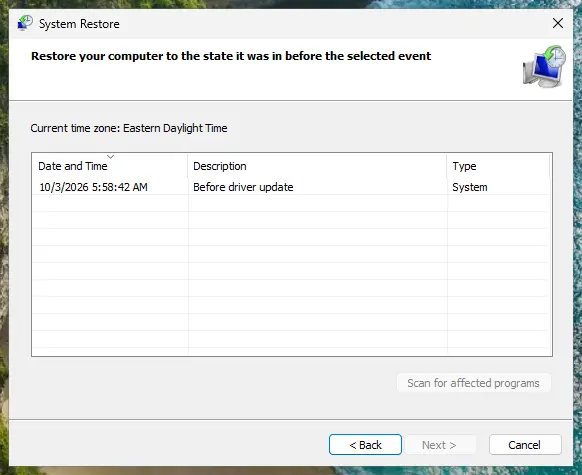
It worked if: Windows restarts with the older driver and the System Error window is gone.
If not: If there is no restore point from before the error, go to Fix 8.
Fix 8. Repair Windows system files with DISM and SFC
20 minutesNo riskOther programs also fail with missing DLL errors, or Fixes 1 to 7 did not help.
Damaged Windows files can break any program that loads DLLs. We could not confirm that OpenCL.dll is a protected Windows file, so this repair may not bring it back; it is here for PCs where more than AMD is broken.
- Open Command Prompt or Terminal as administrator.
- Run DISM, then SFC, as shown in the procedure below, and restart.
Step by step: Run DISM and SFC to repair Windows system files
After the repair, install AMD Software once more (Fix 1) so that the AMD files are written onto a healthy Windows.
It worked if: SFC reports that it found no problems or repaired them, and the AMD package installs and runs without the error.
If not: Collect the evidence in "Still broken" below and ask AMD support, or reinstall Windows with your files kept.
If the AMDRSServ.exe error is still there: where to look and what to send
The System Error window itself is all Windows tells you about the missing DLL. These places hold the rest of the evidence:
| What to check | Where | What it tells you |
|---|---|---|
| Is the loader there? | C:\Windows\System32\OpenCL.dll | Missing: the AMD install did not finish. Present: the problem is a mismatch or a block. |
| Which driver runs? | Device Manager > Display adapters > your card > Properties > Driver | Driver Version should match the AMD package you installed. |
| Did Defender block it? | Event Viewer: Applications and Services Logs > Microsoft > Windows > Windows Defender > Operational | Event 1123 is a blocked controlled folder access event, 5007 a settings change. |
| Is AMD's OpenCL driver listed? | HKEY_LOCAL_MACHINE\SOFTWARE\Khronos\OpenCL\Vendors (read only) | The OpenCL loader reads the vendor drivers from here. No AMD entry means AMD's OpenCL part is not installed. |
Only look at the registry key; do not edit it. If you ever change it, back up the registry first: Back up the registry before editing it. When you ask for help in the AMD community, send the exact error text, the AMD Software version, the driver version from Device Manager, your graphics card or processor, Windows version and what you already tried.
If Device Manager shows only Microsoft Basic Display Adapter after a clean install, or the AMD installer reports error 173 (no AMD graphics hardware detected) or 175 (unsupported AMD graphics hardware), the card is not detected or not supported. Check that the card is seated and powered, or that the laptop maker supplies a driver for it.
How to keep the AMDRSServ.exe error from coming back
- Install AMD driver updates with the AMD Software Installer and let it finish, including the restart.
- Use AMD Cleanup Utility before installing an older AMD release, as AMD recommends.
- Wait a few days before taking a brand new optional release if your PC works well; read its known issues first.
- On a laptop, prefer the driver from the PC maker.
- Keep a restore point before big driver changes.
- Do not download
OpenCL.dllfrom DLL download sites. The loader must fit the drivers on your PC, and such files are unsigned. - Do not copy
OpenCL.dllfrom another PC; it may belong to a different driver set. - Do not turn off controlled folder access or Microsoft Defender to stop the notice.
- Do not delete AMDRSServ.exe; uninstall AMD Software instead if you do not want it.
Frequently asked questions
What is AMDRSServ.exe?
AMDRSServ.exe is the Radeon Settings: Host Service, a background part of AMD Software: Adrenalin Edition. It lives in C:\Program Files\AMD\CNext\CNext and supports the AMD Software window and features such as tuning, recording and game profiles. It starts with Windows on PCs that have AMD Radeon graphics. It is not a Windows file and Windows does not need it. The graphics driver keeps working without it, but AMD Software features stop.
Is AMDRSServ.exe a virus?
No, not when it sits in C:\Program Files\AMD\CNext\CNext (or the AMD Store app folder) and carries the digital signature of Advanced Micro Devices, Inc. Check both in the file's Properties, as Fix 5 shows. A file with the same name in another folder, in your user folder or in Temp is not AMD's service. Scan it with Microsoft Defender and do not allow it in any security setting.
Why does the AMDRSServ.exe System Error appear when I start a game?
Games and their overlays can call AMD Software features, which starts AMDRSServ.exe if it is not running yet. When the service cannot load OpenCL.dll, Windows shows the System Error at that moment, so it looks like the game is the cause. Reinstalling the game does not help. Repair the AMD software and driver with Fix 1 or Fix 2, and the game starts without the window.
Does the fix differ for the AMDRSServ.exe system error on Windows 10?
No. The message, the AMD files and the fixes are the same on Windows 10 and Windows 11. Windows 10 left Microsoft support on 14 October 2025, but AMD Software 26.9.2 still lists Windows 10 64-bit version 21H2 and later. On Windows 10 the paths in Windows Security and System Properties are the same as in this guide. Windows 10 22H2 meets that requirement.
Why did Windows Defender block AMDRSServ.exe?
The block comes from controlled folder access, a ransomware protection in Microsoft Defender that is off by default. When it is on, only trusted apps may change files in protected folders such as Documents, Pictures and Videos. A new AMD build may not have a reputation yet, so its writes are blocked and logged. Check the file is genuine (Fix 5), then allow its path (Fix 6). It is not a sign of malware by itself.
Can I download OpenCL.dll and put it in System32?
We do not recommend it. OpenCL.dll is the Khronos OpenCL loader that hands work to the OpenCL drivers registered on your PC, and an Intel support technician describes it as shared by many apps. A copy from a DLL site is unsigned, may be outdated and may not match your drivers. Reinstalling AMD Software with Factory Reset (Fix 1) or after AMD Cleanup Utility (Fix 2) puts back a matching set of files.
Does running regsvr32 opencl.dll fix the error?
We found no AMD or Microsoft documentation that says so. regsvr32 registers COM components, and the OpenCL loader finds vendor drivers through the HKEY_LOCAL_MACHINE\SOFTWARE\Khronos\OpenCL\Vendors registry key instead. When the System Error says the file was not found, there is nothing to register. Put the file back with a clean AMD install, as in Fix 1 and Fix 2.
Can I disable or remove AMDRSServ.exe?
Yes, by removing or reducing AMD Software, not by deleting the file. Uninstall AMD Software in Settings > Apps > Installed apps, or reinstall with the Driver Only install type, which AMD describes as having no user interface for AMD Software features. Without AMD Software you lose tuning, recording and game profiles. Deleting AMDRSServ.exe by hand leaves startup entries behind and causes the "Windows cannot find" message instead.
What is amdadlxserv.exe, and is it related?
The name points to ADLX, the AMD Device Library eXtra, a library that AMD describes as giving apps access to display, 3D graphics, performance monitoring and GPU tuning features. We could not confirm from AMD what the amdadlxserv.exe process does exactly. If it shows a similar System Error, treat it the same way: it belongs to AMD Software, so a clean AMD reinstall (Fix 2) is the fix.
Is this error a sign that my graphics card is failing?
Almost never. A missing DLL is a software state, and the screen keeps working because Windows still has a display driver. The hardware is suspect only when Device Manager shows Microsoft Basic Display Adapter after a clean AMD install, or AMD's installer reports error 173 or 175. Crashes, black screens and artefacts during games are other symptoms and need a different check.
Sources
Did this fix work?
One click, no account. It tells the next reader which guides are worth their time.
Questions and experiences: fix AMDRSServ.exe - System Error in Windows
Still broken, or found a fix we did not cover? Ask here: members and our editors answer. Reading is open; writing needs a free account.
…