
How to fix "An error occurred, please try again later" on YouTube?

Prefer to fix it yourself? The manual steps follow.
- 9methods
- 5 to 30 minutes
- Easy
Applies to YouTube in Chrome, Edge, Firefox and other browsers on Windows 11 and Windows 10; the YouTube app on phones and TVs
9 methods in this guide
- What the error means
- Why it appears
- You or YouTube?
- The fixes
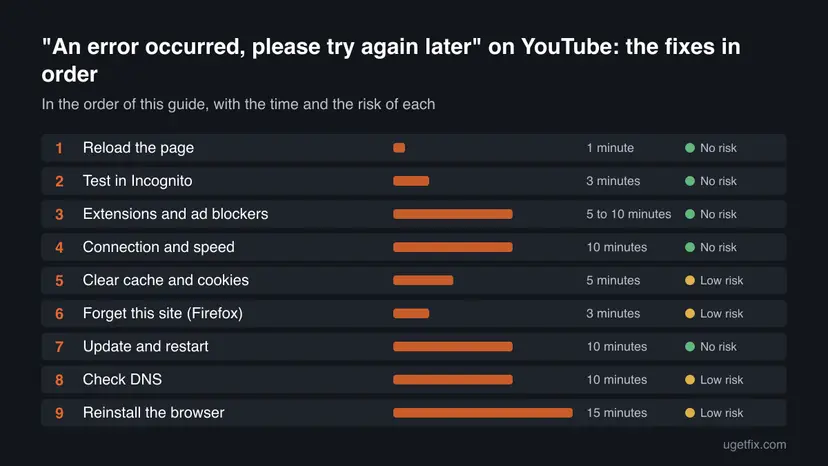
- 1. Reload the page
- 2. Test in Incognito
- 3. Extensions and ad blockers
- 4. Connection and speed
- 5. Clear cache and cookies
- 6. Forget this site (Firefox)
- 7. Update and restart
- 8. Check DNS
- 9. Reinstall the browser
- Still broken: what to do
- Keep it from coming back
- FAQ
Hey guys, Occasionally, when I want to watch a video on YouTube, the video stops an error message pops up: "An Error Occurred, Please Try Again Later. Learn more." In some cases, an additional Playback ID code appears. After I refresh the web page, the problem disappears. It also occurs when I try to search for something on Youtube. The issue is starting to get on my nerves. I'd appreciate your advice.
The YouTube message "An error occurred, please try again later" is a general playback error, and YouTube's Help Center does not explain it or its Playback ID. The cause is usually on your side (extensions, ad blockers, old site data, connection) or a short fault at YouTube. Test in the order below and stop when the video plays.
Reload the page with Ctrl + Shift + R (Fix 1). If the message returns, open YouTube in an Incognito or private window (Fix 2). When it works there, an extension or an ad blocker is the cause, so turn them off for YouTube (Fix 3). If it fails in Incognito too, check the connection (Fix 4) and clear the site data (Fix 5).
| Error | An error occurred. Please try again later. Sometimes followed by Learn more and a Playback ID made of letters and digits. |
|---|---|
| Where it appears | On the YouTube page in a browser, over the player when a video stops, or in place of results when you search. The YouTube app on a phone or TV can show similar playback messages. |
| Main cause | No single cause. YouTube's Help Center lists connection, browser, cache and cookies, extensions such as ad blockers, and DNS settings as the things to check for playback errors. |
| Fastest fix | Reload with Ctrl + Shift + R (Fix 1), then test in an Incognito window (Fix 2). |
| Playback ID | YouTube does not publish what the ID means. Keep it for a report, but do not search for a fix by its letters. |
| Affects | Every browser on Windows, Mac and Linux, and the mobile apps. The message is not tied to a Windows version. |
| Who can fix it | You, in most cases. If the page fails on every device and network, only YouTube can fix it, and waiting is the right step. |
| Time to fix | 1 minute for a reload, up to about 30 minutes if you go through every fix. |
Facts checked on 16 October 2026. Steps written for Chrome, Edge and Firefox on Windows 11 (25H2 and 26H2) and Windows 10 22H2, with notes for the YouTube app.
What "An error occurred, please try again later" means on YouTube
The sentence is a general error text of the YouTube player. We read the YouTube Help Center page "Troubleshoot YouTube video errors" on 16 October 2026. It lists similar messages, such as "An error has occurred", "Playback error. Tap to retry." and "Connection to server lost.", but it does not list this exact sentence and it does not explain a Playback ID.
That tells you how to treat it. The text does not name a cause, so you cannot look it up like a Windows error code. What YouTube does publish is a short list of things to check when a video or a page fails: the internet connection, being signed in, the browser version, cache and cookies, extensions and ad blockers, and DNS settings. This guide follows that list, in the order that costs the least time.
| What the screen says | What it tells you |
|---|---|
| An error occurred. Please try again later. | A general playback or page error. YouTube gives no cause in the text. |
| Learn more | A link to YouTube's help. The page it opens is the general troubleshooting article, not an explanation of this message. |
| Playback ID: letters and digits | An identifier of that playback attempt. YouTube does not publish what it means. Keep it for a report. |
| It disappears after a refresh | The failure was short. A stalled connection or a script that did not load is a likely reason, but this is our reading, not a YouTube statement. |
| It also appears when you search | The problem is not the video file. The page, the browser or the connection fails before any video is involved. |
Users on the YouTube Help Community report this message on Windows 7 to Windows 10 and in Chrome, Firefox and Opera, and say it affects either every video or only some. These are user reports, not a statement from YouTube.
Why the error appears: the causes to check, ranked
YouTube does not say which cause belongs to this message, so the ranking below is ours. It puts the causes that are cheap to test and common in YouTube's own troubleshooting list first. Each row points to the fix that tests it.
| Cause | How to tell | Fix |
|---|---|---|
| A short YouTube or network interruption. | The page works after a refresh or a few minutes later, on any browser. | Fix 1 |
| An extension or ad blocker interferes with the page. | YouTube works in an Incognito window with extensions off. YouTube's Help Center names ad blockers. | Fix 2 and Fix 3 |
| A slow or unstable connection. | Other videos buffer, or a speed test is under the speed the video needs. | Fix 4 |
| Old cache and cookies of YouTube. | Fails in the normal window, works in Incognito with no extensions. | Fix 5 and Fix 6 |
| An old browser or a stuck session. | The browser was not restarted or updated for a long time. | Fix 7 |
| DNS settings that were changed. | Other sites misbehave too, or you set DNS servers yourself or a program did. | Fix 8 |
| A damaged browser installation. | Every earlier test fails in this browser, but YouTube works in another browser. | Fix 9 |
Neither YouTube nor Google publishes how often each cause happens. The order is our judgement from YouTube's troubleshooting page and from what users describe, not a statistic.
Three quick tests: is the problem on your side or on YouTube's?
Spend two minutes on these tests before changing any setting. They tell you whether the fixes below can help at all, and they stop you from clearing data for a fault that sits on YouTube's servers.
- Open the same video on your phone over mobile data. If it plays there, the cause is on your PC, your browser or your Wi-Fi.
- Open the same video in a second browser on the same PC. If it plays there, the cause is inside the first browser, so start with Fix 2.
- Open YouTube in an Incognito or private window. If it plays there, an extension or old site data is the cause.
If the video fails on every device, in every browser and on every network, nothing you change will help. YouTube's own advice for a failed reload is to try again later. Go to the section on what to do when it is still broken.
How to fix "An error occurred, please try again later" on YouTube
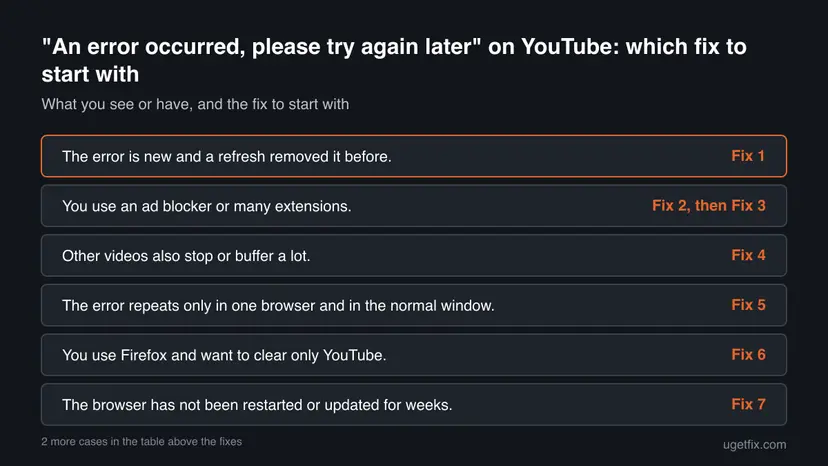
Fixes 1 to 3 find out whether the browser itself is the cause. Fixes 4 to 8 follow the checks in YouTube's Help Center. Fix 9 is the last resort, because it removes the browser.
| What you see or have | Start with |
|---|---|
| The error is new and a refresh removed it before. | Fix 1 |
| You use an ad blocker or many extensions. | Fix 2, then Fix 3 |
| Other videos also stop or buffer a lot. | Fix 4 |
| The error repeats only in one browser and in the normal window. | Fix 5 |
| You use Firefox and want to clear only YouTube. | Fix 6 |
| The browser has not been restarted or updated for weeks. | Fix 7 |
| You changed DNS servers, or other sites also fail to open. | Fix 8 |
| It fails in this browser only, after all earlier fixes. | Fix 9 |
Fix 1. Reload the page and play the video again
1 minuteNo riskThe error is new and a refresh removed it earlier, or it appeared right after a video stopped.
A short interruption of the connection or of one script on the page can show the message once and then pass. A reload that skips the saved copies of the page forces the browser to download every part of it again. YouTube's Help Center advises to reload and to try again later when a reload does not help.
- Click the YouTube tab once and press Ctrl + Shift + R. Shift + F5 does the same. The browser reloads the page and ignores saved files.
- Press play again. If the error comes back at once, wait one or two minutes and repeat step 1.
- If the page still fails, close the tab, open a new tab and type the address of YouTube. Do not reopen the old tab from the history.
- Search for a video and open it from the results.
The message that mentions a Playback ID usually comes back on the same page. A new tab starts a clean session, which a plain refresh may not.
It worked if: The video plays and the search shows results. The message does not return within a few minutes.
If not: If the message comes back every time, the page is not the problem. Go on to Fix 2.
Fix 2. Open YouTube in an Incognito or private window
3 minutesNo riskThe error repeats in the normal window, and you use extensions or have used the browser for a long time.
YouTube's Help Center suggests opening YouTube in an incognito window with all extensions disabled to see if the issue continues. A private window starts without your saved cookies and with extensions off, so it separates the browser from the profile.
- In Chrome or Edge press Ctrl + Shift + N. In Firefox press Ctrl + Shift + P.
- Type the address of YouTube and open the video that failed.
- If a toolbar button of an extension is shown in the private window, that extension was allowed there. Open the extensions page and turn off Allow in Incognito (Chrome) or Allow in InPrivate (Edge) for this test.
Chrome does not let you add extensions in Incognito mode, and extensions only run there when you allowed them in their Details page. That is why a private window is a clean test.
Read the result like this. If the video plays in the private window, an extension, an ad blocker or the saved data of the normal window causes the error, and Fix 3 and Fix 5 are the next ones. If it fails here too, skip Fix 3 and go to Fix 4.
It worked if: The video plays in the private window. That narrows the cause to your extensions or your saved site data.
If not: If the private window also shows the error, the cause is outside the browser profile. Go to Fix 4.
Fix 3. Turn off ad blockers and extensions for YouTube
5 to 10 minutesNo riskFix 2 worked, or you run an ad blocker, a video downloader, a VPN extension or a privacy extension.
YouTube's Help Center says that extensions that block ads can affect playback and asks viewers to allow ads and turn off ad blockers when YouTube shows an error. Extensions can read and change the page, so one of them can break a script that the player needs.
- In Chrome type chrome://extensions in the address bar. In Edge type edge://extensions. In Firefox type about:addons.
- Turn off the ad blocker first. Reload YouTube with Ctrl + Shift + R and press play.
- If the error stays, turn the other extensions off one at a time. Reload after each one, until the video plays.
- Keep the extension that caused it off, or set it to run only on the sites where you need it. In Chrome, open its Details and change the site access.
- If an extension shows as corrupted in Chrome, select Repair, then confirm with Repair extension.
Chrome's own help says a suspicious program can change the files of an extension. If Repair does not help, run an antivirus or anti-malware scan, then repair the extension again. The steps for Microsoft Defender are here: How to scan for malware with Microsoft Defender
It worked if: YouTube plays with the extension off, and the error does not return after a restart of the browser.
If not: If the video still fails with every extension off, turn them back on and go to Fix 4.
Fix 4. Restart the internet connection and check its speed
10 minutesNo riskOther videos also stop or buffer, or the error appears at the same moment on several devices at home.
YouTube's Help Center starts its error list with the connection. It says to restart your internet connection, run a speed test, and remember that other devices on the same network may slow yours. A video that cannot load a part in time can end in a playback error.
- Restart the router. Switch it off with its power button or unplug it, wait about 30 seconds, and switch it on again. Wait until all lights are steady.
- On the PC, check that Windows shows a working connection. The steps for Windows 11 and Windows 10 are here: How to check your internet connection in Windows
- Run an internet speed test and compare the result with the speeds in the table below. Close downloads and other devices that use the network during the test.
- If the speed is too low for the video, lower the quality in the player (the Settings gear, then Quality) and play again.
- Disconnect a VPN or proxy for one test and play the video again.
| Video resolution | Recommended sustained speed |
|---|---|
| 4K | 20 Mbps |
| HD 1080p | 5 Mbps |
| HD 720p | 2.5 Mbps |
| SD 480p | 1.1 Mbps |
| SD 360p | 0.7 Mbps |
It worked if: The speed is above the value for the resolution you play, and the video runs without the message.
If not: If the connection is fine and the error stays, go to Fix 5.
Fix 5. Clear the cache and cookies of YouTube
5 minutesLow riskThe error repeats only in the normal window of one browser, and it works in Incognito.
YouTube's Help Center tells viewers to update the browser or clear the browser's cache and cookies for this kind of error. Saved files of an old page version and a stale session can clash with what YouTube sends now. Clearing them forces a clean start.
Deleting cookies signs you out of YouTube and of the other sites in the chosen range. Know your passwords first. Clearing only the cache keeps you signed in.
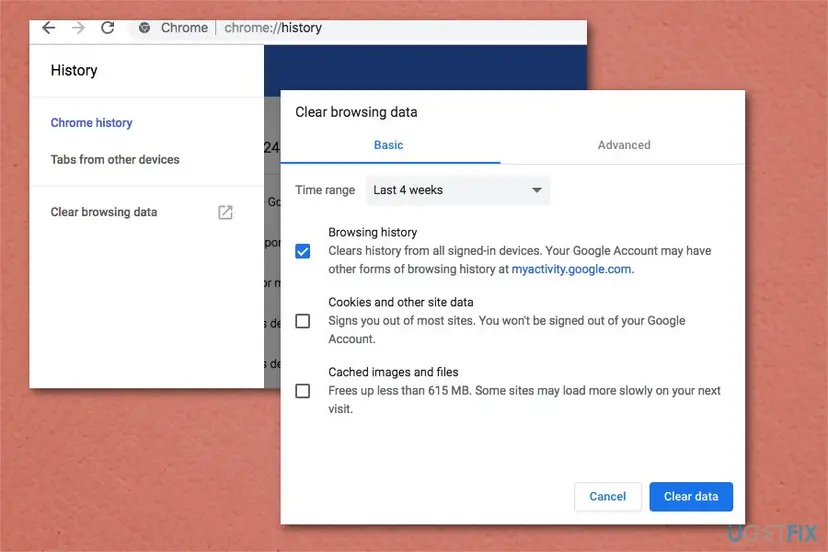
- Press Ctrl + Shift + Delete in Chrome, Edge or Firefox to open the window for clearing browsing data.
- Choose a time range. Pick Last 24 hours first, and All time only if the error stays.
- Tick Cached images and files. Tick Cookies and other site data too if you accept being signed out.
- Click Delete data (Chrome and Edge) or Clear (Firefox).
- The same steps with pictures for Chrome, Edge and Firefox: Clear the browser cache and cookies
Close the browser completely after clearing, open it again and sign in to YouTube. If you only want to clear YouTube and nothing else, Fix 6 does that in Firefox.
It worked if: YouTube loads, you sign in again if you cleared cookies, and the video plays without the message.
If not: If the error returns after a clean start, go to Fix 7.
Fix 6. Use "Forget About This Site" for YouTube in Firefox
3 minutesLow riskYou use Firefox and want to remove the saved data of YouTube only, without clearing the other sites.
Firefox can remove everything it stored for one website in one step. Mozilla's help says this removes the history, cookies, cache, active logins and saved site data of that site. It is a cleaner reset than clearing all history, and it does not touch other sites.
This removes the saved data of YouTube, including saved passwords for it and cookies, so you will be signed out of YouTube.
- In Firefox press Ctrl + H to open the History sidebar, or open the menu and choose History, then the bar at the bottom to open the Library window.
- Type youtube in Search History and press Enter.
- Right-click one YouTube result and choose Forget About This Site.
- In the confirmation window click Forget.
- Close the Library, restart Firefox and open YouTube.
It worked if: YouTube opens as for a first visit, and the video plays after you sign in.
If not: If Firefox still shows the error, go to Fix 7.
Fix 7. Update the browser and restart the device
10 minutesNo riskThe browser has not been restarted for days, a restart is waiting, or the YouTube app shows the same message.
YouTube's Help Center lists updating the browser first, and restarting the app or the device for the app. Updates and a restart replace old code in memory with the current version, which removes sessions that were left half open.
- In Chrome open Settings, then About Chrome, and wait for the update to finish. In Edge open Settings and About Microsoft Edge. In Firefox open the menu, Help and About Firefox.
- Select Relaunch or Restart when the browser asks.
- Restart Windows from Start, Power, Restart. Do not use shut down with Fast startup for this test.
- Open YouTube and play the video that failed.
On a phone or TV, update the YouTube app in the app store and restart the device. YouTube says that unplugging a TV device for at least 30 seconds and plugging it in again is often the most effective fix there.
Windows 10 22H2 is out of support since 14 October 2025. If the PC still runs it, keep the browser updated, since browsers have their own update channel.
It worked if: The browser shows the current version, the PC restarts, and the video plays.
If not: If the version is current and the error stays, go to Fix 8.
Fix 8. Check the DNS servers of your connection
10 minutesLow riskOther sites also fail to open, or you or a program set DNS servers by hand.
For the message "Something went wrong", YouTube's Help Center tells viewers to confirm that they use their preferred DNS servers and that no third-party application has modified them. DNS turns the name youtube.com into the address the browser connects to, so wrong servers can break loading.
Write down the DNS addresses you see before you change anything, so you can put them back.
- Press Win + R, type ncpa.cpl and press Enter.
- Right-click your active Wi-Fi or Ethernet adapter and choose Properties.
- Select Internet Protocol Version 4 (TCP/IPv4) and click Properties.
- If Use the following DNS server addresses is on and you did not enter them, select Obtain DNS server address automatically instead.
- If you entered the servers yourself, check them against the values from the service you chose.
- Click OK, close the windows and reload YouTube with Ctrl + Shift + R.
Some routers set DNS for the whole home. The router's DNS page is different on every model, so use the maker's help for that device.
It worked if: YouTube and other sites load, and the video plays without the message.
If not: If DNS was already automatic and correct, leave it and go to Fix 9.
Fix 9. Reinstall the browser
15 minutesLow riskThe error is gone in another browser on the same PC, and every earlier fix failed in this one.
A browser installation with damaged or missing files can fail on pages that other browsers load. No YouTube help page names this as a cause, so it comes last. Reinstalling removes the program and its cache, then gives you a fresh copy from the maker's site.
Sign in to your browser account and let it sync bookmarks and passwords before you uninstall. Then export bookmarks as a backup.
- Open Settings, then Apps. On Windows 11 choose Installed apps. On Windows 10 choose Apps & features.
- Find the browser in the list. On Windows 11 select the three dots next to it, then Uninstall. On Windows 10 select it, then Uninstall.
- Confirm and follow the prompts of the uninstaller.
- The same steps with pictures for Windows 11 and Windows 10: Uninstall a program or app in Windows
- Restart the PC after the uninstall.
- Download the browser again from its maker's own site and install it.
- Open YouTube, sign in and play the video that failed. Add extensions back one at a time.
It worked if: A fresh browser plays YouTube without the message.
If not: If a new browser fails too, the cause is the connection or YouTube. Go to the section on what to do when it is still broken.
If the error is still there: what to check and what to report
If the video fails in Incognito, in a second browser, on a phone with mobile data and on another network, the cause is not on your PC. Further changes to Windows or the browser will not help. YouTube's own advice is to try again later, and short interruptions are normal for a service of this size.
- Wait ten to thirty minutes and play the video again.
- Search for the same message in the YouTube Help Community and read the newest answers.
- Post in the community or use Send feedback in YouTube. Include the browser name and version, the Windows version, the time, and what the Fix 2 and Fix 4 tests showed.
- Add the Playback ID text from the screen. YouTube does not explain it, but it identifies that attempt.
| Sign | What it tells you |
|---|---|
| Fails on all your devices and networks, at the same time as other people report it. | The problem is on YouTube's side. Wait. |
| Fails in one browser only. | The browser profile is the cause. Return to Fix 3, Fix 5 and Fix 9. |
| Fails on your home Wi-Fi only, fine on mobile data. | The router, the DNS settings or your provider. Return to Fix 4 and Fix 8. |
| Fails only while you are signed in. | The account session or its data. Sign out, clear the data in Fix 5 and sign in again. |
Reports on the YouTube Help Community describe the same message for years, with no single fix that suits everyone. We cannot confirm one cause for all, and we do not promise that any fix works.
How to keep the YouTube error from coming back
- Restart the browser from time to time so that waiting updates are applied.
- Keep few extensions and set ad blockers to pause on YouTube if they cause the error.
- Check the speed of the connection when many devices share it.
- Keep the DNS settings on automatic unless you have a reason to change them.
- Note the browser version and the time when the message appears, so a report is useful.
- Do not reset Windows or reinstall it for this message. It does not change YouTube.
- Do not turn off your security software for good. Pause one feature for one test at most.
- Do not clear all browsing data every time. Clear YouTube's data only, as in Fix 5 or Fix 6.
- Do not download a 'YouTube fixer' program. YouTube's Help Center lists no such tool.
The message can still come back when YouTube has a short problem, because that part you cannot control. What you control is how fast you find out whose side it is on. The three tests in the section on you or YouTube take about two minutes.
Frequently asked questions
What does "An error occurred, please try again later" mean on YouTube?
It is a general playback error of YouTube. YouTube's Help Center lists several similar messages but does not explain this exact sentence, and it does not explain the Playback ID that may follow it. So the text alone does not tell you the cause. You find it by testing: reload, an Incognito window, extensions, the connection, cache and cookies. The first successful test shows where the problem is. If nothing helps on any device, the cause is on YouTube's side.
What is the Playback ID in the YouTube error?
It is a code of letters and digits that appears with some versions of the message. YouTube does not publish what it means, and we found no official explanation. It most likely identifies that one playback attempt, but that is our reading. Searching for the code will not give you a fix. Keep it, with the time and your browser version, if you report the problem to YouTube.
Why does the error disappear after I refresh the page?
A refresh makes the browser load the page and the player again, and the failure may have been short, for example a part of the page that did not arrive in time. YouTube's Help Center says a reload is the first step for a similar page error and to try again later if it fails. If it keeps coming back after refreshes, work through Fix 2 to Fix 5 to find what is stopping the page.
Why do I get the error when I search on YouTube?
If the error shows when you search, the video file is not the problem, since no video is involved yet. The page, the browser or the connection fails before the results arrive. Test the same search in an Incognito window, then turn off the ad blocker, and check the connection. The same fixes apply as for a video that stops.
Can an ad blocker cause "an error has occurred, please try again later"?
Yes. YouTube's Help Center names ad blockers among the extensions that can affect playback, and it asks viewers to allow ads and turn off ad blockers when YouTube shows an error. Test it by playing the video in an Incognito window with extensions off. If it plays there, turn the blocker off for YouTube in Fix 3, or run it only on other sites.
I typed "an error ocurred please try again later". Is that the same problem?
Yes. People often misspell the word, and the message is the same one. The text on the screen is "An error occurred. Please try again later." The fixes do not depend on the spelling, so start with Fix 1 and Fix 2. If the message you see differs, check the exact words, since YouTube also shows other messages such as "Something went wrong" with different steps.
Is the YouTube error caused by a virus?
We found no source that links this message to malware. The old text of this guide suggested a full scan, but it gave no evidence for it. Chrome's own help says a suspicious program can change the files of an extension. So if an extension keeps breaking and Repair does not work, scan the PC with Microsoft Defender. Otherwise the checks in this guide cover the common causes.
Do I need to update drivers or Flash to fix the YouTube error?
No source we read lists audio drivers or Flash among the fixes for this error. The old text of this guide did, but the error also appears when you search, which has nothing to do with sound, and YouTube's Help Center names the browser, the connection, cache and extensions instead. Update the browser as in Fix 7, and keep the Windows updates installed.
How do I fix the YouTube error on my phone or TV?
On a phone, restart the YouTube app, update it from the app store, and restart the phone. You can also uninstall and reinstall the app. On a TV or streaming device, YouTube says unplugging the power cable for at least 30 seconds and plugging it back in is often the most effective step, and an app update can help too. Test the same video on another device to see if it is the account or the device.
How long does the YouTube error last?
The old text of this guide said about 30 seconds, but YouTube gives no figure and the time is not fixed. Users report that it can go away after a refresh, or last for hours or days. If it does not leave after the fixes here, wait and check again later, and report it with the Playback ID, because YouTube is the only one who can fix a fault on its servers.
Sources
- YouTube Help: Troubleshoot YouTube video errors (support.google.com)
- Chrome Web Store Help: Install and manage extensions (support.google.com)
- Firefox Help: Delete browsing, search and download history on Firefox (support.mozilla.org)
Did this fix work?
One click, no account. It tells the next reader which guides are worth their time.
Questions and experiences: fix "An error occurred, please try again later" on YouTube
Still broken, or found a fix we did not cover? Ask here: members and our editors answer. Reading is open; writing needs a free account.
…