
How to fix Application error 0xc0150004 in Windows?

Prefer to fix it yourself? The manual steps follow.
- 7methods
- 5 minutes to find the missing assembly, 10 to 30 minutes for the fix
- Easy
Applies to Windows 11, Windows 10, older desktop programs and games
7 methods in this guide
So, I have quite a big problem on Windows: I can't open several of the programs that I need because I keep getting the 0xc0150004 Application error. Are there any ways to fix this?
Error 0xc0150004 means a program asked Windows for a shared component, a side-by-side assembly, that is not installed, so Windows stopped it before its window opened. Most often it is an old Visual C++ 2005 or 2008 runtime. The SideBySide error in Event Viewer names the missing assembly, so read it first.
0xC0150004 is STATUS_SXS_ASSEMBLY_NOT_FOUND: the assembly a program's manifest asks for is neither in C:\Windows\WinSxS nor in the program's folder. Read the SideBySide error in Event Viewer to see which one is missing (Fix 1). Microsoft.VC80 or Microsoft.VC90 means the Visual C++ 2005 or 2008 SP1 package (Fix 2). If several programs broke at once after a clean-up, System Restore can bring the runtimes back (Fix 3).
| Error | The application was unable to start correctly (0xc0150004). Click OK to close the application. |
|---|---|
| Where it appears | A small window titled with the program's file name and Application Error, the moment you start the program. It opens nothing else. |
| Main cause | A side-by-side assembly named in the program's manifest is not installed, most often the Visual C++ 2005 (VC80) or 2008 (VC90) runtime. |
| Fastest fix | Read the Dependent Assembly name in the SideBySide event (Fix 1), then install that year's Visual C++ package in x86 and x64 (Fix 2). |
| Code meaning | 0xC0150004 is STATUS_SXS_ASSEMBLY_NOT_FOUND in Microsoft's NTSTATUS list: the referenced assembly is not installed on your system. |
| Also written as | 0xC0150004, 0xc0150004, error 0xc0150004, Application error 0xc0150004. Decimal form: 3222601732. |
| Related codes | 0xc0150001 (STATUS_SXS_SECTION_NOT_FOUND) and 0xc0150002 (STATUS_SXS_CANT_GEN_ACTCTX) come from the same side-by-side part of Windows. |
| Affects | Windows 11 and Windows 10. Windows 10 left support on 14 October 2025; the fixes are the same on both. |
| Microsoft's status | Not a known issue of a Windows update. Visual C++ 2005 and 2008 are no longer supported, but Microsoft still offers their last packages for old programs. |
| Time to fix | 5 minutes to read the event. 10 to 30 minutes to install a runtime, restore or reinstall. |
Facts checked on 16 October 2026. Steps written for Windows 11 (25H2 and 26H2) and Windows 10 22H2.
What Application error 0xc0150004 means
The window says: The application was unable to start correctly (0xc0150004). Click OK to close the application. This sentence is Windows' general text for a program that fails while it is being started, and the code in brackets is the real reason. Selecting OK closes the window and the program.
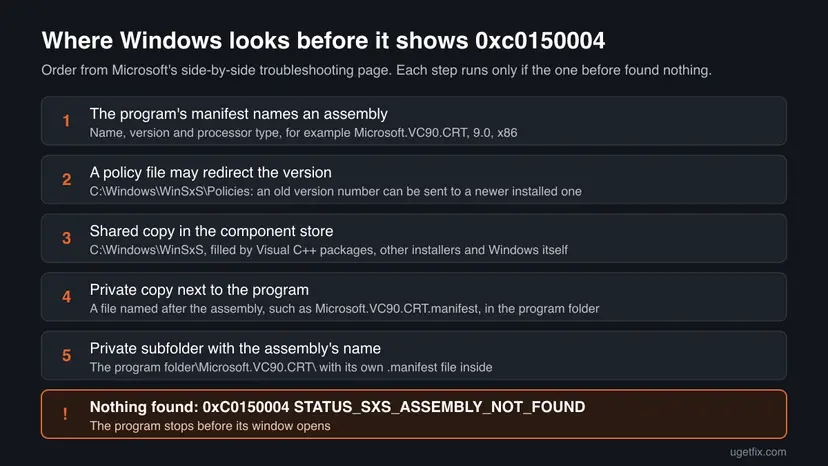
Many desktop programs carry a manifest, either inside the .exe file or as a separate file next to it. It names the shared assemblies the program needs, each with a name, a version and a processor type. Windows looks for each one in a fixed order, and 0xc0150004 is the answer when every place comes up empty.
- The code:
0xC0150004isSTATUS_SXS_ASSEMBLY_NOT_FOUND. Microsoft's text: the referenced assembly is not installed on your system. - The facility:
0x015,FACILITY_SXS_ERROR_CODE, the side-by-side part of Windows. Every code that starts with 0xC015 comes from it. - What it does not tell you: which assembly is missing. The error window never shows the name; the event log does (Fix 1).
- What it is not: a hardware fault, a driver problem or a sign of a virus. It is one program that cannot find one part.
A program that asks for the 32-bit (x86) Visual C++ 2008 runtime is not helped by the 64-bit one. Microsoft notes that 64-bit assemblies cannot be loaded in 32-bit processes, and many older programs and games are 32-bit even on 64-bit Windows.
Why programs fail with error 0xc0150004
The assembly is missing for one of four reasons. What happened on the PC just before the error started usually tells you which one.
| How often | Cause | Typical trigger | Fix |
|---|---|---|---|
| Most often | The Visual C++ 2005 or 2008 runtime the program was built with is not installed, or only for the other processor type. | A new PC, a fresh Windows install or Reset this PC, or an old program copied over from another computer. | Fix 2 |
| Often | A clean-up removed the runtime that several programs share. | A PC cleaner or a manual clean-up of "duplicate" Visual C++ entries, after which many programs fail on the same day. | Fix 3, then Fix 2 |
| Less often | The program's private copy in its own folder is gone or incomplete. | A failed update, a file quarantined by the antivirus, a portable copy missing files. | Fix 4 |
| Rarely | An assembly that belongs to Windows itself is damaged in the component store. | Windows' own tools fail too, or the missing name starts with Microsoft.Windows. | Fix 6, then Fix 7 |
When several programs you need all show 0xc0150004, they almost always share one missing runtime. One package, or one restore point from before the clean-up, fixes all of them together. You do not need to repair each program.
The Windows Store Apps troubleshooter checks Microsoft Store apps, and a clean boot stops background programs. Neither installs a missing assembly. Both appear in many guides for this code, but the code itself says something is not installed, so the fix is to install it.
How to fix Application error 0xc0150004
Fix 1 takes five minutes and tells you which of the others you need. Fix 2 solves most cases. Fix 3 is for several programs broken by a clean-up, Fix 4 for one program with a damaged folder. Fixes 5 to 7 are for when the event says too little or Windows itself is missing parts.
| Your situation | Start with |
|---|---|
| You do not know which assembly is missing yet | Fix 1 |
| The event names Microsoft.VC80 or Microsoft.VC90 | Fix 2 |
| Several programs started failing after a PC clean-up | Fix 3 |
| Only one program fails and the runtime is installed | Fix 4 |
| Event Viewer shows no SideBySide error for the program | Fix 5 |
| Windows' own tools fail, or the name starts with Microsoft.Windows. | Fix 6 |
Fix 1. Find the missing assembly in the SideBySide error in Event Viewer
5 minutesNo riskEveryone, before any other fix.
When the search for an assembly fails, Windows writes an error with the source SideBySide to the Application log. It holds what the error window leaves out: the full path of the program and the exact assembly, version and processor type that could not be found.
- Note the file name in the title bar of the error window, such as
editor.exe - Application Error, then select OK. - Right-click Start and select Event Viewer.
- In the left pane expand Windows Logs and select Application.
- In the right pane select Filter Current Log, tick SideBySide under Event sources and select OK.
- Open the newest Error from the minute the program failed and stay on the General tab.
- Find the words Dependent Assembly and write down the name after them, plus
processorArchitectureandversion.
A typical entry for this code reads like the one below. Here the program needs the 32-bit Visual C++ 2008 runtime.
Activation context generation failed for "C:\Program Files (x86)\Example\editor.exe".
Dependent Assembly Microsoft.VC90.CRT,processorArchitecture="x86",publicKeyToken="1fc8b3b9a1e18e3b",type="win32",version="9.0.21022.8" could not be found.
Please use sxstrace.exe for detailed diagnosis.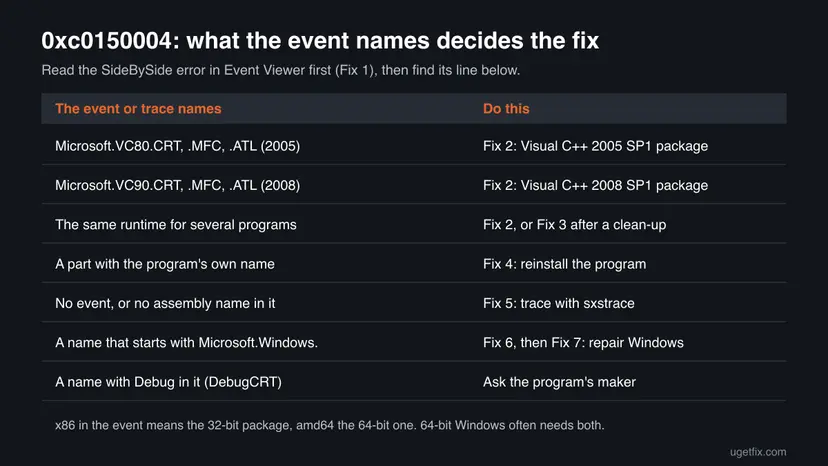
Open the SideBySide errors of two or three of them. If they all name the same assembly, one install fixes every program. If the paths sit in folders you never installed anything into, scan the PC first: How to scan for malware with Microsoft Defender.
It worked if: You have the program path, the missing assembly name, its version and x86 or amd64.
If not: If no SideBySide error matches the time of the failure, get the name with Fix 5.
Fix 2. Install the Visual C++ 2005 or 2008 SP1 package the event names
10 to 15 minutesLow riskThe Dependent Assembly starts with Microsoft.VC80. (Visual C++ 2005) or Microsoft.VC90. (Visual C++ 2008), such as CRT, MFC or ATL.
These assemblies reach WinSxS only through the Visual C++ 2005 or 2008 Redistributable. Microsoft says the packages for 2013 and earlier stay installed side by side, so the current 2017 to 2026 package does not stand in for them. The package must also match the program's processor type.
- Open Settings > Apps > Installed apps and type
Visual C++in the search box. - Check whether an entry for 2005 or 2008 with the processor type from the event (x86 or x64) is listed.
- Open Microsoft Learn's page Microsoft Visual C++ Redistributable latest supported downloads and scroll to Unsupported legacy versions.
- For 2008, download
vcredist_x86.exe(version 9.0.30729.5677) and, on 64-bit Windows,vcredist_x64.exeas well. - For 2005, follow the link to the Visual C++ 2005 Service Pack 1 Redistributable Package MFC Security Update and get the x86 and x64 files.
- Run each file and finish the setup. If that year is already installed and the installer offers Repair, choose it.
- Restart the PC and start the program that failed.
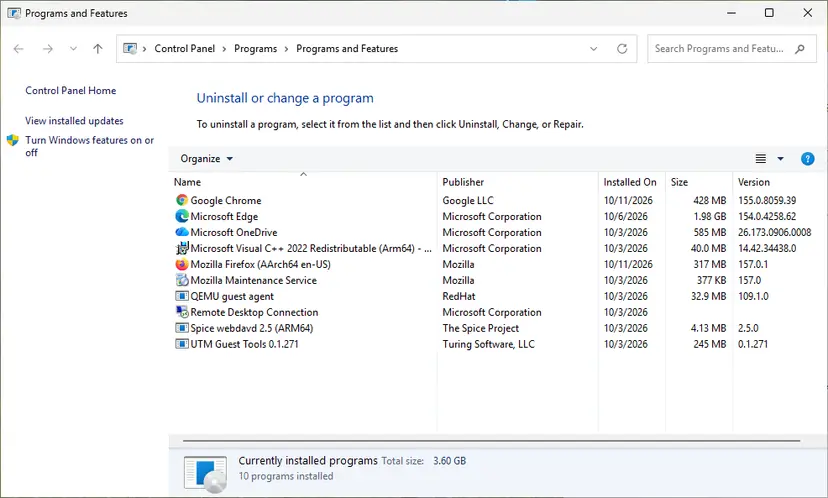
Repairing every installed Visual C++ year and .NET Framework, step by step: How to repair Microsoft Visual C++ Redistributable and .NET Framework.
Visual C++ 2005 left extended support on 12 April 2016 and 2008 SP1 on 10 April 2018, yet Microsoft still lists their last packages for old programs. Take them only from Microsoft's page. Do not uninstall other Visual C++ years: other programs depend on them.
It worked if: Setup ends without an error, the program opens after the restart, and no new SideBySide error appears.
If not: Check that you installed the processor type the event named. If the same name still fails, go to Fix 4; if no name was given, Fix 5.
Fix 3. Undo the clean-up that removed shared runtimes with System Restore
20 to 40 minutesRead the warningSeveral programs began to fail with 0xc0150004 on the same day, right after a PC cleaner, a runtime clean-up or the removal of many programs.
System Restore returns installed programs to the state of the restore point, and programs removed after it may come back. That puts the deleted Visual C++ packages back into WinSxS for every program at once, without hunting for each year.
Programs and drivers installed after the restore point are removed. Your documents, photos and other personal files are not touched. Note what you installed recently so you can put it back.
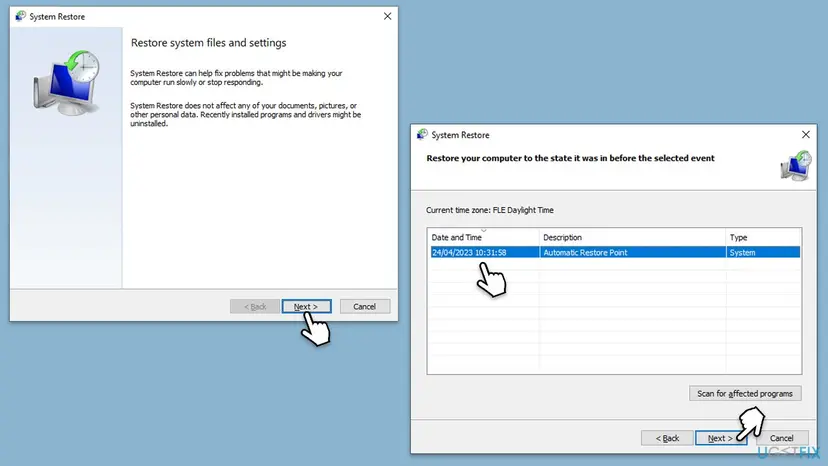
- Press Win + R, type
rstrui.exeand press Enter. - Choose a restore point from before the day the programs started to fail and select Scan for affected programs.
- In the list of programs that might be restored, look for Microsoft Visual C++ entries. Their presence confirms the cause.
- Close the scan, select Next, then Finish, and let Windows restart.
- Sign in and start the programs that failed.
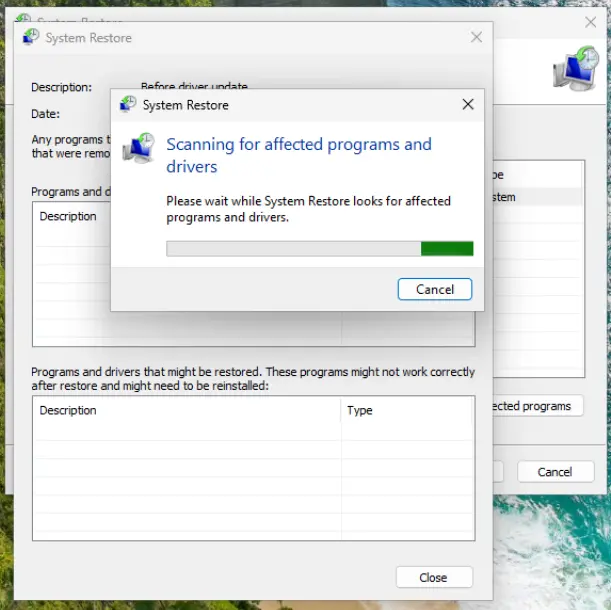
From the recovery screen, or to make a restore point first: Undo recent changes with System Restore.
It worked if: The programs open again, and the Visual C++ entries are back in Installed apps.
If not: If there is no restore point from before the clean-up, install each runtime the events name with Fix 2.
Fix 4. Reinstall the program whose own copy of the assembly is missing
10 to 20 minutesRead the warningOnly one program fails, the Visual C++ year it needs is installed, or the event names an assembly with the program's or its maker's name.
Microsoft's search order shows that after WinSxS, Windows looks in the program's folder for a manifest named after the assembly, then in a subfolder of that name. If those files were lost, the program fails even on a PC that has every runtime. A fresh install writes them back.
Some programs and games keep projects, settings or saved games in their own folder, and an uninstall can delete them. Copy that folder to another drive before step 4.
- Right-click the program's shortcut and select Open file location.
- Look for a
.manifestfile or a subfolder with the assembly name from Fix 1. Its absence confirms the cause. - Open Windows Security > Virus & threat protection > Protection history and check whether a file from this folder was quarantined. Do not restore it unchecked; reinstall instead.
- Open Settings > Apps > Installed apps, select the three dots next to the program and choose Uninstall.
- Restart the PC.
- Download the newest version from the maker or the store you bought it from, install it and start it.
More ways to remove a program, including Control Panel: Uninstall a program or app in Windows.
It worked if: The program starts, and its folder holds the manifest or subfolder again.
If not: If a fresh install of the newest version fails the same way, the installer itself is missing the part. See "If 0xc0150004 still appears" below.
Fix 5. Trace the start with sxstrace when the event names nothing
10 minutesNo riskThere is no SideBySide error for the program, the error has no Dependent Assembly line, or you installed the runtime and the program still fails.
The event text even ends with "Please use sxstrace.exe for detailed diagnosis". The tool is part of Windows and records every step of the assembly search, so it shows the reference Windows could not resolve.
- Select Start, type
cmd, right-click Command Prompt, select Run as administrator and then Yes. - Run
sxstrace trace -logfile:%USERPROFILE%\Desktop\sxs.etland leave the window open. - Start the program that fails and close the 0xc0150004 window with OK.
- Go back to Command Prompt and follow its prompt to stop the trace.
- Run
sxstrace parse -logfile:%USERPROFILE%\Desktop\sxs.etl -outfile:%USERPROFILE%\Desktop\sxs.txt. - Open
sxs.txtfrom the desktop in Notepad and search forERROR. The line usually reads Cannot resolve reference, followed by the assembly name, version and processor type.
sxstrace trace -logfile:%USERPROFILE%\Desktop\sxs.etl
sxstrace parse -logfile:%USERPROFILE%\Desktop\sxs.etl -outfile:%USERPROFILE%\Desktop\sxs.txt
It worked if: The text file names the assembly that was not found. Use the table in Fix 1 to pick the next fix.
If not: If the trace names an assembly that starts with Microsoft.Windows., go to Fix 6. If the stop prompt never appears, run sxstrace stoptrace in a second administrator window.
Fix 6. Repair Windows' own assemblies with DISM and SFC
20 to 30 minutesNo riskThe missing name starts with Microsoft.Windows., Windows' own tools fail with 0xc0150004 too, or Fixes 2 to 5 did not help.
Assemblies that ship with Windows live in the component store, C:\Windows\WinSxS, and no Visual C++ package replaces them. DISM repairs the store, by default from Windows Update, and SFC then restores protected system files from it.
- Open an elevated command window. Right-click Start and select Terminal (Admin), or type cmd in the search box, right-click Command Prompt and select Run as administrator. Select Yes when Windows asks for permission.
- Run DISM first. Type the command below and press Enter. DISM downloads clean copies of damaged components from Windows Update, so it can take several minutes. Wait until it says The operation completed successfully.
DISM.exe /Online /Cleanup-Image /RestoreHealth - Run System File Checker. In the same window, type the command below and press Enter. Do not close the window until the verification reaches 100%.
sfc /scannow - Read the result and restart. Compare the last message with the table below this guide, then restart the PC so that repaired files are loaded.
These steps were written for Windows 11 24H2 and 25H2. The full page with the other versions and what each result means: Run DISM and SFC to repair Windows system files
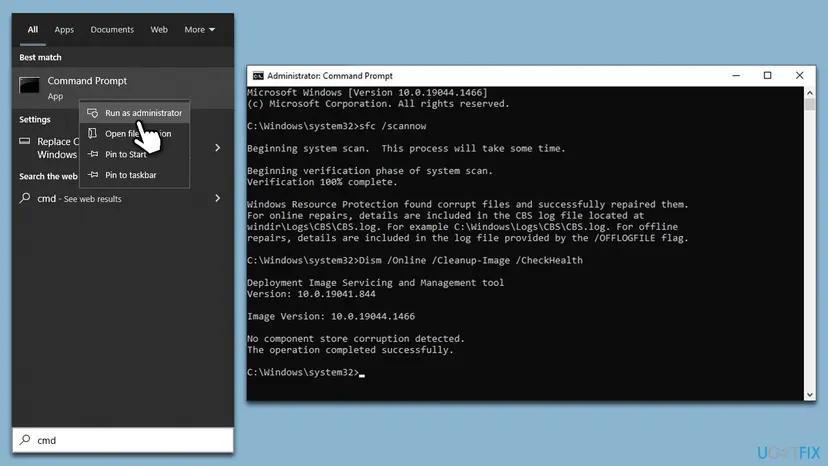
It worked if: DISM reports The restore operation completed successfully, and SFC finds nothing or repairs files. After a restart the program opens.
If not: If DISM cannot repair the store, or the error remains, go to Fix 7.
Fix 7. Repair-install Windows and keep your apps and files
1 to 2 hoursRead the warningWindows' own assemblies are still missing after Fix 6, or many programs fail and nothing above helped.
A repair install writes a fresh copy of Windows, including its component store, over the current one. Your apps, files and settings stay, and so do the Visual C++ packages you installed.
A repair install keeps your files, but a power cut or a failing disk during it can cost data. Back up your documents and have your BitLocker recovery key ready if the drive is encrypted.
- Open Recovery in Settings. Open Settings > System > Recovery. Next to Fix problems using Windows Update, select Reinstall now. This keeps your apps, files and settings.

Fix problems using Windows Update reinstalls the current version and keeps apps, files and settings. Screenshot: Windows 11 26H2. - Start the reinstall. Choose whether the PC may restart on its own 15 minutes after the installation, then select OK.
- Wait and restart. Windows Update downloads and installs a repair copy of your current Windows version. Keep the PC plugged in and online, and restart it when asked.
These steps were written for Windows 11 22H2 and later. The full page with the other versions and what each result means: Reinstall Windows without losing files
On Windows 10, the same repair runs from Microsoft's Windows 10 setup: start the Media Creation Tool from Microsoft's download page, choose Upgrade this PC now, and keep personal files and apps when asked.
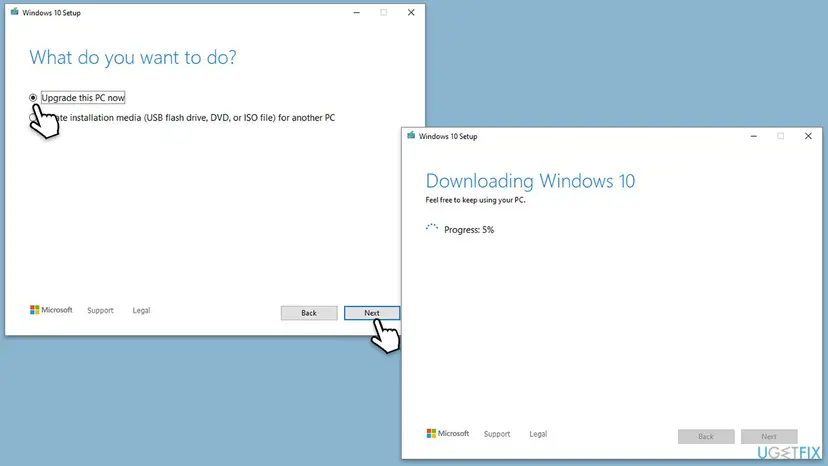
It worked if: Windows restarts on the same desktop with your apps, and the programs open without 0xc0150004.
If not: If one program still fails on a freshly repaired Windows, the program is missing the part, not Windows. Read the next section.
If 0xc0150004 still appears
If one program still fails after Fixes 2 and 4, its installer does not deliver the assembly its manifest asks for. Microsoft's own download page tells people fixing an app this way to contact the app's maker, who can say which runtime that version needs.
- Copy the newest SideBySide error text from Event Viewer (Fix 1).
- Add the
sxs.txtfile from Fix 5. - Press Win + R, run
winverand copy the version and OS build. - Send all three to the program's support and ask which Visual C++ package and processor type it needs.
- A name with Debug in it, such as Microsoft.VC90.DebugCRT, means the program was built in a developer test mode. We could not find a public Microsoft package for these; only the maker can ship a fixed build.
- A work or school PC may block installing runtimes. Ask your IT department instead of working around it.
- Disk or Ntfs errors in Windows Logs > System point to a failing drive that can damage the component store again. Check it with Check a disk for errors (chkdsk) and back up your files.
- A different message: if a program shows code 0xc0150002 or says its side-by-side configuration is incorrect, see our guide to error 0xc0150002.
How to keep error 0xc0150004 from coming back
This code returns when shared runtimes disappear. They rarely disappear on their own: a clean-up, a reset or a copied program is usually behind it.
- Leave every Visual C++ year installed, x86 and x64, even when the list looks long.
- Make a restore point before you run any clean-up or remove many programs at once.
- After a new PC or a Windows reset, install old programs from their setup files, not by copying folders.
- Get runtimes from Microsoft's Visual C++ downloads page only.
- Let a PC cleaner remove "old" or "duplicate" Visual C++ packages.
- Copy files or folders into
C:\Windows\WinSxSfrom another PC. - Download single runtime DLLs from DLL collection sites.
- Restore a quarantined program file without checking what it is.
Frequently asked questions
What is Application error 0xc0150004?
It is Windows telling you that a program needs a side-by-side assembly that is not installed. In Microsoft's NTSTATUS list the code is STATUS_SXS_ASSEMBLY_NOT_FOUND. The program's manifest names a shared part, Windows could not find it in WinSxS or in the program's folder, and so the program was stopped before it opened. The name of the missing part is in the SideBySide error in Event Viewer.
Why do several of my programs show 0xc0150004 at the same time?
Because they share the missing part. Programs built with the same Visual C++ 2005 or 2008 tools all load the same runtime from WinSxS, so when it goes, all of them fail with the same code. A PC cleaner, a manual clean-up of Visual C++ entries or a Windows reset is the usual trigger. Check that two of the SideBySide errors name the same assembly, then install it once or restore to before the clean-up.
Will installing the latest Visual C++ Redistributable fix 0xc0150004?
Usually not. The current package covers programs built with Visual Studio 2017 to 2026, while 0xc0150004 programs most often ask for Microsoft.VC80 or Microsoft.VC90, the 2005 and 2008 runtimes. Microsoft says packages for 2013 and earlier remain installed side by side, so each year is a separate install. Install the year the event names, in the processor type it names, from Microsoft's legacy versions section.
What about "unable to start correctly 0xc0150001"?
0xc0150001 is STATUS_SXS_SECTION_NOT_FOUND: the requested section is not present in the activation context. It comes from the same side-by-side part of Windows and shows the same kind of window. The way in is the same: read the SideBySide event or run sxstrace to see what the program could not resolve, then install the runtime it names or reinstall the program.
Can I copy the missing files from another PC?
No. A side-by-side assembly is more than a DLL: it is registered in WinSxS with its manifest, version, processor type and signature, and Windows checks all of them. Files copied by hand into WinSxS or next to the program usually do not match, and DLL download sites add the risk of malware. The Visual C++ package from Microsoft, or the program's own installer, puts every file in the right place.
Is 0xc0150004 a virus?
No. The code is a loading failure, not a security warning. A virus is worth checking for in two cases only: the program path in the event is in a Temp or AppData folder you never installed anything into, or Protection history shows that Microsoft Defender quarantined a file from the program's folder. In the second case reinstall the program from its maker rather than restoring the file.
Do the Store Apps troubleshooter, Windows Update or a clean boot help?
Rarely, and none of them is the fix for this code. The Store Apps troubleshooter checks Microsoft Store apps, while 0xc0150004 hits desktop programs. A clean boot stops background programs but installs nothing. Windows Update does not install the Visual C++ 2005 or 2008 runtime; it matters only as the source DISM uses to repair Windows' own assemblies in Fix 6.
I did everything and it still does not work. What now?
Look at what the event or trace names after the last fix, because the name often changes. A new name means you fixed one part and the program needs another; install that one too. The same name after a correct install, in the right processor type, means the program's installer is at fault. Send its maker the SideBySide error, the sxstrace file and your Windows build, as described above.
I searched in another language. Is this the right page?
Yes, if the window shows 0xc0150004. Searches such as "bagaimana mengatasinya", "mit csináljak?" or "masih error juga" ask how to fix the error or say it is still there. The code is the same in every Windows language, and Event Viewer shows the SideBySide source and assembly names in English on every system, so the steps here work unchanged.
Sources
- Microsoft Windows SDK ntstatus.h (win32metadata): 0xC0150004 STATUS_SXS_ASSEMBLY_NOT_FOUND, 0xC0150001, 0xC0150002 and the Application Error text (github.com)
- Microsoft Learn: Troubleshooting C/C++ Isolated Applications and Side-by-side Assemblies (manifest, WinSxS, policies, private assembly search order, x86 and 64-bit) (learn.microsoft.com)
- Microsoft Learn: Microsoft Visual C++ Redistributable latest supported downloads (2005 and 2008 SP1 legacy packages, architecture, side-by-side installs) (learn.microsoft.com)
Did this fix work?
One click, no account. It tells the next reader which guides are worth their time.
Questions and experiences: fix Application error 0xc0150004 in Windows
Still broken, or found a fix we did not cover? Ask here: members and our editors answer. Reading is open; writing needs a free account.
…