
How to fix "Application error: a client-side exception has occurred" on Chrome?

Prefer to fix it yourself? The manual steps follow.
- 9methods
- 1 to 15 minutes
- Easy
Applies to Google Chrome on Windows 11, Windows 10, Android and iPhone; Edge, Firefox and Safari; websites built with Next.js
9 methods in this guide
- What the error means
- Why it appears
- You or the website
- When a site is named
- The fixes
- 1. Reload without the cache
- 2. Turn off page translation
- 3. Incognito and extensions
- 4. Delete the site's data
- 5. Update the browser
- 6. Network and filters
- 7. Read the browser console
- 8. Owners: find the error
- 9. Owners: error boundary
- Still broken: report it
- Keep it from coming back
- FAQ
How can I fix this error: "Application error: a client-side exception has occurred (see the browser console for more information)"? I get this on some pages. They seem to be loading at first, but then they become black with the message in the middle. What can I do here?
"Application error: a client-side exception has occurred" is the built-in error screen of Next.js, the framework the website is built with. It means the site's JavaScript crashed in your browser, so the fault is usually in the website, not in Chrome. Reload the page without the cache first, then rule out page translation, extensions and old site data.
Press Ctrl + Shift + R to reload the page without cached files (Fix 1). If the message returns, turn off page translation (Fix 2) and open the page in an Incognito window with Ctrl + Shift + N (Fix 3). If it fails there too, and on another device, the website itself is broken and only its owner can repair it. Send them the red lines from the browser console (Fix 7).
| Error | Application error: a client-side exception has occurred (see the browser console for more information). |
|---|---|
| Where it appears | In the browser tab, in place of the page, usually a moment after the page started to load. The background is white or black and the tab title shows the same sentence. |
| Main cause | An error in the website's own JavaScript that the site did not catch. Next.js, the framework of the site, then shows this default screen. |
| Fastest fix | Reload without the cache: Ctrl + Shift + R (Fix 1). Then turn off page translation (Fix 2). |
| Also written as | "a client-side exception has occurred while loading www2.hm.com" (with any site name), "a server-side exception has occurred (see the server logs for more information)", and from Next.js 16.2 "This page couldn't load". |
| Affects | Every browser, not only Chrome: Edge, Firefox and Safari on Windows, macOS, Android and iPhone, and pages opened inside other apps. |
| Status at Next.js and Chrome | Not a bug in Chrome and not a bug in Next.js. It is documented behaviour: the Next.js error reference has a page named "Client-side Exception Occurred". |
| Where the real cause is written | In the browser console. Press Ctrl + Shift + J on the error page, reload and read the first red line (Fix 7). |
| Who can fix it | You, when translation, an extension, old site data, an old browser or a blocked script triggers it. The site owner in every other case. |
| Time to fix | 1 to 15 minutes to test everything on your side. No fix on your side exists when the site is broken for everyone. |
Facts checked on 13 October 2026. Steps written for Chrome for Windows 11 (25H2 and 26H2) and Windows 10 22H2, with notes for Android and iPhone.
What "Application error: a client-side exception has occurred" means
The sentence is not written by Chrome and not by Windows. It is a fixed English text inside Next.js, a framework that many websites and web apps are built with. We read it on 13 October 2026 in the Next.js source code, in the default error component of the framework.
Each part has a plain meaning. Application is the website. Client-side means in your browser, not on the site's server. An exception is a JavaScript error that stopped the code. The Next.js reference adds the missing piece: the error "was not caught by an error boundary", which is the site's own safety net.
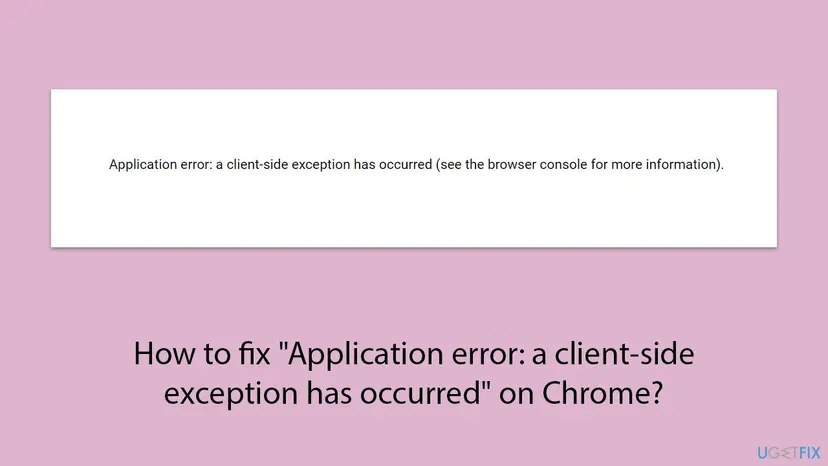
| What the screen says | What it tells you |
|---|---|
| Application error: a client-side exception has occurred (see the browser console for more information). | The code crashed in the browser. Shown by sites that use the App Router of Next.js up to version 16.1. |
| Application error: a client-side exception has occurred while loading www2.hm.com (see the browser console for more information). | The same crash on a site that uses the older Pages Router of Next.js. The name is simply the address of the site you are on. |
| Application error: a server-side exception has occurred (see the server logs for more information). Digest: 1234567890 | The crash happened on the site's server. Nothing in your browser can change it. The digest number is for the site's developers. |
| This page couldn't load. Reload to try again, or go back. | The new default screen for the same situation in Next.js 16.2 and later, with Reload and Back buttons. |
The default error page of Next.js follows the colour scheme of your device. Its built-in style sets a black background and white text when the device is in dark mode. So the page that "loads and then turns black" is this error screen, not a crash of your graphics card or of Chrome.
- The page often shows for a second before the message. React, the library under Next.js, removes a crashed page from the screen, and Next.js draws its error screen in the empty place.
- A site can replace this screen with its own design. Sites that did so show a different text for the same problem.
- On Pages Router sites Next.js also writes two lines to the console: the error itself, and a line that starts with
A client-side exception has occurred, see here for more info.
Why a client-side exception happens: the causes, ranked
Most often the cause is in the website: a programming mistake, or a new release that went out while your tab was open. Less often something on your device changes the page or blocks a part of it. Rarely the browser is too old for the site.
| Cause | How often | How to tell | Fix |
|---|---|---|---|
| A bug in the site's JavaScript, or data the code did not expect. | Most often | The page fails in Incognito, in another browser and on another device. | Fix 7, then report it |
| The site published a new version while your tab was open. The tab asks for files that no longer exist. | Often | The site worked minutes ago. The console shows ChunkLoadError or a 404 line for a .js file. | Fix 1 |
| Chrome translated the page and rewrote its text. | Often on foreign-language sites | The Translate icon is in the address bar. The console names removeChild or insertBefore. | Fix 2 |
| An extension changes the page or blocks a script. | Sometimes | The page works in an Incognito window. | Fix 3 |
| Old cookies, stored site data or cached files of this site. | Sometimes | Works in Incognito with every extension off. Fails only when you are signed in. | Fix 4 |
| The browser is older than the versions the site supports. | Rarely | Chrome was not updated for a long time, or the page is opened inside another app. | Fix 5 |
| A VPN, a filter or a restricted network blocks one of the site's scripts. | Rarely | The page works on a phone with mobile data. | Fix 6 |
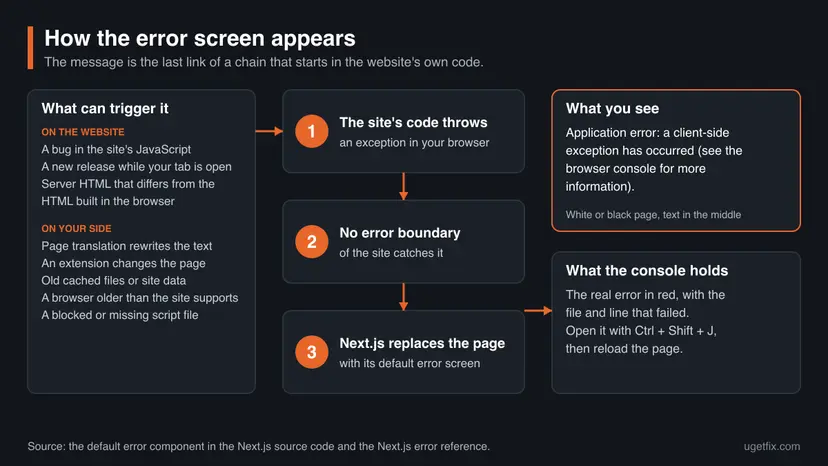
Neither Next.js nor Google publishes numbers on how often each cause occurs. The order above follows what the Next.js and React documentation name as causes, and how cheap each one is to rule out. Treat "how often" as our judgement, not as a statistic.
What you can fix as a visitor and what only the website can fix
You cannot repair the site's code from your browser. What you can do is remove the triggers on your side and find out, in a few minutes, whether the site is broken for everyone. Four tests answer that.
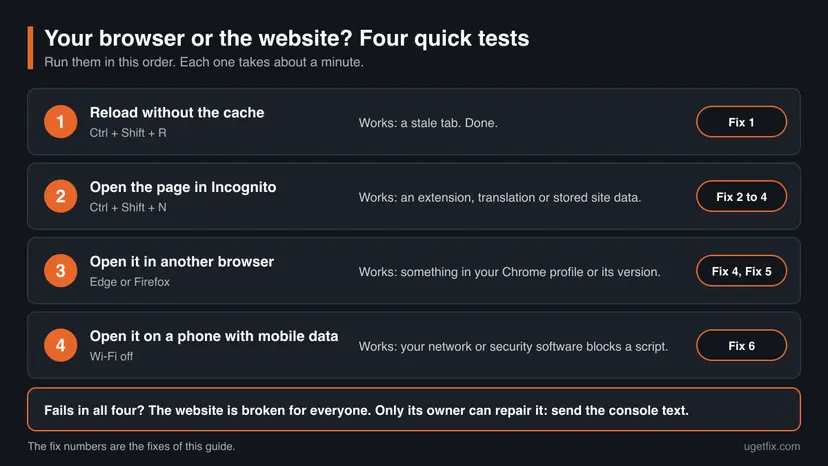
If the error appears on many unrelated sites at once, the trigger is on your side, because those sites do not share code. Start with Fix 2 and Fix 3. If it appears on one site only, and on every device you try, it is that site.
When the message names a site: www2.hm.com, labs.google, Udemy and others
Many people search for this error together with a site name: www2.hm.com, labs.google, shop.mtn.ng, app.vivo.com.br, Udemy and more. The name in "while loading" is not the culprit of some hidden download. Next.js simply inserts the host name of the page you are on.
- www2.hm.com (H&M). On 13 October 2026 a web search for the exact sentence returned H&M pages of several country versions with this message stored as their title. A search engine's crawler has no extensions and no old cache, so the site itself served the error. We found no statement from H&M.
- labs.google, shop.mtn.ng, app.vivo.com.br and other named sites. We could not load their code for a check, because the sites block automated requests. The wording itself shows that they run on Next.js. We found no public statement from their owners.
- Udemy. Users on Reddit asked whether Udemy was down when it showed this message. That is a report, not a statement from Udemy. The steps on this page apply to it as to any other site.
- Checkout or payment windows inside an app. The page runs in the app's built-in browser. Extensions play no part there. Update the app, or open the same address in Chrome.
For a named site the order is the same: Fix 1, then Fix 2 to Fix 4, then the four tests. If the page fails on a second device too, stop changing your PC. Use the site's mobile app or another channel in the meantime, and report the error as described under "If the error is still there".
How to fix "Application error: a client-side exception has occurred"
Fixes 1 to 6 are for visitors and remove every trigger that can sit on your side, the cheapest first. Fix 7 reads the real error from the console. Fixes 8 and 9 are for the owner or developer of the site.
| What you see or have | Start with |
|---|---|
| The site worked a moment ago and now shows the message. | Fix 1 |
| The site is in a foreign language and Chrome translated it. | Fix 2 |
| The message appears on several unrelated sites. | Fix 3, then Fix 2 |
| Only one site fails, and only when you are signed in. | Fix 4 |
| An old PC or phone, or a page opened inside another app. | Fix 5 |
| The site works on mobile data but not on your Wi-Fi or work network. | Fix 6 |
| The page fails in every browser and on every device. | Fix 7, then report it to the site |
| It is your own website or app. | Fix 8, then Fix 9 |
Fix 1. Reload the page without the cache and open it in a new tab
1 minuteNo riskThe site worked a short time ago, or the message appeared after the tab stayed open for a long time.
When a site publishes a new version, a tab that is still open can ask for script files that no longer exist. Next.js calls this version skew and lists missing files among its results. A normal reload may reuse old cached files, so tell Chrome to download everything again.
- Click the page once and press Ctrl + Shift + R. Shift + F5 does the same. Chrome reloads the page and ignores cached content.
- If the message stays, close the tab.
- Open a new tab and type the address of the site's home page. Do not reopen the old tab from the history.
- Go to the page you need through the site's own menu.
- If the message is still there, wait a few minutes and repeat step 1. A release that is in progress can take that long to settle.
On Android and iPhone, Chrome has no key for a reload without the cache. Close the tab, open the site again in a new tab and, if the message stays, delete the cached files as described in Fix 4.
It worked if: The page loads to the end and stays on the screen after the reload.
If not: If the page fails again after a few minutes, the cause is not a stale tab. Go on to Fix 2.
Fix 2. Stop Chrome from translating the page
2 minutesNo riskThe site is not in your language and Chrome translates it, or the Translate icon shows in the address bar.
Chrome's translator changes the text of the page in place. React, the library under Next.js, later tries to update or remove the original text and no longer finds it where it left it. React's issue 11538 records this, with the error Failed to execute 'removeChild' on 'Node'.
- Look at the right end of the address bar. If the Translate icon is there and the page was translated, this fix is for you.
- Press Ctrl + Shift + R and do not accept the translation when Chrome offers it.
- If Chrome translates the page by itself, select More (the three dots) and open Settings.
- Select Languages on the left.
- Scroll down past Preferred languages and Spell check to Google Translate and turn off Use Google Translate.
- Go back to the tab and press Ctrl + Shift + R.
- When you are done with the site, turn Use Google Translate back on if you want Chrome to offer translations again.
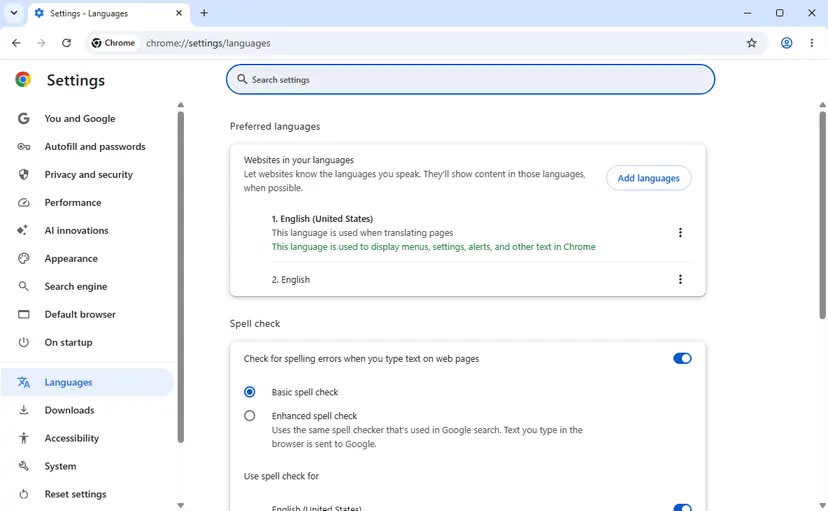
- One language only. In the same place, Chrome keeps two lists: "Automatically translate these languages" and "Never offer to translate these languages". Remove the site's language from the first list or add it to the second.
- Android. In Chrome select More > Settings > Languages. Under "Translation settings", turn off Offer to send pages in other languages to Google Translate.
- You need the translation to read the site. Google's help page names a second way: open translate.google.com and select Websites. We did not test whether a given site works there.
A React team member wrote in that issue that React cannot be changed to survive this without making real mistakes harder to find or making apps slower. He filed a bug with the Chromium project instead. So the fix is on the site's side (Fix 9) or in this setting.
It worked if: The page stays in its original language and no longer turns into the error screen while you use it.
If not: If the page fails with translation off, turn the setting back on and go on to Fix 3.
Fix 3. Open the page in an Incognito window, then find the extension
5 to 10 minutesNo riskThe message appears on more than one site, or you use an ad blocker, a privacy tool, a dark mode or a shopping extension.
The Next.js documentation lists "browser extensions modifying the HTML" among the causes of errors while a page starts. An extension can also block a script the page needs. An Incognito window runs without your extensions, unless you allowed one there, and starts with empty cookies.
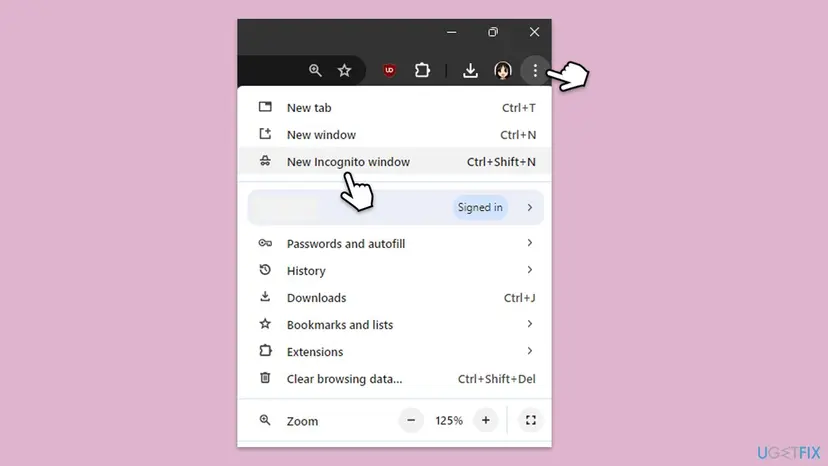
- Press Ctrl + Shift + N, or select More > New Incognito window.
- Open the failing page in the Incognito window. If the message is there too, extensions are not the cause: go to Fix 5.
- If the page works, go back to the normal window and select More > Extensions > Manage extensions.
- Turn off every extension with its switch.
- Reload the failing page with Ctrl + Shift + R. If it still fails with every extension off, the cause is stored site data: go to Fix 4.
- If it works, turn the extensions on one at a time and reload the page after each one.
- When the message returns, you have found the extension. Select Remove, or keep it switched off while you use this site.
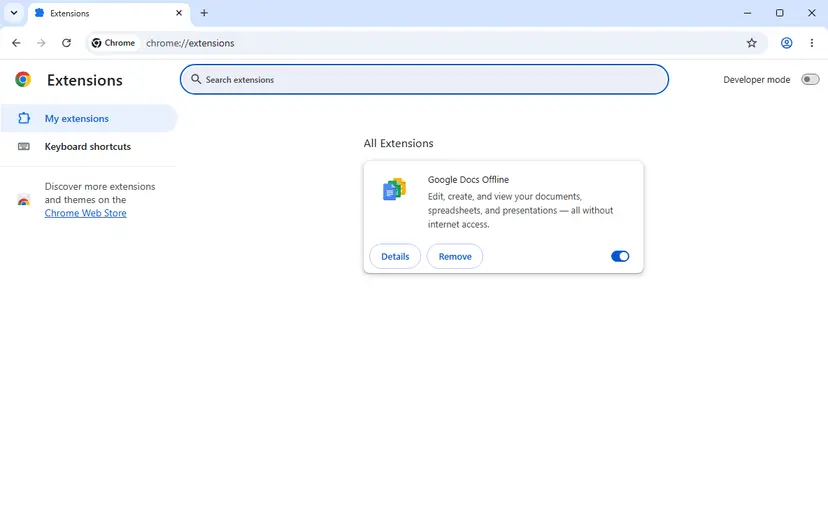
- Under Details, an extension can also be limited to certain sites instead of being removed. Use that for an extension you need elsewhere.
- If the page fails only in the Incognito window, the reason can be third-party cookies. Chrome blocks them by default in Incognito mode.
- Chrome on Android and iPhone has no extensions from the Chrome Web Store, so skip this fix on a phone.
It worked if: The page works with one extension off and fails again when you turn that extension on.
If not: If the page works only in Incognito and no extension is the cause, go on to Fix 4.
Fix 4. Delete the stored data and cached files of that one site
3 minutesLow riskThe page works in an Incognito window with every extension off, or it fails only while you are signed in to the site.
A site keeps cookies and other data in your browser. If that data was saved by an older version of the site, or is damaged, the new code can crash as soon as it reads it. Deleting the data of this one site keeps you signed in everywhere else.
You will be signed out of this site, and things the site stored only in the browser, such as a shopping cart you built without an account, can be lost. Make sure you know your password for the site first.
- In Chrome select More > Settings.
- Select Privacy and security, then Third-party cookies.
- Select See all site data and permissions.
- Type the site's name in the search box at the top right.
- Select Delete next to the site and confirm with Delete.
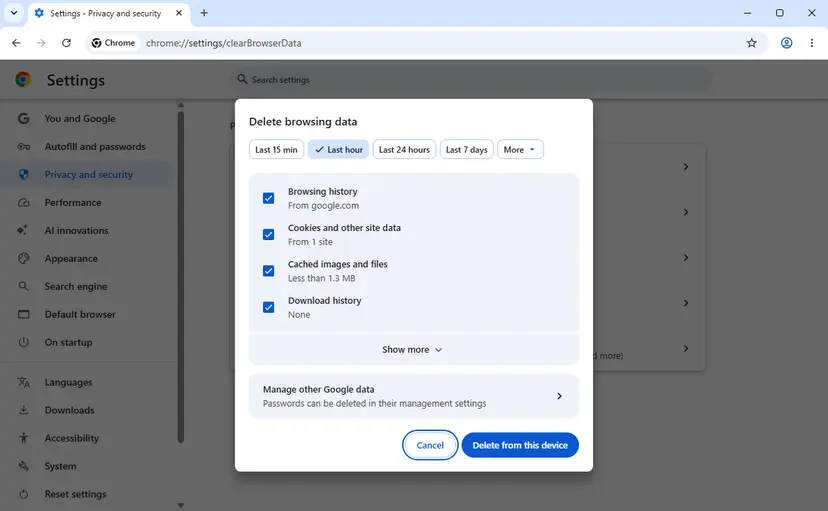
- Press Ctrl + Shift + Delete. At the top of the dialog open More and choose All time.
- Untick every box except Cached images and files and select Delete from this device.
- Close every tab of the site, open it again in a new tab and sign in.
- Android. In Chrome tap More > Delete browsing data, then More options. Select cookies and cached files and tap Delete data. This deletes them for all sites.
- iPhone and iPad. In Chrome tap More > Delete Browsing Data, set the time range, tap Browsing Data to choose the types and confirm.
- The same steps with pictures for Chrome, Edge and Firefox: Clear the browser cache and cookies
It worked if: The site asks you to sign in again and the page then loads without the message.
If not: If the message is back right after you sign in, the site has a problem with the data of your account. Report it as described below, and try Fix 5 meanwhile.
Fix 5. Update Chrome, or open the page in the full browser
5 minutesNo riskChrome was not restarted or updated for a long time, the device is old, or the page opens inside another app.
Next.js builds sites for modern browsers by default: Chrome 111, Edge 111, Firefox 111 and Safari 16.4 or later. An older browser does not know some of the JavaScript the site sends, and the code stops with an exception. The site's developers can change that list, so a given site may need more or less.
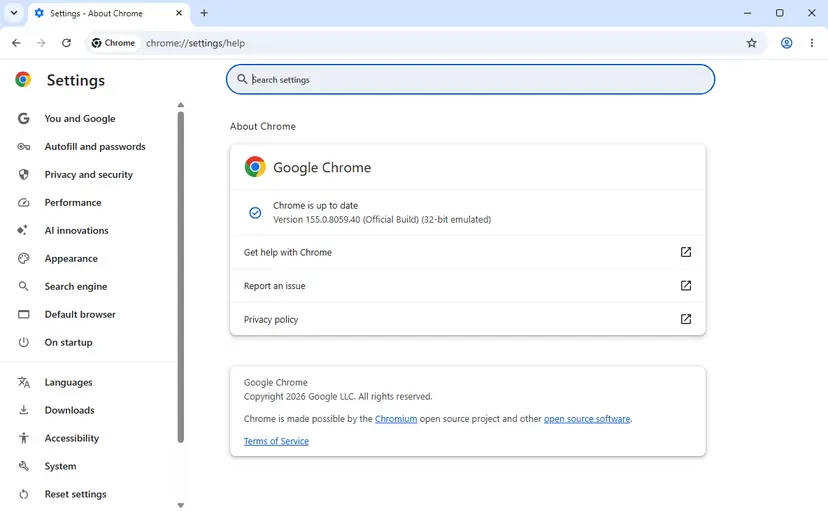
- In Chrome select More > Help > About Google Chrome. Chrome shows its version and checks for updates.
- If Relaunch appears, select it. If there is no such button, you are on the latest version.
- On Windows, close every Chrome window and open Chrome again so that the update is applied.
- Open the failing page again.
- Android. Open the Play Store, tap the profile icon, then Manage apps & device. Under "Updates available", find Chrome and tap Update. Chrome for Android needs Android 10 or later.
- iPhone and iPad. Open the App Store, tap Profile, scroll to "Available Updates" and tap Update next to Chrome. Chrome needs iOS 18 or later, and Next.js sites expect Safari 16.4 or later.
- A page inside another app. Social, shopping and banking apps often open links in a small built-in browser. Copy the address and open it in Chrome itself.
- An old PC. Google lists Windows 10 or later for Chrome, although Microsoft ended Windows 10 support on 14 October 2025. On an older Windows version Chrome no longer updates, and no setting will change that.
It worked if: About Google Chrome shows that Chrome is up to date, and the page loads after the relaunch.
If not: If Chrome was already up to date, the browser version is not the cause. Go on to Fix 6.
Fix 6. Check whether your network or a filter blocks the site's scripts
5 to 10 minutesNo riskYou use a VPN, a DNS filter, a security program with web filtering, or a work, school or hotel network.
A page built with Next.js is put together from many script files, some of them from other servers. If one of them is blocked or times out on its way, the code that depends on it throws an exception. The test is simple: load the same page over another connection.
- Turn off Wi-Fi on your phone and open the page in the phone's browser over mobile data.
- If the page fails there as well, your network is not the cause. Skip to Fix 7.
- If it works on the phone, disconnect the VPN or proxy on the PC and reload the page with Ctrl + Shift + R.
- If your security program has a web filter or an ad blocking feature, pause that feature for one reload and turn it back on.
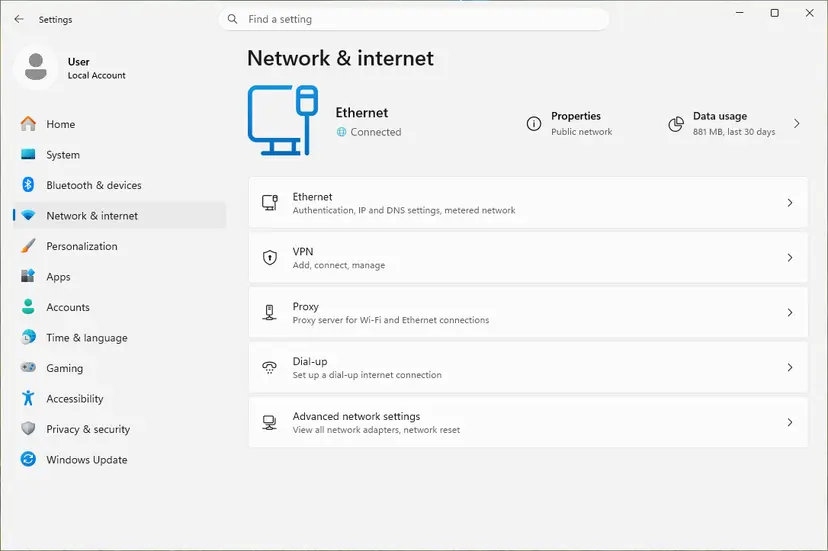
- Check that the connection itself is stable. The steps for Windows 11 and Windows 10 are here: How to check your internet connection in Windows
- On a work or school network, send the address of the page to the administrator. A blocked script address must be allowed there.
It worked if: The page loads once the VPN, the filter or the restricted network is out of the way.
If not: If the page fails on every connection, read the console in Fix 7 to see the real error.
Fix 7. Read the real error in the browser console
5 minutesNo riskThe fixes above did not help, or you want to know the cause before you write to the site.
The message itself says where the details are: "see the browser console". The console is a panel of Chrome's developer tools that lists the errors of the page, with the file and the line that failed. Reading it changes nothing on the page or on your PC.
- With the error page open, press Ctrl + Shift + J. F12 also opens the developer tools: select the Console tab there.
- Press Ctrl + R to reload the page, so that the console records it from the start.
- Look for lines in red. The first red line is usually the cause, the ones after it are often its results.
- Compare the red line with the table below.
- Right-click inside the console and select Save as... to save the messages as a
.logfile. Copy console puts them on the clipboard instead.
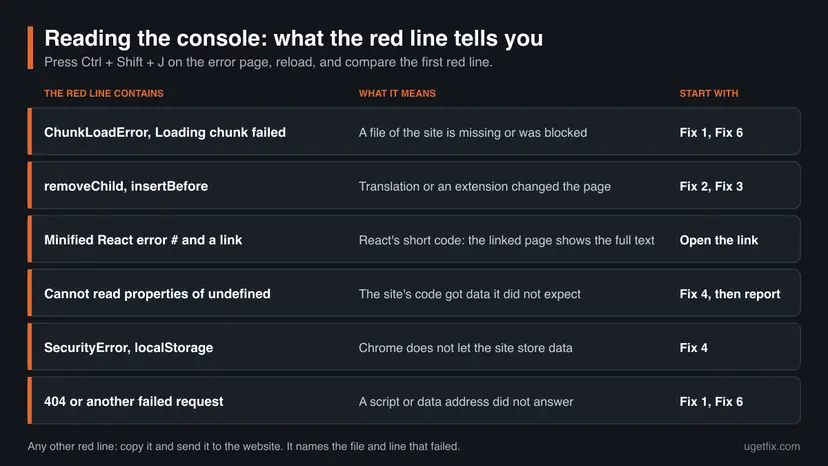
| The red line contains | What it means | What to do |
|---|---|---|
ChunkLoadError or Loading chunk 123 failed | A script file of the site could not be loaded: removed after a release, or blocked. | Fix 1, then Fix 6 |
Failed to execute 'removeChild' on 'Node', or insertBefore | Something changed the page behind React's back: translation or an extension. | Fix 2, then Fix 3 |
Minified React error # with a link to react.dev | React's short code for a production site. The linked page shows the full text of the error. | Open the link and read the text |
TypeError: Cannot read properties of undefined | The site's code expected data that was not there. A bug in the site, sometimes set off by old stored data. | Fix 4, then report it |
SecurityError together with localStorage | The browser refuses to let the page store data, for example because site data is blocked. | Allow site data for this site, then Fix 4 |
A 404 or another failed request for a .js file or an address with api in it | A script or the site's data service did not answer. | Fix 1, then Fix 6, then report it |
- The console clears when a new page loads. To keep the lines, open Console Settings and tick Preserve log.
- A console can show sign-in tokens or personal data of your account. Read what you copied before you send it to anyone.
- Chrome on a phone has no console of its own. Google's remote debugging needs a USB cable, a computer and the address
chrome://inspect#devices, which is a job for developers.
It worked if: You see one or more red lines and can match the first one with a row of the table.
If not: If the console shows no red line, reload once more with the console open. If the line matches no row, send it to the site as described below.
Fix 8. Site owners: find the uncaught error behind the message
30 to 60 minutesNo riskThe site or web app is yours, or you develop it, and visitors report this message.
The Next.js reference states the cause in one sentence: in the production application a client-side error occurred that no error boundary caught. The message is only the symptom. The task is to find which error it was, on which route, and for which visitors.
- Open the failing address in Chrome, press Ctrl + Shift + J, reload and expand the first red error to see its call stack.
- Production code is minified, so the stack is hard to read. For a test build, turn on browser source maps with the setting below. Next.js keeps them off by default so that the source does not leak.
- Or run the same route with
next dev. In development Next.js shows the error with its call stack instead of this screen. - Ask the reporter for the browser, its version, the language of the page and whether translation or an ad blocker was on. These decide which row of the table below applies.
- Reproduce with the same conditions: translate the page in Chrome, turn on an ad blocker, or open a tab, deploy, and then click a link in the old tab.
- Fix the cause in the code, then add the safety net described in Fix 9.
Browser source maps for a test build
// next.config.js
module.exports = {
  productionBrowserSourceMaps: true,
}| Where to look | What goes wrong | Source |
|---|---|---|
Rendering code that reads window, localStorage or typeof window | The server and the browser build different HTML, and hydration fails. | Next.js hydration error reference |
Dates and times built during rendering, such as new Date() | The server's value differs from the visitor's. | Next.js hydration error reference |
Invalid HTML nesting, for example a <div> inside a <p> | The browser repairs the markup and React no longer recognises it. | Next.js hydration error reference |
| A CDN that rewrites the HTML, such as Cloudflare Auto Minify | The HTML that arrives is not the HTML that was rendered. | Next.js hydration error reference |
| Data from an API used without a check | A missing field gives Cannot read properties of undefined. | MDN, TypeError |
| Rolling deployments and several server instances | Old tabs ask for files of a build that is gone. | Next.js self-hosting guide |
| Phone numbers and addresses in text on iPhone | iOS turns them into links and changes the HTML. | Next.js hydration error reference |
In production the browser receives no details of server errors. Next.js hides them on purpose and sends a digest instead, which you match with the server logs. A client-side exception is different: its full text is in the visitor's console.
It worked if: You can name the error, the file and the route, and you can make the message appear on your own machine.
If not: If you cannot reproduce it, add error reporting in an error boundary (Fix 9) and collect the errors of real visitors.
Fix 9. Site owners: catch the error and protect open tabs during a release
1 to 2 hoursLow riskYou found the cause, or you cannot remove every trigger and want visitors to see a working page instead of this message.
The default screen appears only because nothing in the app caught the error. An error boundary shows your own fallback with a retry button and lets you log the error. A deployment ID stops the most common release problem, an old tab that mixes old and new files.
- App Router: add an
error.jsfile to the route segment. It must be a Client Component and start with'use client'. - Add
global-error.jsin the rootappfolder for errors in the root layout. It replaces the layout, so it must contain its own<html>and<body>tags. - Pages Router: create
pages/_error.jsfor a custom error page andpages/500.jsfor the static 500 page. - In the error component, log the error to your error reporting service. The example in the Next.js documentation does this in
useEffect. - Wrap risky code in event handlers and asynchronous code in
tryandcatch. Error boundaries catch errors during rendering only. - Set a
deploymentIdinnext.config.js, or theNEXT_DEPLOYMENT_IDvariable at build time, when you run several instances or rolling deployments. - Keep the files of the previous build available for a while after a release, so that open tabs can still load them.
- Mark parts of the page that must not be translated with the HTML attribute
translate="no".
Deployment ID, as shown in the Next.js documentation
// next.config.js
module.exports = {
  deploymentId: process.env.DEPLOYMENT_VERSION || process.env.GIT_SHA,
}- With a deployment ID, Next.js compares the version of the tab with the version of the server. On a mismatch it loads the page in full instead of mixing two builds.
- MDN notes that
translate="no"is respected by automatic translation systems such as Google Translate. The React team's own workaround for translated pages is a small patch ofremoveChildandinsertBefore, published in React issue 11538. It costs some speed.
An error boundary hides the default message, not the bug. Ship it together with error reporting. Otherwise visitors see a tidy fallback page and you never learn that the page is failing.
It worked if: A forced error on a test route shows your own fallback page with a retry button, and the error arrives in your reporting tool.
If not: If the default screen still appears, the error is thrown above your boundary. Add global-error.js, or pages/_error.js on the Pages Router.
If the error is still there: tell the website, with the right details
If the page fails in an Incognito window, in a second browser and on a second device, nothing on your PC is wrong. The website is broken for everyone, or for every account like yours. Further changes to Chrome or Windows will not help, so stop here and report it.
- Find the site's contact form, help centre or support address. For an app, use the support link in the app store listing.
- Copy the full address of the failing page from the address bar.
- Add the date and time, your browser and its version from More > Help > About Google Chrome, and your device.
- Add the first red line from the console (Fix 7), or attach the saved
.logfile after you have checked it for personal data. - Say what you already tried: Incognito, another browser, another device. That tells the support team it is not your setup.
- Say whether you were signed in and what you clicked just before the message.
| Sign | What it tells you |
|---|---|
| Fails on every device and network | The site is broken. Wait or report it. |
| Fails only when you are signed in, on every device | The site cannot handle some data of your account. Only its support can repair that. |
| The message says server-side and shows a digest | The site's server failed. Send the digest number to the site. |
This error is not a sign of failing hardware and not a sign of malware. It is a programming error message of the website. A reset of Chrome or of Windows does not repair a website, which is why this page no longer lists a Chrome reset or a clean boot of Windows.
How to keep the client-side exception from coming back
- Let Chrome update itself: close and reopen the browser from time to time so that waiting updates are applied.
- Reload a tab that was open for hours before you fill in a long form or start a payment.
- Keep few extensions, and limit the ones that change pages to the sites where you need them.
- Add languages you read anyway to "Never offer to translate these languages".
- Save the address and the console text when a site fails, and send them to its support.
- Site owners: add an error boundary and a deployment ID (Fix 9), and test each release in a translated tab and with an ad blocker on.
- Do not reset Chrome or reinstall Windows for this message. Neither one changes the website's code.
- Do not turn off your security software for good because one site fails. Pause one feature for one test at most.
- Do not clear all browsing data every time. Delete the data of the one site, as in Fix 4.
For visitors the message will come back whenever a site built with Next.js throws an error it does not catch, so no setting removes it for good. What you control is how fast you find out whose side it is on: the four tests take about five minutes.
Frequently asked questions
What does "a client-side exception has occurred" mean?
It means that the JavaScript of the website crashed inside your browser and the site did not handle the crash. "Client-side" is the browser, as opposed to the site's server. "Exception" is the programmers' word for an error that stops the code. The sentence comes from Next.js, the framework the site is built with, which shows it as its default error screen. It is not a message of Chrome or Windows. The same sentence can appear in Edge, Firefox and Safari. The real error, with the file and line that failed, is written in the browser console.
Is the error caused by my computer or by the website?
Usually by the website. The error is thrown by the site's own code, and only its developers can change that code. Your side can still trigger it in five ways. Chrome translated the page, an extension changed or blocked part of it, old site data is in the way, the browser is too old, or a filter blocks a script. To tell the two apart, open the page in an Incognito window, in another browser and on a phone with mobile data. If it fails everywhere, it is the site.
Why does the message say "while loading www2.hm.com" or name another site?
Because one version of the Next.js error screen inserts the host name of the page you are on. The Next.js source code builds the sentence from three parts: the fixed text, "while loading" plus the host name, and the note about the browser console. So www2.hm.com, labs.google, shop.mtn.ng or app.vivo.com.br in the message is simply the site you opened. It is not a second site that loads in the background. The steps are the same for every name: reload without the cache, test in Incognito, then report the error to that site.
How do I fix "Application error: a client-side exception has occurred" on Chrome on a phone?
Close the tab and open the site again in a new tab first. Then tap More and Delete browsing data in Chrome, delete the cached files and cookies, and sign in to the site again. Update Chrome in the Play Store or in the App Store. On Android, turn off the translation offer under Settings, Languages if the page was translated. If the page opened inside another app, copy the address and open it in Chrome itself. Chrome on a phone has no extensions and no console, so if the page still fails on mobile data, the site is broken.
How do I translate the message into Portuguese or Spanish (tradução, traducción)?
In Portuguese it reads: "Erro de aplicação: ocorreu uma exceção do lado do cliente (consulte o console do navegador para mais informações)". In Spanish: "Error de la aplicación: se ha producido una excepción del lado del cliente (consulte la consola del navegador para obtener más información)". These are our translations. The text is fixed in English inside Next.js, so a site shows it in English even when the rest of the site is in your language. It means that the site's code failed in your browser. This page is in English, and the buttons it names sit in the same places in every language of Chrome.
How do I open the browser console that the message mentions?
In Chrome on Windows press Ctrl + Shift + J while the error page is open. F12 opens the same developer tools, where you select the Console tab. Reload the page with Ctrl + R so that the console records the error from the start. The cause is usually the first line in red. You can right-click in the console and choose Save as to keep the messages in a file, or Copy console to paste them into a message for the site's support. Looking at the console changes nothing on the page.
Why does the page load for a second and then turn black or white with the message?
Because the server first sends ready HTML, which you see at once, and the crash happens a moment later when the site's JavaScript starts in your browser. React then removes the crashed page from the screen, and Next.js draws its error screen in its place. That screen follows the colour scheme of your device: its built-in style uses a black background with white text in dark mode and a white background otherwise. So a page that goes black is not a graphics or monitor problem. It is the same error screen in dark colours.
Udemy or another site I pay for shows this error. What can I do?
Run the four tests first: reload without the cache, open the site in an Incognito window, try another browser, and try a phone on mobile data. If one of them works, the matching fix on this page solves it on your side. If none works, the site has a fault. Users on Reddit have asked whether Udemy was down when this message appeared, which fits a fault on the site, but we found no statement from Udemy. Use the site's mobile app meanwhile if it has one, and send the support team the page address and the console text.
Does clearing the cache and cookies fix a client-side exception?
Sometimes. It helps in two cases: the browser kept script files of an older version of the site, or data the site stored in your browser no longer fits its new code. In both cases the page works in an Incognito window, which starts with nothing stored. Delete the data of that one site instead of everything, as Fix 4 shows, so that you stay signed in elsewhere. If the page fails in Incognito too, stored data is not the cause, and clearing more of it will only sign you out of your sites.
I am the developer. Why do I see this only in production and not in development?
Because Next.js treats errors differently in the two modes. In development it shows the error with its call stack, so you never reach the default screen. The Next.js documentation says that pages/_error.js is only used in production. Production code is also minified, and browser source maps are off by default, which makes the console text short. Typical production-only triggers are visitors' translation and extensions, tabs that stay open across a deployment, and real data with missing fields. Reproduce with a production build, turn on productionBrowserSourceMaps for the test, and add an error boundary.
Sources
- Next.js source code: the default error page, packages/next/src/pages/_error.tsx (github.com)
- Next.js source code: the default App Router global error, version 16.1.0 and version 16.2.0 (github.com)
- React issue 11538: Make React resilient to DOM mutations from Google Translate, with the React team's answer (github.com)
Did this fix work?
One click, no account. It tells the next reader which guides are worth their time.
Questions and experiences: fix "Application error: a client-side exception has occurred" on Chrome
Still broken, or found a fix we did not cover? Ask here: members and our editors answer. Reading is open; writing needs a free account.
…