
How to fix Bluetooth fails to connect (Event ID 16) in Windows 11 and 10

Prefer to fix it yourself? The manual steps follow.
- 9methods
- 5 to 45 minutes
- Easy
Applies to Windows 11 and Windows 10 PCs with built-in or USB Bluetooth, and Bluetooth headphones, mice, keyboards and game controllers
9 methods in this guide
- What the event means
- Causes, most common first
- The fixes
- 1. Read the Event 16 entries
- 2. Remove and pair again
- 3. Fix the service log-on
- 4. Restart Bluetooth
- 5. Install the maker's driver
- 6. Reinstall the adapter
- 7. Turn off Fast Startup
- 8. Bluetooth troubleshooter
- 9. System Restore
- Still not working
- Prevent it
- FAQ
Every time I attempt to connect my Bluetooth headphones, it fails. I checked the Event Viewer to see what was going on, and I noticed Event ID 16 with the message "The mutual authentication between the local Bluetooth adapter and a device with Bluetooth adapter address (address) failed." Any ideas on how to fix this?
BTHUSB Event ID 16 means Windows found your Bluetooth device but the two sides could not prove to each other that they share a valid pairing. When one device fails, remove it and pair it fresh. When every device fails, check the Bluetooth services and the adapter driver on the PC.
Open the Event 16 entries and look at the address in each one (Fix 1). If only one device's address appears, remove that device in Settings > Bluetooth & devices, restart and pair it again (Fix 2). If every device fails, check that Bluetooth Support Service logs on as Local Service (Fix 3), then restart Bluetooth and install the PC maker's Bluetooth driver (Fixes 4 to 6).
| Error | Event ID 16, source BTHUSB: "The mutual authentication between the local Bluetooth adapter and a device with Bluetooth adapter address (xx:xx:xx:xx:xx:xx) failed." |
|---|---|
| Where it appears | Event Viewer > Windows Logs > System, at the moment a Bluetooth device fails to connect or pair. On screen you only see the device stay disconnected. |
| Main cause | One device: pairing keys that no longer match. Every device: a Bluetooth service with the wrong log-on account, or a wrong adapter driver. |
| Fastest fix | Remove the device, restart, pair it again (Fix 2). If no device connects, check the service log-on account (Fix 3). |
| Also written as | "BTHUSB event 16", "Bluetooth fails to connect event ID 16", and the message text itself, with or without the final full stop. |
| Affects | Windows 11 and Windows 10; headphones, speakers, mice, keyboards and Xbox controllers; built-in and USB adapters. |
| Vendor status | Microsoft has no update or support article that targets Event 16. Its Bluetooth page names an outdated or incompatible driver as one of the most common causes of connection problems. |
| Time to fix | 5 minutes for one device; up to 45 minutes when services, drivers and Fast Startup must be checked. |
Facts checked on 15 October 2026. Steps written for Windows 11 25H2 and 26H2 and Windows 10 22H2, Event Viewer and Settings > Bluetooth & devices.
What BTHUSB Event ID 16 means
Event ID 16 is written to the System log by BTHUSB, the Windows driver that talks to a USB-connected Bluetooth radio. Most built-in laptop and motherboard Bluetooth chips are connected over USB inside the PC, so you see this source even with no dongle. The full text reads: The mutual authentication between the local Bluetooth adapter and a device with Bluetooth adapter address (xx:xx:xx:xx:xx:xx) failed.
"Local Bluetooth adapter" is your PC's radio. The address in brackets is the hardware address of the device you tried to connect, such as your headphones. "Mutual authentication" is the step where both sides check that they hold the same secret pairing key from an earlier pairing. Windows can see the device, but this check failed, so the connection was refused.
- Spellings people search: "BTHUSB event ID 16", "Bluetooth fails to connect event ID 16", and the message "the mutual authentication between the local bluetooth adapter and a device with bluetooth adapter address failed", with or without the full stop.
- What you see on screen: usually nothing more than a device that shows Paired but never Connected, or a pairing that ends without a result. The event is the only written trace.
- Not this event: Bluetooth missing from Settings, or a device that connects but plays no sound. Those have different causes.
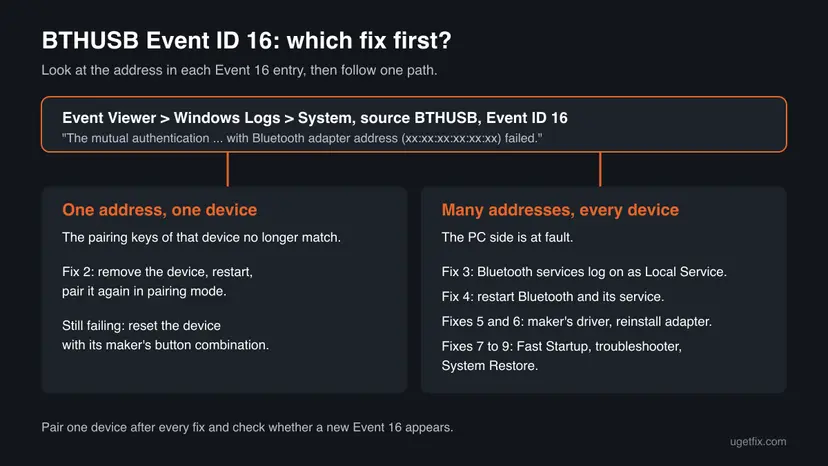
Why Event 16 appears: causes from most to least common
Most often one device fails because its pairing key and the key Windows stored no longer match. That happens when the device was reset, paired again with another computer, or paired with the same PC under another operating system. Less often every device fails, as in a Microsoft Q&A thread where a mouse, keyboard, Xbox controller and headphones all logged Event 16 even through a USB dongle. Then the PC side is at fault.
| How often | Cause | Sign | Fix |
|---|---|---|---|
| Most often | Stale pairing keys on one device. | Only one address appears in the Event 16 entries. | Fix 2 |
| Often when every device fails | Bluetooth Support Service or Bluetooth Audio Gateway Service logs on as Local System instead of Local Service. | Devices are found but none connects; drivers and updates changed nothing. | Fix 3 |
| Less often | Bluetooth radio or service stuck after sleep or an update. | It worked before; now nothing connects. | Fix 4 |
| Less often | Outdated, generic or wrong adapter driver. | New PC, clean install or a big Windows upgrade. | Fixes 5 and 6 |
| Rarely | Fast Startup keeps a bad radio state across shutdowns. | A restart helps for a while; a shutdown brings it back. | Fix 7 |
| Rarely | A recent update or program changed Bluetooth settings. | It started on a known day. | Fixes 8 and 9 |
Pair the failing device with a phone, and try a second Bluetooth device with this PC. If the phone works and the second device connects to the PC, stay with Fix 2. If nothing connects to this PC, start at Fix 3.
How to fix Bluetooth Event ID 16 in Windows, from the most common cause
Fix 1 tells you which path to take. Fix 2 is for one failing device. Fixes 3 to 9 are for a PC where no device connects. Try to connect after each fix and check whether a new Event 16 appears. Paths are given for Windows 11 and for Windows 10 22H2, which left support on 14 October 2025.
| What you see | Start with |
|---|---|
| You have not opened the Event 16 entries yet. | Fix 1. |
| One headset or mouse fails; other devices connect. | Fix 2. |
| Every device fails, even a new USB dongle. | Fix 3. |
| Everything worked before; it stopped after sleep or an update. | Fix 4. |
| New PC, clean install or a big Windows upgrade. | Fixes 5 and 6. |
| A restart helps but a shutdown brings it back. | Fix 7. |
Fix 1. Read the Event 16 entries and note which addresses fail
3 minutesNo riskEveryone, before any other fix. It takes two minutes and tells you whether one device or the PC is at fault.
Each Event 16 names the address of the device that failed to authenticate. One repeated address points at that device's pairing. Many different addresses point at the PC's Bluetooth stack.
- Try to connect the device once, so a fresh entry is written.
- Press Win + R, type
eventvwr.mscand press Enter. - Open Windows Logs > System.
- In the right pane select Filter Current Log.
- In Event sources tick BTHUSB, type
16in the Event IDs box (the field labelled <All Event IDs>) and select OK. - Open the newest entries and write down the address in brackets in each one.
- Compare: one address again and again, or several different ones?
An independent write-up on this event suggests Custom Views > Administrative Events in Event Viewer, then looking for errors and warnings with the source BTHUSB. It shows the same entries without building a filter.
It worked if: You know whether the failures belong to one device or to all of them.
If not: If you find no Event 16 at all, the device may not reach the authentication step. Start with Fix 2 anyway, then Fix 4.
Fix 2. Remove the device, restart the PC and pair it again
5 minutesLow riskOnly one device fails, or only one address shows up in the Event 16 entries.
Removing the device deletes the old pairing key Windows stored. Pairing again in pairing mode makes the PC and the device agree on a new key, so the mutual check can pass.
- Windows 11: open Settings > Bluetooth & devices > Devices, select More options next to the device, then Remove device > Yes.
- Windows 10: open Settings > Devices > Bluetooth & other devices, select the device, then Remove device > Yes.
- Restart the PC.
- Turn the device off, wait a few seconds and turn it on. Microsoft also asks you to check that it is charged and in range.
- Put the device in pairing mode as its manual describes. Usually you hold the power or Bluetooth button until a light flashes.
- Windows 11: select Add device > Bluetooth on the Devices page and pick the device. Windows 10: select Add Bluetooth or other device > Bluetooth.
- If the device was paired with another computer or phone, turn Bluetooth off on that one while you pair.
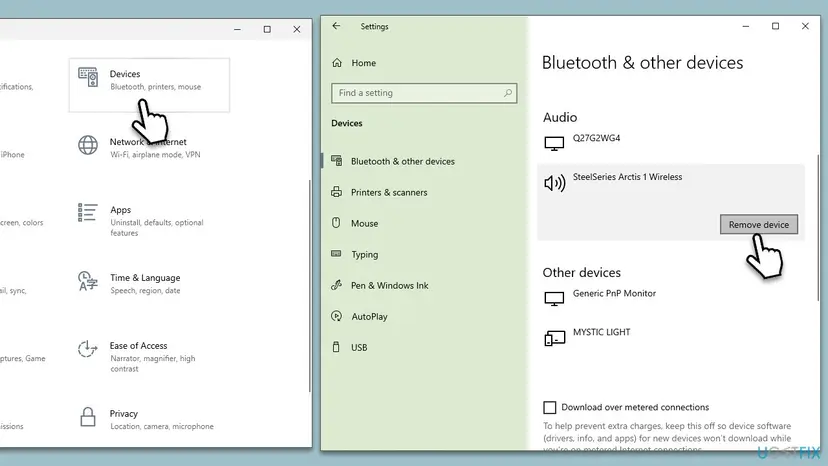
Microsoft says you may need to set Bluetooth devices discovery to Advanced under Device settings on the Bluetooth & devices > Devices page in Windows 11.
It worked if: The device shows Connected, and no new Event 16 with its address appears.
If not: If the same address fails again, reset the device with its maker's button combination and repeat. If other devices fail too, go to Fix 3.
Fix 3. Make the Bluetooth services log on as Local Service
10 minutesLow riskEvery device is found but none connects, and drivers, updates and new adapters changed nothing.
The Bluetooth Support Service is the one that, by its own description, handles discovery and association of remote Bluetooth devices. An independent write-up on Event 16 traced it to this service and the Bluetooth Audio Gateway Service having switched to Local System account; setting them back to Local Service brought connections back.
- Press Win + R, type
services.mscand press Enter. - Double-click Bluetooth Support Service and open the Log On tab.
- If Local System account is selected, select This account: and type
Local Service. - Leave Password and Confirm password empty and select Apply, then OK.
- Right-click the service and select Restart.
- Repeat steps 2 to 5 for Bluetooth Audio Gateway Service, if your PC has it.
- Shut the PC down fully, wait 30 seconds and start it, then connect the device.
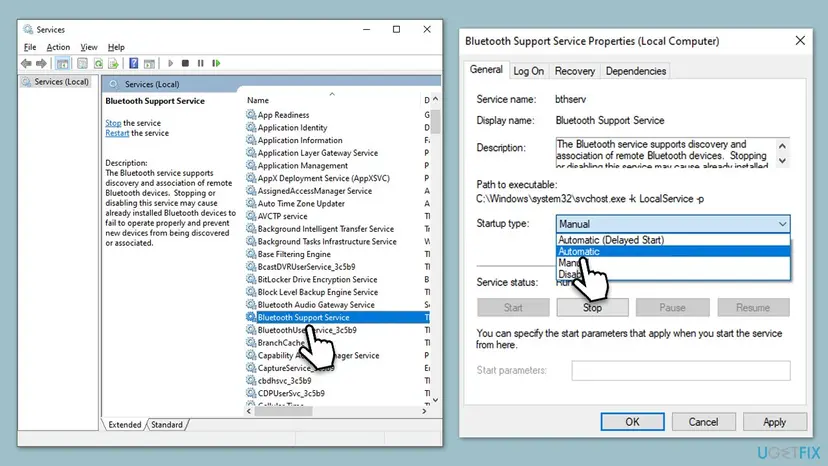
Opening Services and restarting a service, step by step with screenshots: Check and restart Windows services.
The service's own description warns that stopping or disabling it may cause installed Bluetooth devices to fail and stop new devices from being found.
It worked if: Both services show Local Service in the Log On As column and Running, and devices connect.
If not: If the log-on account was already Local Service, go to Fix 4.
Fix 4. Turn Bluetooth off and on, check Airplane mode and restart the service
3 minutesNo riskDevices connected on this PC before and stopped after sleep, hibernation or an update.
A radio that stayed half awake after sleep can still list devices but fail the authentication step. Microsoft's own first steps are to check Airplane mode and switch Bluetooth off and on.
- Select the Network, Sound or Battery icon on the taskbar and make sure Airplane mode is off.
- Windows 11: open Settings > Bluetooth & devices. Windows 10: open Settings > Devices > Bluetooth & other devices.
- Turn Bluetooth off, wait a few seconds and turn it on again.
- Open
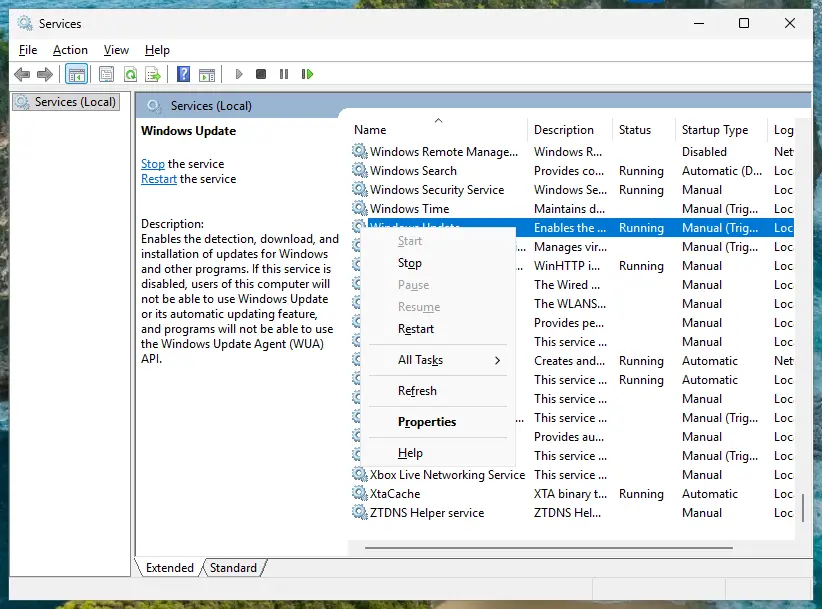
services.msc, right-click Bluetooth Support Service and select Restart. - Connect the device again.
It worked if: The device connects and no new Event 16 appears.
If not: If nothing changes, the adapter driver is next: Fix 5.
Fix 5. Install the PC maker's Bluetooth driver
15 minutesLow riskA new PC, a clean Windows install or a big Windows upgrade, and no device connects.
Microsoft names an outdated or incompatible driver as one of the most common causes of Bluetooth connection problems. A driver made for an earlier Windows version can find devices but fail the security handshake.
- Right-click Start and select Device Manager.
- Expand Bluetooth and find the adapter. Microsoft notes its name may include the word "radio"; it often names the chip maker. Entries such as AV Remote Target Service are profiles, not the adapter.
- Right-click the adapter and select Update driver > Search automatically for drivers.
- If Windows finds nothing, download the latest Bluetooth driver for your exact PC or motherboard model from its maker's website and run it.
- Restart when asked and connect the device.

Update, roll back and reinstall in detail: Update, roll back or reinstall a driver.
It worked if: The adapter shows its maker's name with no warning sign, and devices connect.
If not: If the maker's driver is already installed, reinstall the adapter in Fix 6.
Fix 6. Uninstall the Bluetooth adapter and shut down fully
10 minutesLow riskThe maker's driver is installed and nothing changed, or several Bluetooth driver versions are on the PC.
Uninstalling the adapter clears its driver setup, and a full shutdown makes Windows detect the radio again from scratch. Microsoft gives this as a step when Bluetooth misbehaves.
- In Device Manager, expand Bluetooth.
- Right-click the adapter and select Uninstall device, then Uninstall.
- Select Start > Power > Shut down.
- Wait a few seconds, then turn the PC on. Windows installs the driver again.
- If the adapter does not come back, open Device Manager and select Action > Scan for hardware changes.
- Pair your devices again.
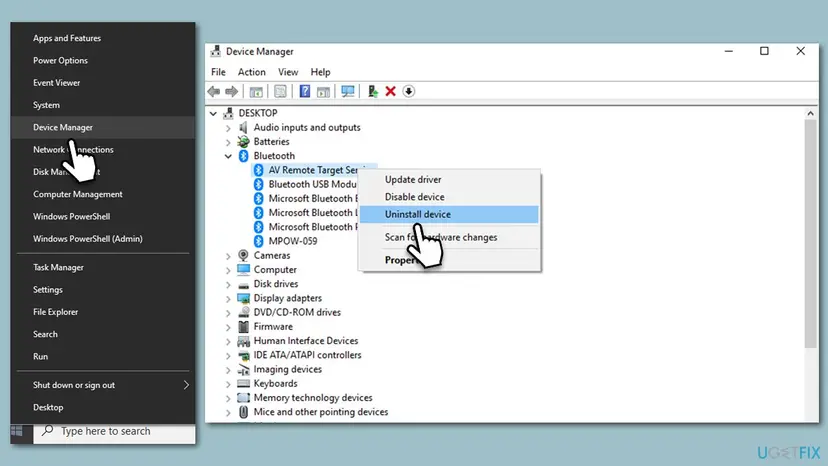
It worked if: The adapter returns under Bluetooth and devices connect after pairing.
If not: If it helps only until the next shutdown, go to Fix 7.
Fix 7. Turn off Fast Startup
5 minutesLow riskA restart helps for a while, but after a shutdown the device fails again.
With Fast Startup on, a shutdown saves the drivers' state and loads it at the next start, so a stuck Bluetooth state can survive. A Microsoft MVP in the Q&A thread on Event 16 lists turning it off as one of the steps.
- Open Power Options. Press Windows key + R, type the command below and select OK.
powercfg.cpl - Open the power button settings. In the left pane, select Choose what the power buttons do.
- Make the shutdown settings editable. Select Change settings that are currently unavailable, then Yes when Windows asks for permission.
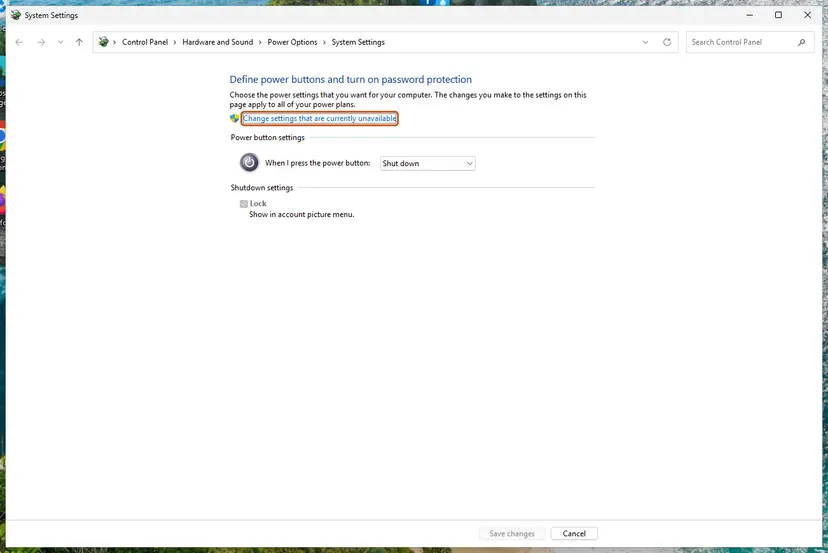
Until you select this link, the shutdown settings are greyed out. Screenshot: Windows 11 26H2. - Clear the Fast Startup box. Under Shutdown settings, clear Turn on fast startup (recommended).
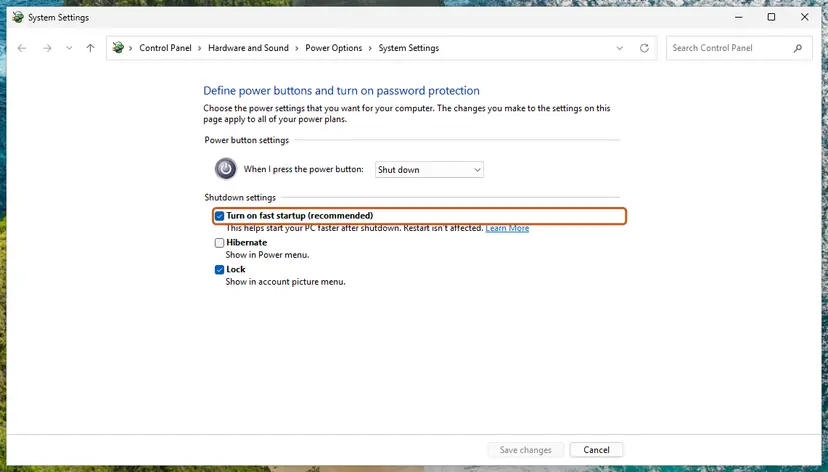
Clear this box to turn Fast Startup off. Screenshot: Windows 11 26H2. - Save. Select Save changes.
- Shut down once. Shut down the PC and start it again. From now on every shutdown is a full one.
These steps were written for Windows 11 and Windows 10 (the steps are the same). The full page with the other versions and what each result means: Turn off Fast Startup
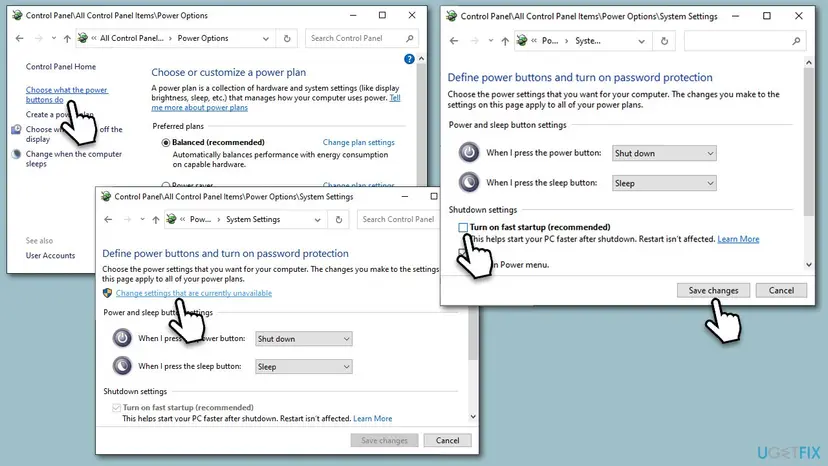
It worked if: After a full shutdown and start, the device still connects.
If not: If the device still fails after a full shutdown, run the troubleshooter in Fix 8.
Fix 8. Run the Bluetooth troubleshooter
5 minutesNo riskYou have tried the fixes above and want Windows to check the radio, the adapter and the services.
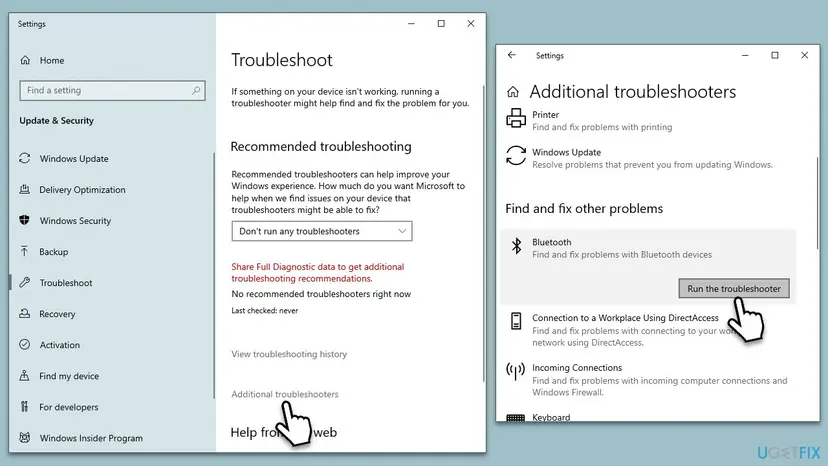
Microsoft says the Bluetooth troubleshooter in the Get Help app runs diagnostics and tries to fix most Bluetooth problems. It may catch a setting the earlier fixes missed.
- Windows 11: open Settings > System > Troubleshoot > Other troubleshooters and select Run next to Bluetooth.
- Windows 10: open Settings > Update & Security > Troubleshoot > Additional troubleshooters, select Bluetooth and Run the troubleshooter.
- Accept the fixes it offers.
- Connect the device again.
It worked if: The troubleshooter reports a fixed problem and the device connects.
If not: If the trouble began on a known day, go to Fix 9.
Fix 9. Go back to a restore point from before the problem
20 minutesRead the warningBluetooth worked until a known day, for example after an update or a new program, and the fixes above did not help.
System Restore returns system files, drivers, settings and the registry to an earlier state. If a change on that day broke the Bluetooth setup, going back undoes it.
Programs, drivers and updates installed after the restore point are removed. Your documents and photos are not touched, but note what you installed since that day so you can add it again.
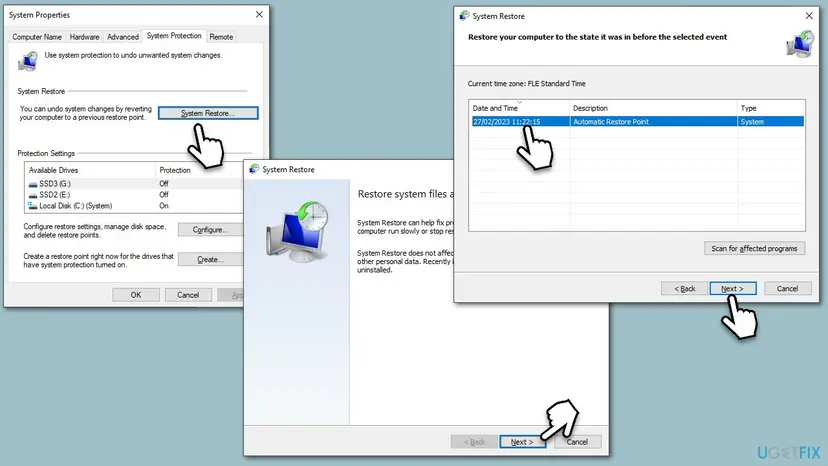
- Open System Restore. Press Windows+R, type the command below and press Enter. You can also open Control Panel > Recovery > Open System Restore. If a first page opens, select Next.
rstrui.exe - Choose a restore point. Select a restore point from a time before the problem started. The Description often names the event, such as a driver or app install. If the one you need is missing, select Show more restore points (shown only when there are more).
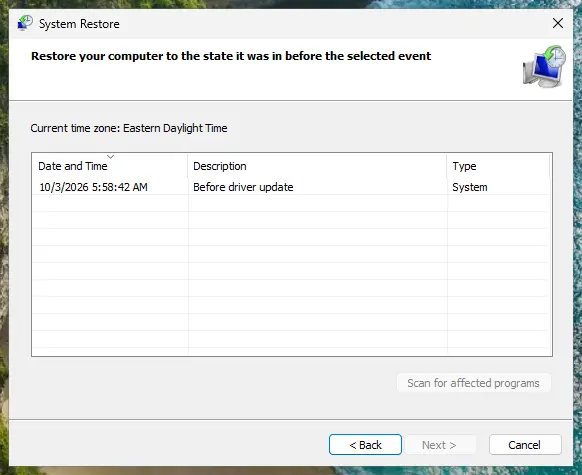
Pick a restore point from before the problem started. Screenshot: Windows 11 26H2. - See what will change. Select Scan for affected programs. The upper list shows programs and drivers that will be removed; the lower list shows those that might come back and may need to be reinstalled. Select Close.
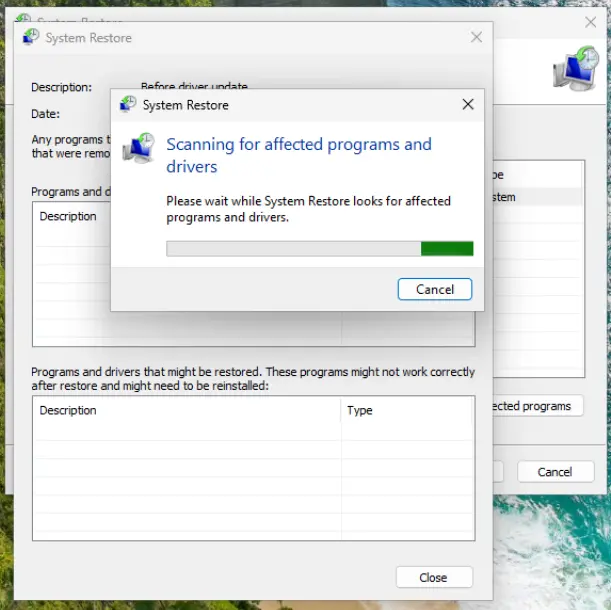
The scan lists programs and drivers the restore removes or brings back. Screenshot: Windows 11 26H2. - Start the restore. Select Next, check the summary and select Finish. Windows restarts and applies the restore point. Do not turn the PC off.
- Check the result. After sign-in Windows reports whether the restore succeeded. Check whether the problem is gone.
These steps were written for Windows 11 and Windows 10 (the steps are the same). The full page with the other versions and what each result means: Undo recent changes with System Restore
It worked if: After the restart, devices connect and no new Event 16 appears.
If not: If there is no restore point or it does not help, read the section below.
If Bluetooth still fails with Event ID 16
When all nine fixes fail, test both sides once more. Pair the device with a phone, and pair a different Bluetooth device with this PC. The result tells you where to go next.
| Result | What it means | Next step |
|---|---|---|
| Device works with a phone, nothing connects to this PC. | The PC's Bluetooth setup is at fault. | Test a USB Bluetooth adapter; disable the built-in one in Device Manager first. |
| Even a new USB adapter fails with Event 16. | Windows itself, not the hardware. | Repair Windows and keep your files: Reinstall Windows without losing files. |
| Other devices connect, this one connects to nothing. | The device is at fault. | Reset it with its maker's button combination, then contact the maker. |
| Adapter shows an error code in Device Manager. | Driver or hardware fault on the adapter. | Maker's driver; if the code stays, contact the PC maker. |
- The case where even new hardware failed: in the Microsoft Q&A thread on this event, the user replaced the motherboard and tried a USB dongle and still saw Event 16 for every device. When new hardware fails the same way, the cause is in the Windows install, so check Fix 3 again before a repair install.
- What to send to support: the device model, the address and time from one Event 16, your Windows version (Win + R,
winver), the adapter name from Device Manager, and whether the device works with a phone.
How to keep Event 16 from coming back
- When a device moves between this PC and another computer or phone, connect it from Bluetooth & devices instead of pairing it fresh each time.
- If you start the PC in two operating systems, expect to pair the device again after using it in the other one.
- Leave Bluetooth Support Service on Local Service and never set it to Disabled.
- After a clean Windows install or a big upgrade, install the Bluetooth driver from the PC or motherboard maker.
- Keep Bluetooth devices away from USB 3.0 devices; Microsoft warns that unshielded USB devices can interfere with Bluetooth.
Frequently asked questions
What does "The mutual authentication between the local Bluetooth adapter and a device with Bluetooth adapter address failed" mean?
It means your PC's Bluetooth radio and the device at that address could not confirm that they share the same pairing key. Windows logs it as Event ID 16 from BTHUSB in the System log. The device was found, so range and power are usually fine, but the connection was refused. If one address repeats, remove that device and pair it again (Fix 2). If every device fails, check the Bluetooth services and the driver (Fixes 3 to 6).
What is BTHUSB?
BTHUSB is the Windows driver for Bluetooth radios connected over USB. That includes most built-in laptop and motherboard Bluetooth chips, which sit on an internal USB connection, as well as plug-in dongles. Events from this source describe what happened between Windows and the radio or the devices it talks to. Event 16 is the authentication failure this page is about.
What is BTHUSB event ID 3?
We could not confirm the text of BTHUSB Event ID 3 from an official source, so we will not guess its meaning. Open the entry in Event Viewer and read its General tab, which holds the full message. If it appears at the same moment as Event 16 when a device fails, follow the steps on this page. If it appears alone and every device works, it may need no action.
What does "Windows cannot store Bluetooth authentication codes (link keys) on the local adapter" mean?
It is a different Bluetooth event from Event 16. By its own wording, Windows could not save the pairing keys, also called link keys, inside the adapter's memory. Windows still keeps its own copy, so devices usually connect once Windows has started. We could not confirm from an official source when it needs action. If devices connect normally, you can leave it. If they fail with Event 16 too, start at Fix 2 on this page.
Why do my Bluetooth headphones pair but not connect?
Most often the headphones and Windows hold different pairing keys, for example after the headphones were paired with a phone or another PC, or were reset. Windows then logs Event 16 for their address. Remove them in Settings > Bluetooth & devices, restart, put them in pairing mode and pair them again. Turn Bluetooth off on the phone while you pair. If no other device connects either, the PC side is the cause: start at Fix 3.
Why does every Bluetooth device fail with Event 16, even a new USB dongle?
When new hardware fails the same way, the cause is in Windows, not in the adapter. An independent write-up found the Bluetooth Support Service and Bluetooth Audio Gateway Service logging on as Local System account instead of Local Service. Setting them back, restarting the services and shutting down fully fixed it in that case. If that is not it, reinstall the adapter, turn off Fast Startup and, as a last step, repair Windows while keeping your files.
Should I set Bluetooth Support Service to Automatic?
It does no harm, but it rarely fixes Event 16 on its own. What matters more is that the service runs and logs on as Local Service. Open services.msc, double-click Bluetooth Support Service, check the Log On tab, then restart the service. Never set it to Disabled; its own description warns that installed devices may fail and new ones will not be found.
Can a Windows update cause Event ID 16?
An update can change the Bluetooth driver or settings, and Microsoft says a driver made for an earlier Windows version can cause connection problems. If Event 16 started right after an update, install the PC maker's Bluetooth driver (Fix 5). If that does not help, go back to a restore point from before the update (Fix 9) or uninstall the update. We found no Microsoft notice of a specific update that causes Event 16.
Is Event ID 16 a sign that my Bluetooth hardware is broken?
Usually not. The event says the radio found the device and reached the security check, so the radio is working. A broken adapter more often disappears from Device Manager or shows an error code. If a USB adapter connects your devices while the built-in one keeps logging Event 16 after every fix, then the built-in adapter or its driver is the likely cause, and the PC maker is the next contact.
Sources
- Microsoft Support: Fix Bluetooth problems in Windows (support.microsoft.com)
- Microsoft Q&A: Bluetooth fails to connect, Event ID 16 (learn.microsoft.com)
- Charles O'Dale: Windows Bluetooth not connecting? This fix worked for me! (charlesodale.com)
Did this fix work?
One click, no account. It tells the next reader which guides are worth their time.
Questions and experiences: fix Bluetooth fails to connect (Event ID 16) in Windows 11 and 10
Still broken, or found a fix we did not cover? Ask here: members and our editors answer. Reading is open; writing needs a free account.
…