
How to fix blurry or pixelated text in Chrome?

Prefer to fix it yourself? The manual steps follow.
- 8methods
- 1 to 15 minutes
- Easy
Applies to Google Chrome on Windows 11 (25H2, 26H2) and Windows 10 22H2; the zoom and font steps are the same in Chrome on macOS and Linux
8 methods in this guide
Hi, most of the font in my Chrome browser (that's the only one I use) has become blurry. It's very annoying, because if the text is small enough, I can't even read it properly without zooming in ten times. Please advise.
Pixelated or blurry text in Chrome is almost never a broken browser. It is a page zoom other than 100%, Windows scaling a window across monitors, or font smoothing that is switched off. Press Ctrl + 0 first, then check the display scaling.
Press Ctrl + 0 to put the page back to 100% zoom and check Settings > Appearance > Page zoom (Fix 1). If text is only blurry on a second monitor or after docking, give all monitors the same scaling and sign out of Windows and back in (Fix 2). If text everywhere looks jagged, run the ClearType tuner (Fix 3). Clearing the cache does not change how text is drawn.
| Error | No error message. Text in Chrome looks pixelated, blurry, jagged or soft, while it should be sharp. |
|---|---|
| Where it appears | In web pages inside Chrome. Sometimes on one site only, sometimes on one monitor only, sometimes in Windows too. |
| Main cause | A page zoom other than 100%, or Windows stretching Chrome's window because the monitors use different scaling. |
| Fastest fix | Ctrl + 0 on the page, then the same scaling on every monitor and one sign-out (Fix 1 and Fix 2). |
| Also written as | Chrome font pixelated, chrome text blurry, google chrome fonts look jagged, fonts look weird in chrome, browser font looks pixelated. |
| Affects | Chrome on Windows 11 and Windows 10 22H2. Windows 10 left support on 14 October 2025; Chrome still runs there, but Windows gets no more security updates. |
| Vendor status | Not a known Chrome bug. Microsoft documents blurry text in apps when monitors have different resolution or scaling, and says signing out of Windows fixes it after a monitor change. |
| Is it the monitor | Only if text is blurry in every app and in the monitor's own menu. Then check the cable, the resolution and the monitor itself. |
| Time to fix | 1 minute for zoom. Up to 15 minutes for ClearType, graphics settings and a driver update. |
Facts checked on 15 October 2026. Steps written for Chrome on Windows 11 and Windows 10 22H2. The Chrome zoom and font settings are quoted from Google's Chrome Help, the multi-monitor and sign-out advice from Microsoft Support. The Windows menu paths for ClearType, smooth edges and high DPI settings were not re-checked on a live PC for this edition..
Why your font looks pixelated in Chrome
Text on a screen is drawn from outlines into pixels. Windows smooths the edges of each letter with ClearType so that it looks sharp at normal sizes. Text looks pixelated or jagged when that smoothing is off, and blurry when the finished picture of the window is stretched to another size after it was drawn.
Stretching is the common case. Microsoft explains that an app scaled for one monitor gets stretched by Windows when it appears on a monitor with different scaling. A stretched window has soft, fuzzy letters. Chrome is affected like any other app, and it is the app most people read small text in.
| What you see | What it usually means |
|---|---|
| Text is soft on some sites only, or slightly too big or too small | That site has its own zoom level, such as 90% or 110%. |
| Text is soft on the second monitor, or since you docked or undocked a laptop | Windows stretches the window between two scaling values. |
| Text is thin, grey or has stair-step edges in Chrome and in Windows menus | ClearType or font smoothing is turned off. |
| Only Chrome is blurry, every other app is sharp | Chrome's graphics acceleration or the graphics driver. |
| Every page uses an odd-looking font | Chrome's font settings were changed, or a font is missing. |
| Text is soft in every app and in the monitor's own menu | Resolution, cable or the monitor itself, not Chrome. |
The cache stores copies of pages and pictures. It does not decide how letters are drawn on your screen, so clearing it does not make text sharper. The old advice to start with the cache is dropped here for that reason.
What makes Chrome text blurry, from most to least likely
Google and Microsoft publish no numbers for this problem. The order below follows how often each cause fits what readers of this page search for, and how cheap it is to check. Each cause points to one fix.
| Cause | How you recognise it | Fix |
|---|---|---|
| Page zoom is not 100% for the site or for all sites | A magnifier icon in the address bar, or text a little too big or small | Fix 1 |
| Monitors with different scaling, or a monitor change since Windows started | Soft text on one screen, or after docking, undocking or changing scale | Fix 2 |
| ClearType switched off or tuned badly | Thin, jagged letters in Chrome and in Windows | Fix 3 |
| Smooth edges of screen fonts switched off, often by a performance tweak | Pixelated letters everywhere, most visible in large text | Fix 4 |
| Graphics acceleration or an old graphics driver | Only Chrome is soft or flickers, other apps are sharp | Fix 5 |
| Changed font settings in Chrome | The same unusual font on every page | Fix 6 |
| An extension that changes page styles, such as a dark mode extension | Text is sharp in an Incognito window | Fix 7 |
| Windows scaling Chrome as an old app | Blurry Chrome at any scaling above 100%, even after Fix 2 | Fix 8 |
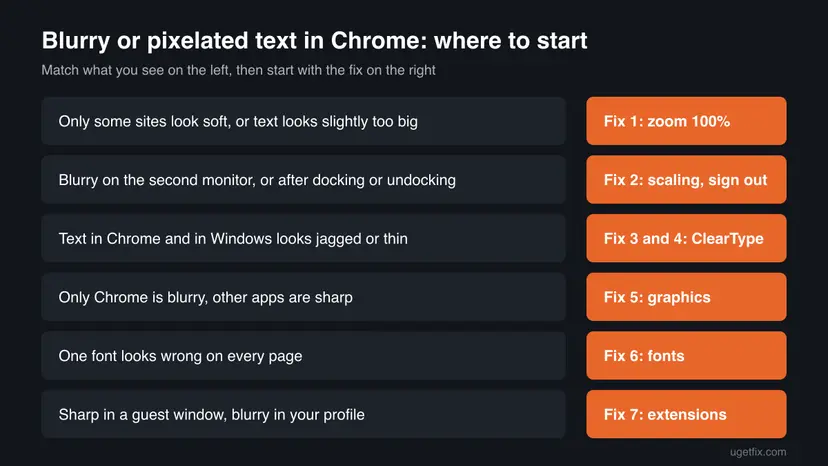
How to fix blurry or pixelated text in Chrome
Fix 1 and Fix 2 solve most cases and take a minute each. Fix 3 and Fix 4 are for text that looks jagged everywhere. Fix 5 to Fix 8 are for the case where only Chrome is soft.
| What you see or have | Start with |
|---|---|
| Only some sites look soft, or text is a little too big or too small. | Fix 1 |
| Blurry on a second monitor, after docking, or after you changed the scale. | Fix 2 |
| Thin or jagged letters in Chrome and in Windows. | Fix 3, then Fix 4 |
| Only Chrome is blurry, other apps are sharp. | Fix 5 |
| Every page shows the same odd font. | Fix 6 |
| Text is sharp in an Incognito window. | Fix 7 |
| Chrome stays soft at 125% or 150% scaling after everything else. | Fix 8 |
Fix 1. Reset Chrome's page zoom to 100%
1 minuteNo riskEveryone first, and above all when only some sites look soft or text is slightly too large or small.
Chrome remembers a zoom level per site. At 90% or 110% small text is drawn between pixel sizes and can look soft, so 100% is the sharpest starting point.
- Open the page where the text looks blurry and press Ctrl + 0 (zero). The page returns to 100%.
- Select More (three dots) at the top right. The Zoom row should read 100%.
- Open Settings > Appearance and check that Page zoom is 100% and Font size is Medium (Recommended).
- To clear saved zoom levels, open Settings > Privacy and security > Site Settings > Additional content settings > Zoom levels.
- Select the X next to each site in the list to remove its own zoom level.
If 100% is too small to read, raise Font size in Settings > Appearance instead of zooming each site. Google notes that some websites do not let the browser change only the text size; for those, use page zoom.
It worked if: The magnifier icon disappears from the address bar and the text on the page looks as sharp as in Chrome's own Settings page.
If not: If text is still soft at 100%, and above all on a second monitor, go to Fix 2.
Fix 2. Use the same scaling on every monitor and sign out of Windows
5 minutesLow riskText is blurry on one monitor, after you connected or disconnected a monitor, docked or undocked a laptop, or changed the scale.
Microsoft explains that Windows stretches an app's window when monitors use different scaling. A stretched window has soft text. Signing out lets apps start again at the right scale.
- Press Win + I and open System > Display.
- Select each monitor at the top. Under Display resolution, choose the value marked (Recommended).
- Under Scale on Windows 11, or Change the size of text, apps, and other items on Windows 10, give every monitor the same value.
- On Windows 11, select the arrow next to Scale and turn on Fix scaling for apps. On Windows 10, select Advanced scaling settings and turn on Let Windows try to fix apps so they're not blurry.
- Close Chrome completely, sign out of Windows and sign in again.
- Open Chrome and check the same page on each monitor.
Microsoft gives an example: if the main monitor recommends 150% and the second 100%, try 125% on both. Try a few values to see what looks best, and sign out after each change for the clearest result.
Microsoft says apps can look blurry after you connect or disconnect a monitor, dock or undock a laptop, or change scaling, and that signing out of Windows fixes it. Restarting Chrome alone may not be enough.
It worked if: Text in Chrome is crisp on the main monitor, and on the second monitor too when both use the same scale.
If not: If text is jagged rather than soft, or blurry on one monitor only, go to Fix 3.
Fix 3. Turn on ClearType and run the ClearType Text Tuner
3 minutesNo riskLetters look thin, grey or jagged in Chrome and in Windows menus too.
ClearType is the Windows font smoothing that Chrome's text uses on Windows. When it is off, or tuned for another monitor, letters lose their smooth edges and look pixelated.
- Press Win + S, type
ClearTypeand open Adjust ClearType text. You can also press Win + R, typecttuneand press Enter. - Tick Turn on ClearType and select Next.
- If you have more than one monitor, choose whether to tune all of them or one.
- Windows checks that each monitor runs at its native resolution. Select Next.
- On each of the four screens, select the text sample that looks best to you, then Next.
- Select Finish and restart Chrome.
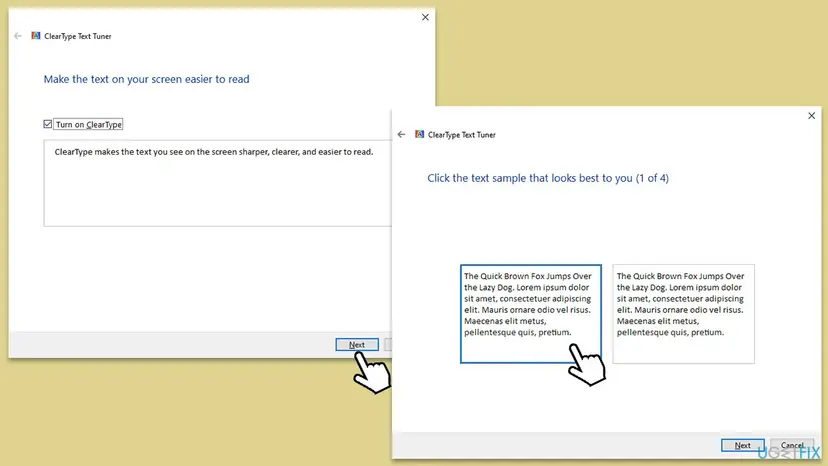
It worked if: Letters in Chrome and in Windows have smooth edges, and small text is easier to read.
If not: If ClearType was already on and nothing changed, check the font smoothing setting in Fix 4.
Fix 4. Turn on Smooth edges of screen fonts
2 minutesNo riskLarge letters have stair-step edges, often after you or a tuning program chose Adjust for best performance.
This Windows visual effect smooths the edges of screen fonts. Performance tweaks and some cleanup tools turn it off, and then text in every app, Chrome included, looks pixelated.
- Press Win + R, type
sysdm.cpland press Enter. The System Properties window opens. - Open the Advanced tab and select Settings under Performance.
- On the Visual Effects tab, tick Smooth edges of screen fonts.
- Select Apply, then OK.
- Sign out of Windows and back in, then open Chrome.
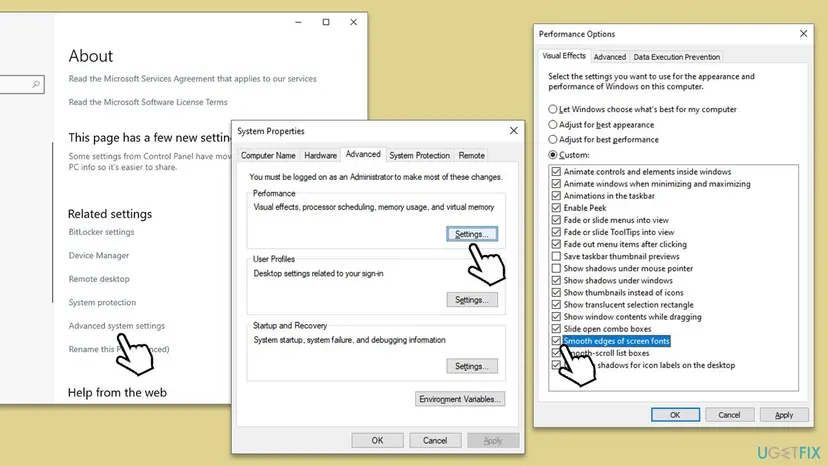
It worked if: Large and small text in Chrome looks smooth again after you sign in.
If not: If only Chrome is still soft while other apps look fine, go to Fix 5.
Fix 5. Switch Chrome's graphics acceleration and update the graphics driver
10 minutesLow riskOnly Chrome is blurry, flickers or shows smeared text, while every other app is sharp.
Chrome draws pages with the graphics card when acceleration is on. An old or faulty graphics driver can draw text badly; switching acceleration shows whether the card is involved, and a new driver fixes it.
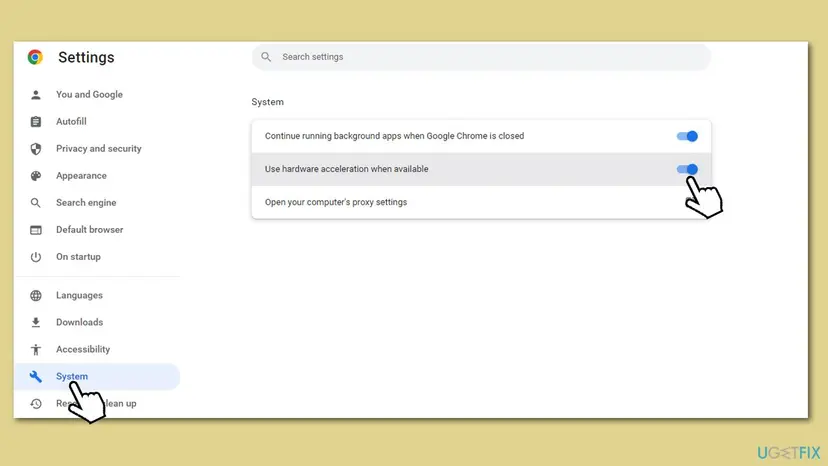
- In Chrome, open Settings > System.
- Find Use graphics acceleration when available (older Chrome: Use hardware acceleration when available) and switch it to the other position.
- Select Relaunch and check the blurry page again.
- If text is sharp now, the graphics driver is the likely cause. Switch acceleration back on after you update the driver below.
Update the driver of the graphics card under Display adapters. Step by step: Update, roll back or reinstall a driver.
- Open Device Manager. Right-click Start and select Device Manager.

Device Manager lists devices by category; a yellow warning sign marks a device with a problem. Screenshot: Windows 11 26H2. - Open the device's Driver tab. Expand the category (for example Display adapters), right-click the device, select Properties and open the Driver tab. Driver Date and Driver Version show what is installed now.
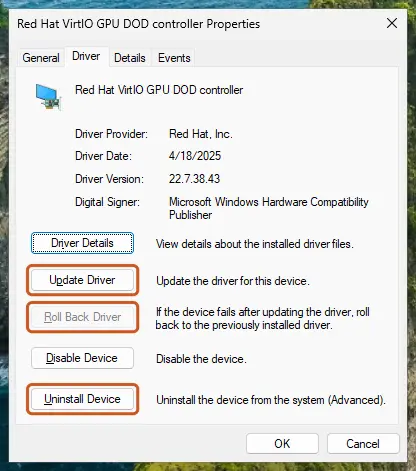
The Driver tab holds all three actions: update, roll back, uninstall. Screenshot: Windows 11 26H2. - Update the driver. Select Update Driver and let Windows search automatically. To use a driver you downloaded from the device maker, select Browse my computer for drivers instead and point to the unpacked folder.
- Or roll back the driver. If the problem started after a driver update, select Roll Back Driver, choose a reason and select Yes. The button is greyed out when Windows has no earlier driver to return to.
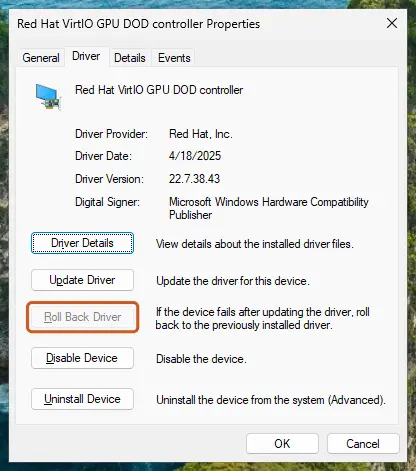
Roll Back Driver is greyed out here because there is no earlier driver. Screenshot: Windows 11 26H2.
These steps were written for Windows 11 24H2 and later. The full page with the other versions and what each result means: Update, roll back or reinstall a driver
It worked if: Text is sharp with acceleration on, after the new driver and a restart.
If not: If text is still soft whether acceleration is on or off, the card is not the cause. Go to Fix 6.
Fix 6. Check Chrome's font settings
3 minutesNo riskEvery page shows the same unusual or poorly drawn font, or someone changed the fonts in Chrome.
Chrome uses its own font choices for pages that do not set their own. A decorative or bitmap font picked there looks pixelated on every such page.
- Open Settings > Appearance and select Customize fonts.
- Look at Standard font, Serif font, Sans-serif font and Fixed-width font. Each shows a sample line.
- Choose a common font where a sample looks wrong: on Windows Chrome normally uses Times New Roman, Arial and Consolas.
- Move Minimum font size back to Tiny unless you need it.
- Reload the page with Ctrl + R.
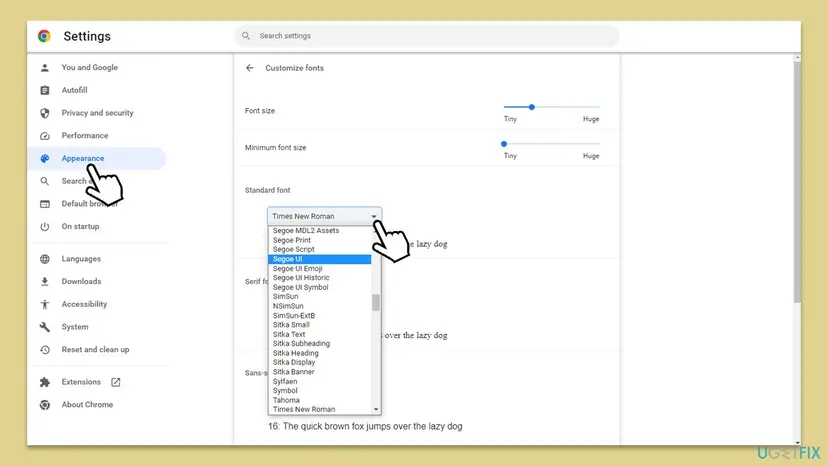
It worked if: The sample lines and the pages that use them look clean.
If not: If the font settings are normal, test the extensions in Fix 7.
Fix 7. Test without extensions in an Incognito window
5 minutesLow riskThe problem appeared after you installed an extension, or you use a dark mode, font or page style extension.
Extensions that change page styles can replace fonts or apply filters that soften text. Chrome turns extensions off in Incognito by default, so a sharp Incognito window points to one of them.
- Press Ctrl + Shift + N to open an Incognito window and load the same page.
- If text is sharp there, type
chrome://extensionsin a normal window and press Enter. - Turn off all extensions with their switches.
- Reload the page. If text is sharp, turn extensions back on one at a time and reload after each.
- Select Remove on the extension after which the text turns soft again.
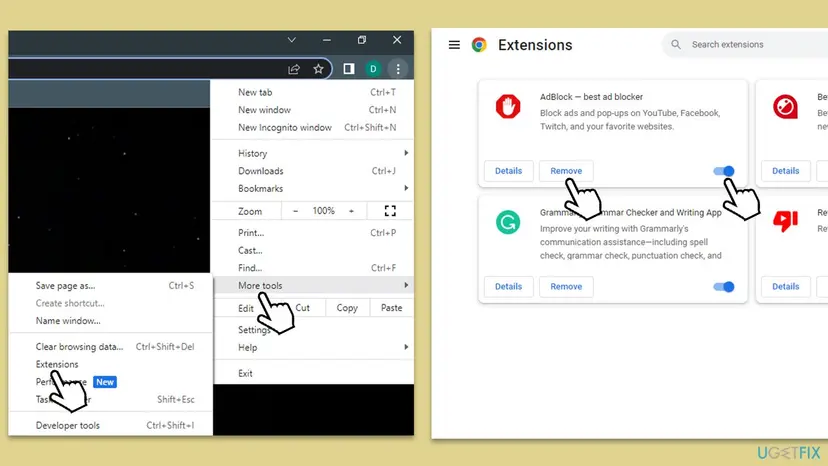
It worked if: Text stays sharp with the remaining extensions on.
If not: If text is soft in Incognito too, extensions are not the cause. Go to Fix 8.
Fix 8. Let Chrome do its own high DPI scaling
3 minutesLow riskChrome stays blurry at a scale above 100%, other apps are sharp, and the earlier fixes did not help.
Chrome scales itself to each monitor. If a compatibility setting tells Windows to scale Chrome instead, Windows stretches its window and the text turns soft.
The setting lives on the Compatibility tab of Chrome's shortcut. Opening that tab is shown here: How to run a program as administrator or in compatibility mode.
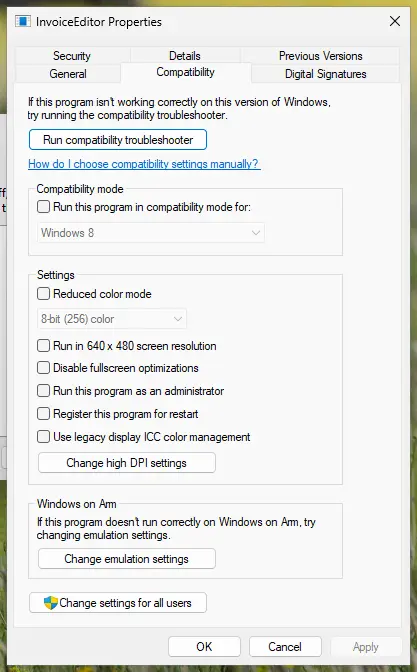
- Close Chrome. Right-click the Chrome shortcut you use and select Properties.
- Open the Compatibility tab and select Change high DPI settings.
- If Override high DPI scaling behavior is ticked with System or System (Enhanced), untick it.
- If it is not ticked, tick it once as a test and choose Application under Scaling performed by.
- Select OK twice and open Chrome from the same shortcut.
It worked if: Chrome's text is as sharp as Windows menus at the same scale.
If not: If the test made no difference, untick the box again so Chrome runs with defaults, and read the section below.
Chrome text is still blurry: what to check and when it is the screen
If text stays soft after all eight fixes, compare Chrome with other apps and with the monitor itself. That tells you whether to keep looking at Chrome, at Windows or at the hardware.
| What you find | What it points to | Next |
|---|---|---|
| Chrome is soft, Microsoft Edge on the same page is sharp | Chrome's profile or settings | Reset Chrome settings in Settings > Reset settings |
| Every app is soft on one monitor | Resolution or scaling of that monitor | Set the (Recommended) resolution again, Fix 2 |
| The monitor's own on-screen menu is soft too | The monitor, its cable or its sharpness setting | Check the cable and the monitor menu |
| Soft text started after a Windows update | Graphics driver or display settings reset | Fix 5, then Fix 2 |
- Type
chrome://gpuin the address bar to see whether Chrome uses the graphics card. Copy the page if you ask for help. - Note your Chrome version from Settings > About Chrome and your scale per monitor.
- On a work or school PC, display settings may be set by your administrator: ask them before changing scaling.
A monitor run below its native resolution always looks soft, whatever Chrome does. So does a monitor with a high sharpness or overscan setting in its own menu, or a worn adapter cable.
How to keep Chrome text sharp
- Keep each monitor at its (Recommended) resolution.
- Use the same scale on monitors you use side by side, if they look good with it.
- Sign out of Windows after you dock, undock or change the scale.
- Make text larger with Chrome's Font size, not with odd zoom values on each site.
- Update the graphics driver from Windows Update or the card maker.
- Do not choose Adjust for best performance in Performance Options if you read a lot of text.
- Do not change Chrome's default fonts to decorative fonts.
- Do not clear the cache or reinstall Chrome for this problem first: neither changes how text is drawn.
Most cases of soft text in Chrome come down to one zoom level or one monitor change. Once you know which, the fix takes a minute.
Frequently asked questions
Why does my font look pixelated in Chrome?
Most often the page is not at 100% zoom, or Windows is stretching Chrome's window because your monitors use different scaling. Less often ClearType or font smoothing is off, so letters lose their smooth edges. Press Ctrl + 0 on the page first. If text is still rough, give every monitor the same scale and sign out of Windows. If letters look jagged in Windows menus too, run the ClearType tuner and check Smooth edges of screen fonts (Fix 3 and Fix 4).
Why is my Chrome text blurry only on my second monitor?
Because Chrome was scaled for one monitor and Windows stretches it on the other. Microsoft describes this for apps on monitors with different resolution or scaling. Give both monitors the same scale in Settings > System > Display, for example 125% on both, then sign out of Windows and sign in. Microsoft also says that signing out fixes blurry apps after you connect or disconnect a monitor or dock a laptop. Fix 2 has the steps.
Does clearing the Chrome cache fix blurry text?
No. The cache holds stored copies of pages, pictures and scripts so sites load faster. It has no part in how Windows and Chrome draw letters on your screen. Clearing it costs little, but it does not make text sharper. Start with page zoom and display scaling instead. If a single site keeps showing broken layouts, clearing that site's data can help the layout, not the sharpness of the letters.
What is ClearType and does Chrome use it?
ClearType is the Windows feature that smooths the edges of letters so they look sharper on LCD screens. Chrome's text on Windows follows the system font smoothing, so turning ClearType off makes letters thin and jagged in Chrome as well. Open Adjust ClearType text from the Start search or run cttune, tick Turn on ClearType and pick the clearest sample on each of the four screens. Restart Chrome afterwards to see the result.
Why does the text on my computer look pixelated in every app?
When every app, not only Chrome, shows pixelated text, the cause is in Windows or the screen. Check that the monitor runs at the resolution marked (Recommended), that ClearType is on and that Smooth edges of screen fonts is ticked in Performance Options. If the monitor's own on-screen menu also looks soft, the monitor, its cable or its sharpness setting is the problem and no Chrome setting will help.
Is the font on Windows 11 pixelated because of Windows 11?
Not by itself. Windows 11 uses the same ClearType, scaling and smooth edges settings as Windows 10, with slightly different menu names. Text often looks soft after an upgrade because the resolution or scale was reset, or because the graphics driver changed. Check Settings > System > Display, turn on Fix scaling for apps next to Scale, run the ClearType tuner and update the graphics driver. Fix 2, Fix 3 and Fix 5 cover these steps.
Should graphics acceleration be on or off for sharp text?
On, in most cases. Acceleration lets Chrome draw pages with the graphics card, which is the normal setup. Switching it off is a test: if text turns sharp with acceleration off, the graphics driver is the likely cause. Update or reinstall the driver, then switch acceleration back on in Settings > System and relaunch Chrome. Leaving it off for good makes scrolling and video use more of the processor.
Why do Google Chrome fonts look jagged but Edge looks fine?
Both browsers use the same engine and the same Windows font smoothing, so a difference points to something Chrome-specific. Check Chrome's page zoom for that site, its font settings under Customize fonts, its extensions in an Incognito window and its graphics acceleration switch. A high DPI compatibility setting on the Chrome shortcut can also make Windows stretch only Chrome (Fix 8). If none of these differ, resetting Chrome settings is the last step.
Why does my browser text look bad after I zoom in?
Zooming should make text larger and still sharp, because the browser redraws the letters at the new size. If zoomed text looks blurry, the page may use pictures of text, which do get soft when enlarged. If all text looks soft, Windows is stretching the window, which zoom cannot fix. In that case use Fix 2. To make reading easier without zoom on every site, raise Font size in Settings > Appearance.
Sources
- Google Chrome Help: Change text, image & video sizes (zoom), including Page zoom, Font size, Customize fonts and Zoom levels (support.google.com)
- Microsoft Support: Office apps appear the wrong size or blurry on external monitors (stretching between monitors, same scaling, signing out of Windows) (support.microsoft.com)
Did this fix work?
One click, no account. It tells the next reader which guides are worth their time.
Questions and experiences: fix blurry or pixelated text in Chrome
Still broken, or found a fix we did not cover? Ask here: members and our editors answer. Reading is open; writing needs a free account.
…