
How to fix "can't find the printer" error 1801 in Windows?

Prefer to fix it yourself? The manual steps follow.
- 7methods
- 5 to 30 minutes
- Intermediate
Applies to Windows 11 and Windows 10 PCs that add a shared, network or print server printer
7 methods in this guide
Hello. I tried to add my printer on Windows, but I got the "We can't find the printer you're trying to install. Check to see if the printer was renamed and try to install it again or contact your network administrator for help. Error: #1801" message. Is there anything I can do?
Error 1801 is Windows saying "The printer name is invalid": it could not open a printer by the name or path you gave. Most often the share name changed or the two PCs do not agree on how to talk. Open the host in File Explorer and connect from its list first.
Error 1801 is Windows system error ERROR_INVALID_PRINTER_NAME, "The printer name is invalid." Windows reached for a printer by name and nothing answered to it. Open \\HostName in File Explorer and connect the printer from that list, after removing any old copy (Fix 1). A printer with its own network port is safer added by IP address (Fix 2). On Windows 11 22H2 or later, match the print RPC settings (Fix 3).
| Error | We can't find the printer you're trying to install. Error: #1801. Windows system error 1801 (0x709), ERROR_INVALID_PRINTER_NAME: "The printer name is invalid." |
|---|---|
| Where it appears | In Add a printer when you pick a shared printer by name or type \\HostName\ShareName, when you double-click a shared printer under Network, and in printer deployment tools. |
| Main cause | The name or path does not match a printer Windows can open: the share or host was renamed, an old copy is left, or the RPC call to the host fails since Windows 11 22H2. |
| Fastest fix | Remove the old copy and connect from the host's own list in File Explorer (Fix 1). For a printer with Wi-Fi or Ethernet, add it by IP address (Fix 2). |
| Also written as | Error 1801, win32 error 1801, 0x00000709, 0x709, "printer error 709", "Could not find TCP Port Monitor(1801)", error 1801 impresora. |
| Affects | Windows 11 and Windows 10, every printer brand, home sharing and office print servers alike. |
| Microsoft's status | Not a bug with one patch. Microsoft lists 1801 as a generic printer name error; the cause sits in the name, the connection or the driver. |
| Time to fix | 5 minutes for Fix 1 or Fix 2, 15 to 30 minutes when the RPC settings or driver packages need changes. |
Facts checked on 15 October 2026. Steps written for Windows 11 (25H2 and 26H2) and Windows 10 22H2.
What "We can't find the printer" error 1801 means
The full message reads: "We can't find the printer you're trying to install. Check to see if the printer was renamed and try to install it again or contact your network administrator for help. Error: #1801". It shows in the Add a printer wizard when Windows tries to connect the printer you picked or typed.
The number is exact. Microsoft's list of system error codes gives 1801, or 0x709 in hexadecimal, the name ERROR_INVALID_PRINTER_NAME and the text "The printer name is invalid". Windows asked the print system to open a printer by its name, and the print system could not match it to a printer it can reach.
When a shared printer fails in other places, Windows writes the same code in hexadecimal: "Operation could not be completed (error 0x00000709)". Leading zeros change nothing, so 0x709, error 709 and error 1801 are one error. Our guide to printing error 0x00000709 covers the default printer case of that box. Printer tools such as PrinterLogic show it as "Could not find TCP Port Monitor(1801)".
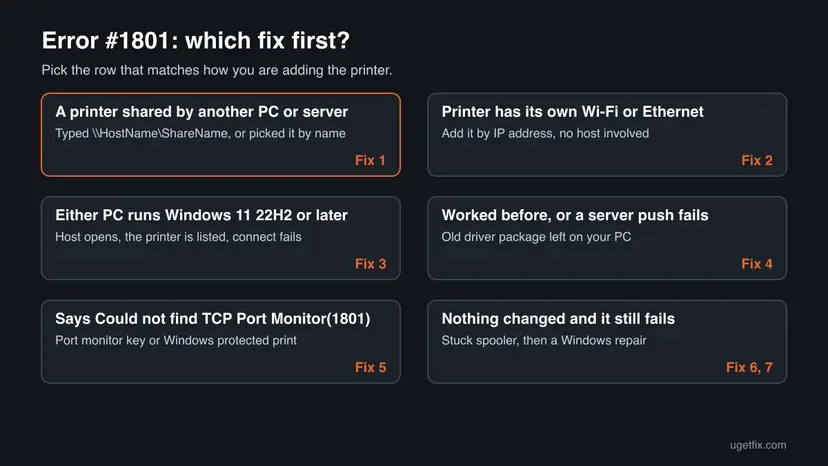
| What you were doing | What the name points to | Start with |
|---|---|---|
Picking a shared printer by name or typing \\HostName\ShareName | A printer on another PC or a print server | Fix 1, then Fix 3 |
| Adding a printer that has its own Wi-Fi or Ethernet | The printer itself, through a host it does not need | Fix 2 |
| Receiving a printer from an office print server or a Group Policy | A driver package and a port on your PC | Fix 4 |
| A deployment tool says it could not find the TCP port monitor | The Standard TCP/IP Port monitor on your PC | Fix 5 |
Why Windows can't find the printer: causes of error 1801, ranked
The message tells you to check whether the printer was renamed. That is the most common cause, but not the only one. These are the causes from common to rare, each tied to the fix that removes it.
| # | Cause | How to recognise it | Fix |
|---|---|---|---|
| 1 | The share name or the host's name changed, or an old copy of the printer is left | It worked before the host was renamed, reinstalled or moved, or the printer shows twice | Fix 1 |
| 2 | A network printer is added through another PC instead of directly | The printer has its own Wi-Fi or Ethernet, but you connect to \\HostName | Fix 2 |
| 3 | Your PC and the host use different print RPC settings | Either PC runs Windows 11 22H2 or later; the host opens but the printer will not connect | Fix 3 |
| 4 | A broken or old driver package for this printer on your PC | A print server or Group Policy push fails; other PCs get the same printer | Fix 4 |
| 5 | The Standard TCP/IP Port monitor is damaged, or Windows protected print mode blocks the driver | The message names the TCP Port Monitor, or protected print mode is on | Fix 5 |
| 6 | A stuck Print Spooler or damaged system files | Nothing changed, other printers also act up | Fix 6, Fix 7 |
- Why the name comes first. Error 1801 is literally "The printer name is invalid". A printer shared as
HP-Officeand later renamed toHP Office, or a host renamed fromDESKTOP-1H9E633toOFFICE-PC, leaves every old path pointing at nothing. - What users report. On Microsoft Q&A, an administrator saw error 1801 when double-clicking printers shared by a Windows print server. The printers were listed under
\\printserver, the driver was current, and the user had rights, so the failure sat in the connection step. - Deployment tools. PrinterLogic lists four causes for its 1801 message: wrong values in the Standard TCP/IP Port registry key, a missing Visual C++ runtime on ARM PCs, Windows protected print mode, and an outdated client.
Error 1801 printer on Windows 11 and Windows 10
The message and the number are the same on both systems. What differs is where the settings are, and that Windows 11 22H2 and later talk to a shared printer over RPC over TCP by default, while older PCs use named pipes.
| Situation | Windows 11 | Windows 10 22H2 |
|---|---|---|
| Where printers are added | Settings > Bluetooth & devices > Printers & scanners > Add device | Settings > Devices > Printers & scanners > Add a printer or scanner |
| Connecting to a shared printer | RPC over TCP by default since 22H2. Named pipes only when turned on (Fix 3). | Named pipes. Fails more often when the host is a Windows 11 PC. |
| Windows protected print mode | Present in recent versions; off unless you turn it on (Fix 5) | Not present |
| Support | Serviced | Support ended on 14 October 2025 |
How to fix "can't find the printer" error 1801: seven fixes in order
Fix 1 and Fix 2 give Windows a name or address that really points to the printer, which solves most cases. Fix 3 to Fix 5 repair the connection, the driver and the port behind the name. Fix 6 and Fix 7 are general repairs for when nothing else helps.
| What you see or have | Start with |
|---|---|
| A printer shared by another PC or a server, added by name or path | Fix 1 |
| The printer has its own Wi-Fi or Ethernet connection | Fix 2 |
| Either PC runs Windows 11 22H2 or later and the host opens in File Explorer | Fix 3 |
| A printer pushed by a print server or Group Policy fails on your PC only | Fix 4 |
| The message says "Could not find TCP Port Monitor(1801)" | Fix 5 |
| It worked yesterday and nothing changed | Fix 6 |
Fix 1. Remove the old copy and connect the printer from the host's own list
5 minutesLow riskFor everyone who adds a printer that another PC or a print server shares. Start here, especially after a rename or reinstall.
Error 1801 means the name you gave does not match a printer the host offers. Picking the printer from the host's own list uses its current share name, so a renamed share or a typo cannot get in the way.
- On the host, open the printer's Printer properties, go to the Sharing tab and check that Share this printer is ticked. Note the exact Share name.
- On your PC, open Settings > Bluetooth & devices > Printers & scanners. If an old copy of the printer is listed, select it and choose Remove.
- Type
\\HostNamein the File Explorer address bar and press Enter. Use the host's current name, or its IP address as\\192.168.1.20. - Sign in with an account that exists on the host if Windows asks.
- Right-click the printer in the list and select Connect.
- Print a test page from Printers & scanners > your printer > Print a test page.
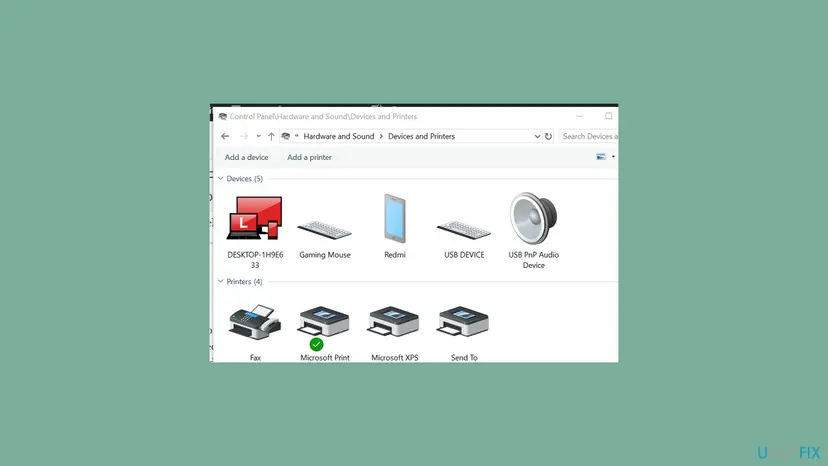
If \\HostName does not open at all, the problem is the network, not the name. Set both PCs to a Private network, turn on Network discovery and File and printer sharing, and make sure the host is awake. Our guide to error 0x00000bc4 walks through it.
It worked if: The printer appears under Printers & scanners with the host's name in its details, and the test page comes out without the 1801 message.
If not: If the printer has its own network connection, go to Fix 2. If it is plugged into the host by USB and still fails, go to Fix 3.
Fix 2. Add a network printer by its IP address instead of by a shared name
10 minutesLow riskThe printer has its own Wi-Fi or Ethernet connection, and you were adding it through another PC or by a name Windows found.
A printer with its own network port does not need a host. Added by IP address, it gets a Standard TCP/IP port on your PC, so there is no printer name on another computer that can be invalid.
- Find the printer's IP address on its control panel or on the network status page it prints.
- Download the current driver for your model and Windows version from the printer maker's website and install it.
- Open Settings > Bluetooth & devices > Printers & scanners and select Add device.
- Select Add manually next to The printer that I want isn't listed.
- Choose Add a printer using an IP address or hostname and select Next.
- Type the IP address, pick the driver and print a test page.
Give the printer a reserved address in your router. If the address changes later, the port points to nothing and printing stops again. A USB printer plugged into another PC cannot be added this way; for it, use Fix 1 and Fix 3.
It worked if: The printer shows in Printers & scanners with its own port, and the test page prints.
If not: If Windows cannot find the printer at that address, check the printer's own network connection. If adding it fails with "Could not find TCP Port Monitor(1801)", go to Fix 5.
Fix 3. Windows 11 22H2 and later: switch your PC to RPC over named pipes
10 minutesRead the warningEither PC runs Windows 11 22H2 or later, the host opens in File Explorer and lists the printer, but connecting gives error 1801. Needs an administrator.
Since Windows 11 22H2 your PC asks the host for the printer over RPC over TCP. An older host or a firewall in between may not take that call, so the printer name cannot be opened. Named pipes make your PC ask the older way.
This adds a printer policy value to the registry. Back up HKEY_LOCAL_MACHINE\SOFTWARE\Policies\Microsoft\Windows NT\Printers first: Back up the registry before editing it. Named pipes are the older method; on a work PC, ask the administrator, who may prefer to open RPC over TCP on the host instead.
- On Windows 11 Pro or Enterprise, press Win + R, type
gpedit.mscand press Enter. - Go to Computer Configuration > Administrative Templates > Printers.
- Double-click Configure RPC connection settings and select Enabled.
- Under Protocol to use for outgoing RPC connections, select RPC over named pipes and select OK.
- On Windows 11 Home, run the command below in Terminal (Admin) instead.
- Restart the PC and connect to the printer again as in Fix 1.
Your PC: use RPC over named pipes for print connections
reg add "HKEY_LOCAL_MACHINE\SOFTWARE\Policies\Microsoft\Windows NT\Printers\RPC" /v RpcUseNamedPipeProtocol /t REG_DWORD /d 1 /f
To undo, set the policy back to Not Configured or delete the RpcUseNamedPipeProtocol value, then restart. If the host runs Windows 11 and other PCs fail too, the host needs ports 135 and 49152 to 65535 open from your local network. The 0x00000709 guide has those host steps.
It worked if: After the restart, the printer connects from the host's list and prints a test page without error 1801.
If not: Undo the change if it did not help. If the printer arrives from a print server or Group Policy, go to Fix 4.
Fix 4. Remove the old printer driver package and add the printer again
10 minutesLow riskThe printer worked before, comes from a print server or Group Policy, or was installed several times with different drivers. Needs an administrator.
When your PC connects to a shared printer, it must match the host's driver to one it has. An old or half-removed driver package for the same model can make that step fail. Removing it lets Windows take a clean copy.
- Remove the printer from Settings > Bluetooth & devices > Printers & scanners.
- Press Win + R, type
printui /s /t2and press Enter. The Print Server Properties window opens on the Drivers tab. - Select Change Driver Settings if the button is shown.
- Select the driver for your printer model and select Remove.
- Choose Remove driver and driver package and select OK, then Delete.
- Restart the PC and add the printer again as in Fix 1 or Fix 2.
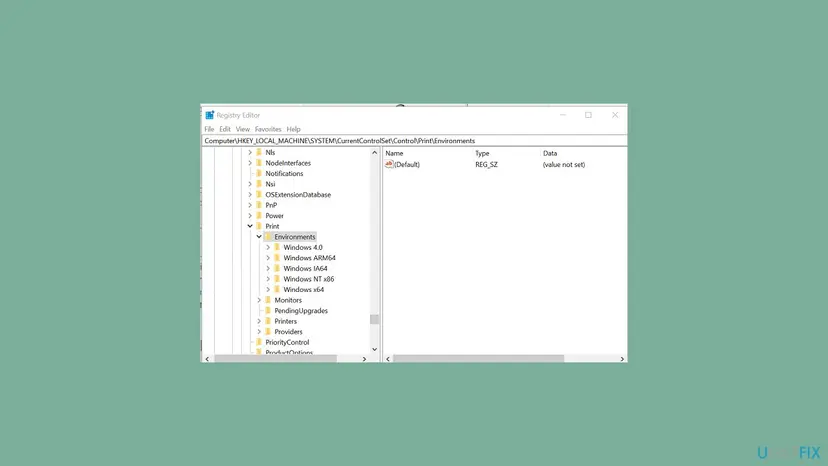
Older guides tell you to delete the printer's key under Print\Environments\Windows x64\Drivers. That leaves the driver files and the driver store entry behind. Remove driver and driver package removes both in one step. If Windows says the driver is in use, restart the PC and try again.
It worked if: The driver is gone from the Drivers tab, and adding the printer again installs a fresh driver without error 1801.
If not: If the error names the TCP Port Monitor, go to Fix 5. Otherwise restart Print Spooler in Fix 6.
Fix 5. Repair the Standard TCP/IP Port monitor and check Windows protected print mode
15 minutesRead the warningA deployment tool or the wizard says "Could not find TCP Port Monitor(1801)", or adding any printer by IP address fails. Needs an administrator.
Printers added by IP address use the Standard TCP/IP Port monitor. PrinterLogic says this 1801 message comes when its registry key has the wrong values, or when Windows protected print mode stops a standard TCP/IP port from being installed.
A wrong change under Print\Monitors can stop every printer from working. Export HKEY_LOCAL_MACHINE\SYSTEM\CurrentControlSet\Control\Print\Monitors first: Back up the registry before editing it. Only add what is missing, and do not delete other monitors.
- Open Settings > Bluetooth & devices > Printers & scanners and look for Windows protected print mode. If it is on and your printer needs its maker's driver, decide whether to keep the mode or the printer.
- Press Win + R, type
regeditand press Enter. Select Yes. - Go to
HKEY_LOCAL_MACHINE\SYSTEM\CurrentControlSet\Control\Print\Monitors. - Check that the key Standard TCP/IP Port exists and holds a string value Driver with the data
tcpmon.dll. - If the key or the value is missing, create it with exactly that name and data.
- Restart the Print Spooler service and add the printer again.
- ARM PCs. PrinterLogic also names a missing Visual C++ runtime on ARM devices: How to repair Microsoft Visual C++ Redistributable and .NET Framework.
- Deployment tools. If a printer tool shows the message, update its client too; PrinterLogic lists an outdated client as a cause.
It worked if: Adding a printer by IP address creates a port without "Could not find TCP Port Monitor(1801)", and the test page prints.
If not: Restore the exported key if anything got worse, then go to Fix 6.
Fix 6. Restart Print Spooler and clear stuck print jobs
5 minutesLow riskIt worked before and nothing changed, other printers also misbehave, or Windows says the spooler is not running.
Every printer name is opened by the Print Spooler service. A spooler that hangs on a broken job may not open the printer, and Windows reports the name as not found. A clean restart clears that.
- Type
cmdin the Windows search box, right-click Command Prompt and select Run as administrator. - Type
net stop spoolerand press Enter. - Type
del /Q %systemroot%\System32\spool\PRINTERS\*and press Enter. This deletes jobs that are waiting to print. - Type
net start spoolerand press Enter. - Do the same on the host if the printer is shared, then add the printer again.
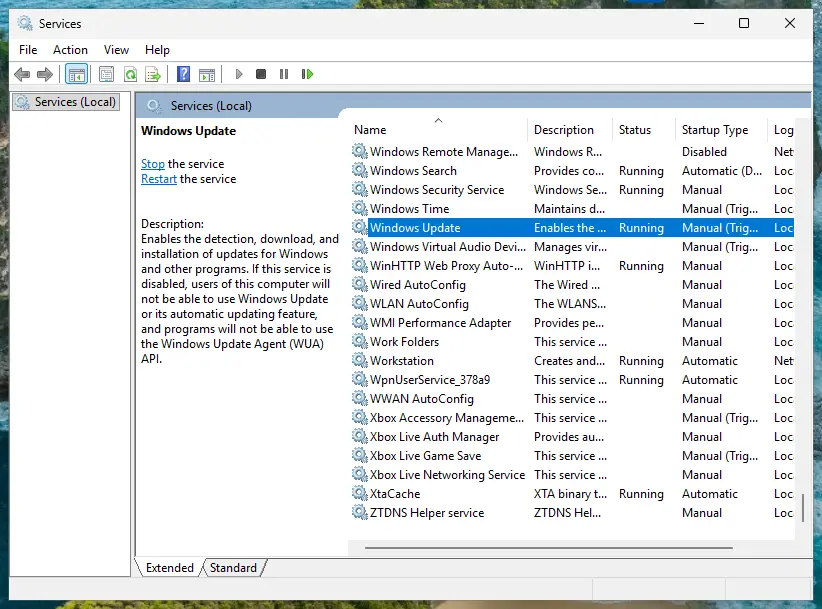
It worked if: net start spooler reports that the Print Spooler service was started, and the printer connects without the 1801 message.
If not: If the spooler stops by itself again, read our guide to print spooler error 0x000006BA. Otherwise go to Fix 7.
Fix 7. Repair Windows system files, and reinstall Windows in place as a last resort
20 minutes to 2 hoursLow riskFix 1 to Fix 6 did not help, and no printer can be added on this PC while other PCs add the same printer fine.
If the print components of Windows itself are damaged, no name or driver change will help. A system file check repairs them, and an in-place reinstall replaces Windows while keeping your files and apps.
- Open an elevated command window. Right-click Start and select Terminal (Admin), or type cmd in the search box, right-click Command Prompt and select Run as administrator. Select Yes when Windows asks for permission.

Search for cmd and choose Run as administrator. Screenshot: Windows 11 26H2. - Run DISM first. Type the command below and press Enter. DISM downloads clean copies of damaged components from Windows Update, so it can take several minutes. Wait until it says The operation completed successfully.
DISM.exe /Online /Cleanup-Image /RestoreHealth
DISM /RestoreHealth running. Screenshot: Windows 11 26H2. - Run System File Checker. In the same window, type the command below and press Enter. Do not close the window until the verification reaches 100%.
sfc /scannow
sfc /scannow at 100%. Screenshot: Windows 11 26H2. - Read the result and restart. Compare the last message with the table below this guide, then restart the PC so that repaired files are loaded.

The result line tells you what SFC did. Screenshot: Windows 11 26H2.
These steps were written for Windows 11 24H2 and 25H2. The full page with the other versions and what each result means: Run DISM and SFC to repair Windows system files
If the check finds nothing and the error stays, reinstall Windows over itself and keep your files and apps: Reinstall Windows without losing files.
It worked if: SFC reports that it repaired files or found no violations, and after a restart the printer can be added.
If not: Collect the details in the next section and ask the printer maker or your IT department.
Still getting error 1801? Where to look next
The wizard shows only the number. Windows writes more in its logs and settings. Check these before you change anything else, and send them along if you ask for help.
| Check | Where | What it tells you |
|---|---|---|
| Print Service log | Event Viewer, Applications and Services Logs > Microsoft > Windows > PrintService > Admin | The error at the time of the failure, on your PC and on the host |
| Share name and host name | On the host: Printer properties > Sharing, and Settings > System > About | The exact names your path must use |
| Installed drivers | printui /s /t2, Drivers tab | Old or duplicate drivers for the same model (Fix 4) |
| Port monitor | HKEY_LOCAL_MACHINE\SYSTEM\CurrentControlSet\Control\Print\Monitors | Whether Standard TCP/IP Port is present (Fix 5) |
| Windows versions | Settings > System > About on both PCs | Whether the Windows 11 22H2 print RPC defaults apply (Fix 3) |
- Is it hardware? Almost never. If the printer prints from the host or from another PC, the printer is fine. The failure sits in the name, the connection or the driver on your PC.
- What to send to support: both Windows versions, how the printer is connected, the path or address you used, the driver name and the PrintService events from the time of the error.
How to keep error 1801 from coming back
The error comes back when a name changes under a printer that other PCs still use. A few habits keep the names stable.
- Give the host PC and the shared printer a name and keep it.
- Add printers with their own network port by IP address, with a reserved address in the router.
- Remove the old printer copy before you add it again.
- Write down any RPC or registry value you change, so you can undo it.
- Do not rename a shared printer while other PCs use it.
- Do not delete driver keys in the registry by hand.
- Do not turn off the firewall to make printing work.
- Do not use driver updater programs; take the driver from the printer maker.
Frequently asked questions
What does Windows error code 1801 mean?
Error 1801 is Windows system error ERROR_INVALID_PRINTER_NAME, and its text is "The printer name is invalid." In hexadecimal it is 0x709. Windows tried to open a printer by the name or path you gave and could not match it to a printer it can reach. In the Add a printer wizard it appears as "We can't find the printer you're trying to install" with "Error: #1801" at the end. Start with Fix 1.
How do I fix printer error 1801 on Windows 11?
Remove any old copy of the printer, open \\HostName in File Explorer and connect the printer from that list (Fix 1). If the printer has its own Wi-Fi or Ethernet, add it by IP address instead (Fix 2). If either PC runs Windows 11 22H2 or later and the connection still fails, switch your PC to RPC over named pipes (Fix 3). Windows 11 keeps printers under Settings > Bluetooth & devices > Printers & scanners.
Is error 1801 the same as error 0x00000709?
Yes. 0x00000709 is the hexadecimal form of 1801, and both carry the name ERROR_INVALID_PRINTER_NAME. The Add a printer wizard shows the decimal number, while the small Printers box shows "Operation could not be completed (error 0x00000709)". The fixes overlap. If you see 0x00000709 when you set a default printer, read our 0x00000709 guide, because that case has its own cause.
What does "Could not find TCP Port Monitor(1801)" mean?
It is the message PrinterLogic shows when it cannot create a Standard TCP/IP port for a printer. PrinterLogic names four causes: the wrong values in the Standard TCP/IP Port registry key, a missing Visual C++ runtime on ARM devices, Windows protected print mode, and an outdated client. Fix 5 checks the registry key and protected print mode. If you use PrinterLogic or another printer tool, also update its client.
Should I run the printer troubleshooter for error 1801?
You can, but do not expect much from it here. It checks the spooler, the driver and the printer's state, which helps when a printer stops printing. It cannot know that a share was renamed, and it does not change the print RPC settings. On recent Windows 11 versions the troubleshooters open in the Get Help app. Fix 1 and Fix 2 are faster for this error.
Does turning off the firewall fix error 1801?
Do not turn it off. Some older guides suggest it, but it leaves the PC open and is not needed. If a firewall blocks the connection to a Windows 11 host, the right change is to allow the print RPC ports from your local network on the host, as described under Fix 3. If you use another security suite, you can pause it for one test and turn it back on right after: Turn off Microsoft Defender protection for a moment.
What does "Windows can't open Add Printer" mean?
It is a different message from error 1801. It says the local print spooler service is not running, so Windows cannot even open the Add a printer wizard. Restart the Print Spooler service as in Fix 6, or restart the PC. If the spooler stops again right after starting, a broken driver or job is usually behind it, and our 0x000006BA guide linked under Fix 6 covers that.
Is Event ID 1801 in Event Viewer the same error?
No. Some people who search for Windows 11 error code 1801 mean an Event Viewer entry about Secure Boot, which reads that the Secure Boot CA/keys need to be updated. It has nothing to do with printers and shares only the number. This page covers the printer error. If your 1801 is in Event Viewer and mentions Secure Boot or TPM, it needs a different fix than the ones here.
Error 1801 impresora: como resolver?
This page is in English, and it covers the same error: "error 1801 impresora" is the Spanish search for printer error 1801. The steps are the same in every language of Windows; only the menu names are translated. Start by removing the old printer and connecting it again from the host's list (Fix 1), or add a network printer by its IP address (Fix 2).
Sources
- Microsoft Learn: System Error Codes (1700-3999), ERROR_INVALID_PRINTER_NAME 1801 (0x709) (learn.microsoft.com)
- PrinterLogic Knowledge: Unable to install printer Could not find TCP Port Monitor(1801) (kb.printerlogic.com)
- Microsoft Q&A: 1801 error trying to connect to printers on my Print Server (user report) (learn.microsoft.com)
Did this fix work?
One click, no account. It tells the next reader which guides are worth their time.
Questions and experiences: fix "can't find the printer" error 1801 in Windows
Still broken, or found a fix we did not cover? Ask here: members and our editors answer. Reading is open; writing needs a free account.
…