
How to fix printing error 0x000006BA in Windows?

Prefer to fix it yourself? The manual steps follow.
- 7methods
- 2 to 40 minutes
- Intermediate
Applies to Windows 11 and Windows 10 PCs that print to a USB, network or shared printer; the same message appears on older Windows versions
7 methods in this guide
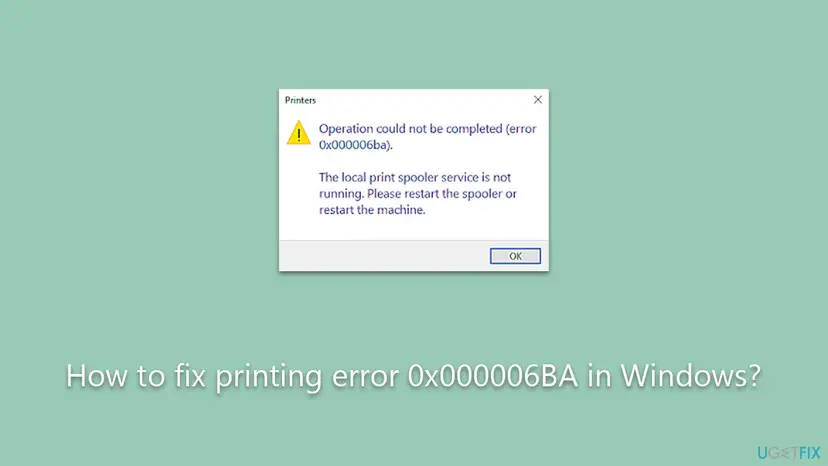
I receive "Operation could not be completed (error 0x000006ba). The local print spooler service is not running" every time I attempt to print something. Is there anything I can do to fix this?
Error 0x000006BA means a program asked the Print Spooler for something and got no answer: the spooler on your PC has stopped, or the PC that shares the printer cannot be reached. Start the Print Spooler service and set it to Automatic first, then clear the stuck jobs if it stops again.
0x000006BA is Windows error 1722, "The RPC server is unavailable": the Print Spooler did not answer. Open services.msc, set Print Spooler to Automatic and start it (Fix 1). If it stops again, empty C:\Windows\System32\spool\PRINTERS (Fix 2) and remove the driver that crashes it (Fix 3). For a printer shared by another PC, check that PC first (Fix 4 and Fix 5).
| Error | Operation could not be completed (error 0x000006ba). The local print spooler service is not running. Please restart the spooler or restart the machine. The number is Windows system error 1722, RPC_S_SERVER_UNAVAILABLE: "The RPC server is unavailable." |
|---|---|
| Where it appears | In a box titled Printers when you print, open printer properties or add a printer, and in the Connect to Printer box when you open a printer that another computer shares. |
| Main cause | The Print Spooler service is stopped, disabled or crashing, most often because of a damaged print job or a third-party printer driver. For shared printers: the host PC's spooler cannot be reached over the network. |
| Fastest fix | Set Print Spooler to Automatic and start it in services.msc (Fix 1). Two minutes. |
| Also written as | 0x00006ba, 0x0000006ba, 0x6BA, error 6ba, error 1722, error0x000006ba. Not the same as 0x000006be (1726, "The remote procedure call failed"). |
| Affects | Windows 11 and Windows 10, every printer brand. Reports go back to Windows Vista and Windows 7. |
| Microsoft's status | No Microsoft article covers this code by number. Microsoft documents the spooler repair steps and, for shared printers, the RPC change in Windows 11 version 22H2 and later. |
| Where the cause is logged | Event Viewer: Windows Logs > System (Service Control Manager, events 7031 and 7034) and Windows Logs > Application (Application Error for spoolsv.exe). |
| Time to fix | 2 minutes for Fix 1, 5 minutes for Fix 2, up to 40 minutes when a driver or a shared printer has to be sorted out. |
Facts checked on 14 October 2026. Steps written for Windows 11 (25H2 and 26H2) and Windows 10 22H2.
What "Operation could not be completed (error 0x000006ba)" means
0x000006BA is a hexadecimal number. In decimal it is 1722, and Microsoft's list of system error codes gives it the text "The RPC server is unavailable." RPC, remote procedure call, is the way Windows programs pass requests to a service. Every print, every printer list and every Add printer request goes to the Print Spooler service this way.
So the code does not describe a printer fault. It says that the program knocked and nobody opened. The Printers window turns that into the friendlier sentence "The local print spooler service is not running". That is right in most cases and misleading in one: with a printer shared by another computer, the spooler that does not answer is on that other computer.
| What you see | When | What it tells you |
|---|---|---|
| Operation could not be completed (error 0x000006ba). The local print spooler service is not running. | When you print, open Printer properties, open Devices and Printers or add a printer | The spooler on this PC is stopped or crashed. Start with Fix 1. |
| The same text after you double-click a printer under Network in File Explorer | When you connect to a printer shared by another PC | The host PC's spooler did not answer. Start with Fix 4. |
| Printers greyed out and no new printer can be added, with 0x000006BA or 0x000003EB | On managed PCs where printers are deployed by Group Policy or a script | Printer records are present without their driver files. See Fix 3. |
0x000006ba in a log line that has nothing to do with printing | In C:\Windows\System32\catroot2\dberr.txt or from qwinsta and quser | The same "RPC server unavailable" code from another service. See the FAQ. |
The full form has eight digits after 0x: 0x000006ba. People also type 0x00006ba, 0x0000006ba, 0x6BA or just "error 6ba", in capital or small letters. Zeros in front do not change a number, so all of them mean error 1722. The look-alike 0x000006be is error 1726, "The remote procedure call failed": the spooler answered and then broke off.
Why the print spooler is not running: causes of 0x000006BA, ranked
Microsoft gives no cause for this code by number. The ranking below is built from what the code means, from Microsoft's support articles about spooler crashes and shared printers, and from what users and administrators report. It runs from the common to the rare.
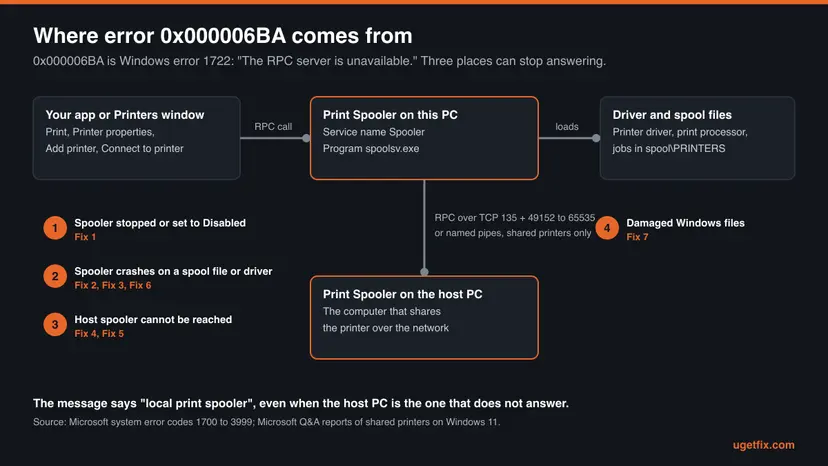
| # | Cause | How to recognise it | Fix |
|---|---|---|---|
| 1 | The spooler crashed on a damaged print job or a third-party driver | The service starts, then stops again after seconds or as soon as you print. Event 7031 or 7034 in the System log. | Fix 2, then Fix 3 |
| 2 | The spooler is stopped or its startup type is Disabled | Print Spooler has an empty Status column. Starting it gives error 1058. | Fix 1 |
| 3 | The printer is shared by another PC whose spooler cannot be reached | Only the shared printer fails. Printers attached to your own PC work. | Fix 4, then Fix 5 |
| 4 | A service the spooler depends on did not start | Starting Print Spooler gives error 1068, "The dependency service or group failed to start." | Fix 1, step 5 |
| 5 | A print processor or port monitor from a printer maker loads into the spooler and breaks it | The crash continues after every printer was removed | Fix 6 |
| 6 | Windows files of the print system are damaged | Other Windows parts misbehave too, or none of the fixes above holds | Fix 7 |
- Why a crash is the most common cause. Microsoft's support article for spooler errors says that conflicting drivers are a common cause of spooler crashes. Its server documentation adds that corrupted files in the spool folder can cause Print Spooler problems.
- Why a disabled spooler is common. In July 2021 Microsoft's first workaround for the PrintNightmare flaw, CVE-2021-34527, was to stop the spooler and set it to Disabled. Some PCs kept that setting, and some tuning tools still switch the spooler off. With the service disabled, Microsoft says, printing stops both locally and remotely.
- A rare case on locked PCs. An administrator's blog describes 0x000006BA and 0x000003EB together on Windows 10 PCs with the Unified Write Filter. The spooler folders were writable, but registry entries of printers stayed without their driver files.
Error 0x000006BA on Windows 11 and Windows 10: what differs
On one PC with its own printer the error and the fixes are the same on both systems. Only the Settings paths differ, and every step below gives both. Shared printers are different, because Windows 11 version 22H2 changed how computers talk to each other when they print.
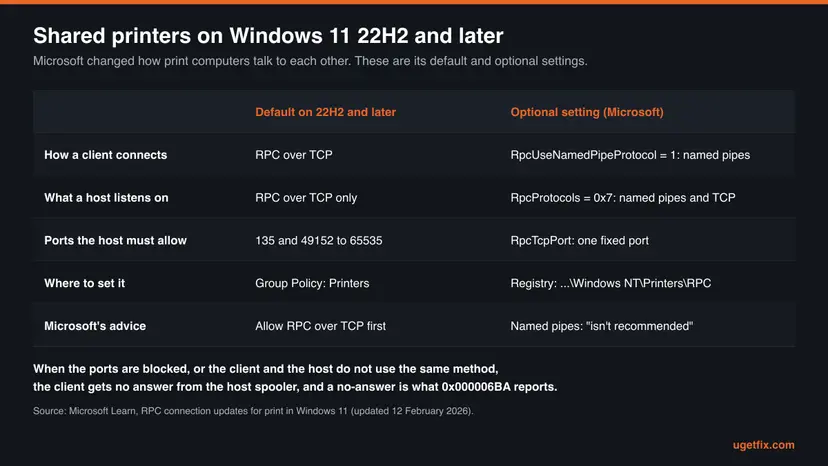
| Situation | Windows 11 (22H2 and later) | Windows 10 22H2 |
|---|---|---|
| Spooler stopped, disabled or crashing | Fix 1 to Fix 3, Settings path Bluetooth & devices > Printers & scanners | Same fixes, Settings path Devices > Printers & scanners |
| Printing to a printer another PC shares | Connects over RPC over TCP by default. Named pipes are off unless you turn them on (Fix 5). | The 22H2 change applies to Windows 11 only. Microsoft's article names Windows 11, version 22H2 and later. |
| Sharing a printer to other PCs | Listens on RPC over TCP only by default, so the firewall must let ports 135 and 49152 to 65535 in | Older clients that print to a Windows 11 host are where most reports come from |
| Fixes from Microsoft | Still serviced | Support ended on 14 October 2025: no more fixes for the print system |
On Microsoft's Q&A site, a user describes one PC updated to Windows 11 Pro with a USB printer shared to Windows 10 and Windows 7 PCs. After the update every other PC got 0x000006ba with the "local print spooler" text, while the Windows 11 PC itself printed. A volunteer moderator pointed to the 22H2 RPC change, which Fix 5 handles.
How to fix error 0x000006BA: seven fixes in order
Fix 1 to Fix 3 get the spooler on your PC running and keep it running, and they solve most cases. Fix 4 and Fix 5 are for printers that another computer shares. Fix 6 and Fix 7 are for a spooler that still crashes.
| What you see or have | Start with |
|---|---|
| Print Spooler is not running, and its startup type is Disabled or Manual | Fix 1 |
| Starting the service gives error 1068 or error 1058 | Fix 1 |
| The spooler starts, then stops again within seconds or when you print | Fix 2 |
| It still crashes after Fix 2, or it began after a new printer or driver | Fix 3 |
| Only a printer shared by another PC fails | Fix 4 |
| The host or the client runs Windows 11 22H2 or later, and Fix 4 did not help | Fix 5 |
| The crash continues with no printers installed | Fix 6 |
| Other parts of Windows fail too | Fix 7 |
Fix 1. Start the Print Spooler service and set it to Automatic
2 minutesNo riskFor everyone who sees the message on their own PC. It needs an administrator account.
The message is literal in most cases: the service is not running, so every request to it fails with the RPC error. A startup type of Disabled or Manual keeps it off after each restart, which is why the error returns although someone restarted the PC.
- Press Win + R, type
services.mscand press Enter. - Find Print Spooler in the list and double-click it.
- On the General tab, look at Startup type. If it says Disabled or Manual, select Automatic and then Apply.
- Under Service status, select Start. If the status already says Running, select Stop and then Start.
- If Windows answers with error 1068, open the Dependencies tab. Every service in the upper list must be running: start each one that is not, then try again.
- Select OK, open the document again and print.
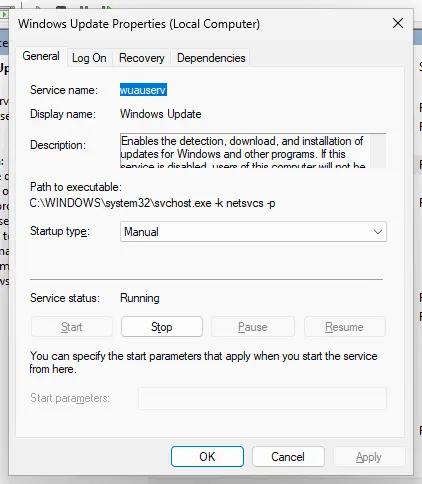
| Message when you select Start | What it means | What to do |
|---|---|---|
| Error 1058 | "The service cannot be started, either because it is disabled or because it has no enabled devices associated with it." | Set Startup type to Automatic first (step 3) |
| Error 1068 | "The dependency service or group failed to start." | Check the Dependencies tab (step 5) |
| The service starts, then stops again | Something inside the spooler crashes it | Go on to Fix 2 |
The same work from Terminal (Admin) or an administrator Command Prompt. sc qc shows the startup type and the dependencies, sc config sets the start type, and sc query shows the state. Microsoft's reference for sc config notes that the space after start= is required.
Commands, one per line. The last one should show STATE: 4 RUNNING.
sc qc spooler
sc config spooler start= auto
net start spooler
sc query spooler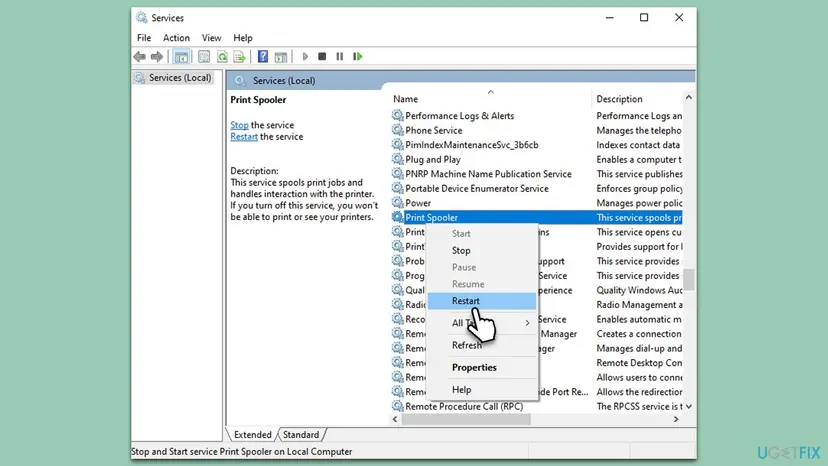
If the startup type was Disabled, someone or something set it. In 2021 it was Microsoft's own PrintNightmare workaround, and some tuning tools do it too. On a work PC, ask the administrator before you turn it on. At home, the spooler is part of a fully updated Windows and you need it to print. More on the Services window: Check and restart Windows services
It worked if: Print Spooler shows Running with startup type Automatic, and the document prints without the message.
If not: If the service stops again by itself within seconds or minutes, go to Fix 2. If only a shared printer fails, go to Fix 4.
Fix 2. Clear the stuck print jobs from the spool folder
5 minutesLow riskThe spooler starts and then stops again, or it stops as soon as you print. Needs an administrator.
Each waiting print job is kept as a pair of files in the spool folder, and the spooler reads them again every time it starts. A damaged job makes it crash at once, which looks like a spooler that refuses to run. Microsoft's own reset for spooler errors is to stop the service, delete these files and start it again.
Only the print jobs that have not printed yet. Your documents are not touched, so you simply print them again afterwards. The .SHD and .SPL files in this folder are the jobs, Microsoft explains, and on a healthy PC they disappear as the jobs print.
- Open
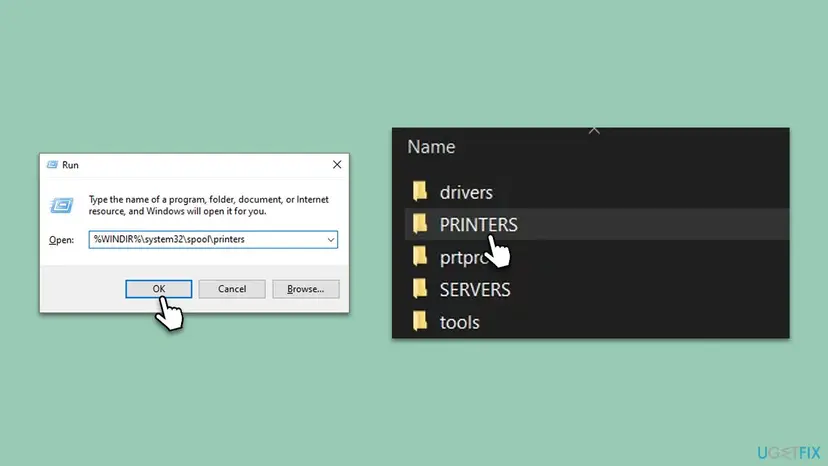
services.msc, right-click Print Spooler and select Stop. - Press Win + R, type
%WINDIR%\system32\spool\printersand press Enter. Select Continue if Windows asks for permission. - Select all files in the PRINTERS folder with Ctrl + A and delete them. Leave the folder itself.
- Go back to Services, right-click Print Spooler and select Start.
- Check that the startup type is still Automatic, then print a test page.
The same three steps in an administrator Command Prompt
net stop spooler
del /q %SystemRoot%\System32\spool\PRINTERS\*.*
net start spoolerMicrosoft notes that the spool folder can be moved. Its location is the DefaultSpoolDirectory value under HKEY_LOCAL_MACHINE\SYSTEM\CurrentControlSet\Control\Print\Printers. On almost every PC it is the default folder above.
It worked if: The spooler stays Running after you print, and the queue opens empty without the message.
If not: If it crashes again on the next print job, the job is not the problem but the driver that renders it: go to Fix 3.
Fix 3. Find the driver that crashes the spooler and replace it
15 to 30 minutesLow riskThe spooler keeps stopping after Fix 2, or the error began after you added a printer or updated its software.
Printer drivers and their helper files run inside the spooler process. When one of them fails, the whole service goes down and every program sees 0x000006BA. Microsoft names conflicting or outdated drivers as a common cause and tells you to remove old or duplicate ones.
- Right-click Start and select Event Viewer.
- Open Windows Logs > System, select Filter Current Log and type
7031,7034in the event ID box. Entries that say "The Print Spooler service terminated unexpectedly" confirm a crash and show when it happened. - Open Windows Logs > Application and look for Application Error entries at the same time. Where Faulting application name is
spoolsv.exe, write down the Faulting module name. - If the module is not a Windows file, search the internet for its name or look for it in
C:\Windows\System32\spool\drivers\x64\3. That tells you which maker's driver it belongs to. - Remove the printer that uses this driver in Settings > Bluetooth & devices > Printers & scanners. On Windows 10 it is Settings > Devices > Printers & scanners.
- Press Win + R, run
printui /s /t2, select the driver, then Remove and Remove driver and driver package. - Restart the PC and install the current driver for your Windows version from the printer maker's site.
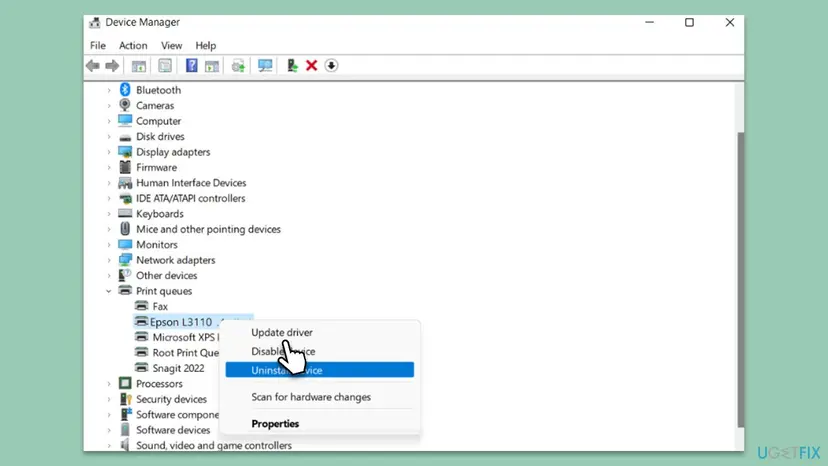
- No clear module name? Microsoft's step for spooler crashes is shorter: open Device Manager, expand Print queues or Printers, uninstall unnecessary, old or duplicate printers, then install the current driver from the maker's site.
- Already the newest driver? Microsoft's printing troubleshooting suggests switching to a generic in-box driver. Add the printer again with Add device and let Windows pick its own driver.
- Several printers of one maker? One damaged driver can take all of them down. Remove the whole family and add back one at a time.
Removing a driver together with its package, and what to do when Windows says the driver is in use, is covered step by step in our guide to printer error 0x000003eb. The Device Manager commands for drivers: Update, roll back or reinstall a driver
It worked if: No new 7031 or 7034 events appear in the System log, and printing works with the new driver.
If not: If the spooler still crashes with every printer removed, a print processor or port monitor is left behind: go to Fix 6.
Fix 4. Shared printer: check the computer that shares it
10 minutesLow riskOnly a printer that another PC shares gives the error. Printers on your own PC work.
When you print to a shared printer, your spooler calls the spooler on the host PC. If that PC is asleep, its spooler is stopped, sharing is off or its firewall drops the call, the call fails with the same code. The message still says "local", but nothing on your PC is broken.
- On the host PC, do Fix 1 there: Print Spooler must be Running and Automatic. Print a test page on the host itself.
- On the host, open Settings > Bluetooth & devices > Printers & scanners, select the printer, then Printer properties. On Windows 10 select Manage first.
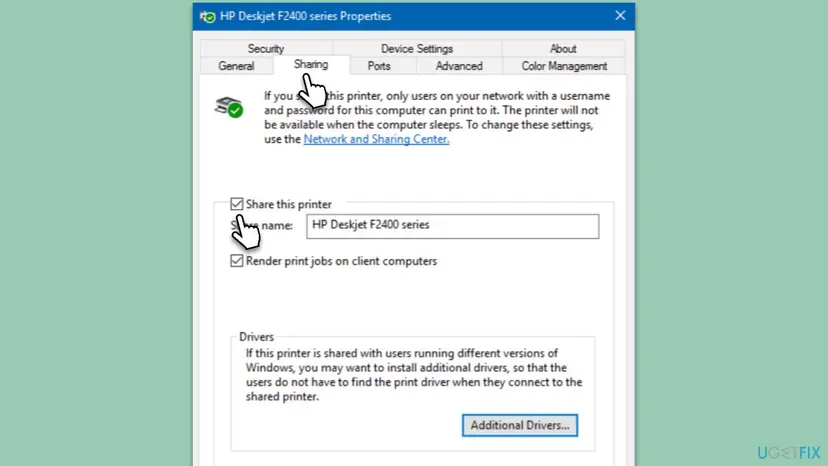
- On the Sharing tab, check Share this printer, note the Share name, then select Apply and OK.
- On the host, open Settings > Network & internet > Advanced network settings > Advanced sharing settings and turn on Network discovery and File and printer sharing.
- On your PC, open File Explorer and type
\\HostNamein the address bar. The host's shared printer should be listed. - If it is, add it with Add device, Add manually, Select a shared printer by name and the path
\\HostName\ShareName.
| Check on the host | Why it matters |
|---|---|
| The host is awake | The Sharing tab itself warns that the printer is not available when the computer sleeps |
| The network is set to Private | On Windows 10, Microsoft's steps turn on discovery and sharing under the Private profile |
| You have an account the host accepts | Microsoft says shared printers may require valid credentials of the host PC |
| The policy Allow Print Spooler to accept client connections is not disabled | Disabling it was Microsoft's second PrintNightmare workaround. The PC then no longer works as a print server. |
The policy sits in the Local Group Policy Editor under Computer Configuration > Administrative Templates > Printers. Set it to Not Configured or Enabled, then restart Print Spooler on the host, which Microsoft says the policy needs. Opening the editor: Open the Local Group Policy Editor. A wider guide to shared printer connections, with credentials and Point and Print: error 0x00000006.
It worked if: \\HostName opens and lists the printer, and the shared printer prints from your PC.
If not: If the host opens but printing still fails with 0x000006BA, and either PC runs Windows 11 22H2 or later, go to Fix 5.
Fix 5. Windows 11 22H2 and later: let the print RPC connection through
15 minutesRead the warningShared printers only, when the host or the client runs Windows 11 version 22H2 or later and Fix 4 is done.
Since Windows 11 22H2, Microsoft says, print traffic between computers uses RPC over TCP by default, and a host listens only on RPC over TCP. Named pipes still work but are off. A blocked port or a mismatch between the two computers leaves the client without an answer.
Route B changes printer policies in the registry. Back up the key HKEY_LOCAL_MACHINE\SOFTWARE\Policies\Microsoft\Windows NT\Printers first: Back up the registry before editing it. Microsoft calls named pipes a configuration that "isn't recommended", for use only when RPC over TCP is not an option. Microsoft also lists settings that lower RPC security; this guide leaves them out.
Route A, recommended by Microsoft: allow RPC over TCP on the host. Microsoft says the most common issue is a firewall rule that blocks the computers. The RPC Endpoint Mapper port 135 must be open, and the high ephemeral ports 49152 to 65535 on the host, or a fixed port you choose.
- On the host, check that a third-party firewall or security suite does not block incoming TCP 135 and 49152 to 65535 from your local network.
- If you want one fixed port instead, open the Group Policy policy Computer Configuration > Administrative Templates > Printers > Configure RPC over TCP port, enable it and enter the port.
- Allow that port through the firewall on the host, restart Print Spooler there, and try the printer again from your PC.
Route B, when Route A is not possible: named pipes. Run the commands in an administrator Terminal and restart the PC afterwards. On Windows 11 Pro you can set the same with the Group Policy policies Configure RPC connection settings (set RpcOverNamedPipes) and Configure RPC listener settings (set RpcOverNamedPipesAndTcp).
On a Windows 11 client: connect to the host over named pipes
reg add "HKEY_LOCAL_MACHINE\SOFTWARE\Policies\Microsoft\Windows NT\Printers\RPC" /v RpcUseNamedPipeProtocol /t REG_DWORD /d 1 /fOn a Windows 11 host: listen on named pipes and TCP
reg add "HKEY_LOCAL_MACHINE\SOFTWARE\Policies\Microsoft\Windows NT\Printers\RPC" /v RpcProtocols /t REG_DWORD /d 0x7 /f
Delete the value you added with reg delete and the same key and value name, or set the policy back to Not Configured, then restart. Windows returns to RPC over TCP.
It worked if: The shared printer opens from your PC and the test page prints.
If not: If it still fails, add the printer by its own IP address on your PC instead of through the host, as described in our 0x00000006 guide. Then remove the values again.
Fix 6. Remove the printer maker's print processors and port monitors
20 minutesRead the warningThe spooler still crashes after Fix 2 and Fix 3, even with the printer removed. Needs an administrator.
Print processors and port monitors are plug-ins that the spooler loads at every start, whether a printer uses them or not. A plug-in left behind by an old printer suite can crash the service before you print anything. Microsoft's printing troubleshooting tells administrators to remove third-party monitors, processors and providers.
Deleting the wrong key can remove printer ports, so a printer stops printing until it is added again. Microsoft says to always export HKLM\SYSTEM\CurrentControlSet\Control\Print before you remove print components from the registry. How to export and import a key: Back up the registry before editing it
- First uninstall any printer suite, scanner tool or print management program you no longer use, in Settings > Apps > Installed apps. This removes most plug-ins cleanly.
- Stop Print Spooler in
services.msc. - Press Win + R, run
regeditand export the keyHKEY_LOCAL_MACHINE\SYSTEM\CurrentControlSet\Control\Print. - Open
Print\Environments\Windows x64\Print Processors. Windows' own print processor is winprint. Note any other key, usually named after a printer maker. - Delete only a key that belongs to a maker whose printers you removed in Fix 3.
- Start Print Spooler and watch whether it stays Running.
Port monitors live under Print\Monitors. Leave that key alone unless you are sure: Microsoft warns that a third-party monitor key can hold the TCP/IP ports of your printers. Removing the maker's software in step 1 is the safer way to clear a monitor.
It worked if: The spooler stays Running after a restart, and no new 7031 or 7034 events appear.
If not: Import the exported .reg file to put everything back, then go to Fix 7.
Fix 7. Repair Windows system files and install pending updates
20 to 40 minutesNo riskNothing above holds, or other Windows parts misbehave too.
The spooler itself, spoolsv.exe, and the RPC service it depends on are Windows files. If they are damaged, no driver work helps. DISM restores the component store and SFC replaces damaged system files from it.
- Open Terminal (Admin) or an administrator Command Prompt.
- Run
DISM /Online /Cleanup-Image /RestoreHealthand wait until it reaches 100 percent. - Run
sfc /scannow, read the result and restart the PC. - Open Settings > Windows Update, install every pending update and restart again. On Windows 10 the path is Settings > Update & Security > Windows Update.
- Open an elevated command window. Right-click Start and select Terminal (Admin), or type cmd in the search box, right-click Command Prompt and select Run as administrator. Select Yes when Windows asks for permission.

Search for cmd and choose Run as administrator. Screenshot: Windows 11 26H2. - Run DISM first. Type the command below and press Enter. DISM downloads clean copies of damaged components from Windows Update, so it can take several minutes. Wait until it says The operation completed successfully.
DISM.exe /Online /Cleanup-Image /RestoreHealth
DISM /RestoreHealth running. Screenshot: Windows 11 26H2. - Run System File Checker. In the same window, type the command below and press Enter. Do not close the window until the verification reaches 100%.
sfc /scannow
sfc /scannow at 100%. Screenshot: Windows 11 26H2. - Read the result and restart. Compare the last message with the table below this guide, then restart the PC so that repaired files are loaded.

The result line tells you what SFC did. Screenshot: Windows 11 26H2.
These steps were written for Windows 11 24H2 and 25H2. The full page with the other versions and what each result means: Run DISM and SFC to repair Windows system files
It worked if: SFC reports that it found no integrity violations or that it repaired them, and the spooler stays Running.
If not: Collect the facts in the next section and ask the printer maker or Microsoft support.
Still getting 0x000006BA? Where the real cause is written
The message never names the driver or the computer that failed, but Windows logs both. Read these before you reinstall anything, and send them along if you ask for help.
| Log | Where | What to look for |
|---|---|---|
| System log | Event Viewer, Windows Logs > System, source Service Control Manager | Events 7031 and 7034: "The Print Spooler service terminated unexpectedly", with the time and the count |
| Application log | Event Viewer, Windows Logs > Application, source Application Error | Faulting application name spoolsv.exe and the Faulting module name, which points to the driver |
| Print Service log | Applications and Services Logs > Microsoft > Windows > PrintService > Admin | Errors about a printer, a driver or a port at the time of the failure |
| Spool folder | C:\Windows\System32\spool\PRINTERS | Old .SHD and .SPL files that come back after Fix 2 |
- What to send to support: your Windows version (press Win + R and run
winver), the printer model and how it is connected, the output ofsc query spooler, and the 7031 and Application Error entries. - Microsoft support. For business PCs, Microsoft asks for a TSS trace for printing problems; its printing articles link to the instructions.
- Is it hardware? Almost never. The code comes from Windows before anything is sent to the printer, so ink, paper and cables are not involved. If the printer works from another PC with the same driver, the fault is in this PC's spooler.
On a work PC where the spooler is disabled by policy, the setting comes back after every policy refresh. That is a decision of your administrator, not a fault, and only they can change it.
How to keep the print spooler from stopping again
A spooler that crashed once on a bad driver usually crashes again on the next update of that driver. A few habits keep the error away.
- Install printer drivers from the maker's site, for your exact Windows version, and remove the old one before a new model.
- Remove printers you no longer use, together with their driver packages.
- In the Recovery tab of Print Spooler, set First failure to Restart the Service, so one crash does not leave you without printing.
- Keep Windows updated. Windows 10 receives no more fixes since 14 October 2025.
- Do not use tuning tools that switch off services you do not know.
- Do not install several printer suites of one maker side by side.
- Do not leave a host PC that shares a printer set to sleep while others print to it.
- Do not keep named pipes switched on after the reason for them is gone.
Automatic restart hides the crash, so check the System log now and then. Several 7031 events a day mean the driver from Fix 3 still needs replacing.
Frequently asked questions
What does error 0x000006BA mean?
It is Windows system error 1722, "The RPC server is unavailable." A program sent a request to a service and the service did not answer. In printing that service is the Print Spooler, so Windows adds the sentence "The local print spooler service is not running." Most often the spooler on your own PC has stopped or crashed. With a printer shared by another computer, the spooler that does not answer can also be on that computer. Start with Fix 1 for your own PC and Fix 4 for a shared printer.
Is error 0x000006BA a fault of my printer?
No. The error appears before Windows sends anything to the printer, so the printer is never asked. Ink, paper, cables and the printer's own settings do not cause it. The fault is in the Print Spooler service on your PC, in a driver that crashes that service, or in the network link to a PC that shares the printer. A good test is another computer: if the printer works from there, the printer is fine and the fixes on this page apply to your PC.
Why does it say the local spooler is not running when I print to a shared printer?
Because Windows uses the same message for every "RPC server unavailable" answer it gets from the print system. When you print to a printer that another PC shares, your spooler calls the spooler on that PC. If the host is asleep, its spooler is off, its firewall drops the call or the two computers use different connection methods, your PC gets error 1722 and shows the "local" text. Check your own spooler first, then the host (Fix 4 and Fix 5).
Why does the Print Spooler keep stopping by itself?
Almost always because something it loads crashes it: a damaged print job in the spool folder, a printer driver, or a print processor or port monitor left behind by printer software. Microsoft names conflicting drivers as a common cause. Clear the spool folder first (Fix 2). If the service still stops, read the Application Error entry for spoolsv.exe in Event Viewer. Its faulting module name points to the driver to remove (Fix 3).
Is it safe to delete the files in the spool PRINTERS folder?
Yes, when the Print Spooler is stopped first. The folder holds only jobs that have not printed yet, as .SHD and .SPL files, and Microsoft's own reset for spooler errors deletes them. You lose those queued jobs and print the documents again; the documents themselves are not touched. Do not delete the PRINTERS folder itself or anything in the neighbouring drivers and prtprocs folders. Those hold the installed drivers and print processors.
Should I leave the Print Spooler disabled for security?
Only if you never print from that PC. Disabling the spooler was Microsoft's emergency workaround for the PrintNightmare flaw, CVE-2021-34527, in July 2021, before updates were out. Microsoft states that it disables printing both locally and remotely, so it produces exactly this error. On a fully updated Windows 11 PC that prints, set the service back to Automatic. On a work PC, ask the administrator first, because the setting may be policy.
What does "catdbcli.cpp at line #830 encountered error 0x000006ba" mean?
That line comes from C:\Windows\System32\catroot2\dberr.txt, the log of the catalog database that Windows uses to check signatures of updates and drivers. It has nothing to do with printing. The code means the same thing there: the service that manages the catalog database, Cryptographic Services, did not answer over RPC at that moment, for example while it was restarting. A single entry is not a fault. Look into it only if Windows Update or a driver installation fails at the same time.
What does "Error 0x000006BA enumerating sessionnames" mean?
It is the same error 1722 from the qwinsta or quser commands, which list the sign-in sessions on a computer. It is not a printer problem. The command could not reach the remote computer's RPC service, usually because the computer is off, a firewall blocks RPC or remote RPC access for these tools is not allowed. The tools usually print the decimal form on the next line: "Error [1722]: The RPC server is unavailable."
Is "error 0x00006ba impresora" the same error?
Yes. Impresora is Spanish for printer, and the code is the same in every language of Windows: 0x000006ba, with or without the extra zeros, means error 1722. Only the words around it are translated, which is why people also search for "Fehler 0x000006ba" in German or "erreur 0x000006ba" in French. The steps on this page are the same; the menu names are in your Windows language. This page uses the English labels of Windows 11 and Windows 10.
Does the fix differ on Windows 10?
Not for a printer on your own PC: Fix 1 to Fix 3 and Fix 7 are the same, only the Settings paths differ, and each step gives both. The Windows 11 22H2 RPC change in Fix 5 concerns Windows 11 computers, though a Windows 10 PC can be the client that fails. Windows 10 support ended on 14 October 2025, so Microsoft no longer fixes its print system. If a driver crash keeps returning on Windows 10, moving to Windows 11 is the lasting fix.
Sources
- Microsoft Learn: System Error Codes (1700-3999) (learn.microsoft.com)
- Microsoft Learn: System Error Codes (1000-1299) (learn.microsoft.com)
- Microsoft Support: Fix print spooler service not running errors in Windows (support.microsoft.com)
Did this fix work?
One click, no account. It tells the next reader which guides are worth their time.
Questions and experiences: fix printing error 0x000006BA in Windows
Still broken, or found a fix we did not cover? Ask here: members and our editors answer. Reading is open; writing needs a free account.
…