
How to fix "Unable to install printer" 0x000003eb error in Windows?

Prefer to fix it yourself? The manual steps follow.
- 8methods
- 5 to 40 minutes
- Intermediate
Applies to Windows 11 and Windows 10 PCs that fail to install a USB, network or shared printer; older reports cover Windows 7 and Windows Vista
8 methods in this guide
- What the error means
- Causes, ranked
- Where the driver lives
- Windows 11 and Windows 10
- The fixes
- 1. Remove driver and package
- 2. Install the current driver
- 3. Clear the Driver Store
- 4. Reset the driver records
- 5. Shared printer: admin rights
- 6. Use the Windows driver
- 7. Clean boot installation
- 8. System files and updates
- Still there: read the logs
- Undo the changes
- Keep it from coming back
- FAQ
Hello. I am using a Dell Latitude 3540 laptop and had an old Canon printer that I wanted to replace for a very long time. I finally did, with the HP Tango printer, and I was excited to use it. Unfortunately, I can't connect it due to the 0x000003eb error: it says, "Unable to install printer." Any advice would be appreciated.
Error 0x000003eb appears when Windows cannot finish installing a printer driver, either in the Add Printer wizard or when you connect to a shared printer. The code only says "cannot complete this function", and in most reports the reason is an old or half-installed driver package. Remove the printer together with its driver package first, then install the manufacturer's current driver.
0x000003eb is Windows error 1003, "Cannot complete this function": the driver installation stopped half way. Remove the printer, then open printui /s /t2, select the driver of that model and choose Remove driver and driver package (Fix 1). Restart the PC and install the current driver from the manufacturer's site as an administrator (Fix 2). If the old package refuses to go, delete it with pnputil (Fix 3). For a shared printer, go to Fix 5.
| Error | Unable to install printer. Operation could not be completed (error 0x000003eb). The number is Windows system error 1003, ERROR_CAN_NOT_COMPLETE: "Cannot complete this function." |
|---|---|
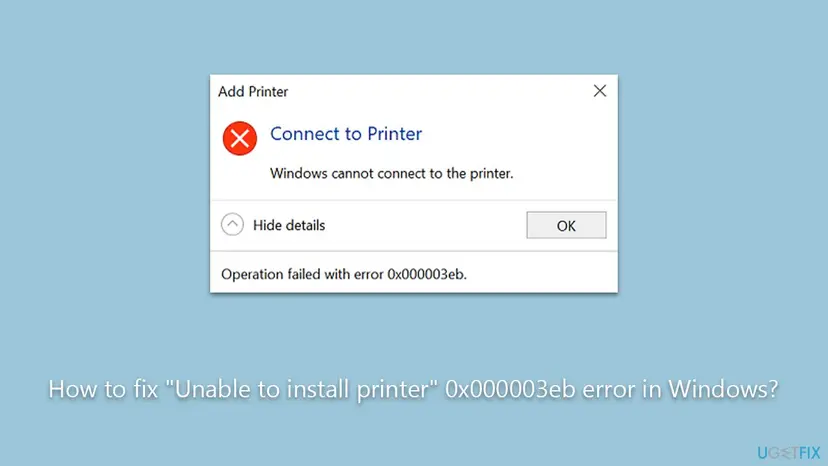
| Where it appears | In the Add Printer wizard right after you choose a driver, in a manufacturer's setup program, or in the Connect to Printer box as "Windows cannot connect to the printer. Operation failed with error 0x000003eb". |
| Main cause | The printer driver cannot be installed. Most often an older or half-installed driver package of the same maker is still on the PC. Less often the installer is outdated, or a standard user is not allowed to install the driver. |
| Fastest fix | Remove the printer, remove its driver with Remove driver and driver package on the Drivers tab of the print server properties (Fix 1), restart, then install the current driver (Fix 2). |
| Also written as | 0x00003eb, 0x0000003eb, 0x3EB, error 1003, "Operation failed with error 0x000003eb", "Operation could not be completed (error 0x000003eb)". |
| Affects | Windows 11 and Windows 10, every printer brand. The oldest reports we read are from Windows Vista and Windows 7. |
| Microsoft's status | No Microsoft article explains this code for printers. Microsoft documents only the general meaning of error 1003 and, separately, each tool used on this page. |
| Needs an administrator | Yes, for every fix that removes or installs a driver. Since the updates of 10 August 2021, a driver that comes from another computer also needs administrator rights (Fix 5). |
| Where the cause is logged | Event Viewer: Applications and Services Logs > Microsoft > Windows > PrintService > Admin. Driver package installation: %SystemRoot%\inf\setupapi.dev.log. |
| Time to fix | 5 to 10 minutes for Fix 1 and Fix 2. Up to 40 minutes when the spooler's driver records have to be reset (Fix 4). |
Facts checked on 14 October 2026. Steps written for Windows 11 (25H2 and 26H2) and Windows 10 22H2.
What "Operation could not be completed (error 0x000003eb)" means
0x000003eb is a hexadecimal number. In decimal it is 1003, and Microsoft's list of system error codes names it ERROR_CAN_NOT_COMPLETE with the text "Cannot complete this function." It is one of the least specific errors Windows has. The Print Spooler started a job, here the installation of a driver, hit a problem on the way and gave up.
So the code does not name the cause. What it does tell you is where the trouble is: in the driver, not in the cable, the ink or the network address. The printer itself is usually fine.
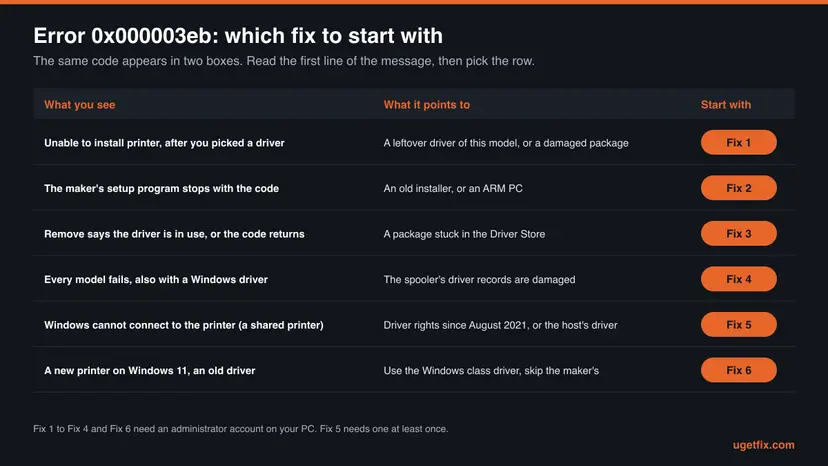
| What you see | When | What it tells you |
|---|---|---|
| Unable to install printer. Operation could not be completed (error 0x000003eb) | In the Add Printer wizard, after you picked the manufacturer and model or pointed to a driver with Have Disk | Windows could not set up the driver you chose on this PC. Start with Fix 1. |
| Windows cannot connect to the printer. Operation failed with error 0x000003eb | In the Connect to Printer box, when you add a printer that another PC or a print server shares | The driver had to come from the other computer and could not be installed. Start with Fix 5. |
| The code inside a manufacturer's setup program | While the setup program of the printer adds the printer at the end of its work | The setup program called the same Windows function. Start with Fix 2. |
The full form has eight digits after 0x: 0x000003eb. People also type 0x00003eb, 0x0000003eb or 0x3EB, with capital or small letters. Zeros in front do not change a number, so all of them mean error 1003. Be careful with look-alikes: 0x000003e3 and 0x00000003 are different errors with different causes.
Why Windows is unable to install the printer: causes of 0x000003eb, ranked
Microsoft gives no cause for this code in the printing context. The ranking below is built from what the code means, from Microsoft's documents about how printer drivers are stored and installed, from one manufacturer's bulletin and from what administrators report. It runs from the common to the rare.
| # | Cause | How to recognise it | Fix |
|---|---|---|---|
| 1 | A driver of the same maker or model is already on the PC and is damaged, half installed or older than the one you are adding | You owned another printer of this brand, an earlier setup attempt was cancelled, or the PC was upgraded from an older Windows | Fix 1, then Fix 3 |
| 2 | The driver you are installing is wrong for this PC: an old disc, a package for another Windows version, a 32-bit driver, or a maker's installer on an ARM PC | The driver came from a disc or from a download made years ago. System type in Settings shows an ARM based processor. | Fix 2, Fix 6 |
| 3 | You are not allowed to install the driver. A shared printer hands its driver to your PC, and since August 2021 that needs an administrator | The message starts with "Windows cannot connect to the printer". An administrator on the same PC succeeds. | Fix 5 |
| 4 | The spooler's own records of installed drivers are damaged: registry entries without files, or files without entries | Every printer model fails, also with a driver that Windows itself offers | Fix 4 |
| 5 | Software that is running gets in the way: the tools of an older printer, or a security program that watches the spooler folders | The setup works on another user account or after a restart with few programs | Fix 7 |
| 6 | Windows files that the spooler needs are damaged, or an update is missing | Other parts of Windows also misbehave. Print Spooler stops by itself. | Fix 8 |
The reader's case at the top of this page fits cause 1 and cause 5 at once: a printer of one maker was replaced by a printer of another, and the old software was still installed. Removing the old printer's driver package and its programs before the new setup covers both.
Xerox documents the code in a support bulletin. It affected four versions of its Global Print Driver on Windows 7 x64, and only users who were not administrators of the PC. Xerox points to a Microsoft update and adds that a driver made for the specific printer model does not show the error. Two lessons carry over: rights matter, and another driver for the same printer can succeed where one fails.
Where a printer driver lives in Windows: Type 3 and Type 4 drivers
Removing a printer in Settings does not remove its driver. A printer driver sits in up to four places, and a leftover in any of them can make the next installation stop with 0x000003eb. Knowing the four places is what separates a real repair from trying the setup program again and again.
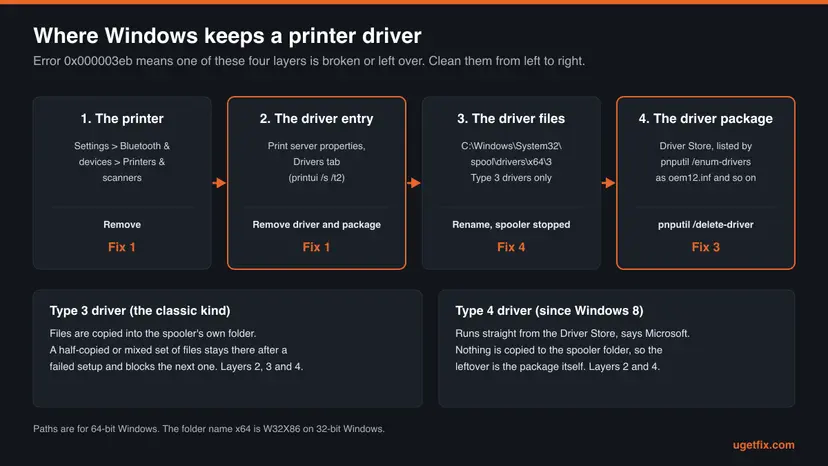
| Layer | Where it is | How to remove it properly |
|---|---|---|
| The printer (the queue) | Settings > Bluetooth & devices > Printers & scanners | Select the printer, then Remove |
| The driver entry of the spooler | The Drivers tab of the print server properties, and the registry key Print\Environments\Windows x64\Drivers | Remove, then Remove driver and driver package (Fix 1) |
| The driver files, Type 3 drivers only | C:\Windows\System32\spool\drivers\x64\3 | They go with the driver entry. By hand only as in Fix 4. |
| The driver package | The Driver Store, the protected collection from which Windows installs every driver | With the driver entry, or with pnputil /delete-driver (Fix 3) |
The Type column on the Drivers tab matters. A Type 3 driver is the classic kind: its files are copied into the spooler's folder, where they can collide with files of another driver. Microsoft describes the newer Type 4 model as one that is run directly from the Driver Store, which in its words removes the possibility of file collisions.
- Type 3 leftovers can sit in the registry, in the
3folder and in the Driver Store. Fix 1 cleans all three when it works. Fix 4 is for the case when it does not. - Type 4 leftovers are the package in the Driver Store and its entry. Renaming the
3folder does nothing for them. Use Fix 1 or Fix 3. - Print processors are small Windows components that turn a spooled job into data for the printer. Each driver names the one it uses. If a driver points to a print processor that is gone, Windows cannot start that printer. Microsoft's answer is to remove the driver package and install a new driver.
Microsoft states that files in the Driver Store should not be removed or modified in any way once they are there. Deleting folders inside it with File Explorer leaves Windows with records of a package that no longer exists. Always use the Drivers tab, pnputil or PowerShell.
Error 0x000003eb on Windows 11 and Windows 10: the driver rules since 2021
The error is the same on both systems and the fixes are the same, but the rules around printer drivers are not what they were when most forum answers were written. Four dates explain why an installation that once worked can fail now.
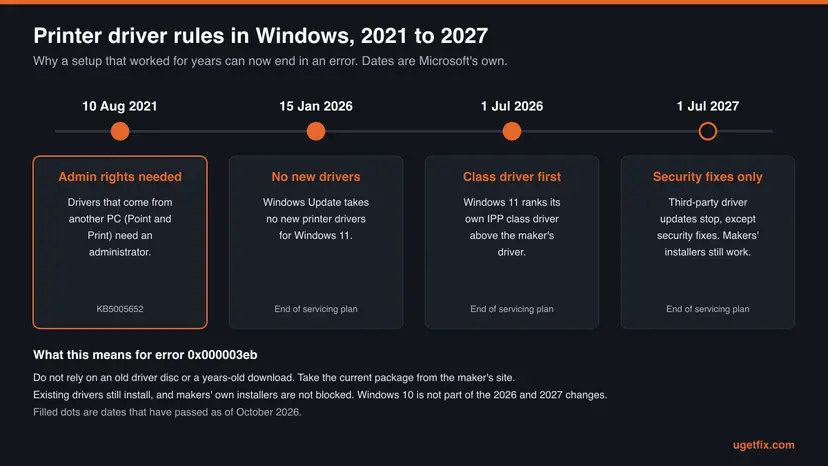
| Since | What changed | What it means for this error | Applies to |
|---|---|---|---|
| Updates of 10 August 2021 (KB5005652) | Installing or updating a printer driver that comes from another computer through Point and Print needs administrator rights | A standard user who adds a shared printer is stopped when the driver is not yet on the PC | Windows 10 and Windows 11 |
| Windows 10, version 21H2 | Windows has built-in support for Mopria compliant printers over network and USB through the Microsoft IPP Class Driver | Many printers need no maker's driver at all (Fix 6) | Windows 10 21H2 and later, Windows 11 |
| 15 January 2026 | No new printer drivers are published to Windows Update. Existing ones are updated case by case. | A very new model may have no driver in the Windows Update list | Windows 11 and Windows Server 2025 |
| 1 July 2026 | The driver ranking order always prefers the Windows IPP inbox class driver | Windows may pick its own driver even when a maker's driver is present | Windows 11 and Windows Server 2025 |
| 1 July 2027 | Third-party printer driver updates stop, except security fixes | Makers' own installation packages stay allowed, says Microsoft | Windows 11 and Windows Server 2025 |
Windows 10 22H2 has the 2021 change and the class driver, and Microsoft says the end of servicing plan does not apply to it. Its support ended on 14 October 2025, so it receives no further fixes for the print components. Where a path differs between the two systems, the steps below give both.
Open Settings > Bluetooth & devices > Printers & scanners and scroll to Printer Preferences. If Windows protected print mode is on, Microsoft says third-party drivers are deleted from the driver store and cannot be used while it is active. We could not confirm which message a blocked installation shows, so check this before you spend time on a maker's driver. Fix 6 explains the choice.
How to fix error 0x000003eb: eight fixes in order
Fix 1 to Fix 3 clean out the old driver and put a current one in its place, and they solve most cases. Fix 4 resets the spooler's driver records, Fix 5 is for shared printers, Fix 6 avoids the maker's driver. Fix 7 and Fix 8 are the general checks.
| What you see or have | Start with |
|---|---|
| "Unable to install printer" in the Add Printer wizard, right after you chose a driver | Fix 1 |
| The manufacturer's setup program stops with the code, or the driver is from a disc | Fix 2 |
| Windows says the driver is in use, or the same code returns after Fix 1 | Fix 3 |
| Every printer model fails, also with a driver from the Windows list | Fix 4 |
| "Windows cannot connect to the printer. Operation failed with error 0x000003eb" for a shared printer | Fix 5 |
| A printer from the last few years on Windows 11, or an ARM PC | Fix 6 |
| You replaced a printer of another brand and its software is still installed | Fix 7 |
| Print Spooler stops by itself, or Windows has other faults too | Fix 8 |
Fix 1. Remove the printer together with its driver package
5 to 10 minutesLow riskFor everyone who sees "Unable to install printer". It needs an administrator account.
A new installation does not start from zero: Windows finds the driver that is already registered for the model and tries to reuse or update it. When that copy is damaged or incomplete, the function cannot finish. Removing the driver entry and its package forces a clean copy. An independent Windows knowledge base gives this cure for the code: remove the printers, then delete their drivers.
The printer and its driver. Your documents are not touched. Every printer that uses the same driver stops working until the driver is installed again, so remove those printers too in step 1.
- Open Settings > Bluetooth & devices > Printers & scanners. On Windows 10 it is Settings > Devices > Printers & scanners.
- Select the printer that fails, if it is listed, and select Remove. Do the same for other printers of the same maker that you no longer use.
- Press Win + R, type
printui /s /t2and press Enter. The print server properties of your own PC open on the Drivers tab. - If the buttons are greyed out, close the box, open Command Prompt as administrator and run the same command there.
- Select the driver that belongs to the printer model and select Remove.
- Choose Remove driver and driver package, then select OK and confirm.
- If Windows answers that the driver is in use, restart the Print Spooler service and repeat steps 5 and 6 at once.
- Restart the PC, then install the printer again with Fix 2.
The same box by the command Microsoft documents
rundll32 printui.dll,PrintUIEntry /s /t2Microsoft documents /s as the switch that shows the properties of a print server and /t as the number of the page to open, counted from zero. Page 2 is the Drivers tab. The list shows each driver with its processor and its type. A printer of one maker often has two entries, for example a PCL and a PostScript driver: remove both.
| Tool | How | Good for |
|---|---|---|
| Print server properties | printui /s /t2, Remove, Remove driver and driver package | Every edition of Windows 10 and Windows 11 |
| Print Management | Run printmanagement.msc, open Drivers under your PC, right-click the driver and select Remove driver package | PCs that have the console. It shows all drivers in one sortable list. |
| PowerShell, as administrator | Get-PrinterDriver to list, then Remove-PrinterDriver -Name "Driver name" -RemoveFromDriverStore | Scripts, and names that are hard to find in a long list |
Print Management is not on every PC. On Windows 11, users on Microsoft's Q&A site report that it is an optional component named Print.Management.Console, which an administrator can add with DISM. We could not confirm from a Microsoft document which editions include it. The print server properties box does the same removal and is always there.
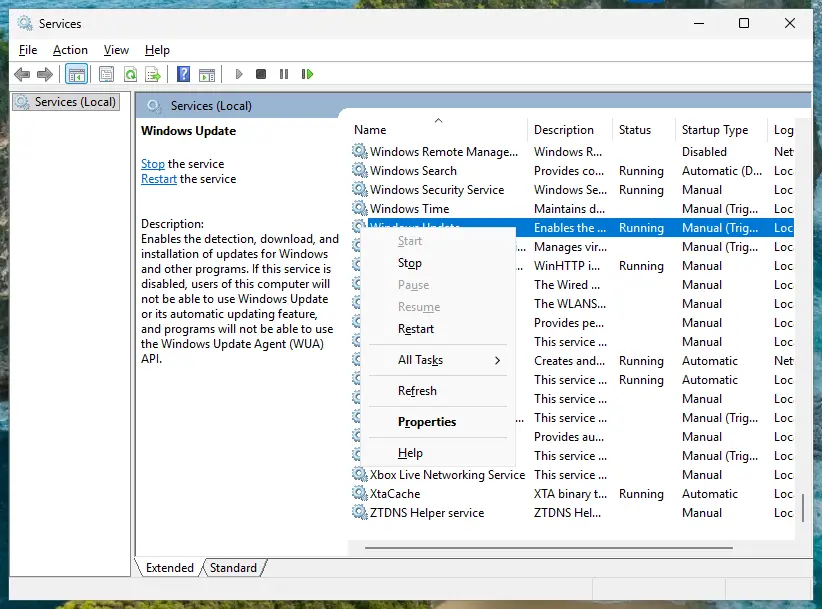
Where the Services window is and what each command in it does: Check and restart Windows services
It worked if: The driver is gone from the Drivers tab, and the next installation runs to the end without the code.
If not: If the driver cannot be removed, or the code returns although the tab is clean, delete the package with Fix 3.
Fix 2. Install the manufacturer's current driver for your Windows version, as administrator
10 to 15 minutesNo riskAfter Fix 1, or when the driver comes from a disc, an old download or a setup program that stops.
The error belongs to the driver you feed to Windows as much as to what is already there. Microsoft's own advice for driver trouble is a package from the maker's site that matches your Windows version and system type, and it warns that the software on a printer's disc might be outdated.
- Open Settings > System > About and read System type: 64-bit, or ARM based processor.
- Go to the support site of the printer's manufacturer and search for the exact model. The model number is printed on the printer.
- Download the newest driver or software package that names your Windows version and your system type.
- Sign in with an administrator account, or right-click the downloaded file and select Run as administrator.
- Follow the setup program. Connect the printer only when the program asks for it.
- If the setup program fails, open Printers & scanners, select Add device, then Add manually.
- Choose Add a local printer or network printer with manual settings, select the port, then Have Disk and open the folder with the unpacked driver.
- If Windows asks which version of the driver to use, select Replace the current driver.
- Select Print a test page, then Finish.
Microsoft says it is aware that some ARM PCs, for example Copilot+ PCs, cannot add a printer with the installer from the manufacturer. Its fix is Settings > Bluetooth & devices > Printers & scanners > Add device, unless the manufacturer has its own instructions for Windows on ARM.
- One printer, several drivers. Makers often offer a universal driver and a model-specific one, or a PCL and a PostScript version. Xerox's bulletin on this code says the model-specific driver installs where its universal driver fails. If one kind stops with 0x000003eb, try the other.
- Avoid drivers for older Windows. Microsoft's tip is to stay away from drivers marked for older or unsupported Windows versions unless nothing newer exists.
- A 32-bit driver does not install on 64-bit Windows. Windows 11 exists only in 64-bit form.
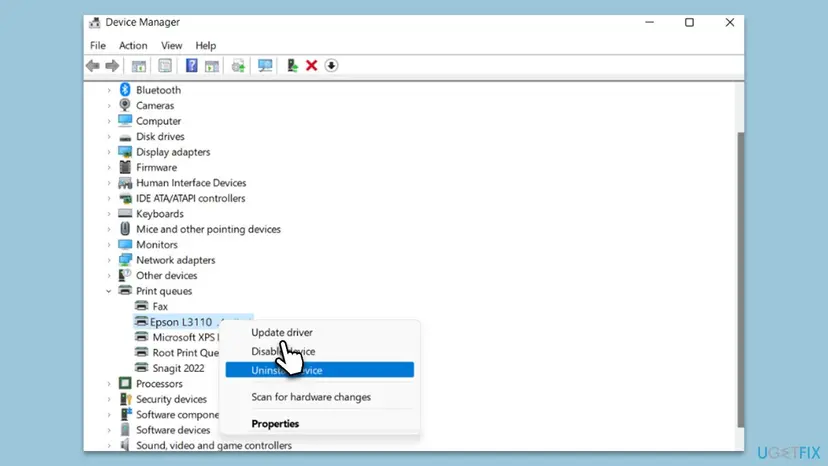
The earlier version of this guide installed the driver through Device Manager: Update driver, Browse my computer for drivers, then Let me pick from a list of available drivers on my computer. Microsoft still lists Device Manager as one way to install a printer driver. All the driver commands of Device Manager: Update, roll back or reinstall a driver. Starting a program with administrator rights: How to run a program as administrator or in compatibility mode
It worked if: The printer appears under Printers & scanners and the test page prints.
If not: If the same code comes back at the same point, an old package is still in the Driver Store: go to Fix 3.
Fix 3. Delete the leftover package from the Driver Store with pnputil
10 minutesLow riskFix 1 could not remove the driver, or the code returns although the Drivers tab is clean. Needs an administrator.
Windows installs every driver from the Driver Store, and a package can stay there after its printer and its entry are gone. The next installation of the same model then picks up the old package again. PnPUtil is the tool Microsoft ships for listing and deleting packages in the store.
- Right-click Start and select Terminal (Admin). On Windows 10, open Command Prompt as administrator.
- Run the first command below. It lists the printer driver packages that did not come with Windows.
- Find the block whose provider is the maker of your printer and write down its published name, a file such as
oem12.inf. - Run the second command with that name. It saves a copy of the package, which is your undo.
- Run the third command with the same name.
/uninstallalso takes the package off any device that still uses it. - Restart the PC and install the printer again with Fix 2.
Commands, one per line. Replace oem12.inf with the name from your list.
pnputil /enum-drivers /class Printer
md C:\DriverBackup
pnputil /export-driver oem12.inf C:\DriverBackup
pnputil /delete-driver oem12.inf /uninstall| Detail | What Microsoft documents |
|---|---|
/enum-drivers | Enumerates all third-party driver packages in the driver store. The drivers that are part of Windows are not listed, so you cannot delete them by mistake. |
/class | Filters by device class. The filter exists from Windows 11, version 21H2. On Windows 10, run pnputil /enum-drivers and look for the blocks with the class Printer. |
/delete-driver with /uninstall | Deletes the package and uninstalls it from any devices using it |
/force | Deletes the package even when it is in use by devices. Use it only after a restart did not free the package. |
| Bringing it back | pnputil /add-driver C:\DriverBackup\*.inf /subdirs adds the saved package to the store again |
A maker's software often adds more than one package: the printer, a scanner, a USB helper. Delete only the ones with the class Printer, one name at a time. If you are not sure about a block, export it first. An exported package costs nothing and can always be added back.
It worked if: PnPUtil reports that the driver package was deleted, and the new installation completes.
If not: If the package is gone and the code still returns for every driver, the spooler's own records are the suspect: go to Fix 4.
Fix 4. Reset the spooler's driver records in the registry and in the drivers folder
20 to 40 minutesRead the warningEvery printer model fails, or a driver stays on the Drivers tab and cannot be removed. Needs an administrator.
The spooler keeps one registry key for each Type 3 driver and the driver's files in its 3 folder. When the two no longer match, the tools of Fix 1 fail and so does every new installation. An administrator describes this state on his blog for the same code: the registry entries were there, the files were not. Clearing both lets the spooler build clean records.
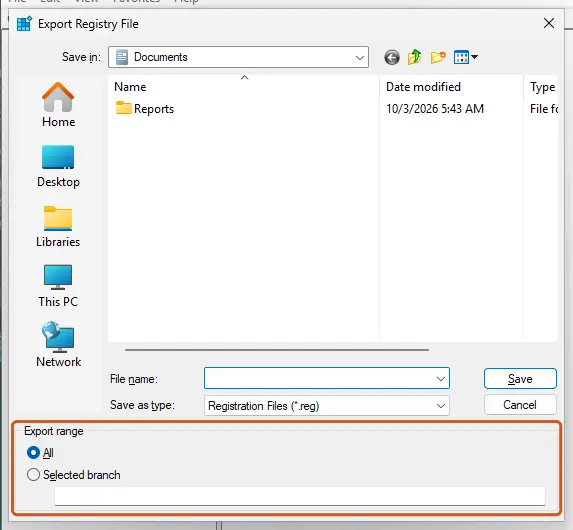
The full reset removes every Type 3 driver, so every printer that uses one must be installed again. Microsoft's rule for manual work on printing components is to always export the whole Print key first and to keep the spooler stopped while you change files or registry entries. Make the export in step 3 and keep the renamed folder until all printers work. How to export and import a key: Back up the registry before editing it
- Remove the printers that fail under Printers & scanners, as in Fix 1.
- Open Command Prompt as administrator and run
net stop spooler. - In the same window, run the export command shown below these steps. It writes the backup file to your desktop.
- Press Win + R, type
regeditand select OK. Go to the key shown below these steps. - Under Version-3, right-click the key with the name of the driver that fails and select Delete.
- Close Registry Editor, run
net start spoolerand try the installation again with Fix 2.
Step 3: back up the whole Print key
reg export "HKLM\SYSTEM\CurrentControlSet\Control\Print" "%USERPROFILE%\Desktop\print-backup.reg"Step 4: the Type 3 drivers of 64-bit Windows
HKEY_LOCAL_MACHINE\SYSTEM\CurrentControlSet\Control\Print\Environments\Windows x64\Drivers\Version-3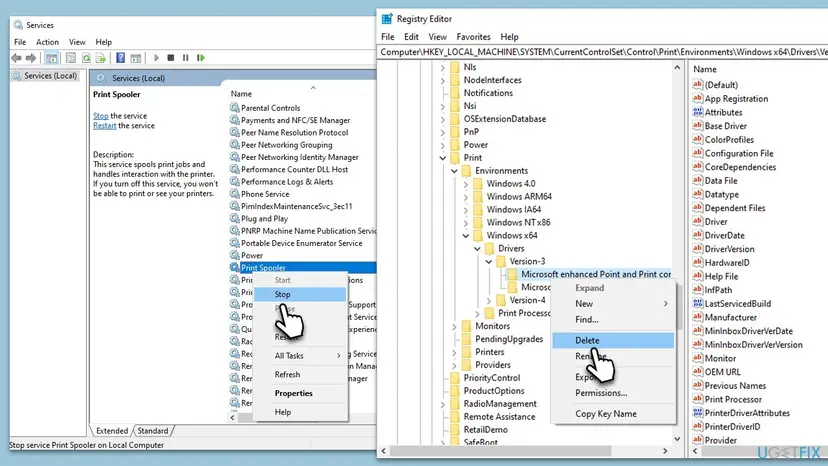
That was the small step: one driver. If the code is still there, do the full reset that administrators report for this error. It is the method of the earlier version of this guide, with the folder corrected for 64-bit Windows.
- Run
net stop spooleragain in the administrator Command Prompt. - In Registry Editor, delete the remaining keys of printer makers under Version-3. Leave Version-4 and Print Processors as they are.
- Open File Explorer at
C:\Windows\System32\spool\drivers\x64. - Rename the folder
3to3.old. Do not delete it. - Run
net start spooler. - Install your printers again with Fix 2, the failing one first.
- Undo. Stop the spooler, delete the new
3folder if Windows made one, rename3.oldback to3, double-clickprint-backup.regand start the spooler. - 32-bit Windows 10. The key is
Environments\Windows NT x86\Drivers\Version-3and the folder isspool\drivers\W32X86\3. The earlier version of this guide gave this folder for every PC, which is wrong on 64-bit Windows. - Where the paths come from. Microsoft's KB5005652 names the folder
spool\drivers\x64\3. The registry path is the one administrators give and the one our own screenshot shows. We found no Microsoft page that describes this reset, and we could not confirm the folder name on ARM PCs. - Microsoft's own keys. Entries with Microsoft in the name belong to Windows. We could not confirm that Windows creates them again by itself, so the export from step 3 is what brings them back.
It worked if: The spooler starts, the Drivers tab is empty of the old entries, and the printer installs.
If not: If the spooler does not start or nothing changed, undo the reset as described above and continue with Fix 7 and Fix 8.
Fix 5. Shared printer: install the driver with administrator rights
10 to 15 minutesLow riskThe message is "Windows cannot connect to the printer. Operation failed with error 0x000003eb". Needs an administrator once.
A shared printer gives its driver to your PC when you connect, which Microsoft calls Point and Print. Windows updates released on 10 August 2021 and later require administrative privilege for that by default, to address the vulnerability CVE-2021-34481. A standard user is stopped in the middle of the driver installation.
- Sign in to your PC with an administrator account and install the driver for the printer model first, with Fix 2. Where you can, use the same driver version as the computer that shares the printer.
- Sign in as the everyday user and add the shared printer again by its path,
\\ComputerName\PrinterShareName. - If Windows asks for credentials or asks whether you trust the printer, enter an administrator user name and password.
- If an administrator gets the code too, remove the driver of this model from your PC with Fix 1 and connect again, so that a clean copy is fetched.
- If it still fails for an administrator, check the policy Only use Package Point and Print under Computer Configuration > Administrative Templates > Printers. Microsoft says it must be disabled when drivers cannot be installed even with administrator privilege.
- Try the same printer from a second PC. If every PC fails, the driver on the sharing computer is damaged: do Fix 1 and Fix 2 there.
Many answers tell you to set RestrictDriverInstallationToAdministrators to 0. Microsoft warns that this value makes devices vulnerable and that no combination of other protections equals the default of 1. Installing the driver as an administrator, as in step 1, reaches the same result with the protection left on.
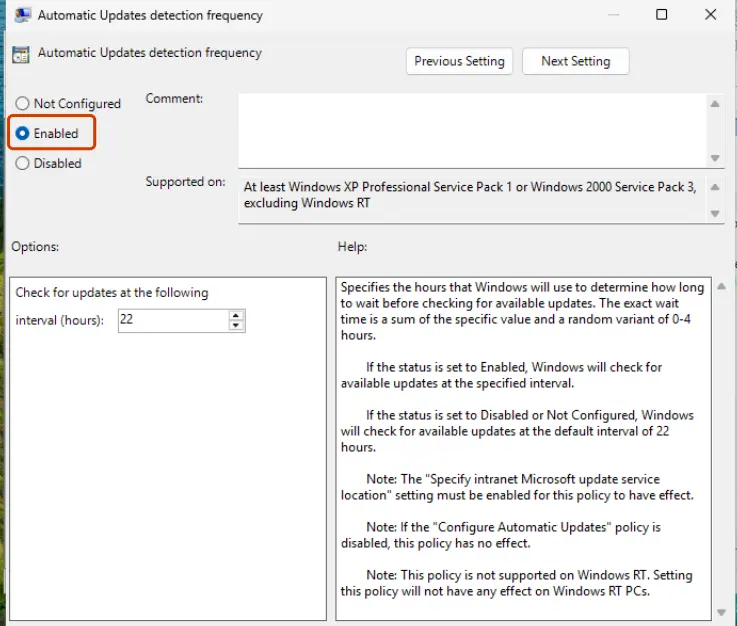
Opening the editor and what to do on Windows Home: Open the Local Group Policy Editor. If the shared printer cannot be reached at all, or the code on screen changes, our guide to printer error 0x00000006 covers the network, sign-in and RPC side of shared printers.
It worked if: The shared printer is added, and the standard user prints from then on without a driver prompt.
If not: If the printer has its own network connection, skip the share and add it directly with Fix 6.
Fix 6. Let Windows use its own driver instead of the manufacturer's
5 to 10 minutesNo riskA printer from recent years, an ARM PC, or a maker's driver that will not install whatever you do.
From Windows 10 21H2 on, Windows supports Mopria compliant printers over network and USB with its own IPP class driver. Microsoft says this removes the need for the maker's installers and drivers. When no third-party driver is installed, there is no third-party package that can fail.
- Remove the printer and the maker's driver as in Fix 1, so that Windows does not reach for the broken package again.
- Switch the printer on and connect it to the PC or to the same network as the PC.
- Open Settings > Bluetooth & devices > Printers & scanners and select Add device. Windows 10: Add a printer or scanner.
- When your printer appears in the list, select Add device next to it.
- If it is not found, select Add manually, choose the manual settings option, select the port, and on the driver page select Windows Update.
- Wait while Windows loads the list, then select the manufacturer on the left and the model on the right.
- Print a test page.
| Windows protected print mode is | What you can install | What to do |
|---|---|---|
| On | Only printers that work with the Windows driver. Microsoft says the mode is designed for Mopria certified printers. | Add the printer with the steps above. A maker's driver cannot be used. |
| Off | Both kinds of driver | Use this fix or Fix 2 |
| On, set by your organisation | Only what the mode allows | Ask the administrator. Microsoft says you cannot turn it off yourself. |
- The switch. It is under Printer Preferences on the Printers & scanners page. Microsoft's path to switch it off is Turn Off, then Yes, after which printers that are not compatible can be installed.
- Think before you switch it off. Microsoft highly recommends the mode for its security benefits. If your printer works with the Windows driver, leave the mode on and do without the maker's driver.
- What you may lose with the Windows driver. Extras of the maker's software. For a multi-function device, Microsoft says printing and fax work over IPP, and scanning works over WS-Scan or eSCL.
- Very new models. Since 15 January 2026, Microsoft publishes no new printer drivers to Windows Update for Windows 11. A missing model in the list is expected: the class driver or the maker's package are the two routes left.
It worked if: The printer is added without any setup program, and the test page prints.
If not: If the printer is older and needs its own driver, return to Fix 2 and prepare the PC with Fix 7 first.
Fix 7. Install the printer in a clean boot, after removing the old printer's software
15 to 20 minutesLow riskYou replaced a printer of another brand, or the setup works on one day and not on another.
Printer software leaves services and status monitors running, and they hold on to spooler files while a new driver is being copied. A clean boot starts Windows without programs from other companies. The accepted answer in a Microsoft Q&A thread about this code suggests the same step.
- Open Settings > Apps > Installed apps and uninstall the software of the printer you no longer own: the driver suite, the scan tool, the status monitor.
- Restart the PC.
Removing a program completely, including the Control Panel route that old printer suites need: Uninstall a program or app in Windows. Then start Windows in a clean boot:
- Open System Configuration. Select Search on the taskbar, type msconfig and select System Configuration from the results.
- Hide Microsoft services. On the Services tab, select the Hide all Microsoft services check box. Only services from other companies stay in the list.
- Disable the remaining services. Select Disable all, then select Apply.
- Open Task Manager. On the Startup tab of System Configuration, select Open Task Manager.
- Disable the startup apps. On the Startup apps tab in Task Manager, select each item whose status is Enabled and select Disable. Write down or take a screenshot of the items you disable: you need the list to turn them back on.
- Confirm the changes. Close Task Manager. On the Startup tab of System Configuration, select OK.
- Restart and test. Restart the PC. Windows now starts in a clean boot environment: try again the thing that failed (run the app, install the update, uninstall the program).
These steps were written for Windows 11 25H2 and 26H2. The full page with the other versions and what each result means: How to perform a clean boot in Windows
- In the clean boot, run the installation from Fix 2 once more.
- Afterwards, switch everything back on. Open System Configuration again, select Enable all on the Services tab, enable the startup apps and restart. A PC left in a clean boot runs without its security and backup programs.
- A correction to the earlier version of this guide. It also ticked Safe boot on the Boot tab. That is Safe Mode, not a clean boot, and it is no help when you want to install a driver. Leave that box empty.
It worked if: The same installer that stopped with the code now finishes, and the printer still works after a normal restart.
If not: If the code appears in a clean boot too, other software is not the cause: go to Fix 8.
Fix 8. Repair the Windows system files and install pending updates
20 to 40 minutesNo riskNothing above helped, the Print Spooler stops by itself, or Windows shows other faults too.
The spooler, the Add Printer wizard and the built-in print components are Windows files. If one of them is damaged, every driver installation can stop with the same general code whatever driver you choose. The system file check compares them with clean copies, and Xerox's bulletin shows that a Windows update has cured this code before.
- Open an elevated command window. Right-click Start and select Terminal (Admin), or type cmd in the search box, right-click Command Prompt and select Run as administrator. Select Yes when Windows asks for permission.
- Run DISM first. Type the command below and press Enter. DISM downloads clean copies of damaged components from Windows Update, so it can take several minutes. Wait until it says The operation completed successfully.
DISM.exe /Online /Cleanup-Image /RestoreHealth - Run System File Checker. In the same window, type the command below and press Enter. Do not close the window until the verification reaches 100%.
sfc /scannow - Read the result and restart. Compare the last message with the table below this guide, then restart the PC so that repaired files are loaded.
These steps were written for Windows 11 24H2 and 25H2. The full page with the other versions and what each result means: Run DISM and SFC to repair Windows system files
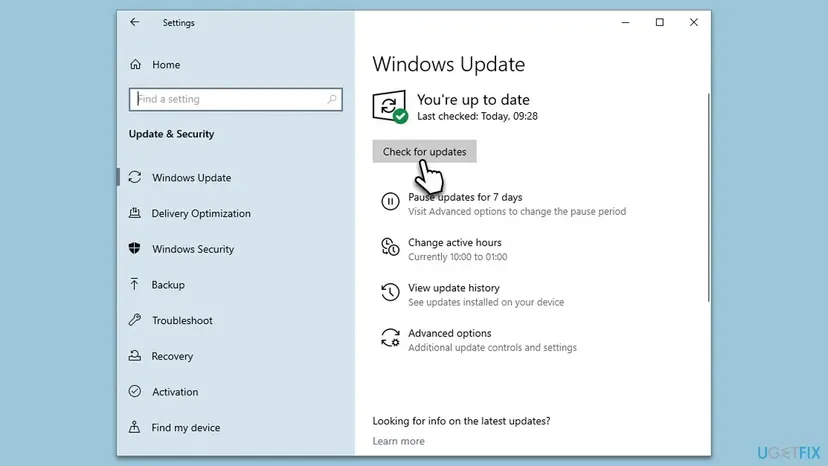
- Open Settings > Windows Update and select Check for updates. On Windows 10 it is Settings > Update & Security > Windows Update.
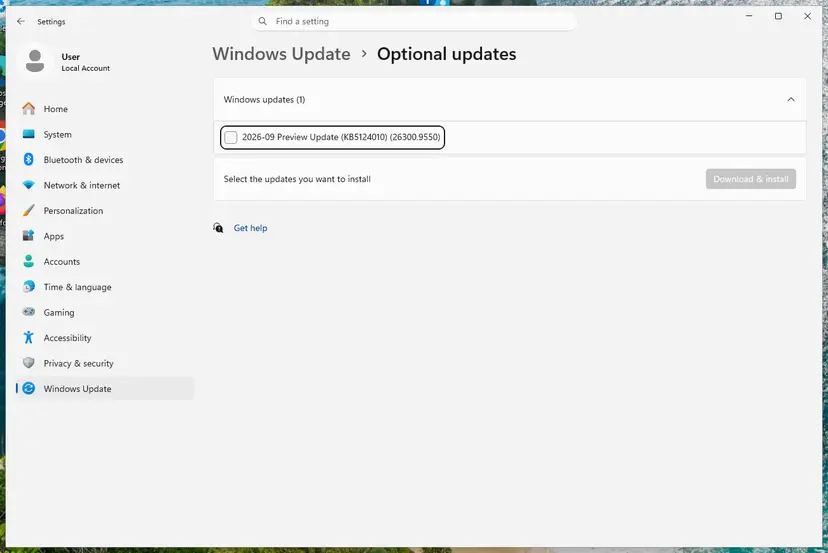
- Install everything that is offered, including the driver updates under Advanced options > Optional updates.
- Restart the PC and install the printer again with Fix 2.
It worked if: The system file check reports that it repaired files or found none damaged, and the installation completes.
If not: Read the logs listed under "If the error is still there" and take them to the printer manufacturer's support.
If the error is still there: the logs to read and what to send to support
The message box shows only the code. Two logs record what the spooler and the driver installation were doing when the function stopped, and three tests tell you which side to work on.
- Type event viewer in the search box on the taskbar and open Event Viewer.
- Open Applications and Services Logs > Microsoft > Windows > PrintService and select Admin. Look for errors at the time of your last attempt.
- Right-click Operational and select Enable Log, try the installation once more and read the new entries. Switch the log off again afterwards.
- Open
%SystemRoot%\inf\setupapi.dev.login Notepad and go to the end. Microsoft says each section of this log records one device or driver installation.
| Test | Result | What it means |
|---|---|---|
| Install another printer model, for example a driver from the Windows list | It installs | The spooler is fine. The first model's driver or package is the cause: Fix 1 to Fix 3. |
| Install the same printer on another PC with the same download | It fails there too | The package itself is faulty or wrong for this Windows. Ask the manufacturer for another one, or use Fix 6. |
| Install as another administrator account on the same PC | It installs | Something in the first account's session gets in the way: Fix 7. |
- What to send to the manufacturer's support: the exact message, the printer model, the file name and version of the driver package, your Windows version and system type, the PrintService events and the last section of
setupapi.dev.log. - When it is not a fault you can repair: the maker offers no driver for your Windows version, the PC is an ARM PC and the maker has no ARM64 driver, or Windows protected print mode is enforced by your organisation. In all three cases, Fix 6 is the route that remains.
- It is not the printer's hardware. The error appears before a single page is sent. A printer with a hardware fault installs normally and fails later with other messages.
The old text restarted the Windows Installer service and set it to start automatically. That service installs programs packed as MSI files. We found no Microsoft or manufacturer source that ties it to error 0x000003eb, so it is not among the fixes.
How to undo the changes made on this page
Fix 2, Fix 6 and Fix 8 leave nothing to undo. For the others, the table shows the way back. Keep the two backups from Fix 3 and Fix 4 until every printer has worked for a few days.
| Change | Made in | How to undo it |
|---|---|---|
| Printer and driver removed | Fix 1 | Install the printer again with Fix 2 or Fix 6 |
| Driver package deleted from the Driver Store | Fix 3 | pnputil /add-driver C:\DriverBackup\*.inf /subdirs in an administrator window, then add the printer |
| Driver key deleted under Version-3 | Fix 4 | Stop the spooler, double-click print-backup.reg, start the spooler |
Folder 3 renamed to 3.old | Fix 4 | Stop the spooler, remove the new 3 folder, rename 3.old to 3, start the spooler |
| Policy Only use Package Point and Print changed | Fix 5 | Set it back to the state you found. On a work PC it is your organisation's setting. |
| Windows protected print mode switched off | Fix 6 | Printers & scanners > Printer Preferences, Set up. Printers with third-party drivers are removed again. |
| Clean boot | Fix 7 | System Configuration: Enable all services, enable the startup apps, restart |
The Print Spooler service is running and set to start automatically, and the PC is no longer in a clean boot. When all printers work, you can delete 3.old, print-backup.reg and C:\DriverBackup.
How to keep error 0x000003eb from coming back
- Before you set up a new printer, remove the old printer, its driver package (Fix 1) and its software.
- Download the driver from the manufacturer's site on the day you install it, for your Windows version and system type.
- Install printer drivers from an administrator account, also for a shared printer.
- Let a setup program finish. If you must cancel it, run Fix 1 before the next attempt.
- For a printer from recent years, try Add device and the Windows driver first.
- Do not install from the disc in the box when a newer package exists. Microsoft notes that disc software might be outdated.
- Do not delete files in the Driver Store or in
spool\driverswith File Explorer. Use the Drivers tab orpnputil. - Do not leave
RestrictDriverInstallationToAdministratorsat 0 to get a shared printer working. - Do not stack several drivers for one printer. Keep the one that works and remove the rest.
One habit prevents most repeats: treat the driver as something that has to be uninstalled, like a program. A printer that is only removed from the Settings list leaves its driver behind for the next one to trip over.
Frequently asked questions
What does error 0x000003eb mean?
It is Windows system error 1003, ERROR_CAN_NOT_COMPLETE, and Microsoft's text for it is "Cannot complete this function." With a printer it means that the Print Spooler began to install a driver and could not finish. The code says nothing about the reason. In the reports we read, the usual reason is an older or half-installed driver package of the same maker, followed by an outdated installer and by missing administrator rights.
Is 0x00003eb the same error as 0x000003eb?
Yes. 0x00003eb, 0x0000003eb, 0x000003eb and 0x3EB are one number written with more or fewer zeros in front, and Windows itself always shows eight digits after 0x. All of them are error 1003. Do not mix it up with 0x000003e3, which has a different third digit from the end and belongs to a different problem with shared printers, or with 0x00000003.
Why do I get "Windows cannot connect to the printer. Operation failed with error 0x000003eb" on a shared printer?
Because connecting to a shared printer installs its driver on your PC, and that installation is what fails. Since the Windows updates of 10 August 2021, a driver that comes from another computer needs administrator rights, so a standard user is stopped. The second common reason is an older driver of the same model on your PC. Install the driver as an administrator first, then connect again. Fix 5 has the steps.
Is it safe to delete the keys under Version-3 and rename the 3 folder?
It is a known repair, but it is not harmless, which is why it is Fix 4 and not Fix 1. It removes every Type 3 printer driver from the PC, so all printers that use one must be installed again. Microsoft's rule for such work is to export the whole Print key first and to stop the spooler while you change anything. With the export and the renamed folder kept, the reset can be undone completely.
What is the difference between a Type 3 and a Type 4 printer driver?
A Type 3 driver is the older model: its files are copied into the spooler's folder, spool\drivers\x64\3 on 64-bit Windows. A Type 4 driver arrived with Windows 8. Microsoft says it is run directly from the Driver Store, which removes the possibility of file collisions. For this error it decides where leftovers sit. The folder reset of Fix 4 only helps Type 3 drivers, while pnputil in Fix 3 works for both.
Does error 0x000003eb appear on Windows 11 as well as Windows 10?
Yes, on both, and the fixes are the same. Two things differ. Windows 11 has Windows protected print mode, which refuses third-party drivers while it is on. Microsoft is also retiring third-party printer drivers on Windows 11 in stages: no new ones on Windows Update since 15 January 2026, and its own class driver preferred since 1 July 2026. Windows 10 is outside that plan, but it has been out of support since 14 October 2025.
Can I fix 0x000003eb without an administrator password?
Only in part. Installing and removing printer drivers needs administrator rights, and so do pnputil, the registry and the spooler service. A standard user can add the printer with Add device and hope that Windows already has a suitable driver, as in Fix 6. You can also collect the facts for the administrator: the exact message, the printer model and the time of the attempt. On a work PC, do not try to get around the limit.
Should I turn off the antivirus to install the printer?
No, not as a fix. Microsoft's printing guidance does note that security programs which scan the spooler folders can cause side effects such as access denied errors. The clean answer is the clean boot of Fix 7, which starts Windows once without programs from other companies and is undone with a restart. If the printer installs there, add exclusions for the spool files (.SHD and .SPL) in the security program, as Microsoft's guidance does, and leave protection on.
Sources
- Microsoft Learn: System Error Codes (1000-1299), ERROR_CAN_NOT_COMPLETE 1003 (0x3EB) (learn.microsoft.com)
- Microsoft Support: KB5005652, Manage new Point and Print default driver installation behavior (CVE-2021-34481) (support.microsoft.com)
- Microsoft Learn: rundll32 printui.dll,PrintUIEntry (learn.microsoft.com)
Did this fix work?
One click, no account. It tells the next reader which guides are worth their time.
Questions and experiences: fix "Unable to install printer" 0x000003eb error in Windows
Still broken, or found a fix we did not cover? Ask here: members and our editors answer. Reading is open; writing needs a free account.
…