
How to fix Capability Access Manager Service high CPU usage in Windows?

Prefer to fix it yourself? The manual steps follow.
- 9methods
- 5 minutes to check, 20 to 40 minutes with a Windows update, longer for the Safe Mode workaround
- Intermediate
Applies to The Capability Access Manager Service (camsvc) on Windows 11 and Windows 10
9 methods in this guide
Hello. I noticed that my Windows PC got slow and laggy. It seems like a service named "Capability Access Manager" is using a high amount of CPU. Is there a way to fix this?
Capability Access Manager Service (camsvc) is the Windows service that tracks which apps use your camera, microphone, location and screen capture. Short bursts are normal; constant high CPU on Windows 11 is most often the oversized CapabilityAccessManager.db-wal bug that Microsoft fixed in June 2026. Install the latest Windows update first, then restart the service.
Do not disable the service: it is the part of Windows that decides which apps may use your camera, microphone and location. First check that it is really camsvc and what it is busy with (Fix 1). Then install the latest Windows 11 update, which includes Microsoft's June 2026 fix for the runaway CapabilityAccessManager.db-wal file (Fix 2), and restart the service (Fix 4).
| Error | No error message. Task Manager shows Service Host: Capability Access Manager Service high in the CPU or Disk column, often with fans running and the PC lagging. |
|---|---|
| Where it appears | Task Manager on Windows 11 and Windows 10. The Services tab names it camsvc. On affected Windows 11 PCs, System & reserved storage in Settings grows too. |
| Main cause | Apps that ask again and again for location, microphone, camera or Wi-Fi information, which camsvc logs in a database. On Windows 11 its write log CapabilityAccessManager.db-wal could grow out of control. |
| Fastest fix | Install the latest Windows 11 cumulative update (Fix 2), then restart the service (Fix 4). |
| Also written as | camsvc, Service host Capability Access Manager Service, Capability Access Manager high CPU, CapabilityAccessManager.db-wal, osprivacy high CPU, Compatibility Access Manager Service (a common misspelling). |
| Microsoft's status | KB5095093 (23 June 2026, preview; note added 29 June 2026): "This update improves disk space usage for the CapabilityAccessManager.db-wal file." Builds 26100.8737 (24H2) and 26200.8737 (25H2) or newer have it. |
| Where the file is | C:\ProgramData\Microsoft\Windows\CapabilityAccessManager\. A protected folder: File Explorer may say Access denied even when the file is there. |
| Safe to disable? | No. App permissions for the camera, microphone, location and screen capture depend on it. Users report apps stop working when it is disabled. |
| Time to fix | 5 minutes for a restart of the service, 20 to 40 minutes with a Windows update. |
Facts checked on 15 October 2026. Steps written for Windows 11 (24H2, 25H2 and 26H2) and Windows 10 22H2, with the fix read from Microsoft's KB5095093 release notes (OS Builds 26200.8737 and 26100.8737).
What the Capability Access Manager Service (camsvc) is and why it uses CPU
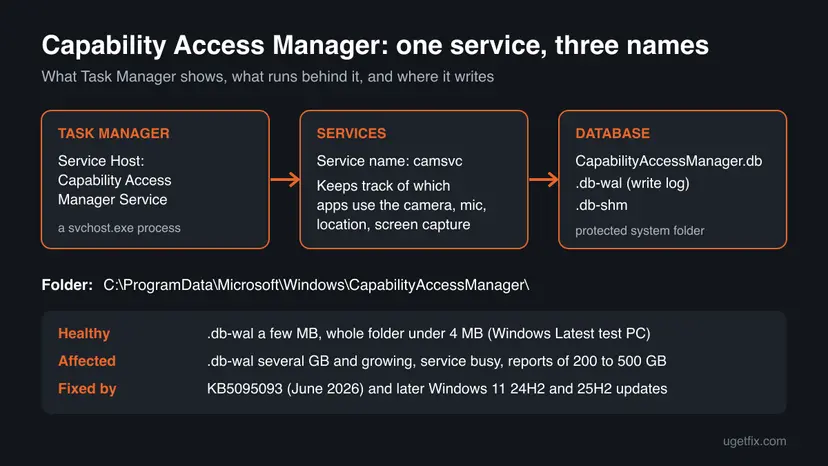
Capability Access Manager Service is a built-in Windows service. Its service name is camsvc and it runs inside a Service Host (svchost.exe) process, which is why Task Manager shows it as Service Host: Capability Access Manager Service. It is tied to app permissions for the microphone, location, camera and screen capture, and it keeps a log of which app used what.
| What you see | Where | What it is |
|---|---|---|
| Service Host: Capability Access Manager Service | Task Manager, Processes tab | The svchost.exe process that hosts camsvc. The CPU and Disk columns you are worried about. |
| camsvc | Task Manager Services tab, services.msc, the command net stop camsvc | The service name. Commands use this short name. |
CapabilityAccessManager.db | C:\ProgramData\Microsoft\Windows\CapabilityAccessManager\ | The SQLite database that holds the access log. |
CapabilityAccessManager.db-wal | Same folder | The write-ahead log of that database. Normally a few MB; on affected PCs tens or hundreds of GB. |
| Microphone, camera or location icon on the taskbar | Bottom right, next to the clock | An app is using that capability right now, and camsvc is recording it. |
Every time an app opens the microphone, checks your location or starts a screen capture, camsvc checks the permission and writes a record. A short spike when a call, a voice app or a map starts is the service doing its job. Constant load with nothing like that running is not.
Why Capability Access Manager uses so much CPU, from most to least common
Most often on Windows 11 it is the database bug: the write log is not merged back into the main database, so the file keeps growing and the service keeps writing. Less often an app asks for a capability many times a second. Rarely the cause is damaged system files, another program, or malware hiding behind a svchost.exe name. Microsoft publishes no statistics, so this order comes from its release note and the reports we read.
| Cause | How often | How to tell | Fix |
|---|---|---|---|
The CapabilityAccessManager.db-wal bug on Windows 11 24H2 or 25H2 without the June 2026 fix. Windows Latest reports it began with an update in early 2026. | Most often | Constant CPU or disk use, System & reserved storage much larger than before, build older than 26100.8737 or 26200.8737. | Fix 2, Fix 3 |
| An app asking again and again for location, the microphone, the camera or Wi-Fi details. Windows Latest says the OS keeps logging repeated access events. | Often | The load follows one app: a call app, an audio tool, a recorder, a weather or map widget. | Fix 1, Fix 5 |
| A service that is stuck after sleep or an update. | Sometimes | The spike started today and a restart of the service calms it. | Fix 4 |
| A full system drive, so Windows Update cannot install the fix. | Sometimes | C: has only a few GB left and updates fail to download or install. | Fix 6 |
| Damaged system files or another program hooking into audio, video or location. | Less often | Other services misbehave too, or the load disappears in a clean boot. | Fix 7, Fix 8 |
| Malware using the svchost.exe name. | Rarely | The file is not in C:\Windows\System32. | Fix 9 |
Microsoft has not published why the write log grew, and has not listed the bug on the Windows release health dashboard. The old version of this page linked the problem to the Saints Row games; we found no source for that and left it out.
How to fix Capability Access Manager Service high CPU usage
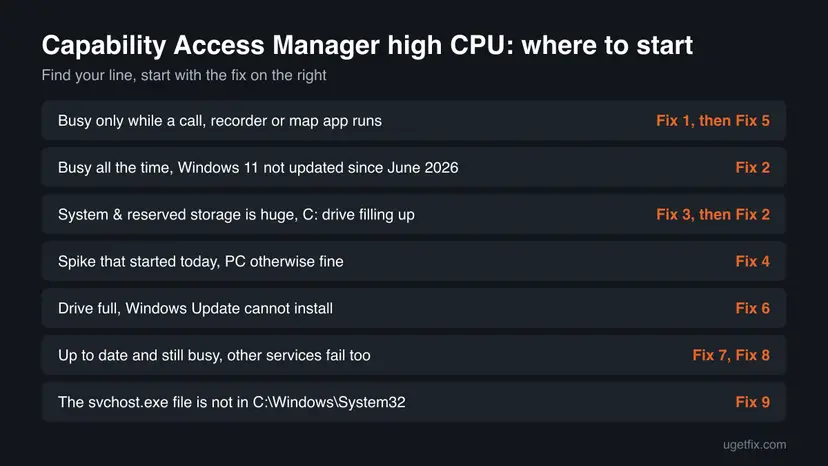
Fix 1 takes two minutes and tells you what camsvc is busy with. Fix 2 to Fix 4 deal with the database bug Microsoft fixed in June 2026 and solve most cases. Fix 5 stops an app that keeps asking. Fix 6 is only for a full drive. Fix 7 to Fix 9 are the general repairs.
| What you see or have | Start with |
|---|---|
| The load comes and goes with a call, a recording app or a map. | Fix 1, then Fix 5 |
| It is busy all the time and Windows 11 has not been updated since June 2026. | Fix 2 |
| System & reserved storage is huge and the C: drive keeps filling up. | Fix 3, then Fix 2 |
| A spike that started today, the PC is otherwise fine. | Fix 4 |
| The drive is full and Windows Update cannot install anything. | Fix 6 |
| Windows is up to date and the load is still there, other services fail too. | Fix 7, then Fix 8 |
The svchost.exe behind it is not in C:\Windows\System32. | Fix 9 |
Fix 1. Confirm it is camsvc and see which app it is busy with
3 minutesNo riskEveryone, before changing anything. It also tells you whether an app is behind the load.
A Service Host line in Task Manager can hold several services, and camsvc only works when apps ask for a capability. Seeing which app is using the microphone, camera or location tells you whether to update Windows or deal with that app.
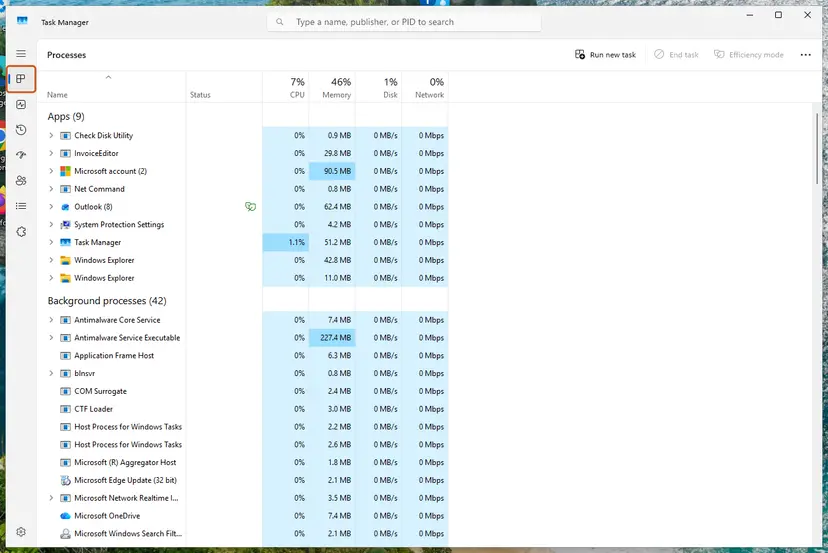
- Press Ctrl + Shift + Esc to open Task Manager. On Windows 10, select More details if you see a short list.
- On the Processes tab, select the CPU column header so the busiest process is on top. Do the same with Disk.
- Expand Service Host: Capability Access Manager Service and check that the service inside is Capability Access Manager Service.
- Open the Services tab, find
camsvcand note its PID. Right-click it and select Go to details to see the svchost.exe it runs in. - Look at the taskbar next to the clock for a microphone, camera or location icon. Hover over it to see which app is using it.
- Open Settings > Privacy & security > Microphone (Windows 10: Settings > Privacy > Microphone) and check Recent activity. Repeat for Camera and Location.
| What you see | Go to |
|---|---|
| One app uses the microphone, camera or location all the time | Fix 5 |
| No app uses any of them, camsvc still busy for minutes | Fix 2, then Fix 3 |
| Disk column high as well, C: drive filling up | Fix 3 |
svchost.exe opens from a folder other than C:\Windows\System32 | Fix 9 |
It worked if: You know whether camsvc is busy because an app keeps using a capability, or on its own with nothing running.
If not: If no line named Capability Access Manager Service is busy, the load comes from another service in a different Service Host. Note its name and search for that one.
Fix 2. Install the latest Windows 11 update with Microsoft's db-wal fix
20 to 40 minutesLow riskWindows 11 24H2 or 25H2 PCs that have not installed an update since June 2026, or where camsvc is busy with no app running.
Microsoft's KB5095093 release notes say: "This update improves disk space usage for the CapabilityAccessManager.db-wal file." Windows 11 updates are cumulative, so every later monthly update carries the same fix. Users on Reddit report the file shrinking to about 12 MB after installing it.
- Press Win + R, type
winverand press Enter. Note the build number, for example 26100.8737 or 26200.8737. - If the number after the dot is lower than 8737 on build 26100 (24H2) or 26200 (25H2), you do not have the fix yet.
- Press Win + I and select Windows Update.
- Select Check for updates and install everything it offers, including the latest cumulative update.
- If you want preview fixes as soon as they appear, turn on Get the latest updates as soon as they're available.
- Restart the PC when Windows asks, then open Task Manager again as in Fix 1.

KB5095093 applies to Windows 11 24H2 and 25H2. We found no separate note for Windows 10, which left mainstream support on 14 October 2025, or for 26H2, whose updates are newer than the fix. On those, simply install every update offered.
It worked if: After the restart camsvc is quiet when no app uses the camera, microphone or location, and the db-wal file stays at a few MB.
If not: If the update fails to download or install because the drive is full, go to Fix 6. If it installs and the load stays, check the file size in Fix 3.
Fix 3. Check the size of CapabilityAccessManager.db-wal without changing permissions
3 minutesNo riskThe C: drive is filling up, System & reserved is very large, or the load stays after Fix 2.
The folder is protected, so File Explorer and PowerShell can show Access denied. Windows Latest uses a robocopy command that only lists files in backup mode, so you see the real size without taking ownership of a system folder.
- Open Settings > System > Storage > Show more categories > System & reserved and note the size of System files.
- Press the Windows key, type
cmd, right-click Command Prompt and select Run as administrator. - Paste the command below and press Enter. The
/Lswitch only lists files; nothing is copied. - Find CapabilityAccessManager.db-wal in the list and read its size in bytes.
- Run the command again after 10 minutes. If the number grew a lot, the file is still growing.
Command Prompt (administrator)
robocopy "C:\ProgramData\Microsoft\Windows\CapabilityAccessManager" "%TEMP%\CAMCheck" /L /B /R:0 /W:0 /BYTES /NP| Size of the .db-wal file | What it means |
|---|---|
| A few MB (Windows Latest: about 1.6 MB, the whole folder under 4 MB) | Normal. The CPU load has another cause: Fix 4 and Fix 5. |
| Several GB, or growing every few minutes | Affected by the bug. Install the fix (Fix 2). |
| Tens or hundreds of GB, drive almost full | Affected, and updates may fail. Free space or use Fix 6. |
It worked if: You see the exact size of the db-wal file and know whether your PC has the storage bug.
If not: If robocopy reports an error, check that Command Prompt runs as administrator. If the file is small, go to Fix 4.
Fix 4. Restart the Capability Access Manager Service
2 minutesLow riskThe load started recently, Windows is up to date, or you just installed the fix and want camsvc to start fresh.
A restart ends a camsvc session that is stuck after sleep or an update, and lets the database be opened again from a clean state. Restarting is safe; disabling is not, because app permissions depend on the service.
- Close apps that use the microphone, camera or location: call apps, recorders, voice assistants.
- Press Win + R, type
services.mscand press Enter. - Find Capability Access Manager Service in the list.
- Right-click it and select Restart. If it is not running, select Start.
- Leave Startup type as it is. Do not set it to Disabled.
- Open Task Manager and watch the CPU column for two minutes.

From an administrator Command Prompt the same restart is two commands. Step by step for any service: Check and restart Windows services.
Command Prompt (administrator)
net stop camsvc
net start camsvc
It worked if: Capability Access Manager Service drops to near 0% CPU when no app uses a capability.
If not: If it climbs again within minutes, an app is asking constantly (Fix 5), or the bug is still active and the update is missing (Fix 2). Users report Error 1053 when the db-wal file is huge; that also points to Fix 2 or Fix 6.
Fix 5. Stop the app that keeps asking for location, microphone or camera
5 minutesLow riskFix 1 showed one app using a capability all the time, or the load comes and goes with one program.
camsvc logs every access request. An app that polls location or holds the microphone open in the background makes the service write without a break. Taking that app's permission away, or stopping it in the background, stops the requests at the source.
- Open Settings > Privacy & security (Windows 10: Settings > Privacy).
- Select Location, then Microphone, then Camera, and read Recent activity on each page.
- Find the app that appears again and again, especially one you are not using right now.
- Turn its switch off on that page. Desktop apps are grouped under Let desktop apps access your microphone or camera.
- If the app should keep its permission, update it or quit it from the tray when you are not using it.
- Restart the service as in Fix 4 and watch Task Manager again.
Apps that run in the background can keep asking even when their window is closed. How to stop that: Stop apps from running in the background.
It worked if: With the app closed or its permission off, camsvc stays quiet, and its CPU use returns only when you start a call or a map yourself.
If not: If no single app stands out, go back to Fix 2 and Fix 3. If the load disappears only when a certain program is uninstalled, keep it uninstalled until its maker releases an update.
Fix 6. Rename the oversized db-wal file from Safe Mode when the update cannot install
20 minutesRead the warningOnly when the db-wal file is huge and the drive is so full that Windows Update cannot install the fix from Fix 2.
Windows Latest describes this as the recovery workaround: rename the file from Safe Mode or the recovery environment so Windows creates a fresh one. Renaming instead of deleting keeps the old file, so you can put it back if something breaks.
Users on Microsoft Q&A report that deleting only the db-wal file broke Wi-Fi and screen capture until they reset the whole folder. Microsoft documents no manual method. Back up your files first (Back up your files (Windows Backup, File History, Time Machine)), rename rather than delete, and keep the old file until the update from Fix 2 is installed and everything works.
First try the safer route: free a few GB with Disk Cleanup or Storage Sense so the update fits, then go back to Fix 2. Step by step: Free up disk space and delete temporary files.
- Start Windows in Safe Mode. Step by step: Start Windows or a Mac in Safe Mode.
- Press the Windows key, type
cmd, right-click Command Prompt and select Run as administrator. - Type
net stop camsvcand press Enter. - Type the rename command below and press Enter.
- Restart Windows normally and check that Wi-Fi, the camera, the microphone and the Snipping Tool work.
- Install the update from Fix 2 right away, so the new file does not grow again.
- When everything works, delete the
.oldfile to get the space back.
Command Prompt (administrator, Safe Mode)
ren "C:\ProgramData\Microsoft\Windows\CapabilityAccessManager\CapabilityAccessManager.db-wal" CapabilityAccessManager.db-wal.oldIt worked if: Windows starts with a new, small db-wal file, the drive has free space again, and the update from Fix 2 installs.
If not: If the rename says Access is denied or the file is in use, do not force it with ownership changes. Free space another way and install the update. If Wi-Fi or capture broke, rename the .old file back from Safe Mode.
Fix 7. Repair Windows system files with SFC and DISM
20 minutesNo riskWindows is up to date, the db-wal file is small, and camsvc or other services still misbehave.
camsvc is part of Windows. If its files or the component store are damaged, the service can fail and restart in a loop, which shows up as steady CPU use. SFC and DISM replace damaged system files with good copies.
- Open an elevated command window. Right-click Start and select Terminal (Admin), or type cmd in the search box, right-click Command Prompt and select Run as administrator. Select Yes when Windows asks for permission.
- Run DISM first. Type the command below and press Enter. DISM downloads clean copies of damaged components from Windows Update, so it can take several minutes. Wait until it says The operation completed successfully.
DISM.exe /Online /Cleanup-Image /RestoreHealth - Run System File Checker. In the same window, type the command below and press Enter. Do not close the window until the verification reaches 100%.
sfc /scannow - Read the result and restart. Compare the last message with the table below this guide, then restart the PC so that repaired files are loaded.
These steps were written for Windows 11 24H2 and 25H2. The full page with the other versions and what each result means: Run DISM and SFC to repair Windows system files
It worked if: SFC reports that it found and repaired corrupt files, or found no integrity violations, and the service settles after a restart.
If not: If SFC cannot repair some files even after DISM, try Fix 8 to rule out other programs, then read the section on what to do when nothing helped.
Fix 8. Find a conflicting program with a clean boot
15 minutesLow riskThe load stays with Windows up to date and no app showing in the privacy pages.
Audio enhancers, virtual microphones and cameras, screen recorders and location tools from other makers can call the same capability checks in a loop. A clean boot starts Windows with only Microsoft services, so you can see whether one of them is behind it.
- Open System Configuration. Select Search on the taskbar, type msconfig and select System Configuration from the results.
- Hide Microsoft services. On the Services tab, select the Hide all Microsoft services check box. Only services from other companies stay in the list.
- Disable the remaining services. Select Disable all, then select Apply.
- Open Task Manager. On the Startup tab of System Configuration, select Open Task Manager.
- Disable the startup apps. On the Startup apps tab in Task Manager, select each item whose status is Enabled and select Disable. Write down or take a screenshot of the items you disable: you need the list to turn them back on.
- Confirm the changes. Close Task Manager. On the Startup tab of System Configuration, select OK.
- Restart and test. Restart the PC. Windows now starts in a clean boot environment: try again the thing that failed (run the app, install the update, uninstall the program).
These steps were written for Windows 11 25H2 and 26H2. The full page with the other versions and what each result means: How to perform a clean boot in Windows
It worked if: In the clean boot camsvc stays quiet, which proves another program caused the load. Turn services back on in halves until it returns.
If not: If camsvc is busy even in a clean boot, the cause is inside Windows. Go back to Fix 2 and Fix 3, then Fix 9.
Fix 9. Check the svchost.exe file and scan for malware
15 minutesNo riskGo to Details shows a svchost.exe outside C:\Windows\System32, or the CPU stays high with camsvc stopped.
Malware likes the svchost.exe name because many copies of it run on every PC. The real one is always in C:\Windows\System32. A scan with Microsoft Defender rules out anything using that name.
- In Task Manager, open the Services tab, right-click
camsvcand select Go to details. - Right-click the highlighted svchost.exe and select Open file location.
- Check that File Explorer opens
C:\Windows\System32. - Run a full scan with Microsoft Defender as in How to scan for malware with Microsoft Defender.
It worked if: The file is in System32 and Defender finds no threats, so the load is not malware.
If not: If the file is somewhere else or Defender finds a threat, remove it and run an offline scan before any other fix.
Capability Access Manager still uses high CPU: what to check next
If the build is new, the db-wal file is small, no app is asking and the scan is clean, collect evidence before you reinstall anything. Microsoft has not documented a log for this service, so you need what Windows records around it.
- Event Viewer: press Win + R, type
eventvwr.msc, open Windows Logs > System and filter for Service Control Manager. Errors such as 1053 or 1067 for Capability Access Manager Service show that it fails to start or stop. - Reliability Monitor: type reliability in Start and open View reliability history. A red cross on the day the load began often names the update or app behind it.
- Feedback Hub: press Win + F and report it under Privacy, with the build number from
winverand the db-wal size from Fix 3. That is how the first reports reached Microsoft. - Repair install: as a last step, reinstall Windows over itself and keep your files and apps: Reinstall Windows without losing files.
This service is software only. High CPU from camsvc does not mean a failing processor or disk. A full disk, however, slows everything down, so free space as soon as you can.
How to keep the Capability Access Manager Service from flaring up again
- Keep Windows Update on and install the monthly cumulative update. The db-wal fix arrived only through an update.
- Every few months, look at Settings > System > Storage > System & reserved. A jump of tens of GB is the first sign of the bug.
- Review Recent activity under Privacy & security now and then, and take location and microphone access away from apps that do not need it.
- Quit call apps, voice tools and recorders from the tray when you finish, instead of leaving them in the background.
- Do not disable camsvc or tweak its database to save resources. Both break app permissions and give no real gain.
Frequently asked questions
What is the Capability Access Manager Service?
It is a built-in Windows service, service name camsvc, that handles app permissions for capabilities such as the microphone, camera, location and screen capture. When an app asks to use one of them, the service checks the permission and records the access in a database under C:\ProgramData\Microsoft\Windows\CapabilityAccessManager. That record is what Settings shows as Recent activity under Privacy & security. Task Manager lists it as Service Host: Capability Access Manager Service because it runs inside a shared svchost.exe process. Some people search for it as Compatibility Access Manager Service; that is the same thing, misspelled.
Why does Service Host: Capability Access Manager Service use high CPU?
On Windows 11 the most common reason in 2026 was a bug where its database write log, CapabilityAccessManager.db-wal, kept growing instead of being merged back into the database. The service then wrote without a break. Microsoft improved the file's disk use in KB5095093 in June 2026, and later cumulative updates include the fix. Other reasons are an app that keeps asking for location or the microphone, a service stuck after sleep, or damaged system files. Fix 1 tells you which one is yours.
Is it safe to disable the Capability Access Manager Service?
No. It is part of how Windows decides which apps may use your camera, microphone, location and screen capture. Users on Microsoft Q&A report that apps stopped working after they disabled it, and others report that Wi-Fi and screen capture broke after they tampered with its files. The old version of this guide told you to disable it; we no longer recommend that. Restarting it is safe, as in Fix 4, and installing the latest Windows update removes the real cause on most Windows 11 PCs.
Can I delete Capability Access Manager or its db-wal file?
You cannot remove the service itself; it is part of Windows. The large file, CapabilityAccessManager.db-wal, is the one people want gone. The safe way is the Windows update from Fix 2, which reduces the file on its own; users report it shrinking to about 12 MB. Deleting it by hand is risky: users report broken Wi-Fi and screen capture afterwards. If the drive is so full that the update cannot install, rename the file from Safe Mode as in Fix 6 and keep the renamed copy until everything works.
Why is Capability Access Manager causing high disk usage?
Because the same bug that costs CPU also writes to disk. The service logs every capability access, and on affected Windows 11 PCs the write log was not merged back into the database, so it grew by the hour. Reports range from tens of GB to around 500 GB. Settings shows this only as System files under System & reserved, not by name. Use the robocopy command in Fix 3 to see the real file size, then install the update in Fix 2.
How do I fix Capability Access Manager on Windows 10?
The steps are the same, with Settings > Privacy instead of Privacy & security. The db-wal bug and its fix were described for Windows 11 24H2 and 25H2, and we found no separate Microsoft note for Windows 10. Windows 10 22H2 left mainstream support on 14 October 2025, so only PCs enrolled in Extended Security Updates still get fixes. Install every update offered, restart the service as in Fix 4, check app permissions as in Fix 5, and run SFC and DISM as in Fix 7.
What does net stop camsvc do?
It stops the Capability Access Manager Service from an administrator Command Prompt. net start camsvc starts it again. Together they are the command line version of Restart in services.msc, used in Fix 4. While the service is stopped, apps may not get access to the microphone, camera or location, so start it again right away. Windows can also start it again on its own as soon as an app asks for a capability. Stopping it is also the first step of the Safe Mode workaround in Fix 6.
What does Error 1053 or Error 1067 mean for this service?
Both mean the service did not start or stop properly. Error 1053 means it did not respond in time; error 1067 means its process ended unexpectedly. A user on Microsoft Q&A reported Error 1053 for Capability Access Manager Service while the db-wal file was over 100 GB, which suggests the service could not open its oversized database in time. Install the update in Fix 2, free disk space if needed, and check Event Viewer as described in the still broken section.
What is osprivacy in Task Manager?
Some users see osprivacy in the command line of the svchost.exe process when they look for the cause of high CPU. It looks like the name of the service group that hosts privacy services such as Capability Access Manager, but we could not confirm that from a Microsoft page today. Use the Services tab in Task Manager as in Fix 1: it shows camsvc and its process ID directly, which is a more reliable check.
Sources
- Microsoft Support: June 23, 2026, KB5095093 (OS Builds 26200.8737 and 26100.8737) Preview (support.microsoft.com)
- Windows Latest: Microsoft says a Windows 11 bug is eating up to 500GB of storage, verify if you are affected (windowslatest.com)
- Microsoft Q&A: CapabilityAccessManager is devouring my hard drive (user reports) (learn.microsoft.com)
Did this fix work?
One click, no account. It tells the next reader which guides are worth their time.
Questions and experiences: fix Capability Access Manager Service high CPU usage in Windows
Still broken, or found a fix we did not cover? Ask here: members and our editors answer. Reading is open; writing needs a free account.
…