
How to fix Cellular option missing in Windows?

Prefer to fix it yourself? The manual steps follow.
- 7methods
- 2 to 30 minutes
- Easy
Applies to Windows 11 and Windows 10 laptops, tablets and 2-in-1 devices with a built-in or external cellular (WWAN) modem
7 methods in this guide
Hello. The Cellular connection option is missing from my Windows 11 settings. Why is it not there anymore? Is there any way to fix this?
Windows shows Cellular in Settings and Quick Settings only when it sees a working cellular modem: a built-in SIM or eSIM module, or a plugged-in mobile broadband device. If the option is missing, Windows does not see that modem right now. Check Device Manager first, because many laptops have no modem at all.
Right-click Start, open Device Manager and expand Network adapters. If no Mobile Broadband, WWAN, LTE or 5G adapter is listed, Windows sees no cellular modem (Fix 1). If it is there, press Win + A, turn off Airplane mode and turn on the Cellular tile (Fix 2). Then check the SIM (Fix 3) and install the PC maker's WWAN driver (Fix 5).
| Error | No error message. Cellular is missing from Settings > Network & internet and from Quick Settings, or it disappeared after an update or a reinstall. |
|---|---|
| Where it appears | Windows 11: Settings > Network & internet and the Quick Settings panel (Win + A). Windows 10: Settings > Network & Internet and the network flyout. |
| Main cause | Windows does not see a cellular modem: the PC has none, it is switched off in the BIOS, or its WWAN driver is missing or broken. |
| Fastest fix | Check Network adapters in Device Manager (Fix 1), then turn on the Cellular quick setting and turn off Airplane mode (Fix 2). |
| Also written as | Cellular option not showing, cellular settings missing, mobile data option gone, Mobile broadband missing, WWAN not detected. |
| Affects | Windows 11 and Windows 10 devices with a SIM card slot, an eSIM or an external cellular modem. Microsoft says a data plan from a mobile operator is needed to connect. |
| Vendor status | Not a known Windows bug. Dell documents WWAN modules that Device Manager no longer detects after a PC is re-imaged, and fixes it with the WWAN driver and its firmware update. |
| Time to fix | Under 2 minutes for Fixes 1 and 2. Up to 30 minutes when the driver and firmware have to be installed again. |
| Where the cause shows | Device Manager: Network adapters for the modem, and Other devices or Ports for an unknown device with a yellow mark. |
Facts checked on 15 October 2026. Steps written for Windows 11 (25H2 and 26H2) and Windows 10 22H2.
What it means when the Cellular option is not showing in Windows 11
Cellular is not a setting that Windows hides on its own. Microsoft explains that some Windows 11 devices have a SIM card or an eSIM in them, and that other PCs can get cellular data by plugging in an external cellular modem, also called a mobile broadband device. The Cellular page, the Cellular quick setting and the mobile operator name all come from that modem.
So when the option is missing, the question is not where Windows put it. The question is why Windows does not see the modem. There are three answers: the PC never had one, the modem is switched off, or its driver or firmware failed.
| What you see | What it means | Start with |
|---|---|---|
| No cellular adapter under Network adapters, and the PC has never shown Cellular | The model has no cellular modem. A SIM tray on some models is only a placeholder. | Fix 1 |
| The adapter is listed, but Quick Settings shows no mobile operator | The Cellular radio or Airplane mode is off. | Fix 2 |
| Windows 10: the status says Mobile operator locked | The modem works but needs a SIM from that operator. | Fix 3 |
| An unknown device with a yellow mark, or the adapter vanished after an update or reinstall | The WWAN driver or the modem firmware is missing or broken. | Fix 4, Fix 5 |
| The adapter looks fine and the page is still missing | A Windows service or a recent change stopped it. | Fix 6, Fix 7 |
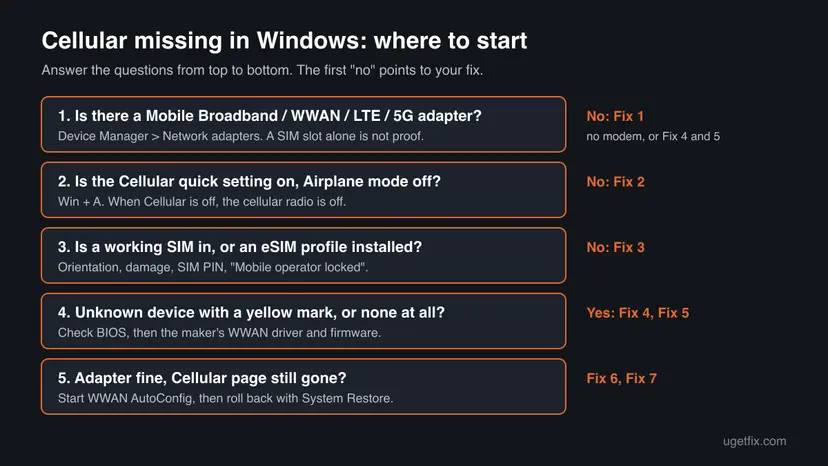
Why the Cellular option is missing in Windows 11
Most often the PC simply has no cellular modem, and the reader expected one because of a SIM tray, a spec sheet of a similar model or an older PC. Less often the modem is there but the Cellular radio, Airplane mode or the SIM stops the connection. Rarely the modem disappears from Device Manager because a driver, a firmware update or a BIOS setting failed.
| Cause | How often | How to tell | Fix |
|---|---|---|---|
| The PC has no cellular (WWAN) modem. | Most often | No Mobile Broadband, WWAN, LTE or 5G adapter in Device Manager, never was. | Fix 1 |
| The Cellular quick setting is off, or Airplane mode is on. | Often | Win + A shows the Cellular tile off or the airplane tile on. | Fix 2 |
| The SIM is missing, upside down, damaged, PIN-blocked or locked to another operator. | Often | The adapter is listed, but no operator name and no connection. | Fix 3 |
| The modem is turned off in the BIOS or disabled in Device Manager. | Sometimes | A down arrow on the adapter, or the card does not show at all. | Fix 4 |
| The WWAN driver or the modem firmware is missing or corrupted. | Sometimes | An unknown device with a yellow mark after a reinstall, a re-image or an update. | Fix 5 |
| The WWAN AutoConfig service is stopped or missing. | Rarely | The adapter looks fine, but Cellular still does not appear. | Fix 6 |
| A recent update or driver change broke it. | Rarely | The option was there until a specific date. | Fix 7 |
Microsoft says you need a data plan from a mobile operator to connect. Without a plan the Cellular page still appears when the modem works; you just cannot get online. If you see the page and cannot connect, the problem is the SIM, the plan or the APN, not a missing option.
How to get the Cellular option back in Windows
Fix 1 tells you in one minute whether there is anything to bring back. Fixes 2 and 3 cover the radio and the SIM. Fixes 4 and 5 bring a modem back that Windows lost. Fixes 6 and 7 are for the cases that remain.
| What you see or have | Start with |
|---|---|
| You are not sure the PC has a cellular modem at all. | Fix 1 |
| The modem is in Device Manager, but no mobile operator shows in Quick Settings. | Fix 2 |
| A new SIM, a PIN prompt, or Windows 10 says Mobile operator locked. | Fix 3 |
| The modem disappeared after a BIOS update or reset. | Fix 4 |
| An unknown device with a yellow mark after a Windows reinstall or a company re-image. | Fix 5 |
| Everything looks fine in Device Manager and Cellular is still missing. | Fix 6, then Fix 7 |
Fix 1. Check in Device Manager whether the PC has a cellular modem
1 minuteNo riskEveryone, first. It takes a minute and decides whether the other fixes can help.
The Cellular page exists only for a modem that Windows sees. If Device Manager lists no cellular adapter and never did, no setting will bring the option back; you need a model with WWAN or an external cellular modem.
- Right-click Start and select Device Manager.
- Expand Network adapters.
- Look for a name with Mobile Broadband, WWAN, LTE, 5G or a modem maker in it.
- Select View > Show hidden devices and look again, then also check Other devices and Ports (COM & LPT) for an unknown device with a yellow mark.
- Check the exact model of your PC on the maker's support page and see whether it shipped with a WWAN card.
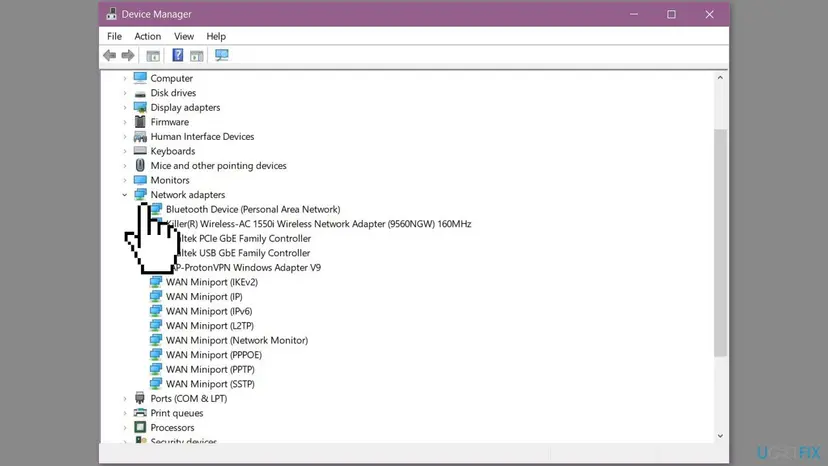
The WAN Miniport entries are virtual adapters that Windows uses for VPN and dial-up connections. Every PC has them. They do not mean the PC can use a SIM.
It worked if: You either find the cellular adapter (go on with Fix 2) or confirm the PC has none.
If not: If the model shipped with WWAN but nothing is listed, or a yellow-marked unknown device is there, go to Fix 4 and Fix 5.
Fix 2. Turn on the Cellular quick setting and turn off Airplane mode
1 minuteNo riskThe modem is in Device Manager, but you see no mobile operator and no connection.
Microsoft says that when the Cellular quick setting is off, the cellular radio is off and you cannot connect to a cellular network. Airplane mode turns the radios off too.
- Press Win + A, or select the network icon in the lower right corner of the taskbar.
- If the Airplane mode tile is on, select it to turn it off.
- If the Cellular tile is off, select it to turn it on.
- Select Manage Cellular connections (the > arrow) on the Cellular tile. Your mobile operator's name often shows under it.
- Select Connect, or turn on Let Windows keep me connected to connect when no Wi-Fi or Ethernet is available.
- Windows 10: select the network icon, then the cellular network in the list, and Connect.
If Windows asks for a user name, a password or an access point name (APN), take them from the papers that came with the SIM or from your operator. Microsoft keeps the APN under Settings > Network & internet > Cellular > Mobile operator settings > Add APN in Windows 11.
It worked if: The Cellular tile shows your operator, and Settings > Network & internet lists Cellular again.
If not: If the tile is there but nothing connects, check the SIM in Fix 3. If there is no Cellular tile at all, go to Fix 4.
Fix 3. Check the SIM card or the eSIM profile
5 minutesLow riskA new SIM, a SIM PIN prompt, an eSIM that was never set up, or Windows 10 reports Mobile operator locked.
Microsoft's first step to connect is to insert the SIM or install an eSIM profile. Dell's WWAN troubleshooting starts with the SIM too: orientation, damage and a test with another SIM, because a SIM the modem cannot read leaves it with nothing to connect to.
- Shut the PC down, take the SIM out and check it for scratches or a bent contact area.
- Put it back in the way your PC's manual shows. Dell names the wrong orientation as the first cause of a SIM that is not found.
- Try a SIM from a phone. Dell notes it cannot connect, but it shows whether the SIM slot on the board works.
- With an eSIM, open Settings > Network & internet > Cellular and check that a profile is installed and selected under Use this SIM for cellular data.
- If Windows asks for a SIM PIN, type it. After three wrong PINs the SIM is blocked; get the PUK code from your operator and use Unblock SIM PIN under Mobile operator settings.
Microsoft warns that if a wrong PUK code is entered too many times, the SIM is blocked for good and you need a new one from your operator. Ask the operator for the PUK; never try codes.
In Windows 10, a status of Mobile operator locked under the network name means the modem accepts only that operator's SIM. Microsoft's advice is to insert a SIM from that mobile operator.
It worked if: The operator name appears on the Cellular tile and the connection starts.
If not: If no SIM is ever read, the modem may be switched off or missing its driver. Go to Fix 4.
Fix 4. Turn the WWAN card on in the BIOS and in Device Manager
5 minutesLow riskThe model has WWAN, but the modem is missing, or it shows a down arrow in Device Manager.
A modem switched off in the firmware settings is invisible to Windows, so Windows builds no Cellular page. Dell's checklist for a card that is not detected says to check that the operating system recognizes it and that the card is enabled in the BIOS.
- In Device Manager, if the cellular adapter has a small down arrow, right-click it and select Enable device.
- If it is not listed, restart the PC and open the BIOS or UEFI setup with the key your maker uses (often F2, F10 or Del).
- Look for a Wireless, WWAN or Mobile broadband option, usually under wireless or integrated devices.
- Set it to Enabled, save the change and restart.
- Back in Windows, open Device Manager again and look under Network adapters.
Do not change Secure Boot, the storage mode or other firmware settings while you are there. If your PC is managed by work or school, the WWAN card may be turned off on purpose; ask your IT team first.
It worked if: After the restart the cellular adapter is under Network adapters and the Cellular tile is back.
If not: If you now see an unknown device with a yellow mark, install the driver in Fix 5.
Fix 5. Install the PC maker's WWAN driver and modem firmware
20 minutesRead the warningAn unknown device with a yellow mark, or the modem vanished after a Windows reinstall, a re-image or a driver update.
Dell documents WWAN modules that Device Manager no longer detects after a re-image, on every Windows version. Its fix is the maker's WWAN driver, whose installer also updates the modem firmware. Windows Update often has no driver for these modules.
Dell says the firmware update starts about 30 seconds into the driver install and takes about a minute. A restart in the middle corrupts the module firmware, and the module can no longer talk to Windows. Plug the PC in and wait for the installer to finish.
- On the PC maker's support site, enter the service tag or serial number of your PC.
- Open Drivers & Downloads and check that the right Windows version is selected.
- Open the Modem and Communications section (Dell's name; other makers use Network or Wireless) and download the WWAN driver for your module.
- Run the installer and let it finish, including the firmware step.
- Restart the PC and open Device Manager.
If the problem started right after a driver update, roll it back instead: Properties > Driver > Roll Back Driver on the cellular adapter. All driver steps with pictures: Update, roll back or reinstall a driver.

It worked if: The yellow mark is gone, the adapter shows under Network adapters, and Cellular returns in Settings.
If not: If the module is still not detected after the maker's driver, Dell sends you to support: the module may be faulty. Before that, try Fix 6.
Fix 6. Start the WWAN AutoConfig service
3 minutesLow riskThe adapter is listed without a mark, but the Cellular page and tile do not appear.
WWAN AutoConfig (service name WwanSvc) is the Windows service that runs cellular connections, much like WLAN AutoConfig runs Wi-Fi. Users report it stopped or missing after a system reload, with Cellular gone at the same time.
- Press Win + R, type
services.mscand press Enter. - Find WWAN AutoConfig in the list and double-click it.
- If Service status says Stopped, select Start.
- Select OK and check Quick Settings with Win + A.
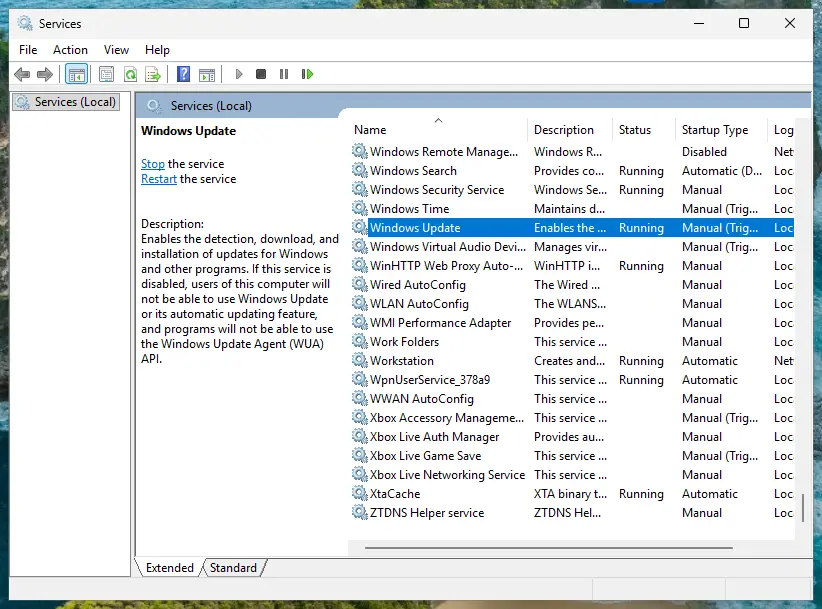
More on the Services window: Check and restart Windows services. If WWAN AutoConfig is not in the list at all, or will not start, the system files around it may be damaged; run Run DISM and SFC to repair Windows system files and try again.
It worked if: The service runs and the Cellular tile appears within a few seconds.
If not: If the service is missing or the option is still gone, roll Windows back in Fix 7.
Fix 7. Use System Restore to undo the change that removed it
20 minutesRead the warningCellular worked until a specific day, and a restore point from before that day exists.
If an update, a driver or a tool removed the modem's driver or service, System Restore puts back the system files, drivers and settings from that date. Your documents stay.
Programs and drivers installed after the restore point are removed. Select Scan for affected programs to see the list before you start. Your personal files are not changed.
- Open System Restore. Press Windows+R, type the command below and press Enter. You can also open Control Panel > Recovery > Open System Restore. If a first page opens, select Next.
rstrui.exe - Choose a restore point. Select a restore point from a time before the problem started. The Description often names the event, such as a driver or app install. If the one you need is missing, select Show more restore points (shown only when there are more).
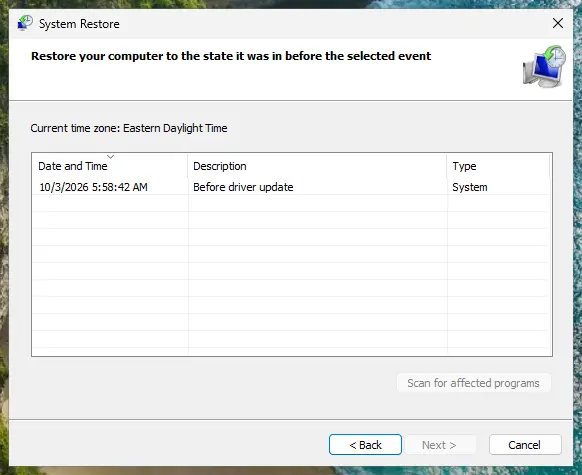
Pick a restore point from before the problem started. Screenshot: Windows 11 26H2. - See what will change. Select Scan for affected programs. The upper list shows programs and drivers that will be removed; the lower list shows those that might come back and may need to be reinstalled. Select Close.
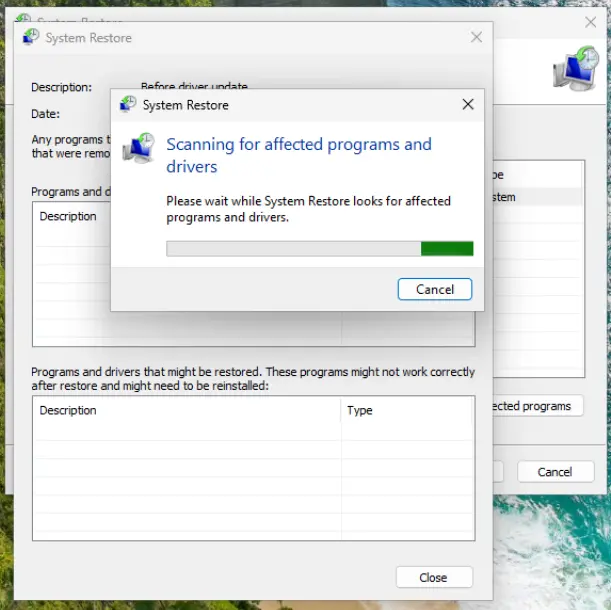
The scan lists programs and drivers the restore removes or brings back. Screenshot: Windows 11 26H2. - Start the restore. Select Next, check the summary and select Finish. Windows restarts and applies the restore point. Do not turn the PC off.
- Check the result. After sign-in Windows reports whether the restore succeeded. Check whether the problem is gone.
These steps were written for Windows 11 and Windows 10 (the steps are the same). The full page with the other versions and what each result means: Undo recent changes with System Restore
It worked if: After the restart the cellular adapter and the Cellular page are back.
If not: Read the device status in the section below and contact the PC maker.
If the Cellular option is still missing: what to send to support
Two people can help you: the PC maker when Windows does not see the modem, and the mobile operator when Windows sees it but cannot connect. Give them facts, not just "Cellular is gone".
- In Device Manager, right-click the cellular adapter (or the unknown device), select Properties and note the Device status text on the General tab.
- Note the Driver Version and Driver Date on the Driver tab.
- If Cellular is visible, open Settings > Network & internet > Cellular > Mobile operator settings, find Properties and select Copy. Microsoft says this copies details such as the IMEI for your operator or support person.
- Write down your PC's exact model and service tag.
- No adapter, no unknown device, and the model shipped with WWAN: the card may be off in the firmware, unplugged or faulty. Dell's articles end here with a call to support.
- The maker's driver installed, the module still not detected: Dell notes that swapping in a module from another re-imaged PC does not prove the first one is faulty; let support decide.
- Cellular is visible but never connects: check the plan and the APN with your operator, and send them the copied Properties.
How to keep the Cellular option in Windows
- Before you reinstall Windows, download the WWAN driver for your exact model and keep it on a USB stick.
- Never restart or close the lid while a WWAN driver installs; the firmware step needs about a minute after the first 30 seconds.
- Leave the Cellular quick setting on when you need it; turning it off turns the radio off.
- Keep a restore point before large driver updates, so Fix 7 has something to go back to.
- Write the SIM PIN and PUK somewhere safe, away from the PC.
Windows 10 stopped getting security updates on 14 October 2025. The cellular settings still work there, but plan the move to Windows 11.
Frequently asked questions
Why is the Cellular option missing in Windows 11?
Because Windows does not see a cellular modem. The Cellular page and quick setting appear only for a device with a SIM card or eSIM, or with an external cellular modem plugged in, as Microsoft describes it. If your laptop has no WWAN card, the option never appears. If it has one, the card may be off in the BIOS, its driver may be missing after a reinstall, or the Cellular radio may be switched off. Device Manager shows which case you have in a minute.
Where are the cellular settings in Windows 11?
Open Settings > Network & internet > Cellular. There you find Use this SIM for cellular data, Let Windows keep me connected, Metered connection, Data roaming options and Use cellular whenever Wi-Fi is poor. The APN, the SIM PIN and the Properties with the IMEI are under Mobile operator settings. The quick way in is Win + A and the arrow on the Cellular tile. All of these appear only when Windows sees a working cellular modem.
Can I add Cellular to a laptop that does not have it?
Not with a setting. The laptop needs cellular hardware. Microsoft says a PC without a SIM card or eSIM can still use cellular data with an external cellular modem, also called a mobile broadband device. Some laptop models also take a WWAN card, but only when the maker designed them for it, with the antennas and firmware support; ask the maker before you buy one. A phone hotspot over Wi-Fi is the simplest option and needs nothing on the PC.
My laptop has a SIM slot. Why is there still no Cellular option?
A SIM slot alone does not prove the WWAN card is fitted, because some makers use the same case for models with and without it. Check Device Manager for a Mobile Broadband, WWAN, LTE or 5G adapter, and the maker's spec sheet for your exact model. If the card is fitted, check that it is enabled in the BIOS (Fix 4) and install the maker's WWAN driver (Fix 5).
Why did Cellular disappear after reinstalling Windows?
Usually because the WWAN driver did not come back. Dell documents WWAN modules that Device Manager no longer detects after a PC is re-imaged, on every Windows version, and shows an unknown device with a yellow mark instead. The fix is the maker's WWAN driver from the Modem and Communications section of its download page. That installer also updates the modem firmware, so let it finish without a restart.
What does Mobile operator locked mean in Windows?
It means the cellular modem is locked to one mobile operator. Windows 10 shows this status under the cellular network name, and Microsoft's advice is to insert a SIM card from that operator. A SIM from a different operator will not connect until the operator unlocks the modem. The Cellular option itself is present in this case; the SIM is the problem.
Does the Cellular option need a data plan to show up?
No. The page depends on the modem, not on the plan. Microsoft says a data plan from a mobile operator is needed to connect, so without one you see Cellular but cannot get online. If the page shows and nothing connects, check the SIM, the plan and the APN with your operator. If the page does not show at all, the modem is the problem.
Does turning off Selective Suspend bring Cellular back?
We found no source that ties the Selective Suspend setting to a missing Cellular option, so this guide does not use it. That setting only controls power saving for a USB adapter that Windows already sees. If the adapter is not in Device Manager, there is no Properties window to change. Start with Fix 1 instead, and use the WWAN driver from your PC maker if the modem is missing.
Is this about US Cellular on a Windows phone?
No. This page is about the Cellular settings on Windows 11 and Windows 10 PCs, tablets and 2-in-1 devices with a SIM or eSIM. It does not cover Windows phones or a carrier's own apps. If you want to use a US Cellular SIM in a Windows PC, the modem must support the operator, and you set the APN under Mobile operator settings if the connection does not start by itself.
Sources
- Microsoft Support: Cellular settings in Windows (support.microsoft.com)
- Dell Support: Troubleshooting Steps for WWAN, 3G, or Mobile Broadband (article 000142465) (dell.com)
- Dell Support: Dell Mobile Broadband (WWAN) Module Not Detected on a Re-imaged Dell Personal Computer (article 000123861) (dell.com)
Did this fix work?
One click, no account. It tells the next reader which guides are worth their time.
Questions and experiences: fix Cellular option missing in Windows
Still broken, or found a fix we did not cover? Ask here: members and our editors answer. Reading is open; writing needs a free account.
…