
How to fix connect to printer error 0x00000775 in Windows?

Prefer to fix it yourself? The manual steps follow.
- 7methods
- 5 to 30 minutes
- Intermediate
Applies to Windows 11 and Windows 10 PCs that connect to a printer shared by another PC
7 methods in this guide
Hi, I can't connect to my shared printer, as I received a 0x00000775 error. Could you provide any solutions for this issue, please? I'm using Windows 10.
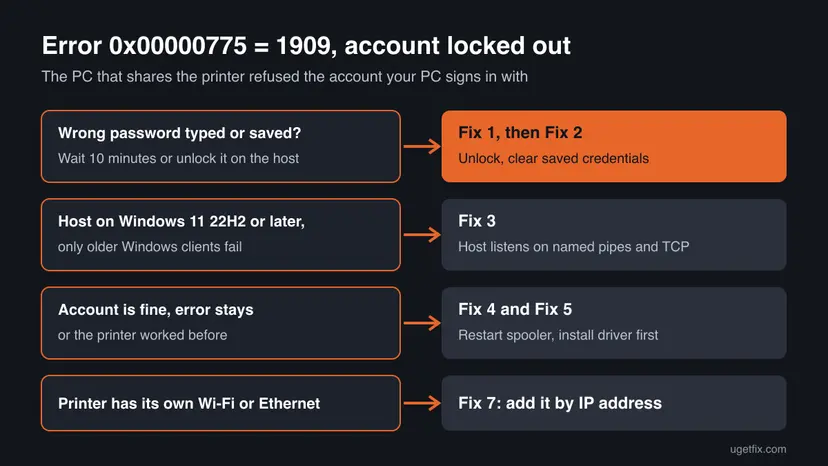
Error 0x00000775 is Windows error 1909, ERROR_ACCOUNT_LOCKED_OUT: the PC that shares the printer refused the account your PC signs in with, because it is locked out. Unlock that account on the sharing PC or wait 10 minutes, then clear the saved password on your PC and connect again.
0x00000775 means "The referenced account is currently locked out and may not be logged on to." Too many wrong passwords reached the PC that shares the printer, so it locked the account your PC uses. Unlock it on that PC or wait 10 minutes (Fix 1). Then remove the old saved password on your PC and sign in with the host's user name and password (Fix 2).
| Error | Windows cannot connect to the printer. Operation failed with error 0x00000775. The number is Windows system error 1909, ERROR_ACCOUNT_LOCKED_OUT. |
|---|---|
| Where it appears | In the Connect to Printer box when you double-click a printer under Network or add one by \\HostName\ShareName. The printer is plugged into, or shared by, another PC. |
| Main cause | The user account your PC signs in with on the sharing PC is locked out after repeated wrong passwords, often from an old password saved in Credential Manager. |
| Fastest fix | Release the locked account on the sharing PC with net user "Name" /active:yes, or wait out the lockout (Fix 1), then clear the saved credential (Fix 2). |
| Also written as | 0x0000775, 0x000000775, error 0x00000775, "operation failed with error 0x00000775", error 1909, ERROR_ACCOUNT_LOCKED_OUT, "erro 0x00000775" in Portuguese Windows. |
| Affects | Any Windows client. Seen most with a sharing PC that was set up on Windows 11 22H2 or later, where account lockout is on by default. |
| Microsoft's status | Not a bug. New Windows 11 22H2 PCs lock an account after 10 failed sign-ins within 10 minutes, for 10 minutes (KB5020282). There is no update that removes this. |
| Time to fix | 5 to 15 minutes for Fix 1 and Fix 2; up to 30 minutes when the print settings of the sharing PC need changing. |
Facts checked on 15 October 2026. Steps written for Windows 11 (25H2 and 26H2) and Windows 10 22H2.
What "Operation failed with error 0x00000775" means
The box is titled Connect to Printer. It says "Windows cannot connect to the printer." and, under the details, "Operation failed with error 0x00000775." It appears while your PC connects to a printer that another PC shares, before any page is printed.
0x00000775 is a hexadecimal number. In decimal it is 1909. Microsoft's list of system error codes names it ERROR_ACCOUNT_LOCKED_OUT. Its text reads "The referenced account is currently locked out and may not be logged on to." So the printer is not the problem: the sharing PC refused the sign-in of your PC.
Run in Terminal or Command Prompt to see Windows' own text for this code
net helpmsg 1909People type 0x0000775, 0x000000775, "error code 0x00000775" or "printer error 0x00000775". Zeros in front change nothing: all are error 1909. A search for 0x0000075 usually means this message with digits lost, but 0x75 on its own is error 117, a different code. Other shared printer codes have other causes, for example 0x0000007c and 0x00000709.
Why Windows cannot connect to the printer with 0x00000775: causes, ranked
To use a shared printer, your PC signs in to the sharing PC (the host) with a user name and password. When the host has counted too many wrong passwords for that account, it locks the account and every new attempt gets error 1909. The ranking below comes from Microsoft's lockout rules and from what users report on Microsoft Q&A.
| # | Cause | How to recognise it | Fix |
|---|---|---|---|
| 1 | The host account is locked after repeated wrong passwords | You typed a password several times, or the host's password changed recently | Fix 1 |
| 2 | Your PC keeps sending an old saved password | The error returns minutes after the account was unlocked | Fix 2 |
| 3 | A Windows 11 22H2 or later host, with older Windows clients | Windows 11 PCs connect, Windows 10 or 8.1 PCs fail with every shared printer | Fix 3 |
| 4 | A stale connection or a share that changed | The printer worked before, or the host was renamed | Fix 4 |
| 5 | The driver cannot be handed over | The account works in File Explorer, but adding the printer fails | Fix 5 |
- Why lockout is now common. Microsoft says new PCs set up on Windows 11 version 22H2, or with the October 11, 2022 updates already in place, get an account lockout policy by default: 10 failed attempts within 10 minutes lock the account for 10 minutes.
- Why a saved password matters. Windows reuses the credential it saved for the host. If the host's password changed, every retry counts as a failed attempt, and a few retries can lock the account again.
- Why it is not your printer. The code comes from the sign-in step between two PCs. Ink, paper, cables and the printer brand play no part.
Windows 11 22H2 hosts and Windows 10 clients
The best known case on Microsoft Q&A, from June 2023, describes a host on Windows 11 build 22621 (version 22H2). Windows 10 and Windows 8.1 PCs got 0x00000775 with every printer it shared, even a PDF printer, while Windows 11 PCs connected. Updating drivers, SFC and DISM did not help, the user reported.
| What changed in Windows 11 22H2 | What it means for shared printers |
|---|---|
| Account lockout on by default for new installs (10 attempts, 10 minutes, 10 minutes) | Wrong or old passwords from other PCs lock the host account for 10 minutes |
| Print connections between PCs use RPC over TCP by default | The host listens only on RPC over TCP; named pipes, the older method, are off |
Microsoft does not document why an older client gets the lockout code rather than a connection error. Treat the account first (Fix 1 and Fix 2). If older clients still fail while Windows 11 clients connect, use Fix 3. Windows 10 left support on 14 October 2025, so it gets no new print fixes.
How to fix error 0x00000775: seven fixes in order
Fix 1 and Fix 2 deal with the locked account and solve most cases. Fix 3 is for a Windows 11 host with older clients. Fix 4 to Fix 6 repair the print connection itself, and Fix 7 avoids the shared route.
| What you see or have | Start with |
|---|---|
| You typed a password several times, or the host's password changed | Fix 1, then Fix 2 |
| The error comes back a few minutes after it went away | Fix 2 |
| Windows 11 PCs connect, Windows 10 or 8.1 PCs fail | Fix 3 on the host |
You can open \\HostName in File Explorer, but adding the printer fails | Fix 4, then Fix 5 |
| One of the PCs has not been updated for months | Fix 6 |
| The printer has its own Wi-Fi or Ethernet connection | Fix 7 |
Fix 1. Release the locked user account on the PC that shares the printer
5 minutesLow riskEveryone with this error. Do it on the PC the printer is attached to, signed in as an administrator.
Error 1909 says the account is locked out, so nothing else can work until it is unlocked. Unlocking it, or waiting out the lockout, lets the next sign-in from your PC through.
- On the sharing PC, open Terminal (Admin) or Command Prompt as administrator.
- Run
net accountsand read Lockout threshold, Lockout duration (minutes) and Lockout observation window (minutes). A threshold of Never means lockout is off and Fix 1 does not apply. - Run
net userto list the local accounts and find the one your PC uses to connect. - Unlock it:
net user "Name" /active:yes, with the account name in quotes. - On Windows 11 Pro or Enterprise you can also press Win + R, type
lusrmgr.msc, open Users, double-click the account and clear Account is locked out. - If you cannot sign in as administrator, wait the lockout duration (10 minutes by default) without any further attempt.
Close the Add Printer window and any File Explorer window that points at the host on the other PCs. Each new try with a wrong password counts again and can lock the account a second time.
It worked if: net user "Name" shows Account active Yes, and in lusrmgr.msc the box Account is locked out is empty.
If not: If the account locks again within minutes, a PC keeps sending a wrong password: go to Fix 2 on every PC that uses the printer.
Fix 2. Remove the saved password on your PC and sign in to the host again
5 to 10 minutesLow riskAfter Fix 1, on every PC that connects to the printer, and first when the error returns soon after an unlock.
Windows stores the user name and password it used for the host in Credential Manager and sends them again on every connection. An old password there keeps failing and keeps locking the account. Removing it makes Windows ask you again.
- On your PC, open Control Panel > User Accounts > Credential Manager and select Windows Credentials.
- Expand each entry with the host's name or IP address and select Remove, then Yes.
- Or in Terminal: run
cmdkey /list, thencmdkey /delete:HostNamefor each entry of the host. - Restart your PC so no open connection keeps the old password.
- Test the sign-in with
net use \\HostName\IPC$ /user:HostName\UserNameand type the host account's password when asked. - When it reports The command completed successfully, run
net use \\HostName\IPC$ /deleteand add the printer again by\\HostName\ShareName.
| The host signs in with | User name to type | Password to type |
|---|---|---|
| A local account | HostName\UserName | That account's password |
| A Microsoft account | The account's email address | The Microsoft account password, not the Windows Hello PIN |
Microsoft's own advice for shared printers is to use the same Microsoft account or local account on both PCs, or to enter the host's user name and password when asked. Tick Remember my credentials only after the test sign-in worked.
It worked if: The test sign-in completes, the printer adds and a test page prints. The account stays unlocked.
If not: If net use still prints error 1909, the account is locked again: repeat Fix 1, check every other PC that uses the printer, then try again. If the sign-in works but the printer fails, go to Fix 3 or Fix 4.
Fix 3. Windows 11 host with older clients: let the host listen on named pipes and TCP
10 minutesRead the warningThe sharing PC runs Windows 11 22H2 or later, Windows 11 clients connect and Windows 10 or 8.1 clients fail, after Fix 1 and Fix 2.
Since Windows 11 22H2, Microsoft says the host only listens for print connections over RPC over TCP. Older clients that expect named pipes then get no answer from the host. Letting the host listen on both serves old and new clients.
The command adds a printer policy value on the host. Back up HKEY_LOCAL_MACHINE\SOFTWARE\Policies\Microsoft\Windows NT\Printers first: Back up the registry before editing it. Microsoft prefers RPC over TCP; keep named pipes only while older clients need them.
- On the sharing PC, open Terminal (Admin).
- Run the command below.
- On Windows 11 Pro you can set the same with Computer Configuration > Administrative Templates > Printers > Configure RPC listener settings, set to RpcOverNamedPipesAndTcp.
- Restart the sharing PC.
- On the older client, add the printer again by
\\HostName\ShareName.
Host: listen for print connections on named pipes and on TCP
reg add "HKEY_LOCAL_MACHINE\SOFTWARE\Policies\Microsoft\Windows NT\Printers\RPC" /v RpcProtocols /t REG_DWORD /d 0x7 /fOur guide to error 0x00000709 explains every client and host combination of these settings. Microsoft's page also lists RpcAuthnLevelPrivacyEnabled set to 0 for some named pipe setups; that lowers protection, so leave it alone unless nothing else works.
It worked if: After the restart, the Windows 10 or 8.1 client adds the printer and prints a test page.
If not: Undo with reg delete "HKEY_LOCAL_MACHINE\SOFTWARE\Policies\Microsoft\Windows NT\Printers\RPC" /v RpcProtocols /f, restart the host and go to Fix 4.
Fix 4. Restart Print Spooler on both PCs and add the printer again by its share name
10 minutesLow riskThe account signs in fine, the printer worked before, or the host or its share was renamed.
A spooler that still holds the old, refused connection can keep failing after the account is fixed. A restart on both PCs and a fresh connection by the current share name start clean.
- On the sharing PC, press Win + R, type
services.mscand press Enter. - Right-click Print Spooler and select Restart. If it is stopped, double-click it, set Startup type to Automatic, select Start, then OK.
- Do the same on your PC.
- On the sharing PC, open the printer's Printer properties, then the Sharing tab, and note the Share name.
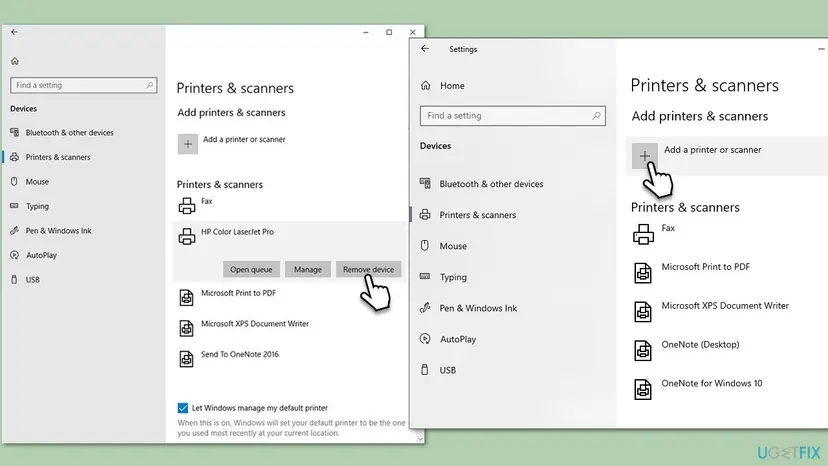
- On your PC, remove the old printer in Settings > Bluetooth & devices > Printers & scanners. On Windows 10: Settings > Devices > Printers & scanners.
- Select Add device, then Add manually, choose Select a shared printer by name and type
\\HostName\ShareName. On Windows 10 select Add a printer or scanner, then The printer that I want isn't listed.
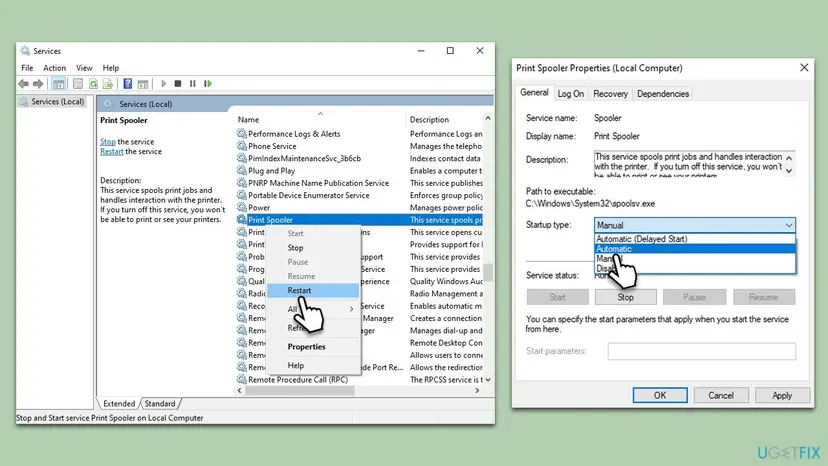
In Terminal (Admin) the same restart is Restart-Service -Name Spooler. Step by step with screenshots: Check and restart Windows services.
It worked if: The printer adds by its share name and prints a test page.
If not: If the error now comes at the Install driver step, go to Fix 5.
Fix 5. Install the printer driver on your PC first, then connect
10 minutesLow riskThe account signs in and the failure comes while Windows installs the printer's driver.
If your PC already has a driver with the same name, it does not need to fetch one from the host, and one more sign-in and transfer step drops out. Since August 2021, only administrators can install printer drivers this way.
- On the sharing PC, open the printer's Printer properties, then the Advanced tab, and note the name in Driver.
- On your PC, press Win + R, type
printui.exe /s /t2and press Enter. Print Server Properties opens on Drivers. - Select Add, then Next, tick x64 (or ARM64 on an ARM PC) and select Next.
- Pick the driver with exactly the name you noted, or use Have Disk with the maker's
.inffile, then Finish. - Add the shared printer again as in Fix 4.
More on this route, and on cleaning a damaged driver on the host, in our guide to error 0x0000007c. General driver steps: Update, roll back or reinstall a driver.
It worked if: The printer adds without a driver download prompt and appears in Printers & scanners.
If not: If it still fails, make sure both PCs are up to date in Fix 6.
Fix 6. Install pending updates on both PCs, the sharing one first
15 to 40 minutesLow riskOne PC has not installed updates for weeks, or the two PCs run very different Windows versions.
Print sharing changed several times since 2021, and both sides must speak the same version of it. A host far behind or far ahead of its clients is a common reason for shared printer errors.
- On the sharing PC, open Settings > Windows Update, select Check for updates, install everything and restart. On Windows 10: Settings > Update & Security > Windows Update.
- Do the same on your PC.
- Run
winveron both PCs and note the version and build. - Add the printer again as in Fix 4.
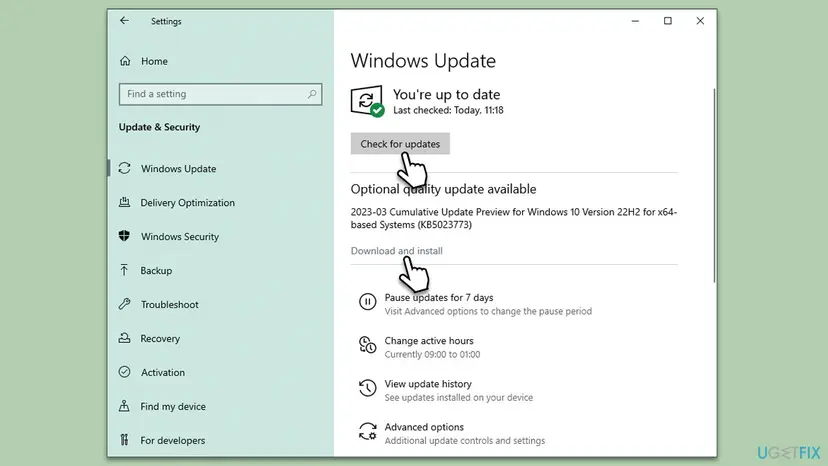
It worked if: Both PCs say You're up to date, and the printer connects.
If not: If the PC that shares the printer gets no updates any more, use Fix 7 or move the printer to a supported PC.
Fix 7. Add a network printer by its IP address instead of through another PC
10 minutesLow riskThe printer has its own Wi-Fi or Ethernet connection and the route through a sharing PC keeps failing.
A printer with its own network port does not need a host PC, so no account on another PC is involved and error 1909 cannot occur. Each PC talks to the printer directly with its own driver.
- Find the printer's IP address on its control panel or on a network settings page it prints.
- Open Printers & scanners, select Add device, then Add manually. On Windows 10 select Add a printer or scanner, then The printer that I want isn't listed.
- Choose the option to add a printer by its IP address or host name and type the address.
- Let Windows find the driver, or install the maker's driver, and print a test page.
- Remove the old shared printer entry so apps stop using it.
Reserve the printer's IP address in your router, so the connection keeps working after the router restarts.
It worked if: The printer appears with its own port in Printers & scanners and prints a test page.
If not: Collect the facts in the next section and ask the printer maker or Microsoft support.
Still getting 0x00000775? Where the real cause is written
The error box never says which account was locked or which PC sent the wrong password. The host knows. Check these places on the sharing PC before you try anything else; support will ask for the same facts.
| Check | Where | What it tells you |
|---|---|---|
| Lockout policy | net accounts on the host | Threshold, lockout duration and observation window |
| Account state | net user "Name" on the host | Whether the account is active and when the password last changed |
| Lockout event | Event Viewer, Windows Logs > Security, event 4740 | Which account was locked and the name of the caller computer |
| Saved credentials | cmdkey /list on each client | Which PC still stores a password for the host |
| Print Service log | Event Viewer, Applications and Services Logs > Microsoft > Windows > PrintService > Admin | Driver and connection errors at the time of the failure |
- Event 4740 is written only when the audit policy Audit User Account Management is on. If the Security log has no such event, the policy is probably off.
- What to send to support: both Windows versions and builds, the account type on the host, the share path, the
net accountsoutput and any 4740 or PrintService events with their time. - On a work PC: lockout limits and printers often come from Group Policy or a domain. Ask your administrator to release the account.
- Is it hardware? No. The code comes from the account check between two PCs. A test page printed on the host proves the printer itself is fine.
Setting the lockout threshold to 0 stops the error, but it also lets anyone on the network guess the host's password without limit. Microsoft recommends 10 attempts. Fix the wrong saved password instead (Fix 2).
How to keep error 0x00000775 from coming back
The error returns whenever the host's password changes while other PCs still remember the old one. A few habits keep the account unlocked.
- After you change the host's password, update or remove the saved credential on every PC that prints to it.
- Use a separate local account on the host just for printing, with a password that does not change often.
- Type
HostName\UserNamein full when Windows asks for credentials. - Keep both PCs updated, the sharing PC first.
- Add printers with their own network port by IP address.
- Do not try many passwords in a row; wait for the lockout to end.
- Do not set the lockout threshold to 0 for good.
- Do not type the Windows Hello PIN as the network password.
- Do not edit printer registry keys without an export first.
Frequently asked questions
What does error 0x00000775 mean?
It is Windows system error 1909, ERROR_ACCOUNT_LOCKED_OUT: "The referenced account is currently locked out and may not be logged on to." With printers it appears as "Windows cannot connect to the printer. Operation failed with error 0x00000775." The PC that shares the printer refused the account your PC uses to sign in, because too many wrong passwords locked it. Release the account on that PC (Fix 1) and clear the saved password on yours (Fix 2).
Are 0x0000775, 0x000000775 and 0x0000075 the same error?
0x0000775 and 0x000000775 are. Zeros in front of 775 do not change the number, so both are error 1909, the locked account. 0x0000075 is most likely the same message typed with a digit missing, and the fixes here apply if your box says 775. Read the code again, though: 0x75 on its own is error 117, an unrelated code. "Erro 0x00000775" is the same error on a Portuguese Windows.
How long does the account stay locked?
On a PC set up with Windows 11 version 22H2 or later, Microsoft's default is 10 minutes. The account locks after 10 failed sign-ins within 10 minutes and unlocks by itself 10 minutes later. Run net accounts on the sharing PC to see its own values. If a PC keeps sending a wrong saved password, the account locks again at once, which is why waiting alone often does not help. Clear the saved credential (Fix 2).
Why does only my Windows 10 PC get 0x00000775 when Windows 11 PCs connect?
Users on Microsoft Q&A report exactly this with a Windows 11 22H2 host: Windows 10 and 8.1 clients fail with every shared printer, Windows 11 clients work. Since 22H2 the host listens only on RPC over TCP for print connections, and new 22H2 installs lock accounts after 10 wrong passwords. Clear the saved password on the Windows 10 PC first (Fix 2). If it still fails, let the host listen on named pipes and TCP (Fix 3).
Which user name and password should I type for the shared printer?
Those of an account on the PC that shares the printer, not of your own PC. For a local account type HostName\UserName and its password. For a Microsoft account type its email address and the Microsoft account password. The Windows Hello PIN does not work over the network, and typing it a few times is a common way to lock the account. Microsoft also suggests using the same account on both PCs.
How do I release a locked account on Windows 11 Home?
Windows 11 Home has no Local Users and Groups console, but the command works. Open Terminal (Admin) on the sharing PC and run net user "Name" /active:yes with the account's name. If you cannot sign in as an administrator there, wait for the lockout to end; 10 minutes is the default. Then clear the saved credential on the PC that showed the error before you try again (Fix 2).
Does the printer troubleshooter or SFC fix 0x00000775?
Usually not. The error is a sign-in refusal from the other PC, and neither the printer troubleshooter nor SFC and DISM look at accounts or saved passwords. The user on Microsoft Q&A with this error reports that SFC and DISM did nothing. Use them only if Windows itself is damaged. Start with Fix 1 and Fix 2, which act on the account that the code names.
Is 0x00000775 a fault of my printer or its driver?
Not of the printer. The code comes from the account check between two Windows PCs, before any page reaches the printer, and it occurs with every brand, from HP and Canon to Epson and Brother. A driver can play a part only after the sign-in works, which is when Fix 5 helps. Print a test page on the PC the printer is attached to: if that works, the printer is fine.
Should I turn off account lockout on the sharing PC?
No. Lockout limits how many passwords someone can try against the PC over the network, and Microsoft made it the default for that reason. Turning it off hides the error but leaves the cause, a wrong saved password, in place. Find the PC that sends the wrong password with event 4740 or cmdkey /list, fix its credential, and keep the threshold at Microsoft's recommended 10.
Nothing on this page worked. What else can I try?
Take the shared route out of the picture. If the printer has Wi-Fi or Ethernet, add it by its IP address on every PC (Fix 7). If it only has USB, connect it to the PC you print from as a test. Then collect net accounts, both Windows builds, any 4740 and PrintService events and send them to Microsoft support or the printer maker. This page is about the Windows printer error; other questions are not covered here.
Sources
- Microsoft Learn: System Error Codes (1700-3999), ERROR_ACCOUNT_LOCKED_OUT (learn.microsoft.com)
- Microsoft Learn: System Error Codes (0-499) (learn.microsoft.com)
- Microsoft Support: KB5020282, Account lockout available for built-in local administrators (support.microsoft.com)
Did this fix work?
One click, no account. It tells the next reader which guides are worth their time.
Questions and experiences: fix connect to printer error 0x00000775 in Windows
Still broken, or found a fix we did not cover? Ask here: members and our editors answer. Reading is open; writing needs a free account.
…