
How to fix network printing error 0x0000007c in Windows?

Prefer to fix it yourself? The manual steps follow.
- 8methods
- 5 to 30 minutes
- Intermediate
Applies to Windows 11 and Windows 10 PCs that add or print to a printer shared by another PC or a Windows print server
8 methods in this guide
Hello. I received the error 0x0000007c "Operation failed" when installing a network shared printer. The connection fails, and I cannot connect the printer because of the error. It is Windows 11. Maybe the issue is with the OS, but I saw some posts about Windows 10 and this issue too. Can you help me fix this problem?
Error 0x0000007c is Windows error 124, ERROR_INVALID_LEVEL: your PC could not finish connecting to a printer that another PC or a print server shares. It most often fails at the driver step. Install the same printer driver on your PC first, then connect again.
0x0000007c means "The system call level is not correct" (ERROR_INVALID_LEVEL). Your PC asked the sharing PC for the printer or its driver in a way the other side refused. Install the printer's driver on your own PC first through Print Server Properties (Fix 1), then add the printer again by \\HostName\ShareName after a spooler restart on both PCs (Fix 2). Then update the sharing PC (Fix 3).
| Error | Windows cannot connect to the printer. Operation failed with error 0x0000007c. The number is Windows system error 124, ERROR_INVALID_LEVEL, "The system call level is not correct". |
|---|---|
| Where it appears | In the Connect to Printer box of the Add Printer wizard, when you add a printer that another PC or a print server shares. Often right after "Do you trust this printer?" and Install driver. |
| Main cause | Your PC cannot get or install the printer's driver from the sharing PC through Point and Print, or the two PCs are on very different update levels. |
| Fastest fix | Install the same driver on your PC first with printui.exe /s /t2, then connect again (Fix 1). |
| Also written as | 0x000007c, 0x00000007c, 0x7c, error 0x00007c, error 124, ERROR_INVALID_LEVEL, "operation failed with error 0x0000007c". |
| Affects | Windows 11 and Windows 10 clients; the sharing PC can be Windows 11, Windows 10, an old Windows 7 PC or a Windows Server print server. Home and office printers of every brand. |
| Microsoft's status | A known issue of the October 12, 2021 updates (KB5006670 for Windows 10, KB5006674 for Windows 11). Microsoft fixed it in KB5007253 and KB5007262 on November 22, 2021, and in every later update. |
| Time to fix | 5 to 10 minutes for Fix 1 and Fix 2, up to 30 minutes when the driver on the sharing PC has to be cleaned up. |
Facts checked on 15 October 2026. Steps written for Windows 11 (25H2 and 26H2) and Windows 10 22H2.
What "Operation failed with error 0x0000007c" means
The full message reads "Windows cannot connect to the printer." and, under Show details, "Operation failed with error 0x0000007c." The box is titled Connect to Printer and belongs to the Add Printer wizard. It appears when you double-click a shared printer under Network or add it by name.
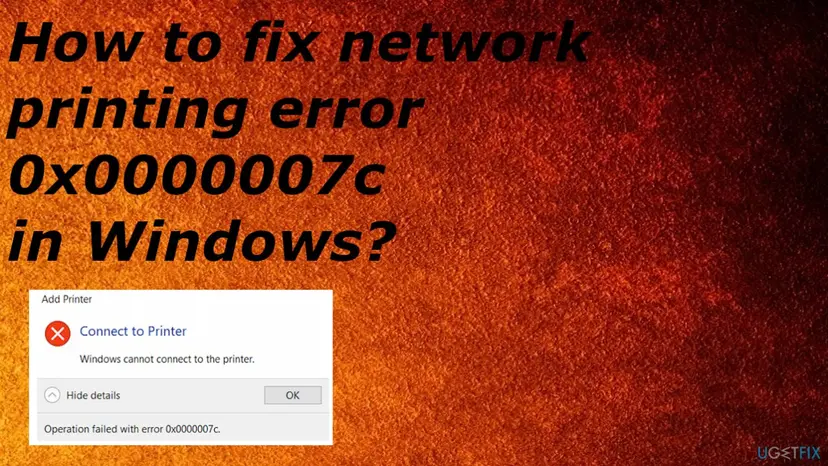
0x0000007c is a hexadecimal number. In decimal it is 124. Microsoft's list of system error codes names it ERROR_INVALID_LEVEL with the text "The system call level is not correct". For printing it means that your PC asked the other spooler for printer or driver data at a level that side would not serve, so the connection stops before a page is sent.
People type 0x000007c, 0x00000007c, 0x7c, "error 0x00007c" or "0xc00000 7c". Zeros in front change nothing: all are error 124. 0x0000007 and 0x00000007 (error 7), 0x00000077 (error 119) and 0x000007de are different codes with other causes. The same October 2021 bug also produced 0x000006e4 and 0x00000709.
Why Windows cannot connect to the printer with 0x0000007c: causes, ranked
Microsoft documents 0x0000007c only as a known issue of the October 2021 updates, fixed a month later. Today the error comes back for other reasons. The ranking below comes from Microsoft's update notes, its Point and Print rules and what users report on Microsoft Q&A.
| # | Cause | How to recognise it | Fix |
|---|---|---|---|
| 1 | Your PC cannot download or install the driver from the sharing PC | "Do you trust this printer?" appears, you select Install driver, then 0x0000007c | Fix 1 |
| 2 | A stale connection or a spooler that lost track of the share | The printer worked before, or the share name or the host PC changed | Fix 2 |
| 3 | The two PCs are on very different update levels | One PC has not installed updates for months, or the error began after an update | Fix 3 |
| 4 | The host is an old system (Windows 7, Windows Server 2008 R2) that cannot serve the driver | Newer clients fail, older PCs on the same network still connect | Fix 4 |
| 5 | A damaged or mixed driver on the sharing PC | Every client fails with the same printer, other shared printers work | Fix 5 |
| 6 | Windows 11 22H2 and later talk to shared printers differently | One side runs Windows 11 22H2 or later and the other is old | Fix 6 |
- Why the driver comes first. Since the August 10, 2021 updates, Microsoft requires administrator rights to install any printer driver through Point and Print. On Microsoft Q&A, users with an HP LaserJet 1020 and 1022, a Brother laser printer and other older models report that installing the driver on the client first ended 0x0000007c.
- Why updates appear. Microsoft listed 0x0000007c among the errors Windows print clients "might encounter" after the October 12, 2021 updates when they connect to a printer shared on a Windows print server.
- Why it is not about your printer. The code comes from the Windows print system before any data reaches the printer. Ink, paper and cables are not the cause.
The 2021 PrintNightmare updates and error 0x0000007c today
Most pages about this error date from late 2021. After the PrintNightmare print spooler flaws, Microsoft tightened Point and Print in several steps. The October 12, 2021 update broke connections to shared printers with three codes, and Microsoft fixed that in the November 22, 2021 preview updates.
| Date | Update | What it did |
|---|---|---|
| August 10, 2021 | Point and Print change (KB5005652, CVE-2021-34481) | Only administrators may install printer drivers from a print server by default |
| October 12, 2021 | KB5006670 (Windows 10), KB5006674 (Windows 11) | Clients "might encounter" 0x000006e4, 0x0000007c or 0x00000709 with a printer shared on a Windows print server |
| November 22, 2021 | KB5007253 (Windows 10), KB5007262 (Windows 11) | Microsoft lists the connection issue as resolved |
| Today | Any current cumulative update | Includes the November 2021 fix; the error now points to drivers or an old host |
In 2021 users removed KB5006670 and printing came back. A current PC does not have that update any more, because later cumulative updates replaced it. If 0x0000007c appears today, look at the driver and the host PC instead. Windows 10 left support on 14 October 2025, so a Windows 10 host gets no new print fixes.
How to fix error 0x0000007c: eight fixes in order
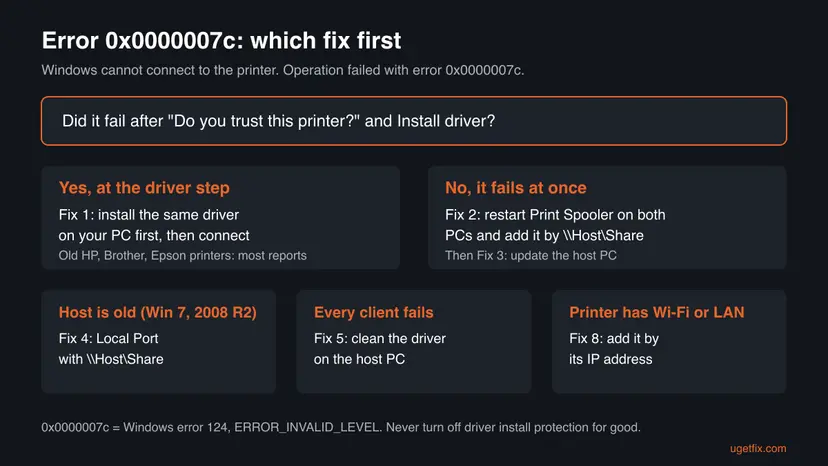
Fix 1 and Fix 2 solve most cases and work on the PC that shows the error. Fix 3 to Fix 5 need the PC that shares the printer. Fix 6 and Fix 7 are for special cases, and Fix 8 avoids the shared route altogether.
| What you see or have | Start with |
|---|---|
| The error comes after "Do you trust this printer?" and Install driver | Fix 1 |
| The error appears at once, or the printer worked before | Fix 2 |
| One of the PCs has not been updated for a long time | Fix 3 |
| The printer is shared by a Windows 7 PC or Windows Server 2008 R2 | Fix 4 |
| Every PC fails with this one shared printer | Fix 5 on the sharing PC |
| One side runs Windows 11 22H2 or later, the other is much older | Fix 6 |
| The printer has its own Wi-Fi or Ethernet connection | Fix 8 |
Fix 1. Install the printer driver on your PC first, then connect to the shared printer
5 to 10 minutesLow riskThe error appears after "Do you trust this printer?" and Install driver, or you print to an older HP, Brother, Epson or Canon model shared by another PC.
When your PC already has a driver with the same name, Windows does not need to pull one from the sharing PC through Point and Print. That skips the step that fails with 0x0000007c. Users on Microsoft Q&A report that this ended the error for several older laser printers.
- On the PC that shares the printer, open the printer's Printer properties, then the Advanced tab, and note the exact name in the Driver field.
- On your PC, press Win + R, type
printui.exe /s /t2and press Enter. Print Server Properties opens on the Drivers tab. - Select Add, then Next, tick x64 (or ARM64 on an ARM PC) and select Next.
- Pick the maker and the driver with exactly the name you noted, then Next and Finish. If it is not in the list, download the maker's driver, unpack it and use Have Disk to point at its
.inffile. - Approve the administrator prompt. A standard user cannot install printer drivers since the August 2021 change.
- Add the shared printer again by double-clicking it under Network, or by
\\HostName\ShareNameas in Fix 2.
/s opens the print server properties and /t2 starts on the third tab, which is Drivers; Microsoft's printui reference lists both switches. You can also install the maker's full driver package for your Windows version with its own setup and then connect.
The driver name on your PC must match the one on the sharing PC, letter for letter. A "universal" or newer driver with a different name makes Windows try to fetch the host's driver again, and the error returns.
It worked if: The printer adds without the "Do you trust this printer?" prompt, appears in Printers & scanners and prints a test page.
If not: If the error appears before any driver prompt, or still appears now, go to Fix 2.
Fix 2. Restart Print Spooler on both PCs and add the printer again by its share name
10 minutesLow riskFor everyone after Fix 1, and first for readers whose printer worked before.
A spooler holding an old connection, or a share whose name changed on the host, makes the request fail. A spooler restart on the host and on your PC, then a fresh connection by the current share name, removes both.
- On the sharing PC, press Win + R, type
services.mscand press Enter. - Right-click Print Spooler and select Restart. If it is stopped, double-click it, set Startup type to Automatic, select Start, then OK.
- Do the same on your PC.
- On the sharing PC, open the printer's Printer properties, then the Sharing tab. Check Share this printer and note the Share name.
- On your PC, remove the old printer in Printers & scanners if it is listed.
- Select Add device, then Add manually, choose Select a shared printer by name and type
\\HostName\ShareName. On Windows 10 select Add a printer or scanner, then The printer that I want isn't listed. - When asked, enter the user name and password of the sharing PC, or use the same account on both PCs, as Microsoft suggests.
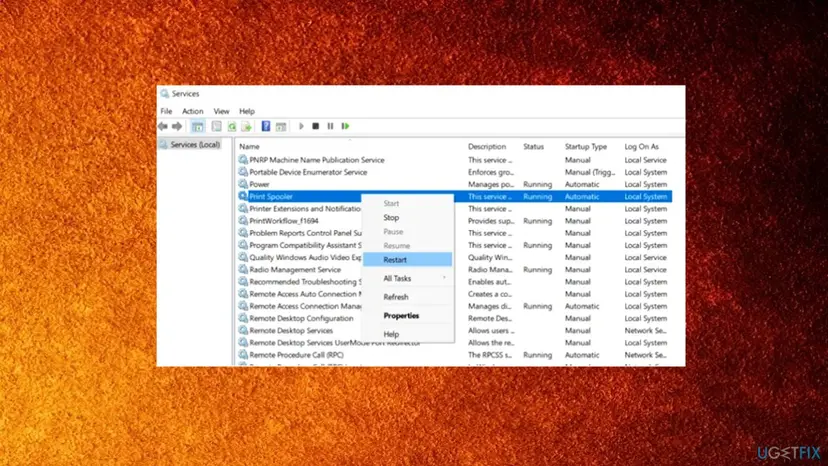
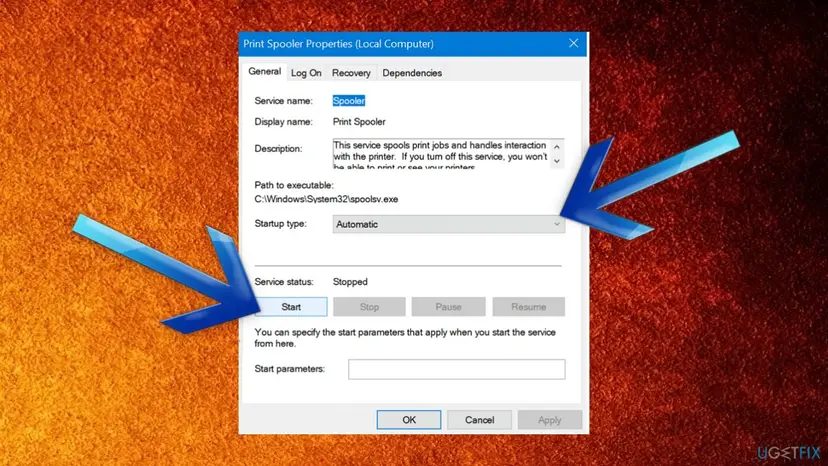
The same restart in Terminal (Admin): Restart-Service -Name Spooler. More on services: Check and restart Windows services. Microsoft's steps for the sharing side are also turning on Network discovery and File and printer sharing under Advanced sharing settings.
It worked if: The printer adds by its share name and prints a test page.
If not: If it fails the same way, check the update level of both PCs in Fix 3.
Fix 3. Update both PCs, the sharing one first
15 to 40 minutesLow riskOne PC has not been updated for weeks, or the error began right after an update on one side.
Microsoft's own fix for 0x0000007c arrived in the November 22, 2021 updates and is in every cumulative update since. A host or client stuck on an older level keeps the bug, and very different levels on the two sides can disagree on how to hand over the driver.
- On the sharing PC, open Settings > Windows Update, select Check for updates, install everything and restart. On Windows 10: Settings > Update & Security > Windows Update.
- Do the same on your PC.
- Run
winveron both PCs and note the version and build. - Add the printer again as in Fix 2.
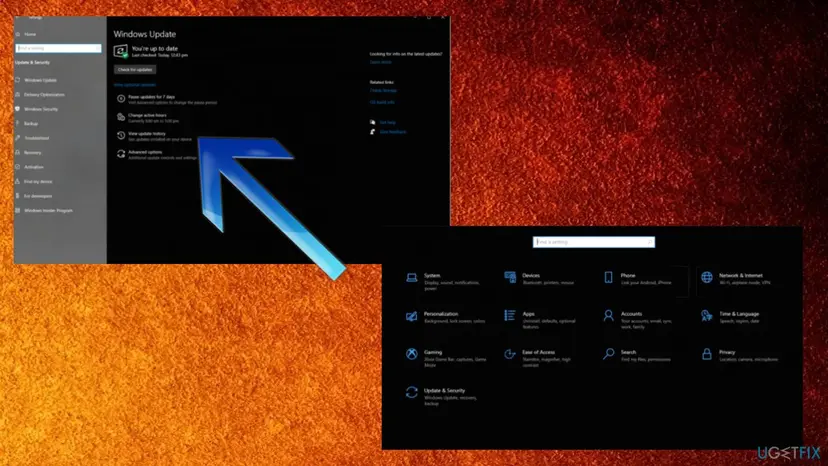
If the error began the day a new update installed and Microsoft's release health page lists a printing issue for it, you can remove that one update as a short test: How to uninstall a Windows update. Install it again with the next release.
It worked if: Both PCs report that they are up to date, and the printer connects.
If not: If the sharing PC is too old to get updates, go to Fix 4.
Fix 4. Old sharing PC: connect through a Local Port with the printer's share path
10 minutesLow riskThe printer is shared by a Windows 7 PC, Windows Server 2008 R2 or another system that no longer gets updates, and Fix 1 to Fix 3 did not help.
A Local Port named \\HostName\ShareName makes your PC a local printer that sends its jobs to the share. Your PC uses its own driver and does not ask the host for driver data, so the request that fails with 0x0000007c never happens.
- Install the printer's driver on your PC first, as in Fix 1.
- Open Control Panel > Hardware and Sound > Devices and Printers and select Add a printer. Select The printer that I want isn't listed.
- Choose Add a local printer or network printer with manual settings and select Next.
- Select Create a new port, choose Local Port in the list and select Next.
- In Enter a port name, type
\\HostName\ShareNameand select OK. - Pick the driver you installed, select Use the driver that is currently installed, give the printer a name and print a test page.
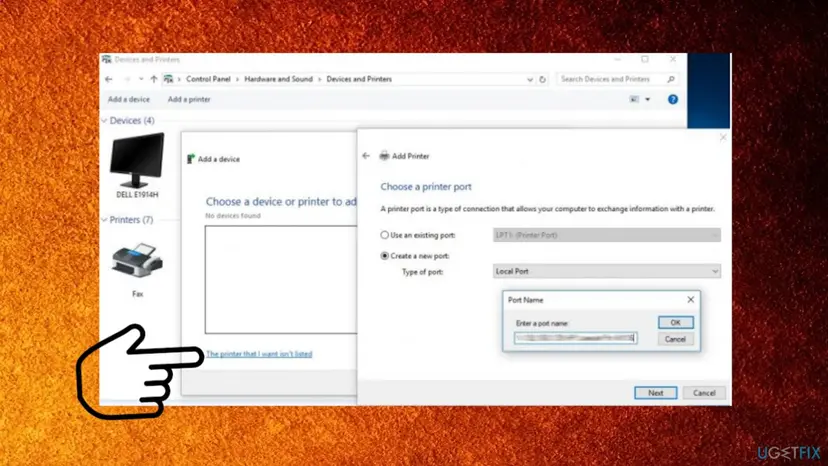
A \\HostName\ShareName path goes into a Local Port. Standard TCP/IP Port is for a printer's own IP address, which is Fix 8.
It worked if: The new printer appears in Printers & scanners and prints through the old PC.
If not: If jobs stay in the queue, check that the sharing PC is on and that you can open \\HostName in File Explorer. Then try Fix 5 on the host.
Fix 5. Clean up the printer driver on the PC that shares the printer
20 to 30 minutesRead the warningEvery client fails with this printer, while other printers shared by the same PC work.
If the driver package on the sharing PC is damaged, or a mismatched extra driver sits next to it, the host cannot answer a client's request for it. Reinstalling the maker's current driver on the host gives clients a clean package to download.
Removing the driver on the host removes its printer queue, so every PC that prints to it stops printing until you finish. Note the printer's share name first and do this at a quiet time. Download the maker's current driver before you start.
- On the sharing PC, remove the printer in Printers & scanners.
- Press Win + R, type
printui.exe /s /t2and press Enter. - Select the printer's driver, then Remove, choose Remove driver and driver package and confirm. On Windows 11 Pro you can do the same in Print Management (
printmanagement.msc) under All Drivers. - Restart the PC.
- Install the maker's current driver for this Windows version and add the printer.
- Share it again under the same Share name as before, then connect from a client as in Fix 2.
If Remove says the driver is in use, restart Print Spooler and try again. General driver steps: Update, roll back or reinstall a driver.
It worked if: The printer prints on the host, and clients add it without 0x0000007c.
If not: If only one client still fails, remove its old drivers the same way and go back to Fix 1. If both PCs are on very different Windows versions, go to Fix 6.
Fix 6. Windows 11 22H2 and later: match the print connection settings of both PCs
15 minutesRead the warningOne side runs Windows 11 22H2 or later and the other is an older Windows that no longer changes. Needs an administrator.
Since Windows 11 22H2, Microsoft says print connections between PCs use RPC over TCP by default. An older host or client that expects named pipes can then fail to hand over the printer. Matching one side to the other restores the connection.
The command adds a printer policy value. Back up HKEY_LOCAL_MACHINE\SOFTWARE\Policies\Microsoft\Windows NT\Printers first: Back up the registry before editing it. Microsoft recommends RPC over TCP and named pipes only when TCP is not an option.
- On the sharing PC, check that no third-party firewall blocks incoming TCP port 135 and ports 49152 to 65535 from your local network.
- If the sharing PC is old and you cannot change it, open Terminal (Admin) on your Windows 11 PC and run the command below.
- Restart your PC and add the printer again as in Fix 2.
Client: connect to shared printers with RPC over named pipes (1 = named pipes, 0 or not set = RPC over TCP)
reg add "HKEY_LOCAL_MACHINE\SOFTWARE\Policies\Microsoft\Windows NT\Printers\RPC" /v RpcUseNamedPipeProtocol /t REG_DWORD /d 1 /fOur guide to error 0x00000709 explains every combination of these settings for host and client.
It worked if: After the restart the shared printer adds and prints.
If not: Undo with reg delete "HKEY_LOCAL_MACHINE\SOFTWARE\Policies\Microsoft\Windows NT\Printers\RPC" /v RpcUseNamedPipeProtocol /f, restart, and try Fix 7 or Fix 8.
Fix 7. Copy mscms.dll into the printer driver folder (a user-reported workaround)
5 minutesLow riskFix 1 to Fix 6 did not help and you want to try the workaround users shared in 2021.
mscms.dll is the Windows color management library. Users on Microsoft Q&A and older guides report that a copy of it in the driver folder let some shared printers connect. Microsoft does not document this, and we could not confirm why it works.
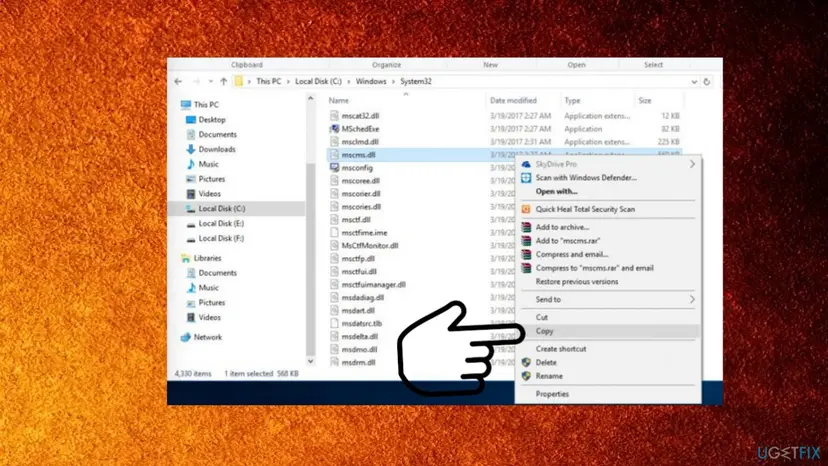
- Open File Explorer and go to
C:\Windows\System32. - Find
mscms.dll, right-click it and select Copy. - On 64-bit Windows, open
C:\Windows\System32\spool\drivers\x64\3and paste the file. On 32-bit Windows 10 the folder isC:\Windows\System32\spool\drivers\w32x86\3. - Approve the administrator prompt, restart the PC and add the printer again.
It worked if: The shared printer adds after the restart.
If not: Delete the copied file from the driver folder (never the one in System32) and go to Fix 8.
Fix 8. Add a network printer by its IP address instead of through another PC
10 minutesLow riskThe printer has its own Wi-Fi or Ethernet connection and the route through a sharing PC keeps failing.
A printer with its own network port does not need a sharing PC. Each PC then talks to the printer directly with its own driver, and no Point and Print request can fail with 0x0000007c.
- Find the printer's IP address on its control panel or on a network settings page it prints.
- Open Printers & scanners and select Add device, then Add manually. On Windows 10 select Add a printer or scanner, then The printer that I want isn't listed.
- Choose the option to add a printer by its IP address or host name and type the address.
- Let Windows find the driver, or install the maker's driver, and print a test page.
- Remove the old shared printer entry so apps stop using it.
Reserve the printer's IP address in your router so the connection keeps working after the router restarts.
It worked if: The printer appears with its own port in Printers & scanners and prints a test page.
If not: Collect the facts in the next section and ask the printer maker or Microsoft support.
Still getting 0x0000007c? Where the real cause is written
The error box never says which PC refused the request. Before you try anything else, check what both sides have and what the print system logged. These facts are also what support will ask for.
| Check | Where | What it tells you |
|---|---|---|
| Driver names | Get-PrinterDriver in Terminal on both PCs | Whether your PC has a driver with exactly the host's name |
| What the host shares | Get-Printer -ComputerName HostName on your PC | Whether the printer and its share name exist and can be reached |
| Print Service log | Event Viewer, Applications and Services Logs > Microsoft > Windows > PrintService > Admin | Driver and connection errors at the time of the failure |
| Windows versions | winver on both PCs | Whether one side is far behind on updates or out of support |
| Driver policy | HKEY_LOCAL_MACHINE\Software\Policies\Microsoft\Windows NT\Printers\PointAndPrint | Whether a policy limits who may install printer drivers |
- What to send to support: both Windows versions and builds, the printer model, the exact share path, both
Get-PrinterDriverlists and any PrintService errors with their time. - On a work PC: printers and drivers are often set by Group Policy. Ask your administrator, because a fix you make may be undone at the next sign-in.
- Is it hardware? No. If the printer prints a test page on the PC it is attached to, the printer is fine and the problem is the connection.
Old posts suggest setting RestrictDriverInstallationToAdministrators to 0. Microsoft says that value "makes devices vulnerable" and should be used only temporarily. Install the driver as an administrator once (Fix 1) instead.
How to keep error 0x0000007c from coming back
The error returns when a new PC joins without the driver, when the host's driver changes, or when one side falls behind on updates. A few habits keep it away.
- Install the printer's driver on each new PC before you connect it to the share.
- Use the same driver version on the host and the clients.
- Keep the sharing PC updated; it matters more than the clients.
- Keep the share name the same when you reinstall the printer on the host.
- Add printers with their own network port by IP address.
- Do not set RestrictDriverInstallationToAdministrators to 0 for good.
- Do not keep sharing a printer from a PC that no longer gets updates.
- Do not leave an update uninstalled for good.
- Do not edit printer registry keys without an export first.
Frequently asked questions
What does error 0x0000007c mean?
It is Windows system error 124, ERROR_INVALID_LEVEL: "The system call level is not correct." With printers it shows as "Windows cannot connect to the printer. Operation failed with error 0x0000007c." Your PC asked the PC that shares the printer for printer or driver data, and the request was refused. Install the printer's driver on your PC first (Fix 1), then add the printer again after a spooler restart on both PCs (Fix 2).
Why does this error happen? Is it caused by a Windows update?
It was in 2021. Microsoft confirmed that the October 12, 2021 updates KB5006670 and KB5006674 could cause 0x0000007c with printers shared on a Windows print server, and fixed it in KB5007253 and KB5007262 on November 22, 2021. On an updated PC today the usual cause is the driver: since August 2021 only administrators can install printer drivers through Point and Print, and old drivers fail that step.
Are 0x000007c, 0x00000007c and "error 0x00007c" the same error?
Yes. They differ only in how many zeros stand before 7c, which does not change the number. "Erro 0x0000007c" is the same error in a Portuguese Windows. All of them are error 124, and the fixes on this page apply to all. Searches for "0xc00000 7c windows 10" usually mean the same printer message too. Codes such as 0x0000007, 0x00000007, 0x00000077 and 0x000007de are different errors with different causes.
How do I fix 0x0000007c on Windows 10?
The same way as on Windows 11. Install the printer driver on the Windows 10 PC with printui.exe /s /t2 (Fix 1), restart Print Spooler on both PCs and add the printer by \\HostName\ShareName (Fix 2), and install all updates (Fix 3). The menu paths differ slightly and are given in each fix. Windows 10 left support on 14 October 2025, so it gets no new print fixes.
Should I uninstall KB5006670 or KB5006674 to fix 0x0000007c?
No. That advice dates from October 2021, before Microsoft's fix in KB5007253 and KB5007262. Cumulative updates have replaced those two updates long ago, so a current PC does not list them at all. Removing a security update today only leaves your PC exposed. Update both PCs instead (Fix 3), and install the driver on your PC first (Fix 1).
Do the FeatureManagement Overrides registry values like 713073804 still help?
Not on a current PC. In November 2021 users shared values under HKEY_LOCAL_MACHINE\SYSTEM\CurrentControlSet\Policies\Microsoft\FeatureManagement\Overrides, for example 713073804 set to 0 on Windows 10 2004 to 21H2, and several reported that they worked then. Those builds are out of support, Microsoft's own fix shipped weeks later, and we could not confirm any effect on Windows 11 or Windows 10 22H2 today.
Can I fix 0x0000007c without administrator rights?
Usually not. The step that fails is installing the printer's driver, and since the August 10, 2021 updates Windows requires an administrator for that by default. An administrator only needs to install the driver once (Fix 1); after that a standard user can connect to the shared printer. On a work PC, ask IT, because driver policies there are set centrally.
Is 0x0000007c a fault of my printer?
No. The code comes from the Windows print system while two PCs set up the connection, before any page reaches the printer. Ink, paper and cables are not involved. Print a test page on the PC the printer is attached to: if that works, the printer is fine and the fault is in the driver, the share or an update level.
Nothing on this page worked. What else can I try?
Take the shared route out of the picture. If the printer has Wi-Fi or Ethernet, add it by its IP address on every PC (Fix 8). If it only has USB, connect it to your PC directly for a test. Then collect the driver names, both Windows builds and the PrintService log as shown in the "still not fixed" section and send them to the printer maker or Microsoft support.
Sources
- Microsoft Learn: System Error Codes (0-499) (learn.microsoft.com)
- Microsoft Support: October 12, 2021, KB5006670 (known issues) (support.microsoft.com)
- Microsoft Support: November 22, 2021, KB5007262 (OS Build 22000.348) Preview (support.microsoft.com)
Did this fix work?
One click, no account. It tells the next reader which guides are worth their time.
Questions and experiences: fix network printing error 0x0000007c in Windows
Still broken, or found a fix we did not cover? Ask here: members and our editors answer. Reading is open; writing needs a free account.
…