
How to fix C:\Windows\System32\cmd.exe window popping up in Windows?

Prefer to fix it yourself? The manual steps follow.
- 8methods
- 10 to 30 minutes
- Intermediate
Applies to Windows 11, Windows 10; Command Prompt (cmd.exe), Windows Terminal, Task Scheduler
8 methods in this guide
- What the window is
- Why it pops up
- Is it a virus
- The fixes
- 1. Disable the scheduled task
- 2. Startup apps and folders
- 3. Check all entries in Autoruns
- 4. Windows Terminal settings
- 5. Record the starting program
- 6. Scan for malware
- 7. Clean boot
- 8. Repair system files
- Still there: what to check
- Keep it from coming back
- FAQ
Randomly, I get a pop-up every 10 minutes or so which is titled "C:\Windows\System32\cmd.exe" and it's just empty. I close it and then it comes back later. What is this and how can I remove it?
A black window titled C:\Windows\System32\cmd.exe is the Windows Command Prompt, started by something else on your PC: a scheduled task, a startup entry or an installed program. The file itself is a normal part of Windows. Note when the window appears, then turn off the task or startup entry that opens it.
The window is Command Prompt, opened by a scheduled task, a startup entry or a program, not by Windows itself. If it comes back every few minutes, list the scheduled tasks that run cmd.exe or a .bat file and disable the one you do not recognise (Fix 1). If it appears once at sign-in, check Startup apps and the two Startup folders (Fix 2).
| Error | No error text. An empty black window whose title bar reads C:\Windows\System32\cmd.exe, sometimes with Administrator: in front of it. |
|---|---|
| Where it appears | On the desktop, at sign-in or at regular times (every few minutes, every hour), often for a second before it closes again. |
| Main cause | A scheduled task or a startup entry of an installed program that runs a command or a .bat file through cmd.exe. |
| Fastest fix | List the scheduled tasks that run cmd.exe with one PowerShell command and disable the unknown one (Fix 1). |
| Also written as | c:\windows\system32\cmd.exe, c windows system32 cmd exe, windows/system32/cmd.exe, system32 cmd.exe pop up, cmd.exe at startup. |
| Affects | Windows 11 and Windows 10. On Windows 11 22H2 and later the window may open in Windows Terminal instead of the classic console. |
| Microsoft's status | Not a Windows bug. Microsoft documents cmd.exe as the command interpreter and gives no single cause for windows that other programs open. |
| Where the cause is logged | Task Scheduler (Last Run Time of each task) and, once you turn on process auditing, event ID 4688 in the Security log with the Creator Process Name. |
| Time to fix | About 10 minutes when a task or startup entry is the cause, up to an hour when you have to record the starting program first. |
Facts checked on 15 October 2026. Steps written for Windows 11 (25H2 and 26H2) and Windows 10 22H2.
What the C:\Windows\System32\cmd.exe window is
cmd.exe is the Windows command interpreter, the program behind Command Prompt. Its real file sits in C:\Windows\System32. When a program or a task starts it without giving the window a name of its own, the title bar shows the full path of the file: C:\Windows\System32\cmd.exe. The title is not a message and not an error.
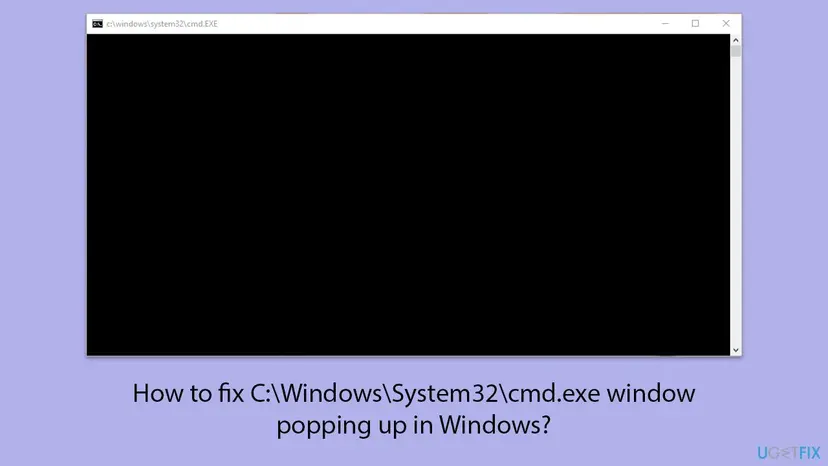
- Empty and stays open: the command it runs is waiting, or it was started with the switch
/k, which keeps the window open after the command. - Flashes and closes: it was started with
/c, which runs one command and closes the command processor. That is the usual case for scheduled tasks and updaters. - Administrator: C:\Windows\System32\cmd.exe: the same window started with administrator rights, which a task set to run with highest privileges can do.
- A Windows Terminal window instead: since Windows 11 22H2, command-line programs open in Windows Terminal when Terminal is the default terminal app.
cmd.exe never opens by itself. Something on your PC starts it, and that something is what you remove. Closing the window or deleting cmd.exe does nothing useful: the file is a protected part of Windows and the task that starts it runs again.
Why the cmd.exe window keeps popping up
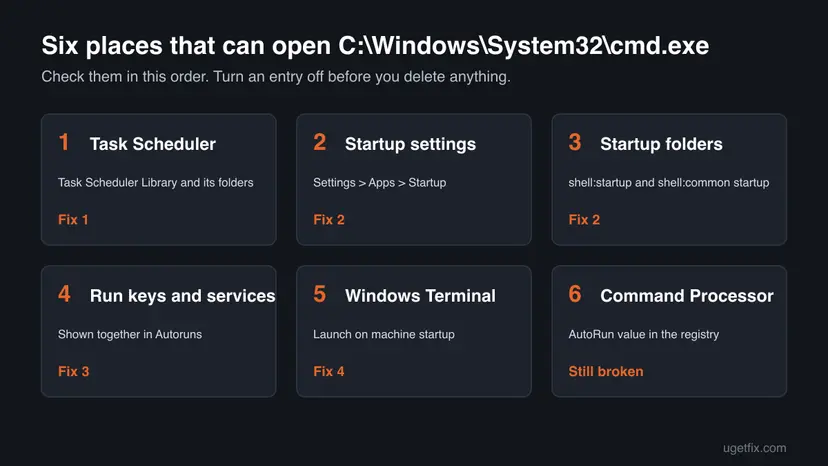
Most often a scheduled task of an installed program runs a command or a batch file on a timer. Less often a startup entry or a .bat file in a Startup folder runs once at sign-in. Rarely the window comes from Windows Terminal settings, from malware, or from a program that crashes while it starts a helper.
| Cause | How often | How to tell | Fix |
|---|---|---|---|
| A scheduled task runs cmd.exe or a .bat or .cmd file. | Most often | The window comes back at regular times, also when you are not doing anything. | Fix 1 |
| A startup app or a file in a Startup folder runs a script at sign-in. | Often | The window appears once, a few seconds after you sign in. | Fix 2, Fix 3 |
| Windows Terminal is set to start with Windows, or apps now open in Terminal. | Sometimes | The window has tabs and the Terminal title bar, not the classic console. | Fix 4 |
| A program you cannot name starts cmd.exe at random moments. | Sometimes | No pattern, and Fixes 1 to 3 show nothing unknown. | Fix 5, Fix 7 |
| Malware runs commands through cmd.exe. | Rarely | Other signs: browser pop-ups, a cmd.exe file outside System32, security warnings. | Fix 6 |
The old advice for this window starts with a system file check. We found no Microsoft page that ties a cmd.exe pop-up to damaged system files, so that check is the last fix here, not the first.
Is the C:\Windows\System32\cmd.exe pop-up a virus?
Usually not. The file in C:\Windows\System32 is part of Windows, and most windows come from updaters, backup tools, printer or game launchers that run a short command. Malware does use cmd.exe to run its own commands, so treat it as a warning sign when other signs come with it.
- A file named
cmd.exein a folder other thanC:\Windows\System32orC:\Windows\SysWOW64, for example inAppDataorTemp. - A scheduled task or startup entry with a random name, no publisher and a command you cannot read.
- New browser pop-ups, changed search settings or a security warning in Windows Security at the same time.
- The window title does not end in
cmd.exebut in a similar name, such as a misspelled file.
With any of these signs, run the scans of Fix 6 before you change anything else.
How to stop the C:\Windows\System32\cmd.exe window from popping up
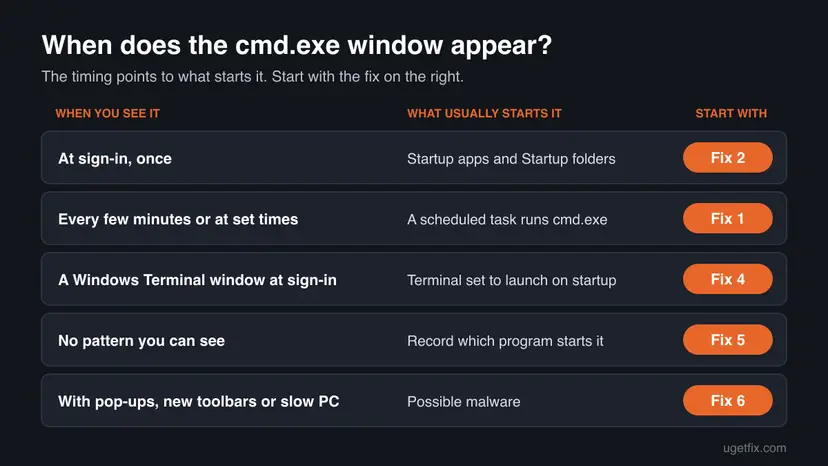
Fixes 1 to 3 find the task or startup entry that opens the window and solve most cases. Fix 4 covers Windows Terminal. Fix 5 records the program behind a window that has no pattern. Fixes 6 to 8 are general checks for what remains.
| What you see | Start with |
|---|---|
| The window comes back every few minutes or at the same time each day. | Fix 1 |
| The window opens once, right after you sign in. | Fix 2, then Fix 3 |
| The window has tabs and looks like Windows Terminal. | Fix 4 |
| No pattern, and Fixes 1 to 3 found nothing unknown. | Fix 5 |
| Other strange behaviour, or a cmd.exe file outside System32. | Fix 6 |
| Started after you installed a new program or driver. | Fix 7 |
Fix 1. Find and disable the scheduled task that opens cmd.exe
10 minutesLow riskThe window comes back at regular times, every few minutes or every hour, also when you are not using the PC.
A window on a timer is what a scheduled task looks like. Many programs register tasks that run a command or a batch file through cmd.exe, and a task whose action is cmd.exe shows exactly this window each time it runs.
- Right-click Start and select Terminal on Windows 11 or Windows PowerShell on Windows 10.
- Paste the command below and press Enter. It lists every task whose action runs cmd.exe, a .bat file or a .cmd file, with its last and next run time.
- Compare LastRunTime with the moment you last saw the window. The task with the matching time is your suspect.
- Press Win + R, type
taskschd.mscand press Enter. - Open Task Scheduler Library and go to the folder shown as TaskPath for your task.
- Select the task and read the Actions and Triggers tabs to see which program created it and how often it runs.
- Right-click the task and select Disable. Do not delete it yet.
List the tasks that run cmd.exe or a batch file
Get-ScheduledTask | Where-Object { $_.Actions.Execute -match 'cmd|\.bat|\.cmd' } | Get-ScheduledTaskInfo | Select-Object TaskName, TaskPath, LastRunTime, NextRunTimeTasks under \Microsoft\Windows\ belong to Windows. Disabling them can stop updates or maintenance. Look at tasks in the root of the library and in folders named after programs first. If you are not sure what a task does, search for its exact name before you disable it.
If the task belongs to a program you still use, open that program's settings and turn off its update or sync schedule, or reinstall it. If you do not know the program, uninstall it: Uninstall a program or app in Windows
It worked if: The window does not come back at the time the task would have run, and the task shows Disabled in Task Scheduler.
If not: Enable the task again and go on to Fix 2. If no task matched the time, Fix 5 records the program directly.
Fix 2. Turn off startup apps and check the two Startup folders
5 minutesLow riskThe window opens once, a few seconds after you sign in, and not again later.
Programs that start at sign-in, and any .bat or .cmd file placed in a Startup folder, run as soon as your desktop loads. A batch file in a Startup folder always opens a cmd.exe window, which is the exact window in the query "cmd.exe at startup".
- Select Start > Settings > Apps > Startup.
- Set every app you do not recognise or do not need at sign-in to Off.
- Press Win + R, type
shell:startupand press Enter. This is your own Startup folder. - Look for files that end in
.bat,.cmd,.vbsor shortcuts to them. Move any you do not know to a folder on the desktop instead of deleting them. - Press Win + R, type
shell:common startupand press Enter. This folder runs for every user, and Windows asks for administrator rights to change it. - Check it the same way, then restart the PC.
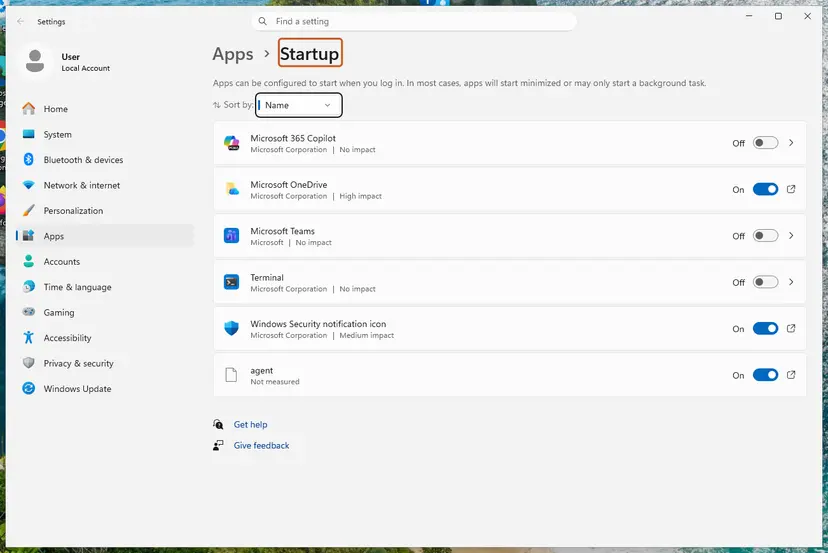
Task Manager shows the same list with a Startup impact column. Both ways, on Windows 11 and Windows 10: Stop apps from opening at startup
It worked if: After the restart you sign in and no Command Prompt window opens.
If not: Put the moved files back if a program stops working, and go on to Fix 3, which shows the startup places this list does not.
Fix 3. See every startup entry and task in one list with Autoruns
15 minutesLow riskFix 1 and Fix 2 did not show the cause, or you want to see Run keys, services and tasks together.
Settings shows only part of what starts with Windows. Microsoft's Sysinternals tool Autoruns shows logon entries, services, scheduled tasks and more in one list, and it can hide Microsoft's own entries so that only third-party ones remain.
- Download Autoruns.zip from Microsoft's Autoruns page and extract it.
- Right-click
Autoruns64.exe, select Run as administrator and select Yes. - Open Options and turn on Hide Microsoft Entries.
- Press Ctrl + F and search for
cmd, then for.bat. Check the Logon and Scheduled Tasks tabs as well. - For an entry you do not recognise, read the Publisher and Image Path columns.
- Clear the check box next to the entry to disable it. Restart and watch for the window.
Microsoft's page says that clearing the check box disables an entry and that Delete removes it. Disable first. Delete only after a few days without the window and without a program that broke.
It worked if: After you clear the box and restart, the window no longer appears, and the entry is still in the list in case you need it back.
If not: Tick the box again so the program works as before, then go on to Fix 4 or Fix 5.
Fix 4. Stop Windows Terminal from opening at startup and set the default terminal
3 minutesNo riskOn Windows 11 the window has tabs and a Terminal title bar, or it opens at sign-in with a PowerShell or cmd tab.
Windows Terminal has its own setting, Launch on machine startup, that opens it at sign-in. Since Windows 11 22H2, command-line programs open in Windows Terminal by default, so a console that used to flash in the old host can look different now.
- Open Windows Terminal, select the arrow next to the tabs and select Settings.
- On the Startup page, set Launch on machine startup to Off and select Save.
- To go back to the classic console window, open Settings in Windows and go to System > Advanced on Windows 11 25H2 and later.
- Find Terminal and choose Windows Console Host in the drop-down menu. The other choices are Let Windows decide and Windows Terminal.
- Restart the PC.
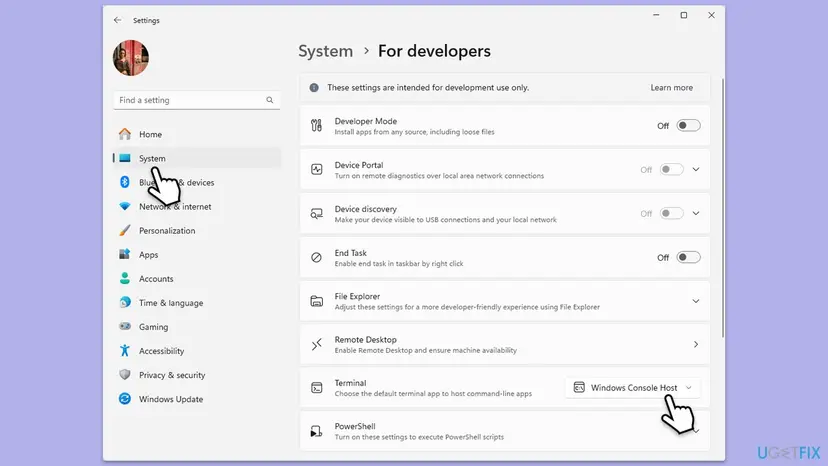
In the October 2022 announcement Microsoft placed this setting under Privacy & security > For developers, and later builds moved it. If you do not find it, type terminal in the search box of Settings. Users report that changing it makes some flashing windows look different, but we could not confirm that it stops any window from opening.
It worked if: No Terminal window opens at sign-in, and console programs open in the classic black window again.
If not: The terminal app only decides how the window looks. If a window still appears, something still starts it: go to Fix 5.
Fix 5. Record which program starts cmd.exe with process auditing
20 minutesLow riskThe window appears with no pattern you can see, and Fixes 1 to 3 showed nothing unknown.
Windows can write an event every time a process starts. Event 4688, A new process has been created, holds the New Process Name and the Creator Process Name, so the event for cmd.exe names the program that opened it.
- Right-click Start and select Terminal (Admin) on Windows 11 or Windows PowerShell (Admin) on Windows 10, then select Yes.
- Run the first command below to turn on auditing of process creation.
- Use the PC normally and write down the time when the window appears.
- Press Win + R, type
eventvwr.mscand press Enter. - Open Windows Logs > Security, select Filter Current Log, type
4688in the event ID box and select OK. - Open the event at the time you wrote down whose New Process Name is
C:\Windows\System32\cmd.exe. - Read Creator Process Name: that is the program that opened the window.
- Run the second command below to turn auditing off again.
Turn auditing on, then off when you are done
auditpol /set /subcategory:"Process Creation" /success:enable
auditpol /set /subcategory:"Process Creation" /success:disable- Creator is a program you know, such as an updater in
Program Files: change its schedule or reinstall it. - Creator is
svchost.exeortaskeng.exe: the window comes from a scheduled task. Go back to Fix 1 and check tasks with the matching time. - Creator is in
AppData,Tempor has a random name: run the scans in Fix 6. - On Windows Pro you can also turn on the Group Policy Include command line in process creation events under Administrative Templates > System > Audit Process Creation to see the full command.
Process Monitor from Microsoft Sysinternals is another way: it records each process with its command line and shows the parent in its process tree, and it can log the boot as well.
It worked if: The event for cmd.exe names a program in Creator Process Name, and you can turn off or remove that program.
If not: If no 4688 event shows cmd.exe at that time, the window may be a different program with a similar title. Go on to Fix 6.
Fix 6. Scan for malware with Microsoft Defender, then run an offline scan
1 hourLow riskYou saw a warning sign from the section on viruses above, or Fix 5 named a program in AppData or Temp.
Malware that hides on a PC often runs its commands through cmd.exe, from a scheduled task or a startup entry. A full scan checks every file, and the offline scan runs before Windows loads, where such a program cannot hide.
- Open Windows Security and select Virus & threat protection.
- Select Scan options, choose Full scan and select Scan now.
- When it ends, open Scan options again, choose Microsoft Defender Antivirus (offline scan) and select Scan now. Save your work first: the PC restarts.
- After the restart, open Protection history in Windows Security to see what was found and removed.
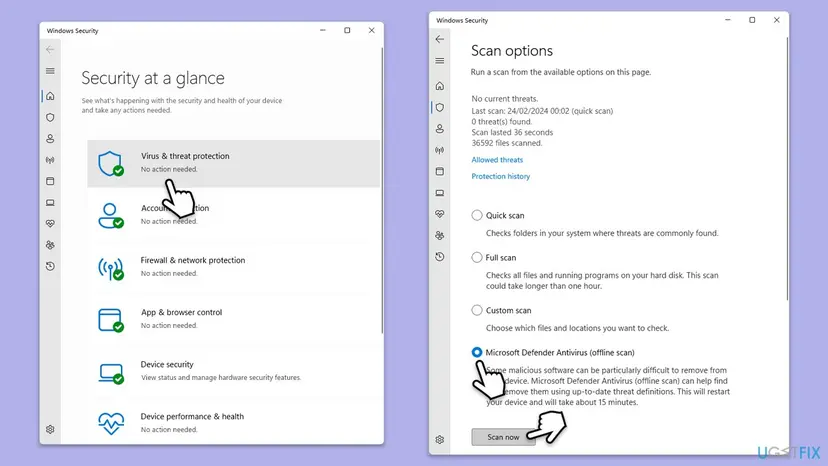
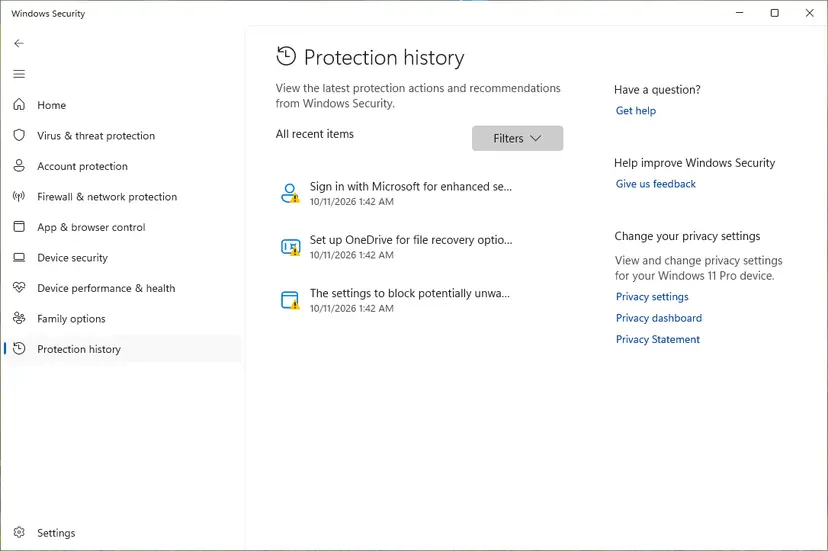
Every step with screenshots: How to scan for malware with Microsoft Defender. After a cleanup, check Task Scheduler again (Fix 1), because a removed program can leave its task behind.
It worked if: The scans end with no current threats, or Protection history shows the threat as removed, and the window stops.
If not: If the scans are clean, the window comes from a normal program. Go on to Fix 7 to find which one.
Fix 7. Find the program with a clean boot
30 minutesLow riskThe window keeps coming and none of the fixes above named its source.
A clean boot starts Windows with only Microsoft's services and no startup apps. If the window stops, a third-party program is the source, and you find it by turning things back on in groups.
- Open System Configuration. Select Search on the taskbar, type msconfig and select System Configuration from the results.
- Hide Microsoft services. On the Services tab, select the Hide all Microsoft services check box. Only services from other companies stay in the list.
- Disable the remaining services. Select Disable all, then select Apply.
- Open Task Manager. On the Startup tab of System Configuration, select Open Task Manager.
- Disable the startup apps. On the Startup apps tab in Task Manager, select each item whose status is Enabled and select Disable. Write down or take a screenshot of the items you disable: you need the list to turn them back on.
- Confirm the changes. Close Task Manager. On the Startup tab of System Configuration, select OK.
- Restart and test. Restart the PC. Windows now starts in a clean boot environment: try again the thing that failed (run the app, install the update, uninstall the program).
These steps were written for Windows 11 25H2 and 26H2. The full page with the other versions and what each result means: How to perform a clean boot in Windows

Turn on half of the services, restart and wait for the window. Keep halving the group that brings it back until one service or app is left. The full page, also for going back to a normal start: How to perform a clean boot in Windows
It worked if: In the clean boot the window does not appear, and it comes back only when one program is turned on again.
If not: If the window appears even in a clean boot, the source is part of Windows or a task. Go on to Fix 8 and read the section below the fixes.
Fix 8. Repair Windows system files
20 minutesNo riskThe window appears even in a clean boot and no task or startup entry starts it.
Microsoft does not name this repair for a cmd.exe pop-up. It is a general check that makes sense only when the cause is inside Windows, because it replaces damaged Windows files, cmd.exe included, with good copies.
- Open Command Prompt as administrator.
- Run the command below and wait until it reaches 100 percent.
- Restart the PC.
sfc /scannow
The full procedure, with the DISM commands that go before it: Run DISM and SFC to repair Windows system files
It worked if: The scan ends with a message that it found no integrity violations or that it repaired the files it found.
If not: Read the section below on what to check when the window is still there.
If the cmd.exe window is still there
By now you know whether a task, a startup entry or a program starts the window. If you still do not, two places hold the answer: the Security log from Fix 5 and the Command Processor AutoRun value.
- Every Command Prompt you open runs something first: Windows runs the command stored in the AutoRun value of
HKEY_CURRENT_USER\Software\Microsoft\Command ProcessorandHKEY_LOCAL_MACHINE\Software\Microsoft\Command Processoreach time cmd.exe starts, unless it is started with/d. Some tools add a command there, and so does some malware. - The event log names svchost.exe: the window comes from a scheduled task. Sort tasks by Last Run Time in Task Scheduler and compare with your notes.
- What to send to support: the task name and its action, the Creator Process Name from event 4688 and the time of the window. A program's support team can tell you why its task shows a window.
- When it is not your PC to change: on a work or school PC, scripts often come from the organisation. Ask the IT department before you disable anything.
To check the AutoRun value, open Registry Editor and read the two keys above. Change nothing before you export a backup: Back up the registry before editing it. Delete the AutoRun value only when you know which tool put it there.
This window is not a hardware problem. If the PC also restarts, freezes or shows blue screens, those have other causes and need their own checks.
How to keep the cmd.exe pop-up from coming back
- Note the name of every task or startup entry you disable, so you can turn it back on if a program breaks.
- Uninstall programs you no longer use. Their tasks often stay active until the program is removed.
- Install software from the publisher's own site and read the setup screens for extra tools.
- Keep Microsoft Defender on and look at Protection history after a strange window appears.
- Do not delete or rename
C:\Windows\System32\cmd.exe. Windows and many programs need it. - Do not disable tasks in the
\Microsoft\Windows\folder of Task Scheduler to stop a window. - Do not run unknown .bat files or commands that a stranger sends you.
Windows 10 left support on 14 October 2025. The steps here still work on Windows 10 22H2, but without security updates a PC is easier to infect, which makes Fix 6 more important there.
Frequently asked questions
What is C:\Windows\System32\cmd.exe?
It is the full path of the Windows command interpreter, the program you know as Command Prompt. Microsoft describes cmd as the command that starts a new instance of the command interpreter. The file has been part of Windows for decades and sits in the System32 folder on every Windows 10 and Windows 11 PC. When a window shows this path in its title bar, some program or task started Command Prompt without giving the window a name of its own. The path is not an error message.
Is the C:\Windows\System32\cmd.exe pop-up a virus?
In most cases it is not. The real cmd.exe is a Windows file, and the window usually comes from an updater, a backup tool or another program's scheduled task. It is a reason to scan when other signs come with it: a cmd.exe file outside System32 or SysWOW64, a task with a random name and no publisher, or new pop-ups in the browser. In that case run a full scan and an offline scan with Microsoft Defender, as described in Fix 6, before you change anything else.
Why does a cmd window pop up and close immediately?
Because the program that started it ran one short command and the window closed when the command ended. cmd.exe does this when it is started with the switch /c, which tells it to carry out a command and then exit. Scheduled tasks and updaters often work this way, so the window flashes for a second. To see which program did it, compare the time with the Last Run Time of your scheduled tasks (Fix 1), or record event 4688 (Fix 5).
Why does C:\Windows\System32\cmd.exe open at startup in Windows 10 or Windows 11?
Something set to run at sign-in starts it. The usual places are the startup apps in Settings, a .bat or .cmd file in one of the two Startup folders (shell:startup and shell:common startup), a Run key in the registry or a task with a logon trigger. On Windows 11 it can also be Windows Terminal with Launch on machine startup turned on. Check Fix 2 first, then Autoruns in Fix 3, which shows all of these places in one list.
Why does my Command Prompt say C:\Windows\System32 instead of my user folder?
That is the folder Command Prompt starts in, not a problem. When you open Command Prompt as administrator, it starts in C:\Windows\system32, while a normal Command Prompt starts in your user folder, such as C:\Users\YourName. Type cd %userprofile% and press Enter to go to your own folder. The window title then still shows Administrator in front of the path, which tells you that commands in that window run with administrator rights.
What does Administrator: C:\Windows\System32\cmd.exe in the title mean?
It means the Command Prompt window runs with administrator rights. You see it when you choose Run as administrator yourself, or when a task or program starts cmd.exe with full rights. A scheduled task set to run with highest privileges, for example, opens such a window. If you did not open it yourself, treat it like any other pop-up: find the task or program that starts it with Fix 1 or Fix 5, and check it with Fix 6 if you do not know its publisher.
Can I delete cmd.exe to stop the window?
No. cmd.exe is a protected Windows file, and Windows, installers and many programs need it to run commands. Deleting or renaming it would break those programs, and Windows can restore the file with a system file check. Removing the file also leaves the real cause in place: the task, startup entry or program that starts it would simply fail with an error instead. Turn off or uninstall that source instead, as shown in Fixes 1 to 3.
Can I just block Command Prompt so it never opens?
We do not advise it. Windows has a Group Policy that prevents access to the command prompt, but it is meant for managed PCs, and programs that rely on cmd.exe may fail when it is on. You would hide the symptom and keep the program or task that causes it. It takes the same time to find the source with Fix 1 or Fix 5 and turn off only that, which leaves the rest of Windows working as before.
Does this page help with "c:/windows/system32/cmd.exe solución" and other languages?
Yes. The path C:\Windows\System32\cmd.exe is the same in every language of Windows, and so are the causes and the fixes. This page is written in English and uses the English names of menus and buttons, such as Task Scheduler and Startup apps. In Spanish, German or another language the menus sit in the same places. One difference: the auditpol subcategory name in Fix 5 is translated on Windows in other languages, so use the name your Windows shows.
Why does a window titled C:\Windows\System32\cmd.exe open when I start a game or app?
The program uses a batch file or a command to start, check for updates or launch a helper, and it starts cmd.exe without hiding the window. That is how its maker built it, and it is usually harmless. If the window closes and the program runs, you can ignore it. If the program fails after the window, repair or reinstall it, or ask its support team. The fixes on this page are for a window that appears on its own, without you starting anything.
Sources
- Microsoft Learn: cmd (command reference, /c, /k, /d and the AutoRun registry values) (learn.microsoft.com)
- Microsoft Learn: 4688(S) A new process has been created (learn.microsoft.com)
- Microsoft Learn: Autoruns, Sysinternals (v14.3) (learn.microsoft.com)
Did this fix work?
One click, no account. It tells the next reader which guides are worth their time.
Questions and experiences: fix C:\Windows\System32\cmd.exe window popping up in Windows
Still broken, or found a fix we did not cover? Ask here: members and our editors answer. Reading is open; writing needs a free account.
…