
How to fix D3d12.dll missing or not found error in Windows?

Prefer to fix it yourself? The manual steps follow.
- 7methods
- 2 to 60 minutes
- Easy
Applies to Games and programs that use DirectX 12 on Windows 11, Windows 10, Windows 8.1 and Windows 7
7 methods in this guide
Hello. When I try to launch certain applications, I keep getting the D3d12.dll is missing or not found errors. Is there a way to fix this?
D3D12.dll is the Direct3D 12 file that comes with Windows 10 and Windows 11. Windows 7 and 8.1 never had it, so there the fix is a newer Windows or an older version of the program. On Windows 10 or 11, check your Windows version first, then repair the system files and the game's own files.
Press Win + R, type winver and read your Windows version (Fix 1). On Windows 7 or 8.1 the file does not exist, and no download adds it: you need Windows 10 or 11, or a version of the program that does not need DirectX 12. On Windows 10 or 11, run DISM and SFC to restore the file (Fix 2), then check the game's files (Fix 3).
| Error | "The code execution cannot proceed because D3D12.dll was not found. Reinstalling the program may fix this problem." Older wording: "The program can't start because D3D12.dll is missing from your computer." |
|---|---|
| Where it appears | In a small System Error window the moment a game or program starts, before its own window opens. The title bar names the program's .exe file. |
| Main cause | The PC runs Windows 7, 8 or 8.1, which have no Direct3D 12. On Windows 10 and 11: damaged system files or a damaged game install. |
| Fastest fix | Check the Windows version with winver (Fix 1). On Windows 10 or 11, run DISM and SFC (Fix 2). |
| Also written as | d3d12.dll, d3d12 dll, D3D12.dll not found, d3d12.dll is missing from your computer, d3d12dll, d3d12.ddl. |
| The file | C:\Windows\System32\D3D12.dll, a Microsoft file. Since 2021 it is a small loader; most of the runtime is in D3D12Core.dll next to it. |
| Affects | Every Windows version. On Windows 7 and 8.1 it is expected; on Windows 10 and 11 it is rare and means something is damaged. |
| Vendor status | Microsoft says DirectX 12 is included with Windows 10 and 11, is updated only through Windows Update, and has no stand-alone package. |
| Not the fix | The DirectX End-User Runtime and DLL download sites. Microsoft says the runtime makes no change to your version of DirectX. |
| Time to fix | 2 minutes to check, 15 to 30 minutes for DISM and SFC, an hour or more for a Windows upgrade. |
Facts checked on 15 October 2026. Steps written for Windows 11 (25H2 and 26H2) and Windows 10 22H2.
What D3D12.dll is and what the error means
D3D12.dll is the Direct3D 12 runtime of Windows, the part of DirectX 12 that games and video tools use to talk to the graphics card. Microsoft states that DirectX 12 is included with Windows 10 and Windows 11, that updates come through Windows Update, and that there is no stand-alone package for it.
The message itself comes from Windows, not from the program. Windows shows it when a program lists D3D12.dll as a file it needs and Windows cannot find it in the program's folder or in the system folders. Windows 11 and recent Windows 10 builds use the first wording below; older builds use the second.
| What you see | What it tells you |
|---|---|
| "The code execution cannot proceed because D3D12.dll was not found. Reinstalling the program may fix this problem." | Current Windows wording in a System Error box. The program has not started at all. |
| "The program can't start because D3D12.dll is missing from your computer. Try reinstalling the program to fix this problem." | Older Windows wording, the same meaning. Common on Windows 7 and 8.1. |
| "d3d12.dll missing on this computer" or a line in a log | A program, tool or launcher reports the same failure in its own words. |
| D3D12_ERROR_INVALID_REDIST, code 887e0003 | Not this error. D3D12.dll loaded, but the game's own D3D12Core.dll was not found or is the wrong version. Go to Fix 3. |
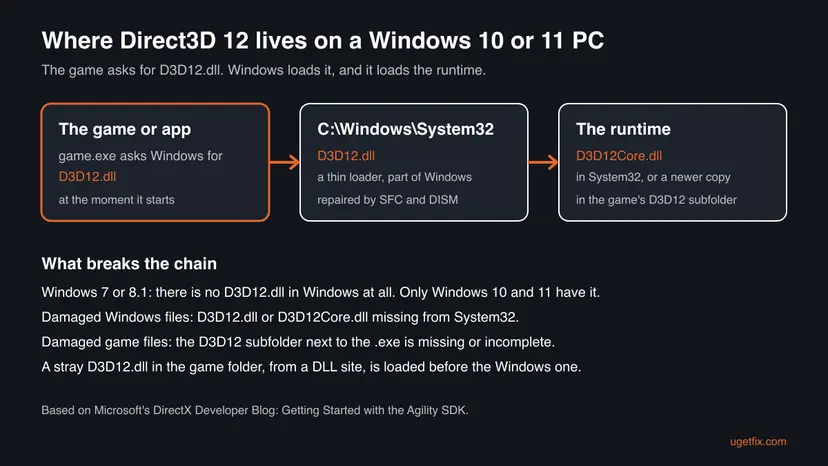
Since 2021 Microsoft has split the file in two. Its DirectX Developer Blog says D3D12.dll is now "just a thin loader" and D3D12Core.dll holds the bulk of the runtime. Games built with the DirectX 12 Agility SDK carry a newer D3D12Core.dll in a subfolder named D3D12 next to their .exe. That is the "d3d12 folder" you may find in a game's install folder: it belongs to the game and should stay there.
D3D12.dll on Windows 11, Windows 10, Windows 8.1 and Windows 7
The single most useful fact about this error is which Windows you run. Microsoft lists the DirectX versions that come with each one, and only Windows 10 and Windows 11 include DirectX 12.
| Windows | DirectX included | D3D12.dll in Windows | What to do |
|---|---|---|---|
| Windows 11 | DirectX 12 | Yes, in System32 | Fix 2 and Fix 3 |
| Windows 10 | DirectX 11.3 and 12 | Yes, in System32 | Fix 2, Fix 3 and Fix 5 |
| Windows 8.1 | DirectX 11.2 | No | Fix 1. Microsoft: "To upgrade DirectX further, you will need to upgrade your operating system." |
| Windows 8 | DirectX 11.1 | No | Fix 1 |
| Windows 7 | DirectX 11.0, or 11.1 with KB2670838 | No | Fix 1. Some games bring their own copy, see below. |
Many searches ask how to install d3d12.dll on Windows 8.1. There is no way: Microsoft offers no DirectX 12 package for it, and a file copied from a DLL site cannot add a runtime the system lacks. A program that needs D3D12.dll will not run on Windows 8.1.
Windows 7 is a special case. In 2019 Microsoft published a D3D12onWin7 package so that game studios could run their DirectX 12 games on Windows 7, starting with World of Warcraft. Such a game installs its own copy of the file with the game. Every other DirectX 12 program on Windows 7 shows the missing-file error, because Windows 7 itself has no Direct3D 12.
Why D3D12.dll is missing, most common cause first
The table ranks the causes by how often they appear in the reports we read, with the fix for each. On Windows 10 and 11 the file is part of the system, so a missing file there points to damage, not to a missing download.
| How often | Cause | How to spot it | Fix |
|---|---|---|---|
| Most often | Windows 7, 8 or 8.1, which have no Direct3D 12 | winver shows Windows 7, 8 or 8.1. Forum reports for video tools and newer app versions come mostly from Windows 8.1. | Fix 1 |
| Often | Damaged or missing Windows system files | Windows 10 or 11, and every DirectX 12 program fails the same way | Fix 2 |
| Often | A damaged or incomplete game install | Only one game fails; others that use DirectX 12 still run | Fix 3 |
| Sometimes | A stray D3D12.dll in the game folder | A file named D3D12.dll sits next to the game's .exe, from a DLL site or a mod | Fix 4 |
| Sometimes | An old Windows 10 build | winver shows a version older than 22H2, or the PC has not updated for months | Fix 5 |
| Rarely | Malware or a security tool removed or replaced the file | Windows Security shows an action on a file of that name | Fix 6 |
D3D12.dll and D3D12Core.dll are Windows files. NVIDIA, AMD and Intel drivers do not ship them, so a new driver cannot fix a missing D3D12.dll. A driver matters for other DirectX 12 errors, after the file is found.
How to fix D3D12.dll missing or not found
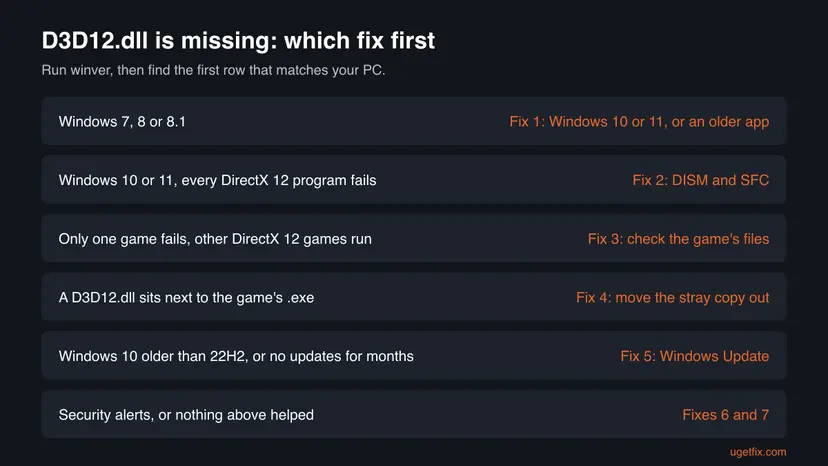
Start with Fix 1: it takes a minute and settles the most common case. On Windows 10 or 11, Fixes 2 and 3 solve most of the rest. Fixes 4 to 6 cover the rarer causes, and Fix 7 repairs Windows itself when nothing else helps.
| What you see or what your PC has | Start with |
|---|---|
winver shows Windows 7, 8 or 8.1 | Fix 1 |
| Windows 10 or 11, and every DirectX 12 game or program fails | Fix 2 |
| Only one game fails, other DirectX 12 games run | Fix 3 |
| A file named D3D12.dll sits next to the game's .exe | Fix 4 |
| Windows 10 older than 22H2, or no updates for months | Fix 5 |
| Windows Security reported a threat around the time the error began | Fix 6 |
| SFC reports files it could not repair | Fix 7 |
Fix 1. Check your Windows version, and move off Windows 7 or 8.1
1 minute to checkNo riskEveryone, first. It decides whether the file can exist on your PC at all.
Microsoft lists DirectX 12 only for Windows 10 and Windows 11. On Windows 7, 8 and 8.1 Microsoft says the only way to a newer DirectX is a newer operating system, so no repair can add D3D12.dll there.
- Press Win + R, type
winverand press Enter. - Read the first line of the About Windows box: Windows 11, Windows 10, Windows 8.1 or Windows 7.
- On Windows 10 or 11, close the box and go to Fix 2.
- On Windows 7, 8 or 8.1, check the program's system requirements on its website or store page.
- If it lists Windows 10 or 11 only, install the last version of the program that supported your Windows, or move to Windows 10 or 11.
- For a game with a graphics option, look for a DirectX 11 mode in its launcher or settings. Not every game has one.
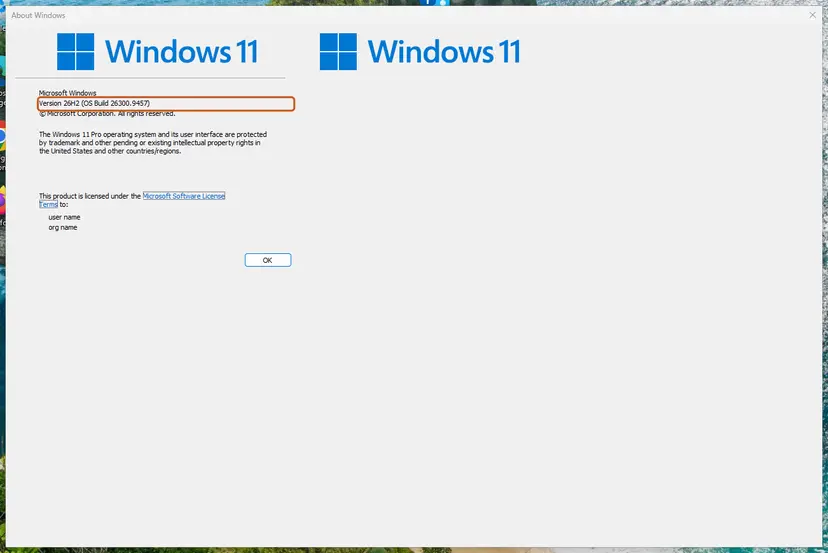
Both versions are out of support. Windows 10 also left support on 14 October 2025, so a move to Windows 11 is the long-term answer if your PC meets its requirements. A DLL copied in from a website does not make a DirectX 12 program work on Windows 8.1 and can carry malware.
It worked if: You know whether the file belongs on your PC. On Windows 10 or 11 it does, and the next fixes restore it.
If not: On Windows 10 or 11, go to Fix 2. On Windows 7 or 8.1 there is no repair; only a newer Windows or an older program version will run.
Fix 2. Restore D3D12.dll with DISM and SFC
15 to 30 minutesNo riskWindows 10 or 11, and the error shows in more than one program, or C:\Windows\System32\D3D12.dll is gone.
On Windows 10 and 11, D3D12.dll and D3D12Core.dll are protected system files. DISM repairs Windows' store of components and SFC then puts back any system file that is missing or damaged, D3D12.dll included.
First see whether the files are there. Open Command Prompt and run this command; a healthy Windows 10 or 11 lists both files.
dir C:\Windows\System32\d3d12*.dllThen run the repair as administrator. Step by step: Run DISM and SFC to repair Windows system files
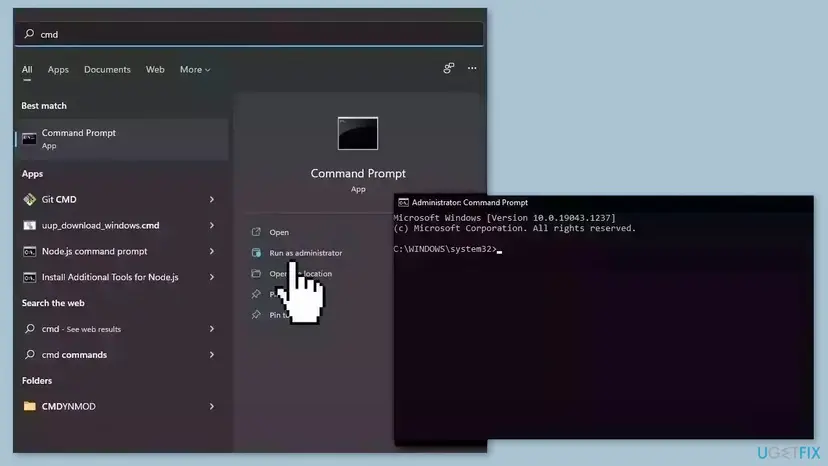
- Open an elevated command window. Right-click Start and select Terminal (Admin), or type cmd in the search box, right-click Command Prompt and select Run as administrator. Select Yes when Windows asks for permission.
- Run DISM first. Type the command below and press Enter. DISM downloads clean copies of damaged components from Windows Update, so it can take several minutes. Wait until it says The operation completed successfully.
DISM.exe /Online /Cleanup-Image /RestoreHealth - Run System File Checker. In the same window, type the command below and press Enter. Do not close the window until the verification reaches 100%.
sfc /scannow - Read the result and restart. Compare the last message with the table below this guide, then restart the PC so that repaired files are loaded.
These steps were written for Windows 11 24H2 and 25H2. The full page with the other versions and what each result means: Run DISM and SFC to repair Windows system files
It worked if: SFC reports that it found corrupt files and repaired them, and the dir command lists D3D12.dll and D3D12Core.dll again. Restart and start the program.
If not: If SFC found nothing and the files are there, the problem is in the program's own folder. Go to Fix 3.
Fix 3. Verify or reinstall the game that shows the error
5 to 30 minutesNo riskOnly one game or program fails, or the error started after an update or a moved install folder.
Games built with the DirectX 12 Agility SDK keep their own D3D12Core.dll in a D3D12 subfolder next to the .exe, and Microsoft's guide says they must ship it with that folder layout. A file check puts back that folder and any other missing file.
Steam, the EA app, Ubisoft Connect, the Epic Games Launcher, the Xbox app and GOG Galaxy can compare the files with the server and download what is broken. Step by step for each launcher: How to verify game files in Steam, Epic Games, Xbox app, EA app, Battle.net and GOG Galaxy
- Restart and open Steam. Restart your computer and launch Steam.
- Open the game's menu. Right-click the game in your Library, or open the game's Library page and select the gear icon on the far right.
- Open Properties. Select Properties in the menu.
- Verify the files. Select the Installed Files tab and select Verify integrity of game files.
- Wait for the result. Steam checks the game's files. This can take several minutes.
These steps were written for Steam on Windows. The full page with the other versions and what each result means: How to verify game files in Steam, Epic Games, Xbox app, EA app, Battle.net and GOG Galaxy
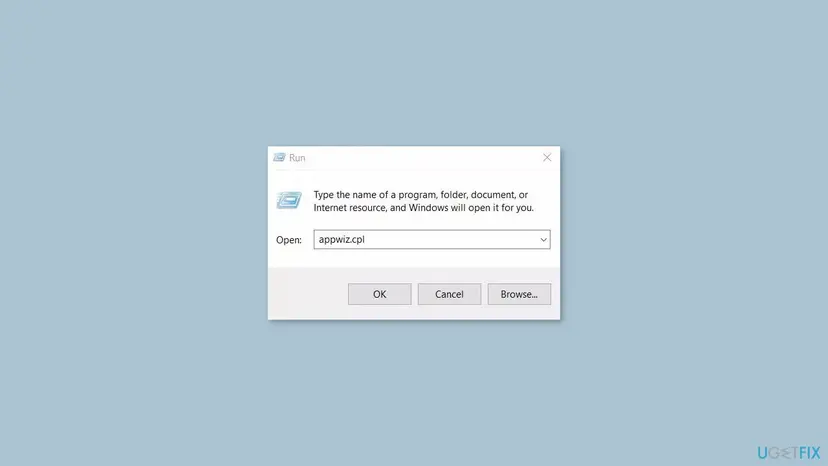
For a program without a launcher, uninstall it and install the current version from its maker's site or the Microsoft Store. Step by step: Uninstall a program or app in Windows
It worked if: The launcher reports that it reacquired one or more files, or the fresh install starts without the error.
If not: If the error stays, look in the game folder for a stray D3D12.dll in Fix 4.
Fix 4. Move a stray D3D12.dll out of the game folder
5 minutesLow riskSomeone copied a D3D12.dll from a DLL site into the game folder, or a mod or an older Windows 7 build of the game left one there.
Windows looks for a DLL in the program's own folder before the system folders. A wrong copy of D3D12.dll there is loaded instead of the Windows one, and can fail or bring its own errors.
- Right-click the game in its launcher and open its local files, or right-click its shortcut and select Open file location.
- Look for
D3D12.dllin the same folder as the game's .exe file. - Leave a
D3D12subfolder alone: it is the game's own runtime folder. - Right-click the loose
D3D12.dll, select Properties and open the Details tab. Note the product name and version. - Move the file to a backup folder on the desktop. Do not delete it yet.
- Start the game. If it runs, delete the backup. If not, put the file back and verify the game's files (Fix 3).
Do not replace Windows' own file with one from a DLL site. A copy of the wrong build can break every DirectX 12 program, and such files are a known way to spread malware. If the System32 file is damaged, Fix 2 restores Microsoft's own version.
It worked if: The game starts with the Windows copy of the file.
If not: If no stray copy is there, update Windows in Fix 5.
Fix 5. Install Windows updates
15 to 60 minutesLow riskWindows 10 older than 22H2, a PC that has not updated for months, or a game made with a new Agility SDK.
Microsoft says DirectX 12 is updated only through Windows Update. It also says Agility SDK games need Windows 10 version 1909 with revision .1350 or later, or 2004 and 20H2 with revision .789 or later.
- On Windows 11, open Settings > Windows Update and select Check for updates.
- On Windows 10, open Settings > Update & Security > Windows Update and select Check for updates.
- Install everything offered, including the feature update to Windows 10 22H2 if you are on an older version.
- Restart the PC and run
winveragain to confirm the new build.
If Windows Update fails, install the update by hand: Install an update from the Microsoft Update Catalog. Windows 10 left support on 14 October 2025, so 22H2 is its last version.
It worked if: winver shows the newest build for your Windows version, and the program starts after the restart.
If not: If Windows is current and the file is still missing, scan for malware in Fix 6.
Fix 6. Check Windows Security and scan for malware
10 minutes to 2 hoursLow riskThe error began after a download from an unknown site, a DLL site, a crack or a cheat tool, or Windows Security showed an alert.
Malware sometimes replaces system DLLs, and security tools quarantine a planted D3D12.dll in a game folder. Either one leaves the program without the file it expects.
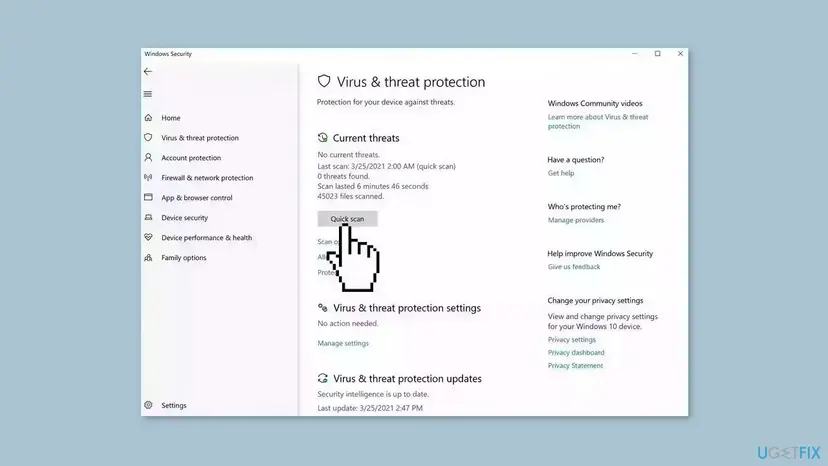
- Open Windows Security > Virus & threat protection > Protection history.
- Look for entries from the day the error began and read the file path of each.
- If an entry names D3D12.dll in a game folder, do not restore it. Verify the game's files instead (Fix 3).
- Run a full scan with Microsoft Defender. Step by step: How to scan for malware with Microsoft Defender
It worked if: The scan finds nothing, or removes a threat. Then run Fix 2 once more to restore any system file it damaged.
If not: If the PC is clean and SFC still cannot restore the file, repair Windows in Fix 7.
Fix 7. Repair Windows with an in-place reinstall
1 to 2 hoursRead the warningSFC reports files it could not repair, or D3D12.dll keeps disappearing from System32.
An in-place reinstall writes a fresh copy of every Windows file, D3D12.dll and D3D12Core.dll included, while keeping your files and apps when you choose to keep them.
A repair install keeps personal files and apps when you choose to keep them, but something can still go wrong. Copy important files to an external drive or cloud storage before you start: Back up your files (Windows Backup, File History, Time Machine)
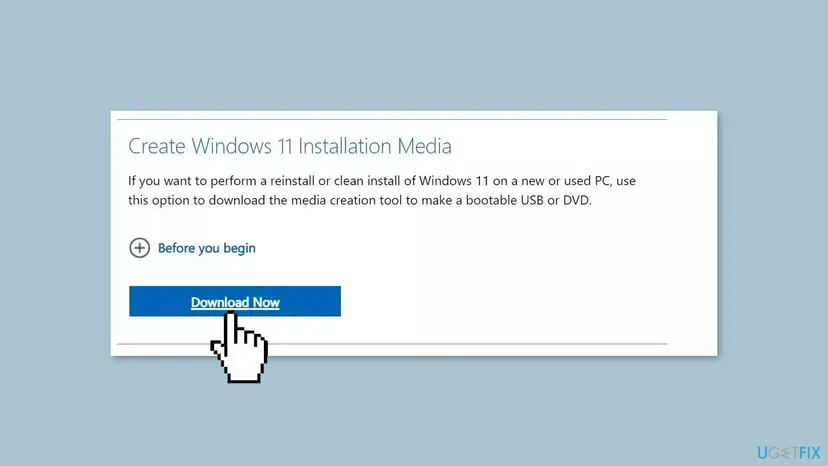
- Open Recovery in Settings. Open Settings > System > Recovery. Next to Fix problems using Windows Update, select Reinstall now. This keeps your apps, files and settings.
- Start the reinstall. Choose whether the PC may restart on its own 15 minutes after the installation, then select OK.
- Wait and restart. Windows Update downloads and installs a repair copy of your current Windows version. Keep the PC plugged in and online, and restart it when asked.
- If that did not help: Reset PC. Back in Settings > System > Recovery, next to Reset this PC, select Reset PC. This keeps your personal files but removes installed apps and settings.
- Choose Keep my files. Select Keep my files. Do not select Remove everything.
- Choose where Windows comes from. Select Cloud download to download a fresh copy of Windows, or Local reinstall to use the files already on the PC (faster, but may not include the latest updates).
- Reset. Review the summary and select Reset. The PC restarts several times.
These steps were written for Windows 11 22H2 and later. The full page with the other versions and what each result means: Reinstall Windows without losing files
It worked if: Windows starts with your files and apps in place, and the program runs.
If not: Collect the details in the next section and contact the program's support.
Still broken: what to check and what to send to support
If the error stays after Fix 7 on Windows 10 or 11, the program itself is the likely cause: a build made for another system, or a bundled file that is wrong. Gather these before you contact its support.
- Your Windows version and build from
winver. - The exact text of the error box and the .exe name in its title bar.
- The output of
dir C:\Windows\System32\d3d12*.dll, which shows the file dates and sizes. - The SFC log line: SFC writes its details to
C:\Windows\Logs\CBS\CBS.log; search it ford3d12. - The dxdiag report: press Win + R, type
dxdiag, then select Save All Information.
If the error started after a recent change and you have a restore point from before it, System Restore can take the system files back to that day: Undo recent changes with System Restore. It does not touch your documents.
A missing D3D12.dll is never a sign of failing hardware. A graphics card that is too old for DirectX 12 gives a different message, such as "DirectX 12 is not supported on your system", after the file loads.
How to keep D3D12.dll from going missing again
- Check a program's Windows requirements before you install it on an older PC.
- Keep Windows 11, or Windows 10 22H2, on the latest updates.
- Install games through their launcher and use its file check after a crash or a moved folder.
- Read Windows Security's Protection history when a game suddenly stops starting.
- Do not download D3D12.dll or "DirectX 12 installers" from third-party sites.
- Do not copy DLL files into System32, SysWOW64 or a game folder by hand.
- Do not delete the
D3D12subfolder in a game's install folder. - Do not expect a graphics driver or the DirectX End-User Runtime to add D3D12.dll.
Frequently asked questions
What is d3d12.dll?
D3d12.dll is the Direct3D 12 runtime of Windows, the file that lets games and other programs use DirectX 12 to draw with the graphics card. It is a Microsoft file in C:\Windows\System32 on Windows 10 and Windows 11. Since 2021 it is a small loader, and most of the runtime sits in D3D12Core.dll next to it. It is not a virus. A file of the same name in another folder, such as a game folder, may be a game's own copy or a stray file from a DLL site.
Qué es d3d12.dll, in Spanish: what is the short answer?
D3d12.dll es el archivo de Direct3D 12 que viene con Windows 10 y Windows 11, en C:\Windows\System32. Windows 7 y 8.1 no lo tienen. In English: this page answers the same question in the sections above. On Windows 10 or 11, run DISM and SFC (Fix 2); on Windows 7 or 8.1, a program that needs this file will not run without a newer Windows.
Can I download d3d12.dll for Windows 11 or Windows 10?
There is no official download, and you do not need one. Microsoft says DirectX 12 is included with Windows 10 and Windows 11, is updated through Windows Update, and has no stand-alone package. If the file is missing on those systems, DISM and SFC restore Microsoft's own copy in a few minutes (Fix 2). Files offered by DLL download sites are not from Microsoft, may be the wrong build, and can carry malware. Copying one into System32 can break every DirectX 12 program on the PC.
Can I install d3d12.dll on Windows 8.1 or Windows 7?
No. Microsoft lists DirectX 11.2 as the last version for Windows 8.1 and DirectX 11.1 for Windows 7, and says a newer DirectX needs a newer operating system. A copied D3D12.dll cannot add the missing runtime. Your options are Windows 10 or 11, the last version of the program that supported your Windows, or a DirectX 11 mode if the program has one. A few games, such as World of Warcraft, ship their own Direct3D 12 for Windows 7 through a package Microsoft made for game studios.
Will the DirectX End-User Runtime fix d3d12.dll?
No. The DirectX End-User Runtime installs old helper files for DirectX 9, 10 and 11 games, such as d3dx9_43.dll. Microsoft says that running it makes no change to your version of DirectX or Direct3D. It does not contain D3D12.dll, so it cannot fix this error on any Windows version. Old guides suggested it, and many still do. On Windows 10 and 11 use DISM and SFC instead; on Windows 7 and 8.1 only a newer Windows adds DirectX 12.
What is the d3d12 folder in a game's install folder?
It is the game's own copy of the newest Direct3D 12 runtime. Microsoft's DirectX 12 Agility SDK lets a game ship a newer D3D12Core.dll in a subfolder, by default named D3D12, next to its .exe. Windows' D3D12.dll then loads that copy instead of the one in System32, or the system one when it is newer. Do not delete the folder. If it is missing, the game can fail to start with error 887e0003; verify the game's files to restore it (Fix 3).
Does a graphics driver update fix d3d12.dll missing?
Not by itself. D3D12.dll and D3D12Core.dll are Windows files; NVIDIA, AMD and Intel drivers do not install them. A driver matters once the file loads: without the card maker's driver, DirectX 12 games fail with other errors, such as "DirectX 12 is not supported on your system". Fix the missing file first with Fix 1 and Fix 2, then install the current driver from your card maker if a game still refuses to start.
Why does d3d12.dll go missing on Windows 10?
On Windows 10 the file is part of the system, so it does not vanish on its own. The usual reasons are damaged system files after a failed update or a disk error, a security tool or malware acting on the file, or a game whose own copy is broken. Sometimes the message really points to a game folder rather than System32. Check System32 with the dir command in Fix 2; if both files are there, look at the game's files in Fix 3.
Is a d3d12.dll error dangerous for my PC?
The error itself does no harm: the program simply does not start. The risk comes from the wrong fixes. A DLL from a download site can be the wrong build or carry malware, and replacing a Windows file by hand can break other programs. If the error appeared together with a security alert, or after you ran a crack or cheat tool, scan the PC in Fix 6 before anything else.
Sources
- Microsoft Support: How to install the latest version of DirectX (support.microsoft.com)
- DirectX Developer Blog (Microsoft): Getting Started with the Agility SDK (devblogs.microsoft.com)
- DirectX Developer Blog (Microsoft): Porting DirectX 12 games to Windows 7 (devblogs.microsoft.com)
Did this fix work?
One click, no account. It tells the next reader which guides are worth their time.
Questions and experiences: fix D3d12.dll missing or not found error in Windows
Still broken, or found a fix we did not cover? Ask here: members and our editors answer. Reading is open; writing needs a free account.
…