
How to fix DCFWinService high disk usage on Windows?

Prefer to fix it yourself? The manual steps follow.
- 7methods
- 2 minutes to identify, 5 minutes to disable or uninstall
- Easy
Applies to DCFWinService (Dell SupportAssist Remediation) on Dell PCs with Windows 11 or Windows 10
7 methods in this guide
Hello. Recently, I noticed that DCFWinService uses 100% disk at random times. I am not sure what this process is and if I can shut it down safely. Please advise.
DCFWinService is not a Windows process: it is the name inside DellSupportAssistRemedationService.exe, the service of Dell SupportAssist Remediation on Dell laptops and desktops. Windows does not need it. If it keeps the disk busy, stop and disable it in Services, or uninstall Dell SupportAssist Remediation.
DCFWinService belongs to Dell SupportAssist Remediation, a Dell repair helper, not to Windows, so stopping it is safe. First check that the file is in C:\Program Files\Dell\SARemediation\agent (Fix 1). Then set the service to Disabled in Services (Fix 2). To remove it for good, uninstall Dell SupportAssist Remediation in Installed apps (Fix 3). If you want to keep Dell's tools, update them instead (Fix 4).
| Error | No error message. Task Manager shows DCFWinService high in the Disk column, sometimes up to 100%, and on some PCs in the CPU or Memory column. |
|---|---|
| Where it appears | Task Manager on Dell laptops and desktops (Inspiron, XPS, Vostro, Latitude and others) that came with Dell SupportAssist. |
| Main cause | The Dell SupportAssist Remediation service working in the background, or a buggy version of it. On older PCs, the obsolete Dell Foundation Services can add its own load. |
| Fastest fix | Set DCFWinService to Disabled in Services (Fix 2), or uninstall Dell SupportAssist Remediation (Fix 3). |
| Also written as | DCF Win Service, DCFWin Service, DCF WinService, DCF Windows Service, dcfwin, DFCWinService and DCWinService (typos). |
| The file | DellSupportAssistRemedationService.exe (Dell's own spelling, without the second "i") in C:\Program Files\Dell\SARemediation\agent. Its Product name field says DCFWinService. |
| Safe to disable? | Yes for Windows. You lose only Dell's repair and remediation helper. Windows 11 and Windows 10 start and update without it. |
| Vendor status | Dell has no article on DCFWinService. Its article on Dell Foundation Services (updated 1 May 2026) says that app may cause high memory use and was made for Windows 7, 8 and 8.1. |
| Time to fix | 2 minutes to disable the service, 5 minutes to uninstall the program. |
Facts checked on 15 October 2026. Steps written for Windows 11 (25H2 and 26H2) and Windows 10 22H2 on Dell PCs with SupportAssist, with the file name, folder and Dell Foundation Services facts read from Dell's support article and Dell Community logs.
What DCFWinService is and why Task Manager shows it
DCFWinService is not a part of Windows and Microsoft does not document it. It is the Product name written inside DellSupportAssistRemedationService.exe, the background service of Dell SupportAssist Remediation. Task Manager shows a program by the name stored in its file, so you see DCFWinService instead of the long file name.
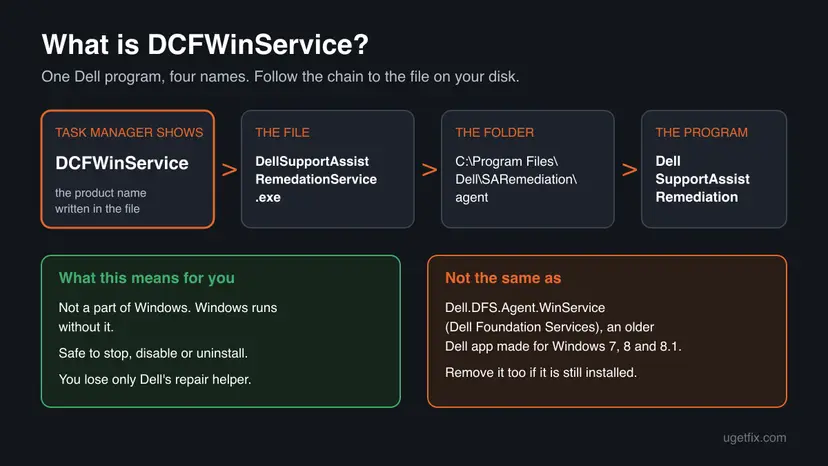
A crash log posted on Dell Community shows the details: Faulting application path: C:\Program Files\Dell\SARemediation\agent\DellSupportAssistRemedationService.exe, Product Name: DCFWinService, version 5.3.2.13868, and the Windows message The Dell SupportAssist Remediation service terminated unexpectedly. The same log names the parts of the program that were running: InstantRestore and SnapshotTrigger.
- Task Manager name
- DCFWinService
- File
DellSupportAssistRemedationService.exe- Folder
C:\Program Files\Dell\SARemediation\agent- Program in Installed apps
- Dell SupportAssist Remediation
- Publisher
- Dell Inc.
- Needed by Windows
- No
Dell does not publish what DCFWinService does minute by minute. The InstantRestore and SnapshotTrigger names in the crash log point to a feature that records system changes for Dell's repair tool, which would explain disk activity, but Dell does not say so. We also could not confirm what "DCF" stands for.
Why DCFWinService uses so much disk, CPU or RAM, from most to least common
Most often the load is the Remediation service doing its background work, and users report that it comes back after a restart because Windows starts the service again. Less often a buggy SupportAssist release is to blame: users on Dell Community reported crashes and blue screens after SupportAssist 4.6.2 in December 2024, fixed in 4.6.3. Rarely the old Dell Foundation Services is still installed on a PC upgraded from Windows 7 or 8, and Dell says that app may cause high memory use.
| Cause | How often | How to tell | Fix |
|---|---|---|---|
| Dell SupportAssist Remediation runs its background work and keeps the disk busy. | Most often | Task Manager shows DCFWinService in the Disk column, and the file is in C:\Program Files\Dell\SARemediation\agent. | Fix 1, Fix 2, Fix 3 |
| A buggy version of SupportAssist or Remediation crashes and restarts the service again and again. | Often | Reliability Monitor or Event Viewer lists DellSupportAssistRemedationService.exe stopping many times a day. | Fix 3, Fix 4 |
The old Dell Foundation Services (Dell.DFS.Agent.WinService) is still on the PC. | Sometimes | Dell Foundation Services is listed in Programs and Features, or the folder C:\Program Files\Dell\Dell Foundation Services exists. | Fix 5 |
| Another program fights with Dell's tools: a backup, an updater or a security suite. | Less often | The load disappears in a clean boot. | Fix 6 |
| Malware uses the name DCFWinService. | Rarely | The file is not in the Dell folder, or it has no Dell signature. | Fix 1, Fix 7 |
How to fix DCFWinService high disk usage
Fix 1 shows in two minutes that the file is Dell's. Fix 2 and Fix 3 solve the disk load for most readers: one switches the service off, the other removes the program. Fix 4 is for readers who want to keep Dell's tools. Fix 5 to Fix 7 cover the rarer causes.
| What you see or have | Start with |
|---|---|
| You are not sure DCFWinService is safe. | Fix 1 |
| You want the disk load gone now, reversibly. | Fix 2 |
| You do not use Dell SupportAssist and want it gone for good. | Fix 3 |
| You use SupportAssist for Dell warranty or driver checks. | Fix 4, then Fix 2 if needed |
| The PC was upgraded from Windows 7 or 8 and lists Dell Foundation Services. | Fix 5 |
| The load stays after DCFWinService is stopped. | Fix 6 |
The file is not in C:\Program Files\Dell\SARemediation\agent. | Fix 7 |
Fix 1. Check that DCFWinService is Dell's file and not something else
2 minutesNo riskEveryone, before changing anything. It takes two minutes and rules out malware using the name.
The name DCFWinService is only a label inside a file. Opening the file location shows whether it is Dell's service in the Dell folder, which tells you that disabling or uninstalling it is safe.
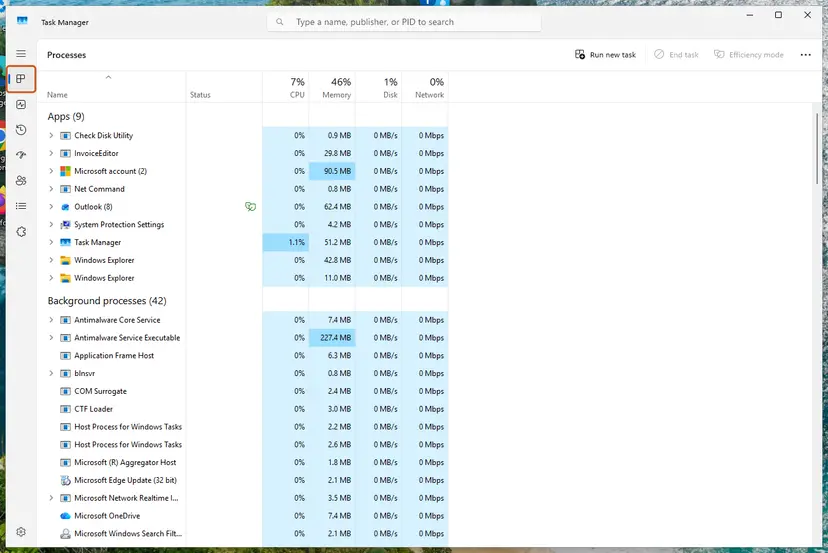
- Press Ctrl + Shift + Esc to open Task Manager. On Windows 10, select More details if you see a short list.
- On the Processes tab, select the Disk column header so the busiest process is on top.
- Right-click DCFWinService and select Go to details. The file name
DellSupportAssistRemedationService.exeis highlighted on the Details tab. - Right-click it and select Open file location.
- Check that File Explorer opens
C:\Program Files\Dell\SARemediation\agent. - Right-click the file, select Properties, then the Digital Signatures tab, and check that the signer is Dell Inc.
It worked if: The file is in the Dell SARemediation folder and is signed by Dell Inc. It is safe to disable or remove.
If not: If the file is anywhere else or has no Dell signature, do not just disable it: go to Fix 7 and scan for malware first.
Fix 2. Stop DCFWinService and set it to Disabled in Services
2 minutesLow riskYou want the disk load gone now and may want Dell's tool back later.
Ending the process in Task Manager does not help for long, because Windows starts the service again. Setting the startup type to Disabled stops it from starting at all, and you can switch it back at any time.
- Press Win + R, type
services.mscand press Enter. - Find DCFWinService in the list. On some PCs it is listed as Dell SupportAssist Remediation: open it and check that Path to executable ends in
DellSupportAssistRemedationService.exe. - Double-click the service to open its properties.
- Select Stop and wait until Service status says Stopped.
- In Startup type, select Disabled.
- Select Apply, then OK.
- Restart the PC and check Task Manager again.
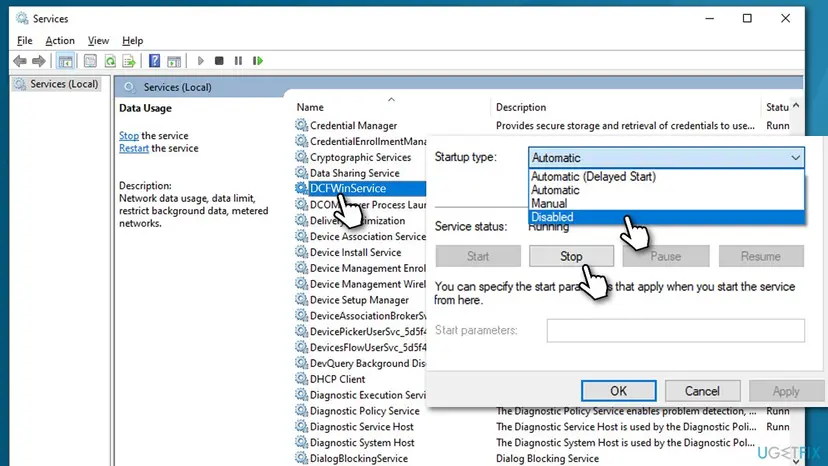
The service screens in more detail: Check and restart Windows services. To undo, open the same window, set Startup type to Automatic and select Start.
It worked if: DCFWinService no longer appears in Task Manager after the restart, and the Disk column drops.
If not: If the service starts again after an update of Dell's tools, or if Windows says access is denied, uninstall the program instead (Fix 3).
Fix 3. Uninstall Dell SupportAssist Remediation
5 minutesLow riskYou do not use Dell SupportAssist, or the service keeps coming back after Fix 2.
Removing the program removes the service and its folder, so nothing is left to start. Users on Dell Community report that removing the SupportAssist programs stopped crashes and high load on their Dell laptops.
- Press Win + I and open Apps > Installed apps (Windows 10: Apps > Apps & features).
- Type
Dellin the search box to see all Dell programs. - Find Dell SupportAssist Remediation, select More (the three dots) and then Uninstall.
- Follow the uninstaller and restart the PC when it asks.
- If you do not use them either, remove Dell SupportAssist and Dell SupportAssist OS Recovery Plugin for Dell Update the same way.
- Leave Dell Client Management Service and display, audio or power tools you use in place.

If the uninstaller fails, use Control Panel instead, as in Uninstall a program or app in Windows.
Users report that Dell Command Update or Dell Update can install SupportAssist parts again. If DCFWinService returns after an update, repeat this fix and check which Dell updater is still installed.
It worked if: Dell SupportAssist Remediation is gone from Installed apps, the SARemediation folder is gone and Task Manager no longer shows DCFWinService.
If not: If the uninstaller says it cannot find DellSupportAssistRemediationInstaller.exe, install the latest version from Dell first (Fix 4), then uninstall it.
Fix 4. Update Dell SupportAssist and Remediation if you want to keep them
10 minutesLow riskYou use SupportAssist for warranty, hardware scans or Dell driver updates.
Several high load and crash reports were tied to one release, and Dell's next release fixed them. An up to date version is the only way to keep the tool and lose the load.
- Open dell.com/support in your browser and enter your Service Tag, or let the page detect your PC.
- Open Drivers & Downloads.
- Look for SupportAssist and Dell SupportAssist Remediation in the list and download the newest versions.
- Run each installer and restart the PC.
- Open Task Manager after 15 minutes and look at DCFWinService in the Disk column.
Select Details in Task Manager, right-click DellSupportAssistRemedationService.exe, then Properties > Details. The File version line tells Dell support which release you have.
It worked if: DCFWinService is still there but stays near 0% disk after the first minutes.
If not: If the new version is just as busy, use Fix 2 to disable the service and keep the rest of SupportAssist.
Fix 5. Remove the old Dell Foundation Services and its folder
5 minutesLow riskThe PC was upgraded from Windows 7, 8 or 8.1, or Programs and Features lists Dell Foundation Services.
Dell says Dell Foundation Services (Dell.DFS.Agent.WinService) may cause high memory use and was made for Windows 7, 8 and 8.1. Dell lists versions 1.0.262.0, 1.1.333.0, 2.0.39.0 and 3.3 and later as affected. On Windows 11 and Windows 10 the apps it served are obsolete.
- Press Win + R, type
appwiz.cpland press Enter to open Programs and Features. - Select Dell Foundation Services and select Uninstall.
- Press Win + E and go to
C:\Program Files\Dell. - If the folder Dell Foundation Services is still there, delete it, as Dell's article says.
- Restart the PC.
It worked if: Dell Foundation Services is no longer listed, its folder is gone and memory use drops.
If not: If Dell Foundation Services was never installed, this cause does not apply. Go back to Fix 2 or Fix 3.
Fix 6. Run a clean boot to find another program behind the load
15 minutesLow riskThe disk stays busy even with DCFWinService stopped or removed.
Dell's tools are not the only programs that scan and record in the background. A clean boot starts Windows with only Microsoft services, so you can see whether the load belongs to a backup tool, an updater or a security suite.
- Open System Configuration. Select Search on the taskbar, type msconfig and select System Configuration from the results.
- Hide Microsoft services. On the Services tab, select the Hide all Microsoft services check box. Only services from other companies stay in the list.
- Disable the remaining services. Select Disable all, then select Apply.
- Open Task Manager. On the Startup tab of System Configuration, select Open Task Manager.
- Disable the startup apps. On the Startup apps tab in Task Manager, select each item whose status is Enabled and select Disable. Write down or take a screenshot of the items you disable: you need the list to turn them back on.
- Confirm the changes. Close Task Manager. On the Startup tab of System Configuration, select OK.
- Restart and test. Restart the PC. Windows now starts in a clean boot environment: try again the thing that failed (run the app, install the update, uninstall the program).
These steps were written for Windows 11 25H2 and 26H2. The full page with the other versions and what each result means: How to perform a clean boot in Windows
If the disk is quiet in the clean boot, turn the other services back on in groups until the load returns. The last group holds the cause.
It worked if: The disk is quiet after a clean boot, and turning services back on in groups points to the program that caused it.
If not: If the disk is busy even in a clean boot, the cause is Windows itself or the drive. See the section after the fixes.
Fix 7. Scan for malware if the file is not Dell's
30 minutes or moreNo riskFix 1 showed a file outside C:\Program Files\Dell\SARemediation\agent, or one without a Dell signature.
Malware sometimes copies the name of a known service to hide in Task Manager. A full Microsoft Defender scan checks every file, including the one that calls itself DCFWinService.
- Open Windows Security. Select Start, type Windows Security and open the app.
- Open Virus & threat protection. Select Virus & threat protection. Under Current threats you see when the last scan ran, how long it took and how many files it checked.
- Run a quick scan. Select Quick scan. If Windows Security thinks a deeper scan is needed, it tells you when the quick scan is done.
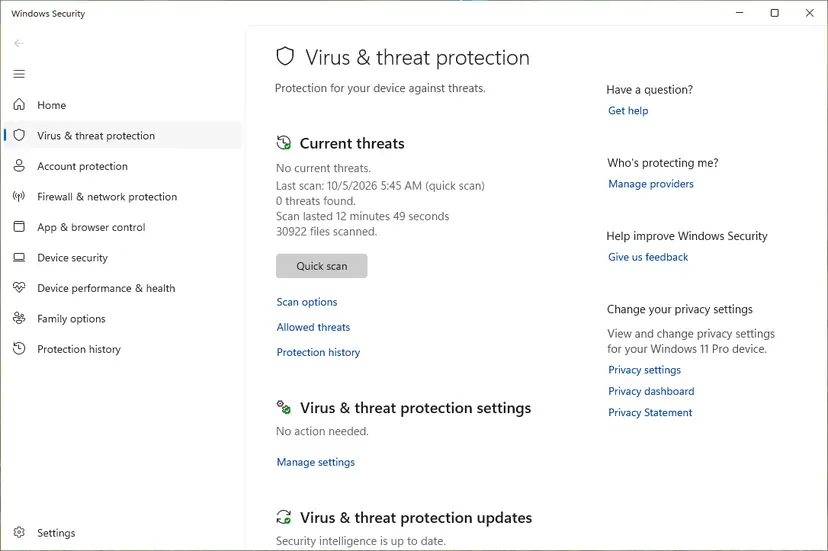
Quick scan and Scan options sit under Current threats. Screenshot: Windows 11 26H2. - Open Scan options. If the quick scan finds nothing and you still suspect an infection, select Scan options under Current threats.
- Run a full scan. Select Full scan and start it. It checks every file and program on the device, so it takes much longer than a quick scan. Leave the PC on until it ends.
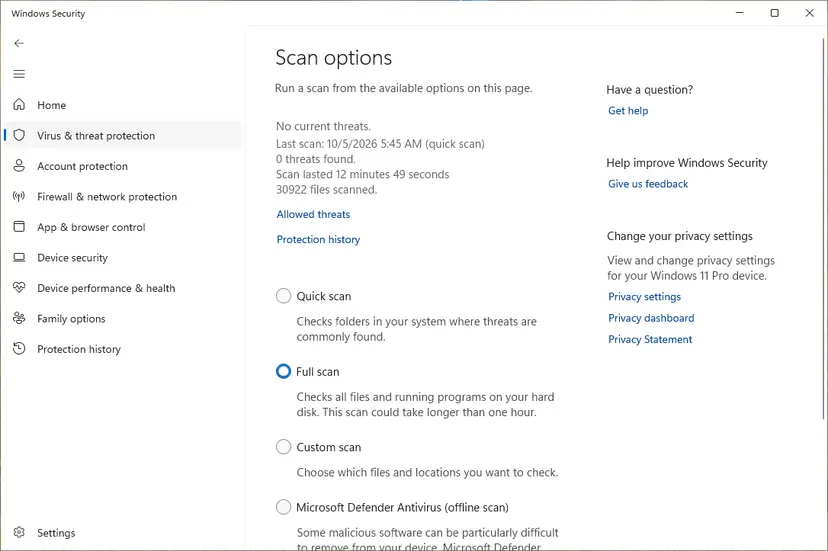
Scan options: Quick scan, Full scan, Custom scan and the offline scan. Screenshot: Windows 11 26H2.
These steps were written for Windows 11 25H2 and 26H2, Windows 10 22H2. The full page with the other versions and what each result means: How to scan for malware with Microsoft Defender
It worked if: Defender finds nothing, or removes the threat and the fake DCFWinService is gone.
If not: If Defender finds a threat it cannot remove, run a Microsoft Defender Offline scan from Scan options and restart.
The disk is still at 100% after DCFWinService is gone
If DCFWinService no longer runs and the disk still sits at 100%, the cause is somewhere else. Look in the places where Windows records it before you reinstall anything.
- Reliability Monitor: press Win + R, type
perfmon /reland press Enter. Red crosses show which programs stopped working and when. DellSupportAssistRemedationService.exe listed again and again means a Dell tool is still installed. - Event Viewer: press Win + R, type
eventvwr.msc, open Windows Logs > System and look for The Dell SupportAssist Remediation service terminated unexpectedly. Under Windows Logs > Application, error 1000 names the faulting file and its version. - Resource Monitor: in Task Manager open Performance > Open Resource Monitor, then the Disk tab. It lists every file being read or written, with the process that does it.
- The drive itself: an old hard disk at 100% with no busy process may be failing. Check it as in Check a disk for errors (chkdsk) and back up your files first.
For Dell support, give the Service Tag, the file version of DellSupportAssistRemedationService.exe and the Event Viewer entry. A PC under warranty can also get help through Dell's support site.
How to keep DCFWinService from coming back
- Keep only the Dell tools you use. Dell Client Management Service is shared by several Dell apps; SupportAssist Remediation is not needed for drivers or updates from Windows Update.
- After a Dell Command Update or Dell Update run, check Installed apps for SupportAssist parts that came back.
- If you keep SupportAssist, let it update. Users reported that a December 2024 release caused crashes and the next release fixed them.
- Windows 10 left support on 14 October 2025. On a Windows 10 Dell PC, Dell's newer tool versions may stop arriving, so removing unused Dell services matters more there.
If your disk load comes from a Windows service instead, see our guide on Cryptographic Services high CPU or disk usage.
Frequently asked questions
What is DCFWinService?
DCFWinService is the product name inside DellSupportAssistRemedationService.exe, the background service of Dell SupportAssist Remediation. It lives in C:\Program Files\Dell\SARemediation\agent and comes with Dell's support software on Dell laptops and desktops. It is not a Windows component and Microsoft does not document it. Task Manager shows it as DCFWinService because it uses the name stored in the file. If you also see Dell.DFS.Agent.WinService, that is a different and older Dell program, Dell Foundation Services.
Is DCFWinService a virus?
No, not when the file is in C:\Program Files\Dell\SARemediation\agent and is signed by Dell Inc. That is Dell's own service. Malware can copy any name, so check the file location and signature as in Fix 1. A file with this name in a temporary folder, in your user folder or without a Dell signature should be scanned with Microsoft Defender before you do anything else (Fix 7).
Can I disable DCFWinService?
Yes. Windows does not need it to start, run or update. Open Services, stop DCFWinService and set its startup type to Disabled (Fix 2). You lose only Dell's remediation helper, which is part of SupportAssist's repair features. If you want it back later, set the startup type to Automatic and start it. Ending it in Task Manager only helps until the next restart, because Windows starts the service again.
Why does DCFWinService use 100% disk?
Dell does not explain it. A crash log on Dell Community shows the service running parts named InstantRestore and SnapshotTrigger, which suggests it records system changes for Dell's repair feature, and that work reads and writes the disk. Users also report heavy load and crashes with certain SupportAssist releases. On a slower hard disk the effect is much stronger than on an SSD. Disabling or uninstalling the service ends the load.
Why does DCFWinService use so much CPU or RAM?
The same service can load the CPU and memory as well as the disk, and users on Reddit and Dell Community report all three. When a buggy version crashes, Windows restarts it every few seconds or minutes, and each start costs CPU time. Fix 2 and Fix 3 work the same for CPU, RAM and disk. If the process in Task Manager is Dell.DFS.Agent.WinService instead, Dell says Dell Foundation Services may cause high memory use; remove it as in Fix 5.
Does DCFWinService run on Windows 11?
Yes. Dell installs SupportAssist and its Remediation part on new Dell PCs with Windows 11, and it carries over when a Dell PC is upgraded from Windows 10. The fixes on this page are the same on Windows 11 25H2 and 26H2: the service is in Services, the program is in Settings > Apps > Installed apps. Disabling or uninstalling it does not affect Windows 11 updates or features.
Does DCFWinService run on Windows 10?
Yes, and many reports of 100% disk come from Windows 10 Dell laptops with hard disks. The steps are the same, except that Installed apps is called Apps & features in Windows 10 Settings. Windows 10 left support on 14 October 2025, so on these PCs it makes even more sense to remove Dell tools you do not use. If the PC came from Windows 7 or 8, check for the old Dell Foundation Services as well (Fix 5).
What happens if I uninstall Dell SupportAssist Remediation?
The DCFWinService process and its folder are removed, and the disk load it caused stops. Windows keeps working normally and still gets updates from Windows Update. You lose Dell's remediation and repair helper inside SupportAssist. We could not confirm from Dell whether its recovery features before Windows starts depend on it, so if you rely on Dell's recovery tools, disable the service in Fix 2 instead of uninstalling.
Is DCFWinService the same as Dell Foundation Services?
No. Dell Foundation Services runs as Dell.DFS.Agent.WinService and was installed under C:\Program Files\Dell\Dell Foundation Services. Dell's own article says it was a required part of Dell Update, Dell Help & Support, Product Registration, SupportAssist and Dell Data Services, and that it ran on Windows 7, 8 and 8.1. DCFWinService belongs to Dell SupportAssist Remediation in the SARemediation folder. Older guides mixed the two, so reinstalling Dell Foundation Services does not fix DCFWinService.
What do people on Reddit say about DCFWinService?
Threads on Reddit and Dell Community describe the same picture as this page: DCFWinService taking a large share of disk, CPU or RAM on Dell laptops, and coming back after it is ended in Task Manager. The fixes people report as lasting are disabling the service or uninstalling the SupportAssist programs, which are Fix 2 and Fix 3 here. Those are user reports, not Dell statements, but they match what the file and the Services settings show.
Sources
- Dell Support: Dell.DFS.Agent.WinService (Dell Foundation Services) may cause high memory usage during normal operation (article 000141566) (dell.com)
- Dell Community: DellSupportAssistRemedationService.exe keeps crashing on XPS 15 9500 (event log with file path and product name) (dell.com)
- Dell Community: How to uninstall the Dell SupportAssist Remediation? (user reports) (dell.com)
Did this fix work?
One click, no account. It tells the next reader which guides are worth their time.
Questions and experiences: fix DCFWinService high disk usage on Windows
Still broken, or found a fix we did not cover? Ask here: members and our editors answer. Reading is open; writing needs a free account.
…