
How to fix Cryptographic Services high CPU or disk usage in Windows?

Prefer to fix it yourself? The manual steps follow.
- 8methods
- 5 minutes to check and restart, 15 to 40 minutes with updates or a catroot2 reset
- Intermediate
Applies to The Cryptographic Services service (CryptSvc) on Windows 11 and Windows 10
8 methods in this guide
Hello. I noticed in Task Manager that Cryptographic Services are using high amounts of CPU on my Windows PC. What is this process and is there a way to fix this?
Cryptographic Services (CryptSvc) is the Windows service that checks the signatures of Windows files and installers and keeps root certificates up to date. It is busiest while Windows Update or a program installs, so short spikes are normal. If it stays high, let updates finish, restart the service, then reset the catroot2 folder it works in.
Do not disable Cryptographic Services: Windows Update and every installer need it to check signatures. First see whether an update or an install is running and let it finish (Fix 1 and Fix 2). If the load stays, restart the service (Fix 3). If the disk stays busy for hours, rename the catroot2 folder so Windows builds a fresh one (Fix 4).
| Error | No error message. Task Manager shows Service Host: Cryptographic Services high in the CPU or Disk column, sometimes for minutes, sometimes for hours. |
|---|---|
| Where it appears | Task Manager on Windows 11 and Windows 10. The Services tab names it CryptSvc. Its process is C:\WINDOWS\system32\svchost.exe -k NetworkService -p. |
| Main cause | Windows Update or a program installing, which makes the Catalog Database Service check file signatures. When it does not calm down, a damaged or oversized catalog in C:\Windows\System32\catroot2 or a stuck update. |
| Fastest fix | Let the update finish and restart the PC (Fix 2), then restart the service (Fix 3). |
| Also written as | CryptSvc, crypt svc, Service Host: Cryptographic Services, Windows Service: CryptSvc, Kryptografiedienste (German Windows), Cryptographic Services could not be stopped. |
| What it does | Microsoft: three management services, the Catalog Database Service, the Protected Root Service and the Automatic Root Certificate Update Service. |
| Safe to disable? | No. Microsoft says that if you stop it, these services cannot work properly and any service that depends on it cannot start. Startup type stays Automatic. |
| Vendor status | Not a known bug. Microsoft lists stopping CryptSvc and renaming catroot2 as part of its own Windows Update reset. |
| Time to fix | 2 minutes for a restart of the service, 15 to 40 minutes with updates or the catroot2 reset. |
Facts checked on 15 October 2026. Steps written for Windows 11 (25H2 and 26H2) and Windows 10 22H2, with the service description and the catroot2 reset read from Microsoft Learn.
What Cryptographic Services is and why it uses CPU or disk
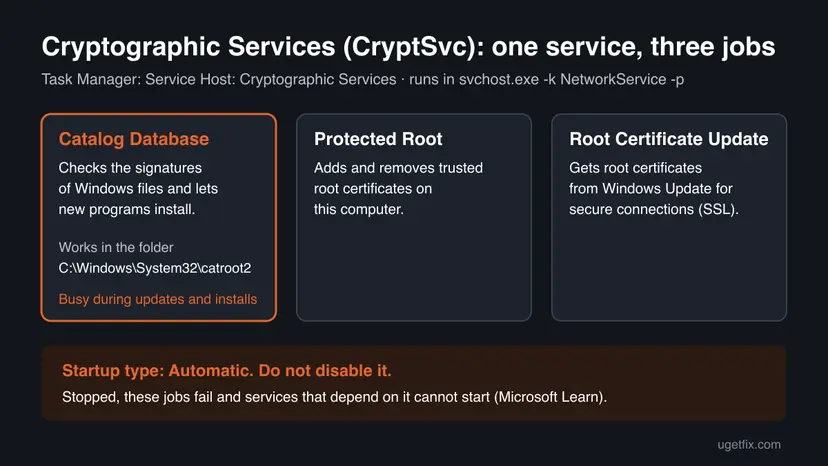
Cryptographic Services is a built-in Windows service. Its short name is CryptSvc, it starts automatically, and it runs inside a shared Service Host process as Network Service. That is why Task Manager lists it as Service Host: Cryptographic Services and not by a file name of its own.
| Part | What it does | When it is busy |
|---|---|---|
| Catalog Database Service | Confirms the signatures of Windows files and allows new programs to be installed. | Windows Update, Store app updates, driver and program installs. |
| Protected Root Service | Adds and removes Trusted Root Certification Authority certificates on this computer. | Rarely: when a certificate is added or removed. |
| Automatic Root Certificate Update Service | Retrieves root certificates from Windows Update and enables scenarios such as SSL. | Briefly, when a site or app needs a root certificate the PC does not have. |
Every update, driver and installer comes with signed catalogs, and CryptSvc checks them before Windows trusts the files. A spike of a few minutes while Windows Update shows progress is the service doing its job. Constant load for hours with nothing installing is not.
Why Cryptographic Services uses so much CPU or disk, from most to least common
Most often the load is an update or an install in progress, and it ends on its own. Less often the catalog folder catroot2 is damaged or very large, so the service keeps reading and writing it. Rarely the cause is another program, damaged system files, or malware using the svchost.exe name. Microsoft publishes no statistics; this order comes from its service description and the reports we read.
| Cause | How often | How to tell | Fix |
|---|---|---|---|
| Windows Update, a Store update, a driver or a program is installing, so signatures are checked. | Most often | Settings > Windows Update shows a download, install or restart. The load ends when it does. | Fix 1, Fix 2 |
| The service is stuck after sleep or a failed update. | Often | The spike started today and nothing is installing. | Fix 3 |
The catalog in C:\Windows\System32\catroot2 is damaged or oversized. | Sometimes | The Disk column stays high for hours with no update, and updates fail or are slow to install. | Fix 4 |
| Windows Update is stuck and retries the same update again and again. | Sometimes | The same update fails each day, and CryptSvc gets busy each time. | Fix 5 |
| Another program installs, updates or checks files all the time: an updater, a backup tool, a security suite. | Less often | The load disappears in a clean boot. | Fix 6 |
| Damaged system files, or malware using the svchost.exe name. | Rarely | SFC finds errors, or the svchost.exe file is not in C:\Windows\System32. | Fix 7, Fix 8 |
Microsoft does not say how large the catroot2 folder may grow or when its catalog counts as damaged. The size limits you may read on forums come from user reports, so we leave them out. Renaming the folder is safe because Microsoft does it in its own Windows Update reset.
How to fix Cryptographic Services high CPU or disk usage
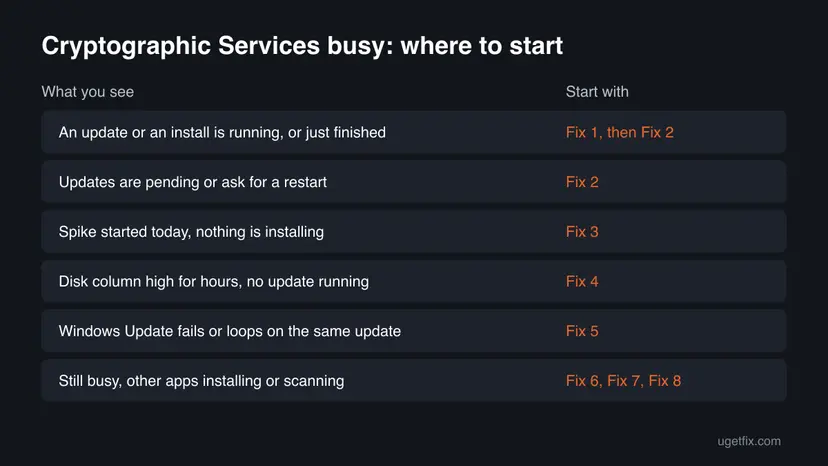
Fix 1 takes two minutes and shows whether an update is behind the load. Fix 2 to Fix 4 are specific to this service and solve most cases. Fix 5 is for a Windows Update that keeps failing. Fix 6 to Fix 8 are the general checks.
| What you see or have | Start with |
|---|---|
| An update or an install is running, or just finished. | Fix 1, then Fix 2 |
| Windows Update says updates are pending or asks for a restart. | Fix 2 |
| A spike that started today, nothing is installing. | Fix 3 |
| The Disk column stays high for hours with no update running. | Fix 4 |
| Windows Update fails or loops on the same update. | Fix 5 |
| Still busy after all that, other apps install or scan often. | Fix 6, then Fix 7 |
The svchost.exe behind it is not in C:\Windows\System32. | Fix 8 |
Fix 1. Confirm it is CryptSvc and check whether something is installing
3 minutesNo riskEveryone, before changing anything. It also tells you whether you only need to wait.
One Service Host line can hold several services, and CryptSvc does most of its work while something installs. Seeing the update or installer behind the load tells you whether to wait or to repair.
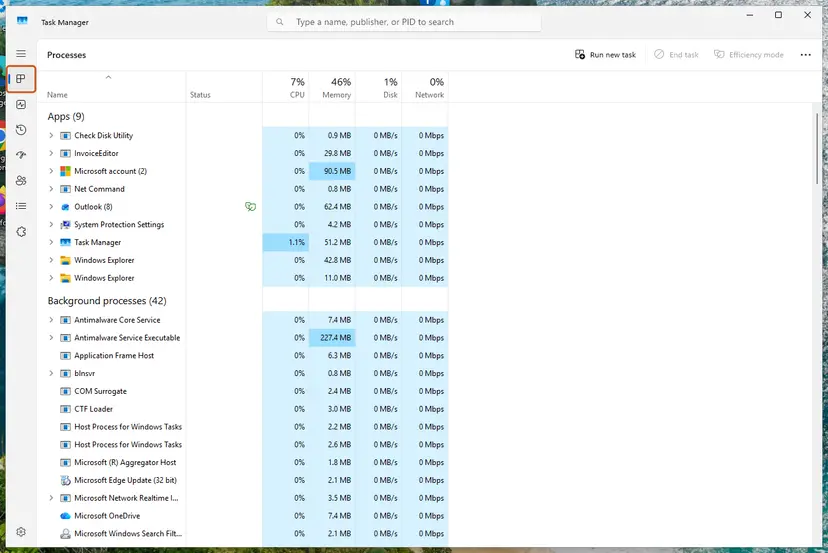
- Press Ctrl + Shift + Esc to open Task Manager. On Windows 10, select More details if you see a short list.
- On the Processes tab, select the CPU column header so the busiest process is on top. Do the same with Disk.
- Expand Service Host: Cryptographic Services and check that the service inside is Cryptographic Services.
- Open the Services tab, find
CryptSvcand note its PID. Right-click it and select Go to details to see its svchost.exe. - Press Win + I and open Windows Update. Look for a download, an install or Restart required.
- Check the Microsoft Store Downloads page and any installer you started yourself.
| What you see | Go to |
|---|---|
| An update or install is in progress | Wait for it, then Fix 2 |
| Nothing installs, CryptSvc busy for minutes | Fix 3 |
| Nothing installs, disk busy for hours | Fix 4 |
svchost.exe opens from a folder other than C:\Windows\System32 | Fix 8 |
It worked if: You know whether CryptSvc is busy because something is installing, or on its own with nothing running.
If not: If no line named Cryptographic Services is busy, the load comes from another service in a different Service Host. Note its name and search for that one.
Fix 2. Let Windows Update finish and restart the PC
15 to 40 minutesLow riskWindows Update shows a download, an install or Restart required, or the load began right after an update.
Each update carries catalogs that CryptSvc must check before Windows trusts the new files. While an update is half done, the checks repeat. Finishing it and restarting ends that work for good.
- Press Win + I and select Windows Update.
- Select Check for updates and let every download and install finish. Do not stop it halfway.
- If you see Restart now, save your work and select it.
- After the restart, wait 10 minutes. Windows often finishes the update in the background.
- Open Task Manager again as in Fix 1 and watch Service Host: Cryptographic Services.
Windows 10 22H2 left support on 14 October 2025. Only PCs enrolled in Extended Security Updates still get monthly updates. On those, the steps are the same; on the others, nothing new arrives and Fix 3 and Fix 4 matter more.
It worked if: Windows Update says You're up to date and CryptSvc drops to near 0% CPU and disk within minutes.
If not: If the same update fails again and again, go to Fix 5. If no update is pending and the load stays, go to Fix 3.
Fix 3. Restart Cryptographic Services
2 minutesLow riskNothing is installing and the load started recently, often after sleep or a failed update.
A restart ends a CryptSvc session that is stuck on a catalog check and lets it open its database again from a clean state. Restarting is safe; disabling is not, because installs and updates depend on the service.
- Close installers and pause Windows Update downloads if any are running.
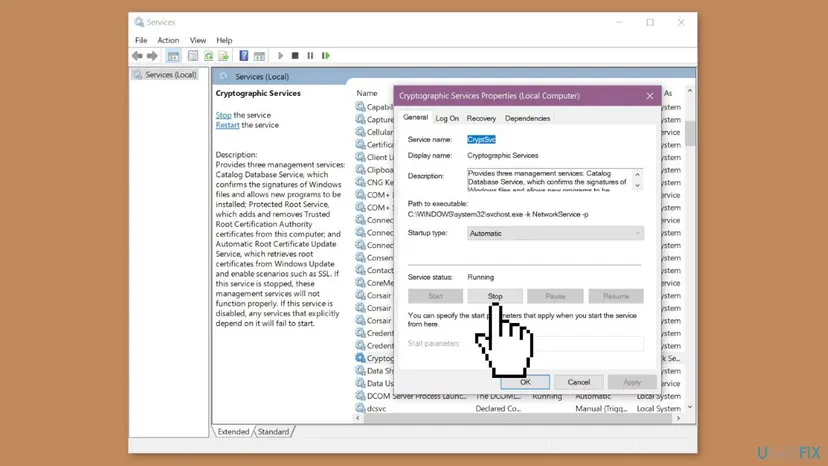
- Press Win + R, type
services.mscand press Enter. - Find Cryptographic Services in the list and double-click it.
- Check that Service name says
CryptSvcand Startup type says Automatic. - Select Stop, wait until the status changes, then select Start.
- Leave Startup type as it is. Do not set it to Disabled.
- Open Task Manager and watch the CPU and Disk columns for two minutes.
From an administrator Command Prompt the same restart is two commands. Step by step for any service: Check and restart Windows services.
Command Prompt (administrator)
net stop cryptsvc
net start cryptsvc
It worked if: Cryptographic Services drops to near 0% CPU and disk when nothing installs.
If not: If it climbs again within minutes with nothing installing, go to Fix 4. If the stop hangs or Windows says the service could not be stopped, restart the PC and go to Fix 4.
Fix 4. Reset the catroot2 folder so Windows builds a fresh catalog
10 minutesLow riskThe Disk or CPU column stays high for hours with no update running, or updates install very slowly.
The Catalog Database Service keeps its catalog in C:\Windows\System32\catroot2. When that catalog is damaged or bloated, every check reads and rewrites it. Microsoft renames this folder in its own Windows Update reset, and Windows creates a new one.
- Press the Windows key, type
cmd, right-click Command Prompt and select Run as administrator. - Type
net stop cryptsvcand press Enter. Wait for The Cryptographic Services service was stopped successfully. - Right away, type the rename command below and press Enter.
- Type
net start cryptsvcand press Enter. - Restart the PC, then open Windows Update and select Check for updates so the new catalog is filled.
- Watch Task Manager. A short spike while the new catalog is built is normal.
Command Prompt (administrator)
net stop cryptsvc
ren %systemroot%\System32\catroot2 catroot2.bak
net start cryptsvc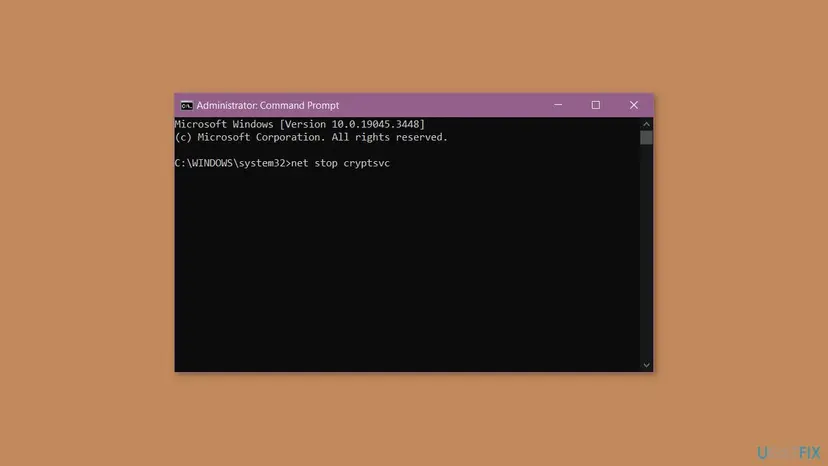
CryptSvc can start again on its own a few seconds after you stop it, because Windows calls it often. If the rename fails, run net stop cryptsvc again and type the ren line straight after it. Do not take ownership of the folder or delete it by force.
Renaming keeps the old folder as catroot2.bak. Once updates install and the load is gone for a few days, you can delete it. The old guide copied the folder and deleted its contents by hand; the rename does the same in one line and is easy to undo.
It worked if: After the restart and one update check, a new catroot2 folder exists and CryptSvc stays quiet when nothing installs.
If not: If the load comes back, or updates now fail, go to Fix 5 for the full Windows Update reset. To undo, stop CryptSvc, rename catroot2 to catroot2.new, rename catroot2.bak back to catroot2, then start CryptSvc.
Fix 5. Reset Windows Update components when an update keeps failing
15 minutesLow riskThe same update fails every day, Windows Update loops, and CryptSvc gets busy each time it retries.
A failed update is downloaded and checked again and again, and each try sends CryptSvc through the same catalogs. Microsoft's reset stops BITS, Windows Update and CryptSvc together, renames SoftwareDistribution and catroot2, and starts them again so the update downloads cleanly.
First try the built-in troubleshooter, which resets what it needs on its own: Run the Windows Update troubleshooter. If that does not help, use the manual reset below.
- Open Command Prompt as administrator. Type cmd in the search box, right-click Command Prompt and select Run as administrator. Select Yes when Windows asks for permission.
- Stop the update services. Type the commands below and press Enter after each one. If Windows says that other services depend on Cryptographic Services, it stops them too. A message that a service is not started is fine.
net stop wuauserv net stop bits net stop cryptsvc - Delete the download queue files. This clears the list of downloads that the Background Intelligent Transfer Service keeps. If Windows says it cannot find the files, continue.
del "%ALLUSERSPROFILE%\Application Data\Microsoft\Network\Downloader\qmgr*.dat" - Rename the update cache folders. Renaming keeps a copy in case you need it; Windows creates new, empty folders when the services start again. If you get Access is denied, a service is still running: repeat the previous step.
ren %systemroot%\SoftwareDistribution SoftwareDistribution.old ren %systemroot%\System32\catroot2 catroot2.old - Start the services again. Type the commands below and press Enter after each one. The requested service has already been started is fine: Windows started it on its own.
net start cryptsvc net start bits net start wuauserv - Restart and check for updates. Restart the PC. Then select Start > Settings > Windows Update > Check for updates. The first check can take longer than usual because everything is downloaded again.
These steps were written for Windows 11 and Windows 10 (the steps are the same). The full page with the other versions and what each result means: Reset Windows Update components
It worked if: The update that failed installs, Windows Update says You're up to date, and CryptSvc calms down after the restart.
If not: If the update still fails, note its KB number and install it by hand: Install an update from the Microsoft Update Catalog. Then go to Fix 7.
Fix 6. Find a program that keeps CryptSvc busy with a clean boot
15 minutesLow riskWindows is up to date, catroot2 is reset, and the load still comes back.
Updaters, backup tools and security suites from other makers can install or verify signed files all day, and every check goes through CryptSvc. A clean boot starts Windows with only Microsoft services, so you see whether one of them is behind it.
- Open System Configuration. Select Search on the taskbar, type msconfig and select System Configuration from the results.
- Hide Microsoft services. On the Services tab, select the Hide all Microsoft services check box. Only services from other companies stay in the list.
- Disable the remaining services. Select Disable all, then select Apply.
- Open Task Manager. On the Startup tab of System Configuration, select Open Task Manager.
- Disable the startup apps. On the Startup apps tab in Task Manager, select each item whose status is Enabled and select Disable. Write down or take a screenshot of the items you disable: you need the list to turn them back on.
- Confirm the changes. Close Task Manager. On the Startup tab of System Configuration, select OK.
- Restart and test. Restart the PC. Windows now starts in a clean boot environment: try again the thing that failed (run the app, install the update, uninstall the program).
These steps were written for Windows 11 25H2 and 26H2. The full page with the other versions and what each result means: How to perform a clean boot in Windows
It worked if: In the clean boot CryptSvc stays quiet, which proves another program caused the load. Turn services back on in halves until it returns.
If not: If CryptSvc is busy even in a clean boot, the cause is inside Windows. Go to Fix 7.
Fix 7. Repair Windows system files with SFC and DISM
20 minutesNo riskThe load stays in a clean boot, or other Windows services and updates fail too.
CryptSvc and the catalogs it checks are system files. If they or the component store are damaged, signature checks can fail and repeat, which shows up as steady CPU use. SFC and DISM replace damaged files with good copies.
- Open an elevated command window. Right-click Start and select Terminal (Admin), or type cmd in the search box, right-click Command Prompt and select Run as administrator. Select Yes when Windows asks for permission.
- Run DISM first. Type the command below and press Enter. DISM downloads clean copies of damaged components from Windows Update, so it can take several minutes. Wait until it says The operation completed successfully.
DISM.exe /Online /Cleanup-Image /RestoreHealth - Run System File Checker. In the same window, type the command below and press Enter. Do not close the window until the verification reaches 100%.
sfc /scannow - Read the result and restart. Compare the last message with the table below this guide, then restart the PC so that repaired files are loaded.
These steps were written for Windows 11 24H2 and 25H2. The full page with the other versions and what each result means: Run DISM and SFC to repair Windows system files
It worked if: SFC reports that it found and repaired corrupt files, or found no integrity violations, and CryptSvc settles after a restart.
If not: If SFC cannot repair some files even after DISM, read the section on what to do when nothing helped.
Fix 8. Check the svchost.exe file and scan for malware
15 minutesNo riskGo to Details shows a svchost.exe outside C:\Windows\System32, or the CPU stays high with CryptSvc stopped.
Malware likes the svchost.exe name because many copies of it run on every PC. The real one is always in C:\Windows\System32. A scan with Microsoft Defender rules out anything hiding behind that name.
- In Task Manager, open the Services tab, right-click
CryptSvcand select Go to details. - Right-click the highlighted svchost.exe and select Open file location.
- Check that File Explorer opens
C:\Windows\System32. - Run a full scan with Microsoft Defender as in How to scan for malware with Microsoft Defender.
It worked if: The file is in System32 and Defender finds no threats, so the load is not malware.
If not: If the file is somewhere else or Defender finds a threat, remove it and run an offline scan before any other fix.
Cryptographic Services still uses high CPU or disk: what to check next
If Windows is up to date, catroot2 is fresh, the clean boot is quiet and SFC is clean, collect evidence before you reinstall anything. Windows records what CryptSvc and Windows Update do in a few places.
- Windows Update history: Settings > Windows Update > Update history lists failed updates with their KB numbers and error codes. A failed update that repeats every day is the most common driver of load.
- Event Viewer: press Win + R, type
eventvwr.msc, open Windows Logs > System and filter for Service Control Manager. Errors for Cryptographic Services show that it fails to start or stop. Windows Logs > Application holds entries from the CAPI2 source, which belongs to the crypto system. - Reliability Monitor: type reliability in Start and open View reliability history. A red cross on the day the load began often names the update or app behind it.
- Repair install: as a last step, reinstall Windows over itself and keep your files and apps: Reinstall Windows without losing files.
CryptSvc is software only. Its load does not mean a failing processor. If the whole PC is slow and the disk is always at 100% from many processes, check the drive's health as well: Check a disk for errors (chkdsk).
How to keep Cryptographic Services from flaring up again
- Install updates when Windows offers them and restart when asked. Half-installed updates are what keep CryptSvc checking.
- Leave the PC on and plugged in while a large update installs, instead of putting it to sleep in the middle.
- Keep a few GB free on the C: drive so updates do not fail for lack of space: Free up disk space and delete temporary files.
- Avoid running several updaters and installers of other makers at startup. Turn off the ones you do not need: Stop apps from opening at startup.
- Do not disable CryptSvc or delete catroot2 to save resources. Installs and updates break, and the gain is nothing.
Frequently asked questions
What is Cryptographic Services in Windows?
It is a built-in Windows service, short name CryptSvc, that Microsoft describes as three management services. The Catalog Database Service confirms the signatures of Windows files and allows new programs to be installed. The Protected Root Service adds and removes trusted root certificates. The Automatic Root Certificate Update Service gets root certificates from Windows Update for secure connections such as SSL. It is not malware and it does not encrypt your files. Task Manager shows it as Service Host: Cryptographic Services because it runs in a shared svchost.exe process.
Why does Service Host: Cryptographic Services use so much CPU or disk?
Most often because Windows Update, a Store app, a driver or a program is installing, and every signed file is checked against its catalog. That load ends when the install does. When it does not end, the usual reasons are a service stuck after sleep, a damaged or oversized catalog in the catroot2 folder, or an update that fails and retries. Fix 1 tells you which one is yours in a few minutes.
Is it safe to disable Cryptographic Services?
No. Microsoft says that if you stop it, its management services are unable to function properly and any services that depend on it are unable to start. In practice, Windows Update, Store updates and many installers fail or hang. Users also report that it starts again on its own a few seconds after they stop it, because Windows calls it often. The old version of this guide offered to disable it; we no longer recommend that. Restarting it is safe, as in Fix 3.
Cryptographic Services high disk usage: what helps?
First check whether an update is installing and let it finish, as in Fix 1 and Fix 2. If the Disk column stays high for hours with nothing installing, reset the catroot2 folder as in Fix 4: stop the service, rename the folder to catroot2.bak and start the service again. Windows then builds a fresh catalog. If the disk is busy because the same update keeps failing, use the Windows Update reset in Fix 5.
Is Cryptographic Services different on Windows 11 and Windows 10?
No. The service, its short name CryptSvc, its three jobs and the catroot2 folder are the same on Windows 11 and Windows 10. Only the Settings pages look different. Windows 10 22H2 left support on 14 October 2025, so only PCs enrolled in Extended Security Updates still get updates. On a Windows 10 PC that no longer updates, update-driven load becomes rare, and a stuck catalog (Fix 4) or another program (Fix 6) is the more likely cause.
What does the error the Cryptographic Services service could not be stopped mean?
It means CryptSvc did not stop within the time Windows allows, usually because it is in the middle of a catalog check or another service is using it. Wait a minute and try net stop cryptsvc again from an administrator Command Prompt. If it still will not stop, restart the PC and try again before anything else starts installing. Do not force it by ending svchost.exe in Task Manager; that process hosts other Network Service services too.
Can I delete the catroot2 folder?
Do not delete it while the service is running, and there is no need to delete it at all. Microsoft's Windows Update reset renames it to catroot2.bak after stopping CryptSvc, and Windows builds a new folder when the service starts and updates run again. Renaming keeps a copy you can put back. Once updates install and the PC is calm for a few days, you can delete the .bak folder to get the space back. Fix 4 has the exact commands.
What is Kryptografiedienste?
Kryptografiedienste, also searched as Kryptographiedienst, is the German name of Cryptographic Services in German Windows. It is the same service, CryptSvc, and this page applies to it unchanged. Task Manager and services.msc show the translated name, but the short name CryptSvc, the commands net stop cryptsvc and net start cryptsvc, and the catroot2 folder path are the same in every language of Windows.
What does Cryptographic Services failed while processing the OnIdentity() call in the System Writer Object mean?
It is an Event Viewer entry, not the cause of high CPU. The System Writer is part of the Volume Shadow Copy service that backup tools and System Restore use, and the message says CryptSvc failed to answer it during a backup. We could not confirm the exact cause from a Microsoft page today. If backups also fail, run SFC and DISM as in Fix 7, then check whether your backup tool has an update.
Sources
- Microsoft Learn: Security guidelines for system services in Windows Server 2016 (Cryptographic Services entry) (learn.microsoft.com)
- Microsoft Learn: Windows Update additional resources, reset Windows Update components manually (learn.microsoft.com)
- Microsoft Q&A: Any idea why the Cryptographic services in Windows 10 is constantly running? (user reports) (learn.microsoft.com)
Did this fix work?
One click, no account. It tells the next reader which guides are worth their time.
Questions and experiences: fix Cryptographic Services high CPU or disk usage in Windows
Still broken, or found a fix we did not cover? Ask here: members and our editors answer. Reading is open; writing needs a free account.
…